
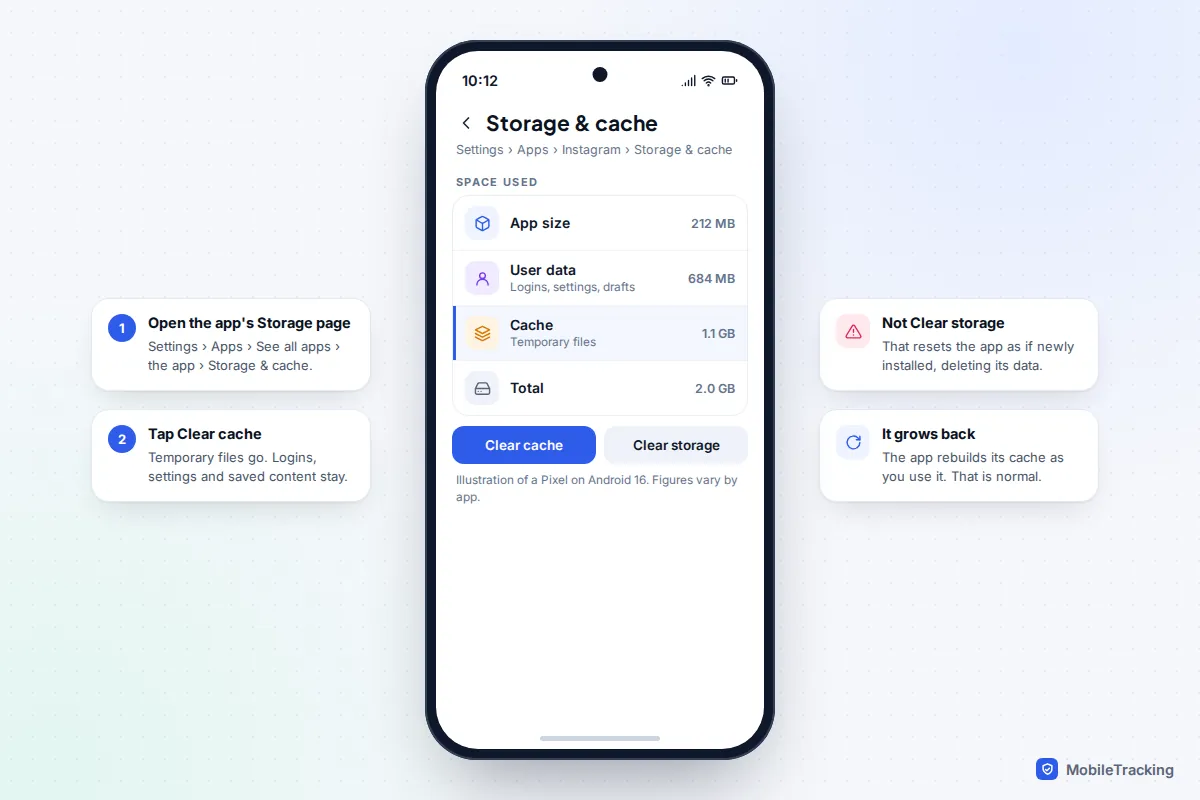
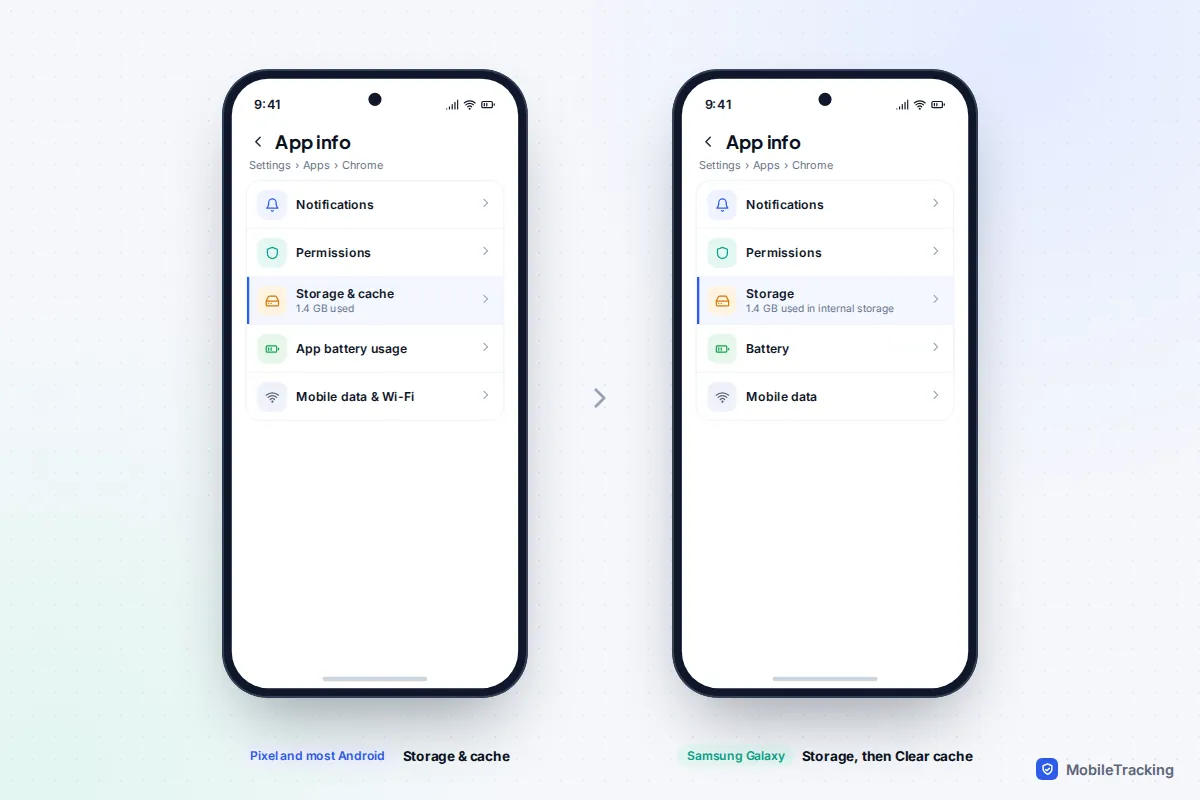
To clear an app’s cache on Android, open Settings › Apps, tap the app (use See all apps if it isn’t listed), then tap Storage & cache › Clear cache. On a Samsung Galaxy the button is under Settings › Apps › the app › Storage › Clear cache. That removes the app’s temporary files and nothing else: you stay signed in and your settings stay put. Don’t tap Clear storage (Clear data on Samsung) unless you mean to reset the app completely.
There is no single button that clears every app’s cache at once on a modern Android phone, and most of the time you don’t need one. This guide covers the exact steps on Pixel and Samsung, how to empty Chrome’s cache, the safest way to clear a lot at once, and how to tell whether clearing cache will fix your problem at all.
What the cache is, and why Android keeps it
The cache is a set of temporary files an app saves so it doesn’t have to fetch them again: thumbnails you’ve scrolled past, parts of web pages, map tiles, previews of videos. It makes apps open faster and use less mobile data. Deleting it is harmless, because the app can always download or recreate what it needs.
Android manages this space for you. Each app gets a cache allowance that changes with how much you use it, and when storage runs low the system deletes cache files automatically, starting with apps that have gone over their allowance and the oldest files first. That is why a full cache is rarely the real reason a phone is out of space, and why clearing it by hand gives only temporary relief.
How to clear the cache for one app
These steps work on Android 16 and 17 on a Pixel, and on most phones that use Google’s layout, such as Motorola and Nothing.
- Open Settings and tap Apps.
- Tap See all apps and choose the app. You can also long-press the app’s icon on the home screen and tap App info, which is quicker.
- Tap Storage & cache.
- Tap Clear cache. The Cache figure drops to zero or close to it.
- If you are clearing the cache to fix a glitch, go back one screen, tap Force stop, then open the app again.
On a Samsung Galaxy
- Open Settings › Apps and tap the app, or search for it with the magnifying glass.
- Tap Storage.
- Tap Clear cache at the bottom of the screen.
Other brands, including Xiaomi and OnePlus, use similar wording but may put the list under Apps › Manage apps or App management. If you can’t find it, search Settings for the app’s name. Samsung’s own page on clearing app cache and data on a Galaxy shows its current screens.
Clear cache or Clear storage? Know the difference
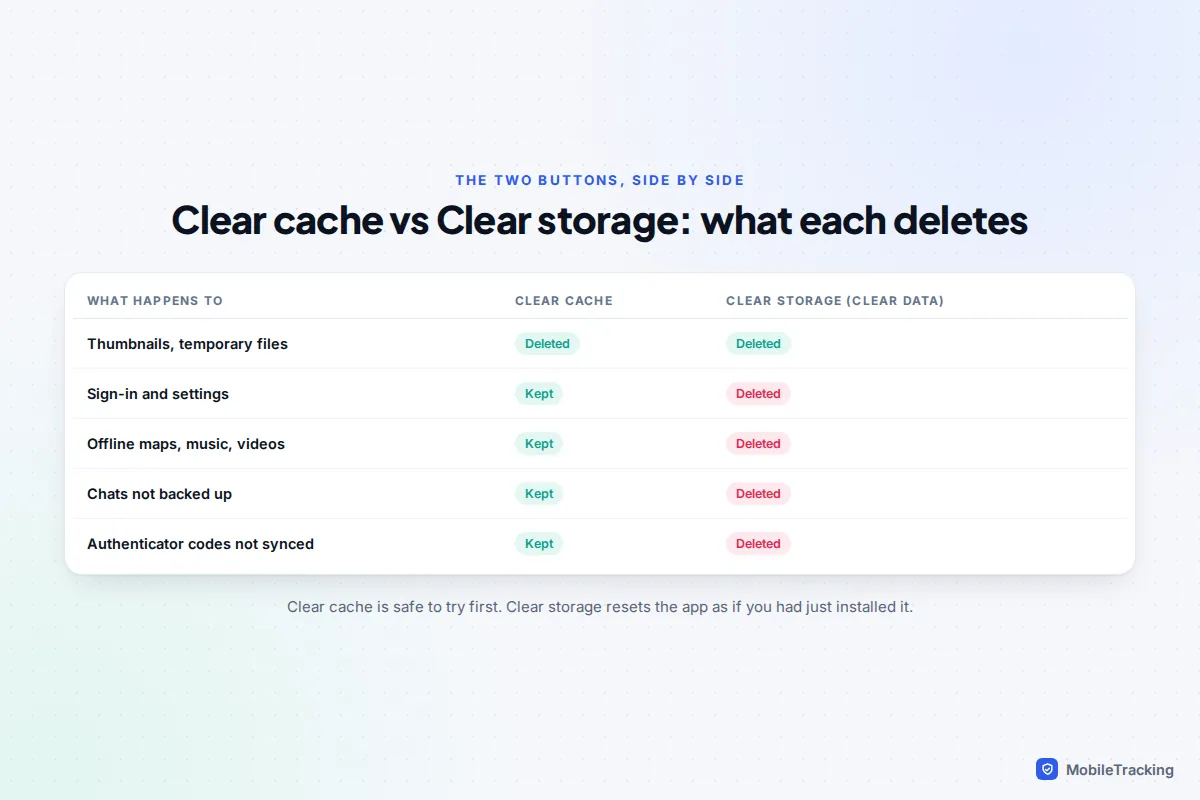
The two buttons sit side by side, and the difference between them matters more than anything else in this guide. Clear cache removes temporary files only. Clear storage, called Clear data on Samsung, deletes everything the app has saved on the phone and returns it to the state it was in when you first installed it. Samsung’s own help page warns that clearing data resets the app to factory defaults and removes any personal settings or data saved in it.
What that can cost you depends on the app:
- Messaging apps: WhatsApp signs you out, and any chats that weren’t backed up are gone from the phone. Telegram secret chats exist only on the device and are lost for good.
- Authenticator apps: two-factor codes that aren’t synced to an account disappear, which can lock you out of the accounts they protect.
- Offline content: downloaded maps, playlists, podcasts and films have to be downloaded again.
- Games: progress that isn’t saved to a cloud account can be wiped.
Clear storage has its place as a stronger fix for an app that is badly broken, but back up first. For WhatsApp, check the date of the last backup in our guide to backing up WhatsApp chats before you touch it.
How to clear Chrome’s cache
Chrome’s cache is managed from inside the browser, which lets you remove cached pages without signing out of every website.
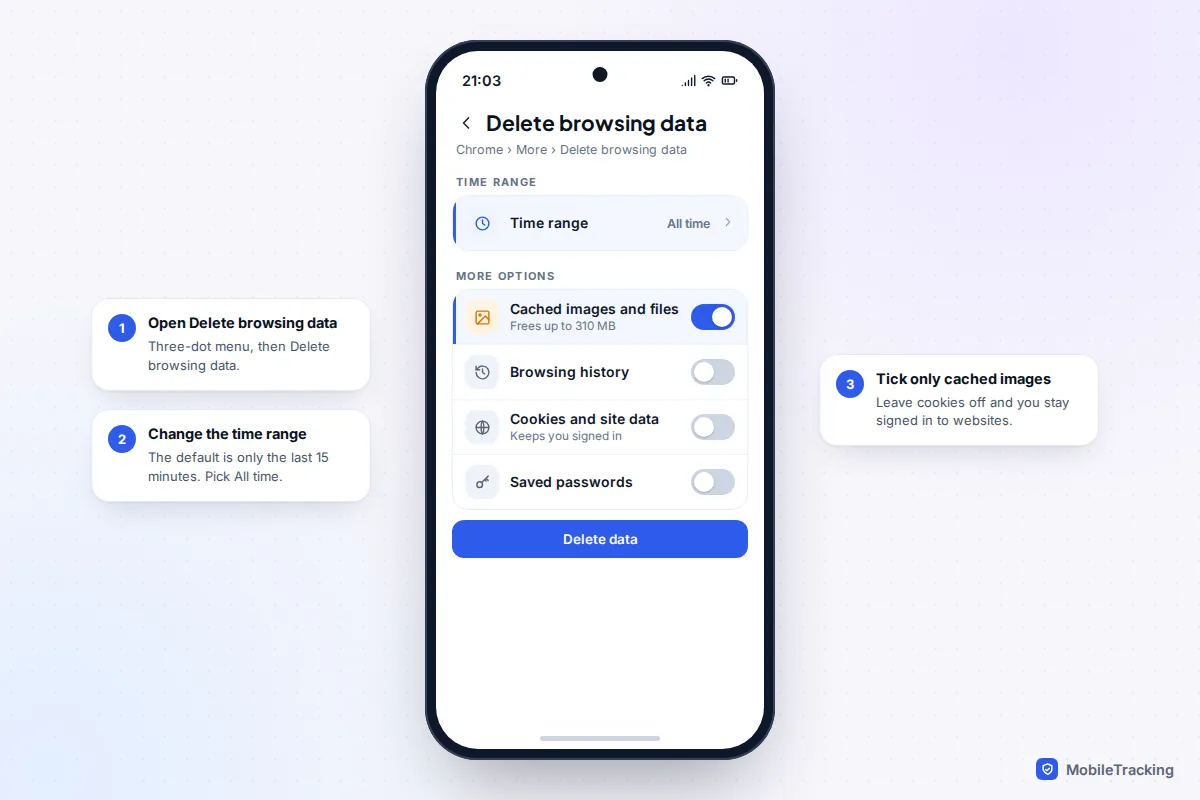
- Open Chrome and tap the three-dot menu next to the address bar.
- Tap Delete browsing data.
- Change the time range. Google’s default is the last 15 minutes, which barely touches the cache, so choose All time for a full clear.
- Tap More options and tick Cached images and files. Untick Cookies and site data if you want to stay signed in, and Browsing history if you want to keep it.
- Tap Delete data.
Websites will load a little more slowly the first time you revisit them while Chrome rebuilds the cache. Clearing the cache through Settings › Apps › Chrome works too, but the in-browser route gives you more control. If only one site is misbehaving, you don’t need to clear everything; our guide to clearing cookies on your phone browser shows how to remove data for a single site.
In Samsung Internet, open the menu, then Settings › Personal browsing data › Delete browsing data, tick Cached images and files and tap Delete data.
Is there a way to clear all cache at once?
Not in the way there used to be. Android 7 and earlier had a Cached data entry in Storage settings that wiped every app’s cache in one tap. Android 8 removed it in 2017 and switched to the per-app allowances described above. Samsung’s support page now says that the only way to clear the cache on every app at the same time is a factory reset, which is far too drastic for this job.
The nearest safe alternatives are:
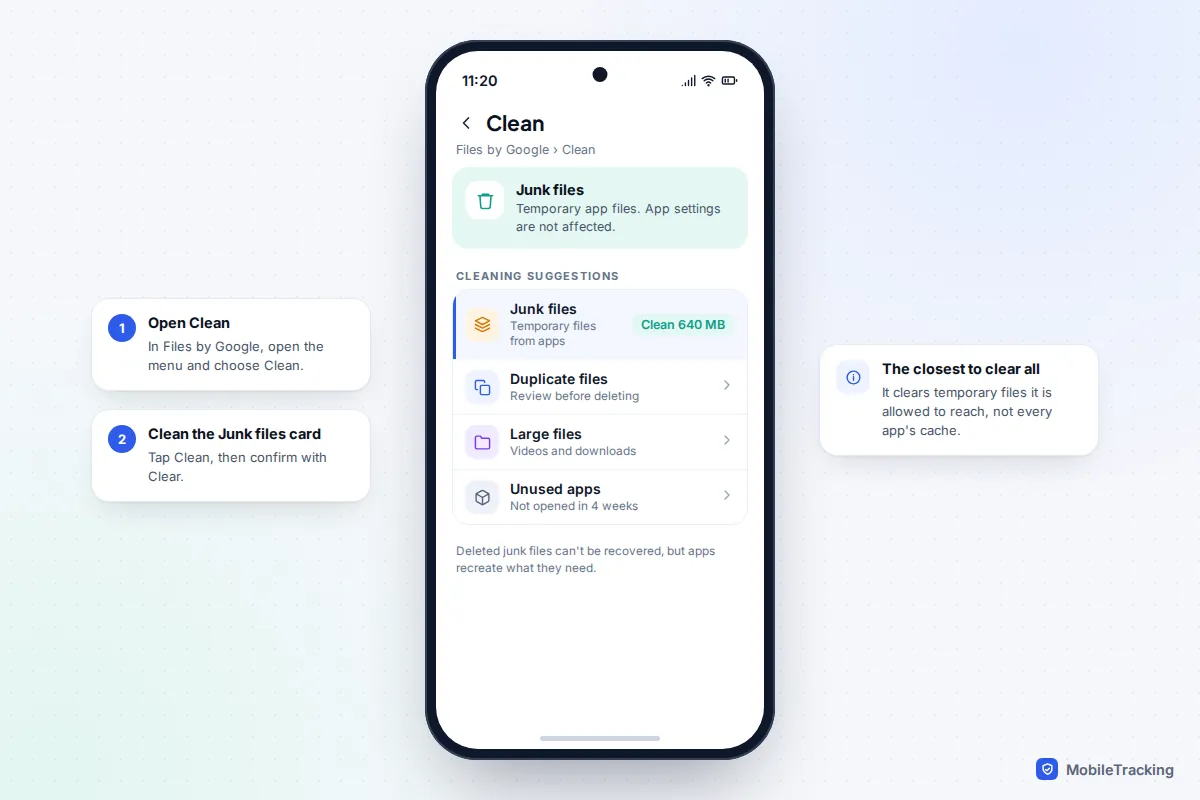
- Files by Google: open the app, open the menu, choose Clean, then tap Clean on the Junk files card and confirm with Clear. Google says this removes temporary app files and doesn’t affect app settings. It is preinstalled on Pixels and free from the Play Store for other phones.
- Samsung Device care: Settings › Device care (Battery and device care on older One UI versions) › Storage lets you review large files, unused apps and the Trash. The Optimise now button closes background apps and scans for problems; it doesn’t empty app caches.
What happened to “wipe cache partition”?
Older guides tell you to boot into recovery mode and choose Wipe cache partition. That clears a system area used during updates, not app caches, and it is disappearing. Pixels haven’t offered it for years, because their seamless update system doesn’t use a separate cache partition. Samsung removed it from recovery on recent flagships, including the Galaxy S25 series, with an update in early 2026 as it moved to the same seamless update system. Some older Galaxy models still show it. If yours does, it is harmless, but it won’t fix a misbehaving app.
When clearing cache helps, and when it doesn’t
Clearing an app’s cache is a good first step when that one app is acting strangely: showing out-of-date content, broken images, a feed that won’t refresh, or crashing just after an update. Corrupted temporary files are a common cause, and deleting them costs you nothing.
It is much less useful for whole-phone problems. A phone that is slow everywhere, hot or draining battery usually needs a restart, a software update, or a look at which app is working hardest. Clearing caches can even make things briefly slower, because every app has to reload what it had saved.
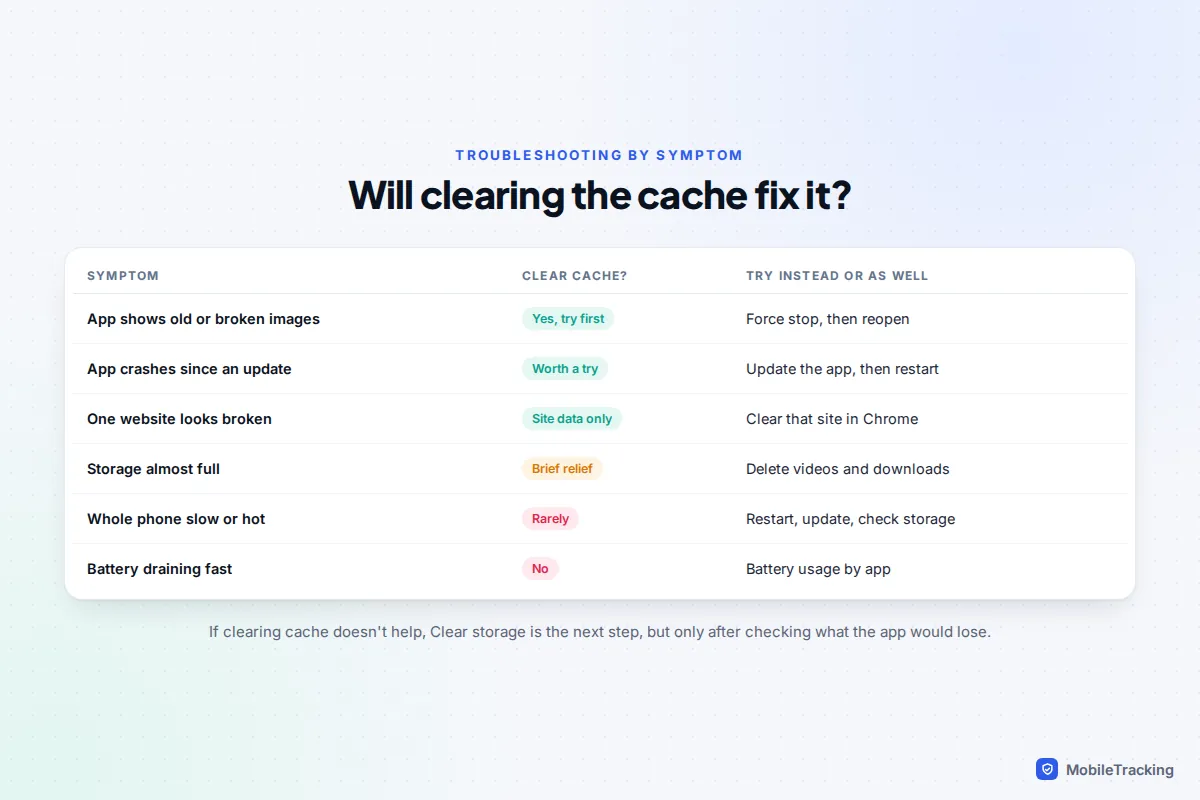
For storage, take Sam’s Galaxy, which says it is almost full. Clearing Chrome, Instagram and TikTok caches frees 2.5 GB, and a week later most of it is back. The lasting fix turned out to be 9 GB of videos in a WhatsApp family group and old downloads. Our guides to finding out what’s using your storage and freeing up storage cover that properly.
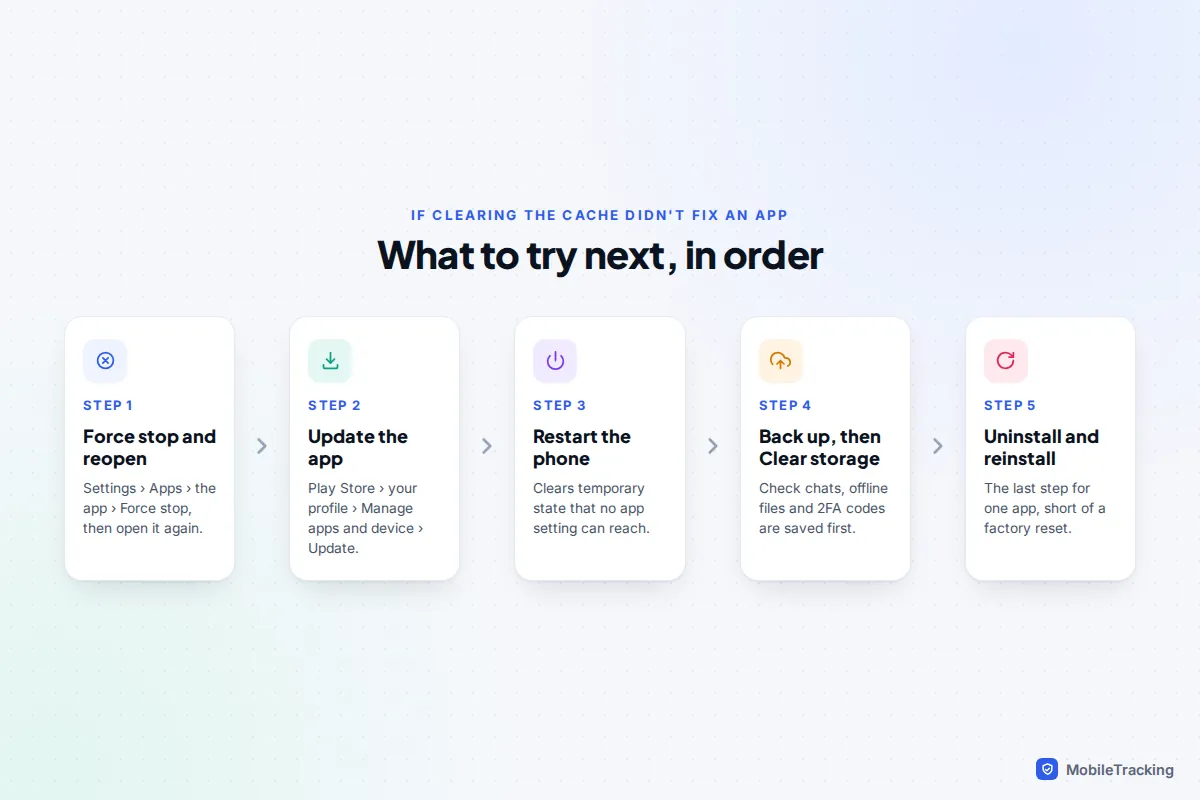
If one app keeps crashing after you’ve cleared its cache, work through the next steps in order, from force stopping it to reinstalling it. Our guide to fixing apps that keep crashing goes further.
WhatsApp and Telegram: caches that behave differently
Messaging apps are where most “my storage is full” problems start, but they don’t work the same way.
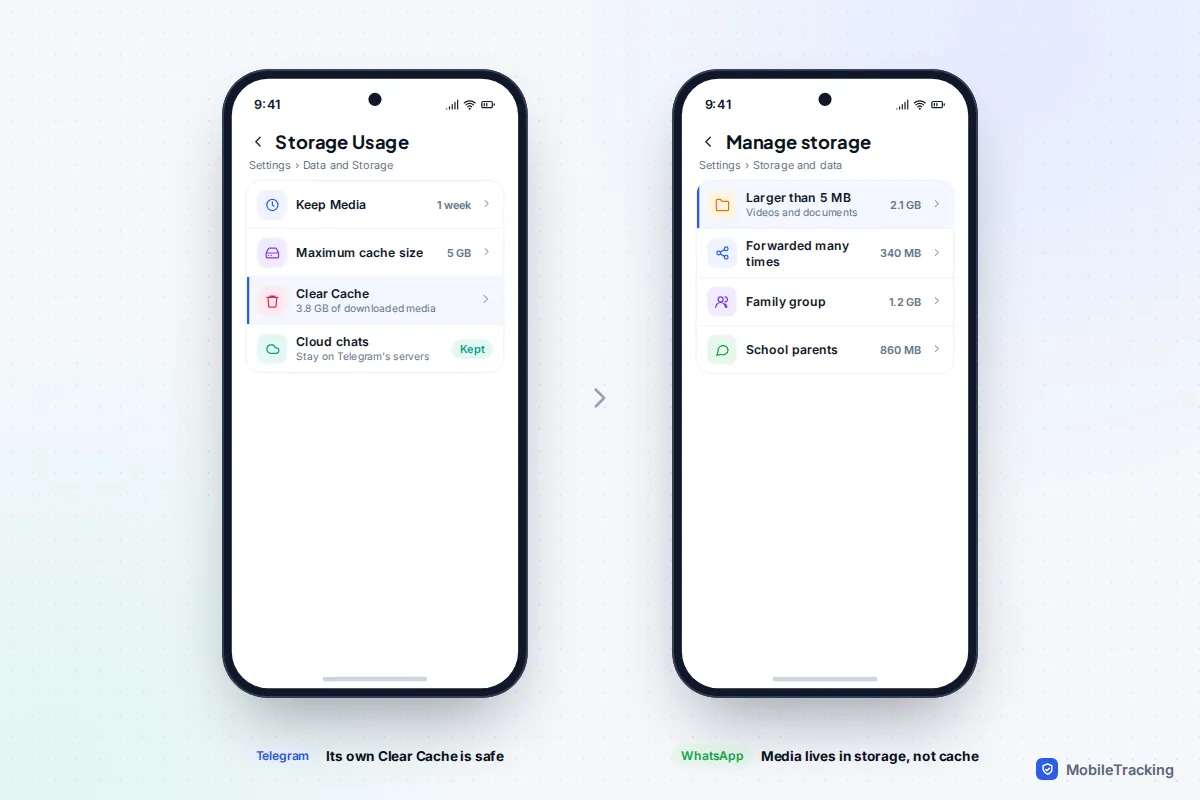
WhatsApp keeps only a small cache. The photos, videos and voice notes you receive are stored as files, not cache, so Clear cache in Android settings frees little space. To reclaim real space, open WhatsApp and go to Settings › Storage and data › Manage storage, where you can review files larger than 5 MB, items forwarded many times, and each chat sorted by size. Never use Clear storage on WhatsApp to free space.
Telegram is the opposite. Your chats live on Telegram’s servers, and media you’ve viewed is cached on the phone, which can grow to several gigabytes. Go to Settings › Data and Storage › Storage Usage and tap Clear Cache: cloud chats stay, and media downloads again if you open it. On the same screen, set Keep Media to a shorter period and cap the maximum cache size so it doesn’t creep back. Use Telegram’s own button rather than Android’s Clear storage, which signs you out and deletes secret chats.
Why you don’t need a cleaner app
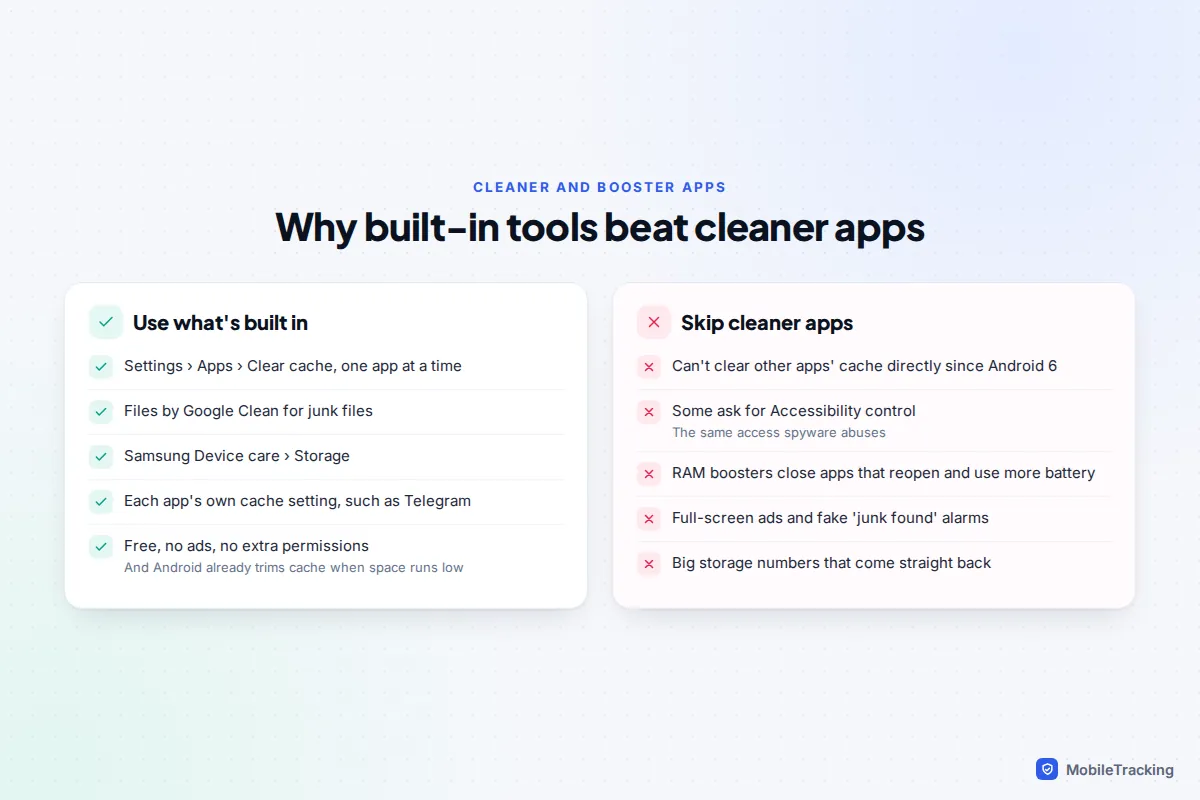
Play Store “cleaner”, “booster” and “junk remover” apps promise to clear everything in one tap. Since Android 6, clearing other apps’ caches in bulk has been reserved for system apps. A third-party cleaner can therefore only remove files it is allowed to reach, or ask for Accessibility access so it can tap through Settings for you. Accessibility is a powerful permission that lets an app read and control your screen, and it is exactly what stalkerware and banking malware ask for.
Many cleaners also show alarming “junk found” warnings and full-screen ads, and “RAM boosters” close apps that Android simply reopens, which can use more battery, not less. Everything useful they do is already built in, for free.
Frequently asked questions
Is it safe to clear the cache on Android?
Yes. Clearing an app’s cache deletes only temporary files the app can recreate. You won’t lose photos, messages, passwords or settings. The only noticeable effect is that the app may be a little slower the first time you open it afterwards.
Will clearing the cache sign me out of apps?
Usually not. Sign-in details are stored as app data, not cache. Clear storage (Clear data) does sign you out. In Chrome, deleting cookies and site data signs you out of websites, but deleting cached images and files on its own does not.
How often should I clear my cache?
There is no need to do it on a schedule. Android trims caches itself when space runs low. Clear an app’s cache when it misbehaves, or once in a while for a browser or streaming app that has grown very large.
Why did the cache come back so quickly?
Because the app is doing its job. As you scroll, stream and browse, it saves temporary copies again to stay fast. A cache that returns to its old size within days is normal, and a sign that clearing it wasn’t the fix for a storage problem.
Does clearing cache delete my photos?
No. Photos you took or saved are files in your gallery, not cache. Clearing Google Photos’ cache only removes temporary thumbnails, and the originals stay on your phone or in your backup.
This guide is general information, not legal or financial advice. Read our editorial policy.