
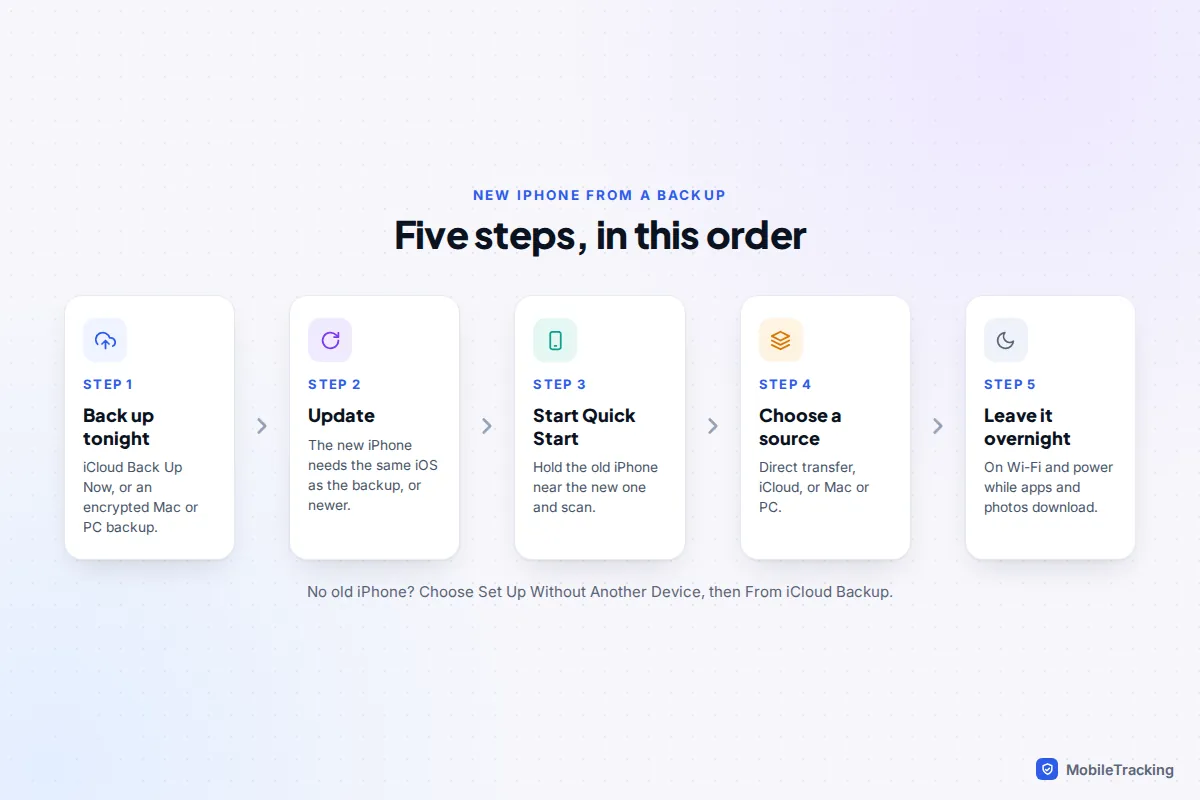
To set up a new iPhone from a backup, make a fresh backup of the old iPhone first, then turn the new one on beside it. If the old phone works, use Quick Start and choose Transfer from iPhone for the most complete copy, or Download from iCloud to start using the new phone sooner. If the old phone is lost or broken, tap Set Up Without Another Device and pick From iCloud Backup or From Mac or PC on the Transfer Your Apps & Data screen.
The restore itself is mostly waiting. The decisions that matter come before it (which method, how fresh the backup is, whether iOS versions match) and after it: your Apple Watch, eSIM, WhatsApp, banking and authenticator apps. This guide is about a new iPhone specifically. If you’re restoring the same phone after a reset, our guide to restoring a phone from a backup is the better fit.
Quick Start, iCloud backup or Mac/PC: which to use
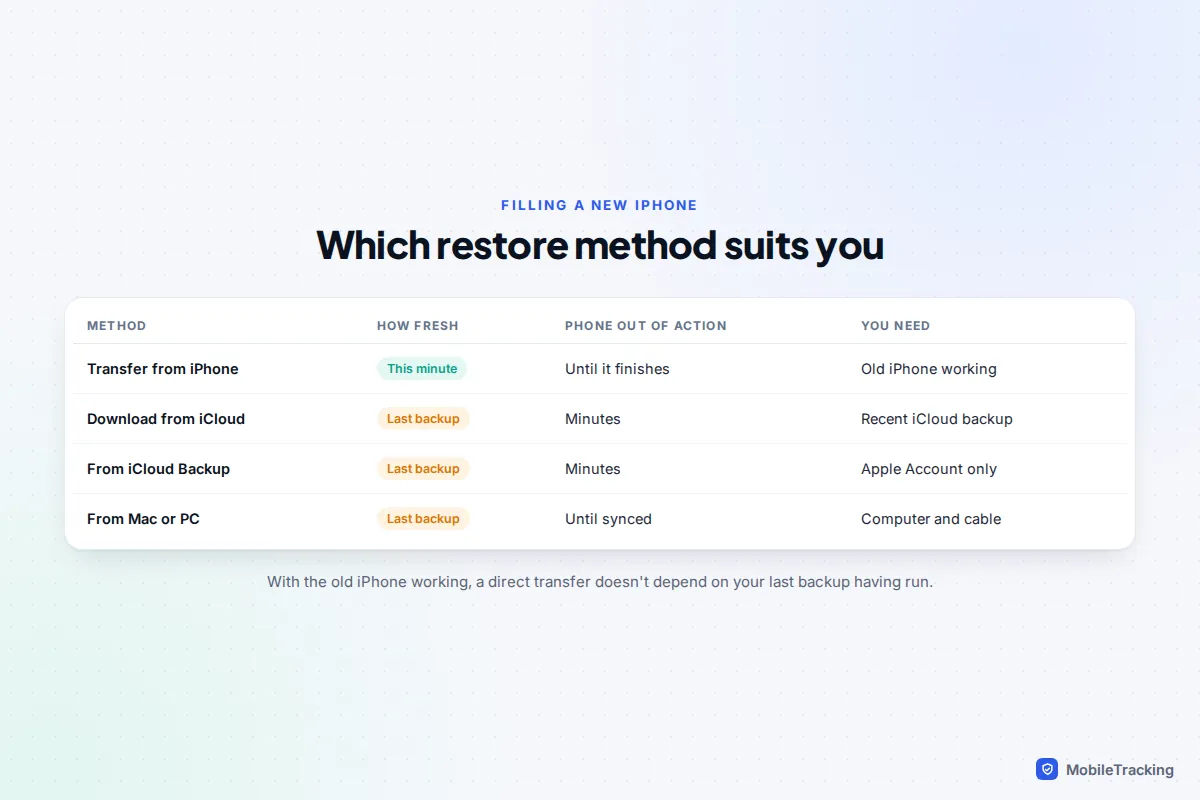
All three end with the same result: your apps, settings, messages and photos on the new iPhone. They differ in how fresh the copy is, how long the phone is out of action and what you need to hand.
| Your situation | Use | Why |
|---|---|---|
| Old iPhone works, you can spare both phones for a while | Quick Start › Transfer from iPhone | Copies everything up to this minute, no iCloud space needed |
| Old iPhone works, you need the new one now | Quick Start › Download from iCloud | Usable in minutes; apps and data arrive in the background |
| Old iPhone lost, stolen or dead | From iCloud Backup | Your last iCloud backup is the only copy |
| Not enough iCloud storage, or slow broadband | From Mac or PC | Local and fast; an encrypted backup carries saved passwords and Health data |
| Swapping phones with a partner or child | Quick Start, one pair at a time | Each phone must be signed in to its owner’s Apple Account |
If you’re unsure, Transfer from iPhone is the safest choice when the old phone works. It doesn’t depend on your last backup having run. Apple describes both Quick Start options on its Quick Start page.
Make a fresh backup first, even with Quick Start
A backup made tonight is your safety net if the transfer fails halfway. It’s also what Download from iCloud will use, so an old one would give you old messages.
- iCloud: on the old iPhone, go to Settings › [your name] › iCloud › iCloud Backup and tap Back Up Now. Stay on Wi-Fi until the “Last successful backup” time updates.
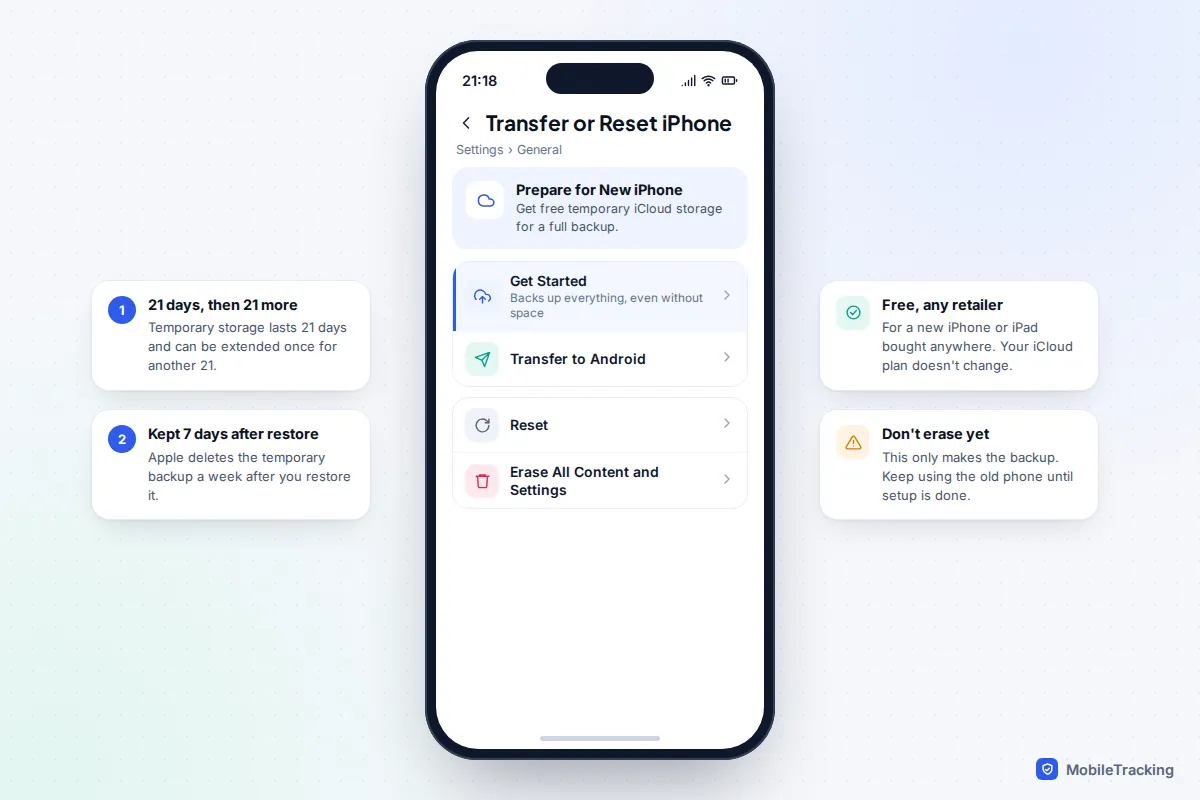
- Not enough iCloud space? Go to Settings › General › Transfer or Reset iPhone and tap Get Started under Prepare for New iPhone. Apple lends you enough temporary iCloud storage for a full backup for 21 days, which you can extend by another 21. Apple keeps it for seven days after you restore.
- Mac or PC: connect the iPhone, select it in the Finder (Mac) or the Apple Devices app (Windows), tick Encrypt local backup and click Back Up Now.
- Chat apps: WhatsApp and Signal back up separately, so check them too (more below).
- Apple Watch owners: make sure Health is switched on in the iCloud settings, so your activity history doesn’t depend on the watch backup alone.
Our guide to backing up your iPhone explains what each backup type includes and how to confirm it ran.
Why an encrypted computer backup is worth the password
iCloud backups are always encrypted. Computer backups are only encrypted if you tick the box, and that choice decides what comes back. Apple says an encrypted computer backup includes saved passwords, Wi-Fi settings, website history, Health data and call history, none of which go into an unencrypted one. On a new phone, that’s the difference between rejoining your Wi-Fi networks automatically and typing every password again.
The catch is the password. Apple can’t recover it, and without it the backup is useless. Save it in your password manager the moment you set it. Some logins never move whatever you choose: apps can mark a stored secret as “this device only”, and banking and authenticator apps often do. That’s why they make you register again.
iOS versions: why the new iPhone may need an update first
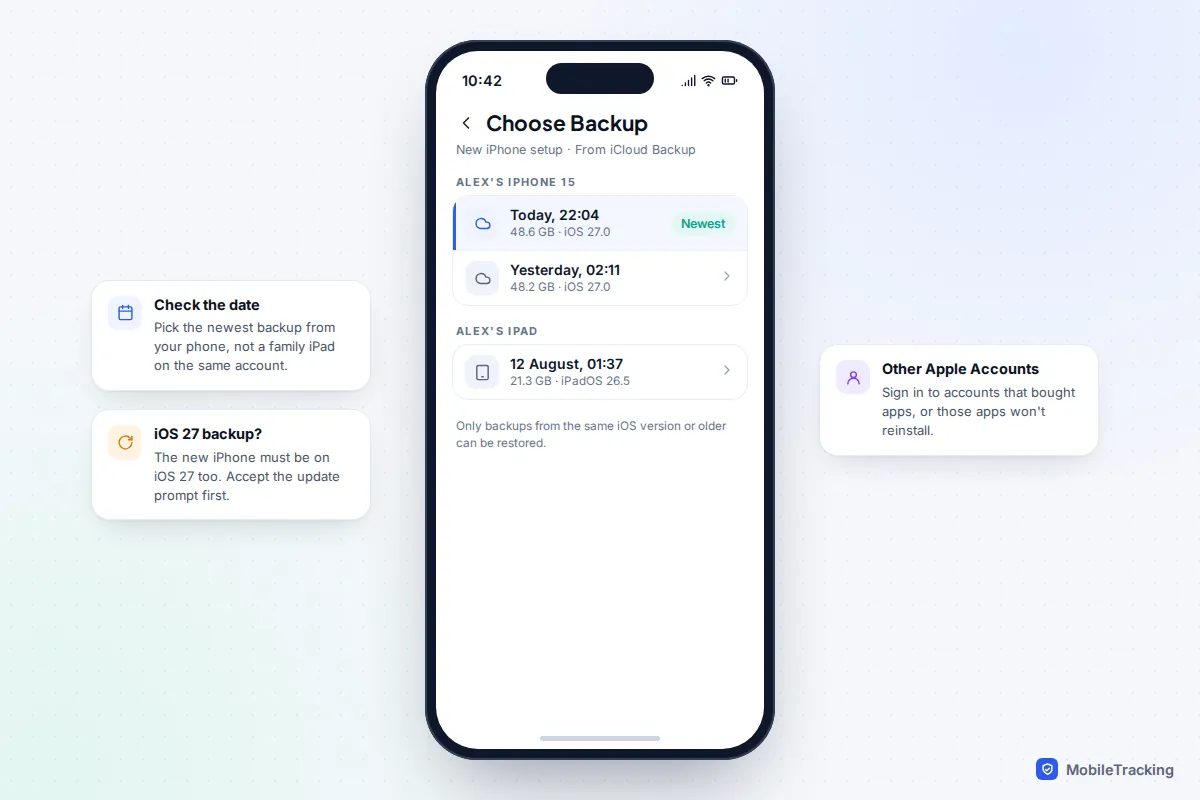
An iPhone can only restore a backup made on the same version of iOS or an older one. That catches people out in September. iOS 27 arrived on 14 September 2026, and the iPhone 18 Pro ships with it, but an iPhone 17 bought from a shop’s stock may still have iOS 26 installed. If your old iPhone has already updated to iOS 27, its backup is too new for that phone.
The fix is to update the new phone before restoring. With Quick Start, the new iPhone usually offers to download the update itself during setup; accept it and allow extra time. With an iCloud restore, you may be told the backup needs a newer iOS; follow the update prompt, or finish setup without restoring, update in Settings › General › Software Update, then erase and start again. For a computer restore, update the Mac or PC too: an older Mac may say a software update is required before it can connect to the new iPhone.
It works fine the other way round. A backup from an iPhone on iOS 26 restores happily onto one running iOS 27.
Walking through setup: the screens that matter
Most setup screens are simple choices. These are the ones where your decision changes the outcome.
- Quick Start. Hold the old iPhone near the new one, tap Continue, scan the animation and enter the old phone’s passcode. No old phone? Tap Set Up Without Another Device.
- Face ID. Set it up now; it’s never copied from a backup.
- Mobile service. If you use an eSIM, this is where it moves (see below).
- Transfer Your Apps & Data (or Transfer Your Data in Quick Start). Pick your source. This screen appears once per setup; skip it and the only way back is to erase the phone.
- Choose a backup. For iCloud or a computer, pick the newest backup from the right device. Each shows a date and size. A family iPad signed in to the same account can appear here too.
- Apple Accounts. You may be asked to sign in to other Apple Accounts used to buy apps. Skip any you’ve forgotten, but those apps won’t reinstall automatically.
- Apple Watch. If a watch was paired to the old iPhone, you’re asked whether to use it with this one.
Moving your eSIM during setup
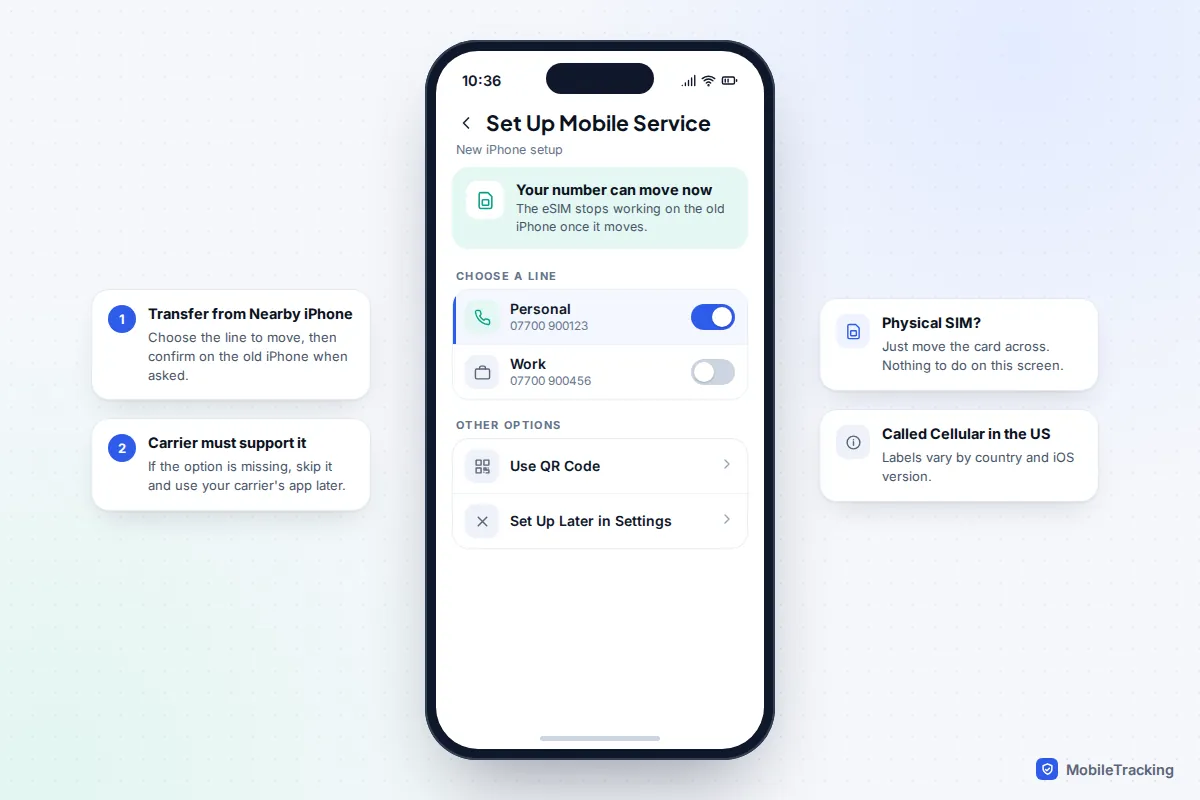
On the mobile service screen (labelled “Cellular” in the US), choose Transfer from Nearby iPhone, pick the number to move and confirm on the old iPhone. The eSIM stops working on the old phone once it moves. Not every carrier supports this; if yours doesn’t, skip the step and use the carrier’s app or a new QR code afterwards. You can also do it later in Settings › Mobile Service › Add eSIM (Settings › Cellular in the US). A physical SIM simply moves across. Our guide to using an eSIM covers the alternatives.
While it restores: progress and background downloads
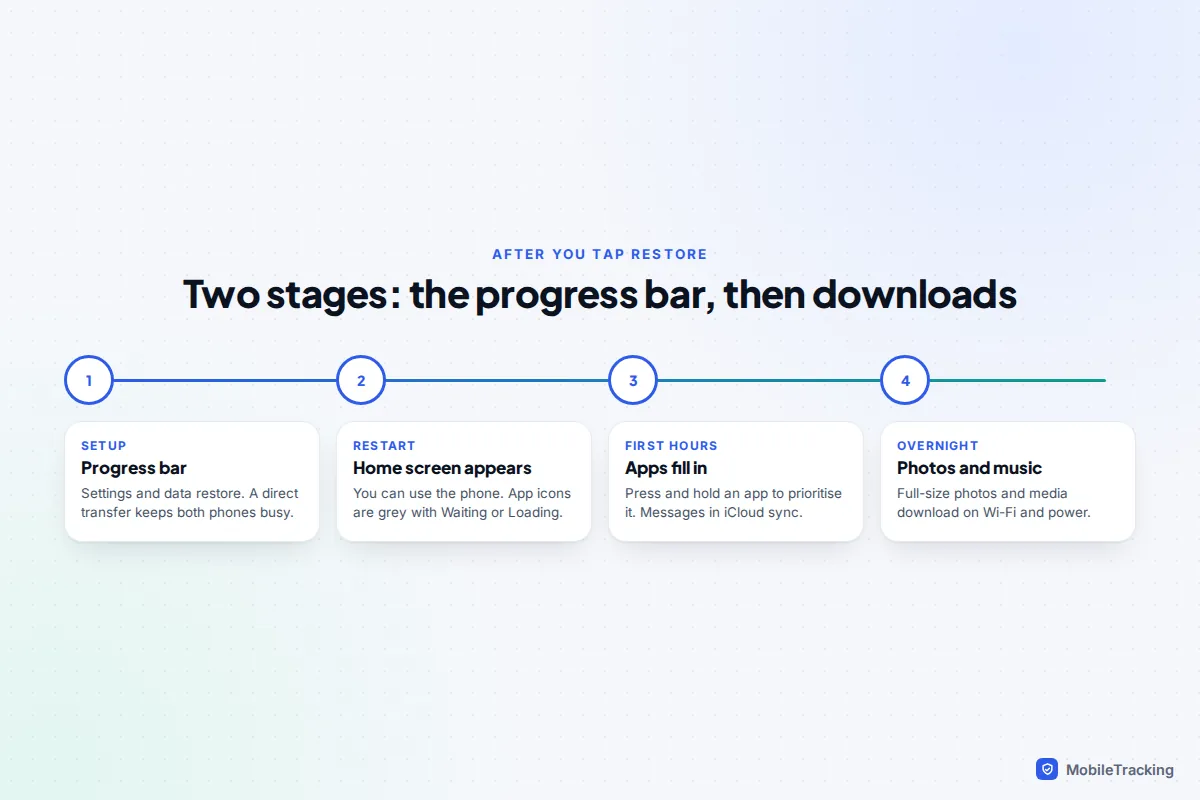
There are two stages. First comes the progress bar during setup. With Transfer from iPhone it covers everything and both phones are out of action; with an iCloud or computer restore it covers settings and data, and the phone restarts once it’s done. The time estimate often jumps around at first and settles after a few minutes.
Then comes the background download. Apps appear greyed out with “Waiting” or “Loading” under them, and fill in one by one. Photos in iCloud Photos arrive as thumbnails first, and full versions download as needed. Tap an app’s icon to pause it and tap again to resume, or press and hold it to prioritise that download. You can check progress in Settings › [your name] › iCloud › iCloud Backup, where a restoring message appears.
Leave the phone on Wi-Fi and plugged in overnight, with Low Power Mode off. Judging a restore after ten minutes is how people end up restarting it unnecessarily.
Re-pairing your Apple Watch
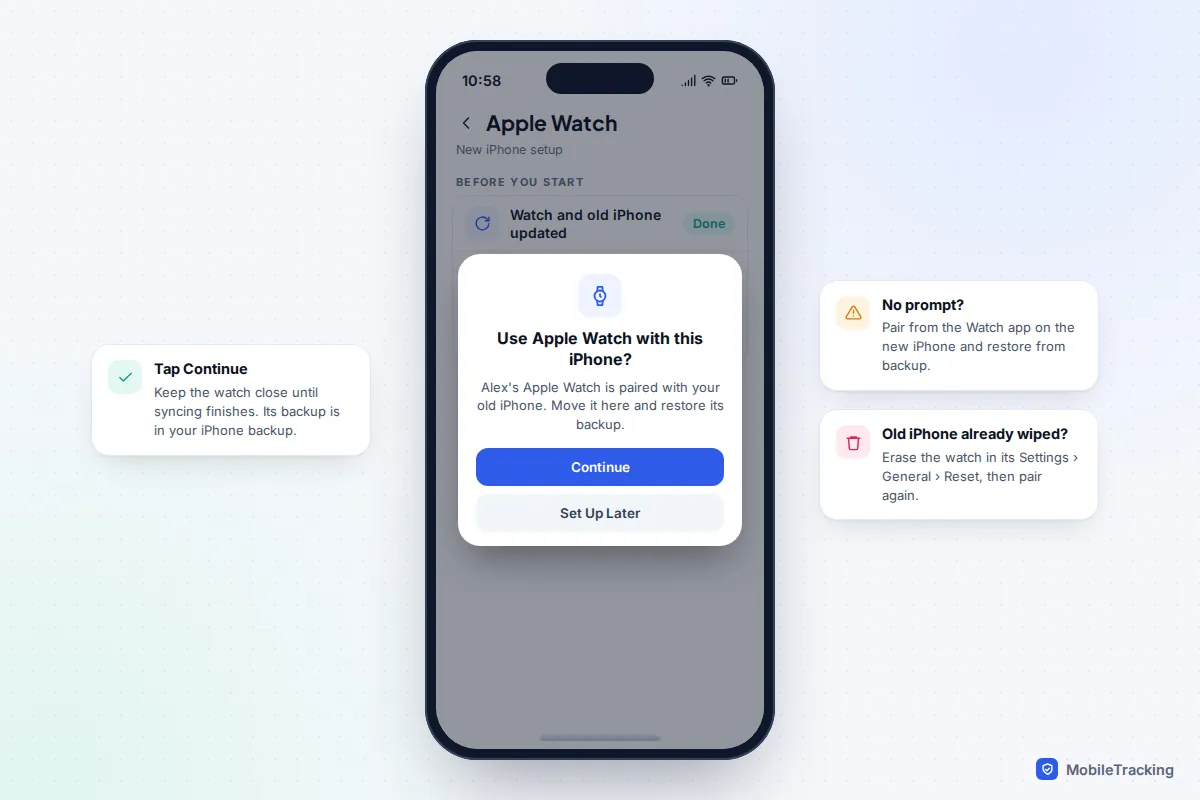
Update both the old iPhone and the watch before you start, and check Health is on in iCloud. During setup, when the new iPhone asks whether you want to use your Apple Watch, wear the watch, unlock it and tap Continue. Keep it close until syncing finishes. Apple’s guide to pairing your Apple Watch with a new iPhone has the full steps.
No prompt? Open the Watch app on the new iPhone and pair from there, choosing to restore from a backup. If you already erased the old iPhone without unpairing, erase the watch (Settings › General › Reset › Erase All Content and Settings on the watch), then pair it and restore its latest backup. A cellular watch may need its plan re-added through your carrier.
WhatsApp, Signal, banking apps and authenticators
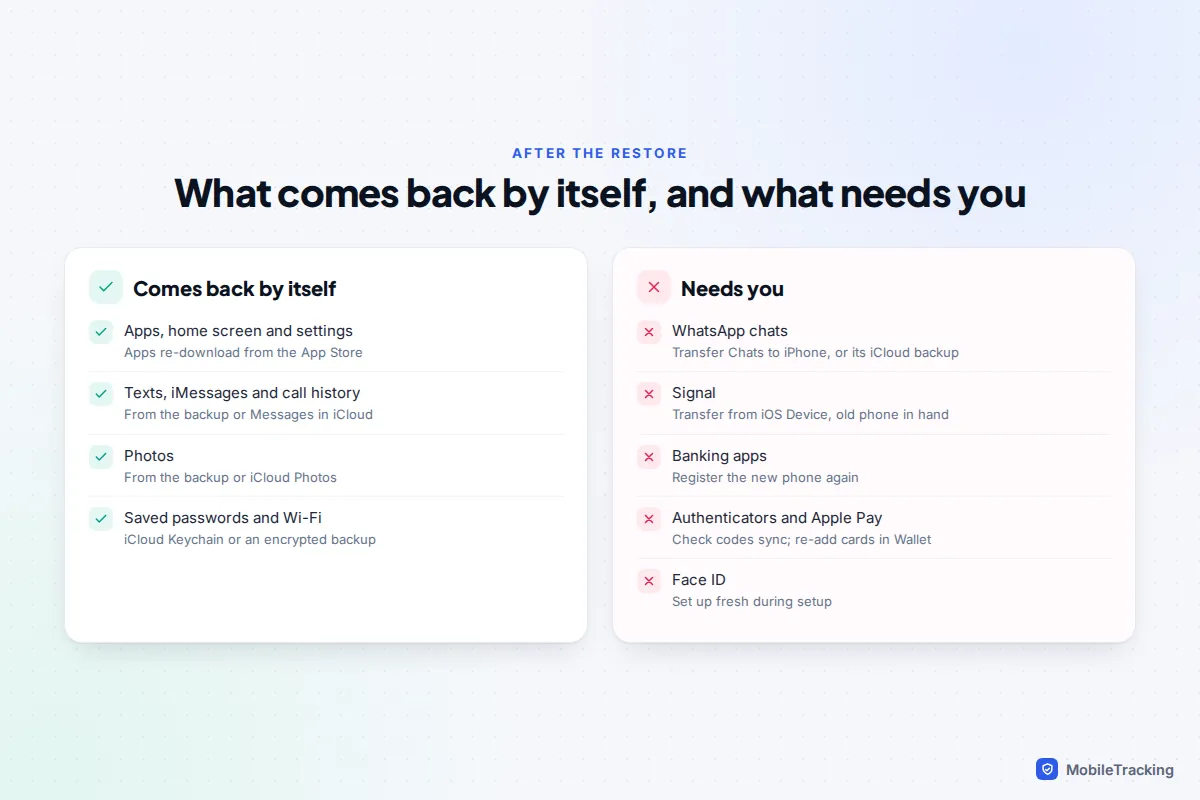
The iPhone backup brings these apps back, but not always their contents. Each needs a minute of attention.
- WhatsApp: the phone backup doesn’t include your chats. On the old iPhone, go to You (Settings on older versions) › Chats › Transfer Chats to iPhone and scan the QR code the new phone shows after you verify your number. Or restore WhatsApp’s own iCloud backup when prompted, signed in to the same Apple Account. WhatsApp says call history doesn’t transfer. See our guide to backing up WhatsApp chats.
- Signal: never in an iPhone backup. Choose Transfer from iOS Device during Signal’s setup and scan the code with the old phone. Signal moves rather than copies, so the old phone’s Signal is wiped afterwards. Without the old phone, you need Signal Secure Backups and its recovery key.
- Banking apps: expect to register the new phone again, by text code, card reader, selfie check or a call. Some banks post a code, so do this before you need to pay anyone.
- Authenticator apps: Google Authenticator restores your codes if you were signed in to it. Microsoft Authenticator restores from its iCloud backup. For anything else, move each account before you wipe the old phone.
- Apple Pay: cards need adding again in Wallet, usually with a quick verification by your bank.
Checks before you wipe the old iPhone, and troubleshooting
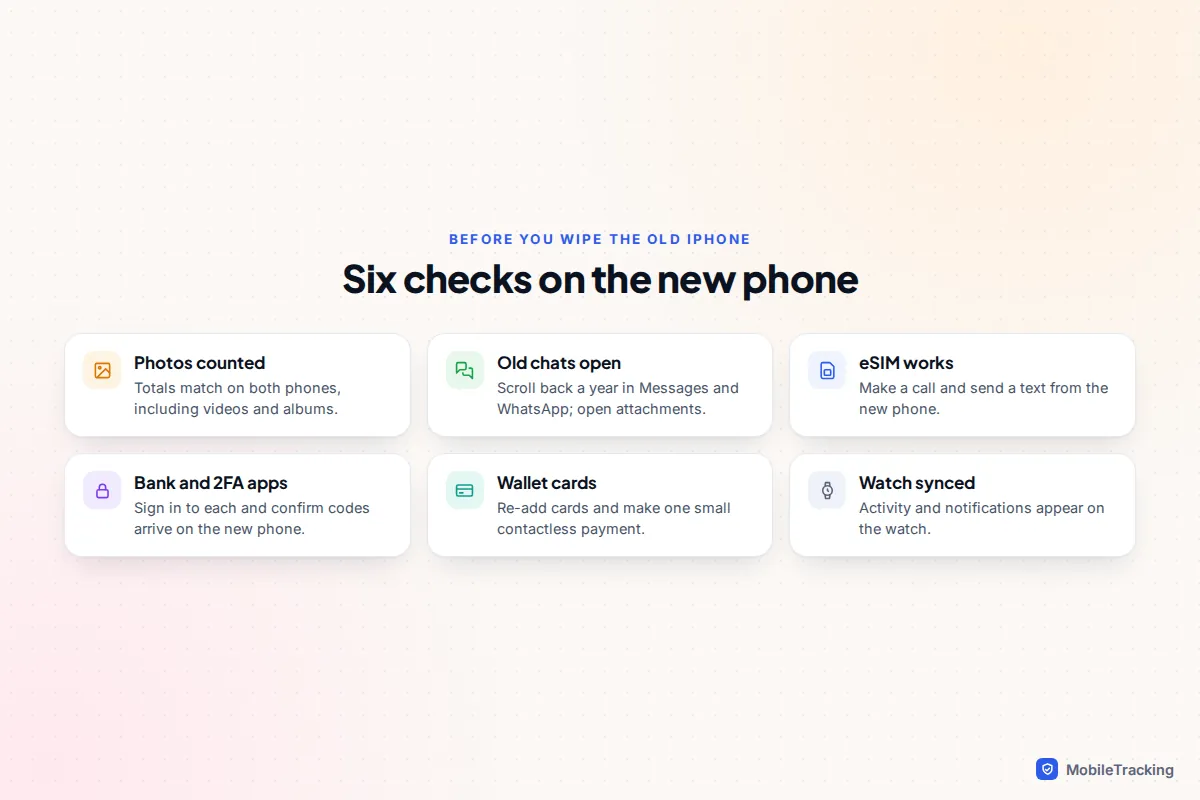
Give the new phone a few days of normal use, then check: photo and video counts match, old conversations open with their attachments, calls and texts work on the eSIM, your bank and authenticator apps sign in, and Wallet cards pay. When all that works, follow our guide to transferring data to a new phone for the final checks and how to hand the old one on.
Quick Start doesn’t appear
Check Bluetooth is on and the old iPhone is unlocked, close by and on a recent iOS. Restart both. If it still won’t start, set up without another device and use a fresh iCloud backup.
The backup you want isn’t listed
Make sure you signed in with the Apple Account that made it. Apple deletes an iCloud backup 180 days after a device stops backing up. If it’s a computer backup, check you’re on the same computer and user account.
Stuck on “Estimating time remaining” or an app stuck on “Waiting”
Give it half an hour on Wi-Fi and power, then restart the phone. For a stuck app, check you’re signed in to the Apple Account that bought it, or delete it and reinstall from the App Store. Its data won’t come back that way unless the app syncs its own.
No mobile signal after setup
The eSIM didn’t transfer. Check Settings › Mobile Service (or Cellular) for your line; if it’s missing, use your carrier’s app or ask for a new eSIM. Your data isn’t affected.
Frequently asked questions
Can I restore a backup after I’ve finished setting up the new iPhone?
Only by erasing it and starting again. Go to Settings › General › Transfer or Reset iPhone › Erase All Content and Settings, and the setup screens return. Anything added since setup will be lost, so do it early.
Can I restore a backup from an older iPhone model onto a new one?
Yes. Model doesn’t matter, only the iOS version: the new phone must be on the same version as the backup or newer. Features the old phone didn’t have simply start with default settings.
Do I need to unpair my Apple Watch before setting up the new iPhone?
No. If the old iPhone is still paired and backed up, the new iPhone offers to take the watch over during setup. You only need to erase and re-pair the watch if you’ve already wiped the old iPhone without unpairing it.
Will my Face ID and Apple Pay cards come across?
No, by design. Face ID data never leaves the phone it was made on, and payment cards are tied to the device’s secure chip. You set up Face ID during setup and re-add cards in Wallet afterwards.
How long does it take to set up a new iPhone from a backup?
With an iCloud restore, the setup screens take minutes and the rest downloads in the background. A direct transfer holds both phones until everything has copied, which can run for hours with a big photo library. Either way, plan for the phone to be fully ready the next morning.
This guide is general information, not legal or financial advice. Read our editorial policy.