
The best way to transfer data to a new phone is the tool built for your route, used while you set the new phone up, with the old phone working and beside it. That means Quick Start for iPhone to iPhone, Copy apps & data (or Samsung’s Smart Switch) for Android to Android, the iPhone’s From Android option for Android to iPhone, and the new Android’s own setup screens for iPhone to Android. Since mid-2026, phones on Android 17 can move data to and from an iPhone without extra apps in many cases, eSIM included.
What these tools don’t do is move everything. Two-factor codes, WhatsApp call logs, paid apps and some app data need a few minutes of preparation first. This guide is the decision hub: which route you’re on, what to do the evening before, what moves and what doesn’t on each route, and the checks to make before you wipe the old phone.
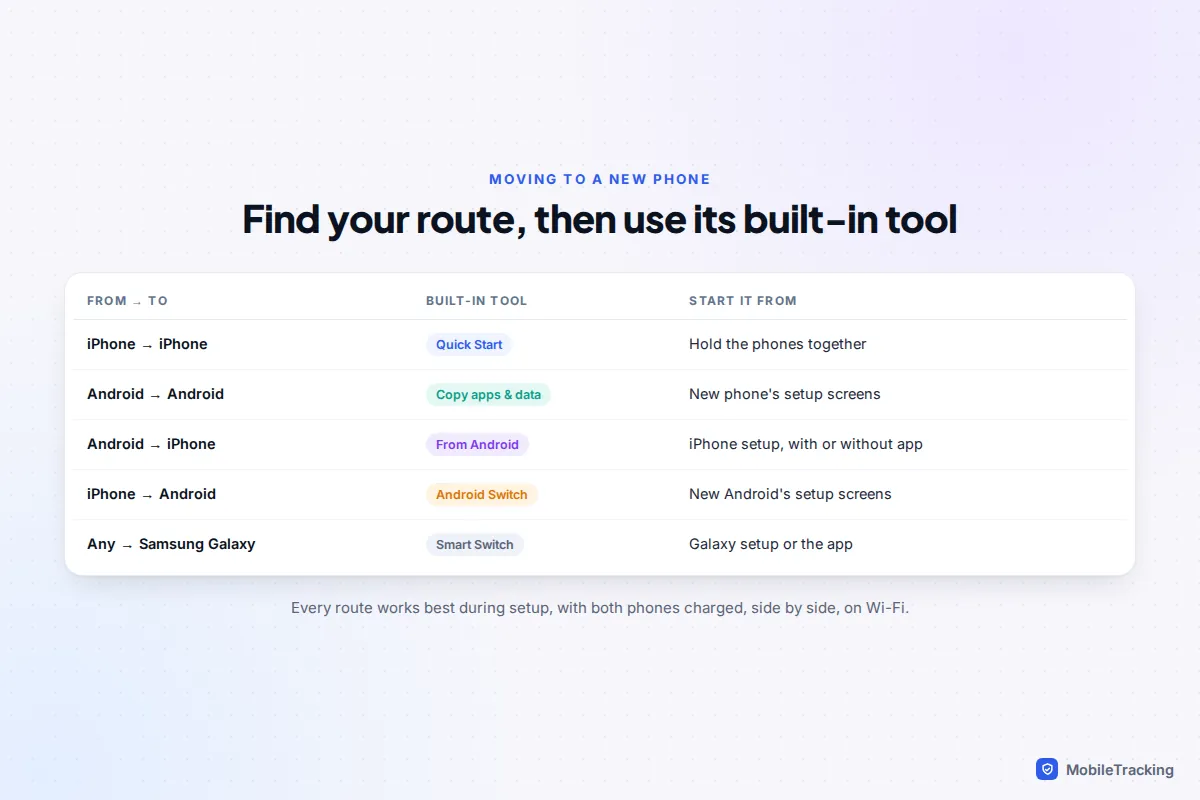
Which transfer route are you on?
Two questions decide everything: which system are you leaving and joining, and is the old phone still working?
- Old phone working: transfer directly, phone to phone. It copies data that lives only on the device, such as texts and photos that were never backed up, and it’s usually faster than a cloud restore.
- Old phone lost, stolen or dead: you can only restore from a backup, so the question becomes what your iCloud or Google backup holds. Our guide to restoring a phone from a backup covers that path.
- Already finished setting up the new phone? Most direct transfers only run during setup. On an iPhone you’d need to erase it and start again; on Android, Google says the copy can only be done once and recommends doing it at setup.
Switching between iPhone and Android is the route where the most gets left behind, so if that’s you, read the “what moves” table before you start rather than after.
Before you start: the prep checklist
Half an hour on the old phone the evening before prevents nearly every transfer disaster we hear about. Work through this list:
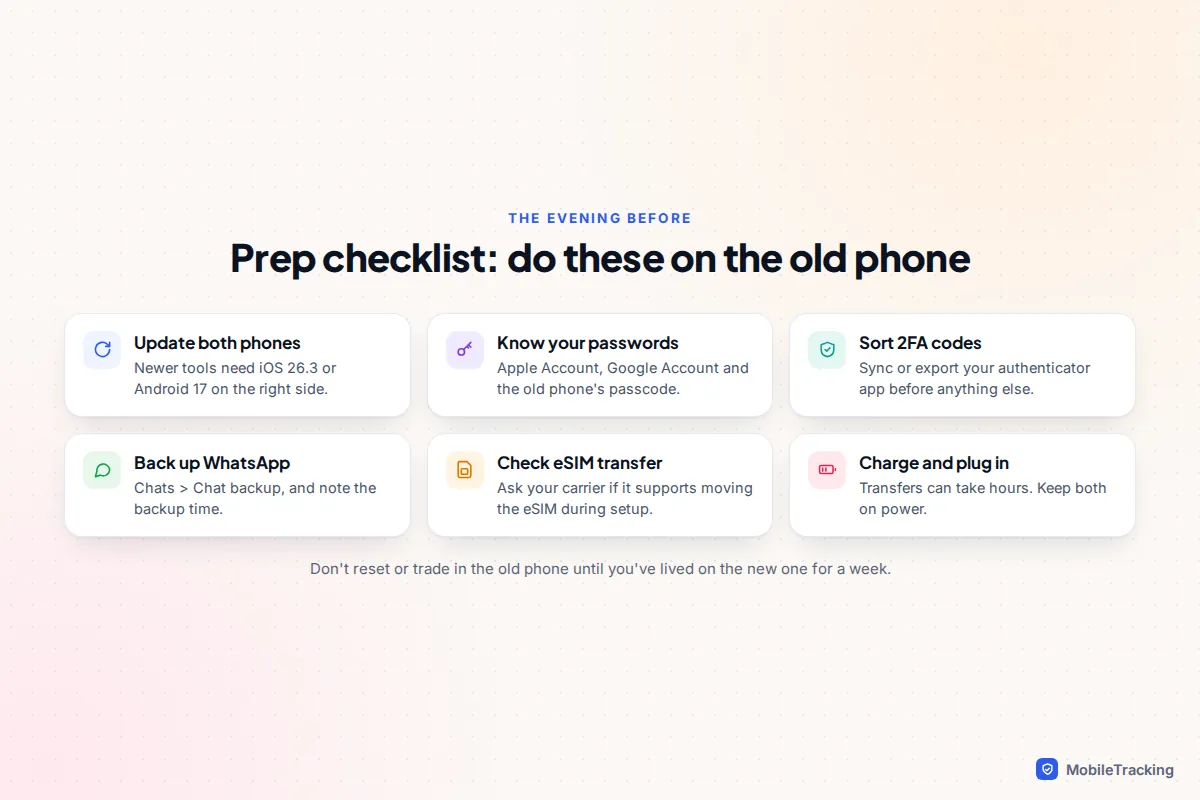
- Update both phones. The newest methods need iOS 26.3 or later on the iPhone and Android 17 on a supported Android phone. Older versions still work, just with the older tools.
- Check your passwords. You’ll need your Apple Account or Google Account password, and the old phone’s passcode. Reset anything you’re unsure of now, not halfway through setup.
- Sort out two-factor codes. If you use an authenticator app, make sure it syncs to an account or export its codes. This is the step people regret skipping (more below).
- Back up WhatsApp. Open WhatsApp and go to Settings › Chats › Chat backup, then back up now. Some routes use this backup; the others still benefit from having it.
- Check your eSIM. Ask your carrier, or check its app, whether it supports moving an eSIM during setup. Our guide to using an eSIM explains the alternatives if not. A physical SIM simply moves across.
- Make space and plug in. The new phone needs room for everything, and transfers can take hours. Keep both phones on chargers and on the same Wi-Fi, and find a USB-C cable if your route supports one.
iPhone to iPhone: Quick Start
Quick Start is built into every iPhone’s setup. Apple says it works when the old device runs iOS 11 or later, with Wi-Fi connected and Bluetooth on.
- Turn on the new iPhone and place it next to the old one. A Quick Start card appears on the old iPhone; tap Continue.
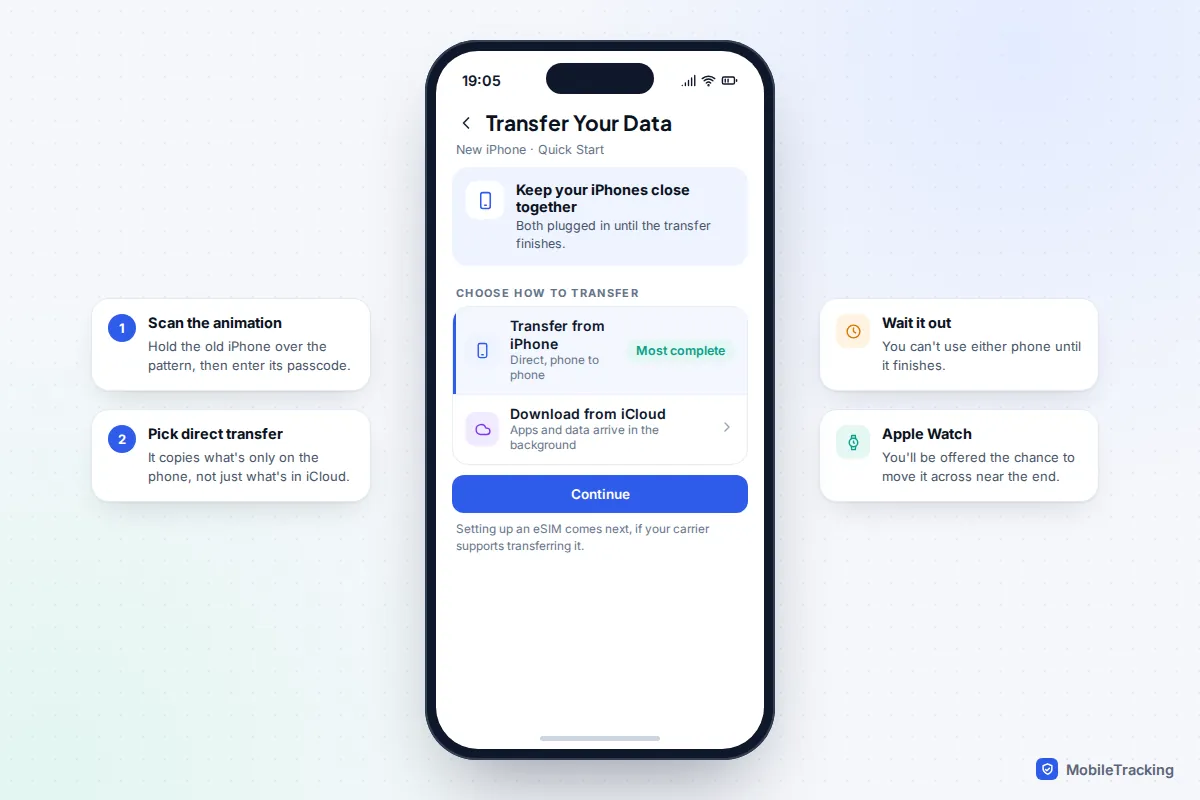
- Hold the old iPhone over the animation on the new one, then enter the old iPhone’s passcode on the new phone.
- Set up Face ID or Touch ID, and activate mobile service if asked. With a supporting carrier you can move your eSIM here.
- Choose Transfer from iPhone to copy directly, or download from an iCloud backup if you prefer.
- Keep both phones close together and plugged in until it finishes. Near the end, you’ll be offered the chance to move your Apple Watch across.
Direct transfer is the more complete option, because it copies what’s on the phone right now rather than what was in the last backup. The iCloud option lets you use the new phone sooner, with apps and data downloading in the background. Apple’s Quick Start guide also describes a wired option for large amounts of data. If Quick Start won’t start, check both phones have Bluetooth on and are signed in to Wi-Fi.
Android to Android: Copy apps & data or Smart Switch
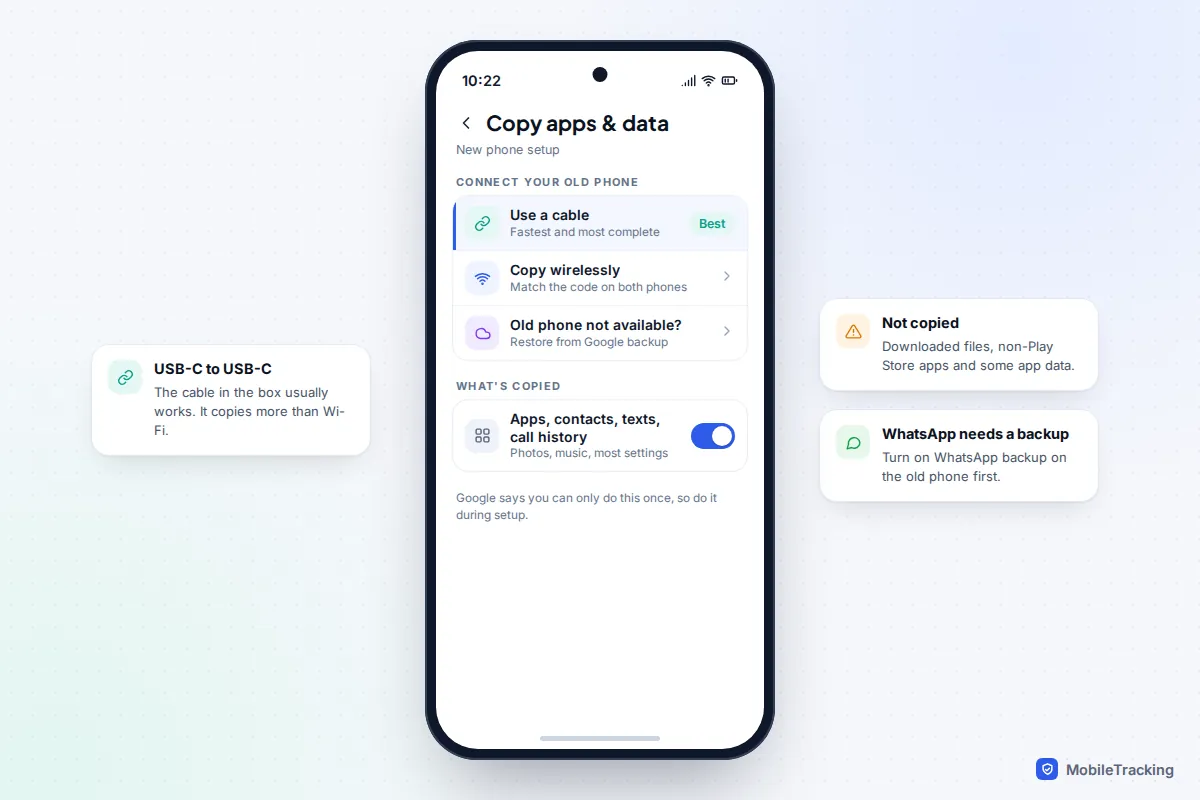
On a Pixel and most other Android phones, the new phone offers to copy apps & data during setup. Google recommends a cable, which copies more and faster; without one, you pair the phones wirelessly by matching a code. If the old phone isn’t available, you can restore its Google backup instead.
According to Google, the copy includes apps and app data, photos, videos, music, contacts, texts, call history, wallpaper and most settings. It leaves out downloaded files, hidden media, apps from outside the Play Store, ringtones, apps that don’t use Android backup, and accounts other than Google accounts. WhatsApp only comes across if you turned on WhatsApp backups on the old phone first.
Samsung Galaxy phones use Smart Switch instead, which also carries Samsung-specific settings and apps. Menu labels vary between Pixel, Samsung and other makers, and between Android versions. Our step-by-step guide to setting up a new Android from a backup covers both, including moving an eSIM, which many Pixel and Galaxy phones can do during setup if your carrier supports it.
Android to iPhone: From Android, with or without the app
The new iPhone must be fresh out of the box or erased. During setup, tap Set Up Without Another Apple Device, then on the transfer screen tap From Android. You then get two choices:
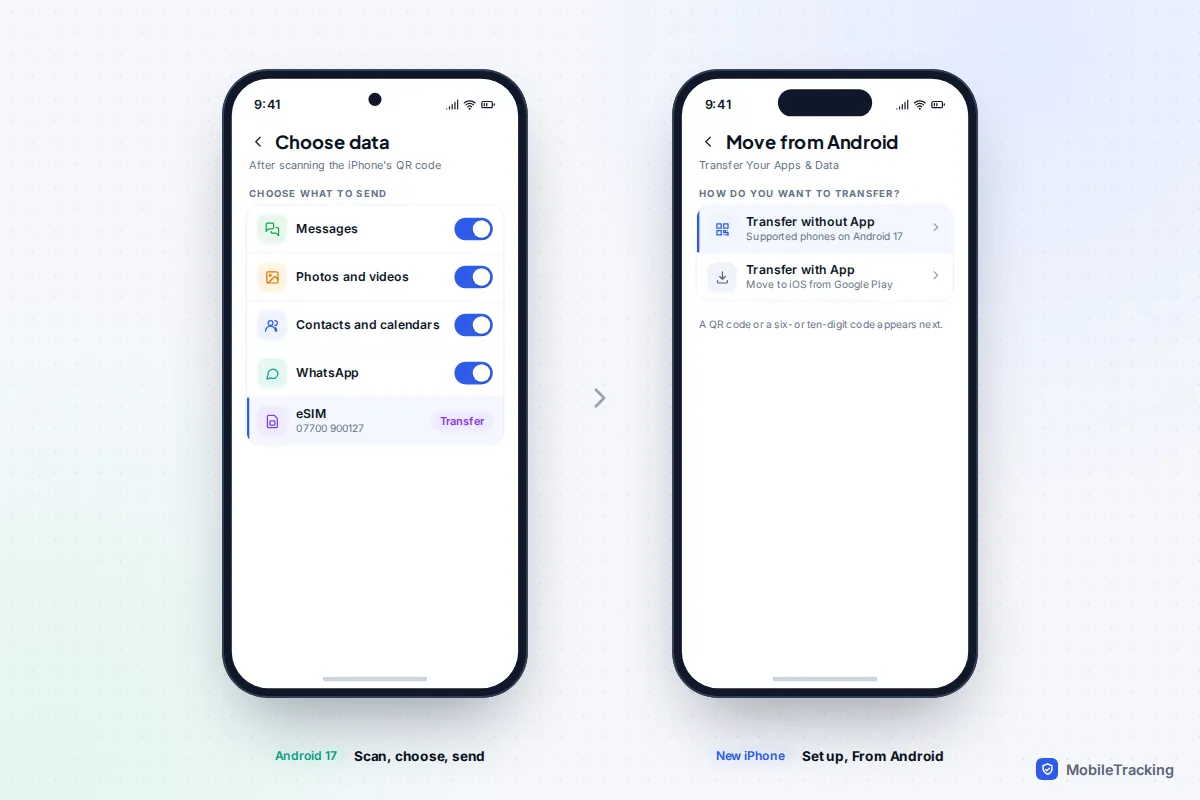
- Transfer without App: for supported Android phones running a compatible version of Android 17. Scan the QR code on the iPhone with the Android phone’s camera, pick what to send, and, for an eSIM, select your number and tap Transfer.
- Transfer with App: for everything else. Install Apple’s Move to iOS app from Google Play, enter the code the iPhone shows, and let it join the iPhone’s temporary Wi-Fi network.
Apple lists what comes across: contacts, message history, camera photos and videos, photo albums, files and folders, accessibility and display settings, web bookmarks, mail accounts, WhatsApp messages and media, voice memos, call history and calendars. Free apps that exist in both stores and support the feature can come too. Music, books and PDFs have to be moved by hand. A USB-C cable between the phones speeds things up. The full list and steps are on Apple’s Move from Android page.
WhatsApp notes that your WhatsApp call history doesn’t transfer on this route, and you must use the same phone number on the iPhone.
iPhone to Android: Android Switch and Transfer to Android
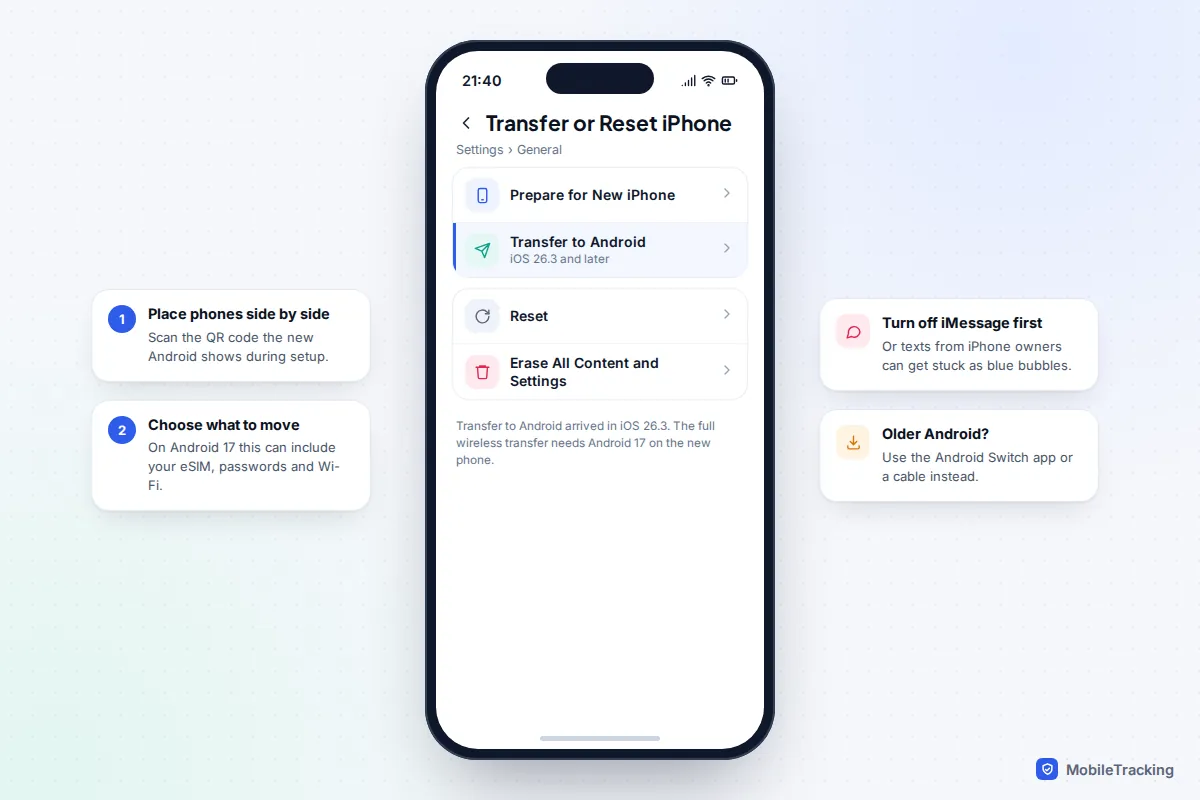
Do two things on the iPhone first: turn off iMessage and FaceTime (both in Settings › Apps). If you skip this, texts from iPhone owners can keep going to iMessage instead of your new phone. If you’ve already given the iPhone away, Apple has a page for deregistering your number from iMessage online.
What happens next depends on the new phone:
- Android 17 on an eligible phone (Google lists Pixel 8 and newer and the Galaxy Z Flip8 and Z Fold8): the upgraded wireless transfer. The new phone shows a QR code, you scan it with the iPhone and follow the prompts. On top of the usual data, it can move your eSIM, Google Account, passwords, passkeys and Wi-Fi networks. Apple’s side of this arrived in iOS 26.3, which added Settings › General › Transfer or Reset iPhone › Transfer to Android.
- Other Android phones: the classic wireless route through Google’s Android Switch app (the iPhone needs iOS 15 or later), or a cable between the phones. Galaxy phones can use Smart Switch.
Google’s iPhone to Android help page says the transfer usually takes under 30 minutes but can take a few hours. It lists photos and videos, contacts, calendars, texts, call history, notes, alarms, free apps and the home screen layout among what moves. It does not move photos stored only in iCloud, paid apps, Safari bookmarks or Health data. WhatsApp chats come across after setup on Android 12 or later, but not WhatsApp’s call history.
For iCloud Photos libraries too big for the phone, our guide to moving photos to a new phone covers Apple’s photo transfer service to Google Photos.
What moves and what doesn’t, route by route
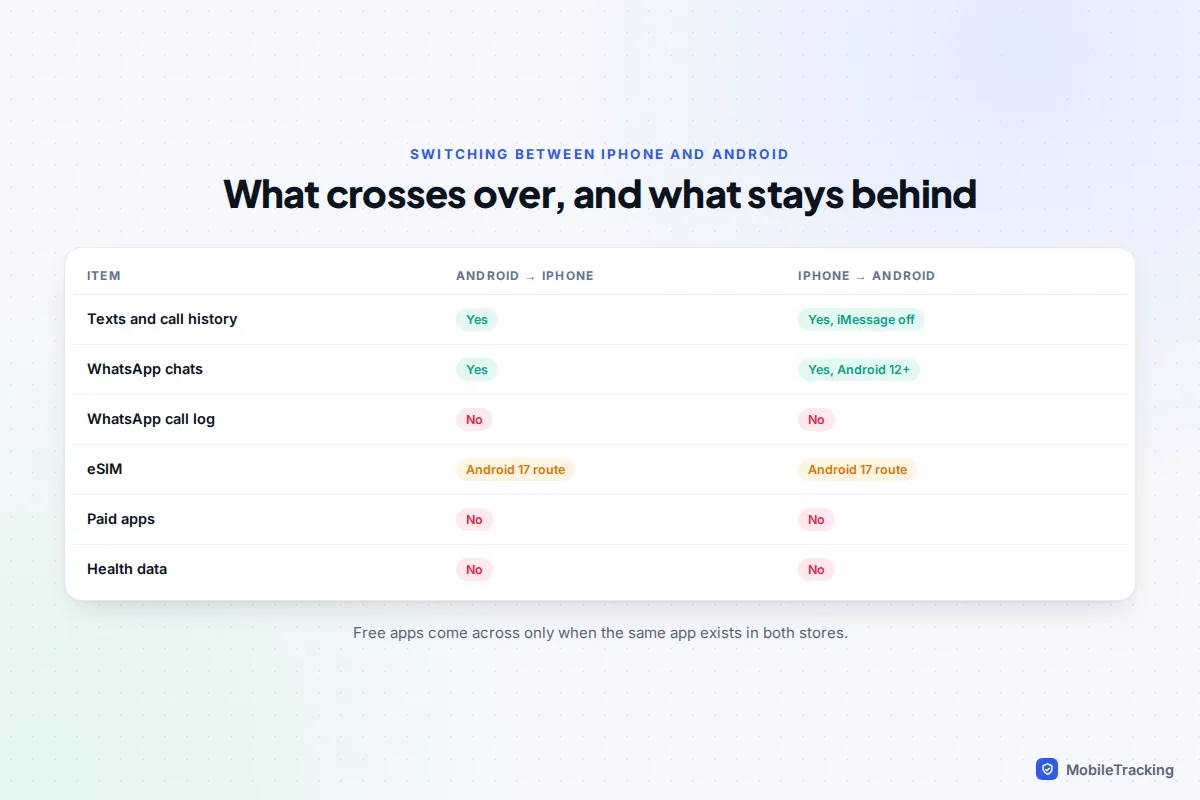
This is the table to check before you begin. “Yes” means the built-in tool moves it with no extra steps; anything else needs you.
| Item | iPhone to iPhone | Android to Android | Android to iPhone | iPhone to Android |
|---|---|---|---|---|
| Texts | Yes | Yes | Yes | Yes, turn iMessage off first |
| WhatsApp chats | Via WhatsApp’s iCloud backup or chat transfer | Needs WhatsApp backup turned on | Yes, in the transfer | Yes, after setup (Android 12+) |
| Photos and videos | Yes | Yes | Yes | On-phone only; iCloud Photos separately |
| Contacts and calendars | Yes | Yes | Yes | Yes |
| Call history | Yes | Yes | Yes | Yes |
| eSIM | If carrier supports it | Often, carrier dependent | App-free Android 17 route | Upgraded Android 17 route |
| Apps | All, redownloaded | Play Store apps | Some free apps | Some free apps |
| Passwords | iCloud Keychain | Google Password Manager | Use Google Password Manager | Upgraded route, or export |
| 2FA codes | Depends on the app | Depends on the app | Set up again or export | Set up again or export |
Two-factor codes deserve their own plan
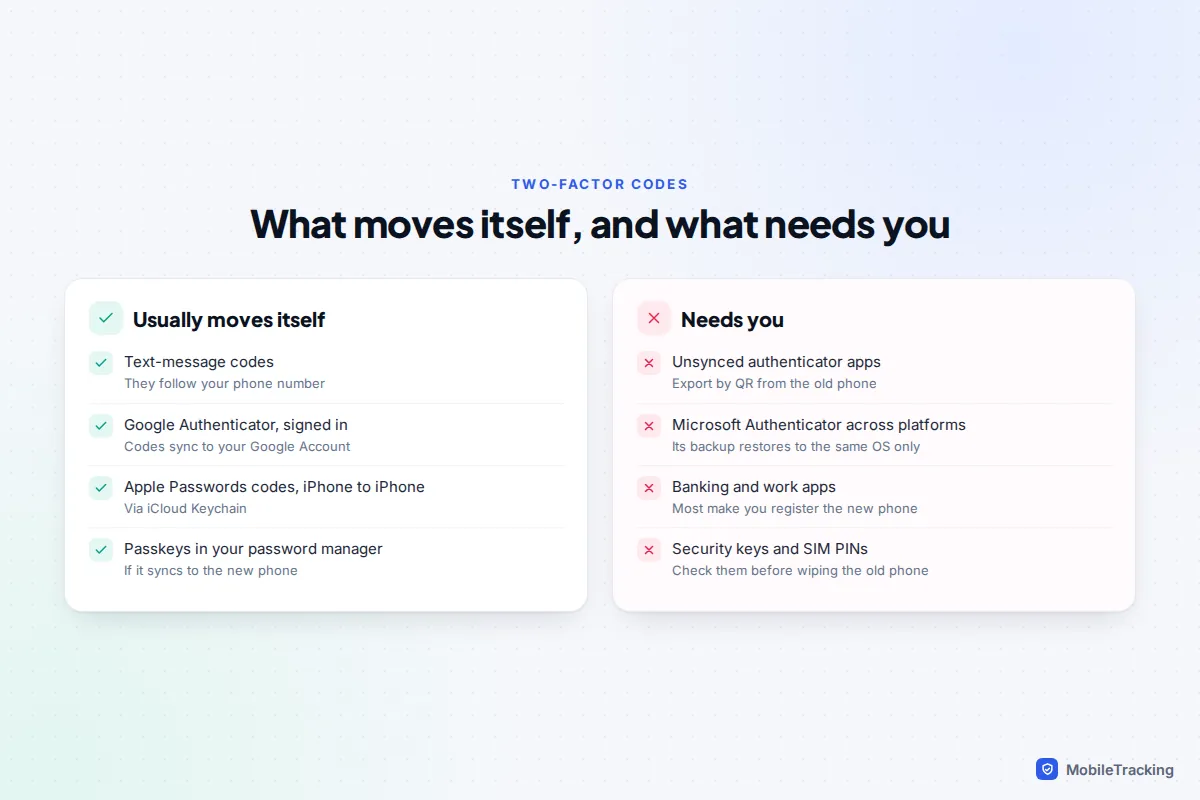
Text-message codes follow your phone number, so they’re fine once the SIM or eSIM is working. Authenticator apps are different. Google Authenticator syncs your codes automatically if you’re signed in to your Google Account in the app; if not, use Transfer accounts › Export accounts on the old phone and Import accounts on the new one. Microsoft says its Authenticator backup only restores to the same type of device, so iPhone-to-Android switchers need to re-add accounts. Most banking apps make you register the new phone again, sometimes with a code by post or a call, so keep the old phone until that’s done.
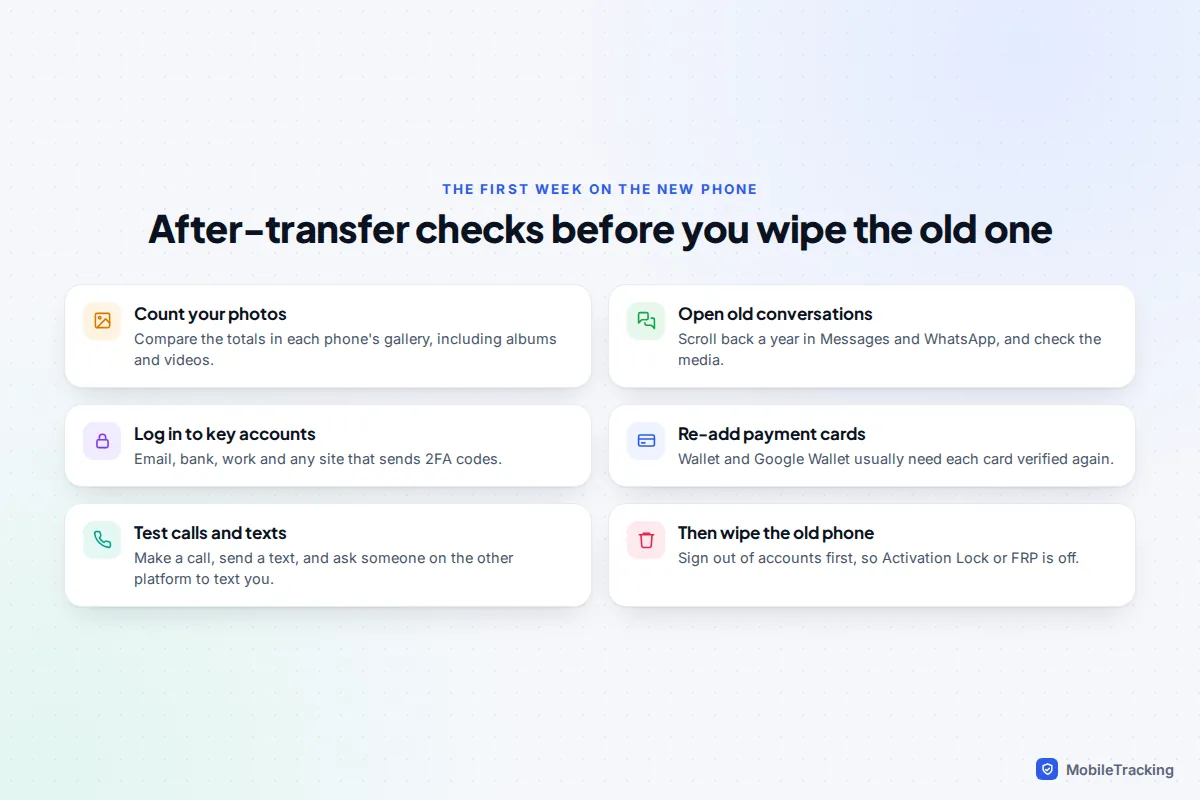
After the transfer: checks before you wipe the old phone
A transfer that says “complete” can still have gaps. Give the new phone a week of normal use with the old one kept safe, and run these checks:
- Photos: compare the photo and video totals on each phone, including albums.
- Messages: scroll back a year or more in Messages and WhatsApp, and open a few old photos and voice notes.
- Accounts: sign in to email, banking, work and anything that sends two-factor codes.
- Payments: re-add cards to Apple Wallet or Google Wallet, which usually asks you to verify each one.
- Calls and texts: make a call, and ask someone on the other platform to text you.
If something is missing, match it to its cause. Texts from iPhone owners not arriving on a new Android usually means iMessage is still registered. Apps that open blank didn’t support transfer, so log in or use the app’s own backup. An eSIM that won’t activate needs the carrier’s app or a new QR code from them. A transfer stuck for hours usually recovers on a cable or with both phones restarted and kept on power.
When everything checks out, follow our guide to wiping a phone before selling it, so your data doesn’t leave with the old handset.
Frequently asked questions
Can I transfer data after I’ve already set up the new phone?
On an iPhone, the Quick Start and From Android transfers only run during setup, so you’d need to erase the new iPhone and start again. On Android, Google says the copy can only be done once and recommends doing it at setup; Samsung’s Smart Switch app can also be run afterwards.
How long does a phone transfer take?
Google says iPhone to Android transfers usually take under 30 minutes but can take a few hours with a lot of data. Other routes are similar. Large photo libraries and slow Wi-Fi are the usual reasons for long waits, and a cable helps where your route supports one.
Do I need a SIM in the new phone to transfer?
No. The transfer runs over Wi-Fi, Bluetooth or a cable. You’ll need the SIM or eSIM working afterwards for calls, texts and any codes sent by text.
Will my WhatsApp call history move to the new phone?
Not when you switch between iPhone and Android: WhatsApp says call history stays behind on both cross-platform routes. Your chats, media and settings do move. Screenshot any calls you need to keep before you switch.
Should I trade in my old phone on the day?
Only if the shop will let you run the transfer and checks there. It’s safer to keep the old phone for a week, until your banking apps, authenticator codes and messages all work on the new one.
This guide is general information, not legal or financial advice. Read our editorial policy.