
For a child under about nine, install the YouTube Kids app, sign in with your own Google account, create a profile for your child and pick a content level: Preschool (4 and under), Younger (5 to 8) or Older (9 to 12), or Approve content yourself if you want to hand-pick every channel. For a child aged roughly 9 to 12 who has outgrown the Kids app, set up a supervised kid account on the main YouTube app from You › Settings › Family Center. For a teenager aged 13 to 17, you can link accounts as a supervised teen account, which shows you their channel activity rather than restricting what they watch.
Each takes 10 to 15 minutes. This guide covers all three, the settings worth changing on day one, the January 2026 additions (including a Shorts limit you can set to zero), YouTube Kids on a TV, and the gaps that catch parents out. If you want the wider picture first, such as why autoplay and the recommendation rabbit hole matter, read our parent’s guide to YouTube safety. This page is the hands-on setup.
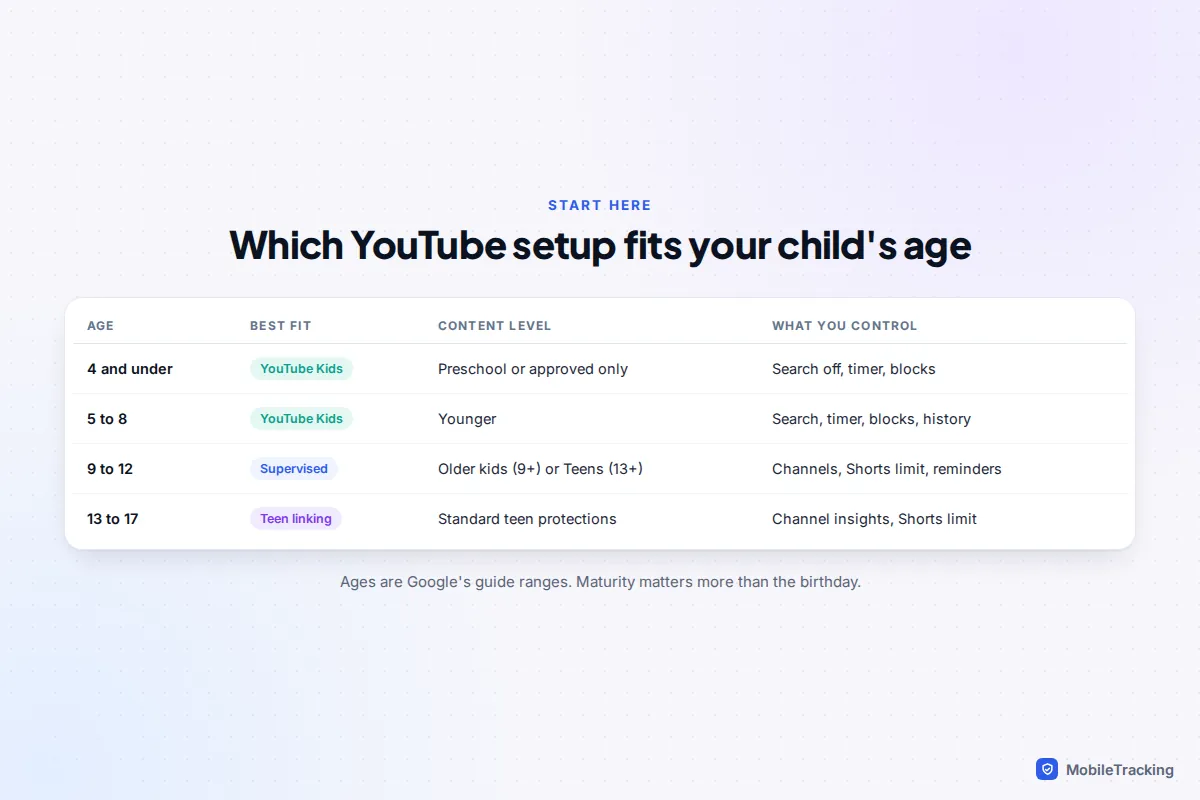
Which option should you use?
There are three separate setups, and they work in very different ways. YouTube Kids is a separate app with its own library of filtered videos. A supervised kid account is the normal YouTube app with a content ceiling and many features switched off. A supervised teen account is the normal teen experience, plus some visibility for you.
| Setup | Best for | What your child sees | Can they leave it? |
|---|---|---|---|
| YouTube Kids | Up to about 8, or older children who need a tight library | A separate kids’ catalogue, no comments, search optional | Only by using another app or account |
| Supervised kid account | Roughly 9 to 12 (under 13) | Main YouTube, limited to Older kids, Teens or Older teens content | No, you control it until they turn 13 |
| Supervised teen account | 13 to 17 | Standard teen YouTube with built-in protections | Yes, either of you can end it |
The commonest mistake is moving a child to the main app too early because YouTube Kids feels babyish. Its Older level covers music, gaming and science for 9 to 12 year olds, and is still narrower than the lowest supervised setting. If your eight-year-old mainly watches Minecraft videos and nature clips, the Kids app will probably do for another year or two.
How to set up YouTube Kids step by step
Do this on the device your child will use. Signing in with your own Google account matters: it links the profile to you, so your settings follow your child to other devices.
- Install YouTube Kids from the Google Play Store or the App Store and open it.
- Choose I’m a parent, confirm your birth year, and sign in with your own Google account.
- Create a profile for your child with their name and age. If they already have a Google account managed through Family Link, pick that instead.
- Choose a content level: Preschool, Younger, Older or Approve content yourself.
- Decide whether to allow search. With search off, your child only sees videos from channels YouTube Kids has verified.
- Finish the tour, then open Settings (the lock icon) and set a custom passcode.
To change anything later, tap the lock icon, solve the multiplication problem or enter your passcode, pick your child’s profile and enter your Google password. You can also reach the same settings from the Family Link app under Controls › YouTube, or in the main YouTube app under You › Settings › Family Center. Google’s page on parental controls for YouTube Kids profiles lists every option.
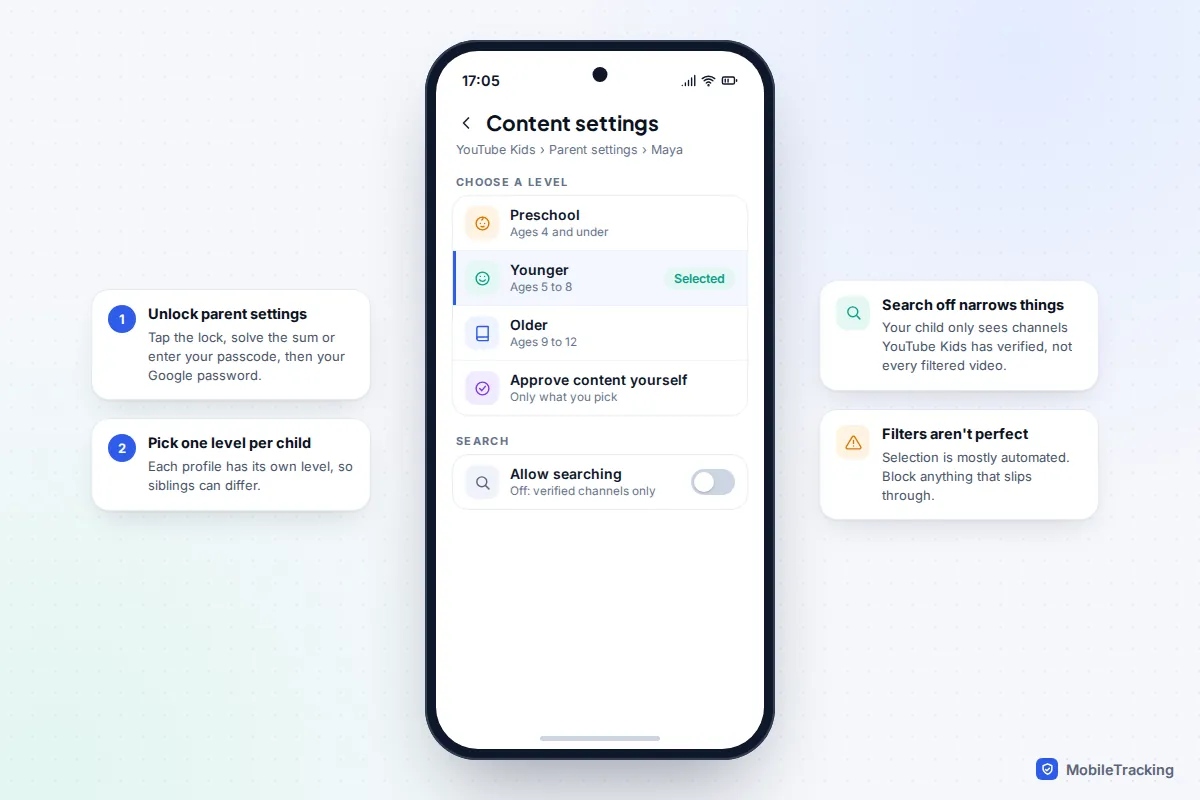
What the content levels actually mean
Google describes the levels like this: Preschool focuses on creativity, play and learning for ages 4 and under; Younger lets children aged 5 to 8 explore songs, cartoons and crafts; Older opens up more music, gaming and science for ages 9 to 12. The filtering is largely automated, which is why the YouTube Kids policies page admits some unsuitable content can slip through. Treat the level as a sensible starting point, not a guarantee.
When to use Approve content yourself
This is the strictest option. Search is off and your child can only watch the videos, channels and collections you have approved. It suits under-fives, easily frightened children, and children who do better with a predictable library.
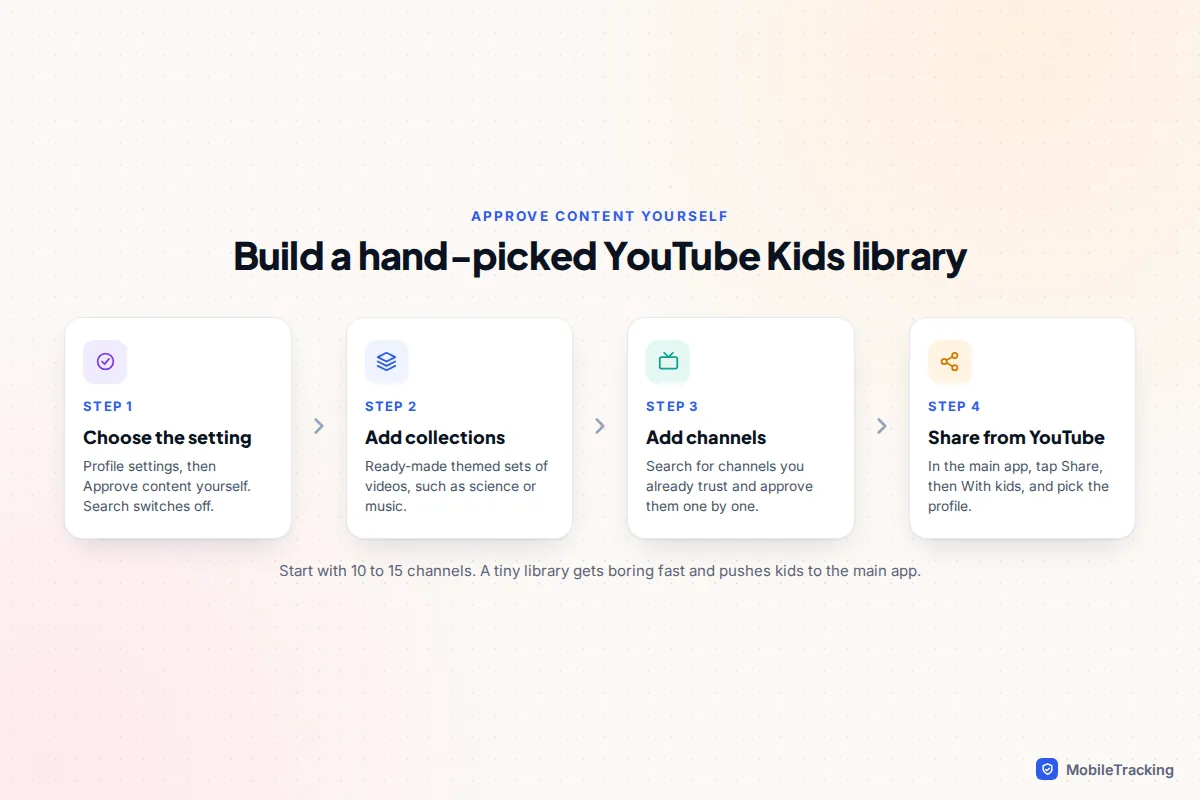
The trade-off is effort. Four channels get boring within a week, and bored children go looking for the main app. Start with 10 to 15 channels you trust and add more as interests change.
The YouTube Kids settings to change on day one
Out of the box, YouTube Kids has no time limit and lets older children guess their way into parent settings. Five minutes here makes a real difference.
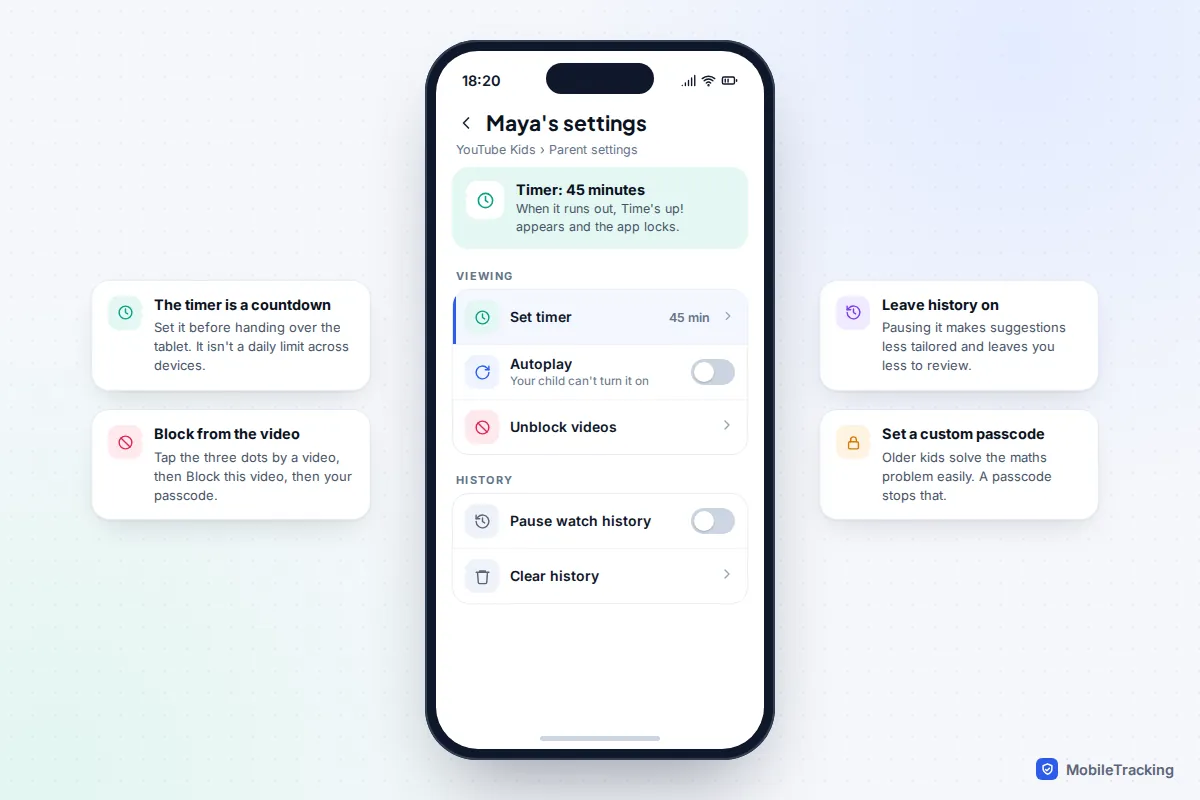
- Custom passcode. The default gate is a simple multiplication sum, which most eight-year-olds can solve. A four-digit passcode stops that.
- Timer. In parent settings, tap Set timer, choose the minutes and start it. When it runs out your child sees a “Time’s up!” message and the app locks. It is a countdown on that device, not a daily allowance.
- Autoplay. Turn autoplay off and your child can’t switch it back on. This is the single best setting for breaking the one-more-video loop.
- Blocking. Tap the three dots next to any video and choose Block this video, then enter your passcode. To block a whole channel, use your parent account in the main YouTube app or on the YouTube website. Undo mistakes under Unblock videos in the child’s settings.
- History. Leave watch history on unless you have a reason not to. Pausing it makes recommendations less tailored and gives you less to review when you sit down together.
If you need a daily limit that holds across devices, or a limit that covers every app and not just YouTube Kids, set it in Family Link instead. Our guide to setting a time limit on YouTube for kids compares the options.
How to set up a supervised kid account on YouTube
A supervised kid account is for children under 13 (the age varies in some countries) who are ready for the main YouTube app but not for all of it. There are three ways to set one up:
- On your own phone: open YouTube, tap You › Settings › Family Center, then choose to add a kid account and follow the prompts. This route doesn’t need a separate Google account for your child, and you switch between accounts on the Who’s watching screen.
- In Family Link: if your child already has a Google account, open Family Link, pick your child, then Controls › YouTube › YouTube & YouTube Music. If you haven’t set up Family Link yet, our Google Family Link setup guide covers it.
- On a computer: go to families.youtube.com, sign in and pick your child from your family group.
During setup you choose one of three content settings. Google renamed them recently, so older guides use different labels, but the settings themselves haven’t changed:
- Older kids (formerly Explore): content generally suitable for viewers 9 and over. Comments are hidden entirely and live streams are off.
- Teens (formerly Explore more): content generally suitable for 13 and over. Your child can read comments but not write them.
- Older teens (formerly Most of YouTube): almost everything except videos marked 18+ and a few categories unsuitable for supervised accounts.
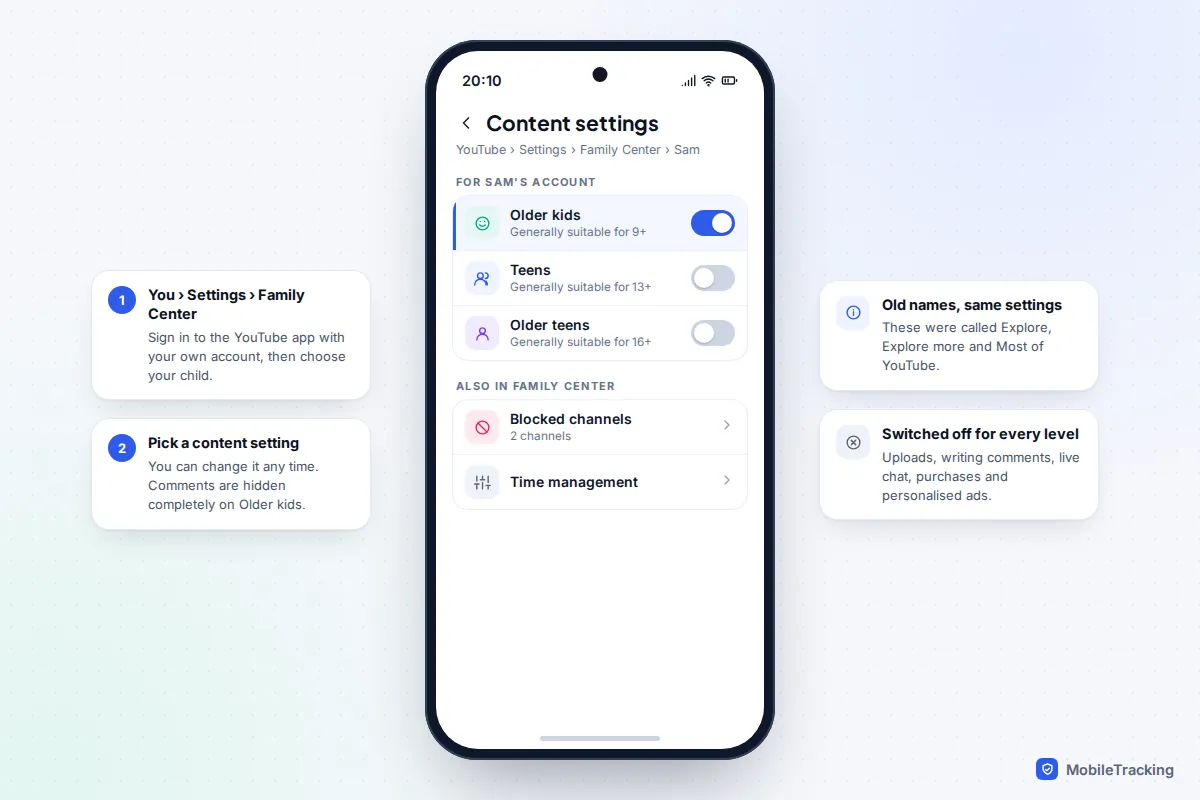
Whatever level you choose, a supervised account can’t upload videos, create a channel, write comments, use live chat, buy anything, see personalised ads, or use incognito mode. Restricted Mode is unavailable too, because the content setting replaces it. If your child says a button is greyed out, that is usually why.
Time management, added in 2026
In January 2026 YouTube added time tools for supervised accounts. In Family Center, open your child and go to the time management settings. You can set a daily Shorts feed limit, including zero, which switches the endless Shorts feed off without affecting ordinary videos. You can also set custom Bedtime and Take a break reminders and turn on Disable autoplay. You can block individual channels and clear or pause history from the same place.
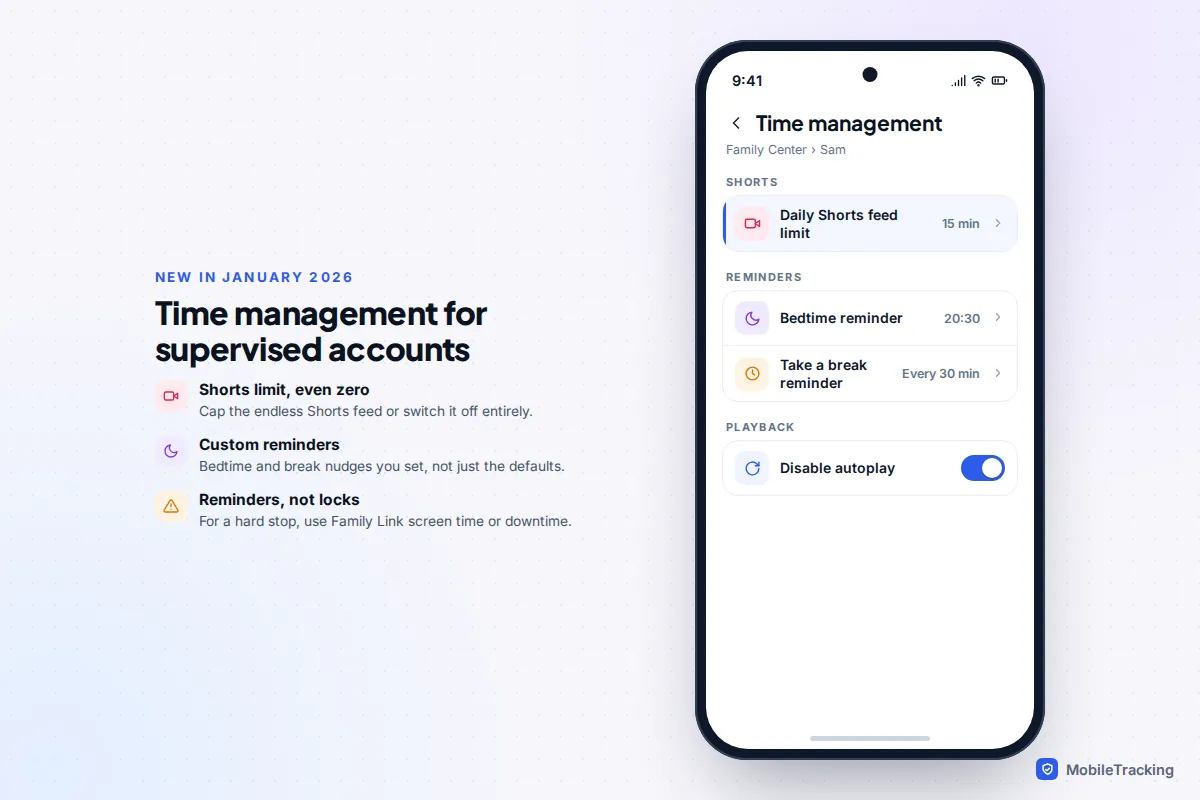
For a ten-year-old, a sensible starting point is Older kids, autoplay off, Shorts limited to 15 minutes or switched off, and a bedtime reminder half an hour before lights out.
Supervised teen accounts for 13 to 17 year olds
Teen supervision launched in September 2024 and works differently. It doesn’t restrict content. Instead it gives you insight into your teen’s own channel, so you can talk about what they post. Either of you can start it:
- In the YouTube app, tap You › Settings › Family Center.
- A parent taps Invite a teen, or a teen taps Invite a parent, then Create invite.
- Share the QR code or link with the other person, who opens it and agrees. Google’s teen supervision setup page shows the same steps on a computer.
Once linked, Family Center shows the channels your teen owns, how many public, private and unlisted videos they have uploaded, how many live streams they have hosted, how many comments they have posted and how many channels they subscribe to. You both get emails when they upload a video or start a live stream. Since January 2026, parents of supervised teens can also set a Shorts limit and custom reminders.
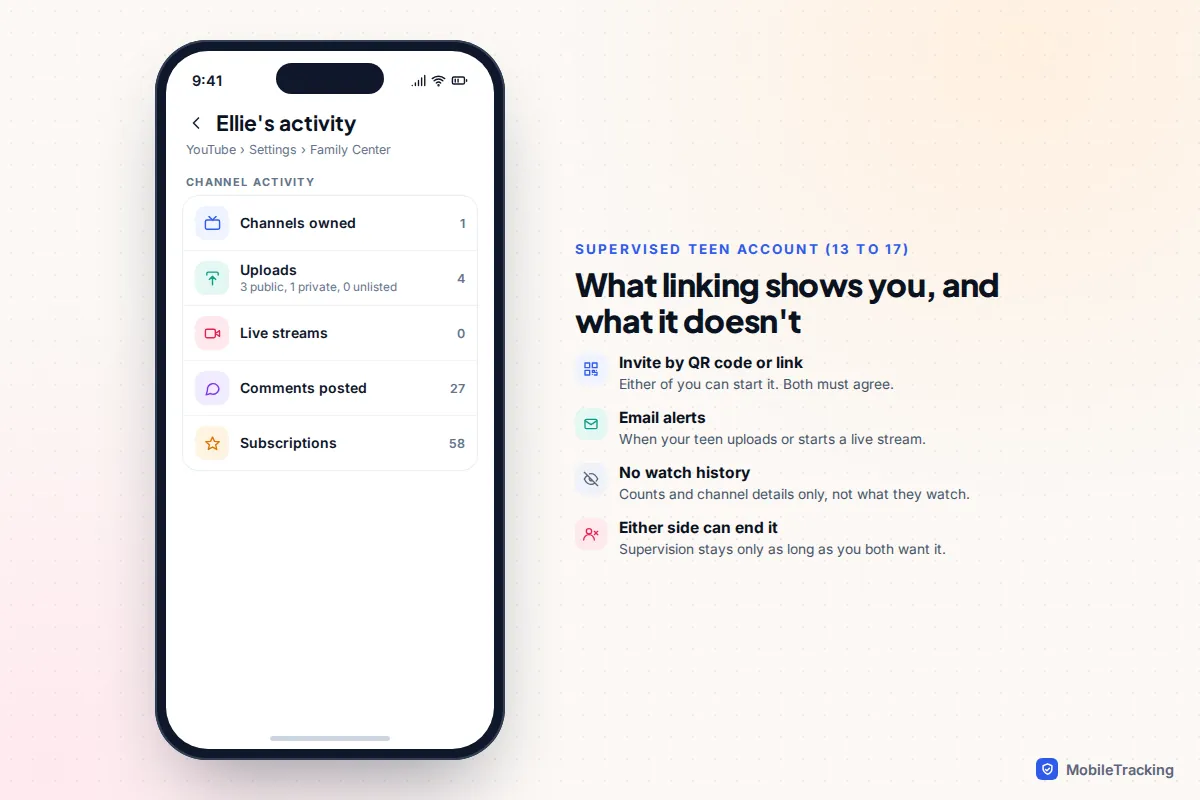
Either of you can end supervision at any time, by design. It works best agreed together, for example as a condition of starting a channel. In the US, YouTube has also used age estimation since August 2025 to apply teen protections to accounts it believes belong to under-18s, linked or not.
What parents can and can’t see
Parents are often surprised by how little these tools show. That is by design: they control what a child can reach rather than report back.
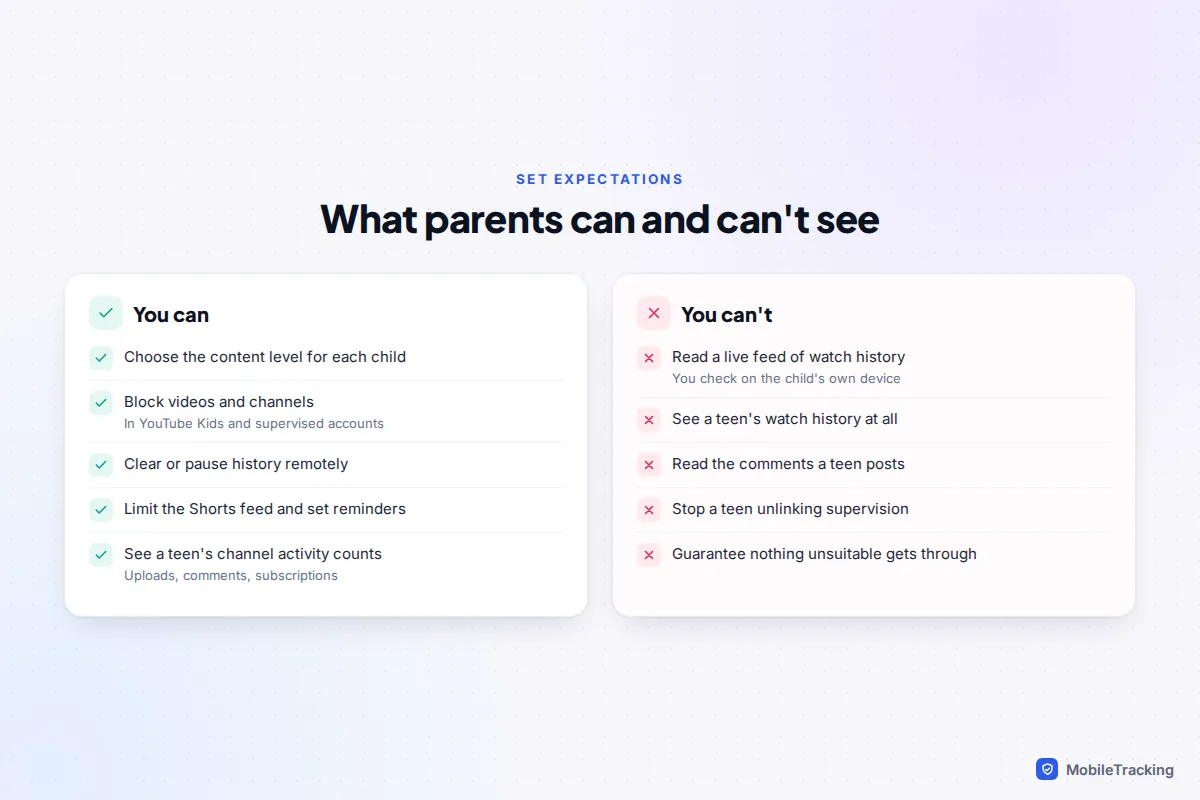
For YouTube Kids and supervised kid accounts, you can change levels, block content and clear history remotely, but Google says that to review your child’s watch history you need to be on your child’s device. For teens, there is no watch history at all, and you see counts of comments rather than the comments themselves. Five minutes scrolling through the history together tells you more than any dashboard.
YouTube Kids on a TV
From August 2025, many smart TVs, streaming sticks and consoles stopped offering a separate YouTube Kids app. Instead, YouTube Kids lives inside the main YouTube app: choose your child’s profile on the Who’s watching? screen and the app switches to the Kids experience with the settings you chose on your phone. If an old Kids app on your TV says it has moved, update or open the main YouTube app.
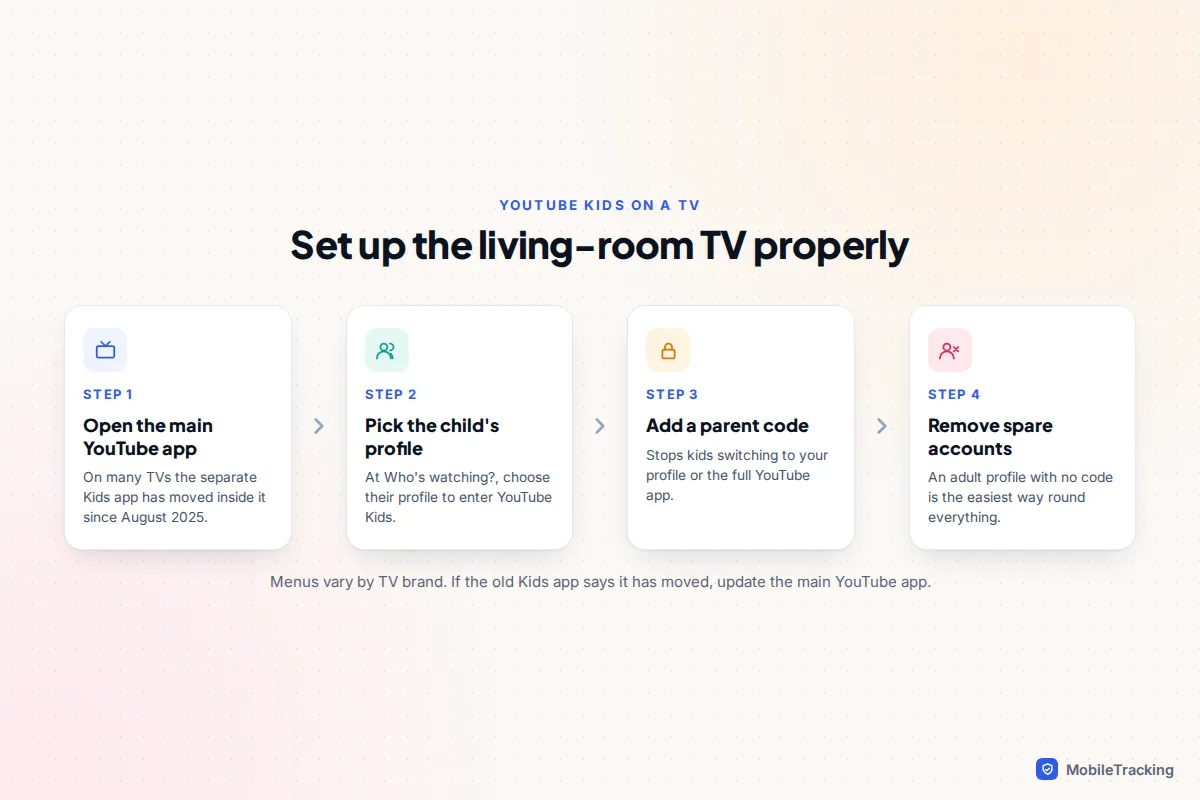
The weak point is the adult profile sitting next to your child’s. Add a parent code in the TV app so switching profiles, or leaving YouTube Kids, needs your code. Don’t rely on the app timer on a TV either; set a limit with the TV’s own controls or a simple house rule. Our guide to parental controls on a smart TV covers the TV side.
Troubleshooting: common problems and fixes
| What’s happening | Likely cause | Fix |
|---|---|---|
| Your child is watching full YouTube in a browser | A web browser or signed-out app bypasses YouTube Kids | Block the browser or YouTube app in Family Link, or supervise the browser account too |
| Something unsuitable appeared in YouTube Kids | Automated filtering missed it, or it was shared from a parent account | Block and report it, then consider Approve content yourself or turning search off |
| The timer keeps being ignored | It was never restarted, or the child uses another device | Use Family Link daily limits or downtime instead |
| Supervised child can’t comment or upload | Those features are off for all supervised kid accounts | Working as intended; revisit at 13 with a teen account |
| Restricted Mode is greyed out | The content setting replaces it | Change the content setting in Family Center |
One quiet gap: anything you share with your child from your own YouTube account appears in YouTube Kids regardless of their level. Check a video to the end before you share it.
Frequently asked questions
What age is YouTube Kids for?
Google aims YouTube Kids at children up to 12, with Preschool for 4 and under, Younger for 5 to 8 and Older for 9 to 12. In practice most families switch to a supervised account somewhere between 9 and 12, when their child needs videos the Kids catalogue doesn’t have.
Can I use YouTube Kids without giving my child a Google account?
Yes. You sign in with your own account and create a profile for your child inside the app, and the same now applies to supervised kid accounts set up on your phone. A child Google account through Family Link adds device-wide controls such as downtime.
Does the YouTube Kids timer limit screen time across all devices?
No. It is a countdown in the YouTube Kids app on the device where you set it. For a daily limit that covers several devices or other apps, use Family Link on Android or Screen Time on an iPhone or iPad.
Can my teen see that I’ve linked to their YouTube account?
Yes. Teen supervision only starts once both of you accept the invite, your teen gets the same activity emails you do, and either of you can remove it at any time. There is no hidden version.
Why can’t I find Explore or Most of YouTube in the settings?
Google renamed the supervised content settings. Explore is now Older kids, Explore more is now Teens, and Most of YouTube is now Older teens. What each level allows hasn’t changed.
This guide is general information, not legal or financial advice. Read our editorial policy.