
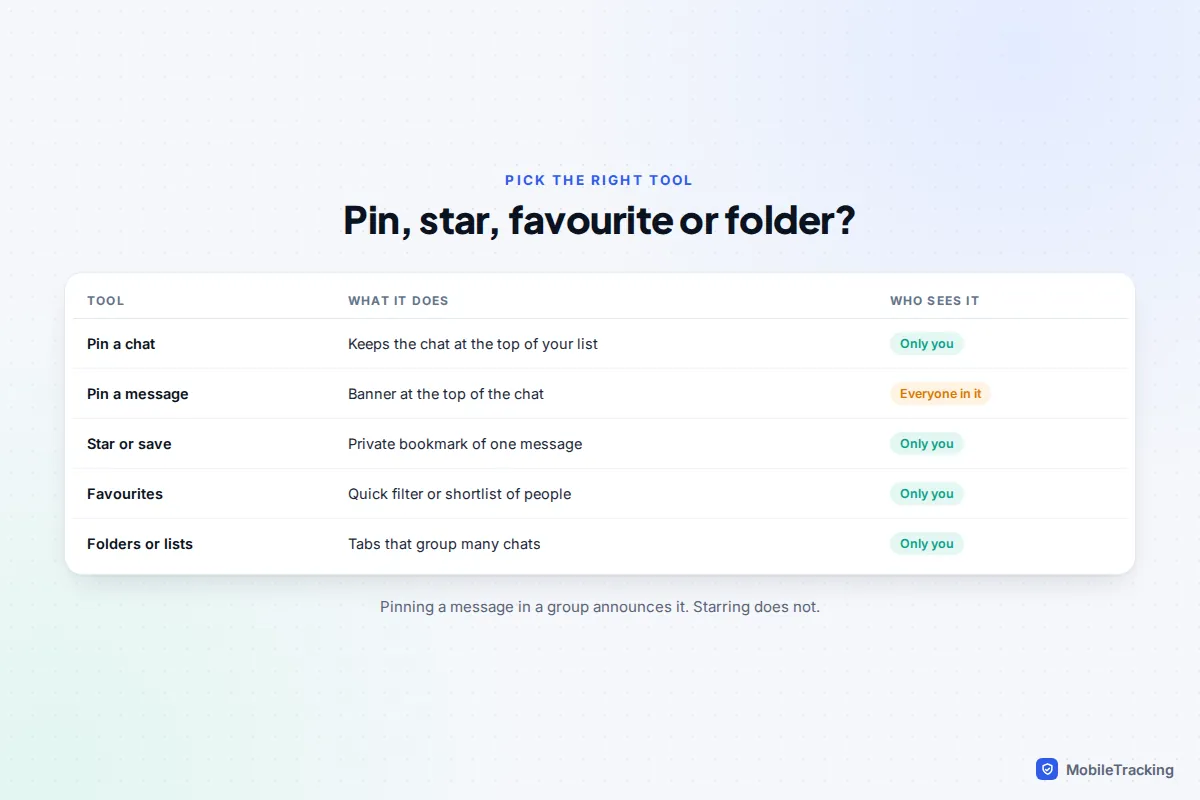
To pin a chat, swipe right on it and tap the pin (iPhone Messages, WhatsApp, Telegram and Signal on iPhone), or press and hold it and tap the pin icon (most Android apps). The chat then stays at the top of your list however many new messages arrive below it. Only you see your pinned chats: nobody is told.
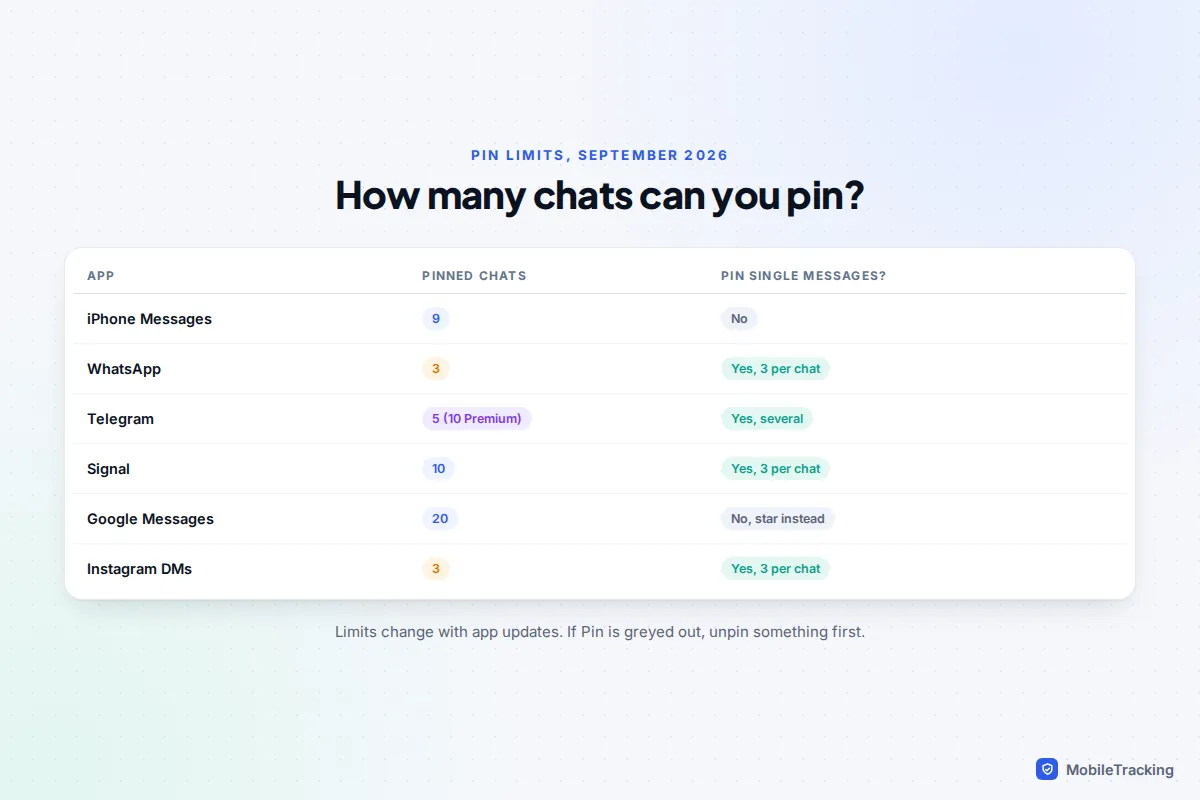
How many you can pin varies a lot. iPhone Messages allows nine, WhatsApp three, Telegram five (ten with Premium), Signal ten and Google Messages twenty. Some apps also let you pin a single message inside a chat, such as the pickup rota in a family group, and that one is visible to everyone. This guide covers both kinds of pin in each app, plus the widgets, favourites and folders that work better when three pins aren’t enough.
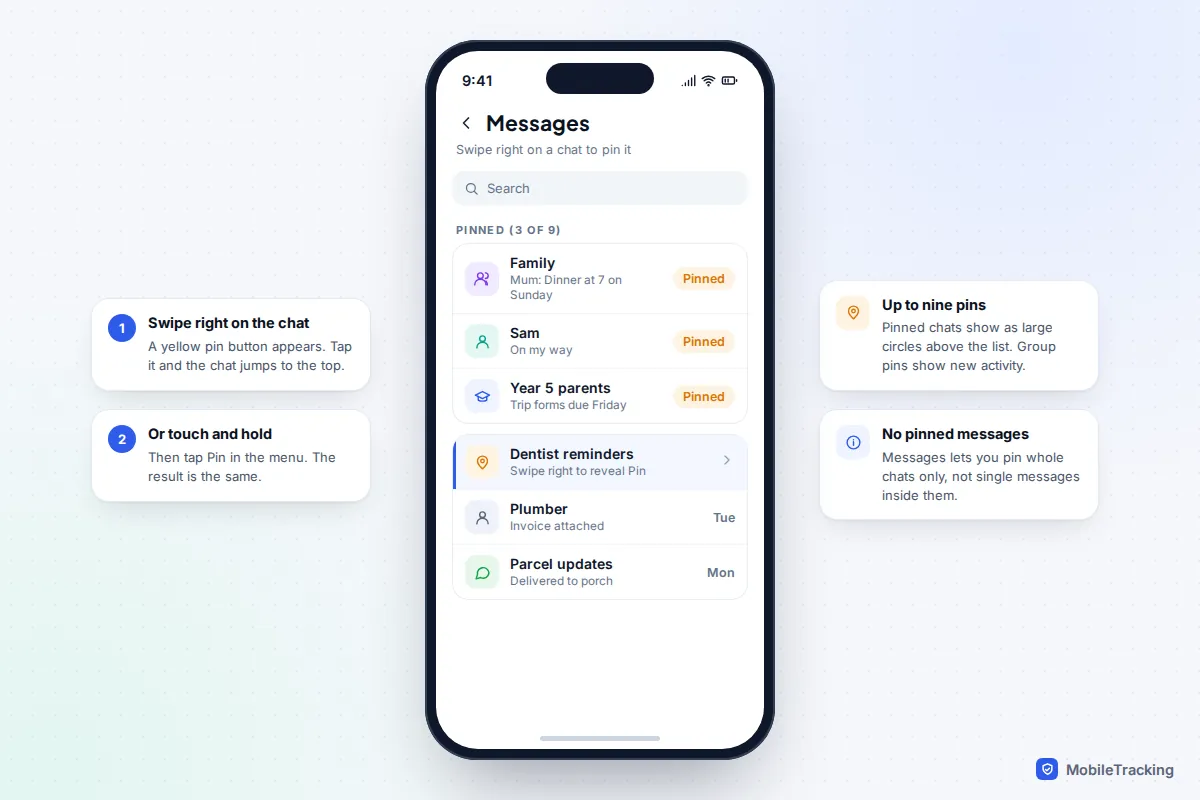
Pin a chat in iPhone Messages
Messages has had pinned conversations since iOS 14, and they work the same way in iOS 26 and iOS 27, for iMessage, RCS and ordinary texts alike.
- Open Messages and find the conversation.
- Swipe right across it and tap the yellow pin button. Alternatively, touch and hold the conversation and tap Pin.
- To change the order, touch and hold a pinned circle and drag it to a new spot.
- To unpin, touch and hold the circle and tap Unpin. Take care not to tap Delete in the same menu.
You can pin up to nine conversations. When a pinned group chat has new messages, the latest ones pop up as small bubbles above its circle, so you can see activity without opening it.
What Messages can’t do is pin a single message inside a chat. For an address or door code, copy it into Notes or favourite a screenshot in Photos.
WhatsApp: three pinned chats and three pinned messages
WhatsApp has two separate pin features. Pinning a chat is private and keeps it at the top of your Chats tab. Pinning a message puts a banner at the top of that chat for everyone in it.
Pin a chat
- Android: press and hold the chat, then tap the pin icon in the top bar.
- iPhone: swipe right on the chat and tap Pin.
- WhatsApp Web and desktop: hover over the chat, click the down arrow and choose Pin chat.
The limit is three pinned chats, and it applies to groups and one-to-one chats together. Try to pin a fourth and WhatsApp refuses until you unpin one. A small paid test called WhatsApp Plus, started in 2026, raises the limit to 20, but it is open only to a limited group of testers.
Pin a message inside a chat
Press and hold the message, then tap Pin (on Android it sits under the three-dot menu; on iPhone you may need to tap More first). WhatsApp asks how long it should stay pinned: 24 hours, 7 days or 30 days, with seven days selected by default. There is no “forever” option, so a message you want all term needs re-pinning every month.
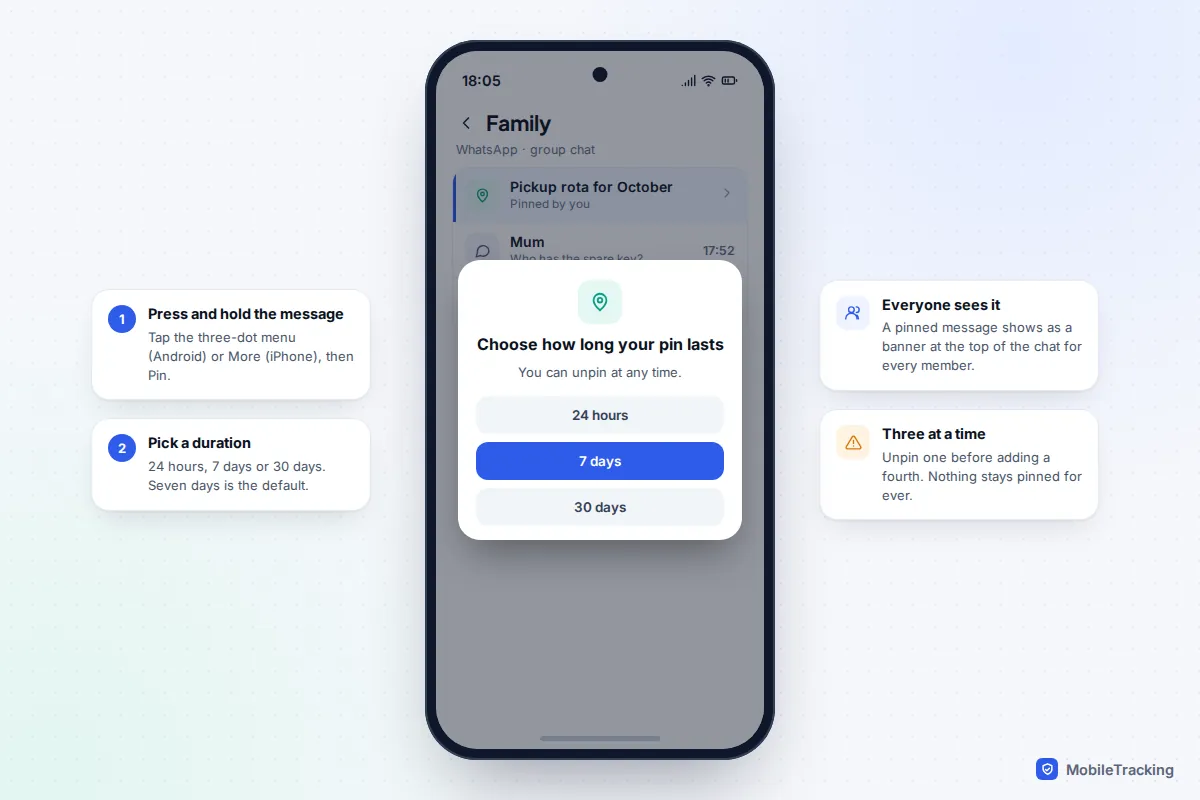
Each chat can have up to three pinned messages, including photos and polls, and members can tap the banner to cycle through them. In groups, admins can restrict pinning to admins only through the group’s permission settings.
When three isn’t enough: Favourites and lists
WhatsApp’s Favourites filter is the practical way round the limit. Go to Settings › Favourites › Add to Favourites, or tap the Favourites filter above your chats. Your favourites then appear as one tap above the Chats list and at the top of the Calls tab. For bigger groupings, tap the + at the end of the filter bar to create a custom list, such as School or Football, and add chats to it.
Telegram, Signal and Google Messages
Telegram: pins per folder
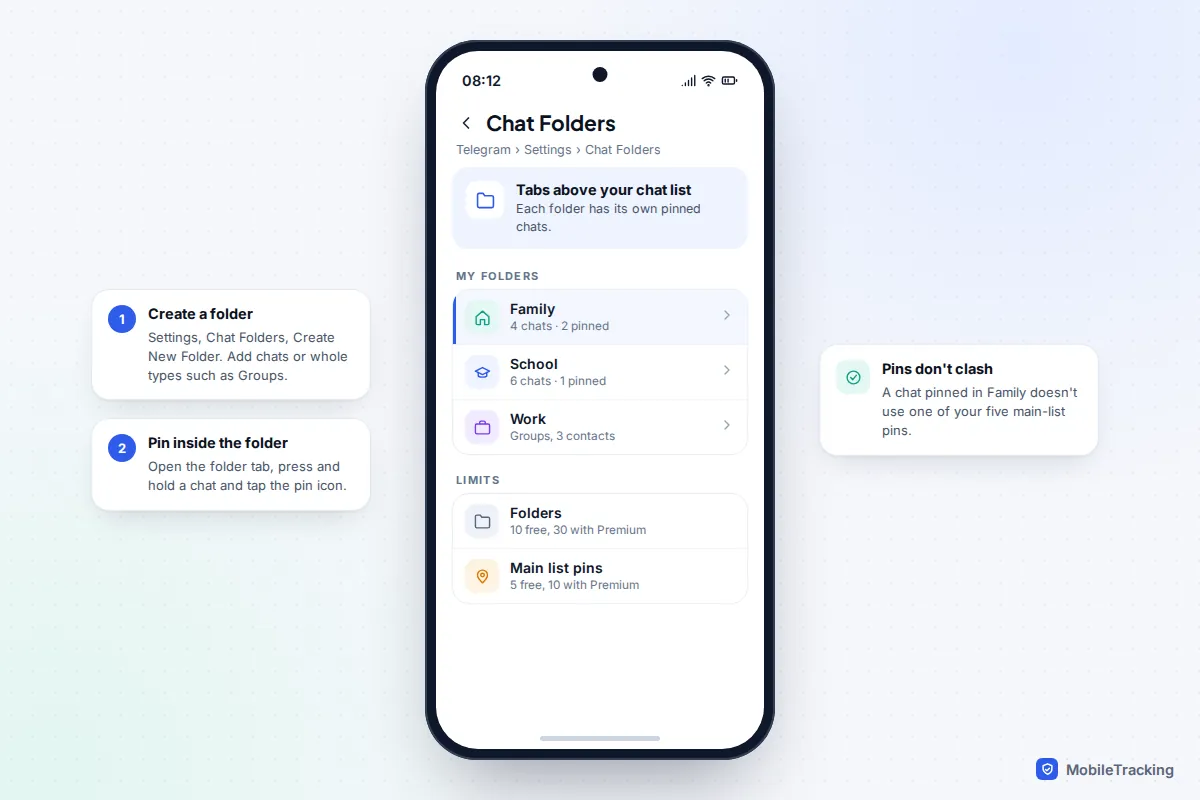
On Android, press and hold a chat and tap the pin icon; on iPhone, swipe right and tap Pin. You can pin five chats or channels in your main list, plus five secret chats. Telegram Premium raises that to ten. Pinned chats can be dragged into any order.
Telegram’s real strength is folders. Go to Settings › Chat Folders › Create New Folder, name it and add chats, or whole categories such as Groups or Unread. Each folder appears as a tab above your chat list, and each has its own pins that don’t count against your five. Free accounts get up to 10 folders of up to 100 chats each; Premium raises this to 30 folders of 200 chats.
To pin a message, press and hold it and tap Pin. Telegram allows several pinned messages per chat; tap the bar at the top to jump between them or open the full list. In a private chat, Telegram asks whether to pin it for the other person too. For private notes, forward things to Saved Messages.
Signal: now ten pins, and pinned messages
On Android, press and hold a chat and tap Pin. On iPhone, touch and hold, swipe right and tap Pin. On Signal Desktop, open the chat’s settings and choose Pin chat. Signal raised the limit from four to ten pinned chats in June 2026, on every platform.
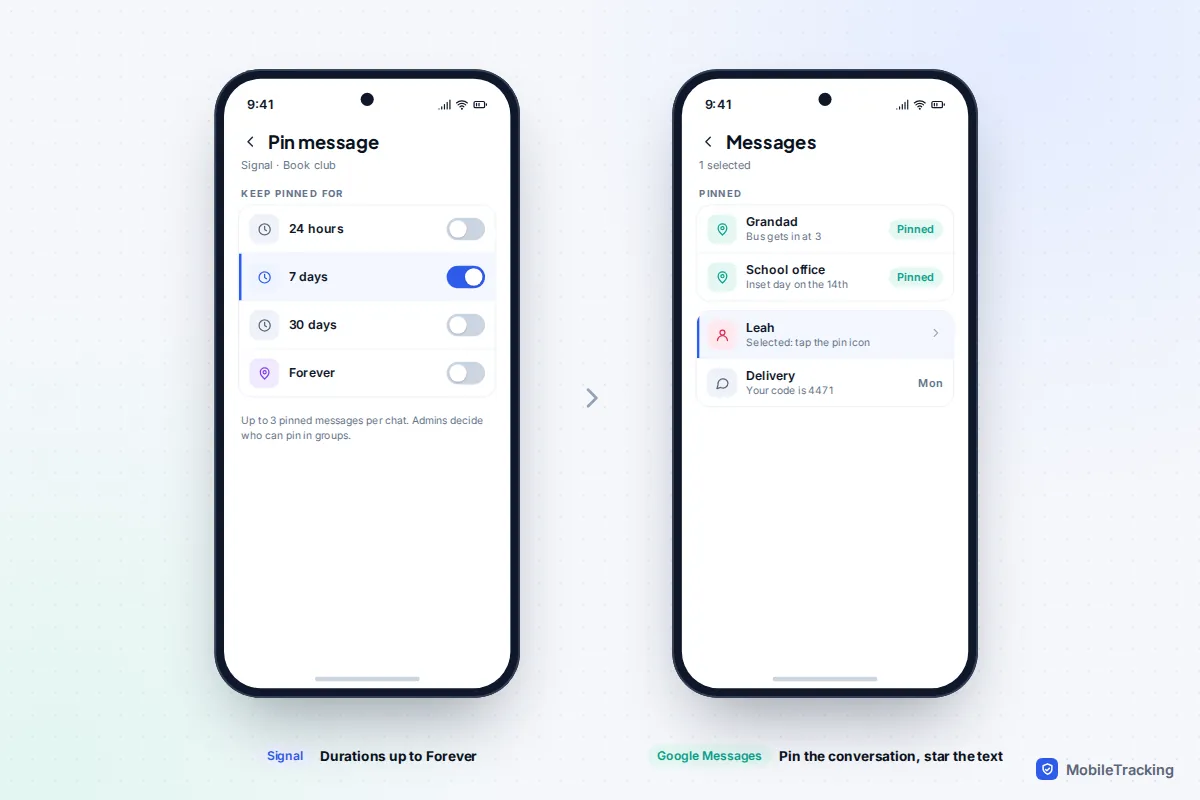
Pinned messages arrived in January 2026. Press and hold a message (right-click on Desktop), tap Pin and choose 24 hours, 7 days, 30 days or Forever. A chat can hold three; pinning a fourth unpins the oldest. Newcomers to a group only see messages pinned after they joined, and disappearing messages unpin when their timer runs out. Signal also has chat folders on Android and Desktop: press and hold a chat and tap Add to folder.
Google Messages: 20 pins, and a new look in testing
Press and hold a conversation and tap the pin icon in the top bar. Google raised the limit from 10 to 20 pinned conversations in November 2025. In August 2026 Google was spotted testing a redesign with large pinned photos across the top, iPhone-style, that caps pins at six. If your app suddenly shows big circles and won’t pin a seventh chat, that test has reached you.
Google Messages doesn’t pin single messages. Instead, press and hold one and tap the star; starred messages are private to you and collected under Starred in the app’s menu.
Instagram, Messenger and Discord
Instagram DMs
Open your messages, then swipe left on a chat and tap Pin (iPhone) or press and hold it and tap Pin (Android). Instagram allows three pinned chats, with the most recently pinned at the top. Inside a chat you can also pin up to three messages, which appear as a banner that everyone in the chat can see, as Instagram’s help page on pinning a message in a chat explains.
Messenger
Messenger’s help centre documents pinning messages, not chats. Press and hold a message in any chat and tap Pin. To find pins later, tap the person’s or group’s name at the top and open Pinned messages. Anyone in the chat can unpin any message, whoever pinned it. Pinning whole chats to the top of your inbox has appeared in tests but isn’t a standard option, so if Pin doesn’t appear when you press and hold a chat, use a home screen widget or shortcut instead (see below).
Discord
Discord lets you pin messages, not conversations. On desktop, hover over a message, click the ••• menu and choose Pin Message; on mobile, press and hold the message and tap Pin Message. Each channel or DM can hold up to 250 pins, raised from 50 in 2025. To read them, click the pin icon at the top right of the channel (desktop) or tap the channel name and then Pins (mobile).
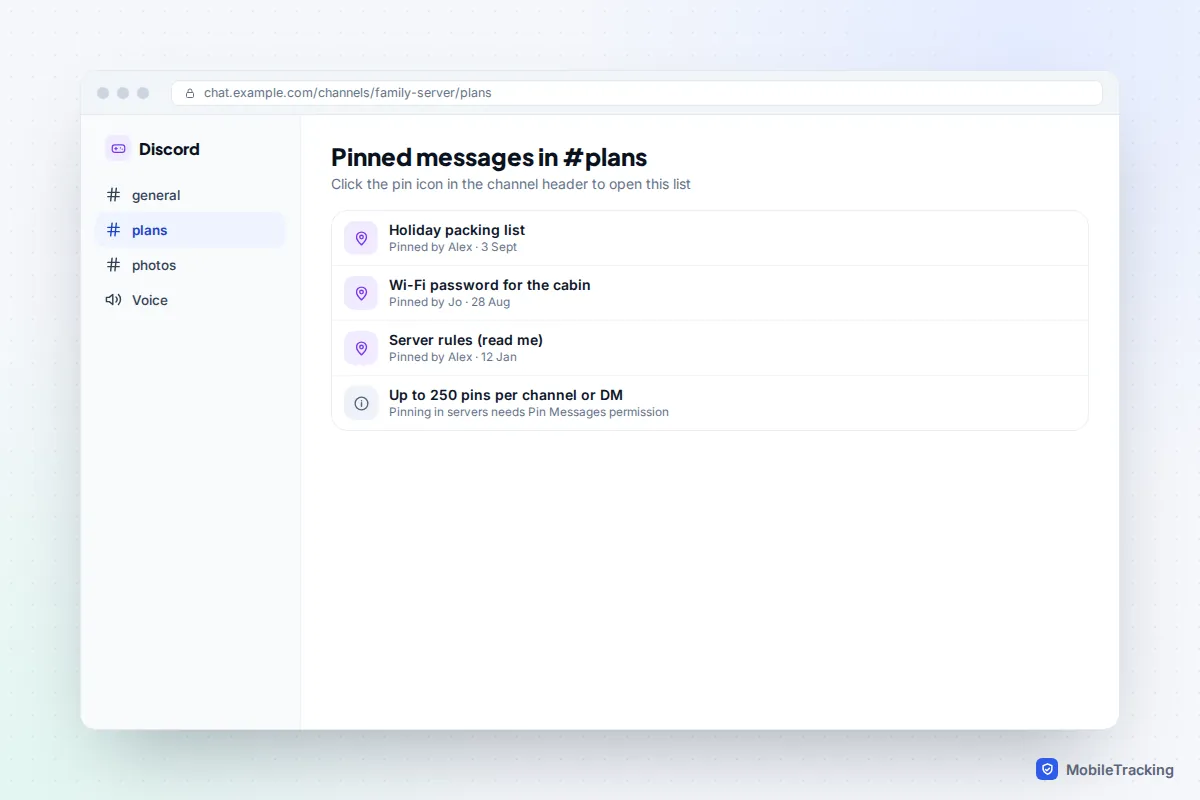
In servers, pinning needs the Pin Messages permission, which Discord split from Manage Messages in 2025. In DMs and group DMs anyone can pin. To keep DMs and channels at hand, Discord’s Favorites section can hold up to 200 items, but it is a Nitro experiment on desktop and browser only, and view-only on mobile. For servers, drag one server icon onto another to make a folder. If your child uses Discord, our Discord safety guide for parents covers DMs and servers in more depth.
Pin, star, favourite or folder: which should you use?
Pinning is one of several tools, and the key question is whether something should stand out for you alone or for everyone in a group.
| You want to… | Use | Why |
|---|---|---|
| Find one or two chats instantly | Pin the chat | Private, and it survives busy days at the top of the list |
| Make a group see the same info | Pin a message | Everyone gets the banner; pick a duration that matches the event |
| Keep a code or address for yourself | Star or Saved Messages | Nobody is notified and nothing expires |
| Keep ten or more people close | Favourites or lists | No three-pin limit and one tap to filter |
| Separate family, school and work | Folders (Telegram, Signal) or lists (WhatsApp) | Each tab can carry its own pins |
| Get rid of chats you never open | Archive | Clears the list without deleting anything |
That last row matters more than it looks: fifty dormant chats make everything harder to scan. Our guide to archiving old chats shows how to do it app by app without losing a word.
Quick access outside the app: widgets, shortcuts and priority
A pin only helps once the app is open. For the people you message all day, a home screen shortcut is faster.
On iPhone
Add the Contacts widget (iOS 15 and later): touch and hold an empty part of the home screen, tap Edit › Add Widget, search for Contacts and choose a size showing one, four or six people. Tap a face to message or call. To make sure those people still reach you in a Focus, add them to the Focus’s allowed people; our guide to setting up Focus modes walks through it.
On Android
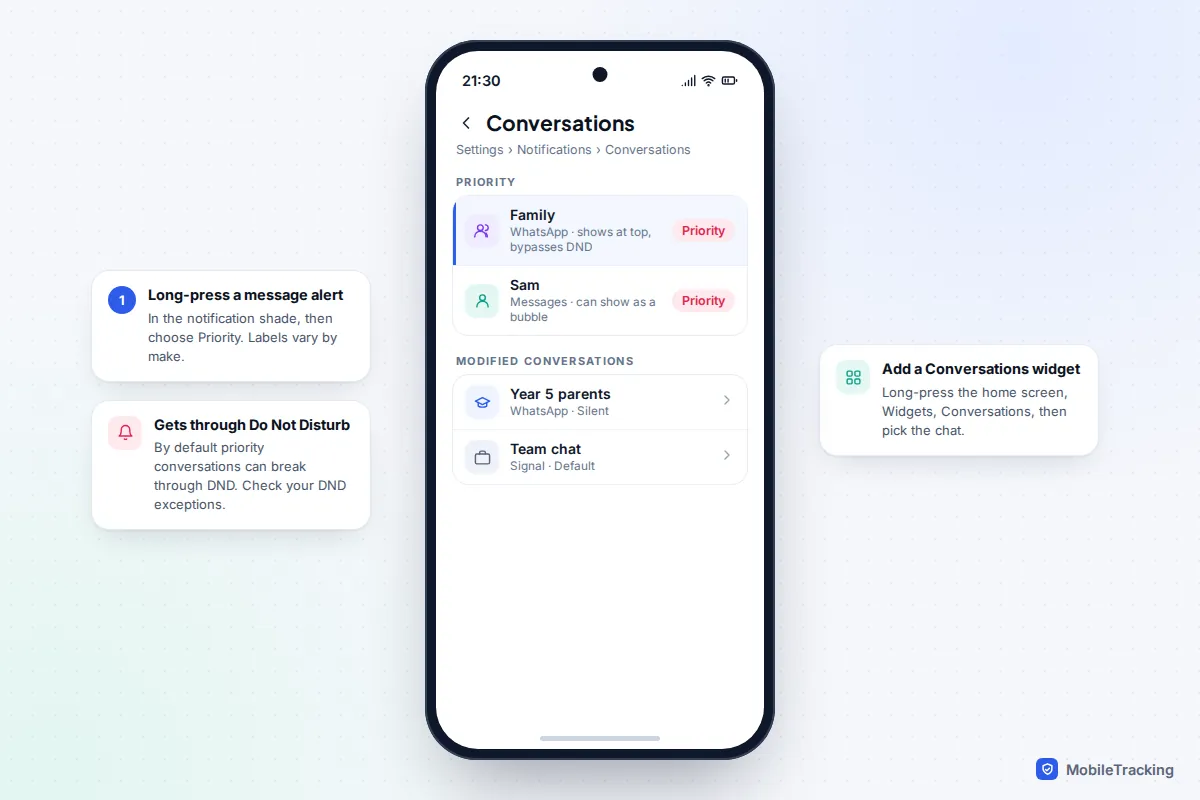
- Priority conversations: when a message notification arrives, long-press it and choose Priority. You can also go to Settings › Notifications › Conversations. Priority chats show above other notifications and, by default, break through Do Not Disturb. Samsung’s labels are similar but may sit under Notifications › Advanced settings.
- Conversations widget (Android 12 and later): long-press the home screen, tap Widgets, find Conversations and pick the chat. It shows the latest message from that person.
- WhatsApp shortcut: open the chat, tap the three dots, then More › Add shortcut to put that chat on your home screen.
Setting it up for real life: family, school and work
Take a typical parent’s phone: a partner, a family group, two class WhatsApp groups, a football chat and a work Signal group. With three pins, the choice looks impossible until you split the jobs.
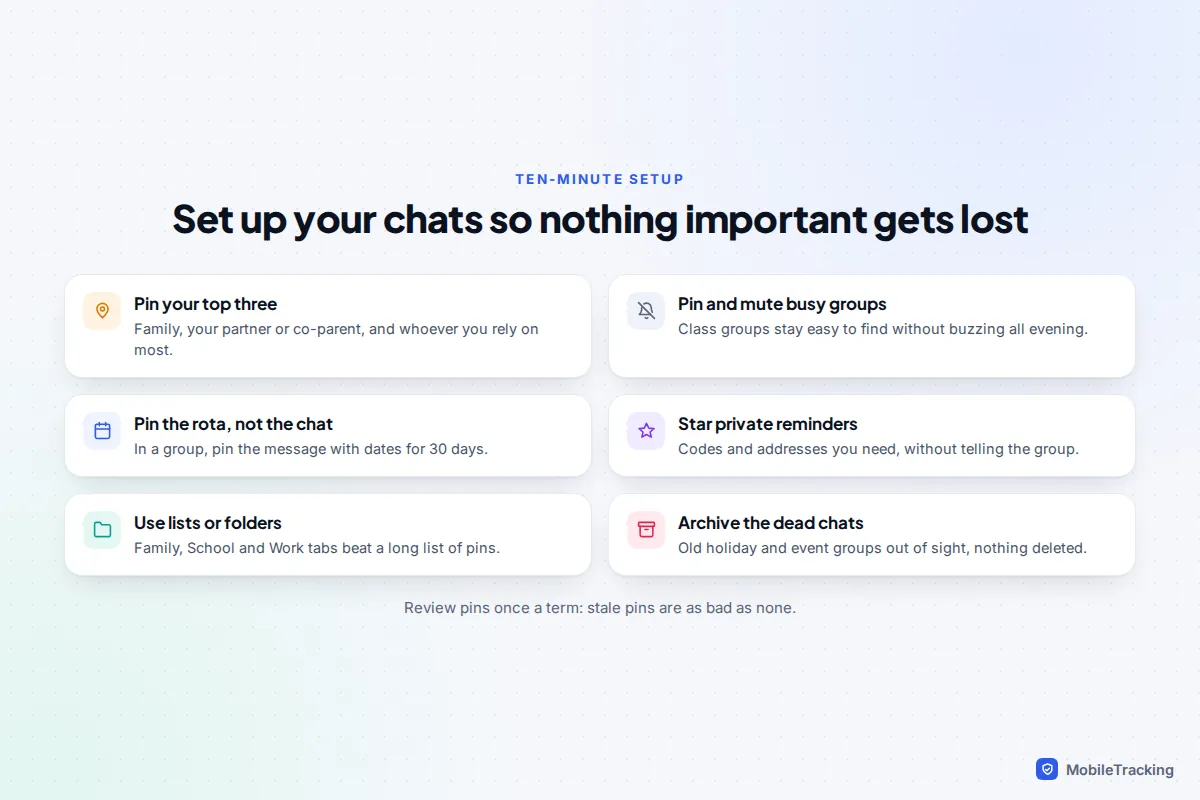
Pin the three chats where a missed message has a real cost, usually your partner or co-parent, the family group and whoever does the school run with you. Put the class groups and the football chat in a School list or folder and mute them, so they stay easy to find without buzzing through dinner. Inside the family group, pin the week’s rota or the holiday address for 7 or 30 days, rather than pinning the whole chat for the sake of one message. Work chats go in their own folder.
For children with their first phone, the same approach works well: pin a parent’s chat and the family group, and show them how to mute busy class groups. If your child keeps getting pulled into big groups they didn’t ask to join, see how to stop being added to random groups.
When pinning doesn’t work
- The Pin option is missing or greyed out. You have almost certainly hit the limit. Unpin one chat first. In Google Messages, check whether the new six-pin layout has arrived.
- A pinned chat has vanished. Check the archive. Archiving takes a chat out of the main list, pinned or not, and on some apps a pinned chat you archive loses its pin.
- Your pinned message disappeared. It probably expired: WhatsApp pins last at most 30 days. Pin it again with a longer duration.
- Someone in the group can’t see the pin. In Signal, people who joined after you pinned won’t see it. In WhatsApp, make sure their app is up to date.
- You can’t pin in a group at all. The admins have limited pinning. Ask them, or star the message for yourself instead.
Frequently asked questions
Does the other person know if I pin our chat?
No. Pinning a chat only changes your own list, in every app covered here. Pinning a message inside a chat is different: the other members see the banner, and apps such as WhatsApp and Discord post a small notice in the chat saying you pinned it.
Can I pin more than three chats on WhatsApp?
Not on a standard account. The limit is three, and the paid WhatsApp Plus test that allows 20 is only open to a small number of users. Use the Favourites filter or a custom list for everyone else you need close.
Can I pin a single message in iPhone Messages?
No. Messages only pins whole conversations. Copy the text into Notes or take a screenshot and favourite it in Photos, then pin the conversation so the thread is still easy to reach.
Does pinning a chat protect it from being deleted?
No. A pinned chat can still be deleted, and it disappears if you lose the phone without a backup. Pinning is about finding things, not keeping them; use your app’s chat backup for that.
Why does my pinned WhatsApp message keep disappearing?
WhatsApp pins expire after 24 hours, 7 days or 30 days, and the default is 7 days. Choose 30 days when you pin, and set a reminder to re-pin anything that needs to stay longer.
This guide is general information, not legal or financial advice. Read our editorial policy.