
The easiest way for a couple to share locations is to sit down together with both phones and set it up at the same time, each of you sharing from your own phone. Use Find My if you both have iPhones, Google Maps (or the Find Hub app) if you both have Android, and Google Maps on both phones if one of you has an iPhone and the other has Android. Before anyone taps Share, agree four things: how long it runs, whether either of you gets arrival alerts, how a pause works, and when you will look at it again. The whole thing takes about ten minutes.
This is the practical walkthrough: a ten-minute script for the kitchen table, the exact menus for each phone combination, Life360, and fixes when it does not work. If you are still deciding whether to share at all, or you are worried about controlling behaviour, read our guide to sharing your location with a partner safely first. It covers the warning signs and how to stop sharing safely, so they are not repeated here.
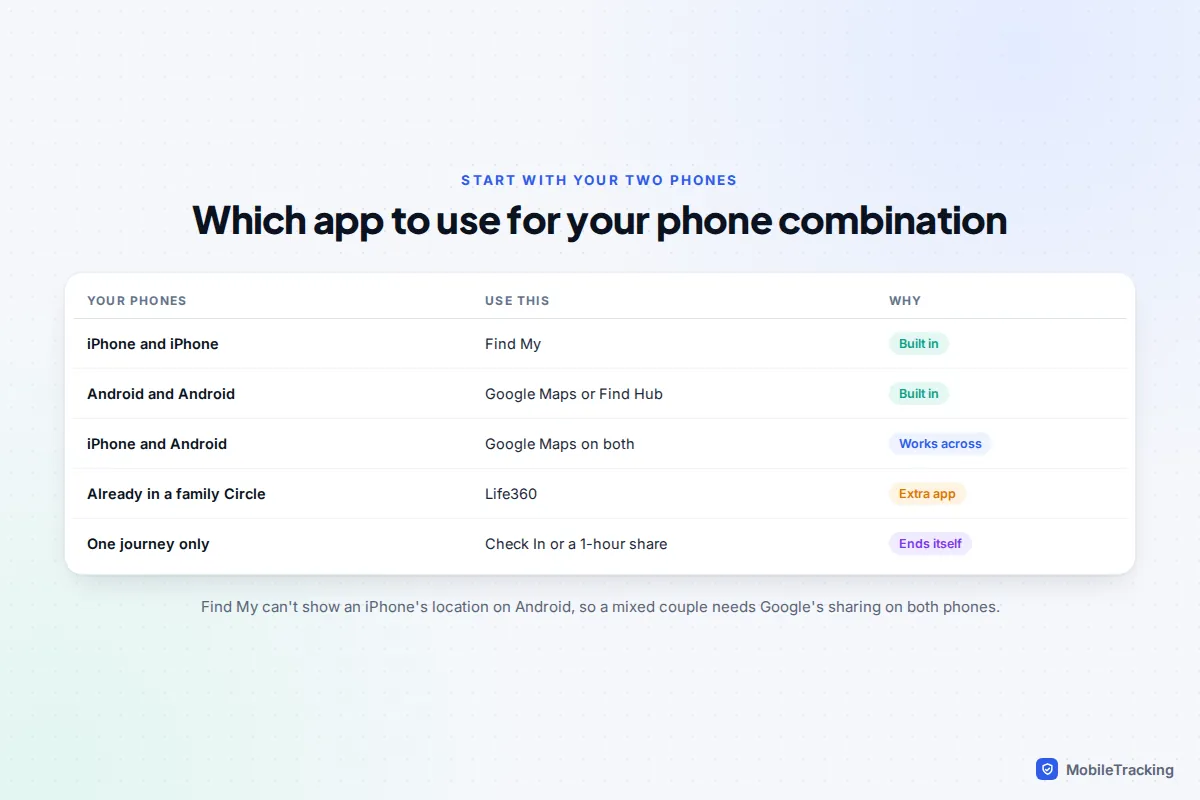
You almost certainly do not need to install anything: the built-in tools are free, keep no trail of where you have been, and show clearly on both phones that sharing is on. The one trap is the mixed couple where the iPhone partner shares from Find My or Messages. An Android phone cannot display that, so if either of you is on Android, both of you use Google Maps.
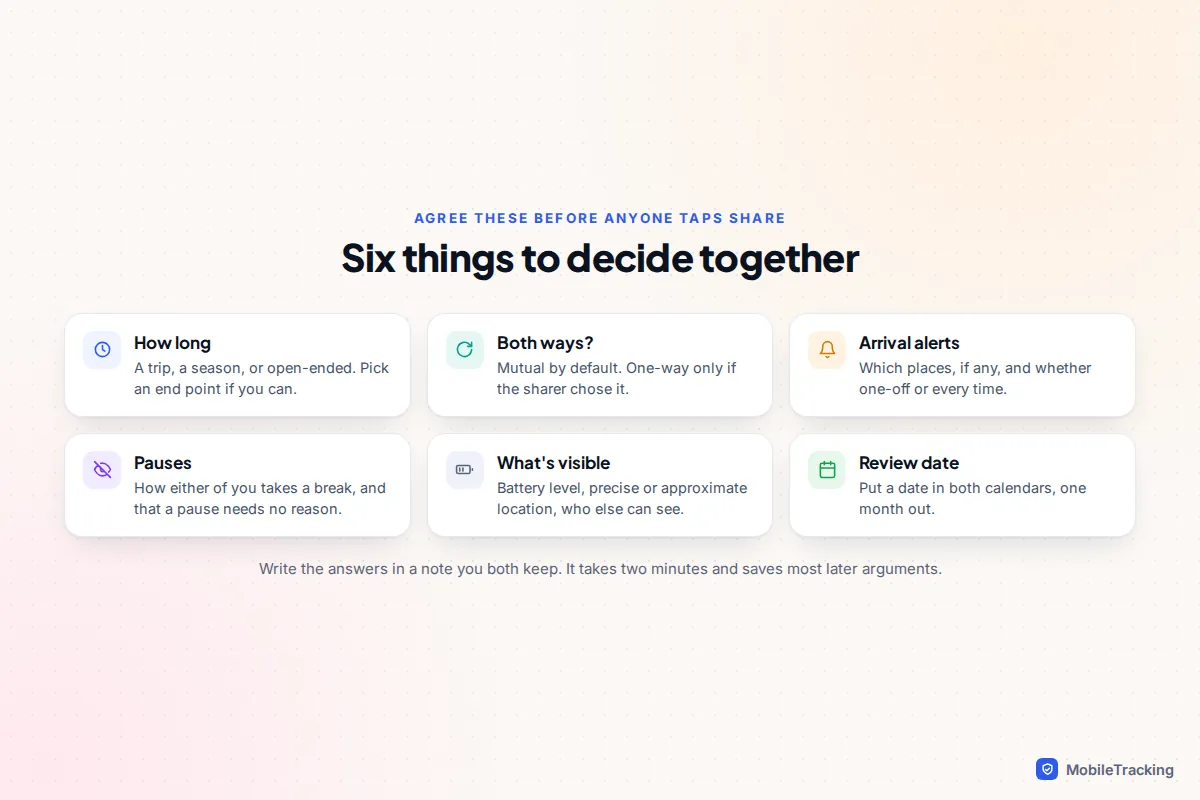
What to agree before either of you taps Share
Spend the first two minutes on these questions and write the answers in a shared note. In three months neither of you will remember whether “just for the winter” meant March or April.
- How long. A specific trip, a season of late shifts, or open-ended. If you can name an end point, use a timed share rather than “indefinitely” plus a promise to remember.
- Both ways, or one way. Mutual sharing is the usual default for couples. One-way is fine when the person sharing chose it, for example on a long solo drive.
- Arrival alerts. Would a “got home” notification replace checking the map? Pick the places, if any, and whether it fires once or every time.
- Pauses. Agree that either of you can pause without explaining, whether for a surprise present or an afternoon of quiet, and how you will mention it.
- What is visible. Precise or approximate location, battery level (Google shows it), and who else can see each of you.
- A review date. One month is a good first check.
Jordan and Priya agreed a 30-day trial while Priya cycles to work through the winter, with one alert for Priya arriving home. At the review they kept sharing but dropped the alert, because Priya had started texting from the bike shed anyway. That is the point of a trial: you adjust with real experience instead of guessing.
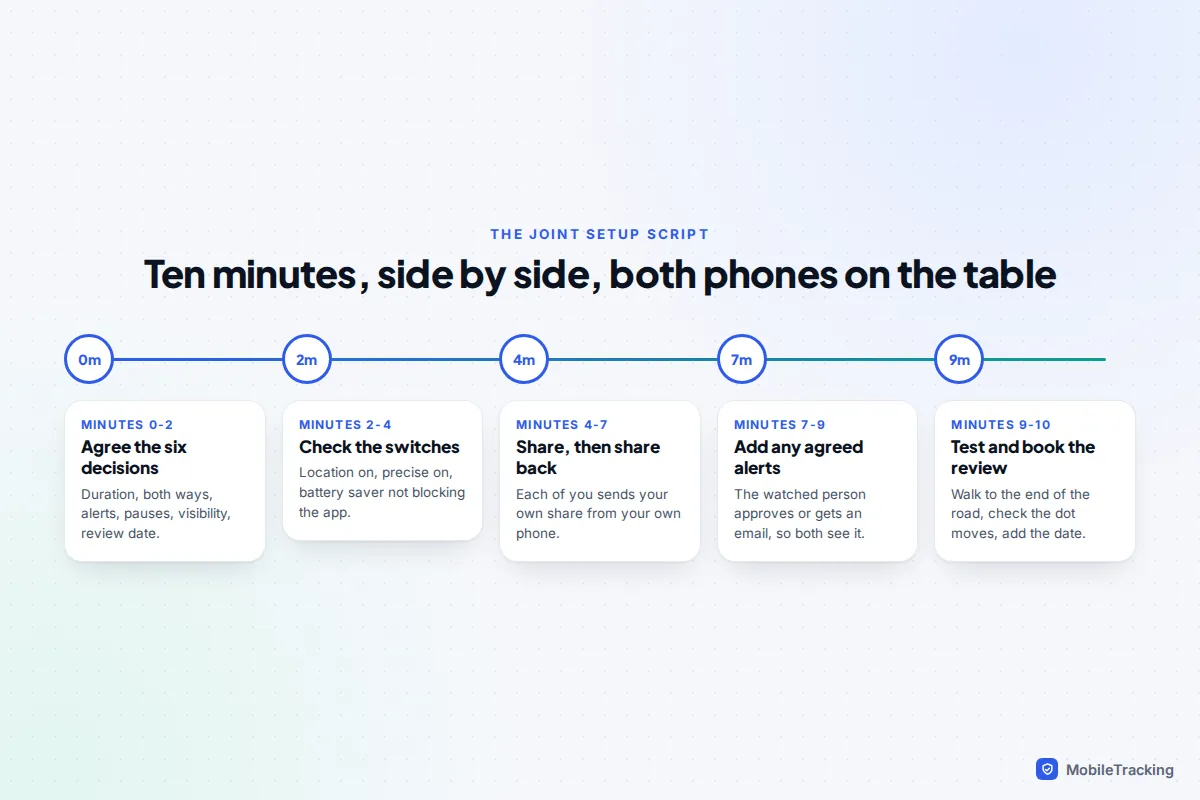
The ten-minute joint setup script
Do this in person, each holding your own phone. Each person changes only their own phone, so each of you knows exactly what you turned on.
- Minutes 0 to 2: agree. Run through the questions above and note the answers.
- Minutes 2 to 4: check the switches. Location on, precise location on for the sharing app, and no battery saver quietly putting the app to sleep. The sections below list the exact settings for each phone.
- Minutes 4 to 7: share, then share back. One of you sends a share with the agreed duration. The other accepts and sends their own. Sharing is always two separate choices.
- Minutes 7 to 9: add any agreed alerts. Find My asks the other person to approve recurring alerts, and Google emails them when you add one, so both of you can see this happen.
- Minutes 9 to 10: test and book the review. One of you walks to the end of the road or the car park. Check that the dot moves within a minute or two, then put the review date in both calendars.
iPhone and iPhone: Find My
Check the switches first
On each iPhone, go to Settings › [your name] › Find My and turn on Share My Location. On the same screen, check that My Location says This Device; if it points at an iPad at home, your partner will see you on the sofa all day. Then go to Settings › Privacy & Security › Location Services › Find My and make sure Precise Location is on.
Share, then share back
- Open Find My and tap People.
- Tap +, then Share My Location.
- Type your partner’s name or number and tap Send.
- Choose how long. On iOS 26 and earlier the options are one hour, until the end of the day, or indefinitely. On iOS 27 you can also pick Custom, anything from 15 minutes to 30 days, or an exact end date and time.
- Your partner gets a notification and repeats the steps on their iPhone to share back.
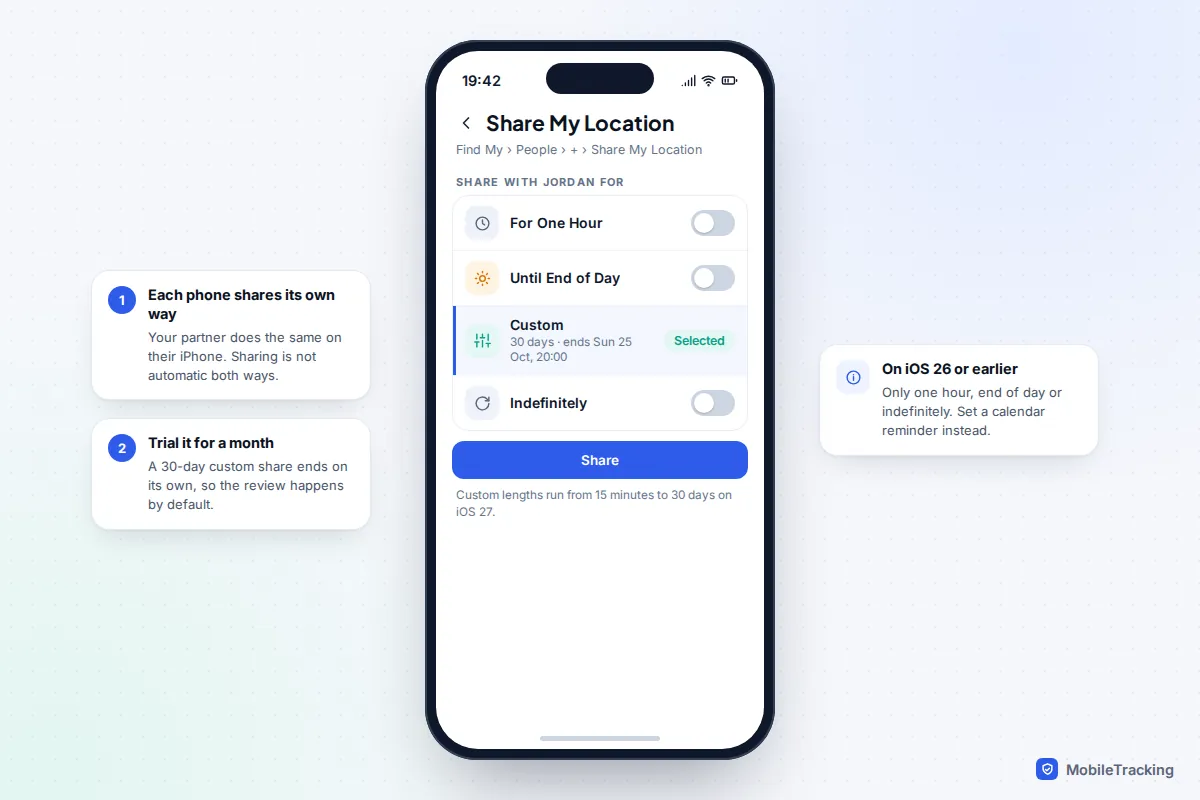
iOS 27, released on 14 September 2026, runs on iPhone 11 and later. If one of you is still on iOS 26, the custom option only appears on the updated phone, which is fine: each of you picks your own duration anyway.
Alerts and pauses
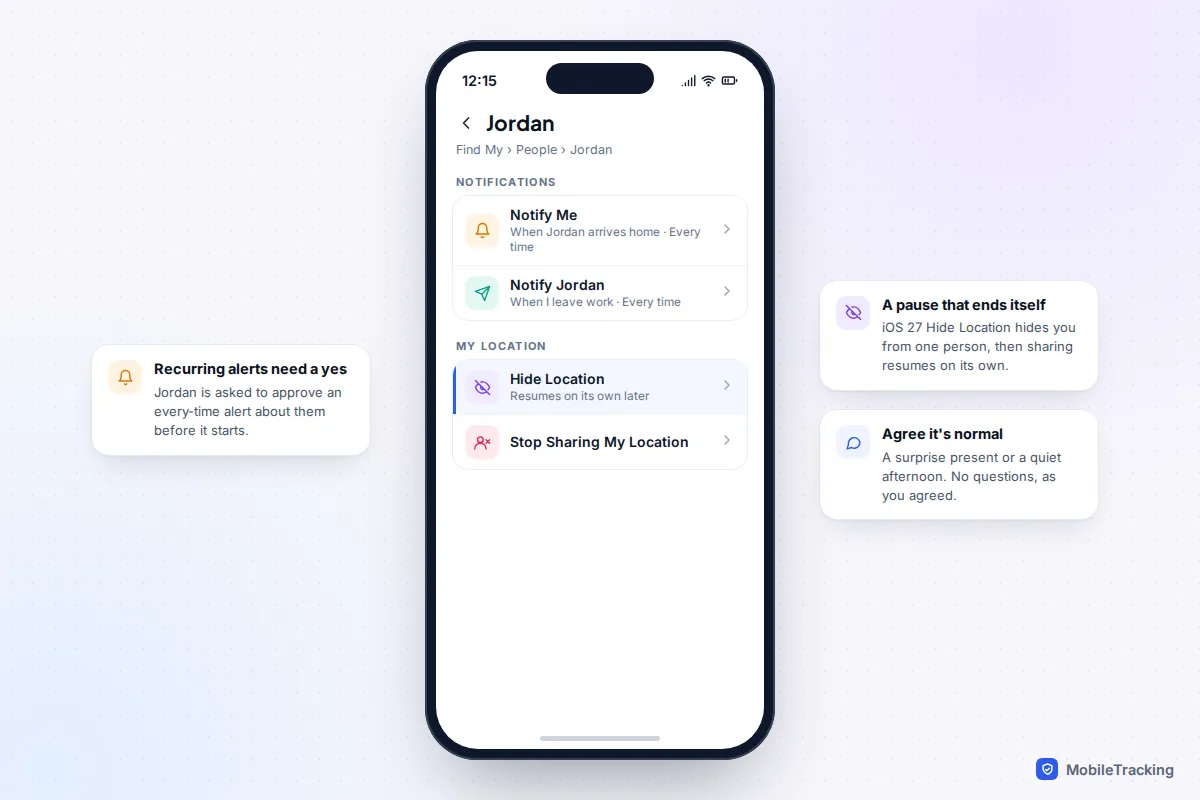
To add an alert, tap your partner in People, then under Notifications tap Add. Notify Me tells you when they arrive or leave somewhere; Notify [name] tells them automatically when you arrive, which is often the kinder option for the person travelling. Choose Only Once or Every Time. Apple lets your partner know about a one-off alert and asks them to approve a recurring one before it starts.
For breaks, iOS 27 adds Hide Location on each person’s card. It hides you from that one person and then switches back on by itself (Apple’s personal safety guide says the next day), and your partner sees “No location found” rather than an alert. On iOS 26 there is no pause; you stop sharing with that person and share again later.
Android and Android: Google Maps or Find Hub
Google Maps, Find Hub and Google Messages all use one system setting called Google Location Sharing, so whichever app you start from, you end up in the same list. Find Hub (renamed from Find My Device in 2025) has the clearer people view if you use it often.
Check the switches first
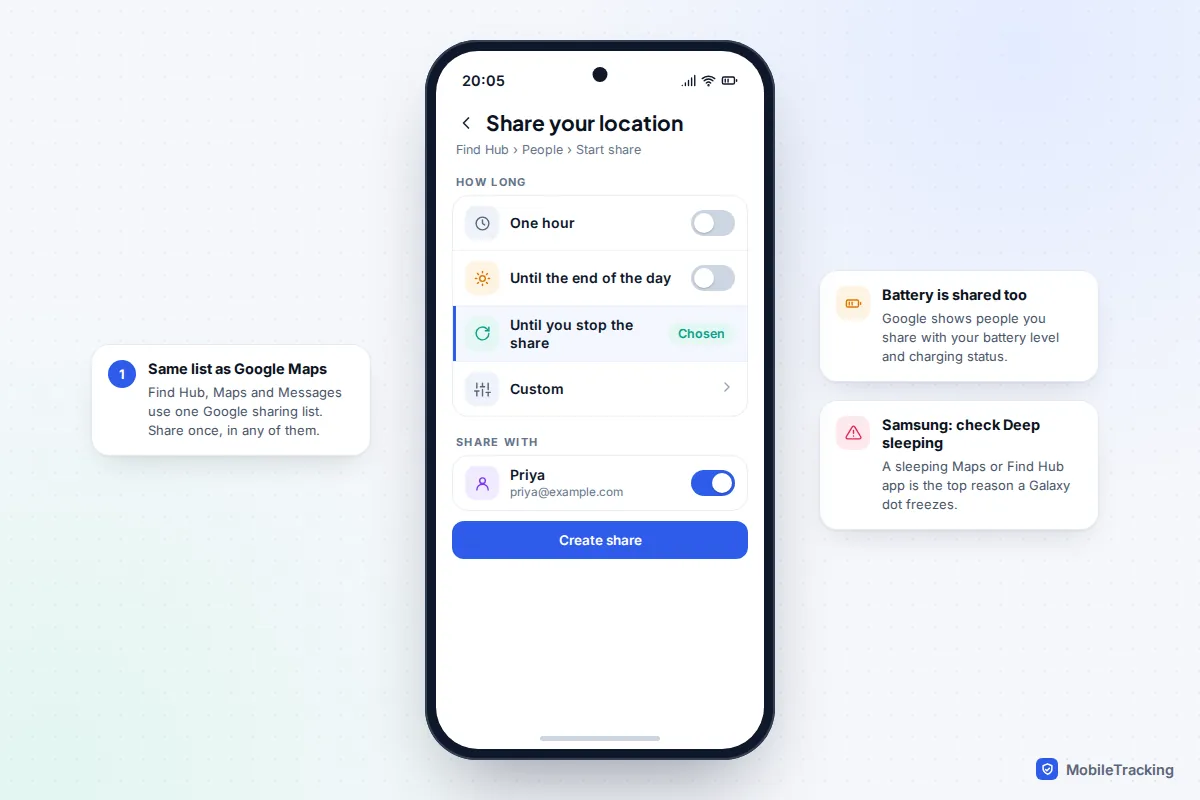
On each phone, make sure location is on and that Find Hub is enabled for the phone (search Settings for it). Then open the app’s battery settings for Google Maps and Find Hub and avoid Restricted. On a Samsung Galaxy, also check Settings › Battery › Background usage limits and make sure neither app is in Deep sleeping apps, the most common reason a Galaxy user’s dot freezes at lunchtime.
Share, then share back
- In Google Maps, tap your profile picture, then Location sharing, then Share location (called New share on some versions). In Find Hub, tap People, then Start share.
- Choose the length. Find Hub offers one hour, until the end of the day, until you stop the share, or a custom length. Maps offers For 1 hour, adjustable with + and -, or Until you turn this off.
- Pick your partner. They need a Google Account to see you in the app.
- Tap Share (or Create share in Find Hub). Your partner repeats this on their phone.
Alerts and pauses
In Maps, tap your partner in Location sharing, then under Notifications tap Add, pick a place and choose Every time they arrive or Every time they depart. In Find Hub, tap them in People, then Get location notifications. You can add up to five per person, and, as Google’s help page on Location Sharing notifications explains, Google emails the person being watched each time one is added. Anyone who wants no alerts at all can turn off Allow Location Sharing notifications in their Google Account’s location sharing settings and keep sharing.
For a pause, Android has a genuine switch: Settings › Location › Location services › Google Location Sharing, then turn off Use Location Sharing. Your shares stay in place and simply stop updating until you switch it back on. Unlike iPhone’s Hide Location, it does not turn itself back on, so agree a habit, such as switching it back on when you leave the house.
One iPhone, one Android: Google Maps on both
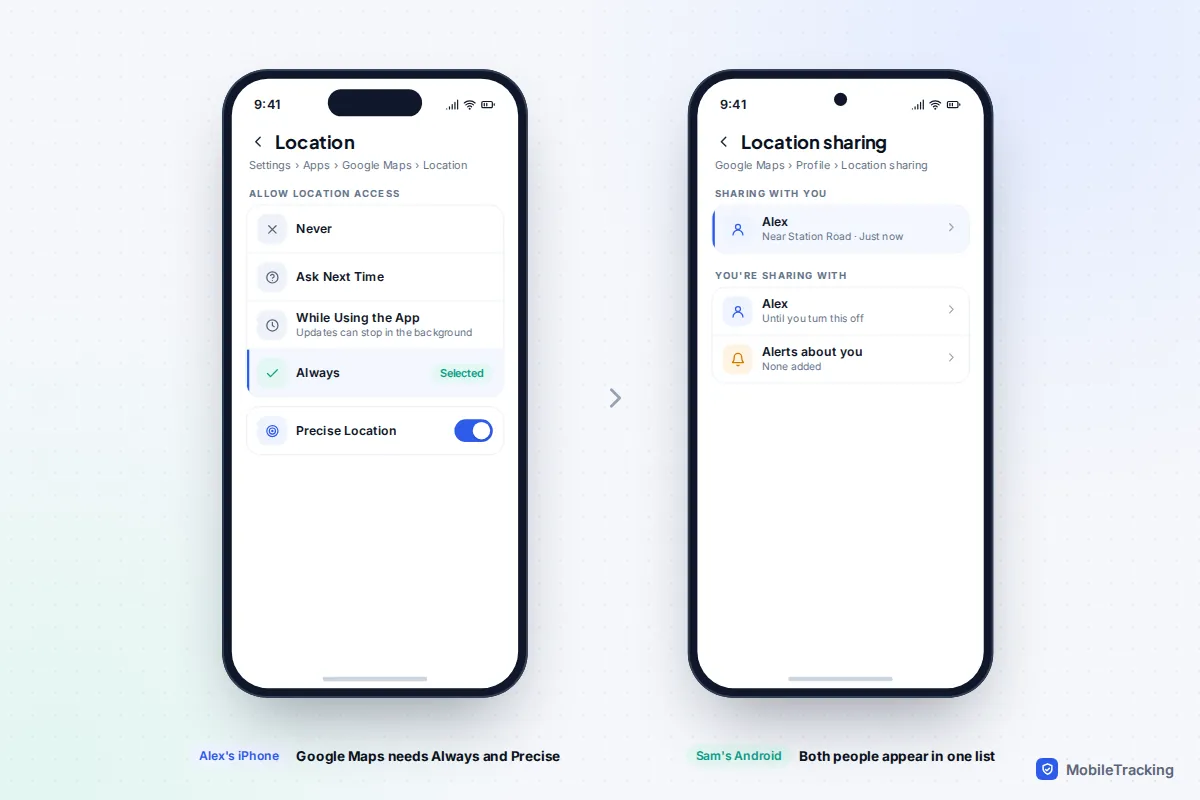
This is the combination that trips most couples up, and the fix is simple: the iPhone user installs Google Maps, signs in with a Google Account, and both of you follow the Google Maps steps above. Sharing then works in both directions, and alerts work the same way.
Two iPhone settings make or break it. Go to Settings › Apps › Google Maps › Location (on iOS 17 and earlier, Settings › Google Maps › Location), choose Always, and turn on Precise Location. With While Using the App, the iPhone’s position can stop updating as soon as Maps is closed, which looks to the Android partner as if the iPhone is stuck at the last place Maps was opened.
If the iPhone partner also shares with family through Find My, that carries on separately; the two systems do not interfere.
Life360: when it makes sense for a couple
Life360 is built for families and is more than most couples need. It earns its place if you already run a family Circle with your children, or want extras such as driving summaries. Know the differences: it keeps location history (2 days on the free plan, longer on paid plans), the free plan allows 2 Place Alerts, and it needs Always location access on both phones.
- One of you opens Life360 and creates a new Circle, for example “Us two”, separate from any family Circle.
- Tap the option to invite members and send your partner the invite code.
- Your partner enters the code in their app to join, and allows location Always with precise location on.
- Add any Place Alerts you agreed, such as Home, and test with a short walk.
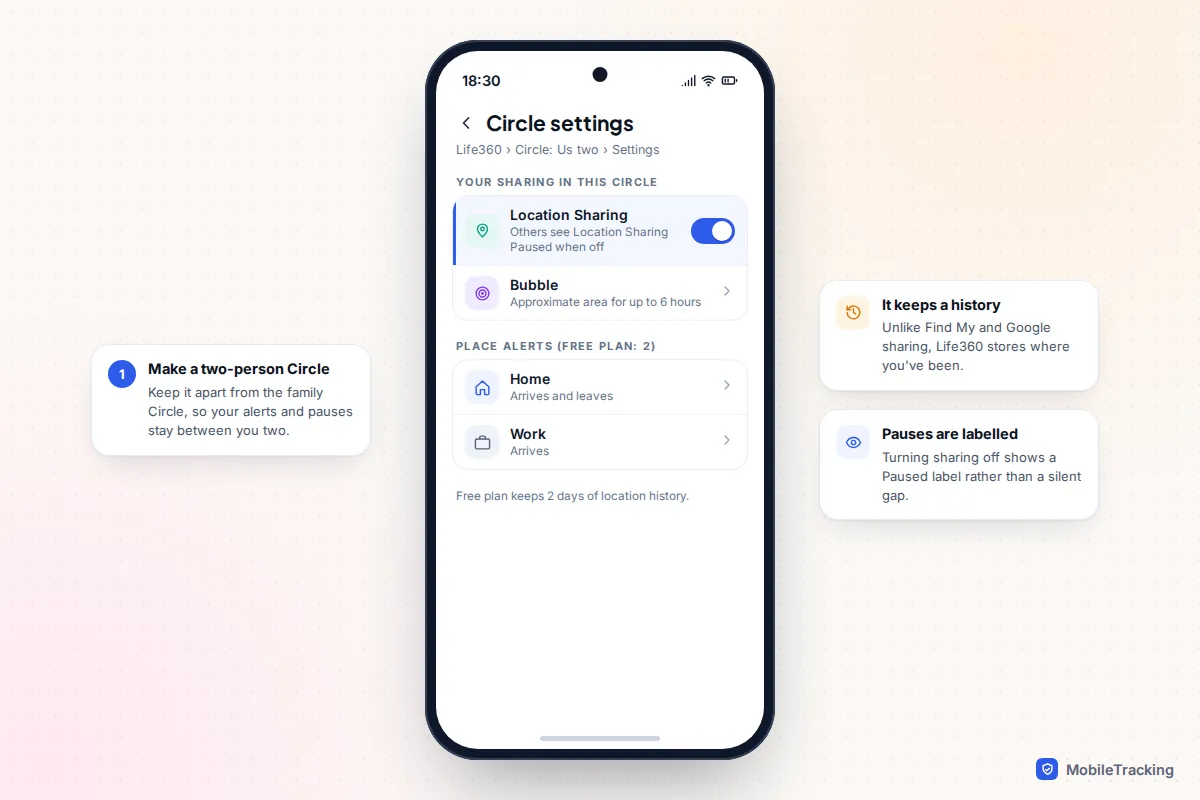
Pausing is deliberately visible: open the Circle, go to Settings › Location Sharing and switch it off, and your partner sees “Location Sharing Paused”. The setting is per Circle, so you can pause in the couple Circle and stay visible to your children. Bubbles offer a middle ground, showing an approximate area for up to six hours, although Circle members are notified and can burst one.
Test it, and fix it if it fails
Most problems show up in the first test walk.
| What you see | Likely cause | Fix |
|---|---|---|
| Android partner cannot see the iPhone at all | The iPhone shared from Find My or Messages | Share from Google Maps on the iPhone instead |
| iPhone dot freezes when Maps is closed | Google Maps location set to While Using the App | Set Always and Precise Location |
| Galaxy dot stuck since morning | Maps or Find Hub put to deep sleep | Remove it from Deep sleeping apps |
| Partner shows “No location found” | Sharing off, phone off, or Hide Location on | Ask, rather than assume |
| Your dot sits at home while you are out | Find My’s My Location set to an iPad | Set This Device on your iPhone |
| Location is a wide circle | Precise Location off | Turn it on for the sharing app |
If the dot is still wrong after these checks, our guide to fixing location sharing that isn’t working goes through every cause, including Low Power Mode and poor indoor signal.
Book the review, and what to ask at it
Without a review, a trial quietly becomes a setting that runs for years because nobody wanted to raise it. On iOS 27 a 30-day custom share builds the review in: it ends, and you decide together whether to renew.
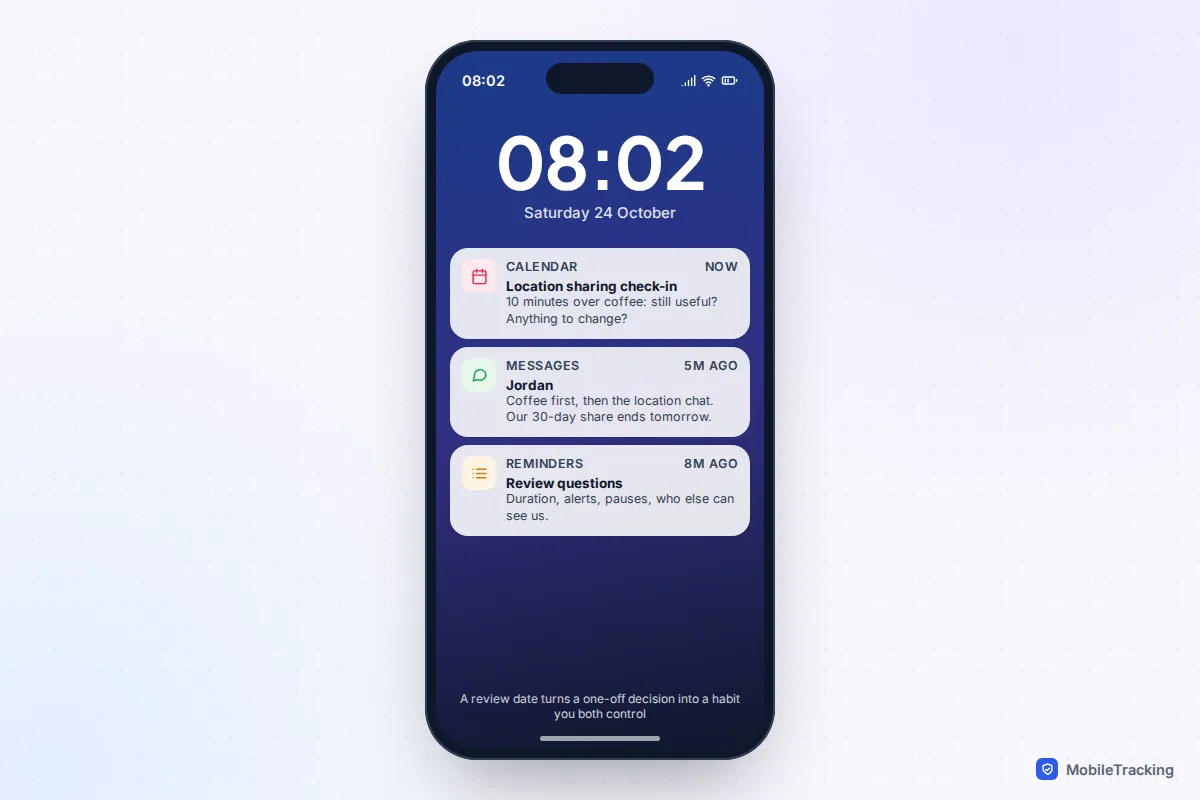
Keep it short and practical. Has sharing been useful, and when? Is the duration right, or would timed shares for trips be enough? Are the alerts still wanted, or has one of you started ignoring them? Has either of you felt uneasy about a pause? Is anyone else seeing you who no longer should, such as a friend from a festival two summers ago? Changing or stopping sharing at a review should feel as ordinary as starting it. If either of you would rather stop, our guide to stopping location sharing with one person shows what the other phone displays afterwards.
Frequently asked questions
Can I set up location sharing on my partner’s phone for them?
No. Each person should switch sharing on from their own phone, with the phone in their own hands. Setting it up on someone else’s phone, even with good intentions, removes their choice about what is shared, and doing it without their agreement is a serious breach of trust.
Does sharing automatically work both ways?
No. In Find My, Google Maps, Find Hub and Life360, sharing your location and seeing theirs are two separate choices. That is why the script has both of you share in turn.
We have an iPhone and an Android. Can we use WhatsApp instead?
WhatsApp live location lasts 15 minutes, 1 hour or 8 hours, so it suits meeting up in a crowd rather than ongoing sharing. For anything longer, Google Maps on both phones is the better fit.
Will my partner be told if I pause?
Find My, Google and Life360 do not send an alert when you pause, but your partner will see “No location found”, a location that stops updating, or “Location Sharing Paused” in Life360. That is why agreeing how pauses work matters more than which button you press.
This guide is general information, not legal or financial advice. Read our editorial policy.