
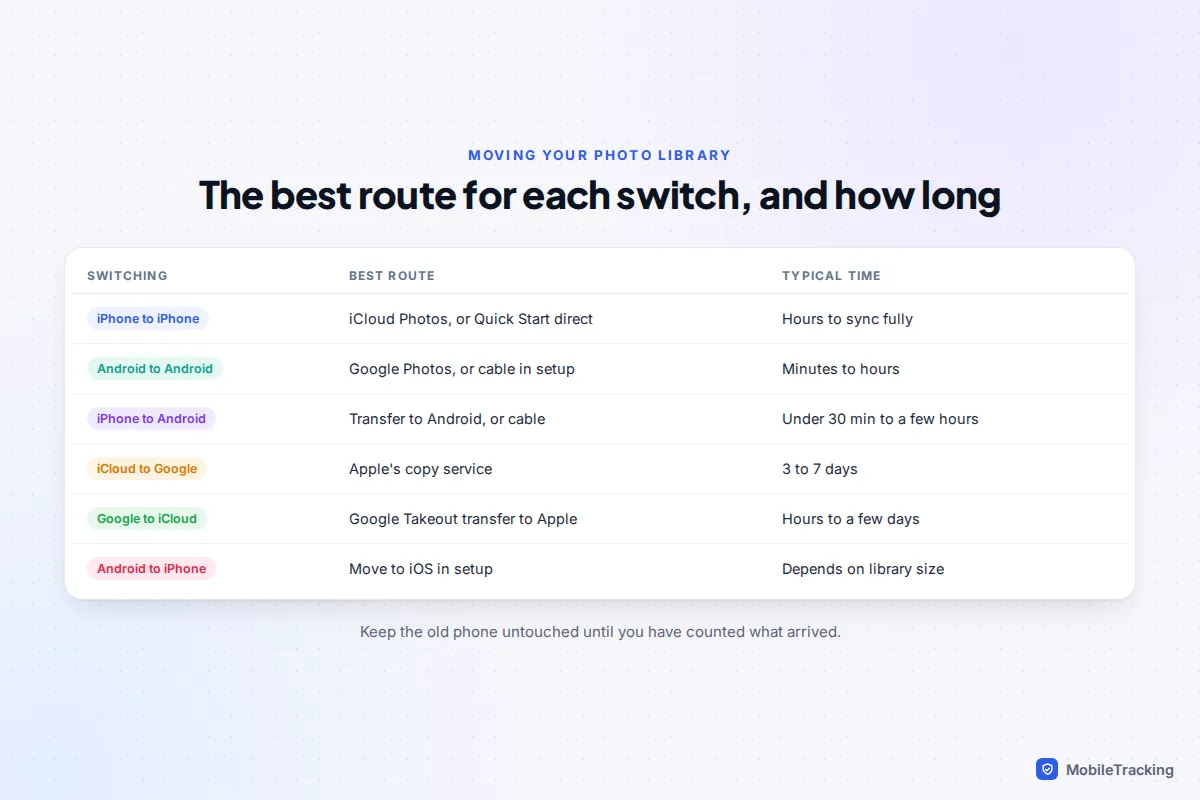
The fastest way to move photos to a new phone depends on which way you’re switching. iPhone to iPhone: sign in with the same Apple Account and let iCloud Photos sync, or use Quick Start during setup. Android to Android: let Google Photos finish backing up, or copy by cable during setup. iPhone to Android: use Transfer to Android on the iPhone (iOS 26.3 and later, with an Android 17 phone) or a cable during setup. Android to iPhone: use Move to iOS during setup. Whatever the route, don’t wipe the old phone until you’ve counted what arrived.
Two things catch people out more than the transfer itself: photos that were never fully on the old phone because of storage-saving settings, and WhatsApp pictures that live inside the chat app rather than your gallery. Both are covered below.
First, check where your photos actually live
Before choosing a method, spend two minutes finding out whether the full-size originals are on the phone, in the cloud, or both. It changes which route works.
On an iPhone
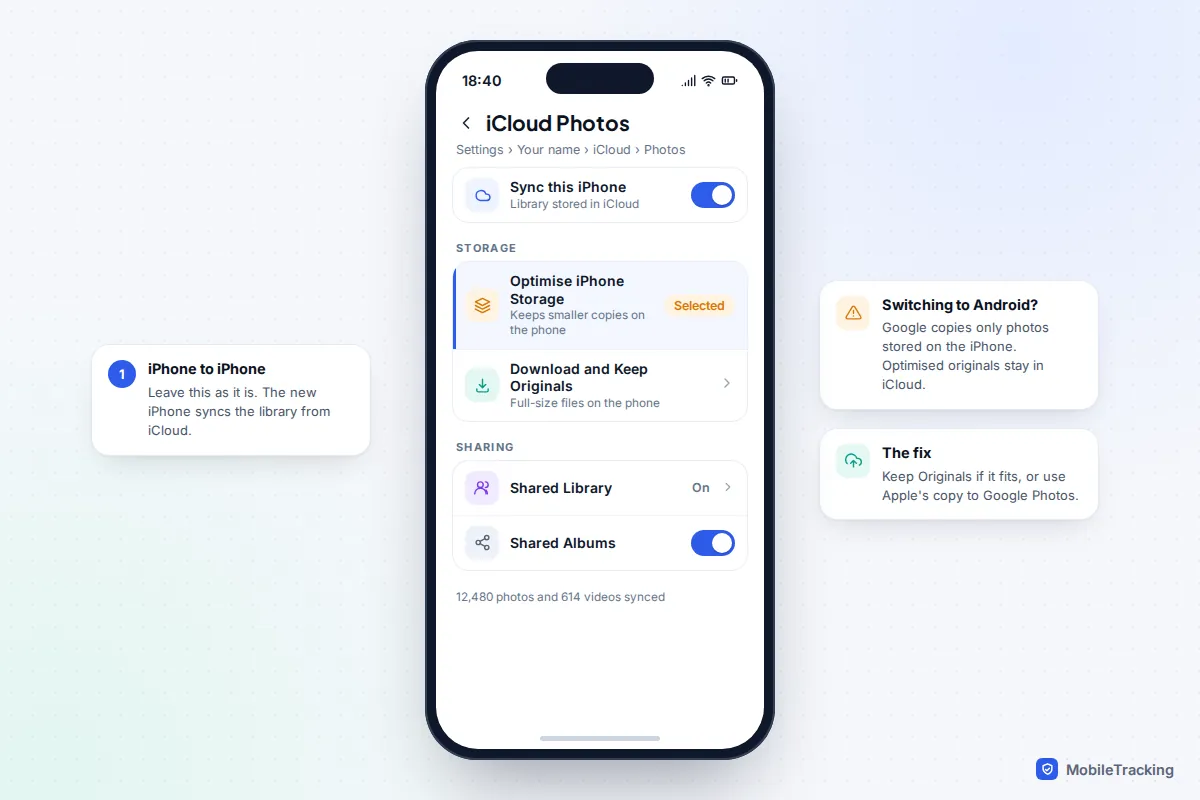
Go to Settings › [your name] › iCloud › Photos. If Sync this iPhone is on, your library is in iCloud. If Optimise iPhone Storage is also ticked, many originals exist only in iCloud and the phone keeps smaller copies. That’s fine for moving to another iPhone, but it matters when switching to Android, because Google says its copy tool only transfers photos saved on the iPhone itself. Our guide to optimised photo storage explains how that setting behaves.
On Android
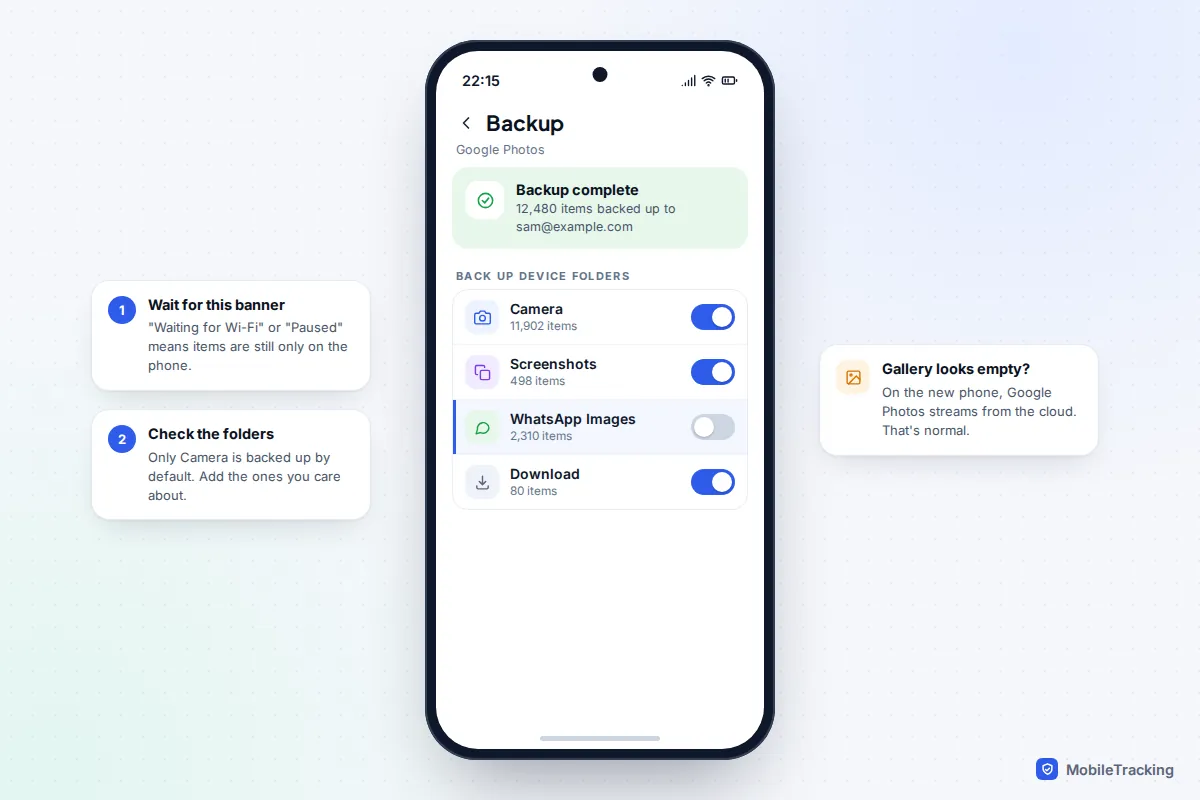
Open Google Photos, tap your profile picture, then Photos settings › Backup. Check that backup is on, which account it uses, and the backup quality. Photos on a memory card, or in folders other than Camera (screenshots, downloads, messaging apps), are only backed up if you’ve switched on backup for those device folders.
The quality setting that quietly shrinks your photos
Google Photos offers three backup qualities, and the choice is permanent for anything already uploaded. According to Google’s backup quality help:
- Original quality keeps photos and videos exactly as shot.
- Storage saver compresses photos and resizes any over 16 MP down to 16 MP; videos above 1080p are reduced to 1080p.
- Express, offered in some regions, cuts photos to 3 MP and videos to 480p.
All three count towards your Google storage. The trap: if you used Storage saver and then tapped Free up space on the old phone, the compressed copy is now the only copy. Your 4K videos from last summer will reach the new phone as 1080p, and nothing can restore the lost detail. Switching to Original quality only changes future uploads; Google re-uploads existing items only when you move away from Express.
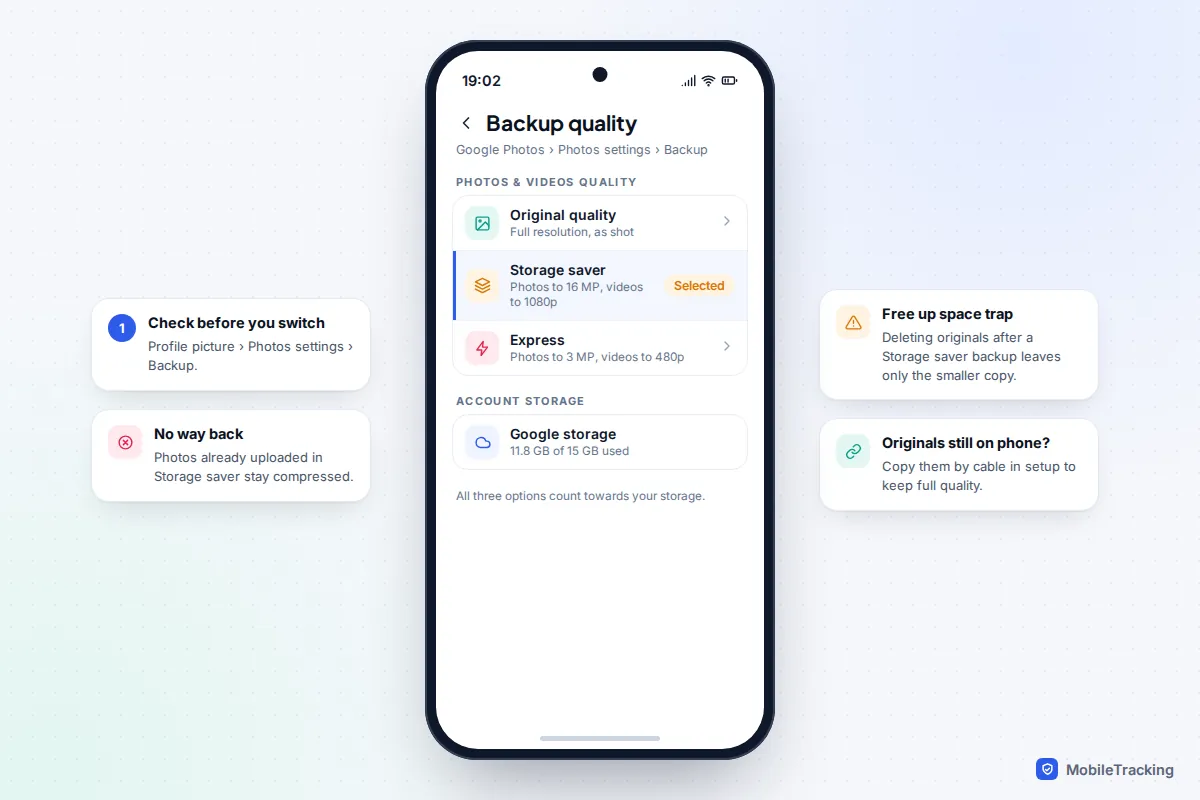
So if the originals still exist on the old phone, a direct cable or Wi-Fi copy to the new phone preserves them, even when the cloud copy is compressed.
iPhone to iPhone
If iCloud Photos is on, you don’t really transfer photos at all: sign in to the new iPhone with the same Apple Account and the library syncs down. Setting up with Quick Start is the smoothest way to do that, and Apple offers two routes. Downloading from iCloud lets you use the new iPhone straight away while everything arrives in the background. Transferring directly from the old iPhone ties up both phones until it’s done, but moves what’s on the old phone without waiting on iCloud.
Afterwards, keep the new iPhone on Wi-Fi and charging overnight. A large library appears quickly as thumbnails, but full-size versions and videos keep downloading for hours. Settings › [your name] › iCloud › Photos shows whether it is still syncing.
If you don’t use iCloud Photos, choose the direct transfer during Quick Start; it copies the photos stored on the old phone. Alternatively, restore from a Mac or PC backup, which includes the Camera Roll when iCloud Photos is off.
Android to Android
You have two good options, and they’re not mutually exclusive.
Google Photos backup. Once backup on the old phone shows it’s complete, sign in to Google Photos on the new phone with the same account and your whole library appears. The photos stream from the cloud, which saves space. The catch is that other gallery apps, such as Samsung Gallery, only show photos stored on the device, so the gallery can look empty while Google Photos shows everything. That’s normal, not a failed transfer.
Device copy during setup. When the new phone shows Copy apps & data, a USB-C cable or wireless copy moves the photos stored on the old phone, at full quality. Samsung’s Smart Switch does the same between Galaxy phones and can also be run later from Settings › Accounts and backup › Bring data from old device. This is the route to use if your cloud copy is in Storage saver, or if you have photos on a memory card. Pop the card into the new phone if it has a slot; if not, copy its contents first.
iPhone to Android
Since iOS 26.3, iPhones have a built-in tool for this: Settings › General › Transfer or Reset iPhone › Transfer to Android. Apple says it needs an Android phone on Android 17, with Wi-Fi on the iPhone and Bluetooth on both. You start setting up the Android phone, scan its QR code with the iPhone’s camera, and choose what to send; photos, messages, contacts and more go across, and in supported countries and carriers the eSIM too. Google lists Pixel 8 and later among the phones that support this upgraded method.
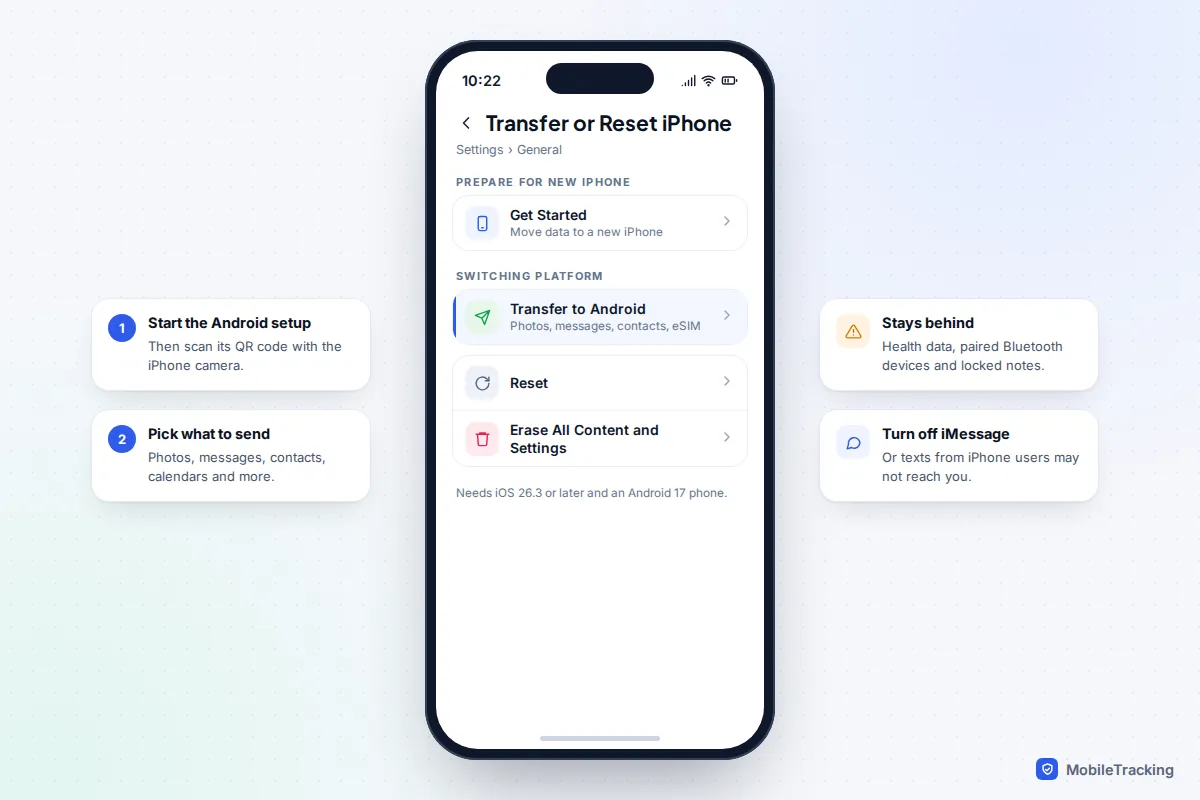
On Android phones that aren’t on Android 17, the setup screen still offers to copy from an iPhone with the iPhone’s charging cable (you may need an adapter), or wirelessly with Google’s Android Switch app on the iPhone. Google says a transfer usually takes less than 30 minutes but can take a few hours, and that you must turn off iMessage on the iPhone.
If your photos live in iCloud
Every device-to-device method has the same blind spot: Google’s iPhone-to-Android help says iCloud photos don’t transfer automatically. Either switch the iPhone to Download and Keep Originals first (only practical if the library fits on the phone), or use Apple’s own copy service. Sign in at privacy.apple.com, choose Transfer a copy of your data, pick iCloud Photos and send it to Google Photos.
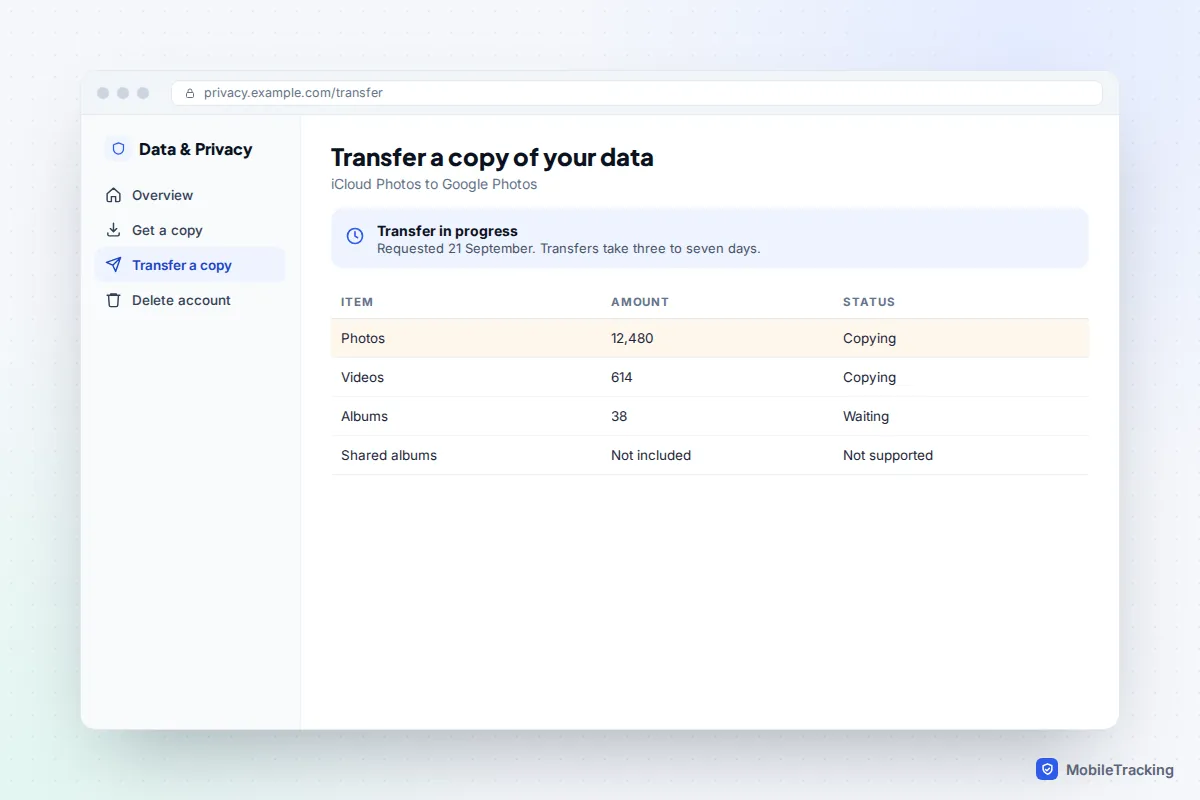
According to Apple’s transfer help, it takes three to seven days, needs two-factor authentication, won’t run with Advanced Data Protection on, and isn’t available for child accounts. Your most recent edits are copied rather than the originals, file names gain a “Copy of” prefix, and Apple lists shared albums, smart albums and Live Photos among items that may not transfer. Make sure the Google account has enough storage before you start.
Android to iPhone
During iPhone setup, on the Transfer Your Apps & Data screen, choose From Android. On Android 17 the transfer is built in; on earlier versions, install Apple’s Move to iOS app from Google Play. The iPhone shows a code, you enter it on the Android phone, and you pick what to send. Apple says Move to iOS copies camera photos and videos, photo albums and WhatsApp messages and media, among other things.
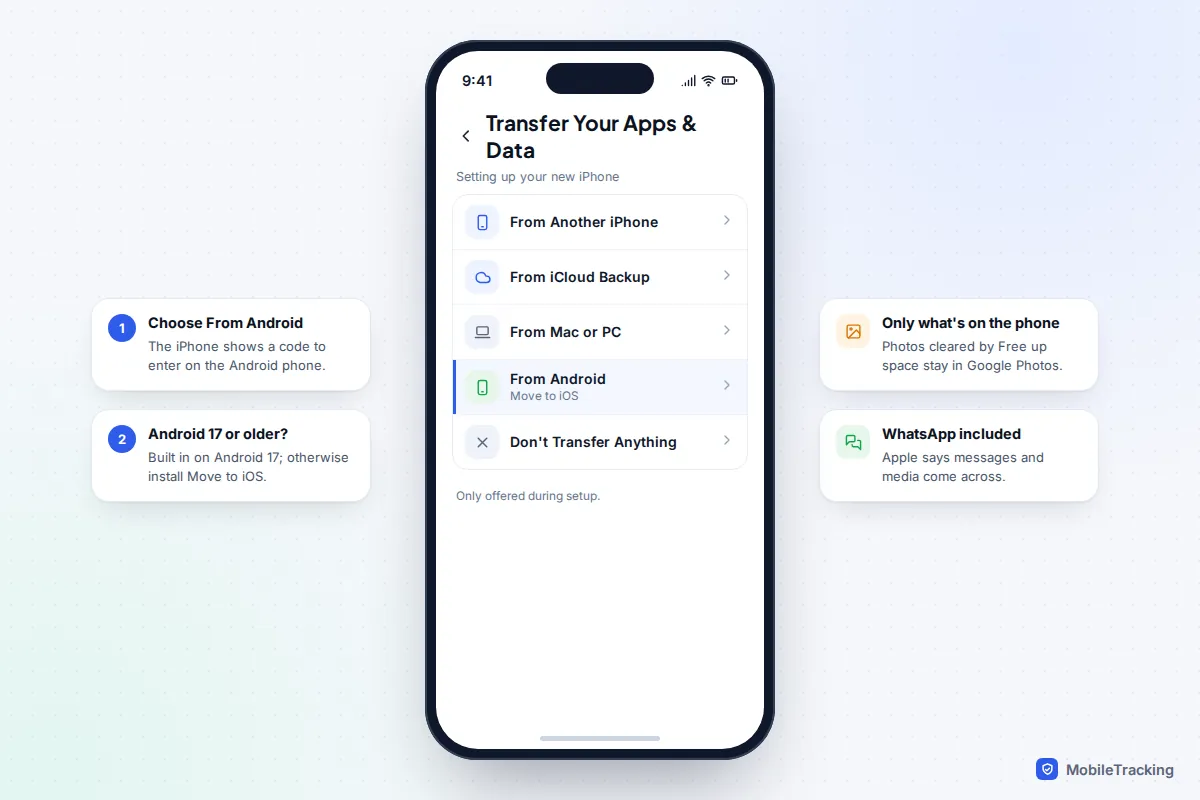
Move to iOS copies what is stored on the Android phone. If you’ve used Google Photos’ Free up space, much of your library exists only in the cloud and won’t come across this way. You have two fixes: install Google Photos on the iPhone and keep using it, or move the library into iCloud Photos with Google Takeout’s transfer to Apple. Apple says that takes from several hours to a few days and places everything in an album called “Import from Google”.
WhatsApp photos and videos: a separate job
Pictures people send you on WhatsApp belong to WhatsApp, not your camera roll, unless you’ve told it to save them. So they move with your chats, not with your photos.
- Same platform: use WhatsApp’s chat transfer from the old phone (Settings › Chats › Transfer chats on Android), or restore from its Google Drive or iCloud backup. Check that Include videos is on in the chat backup settings first, or videos stay behind.
- Android to iPhone: Move to iOS carries WhatsApp messages and media across. Our guide to moving WhatsApp from Android to iPhone covers the details.
- iPhone to Android: Google includes WhatsApp history in its copy; on some Pixels WhatsApp asks you to finish with a cable after setup.
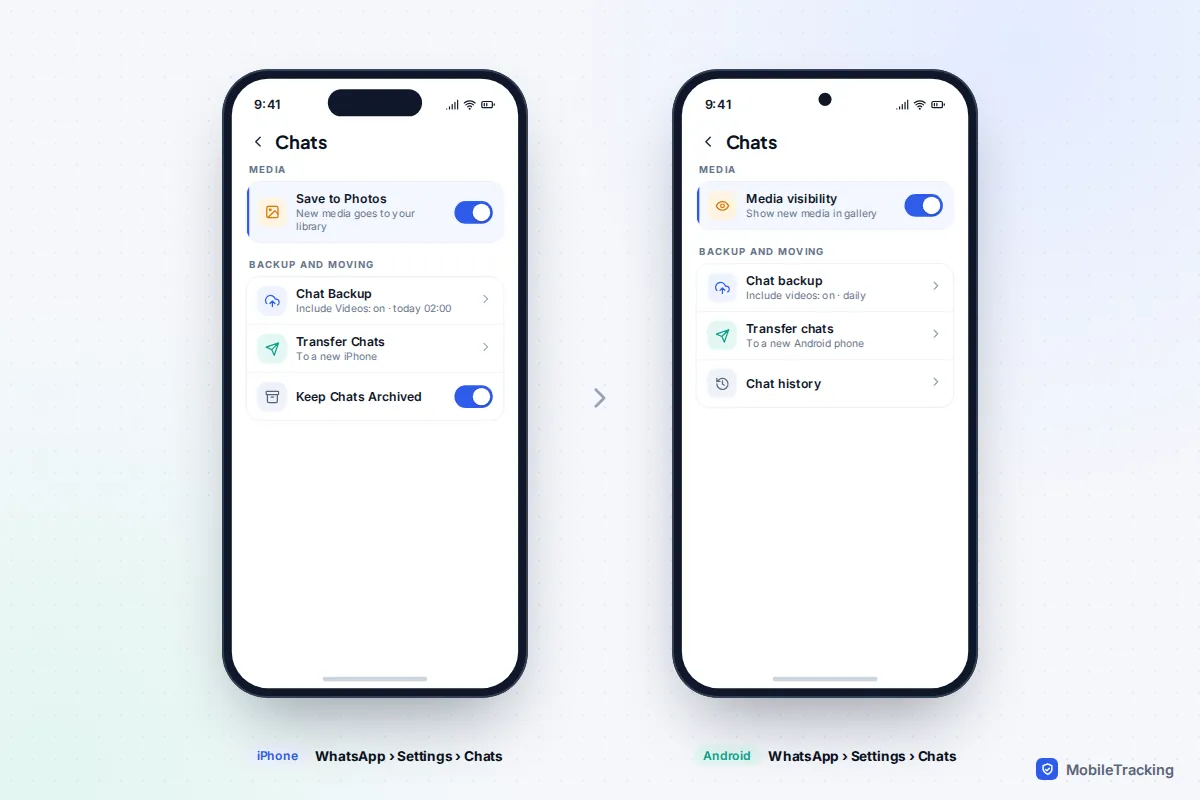
If there are a few precious pictures in a chat, save them to your gallery before you switch. On an iPhone, Settings › Chats › Save to Photos does this automatically for new media; on Android the equivalent is Media visibility.
Check every photo arrived before you wipe the old phone
A transfer can finish “successfully” and still miss things. Compare the two phones side by side:
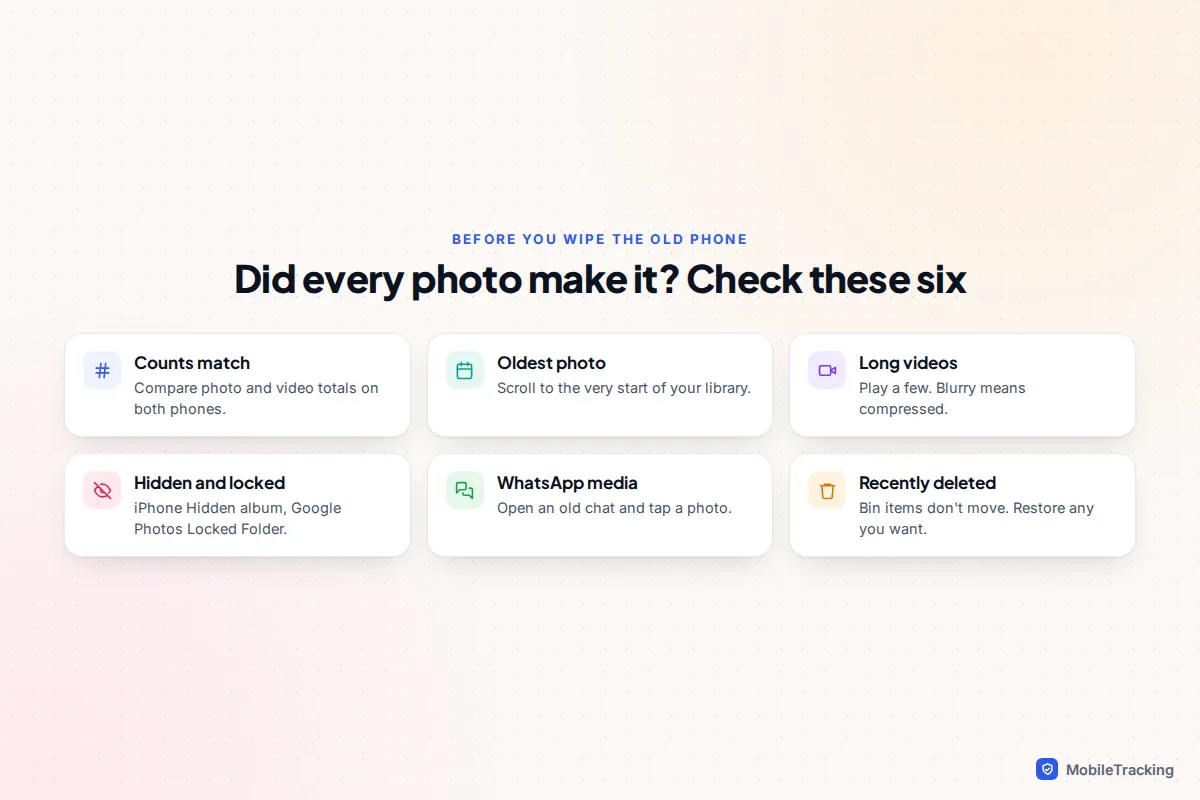
- Compare counts. On an iPhone, Settings › General › About shows how many photos and videos are on the device. On Android, compare the Camera album count in your gallery app. Small differences are normal; hundreds missing are not.
- Scroll to the oldest photo. If your earliest pictures are missing, the transfer probably stopped early or the backup never covered them.
- Open a few long videos. Check they play and aren’t blurry, which would suggest compression.
- Check the hidden and shared places. On iPhone, the Hidden album and Recently Deleted sit under Utilities, and photos in a Shared Library only appear when you view both libraries. On Android, check Google Photos’ Locked Folder, which is kept on the device and needs its own backup setting.
- Check the bins. Anything you deleted recently won’t transfer. iPhone keeps deleted photos in Recently Deleted for 30 days; Google Photos’ trash was cut to 30 days in September 2026.
If something is missing and the old phone is already reset, the cloud may still have it. See recovering deleted photos from the cloud. For the rest of the switch, from passcodes to wiping the old handset, use our new phone setup checklist.
Frequently asked questions
How long does it take to move photos to a new phone?
A device-to-device copy of a typical library runs from under half an hour to a few hours. Cloud uploads depend on your broadband: 50 GB at an upload speed of 20 Mbps takes about five and a half hours of continuous uploading. Apple’s iCloud-to-Google Photos copy takes three to seven days.
Will my photos lose quality when I switch?
Not with iCloud Photos, a direct device copy, Move to iOS or Google Photos in Original quality. They will if your only copy was backed up in Storage saver or Express, which resize large photos and videos.
Why is my new Android gallery empty when Google Photos shows everything?
Google Photos streams backed-up photos from the cloud without downloading them. Gallery apps only show files stored on the phone. Both are working correctly.
Do I need to pay for more storage to switch?
Only for the cloud routes. Google’s free 15 GB is shared with Gmail and Drive, and iCloud’s free tier is 5 GB, so a big library won’t fit. A cable or Wi-Fi copy between the phones needs no cloud storage at all.
Can I move photos after I’ve finished setting up the new phone?
Yes, through the cloud: Google Photos, iCloud Photos, or the Apple and Google transfer services work at any time. Samsung’s Smart Switch also works after setup. Move to iOS and most Android copy tools only run during setup.
This guide is general information, not legal or financial advice. Read our editorial policy.