
To browse privately on your phone, open a private tab: in Safari tap the More button (three dots) and choose New Private Tab; in Chrome tap More and New Incognito tab; in Samsung Internet open the tabs view and tap the Secret mode mask icon; in Firefox tap the mask icon. When you close those tabs, the phone forgets the pages, searches, cookies and form entries from that session.
That is all a private tab does. It hides your browsing from other people who pick up your phone, not from the websites you visit, the Wi-Fi or mobile network you’re on, or any account you sign in to. If you want more than that, you add other tools: tracker blocking, iCloud Private Relay, private DNS or a VPN. This guide shows how each works, what it really hides and which one fits what you’re trying to do.
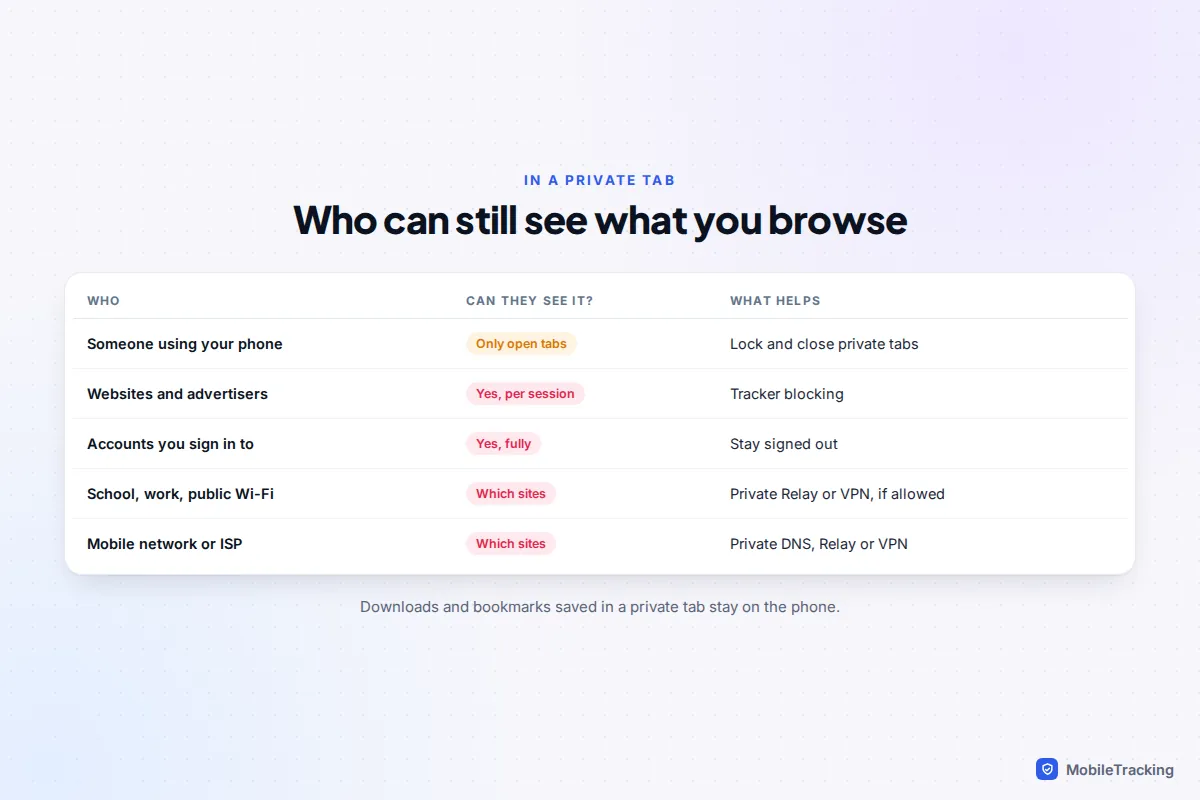
What a private tab hides, and what it doesn’t
Google’s own Incognito help page puts it plainly: websites you visit, including Google sites, and organisations that manage your network, like your school, employer or internet provider, may be able to observe your activity. Apple and Samsung describe their private modes in similar terms. In 2024 Google settled a US class action over Incognito and agreed to delete billions of browsing records and describe the mode more clearly, which is a good sign of how widely it had been misunderstood.
| Who | Can they see your private browsing? | What changes that |
|---|---|---|
| Someone who picks up your phone | Not after you close the tabs; open tabs are visible unless locked | Lock private tabs with Face ID or fingerprint |
| Websites and advertisers | Yes, during the session, though cookies are wiped afterwards | Tracker blocking, fingerprinting protection |
| An account you sign in to | Yes, fully | Stay signed out |
| School, work or public Wi-Fi | Yes, at least which sites you visit | Private Relay or a VPN, where the network allows it |
| Your mobile network or broadband provider | Yes, at least which sites | Private DNS, Private Relay or a VPN |
Downloads and bookmarks also survive. A file you save from a private tab stays in your Downloads folder, and it shows up in the Files app or your gallery like any other.
How to open a private tab in each browser
Labels change between versions, but the controls have stayed in roughly the same places for several years.
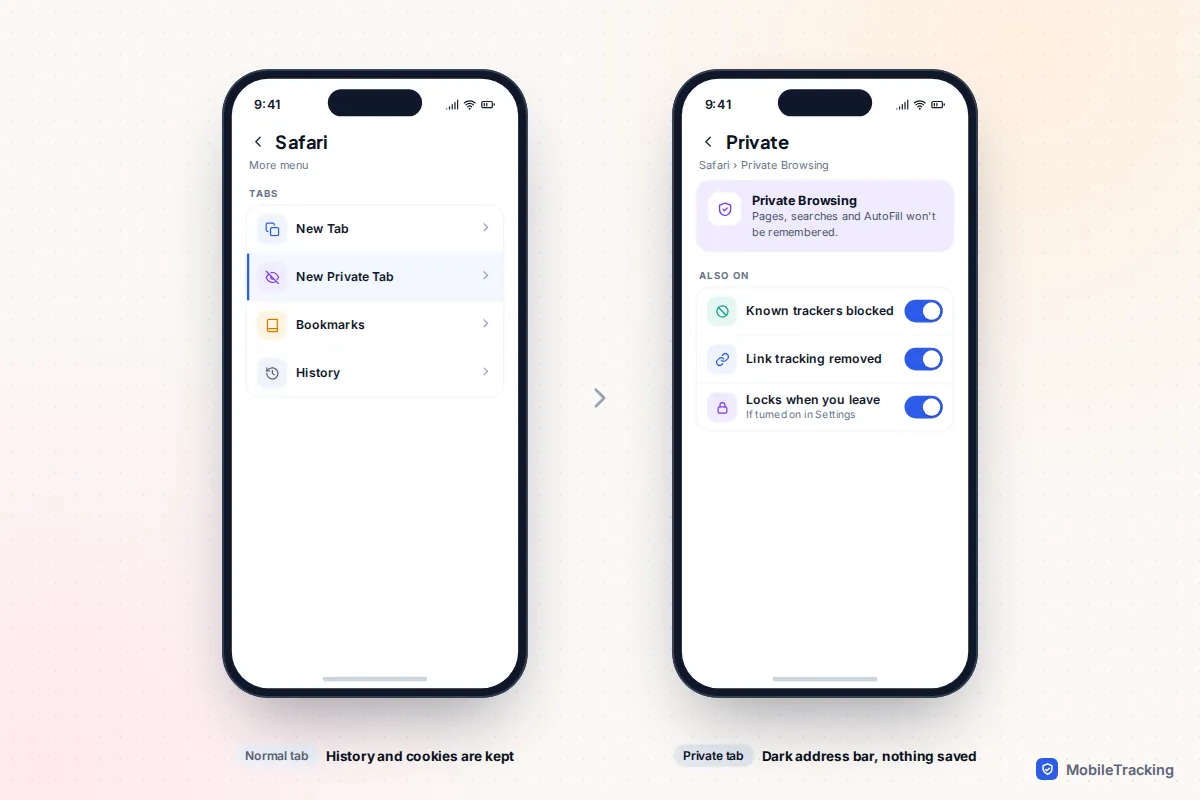
- Safari (iPhone): tap the More button, then New Private Tab. You can also tap the Tabs button and swipe to Private. The address bar turns dark so you can tell which mode you’re in. To go back, choose New Tab from the same menu.
- Chrome (Android and iPhone): tap More (three dots), then New Incognito tab. Incognito tabs sit in their own group in the tab switcher, marked with the hat-and-glasses icon.
- Samsung Internet: tap the tabs icon (a square with a number), then the Secret mode icon, which looks like a mask. The mask then appears in the address bar.
- Firefox: tap the mask icon on the home screen, or open the tabs tray and switch to Private.
Since iOS 17, Safari’s Private Browsing does more than forget history. Apple says it blocks known trackers, strips tracking identifiers from web addresses and adds protection against fingerprinting, a technique that recognises your phone from its settings instead of cookies. Chrome blocks third-party cookies in Incognito by default.
Lock your private tabs
A private tab left open is the most common way private browsing fails. If someone picks up your unlocked phone and opens the browser, they see whatever is still open. Every major mobile browser can now hide those tabs behind your face, fingerprint or passcode.
- Safari: Settings › Apps › Safari, then turn on Require Face ID to Unlock Private Browsing (Touch ID on iPhones with a Home button). Apple says this isn’t on automatically; you’re offered it the first time you use Private Browsing after updating.
- Chrome on iPhone: Settings › Privacy and security › Hide Incognito tabs, then choose Lock immediately with device authentication. The other choices are Hide after a few minutes and Don’t hide.
- Chrome on Android: Settings › Privacy and security, then turn on Lock Incognito windows when you leave Chrome. Older versions call it Lock Incognito tabs when you close Chrome.
- Samsung Internet: More › Settings › Personal browsing data › Secret mode settings, then Use password.
- Firefox for Android: Settings › Private browsing, then Use screen lock to hide tabs in private browsing.
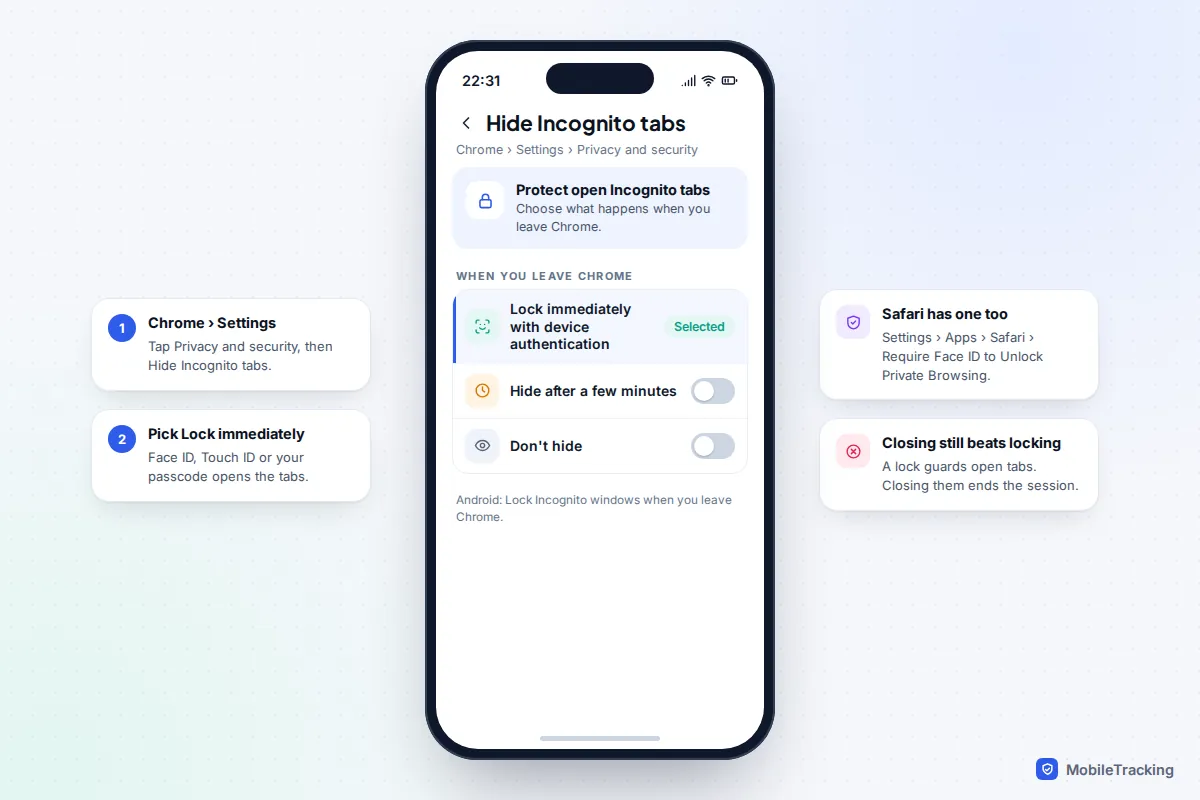
Closing private tabs when you finish is still the better habit. A lock protects open tabs from a casual look; closing them removes the session completely.
Block trackers in everyday browsing
Most people who want “private browsing” really want to stop ads following them around the web. For that, tracker blocking in your normal tabs does more than a private tab, because it works all the time and doesn’t log you out of everything.
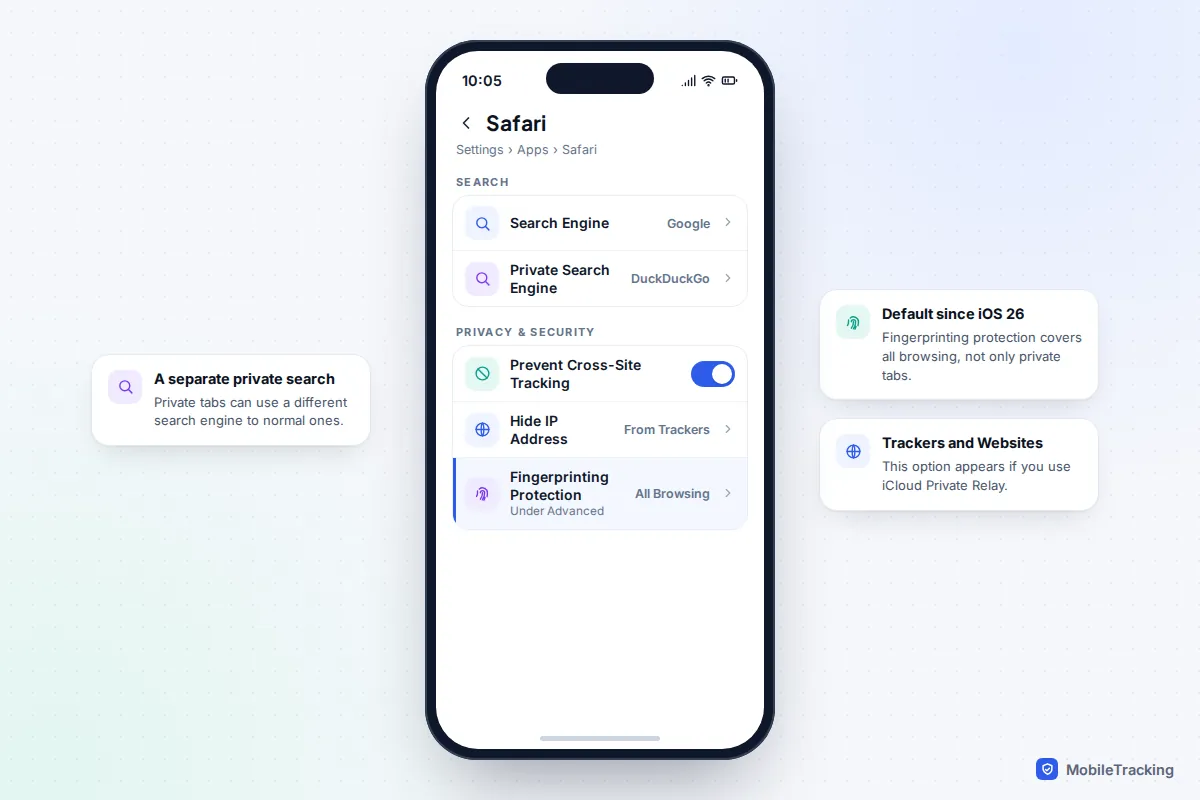
- Safari: in Settings › Apps › Safari, check that Prevent Cross-Site Tracking is on, set Hide IP Address to From Trackers, and under Advanced look at Advanced Tracking and Fingerprinting Protection. Since iOS 26 it applies to all browsing by default rather than only Private Browsing.
- Samsung Internet: turn on Smart anti-tracking. It sits in the browser’s privacy settings, and Secret mode settings has its own switch for it.
- Firefox: Settings › Enhanced Tracking Protection, where Strict blocks more but occasionally breaks a site.
Browsers built for privacy
If you’d rather not configure anything, two free apps are private by default. Firefox Focus blocks a wide range of trackers and erases your history, passwords and cookies with one tap of the bin button, so there’s little to leave behind. The DuckDuckGo browser blocks third-party trackers and has a Fire Button that deletes browsing data from all tabs or just the current one. You can “fireproof” sites you want to stay signed in to, and set it to clear everything automatically.
Choose your search engine
Your searches often say more about you than the sites you visit. In Settings › Apps › Safari, you can pick a Search Engine for normal tabs and a separate Private Search Engine for private ones, such as DuckDuckGo. Chrome, Samsung Internet and Firefox let you change the default search engine in their settings. For a deeper look at blocking trackers app by app, see our guide to blocking trackers in your mobile browser.
Hide your browsing from the network: Private Relay, private DNS and VPNs
Even in a private tab, the network carrying your traffic can see which sites you connect to. Three tools reduce that, each with trade-offs.
iCloud Private Relay (iPhone)
Part of iCloud+, Private Relay sends Safari traffic, DNS lookups and unencrypted app traffic through two separate relays, so no single party, not even Apple, sees both who you are and which site you’re visiting. Turn it on in Settings › [your name] › iCloud › Private Relay. It only covers Safari, not Chrome or other browsers, it isn’t available in every country, and some sites may ask you to sign in or solve extra checks. You can switch it off for one network through Settings › Wi-Fi, then the info button, then Limit IP Address Tracking.
Private DNS (Android)
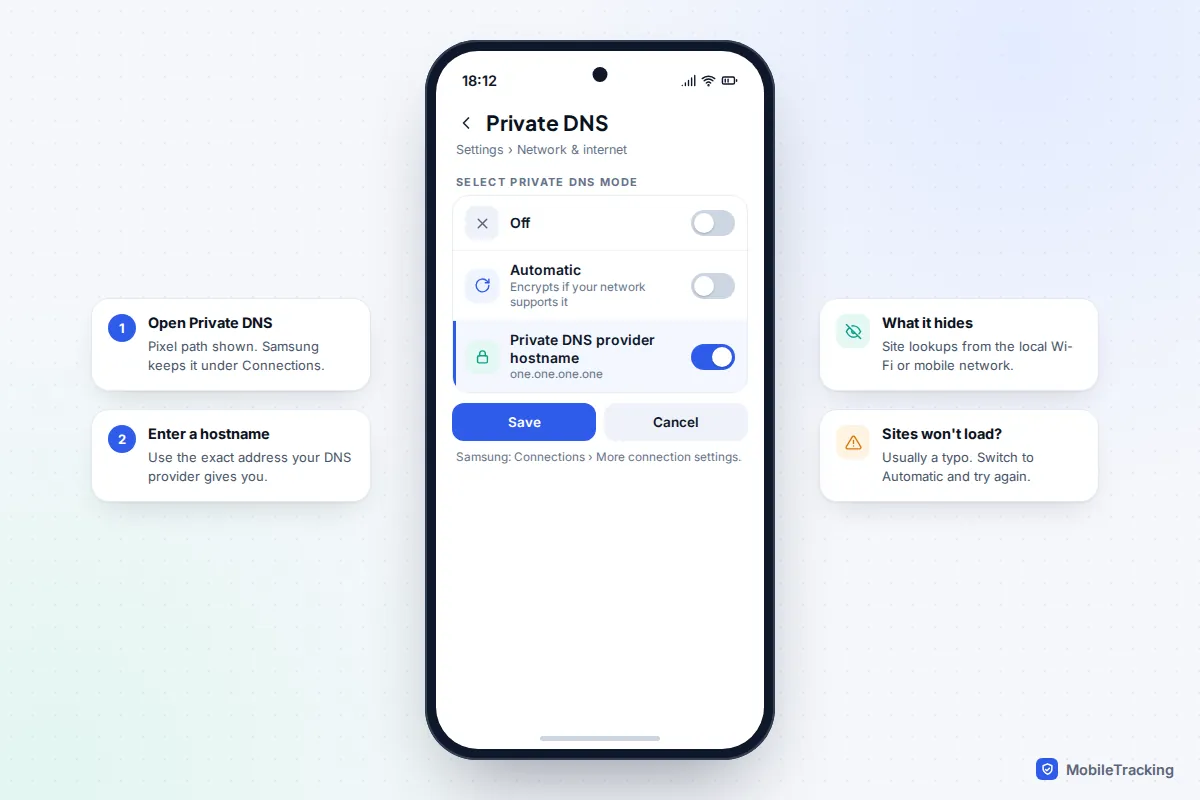
Every time you visit a site, your phone looks up its address. Android can encrypt those lookups and send them to a provider you choose. On a Pixel, go to Settings › Network & internet › Private DNS; on a Samsung, Settings › Connections › More connection settings › Private DNS. Choose Private DNS provider hostname and enter your provider’s address, such as one.one.one.one. It hides lookups from the local network, but not the sites themselves from a network that looks further. Our private DNS guide covers providers, including family-filtering ones.
VPNs, honestly
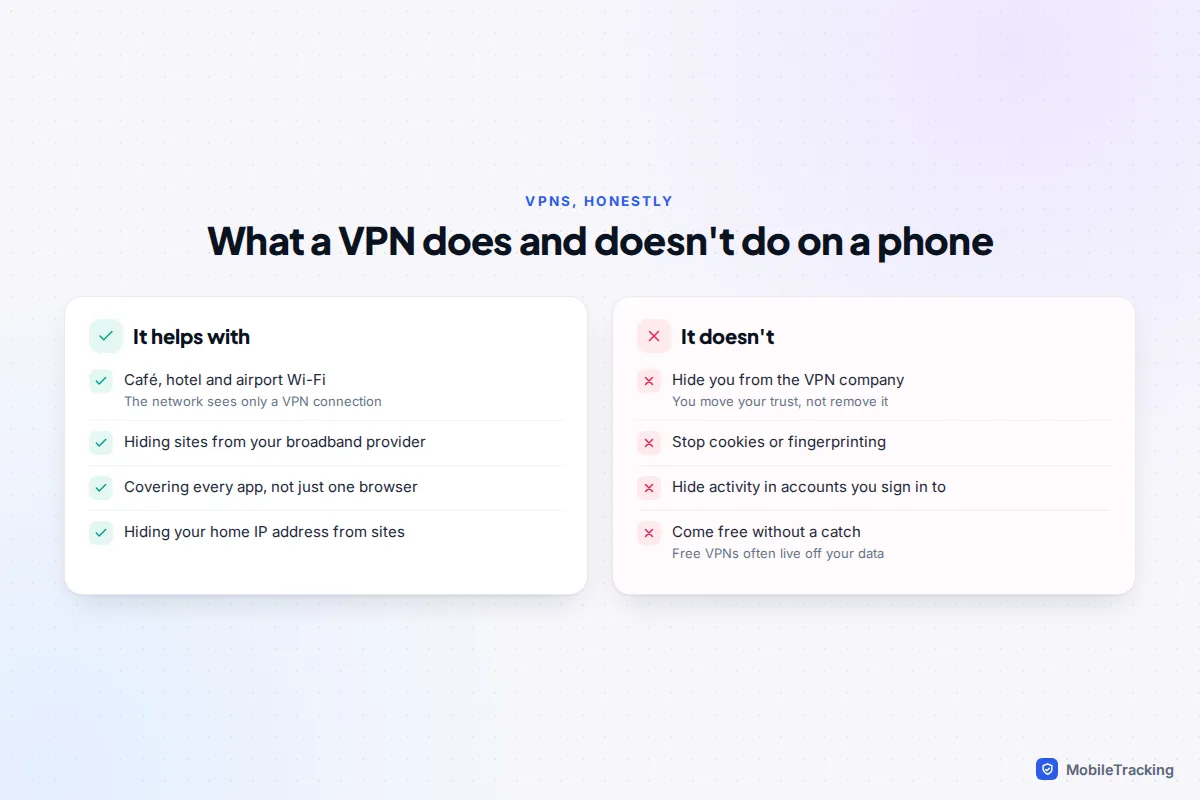
A VPN encrypts all your phone’s traffic to the VPN company’s servers, so the café Wi-Fi or your broadband provider sees only that you’re using a VPN. That is useful on public Wi-Fi. But the VPN company can now see everything the network used to see, so you’re moving your trust, not removing it. A VPN doesn’t stop cookies, fingerprinting or signed-in accounts from identifying you, and free VPN apps are often paid for with your data. The US Federal Trade Commission advises reading a VPN’s privacy policy and checking what it logs before installing one.
School, work and managed phones
On a school or work Wi-Fi network, assume the organisation can see which websites you visit, private tab or not. Apple says networks that filter or audit traffic, including business, school and parental control services, may block Private Relay, and when they do the network provider can see which sites you browse. Many also block VPNs.
A phone issued or managed by a school or employer is different again. If it has a management profile or a security certificate installed, the organisation may be able to see more than domain names. On an iPhone, look in Settings › General › VPN & Device Management; on Android, look for a work profile or a message saying the device is managed. For personal browsing, use your own phone on your own mobile data.
Which option should you use?
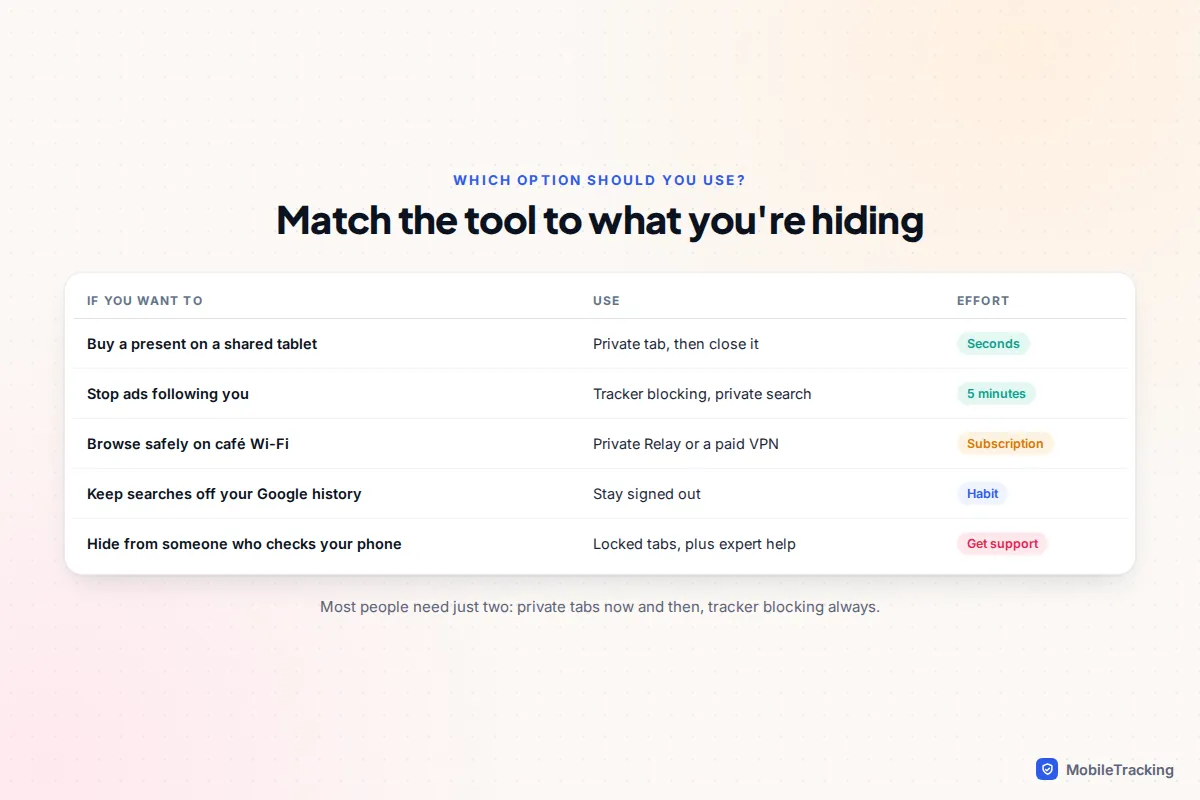
Start with what you’re hiding and from whom. The right tool for a birthday present is different from the right tool for a hotel Wi-Fi network.
- Buying a present on a shared tablet: a private tab, closed afterwards.
- Stopping ads that follow you: tracker blocking in your normal browser, plus a private search engine.
- Using café or hotel Wi-Fi: Private Relay in Safari, or a reputable paid VPN for everything else.
- Keeping searches out of your Google or Facebook history: stay signed out, or use a private tab and don’t sign in.
- Worried someone checks your phone: locked private tabs help, but someone controlling your phone or accounts may see other traces. Our guide to protecting your phone in an abusive situation covers safer steps, and The Hotline (1-800-799-7233 in the US) or Refuge (0808 2000 247 in the UK) can help you plan.
Private browsing and children
Parents often ask whether they can turn private browsing off on a child’s phone. You can, on both platforms, but only for the built-in browsers.
- iPhone with iOS 27: Apple moved parental controls into Settings › Family › [child’s name] › Apps & Websites › Restrictions, where Filtering under Websites offers Limit Adult Websites or approved websites only. Apple says Limit Adult Websites is on by default for children under 18.
- iPhone with iOS 26 or earlier: on the child’s phone, go to Settings › Screen Time › Content & Privacy Restrictions › App Store, Media, Web & Games › Web Content (Store, Web, Siri & Game Center Content on older versions) and choose Limit Adult Websites. This removes Private Browsing from Safari and is protected by the Screen Time passcode.
- Android: Google says Incognito mode is turned off when a child is signed in to Chrome with an account managed by Family Link.
Whichever version you use, open Safari on the child’s phone afterwards and check that New Private Tab has gone from the menu. None of these settings affects other browsers. Samsung Internet, Firefox or DuckDuckGo installed on the same phone still have private modes, so pair these settings with app approval, such as Ask to Buy on iPhone or app approvals in Family Link. Our guide to blocking adult websites on a child’s phone covers filters that work across browsers.
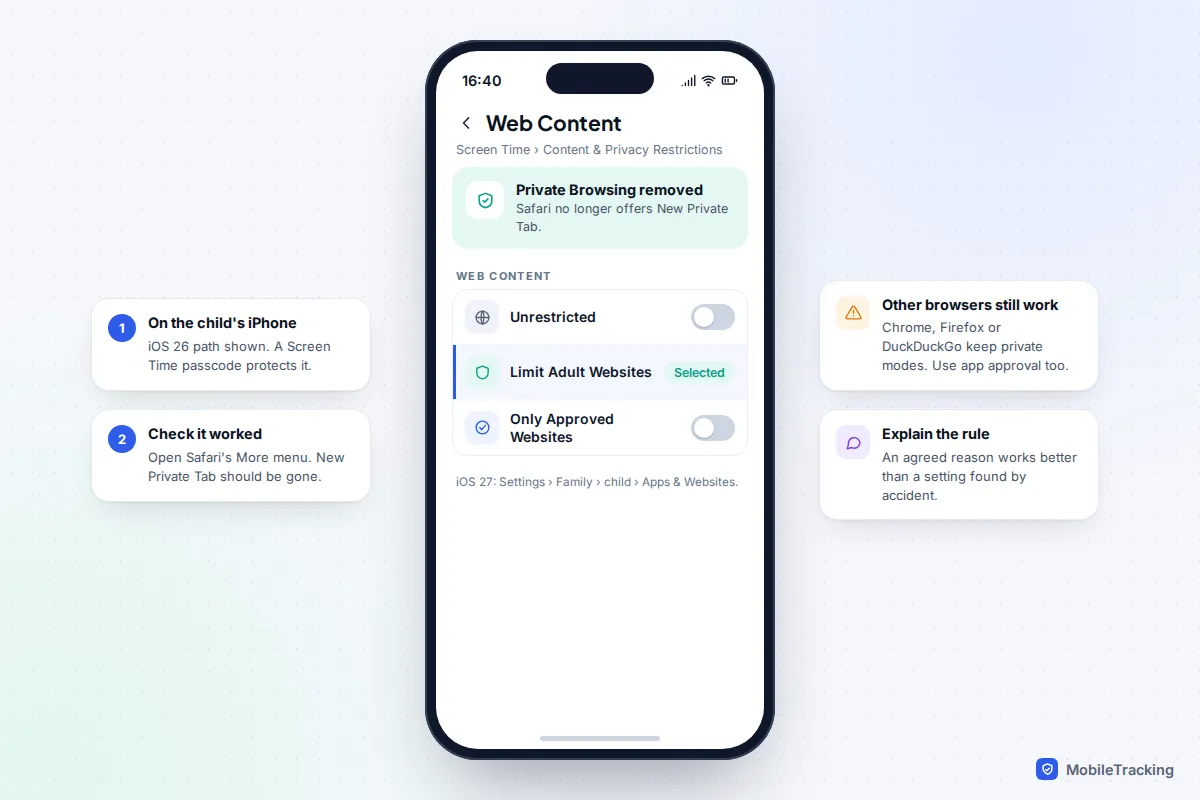
A teenager using a private tab isn’t automatically hiding something worrying. Teens want privacy for the same reasons adults do, including gifts, embarrassing health questions and conversations with friends. An agreed rule, such as no private browsing until 14 with the reasons explained, tends to work better than a setting they discover by accident.
Frequently asked questions
Can my Wi-Fi owner see my private browsing?
They can usually see which websites you connect to, but not the pages or what you type on sites using HTTPS. Private Relay in Safari, or a VPN, hides the sites too, unless the network blocks those tools.
Does private browsing show up on the phone bill?
No. Phone bills list data used, not websites. Your mobile network can technically see which sites you connect to, but that information isn’t printed on your bill.
Is Incognito mode safe for online banking?
It’s fine, but it doesn’t make banking any safer. Your bank still knows it’s you once you sign in. What protects you is an up-to-date phone, a strong passcode and avoiding public Wi-Fi for payments.
If I forget to use a private tab, can I delete the history afterwards?
Yes. Every browser lets you clear history for a set period, such as the last hour. Our guide to deleting your browsing history has the steps, including what clearing leaves behind in your Google account.
Does private browsing stop viruses or scam sites?
No. A private tab opens the same pages and downloads the same files as a normal one. Safe browsing warnings still work in private mode, but they’re a separate protection.
This guide is general information, not legal or financial advice. Read our editorial policy.