
To empty Recently Deleted safely, check first that anything you might want is saved somewhere else, then open the bin and use Delete All or Empty. On an iPhone that means Photos › Collections › Utilities › Recently Deleted, unlock it with Face ID, tap Select, then the More button and Delete All. On Android, open Trash (or Bin) in Google Photos, or the Recycle bin in Samsung’s Gallery or My Files, and choose Empty.
The step people skip is the check, and it matters because emptying a bin is final. Apple and Google both say plainly that items deleted from these folders can’t be restored, and if your photos sync to iCloud or Google Photos, what you delete on one device disappears from all of them. This guide covers every common bin on iPhone and Android, what emptying really frees, and how to delete selectively instead of all at once.
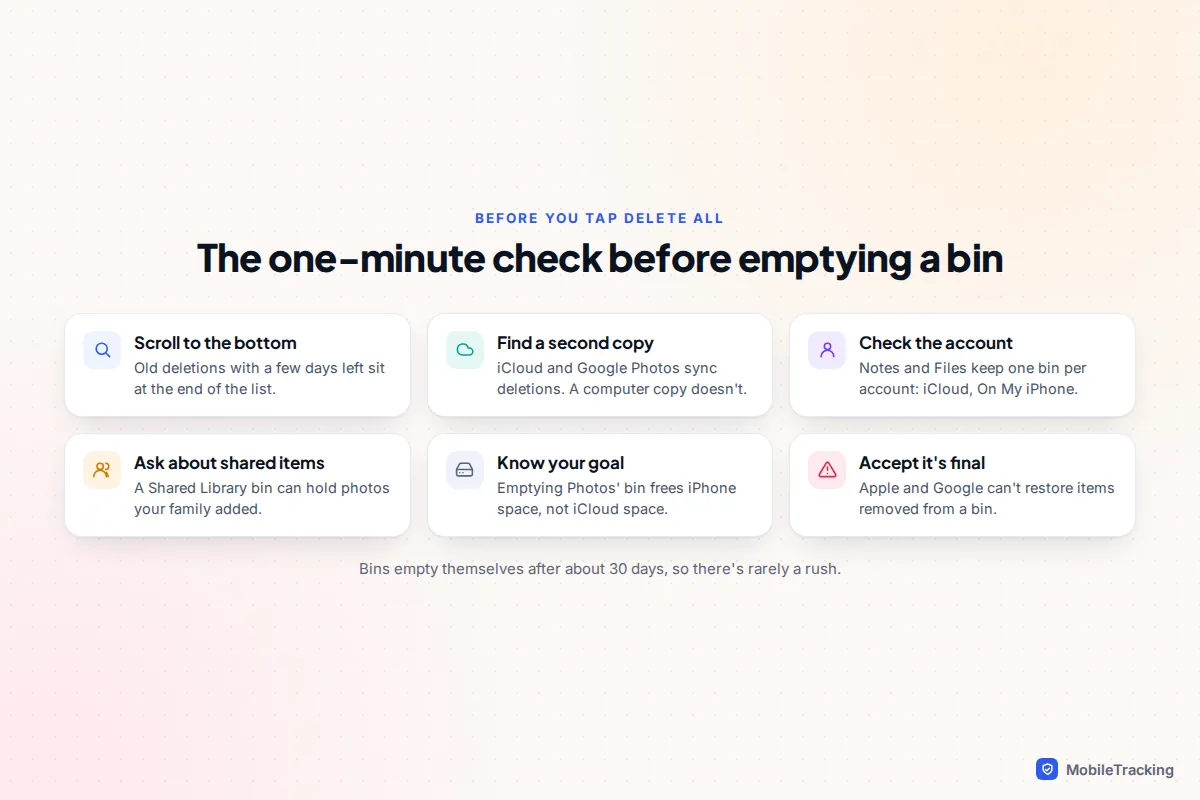
The one-minute check before you empty anything
A bin exists because people delete the wrong thing. Before you remove that safety net, spend a minute on these questions.
- Is anything in there you might want? Scroll the whole bin, not just the top. Items are usually sorted by deletion date, and the ones you deleted in a hurry weeks ago sit at the bottom with only a few days left.
- Does a copy exist somewhere that doesn’t sync deletions? iCloud Photos and Google Photos are sync services, not archives. A computer download, an external drive or a Google Takeout export is a real second copy. If you’re not sure your backup works, our guide on testing that a backup actually restores takes ten minutes.
- Which account is this? Notes and Files have a separate Recently Deleted for each account, such as iCloud and On My iPhone. Make sure you’re in the one you think you are.
- Is anything shared? In an iCloud Shared Photo Library, the bin can hold photos other family members added and deleted. More on that below.
- Why are you emptying it? If the answer is “to free iCloud storage”, stop: on iPhone that often won’t work, as explained in the storage section.
iPhone Photos: Recently Deleted, locked with Face ID
Deleted photos and videos stay in Recently Deleted for 30 days, then iOS removes them. Since iOS 16 the album is locked, so you need Face ID, Touch ID or your passcode to see inside it, which also stops someone who borrows your unlocked phone from browsing deleted pictures.
- Open Photos, tap Collections and scroll to Utilities. On iOS 27 the Utilities section can be edited, so the album may have moved within it.
- Tap Recently Deleted, then View Album, and unlock it.
- Tap Select. To remove everything, tap the More button (three dots) and choose Delete All. To remove only some items, tap them first, then choose Delete.
- Confirm with Delete from All Devices. If you use a Shared Library, the button may read Delete Photos I Added instead.
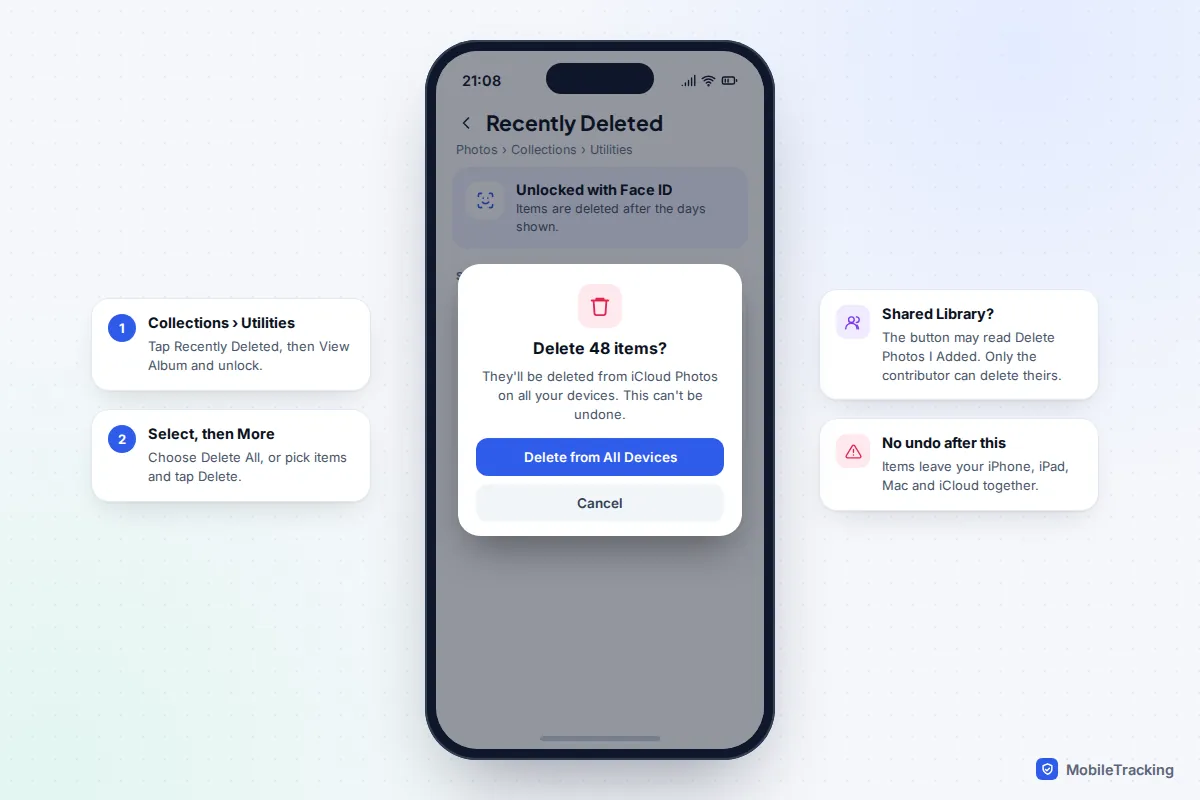
If the lock gets in the way, you can turn it off in Settings › Apps › Photos by switching off Use Face ID (Use Touch ID on iPhones with a Home button). For a family phone or a teenager’s phone, leaving it on is the better choice. The Hidden album uses the same lock. Apple’s guide to deleting photos on iPhone shows the same steps.
Shared Libraries and shared albums
An iCloud Shared Photo Library works like one big album for up to six people. When anyone deletes a photo from it, it goes to Recently Deleted for 30 days, and Apple says only the person who contributed an item can permanently delete it from there. That is why you may see photos in your bin that you can’t clear: they belong to someone else.
Ordinary shared albums are different. They have no Recently Deleted at all, so a photo removed from a shared album is gone from that album straight away. The copy in the original owner’s library is not affected.
Notes, Messages and Files on iPhone
Three other apps keep their own 30-day bins. Each one has to be emptied separately, and emptying Photos has no effect on them.
Notes
Open Notes, go back to the Folders list and tap Recently Deleted under the account you want. Tap Edit, then Delete All, or select individual notes and tap Delete. Apple’s iCloud guide says deleted notes stay for up to 30 days before they are permanently removed from all your devices. If you have notes in both iCloud and On My iPhone, each has its own Recently Deleted folder.
Messages
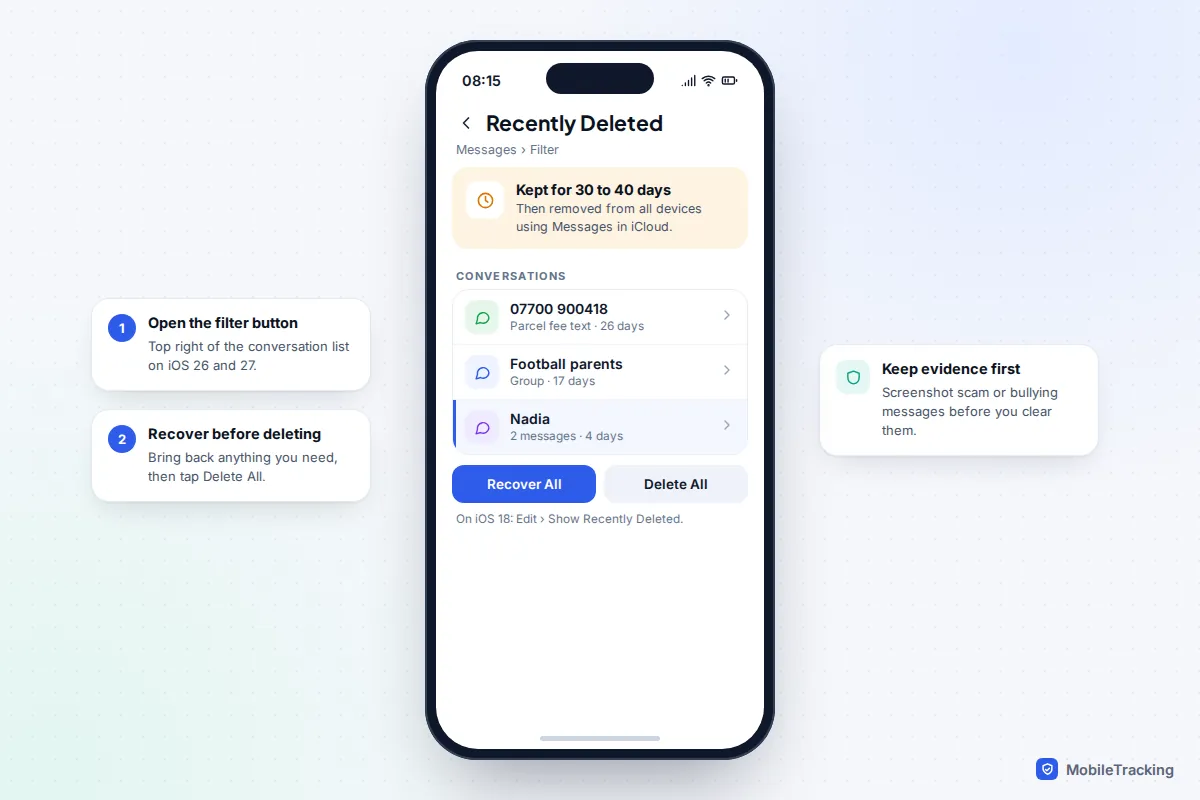
On iOS 26 and iOS 27, tap the filter button at the top right of the conversation list and choose Recently Deleted. On iOS 18, tap Edit, then Show Recently Deleted. Tap Delete All, or select conversations and tap Delete. Apple says messages can be recovered for 30 to 40 days, and with Messages in iCloud on, deleting here removes them from your other Apple devices as well.
Files
Open Files, tap Browse, then Recently Deleted. Tap the More button, then Select, and choose Delete All or pick individual files. Apple notes that files deleted from Recently Deleted are removed immediately and can’t be recovered, and that deleting from iCloud Drive removes a file from every device signed in to the same Apple Account.
Android: Google Photos, Files by Google and Samsung
Android doesn’t have one system-wide bin. Each app keeps its own, and on Samsung phones several of them are combined.
Google Photos (Android and iPhone)
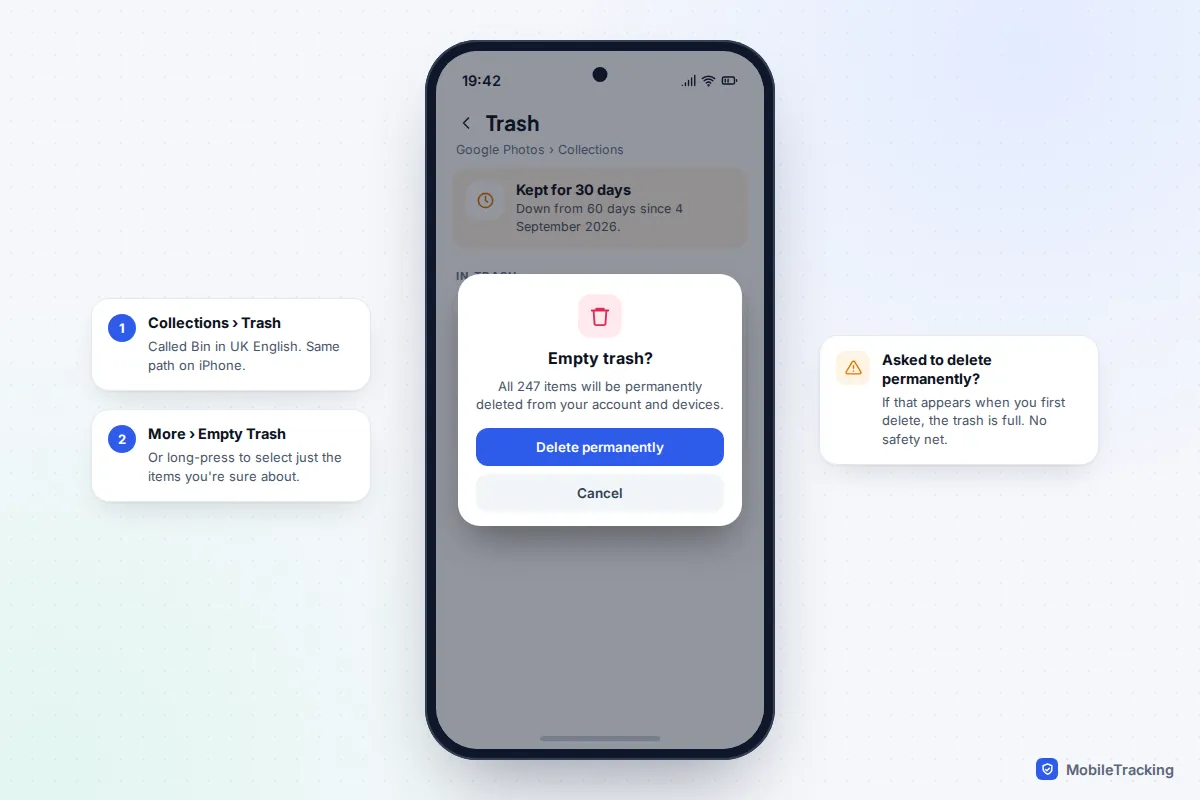
- Open Google Photos and tap Collections, then Trash (called Bin in UK English).
- Tap More (three dots), then Empty Trash, and confirm with Delete permanently. To remove only some items, long-press to select them and tap Delete.
Since 4 September 2026, Google keeps trashed photos for 30 days, down from 60, and that applies to backed-up items and to unbacked-up photos on Android 11 and later. If you’re asked to “Delete permanently” the moment you delete something, your trash is full and there is no safety net for that item, so pause before confirming.
Files by Google
Tap the menu, then Trash. Tick All items or choose files, tap Delete and confirm. Files stay for 30 days. One trap: files removed through the Junk files card in the Clean tab never go to Trash at all, according to Google, so there’s nothing to rescue afterwards.
Samsung Gallery and My Files
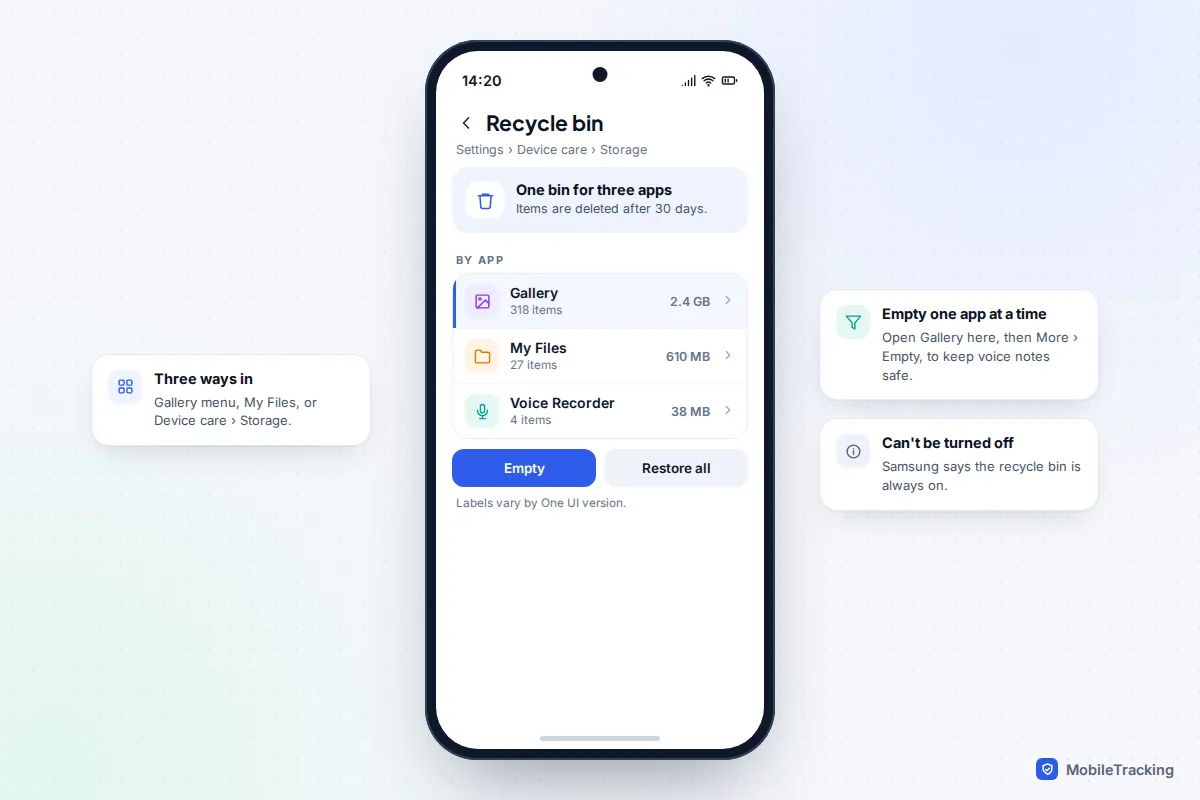
Since One UI 6, Samsung gathers deleted items from Gallery, My Files and Voice Recorder into one recycle bin, kept for 30 days. You can reach it three ways: in Gallery, tap the menu (three lines) and Recycle bin; in My Files, scroll to Recycle bin; or go to Settings › Device care › Storage › Recycle bin, where items are grouped by app. Tap More (three dots), then Empty. Samsung says the bin itself can’t be switched off.
What emptying actually frees, and when
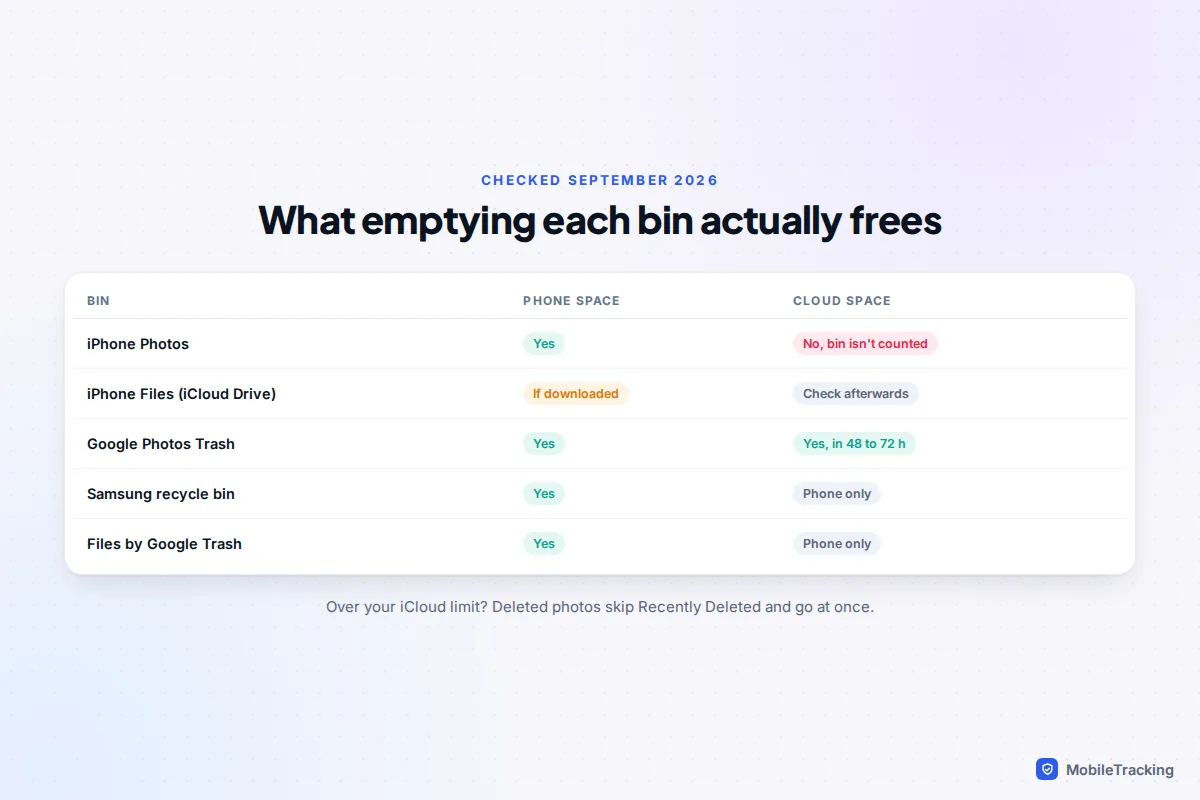
This is where most advice goes wrong. Emptying a bin frees space on the phone almost everywhere, but whether it frees cloud storage depends on the service.
| Bin | Frees phone space? | Frees cloud space? |
|---|---|---|
| iPhone Photos, Recently Deleted | Yes, once emptied | No: Apple says items in Recently Deleted don’t count towards iCloud storage |
| iPhone Files (iCloud Drive) | Yes, if files were downloaded | Apple doesn’t say whether the bin counts, so check iCloud storage afterwards |
| Google Photos Trash | Yes, for on-device copies | Yes; Google says storage totals can take 48 to 72 hours to update |
| Samsung recycle bin, Files by Google | Yes | Not applicable: these are on the phone |
So if iCloud says it’s full, emptying Recently Deleted in Photos won’t help, but it can help if your iPhone’s own storage is full, because the Photos figure in Settings › General › iPhone Storage includes Recently Deleted. Apple also warns that when you’re over your iCloud limit, photos you delete skip Recently Deleted and are removed straight away. For a fuller clear-out, our guide to freeing up storage on your phone covers the bigger wins.
Delete selectively instead of emptying everything
You rarely need Delete All. A few targeted deletions usually recover most of the space and leave the rest of the safety net in place.
- Go for the big items. A single four-minute 4K video can be larger than hundreds of photos. Select a handful of long videos and delete just those.
- Leave recent deletions alone. Anything you deleted this week is the most likely to be a mistake.
- Free the phone, keep the cloud copy. In Google Photos, select items and choose Delete from device to remove only the phone’s copy of backed-up photos. In the iPhone Files app, long-press an iCloud Drive file and choose Remove Download.
- Use Optimise iPhone Storage in Settings › Apps › Photos instead of deleting. It keeps full-size originals in iCloud and smaller versions on the phone.
Here is how it goes wrong in practice. Sam’s iPhone warned that storage was full, so he deleted 1,500 photos, then emptied Recently Deleted to make it count. iCloud Photos was on, so the pictures vanished from his iPad and from iCloud too, and there was no bin left to recover them from. Turning on Optimise iPhone Storage would have solved the storage warning without deleting anything.
Can anything be recovered after you empty it?
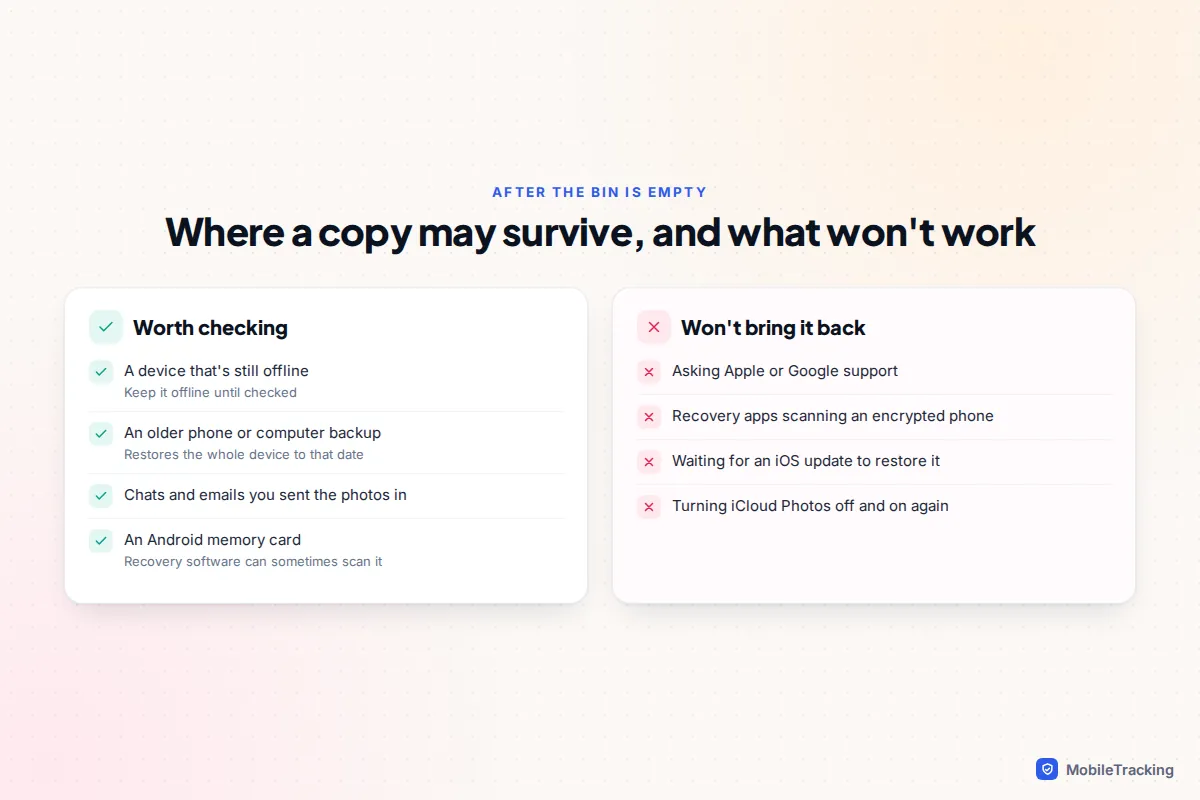
Usually not, and it helps to know why so you don’t waste money. Modern iPhones and Android phones encrypt storage file by file. When a file is permanently deleted, the key that unlocks it is discarded, so what is left on the chip is unreadable data. That is why “recover anything” apps that scan an iPhone mostly find items that were never really deleted, such as old backups or synced copies.
Apple and Google can’t restore photos removed from their bins either. Your realistic options are other copies:
- an older iCloud or computer backup of the phone, which restores the whole device to that date;
- another device that was offline when you emptied the bin and hasn’t synced yet;
- the chats, emails or shared albums you originally sent the photos to;
- a memory card in an Android phone, which recovery software can sometimes scan.
You may remember reports in 2024 of deleted photos reappearing after an iOS update. Apple traced that to a database corruption bug in iOS 17.5, fixed in iOS 17.5.1, and said iCloud Photos was not involved. It is not a recovery method. Our guide to recovering deleted photos from the cloud covers every service’s bin while there’s still time.
Before you sell or pass on a phone
Emptying bins one by one is the wrong way to prepare a phone for a new owner, and it can be actively harmful. If you’re still signed in to iCloud or Google Photos, every photo you delete by hand is also deleted from your account and your new phone.
- Check that your new phone, or your cloud account, has all your photos, messages and notes.
- On iPhone, go to Settings › General › Transfer or Reset iPhone › Erase All Content and Settings. This signs you out of your Apple Account, turns off Find My and erases everything.
- On Android, remove your Google account first, then use Settings › System › Reset options › Erase all data on a Pixel, or Settings › General management › Reset › Factory data reset on a Samsung.
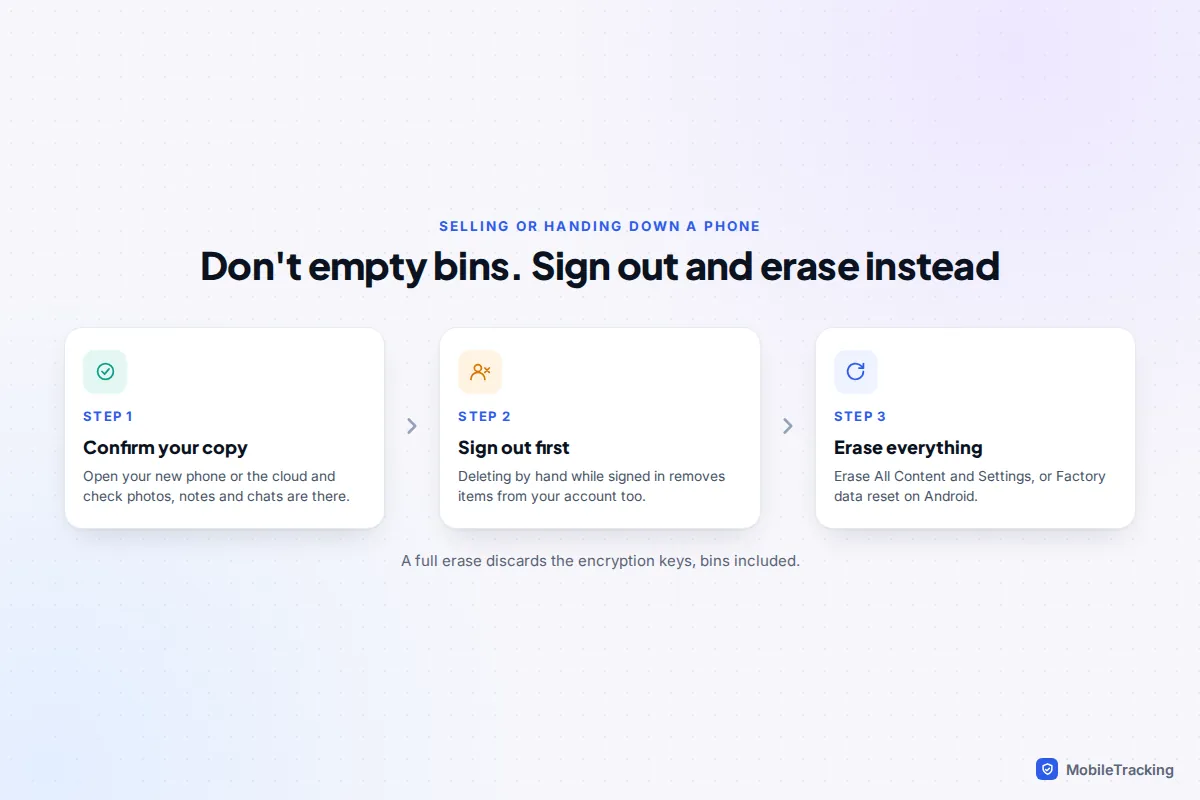
A full erase is also what Apple pointed to when people worried about old photos turning up on sold devices: after a proper reset, the content is gone. Our guide to wiping a phone before selling it walks through Activation Lock, Factory Reset Protection and SIM removal.
Frequently asked questions
Does Recently Deleted empty itself?
Yes. Photos, Notes and Files on iPhone remove items after 30 days, and Messages after 30 to 40 days. Google Photos, Files by Google and Samsung’s recycle bin also clear items after 30 days. You only need to empty a bin by hand if you want the space back sooner.
Why can’t I delete some photos in my Recently Deleted album?
If you use an iCloud Shared Photo Library, only the person who added a photo can permanently delete it. Those photos will clear themselves after 30 days, or the person who added them can delete them from their own Recently Deleted.
I emptied Recently Deleted but my iCloud storage didn’t change. Why?
Apple says items in Recently Deleted don’t count towards iCloud storage, so emptying it frees space on the iPhone but not in iCloud. To free iCloud space, look at backups of old devices, large iCloud Drive files and message attachments in Settings › [your name] › iCloud.
Is it safe to use a cleaner app to empty bins automatically?
It’s better not to. Cleaner apps remove the 30-day safety net for everything, including things you deleted by accident this morning. The phone’s own bins already empty themselves on a schedule.
Should I empty Recently Deleted on my child’s phone?
Only if storage is a real problem, and ideally together. Deleted photos and messages can matter later, for example if your child is being bullied and needs evidence. Talk about what they’re deleting and why, rather than clearing it for them.
This guide is general information, not legal or financial advice. Read our editorial policy.