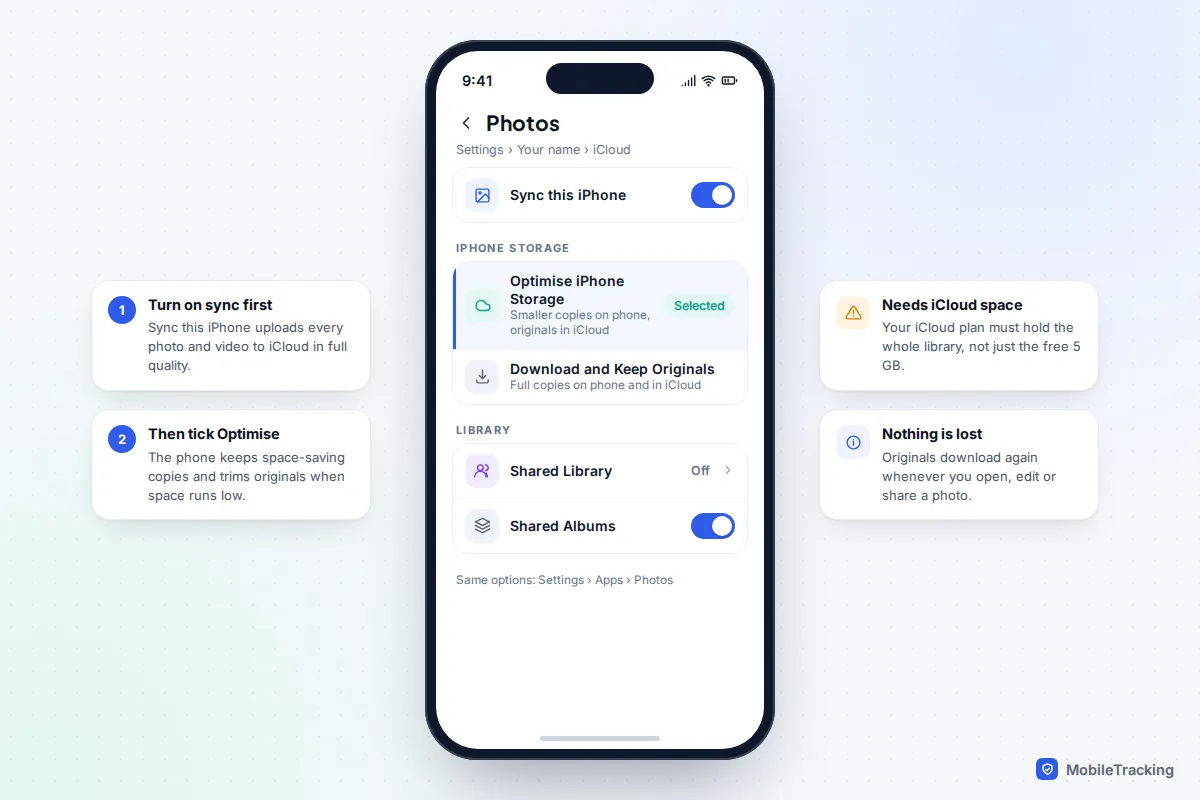
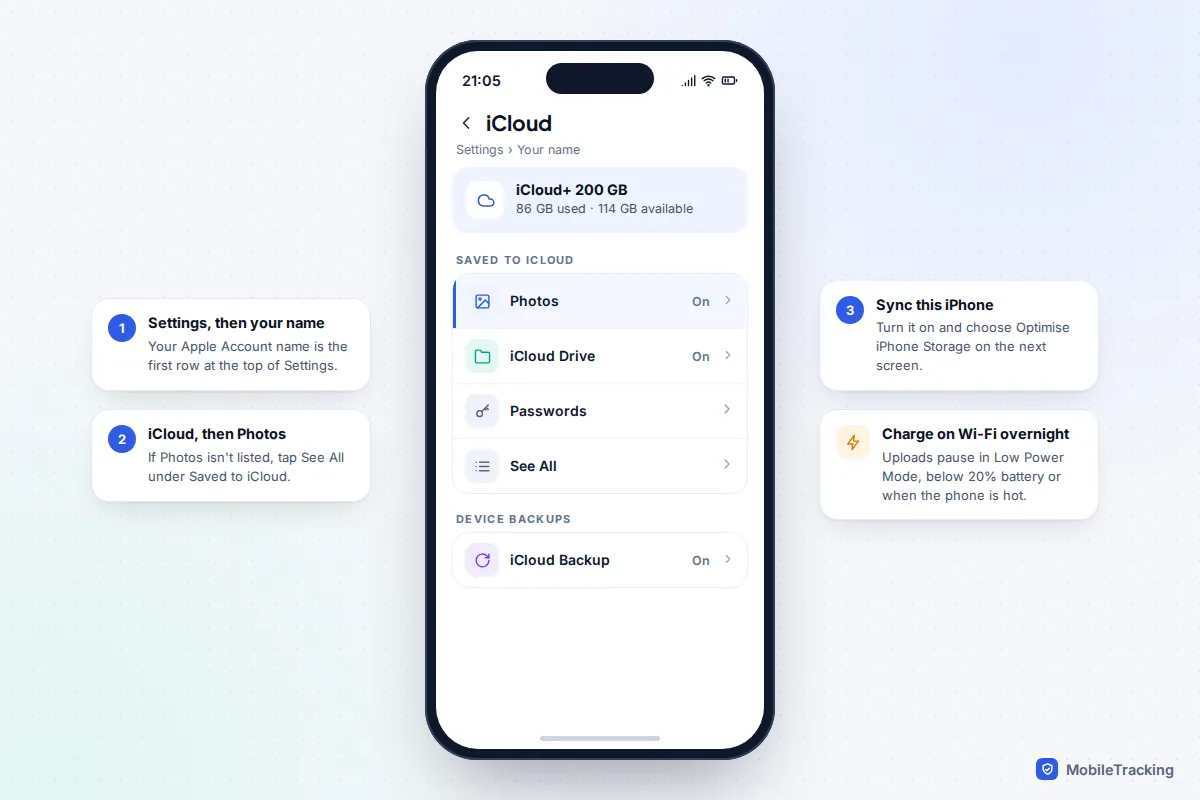
On an iPhone, go to Settings, tap your name, then iCloud > Photos. Turn on Sync this iPhone and choose Optimise iPhone Storage. Your full-resolution photos and videos then live in iCloud, and the phone keeps smaller versions whenever it needs the space. You will find the same two choices under Settings > Apps > Photos on iOS 18 and iOS 26.
Android has no switch that works quite the same way. The closest equivalent is to back up everything with Google Photos, check it has finished, then use Free up space on this device in the Google Photos app to remove the local copies. Samsung Gallery users have an extra deadline to know about: Gallery’s built-in sync with OneDrive ends on 30 September 2026. Both methods only work if your cloud account has enough room for your whole library, and that is where most people get stuck.
What Optimise iPhone Storage actually does
With iCloud Photos switched on, every photo and video uploads to iCloud in its original quality. Optimise iPhone Storage then lets the phone swap the original on your device for a space-saving copy that looks the same on the screen but takes up far less room. Apple describes it as your device keeping “space-saving versions” while iCloud stores the originals.
Two details surprise people. First, nothing shrinks straight away. The iPhone only optimises when it starts to run low on space, and it starts with the photos and videos you look at least. A phone with plenty of free storage may keep most originals for months. Second, the originals are never gone from your library. When you open, edit, share or export an optimised photo, the phone downloads the full version over Wi-Fi or mobile data, which usually takes a second or two for a photo and longer for a long video.
The alternative, Download and Keep Originals, stores a full copy of everything on the phone as well as in iCloud. It uses more space but works fully offline. On a Mac the equivalent options sit in the Photos app under Settings > iCloud, labelled Optimise Mac Storage and Download Originals to this Mac.
How to turn it on, step by step
The steps are the same on an iPad, with iPad in place of iPhone.
- Check your iCloud storage first (see the next section). If your library is bigger than your free iCloud space, uploads will stop part of the way through.
- Open Settings and tap your name at the top.
- Tap iCloud, then Photos. On some versions you tap See All under Saved to iCloud to find Photos.
- Turn on Sync this iPhone.
- Under the storage options, tap Optimise iPhone Storage so it has a tick.
- Plug the phone in, connect to Wi-Fi and leave it overnight for the first upload.
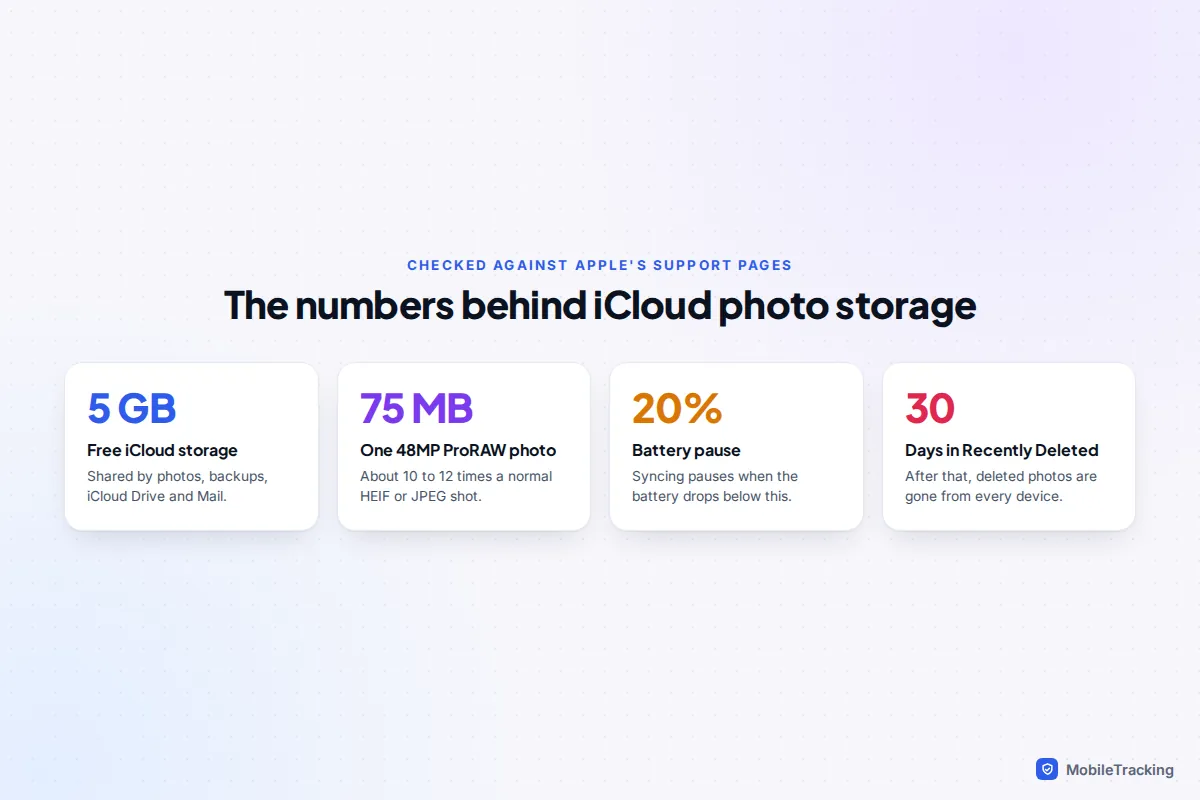
The first upload of a large library can take hours or even a couple of days. Apple pauses syncing when Low Power Mode or Low Data Mode is on, when the battery is below 20%, when the phone is too hot, or when your iCloud storage is full, so charging overnight on Wi-Fi is the fastest route. If you already use iCloud Photos with Download and Keep Originals, switching to Optimise is instant: the phone simply starts trimming originals when space gets tight.
You need enough iCloud storage for the whole library
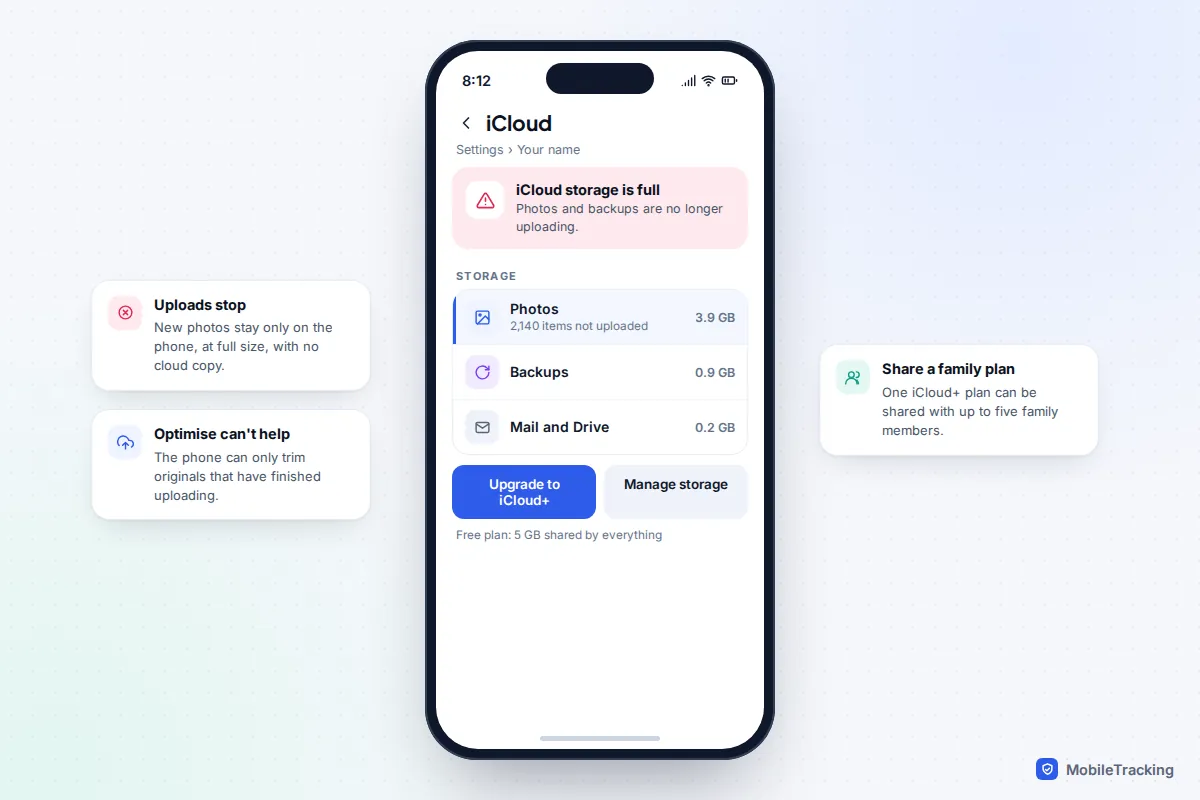
Optimise only works for photos that have finished uploading. Every Apple Account gets 5 GB of free iCloud storage, which is shared with device backups, iCloud Drive and Mail. Most photo libraries are far bigger than that, so on the free tier the upload stops early, a “storage full” message appears and the rest of your photos stay at full size on the phone.
To see the size of your library, go to Settings > General > iPhone Storage and look at the figure next to Photos. That is roughly how much iCloud space you need, plus room to grow. Current iCloud+ prices are below.
| iCloud+ plan | UK price per month | US price per month | Good for |
|---|---|---|---|
| 50 GB | £0.99 | $0.99 | A small library, a few thousand photos and little video |
| 200 GB | £2.99 | $2.99 | Most individuals, or a couple sharing through Family Sharing |
| 2 TB | £8.99 | $9.99 | Families, heavy video or ProRAW users |
Larger 6 TB and 12 TB plans exist too. Any iCloud+ plan can be shared with up to five family members. If a Shared Library is involved, the photos count against the storage of the person who created the Shared Library.
How much space will it save?
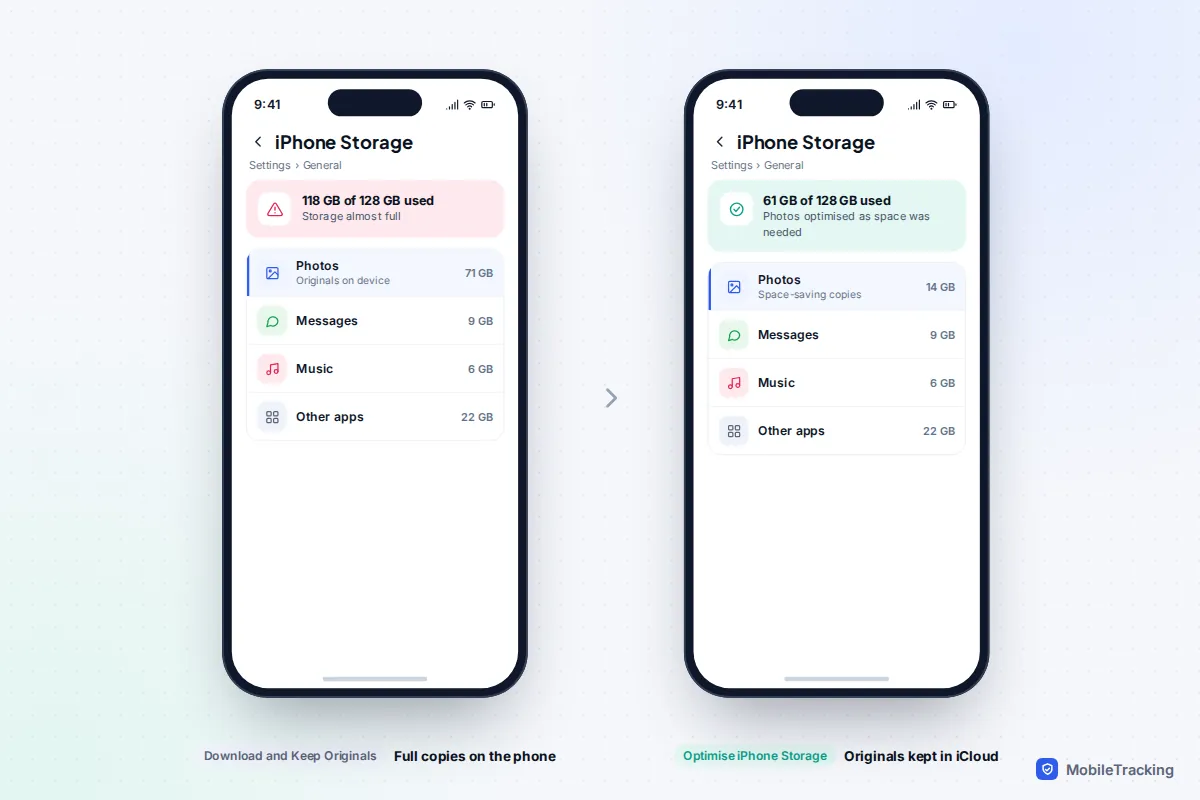
Apple does not publish a fixed figure, because the saving depends on how big your library is and how much free space the phone needs. The phone keeps as many originals as comfortably fit and trims the rest, so the Photos figure in iPhone Storage can drop a long way on a phone that was full, and hardly at all on one that has room to spare.
Some content benefits far more than others. Video is the biggest win: the Camera settings screen shows how many megabytes a minute of video takes at each resolution, and 4K at 60 frames per second fills space quickly. Apple says a 48-megapixel ProRAW photo is about 75 MB and a 12-megapixel ProRAW photo about 25 MB, roughly 10 to 12 times the size of a normal HEIF or JPEG photo. If you shoot ProRAW or lots of 4K video, optimising can free many gigabytes.
For other ways to reclaim space once photos are sorted, see our guide to freeing up storage on your phone.
The Android equivalents: Google Photos and Samsung Gallery
Android phones do not keep small stand-in copies the way an iPhone does. Instead you back up to the cloud and then delete the copies on the phone. Photos then load from the cloud when you open them, so you need a connection to see them in full.
Step 1: choose a backup quality in Google Photos
- Open the Google Photos app and tap your profile picture at the top right.
- Tap Photos settings (or Google Photos settings), then Backup, and make sure Backup is on.
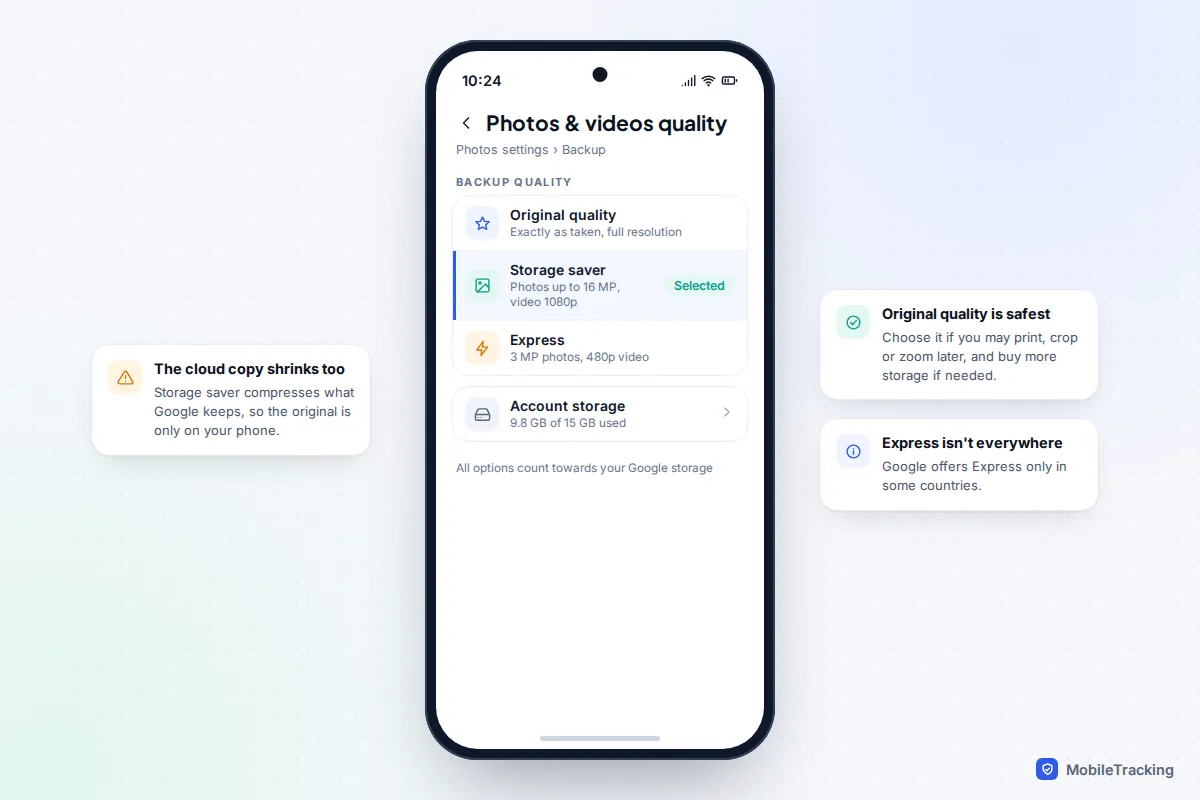
- Tap Photos & videos quality and choose an option.
Original quality keeps photos and videos exactly as you took them. Storage saver reduces photos to a maximum of 16 megapixels and videos to 1080p. Express, offered in some countries, goes further to 3 megapixels and 480p. All three count towards the 15 GB of free storage that every Google Account shares between Gmail, Drive and Photos.
Step 2: free up space on the phone
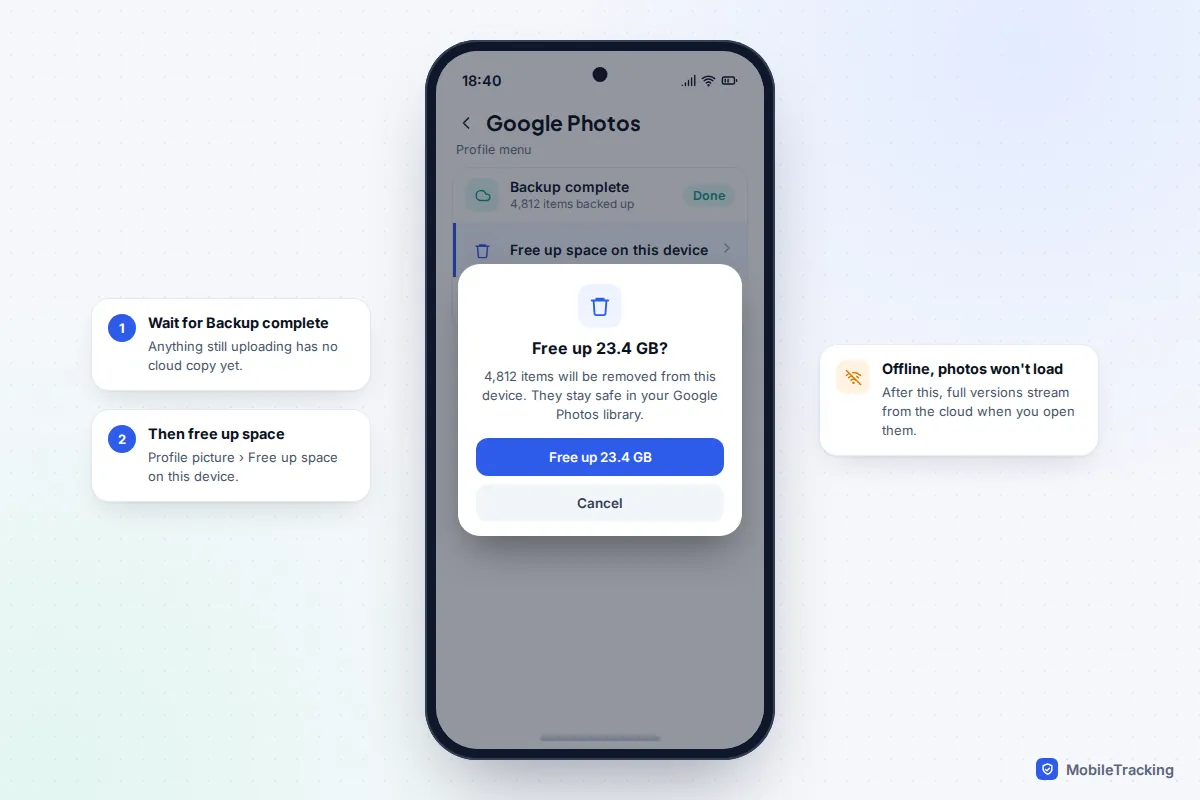
Once the top of your Google Photos library says Backup complete, tap your profile picture and choose Free up space on this device. The app shows how much it will remove and asks you to confirm. Google notes that items less than 30 days old may be kept on the phone. On a Pixel, the Files by Google app also has a Smart storage option that removes backed-up photos older than 60 days automatically when free space falls below 25%.
Samsung Gallery and OneDrive: what changes on 30 September 2026
For several years Samsung Gallery could sync straight to Microsoft OneDrive (Gallery > menu > Settings > Sync with OneDrive). Microsoft and Samsung have confirmed that this ends on 30 September 2026. Photos already in OneDrive are not deleted, but they stop appearing inside Gallery. If you want to keep syncing to OneDrive, turn on Camera backup in the OneDrive app itself. If you relied on Gallery to hold only cloud copies, use Gallery’s Download originals option before the cut-off, or plan to view those photos in the OneDrive app afterwards. Newer Galaxy phones are moving Gallery sync to Samsung Cloud, and on phones without a linked Microsoft account the setting is labelled Cloud sync.
Which option should you use?
Match the setting to how you use your phone and how much you are willing to pay for cloud space.
| Your situation | Best choice | Why |
|---|---|---|
| iPhone, library fits in your iCloud plan | iCloud Photos with Optimise iPhone Storage | Originals kept in full, phone space freed automatically |
| iPhone, lots of free space, often offline | Download and Keep Originals | Every photo opens instantly without a signal |
| Android, happy to pay for Google storage | Original quality, then Free up space | No quality lost, even years later |
| Android, want to stay within 15 GB | Storage saver, then Free up space | Smaller files, but the original resolution is gone for good |
| Samsung Gallery with OneDrive sync | OneDrive Camera backup or Google Photos | Gallery’s OneDrive sync ends on 30 September 2026 |
| Child’s or older parent’s phone | Optimise, or Original quality, on a shared family plan | Nothing to remember, and one bill for everyone |
A quick scenario: Sam has a 128 GB iPhone that keeps showing “Storage almost full”, and Photos is using most of it. Sam moves the family to a shared 200 GB iCloud+ plan, turns on iCloud Photos with Optimise, and leaves the phone charging on Wi-Fi overnight. By the next evening the upload has finished and the phone trims originals as it needs space, without Sam deleting a single photo. If that warning is your problem too, our guide to fixing Storage Almost Full on iPhone covers the other big culprits.
Risks and common mistakes
Optimised storage is safe when you understand what it is and is not. These are the mistakes that actually cost people photos.
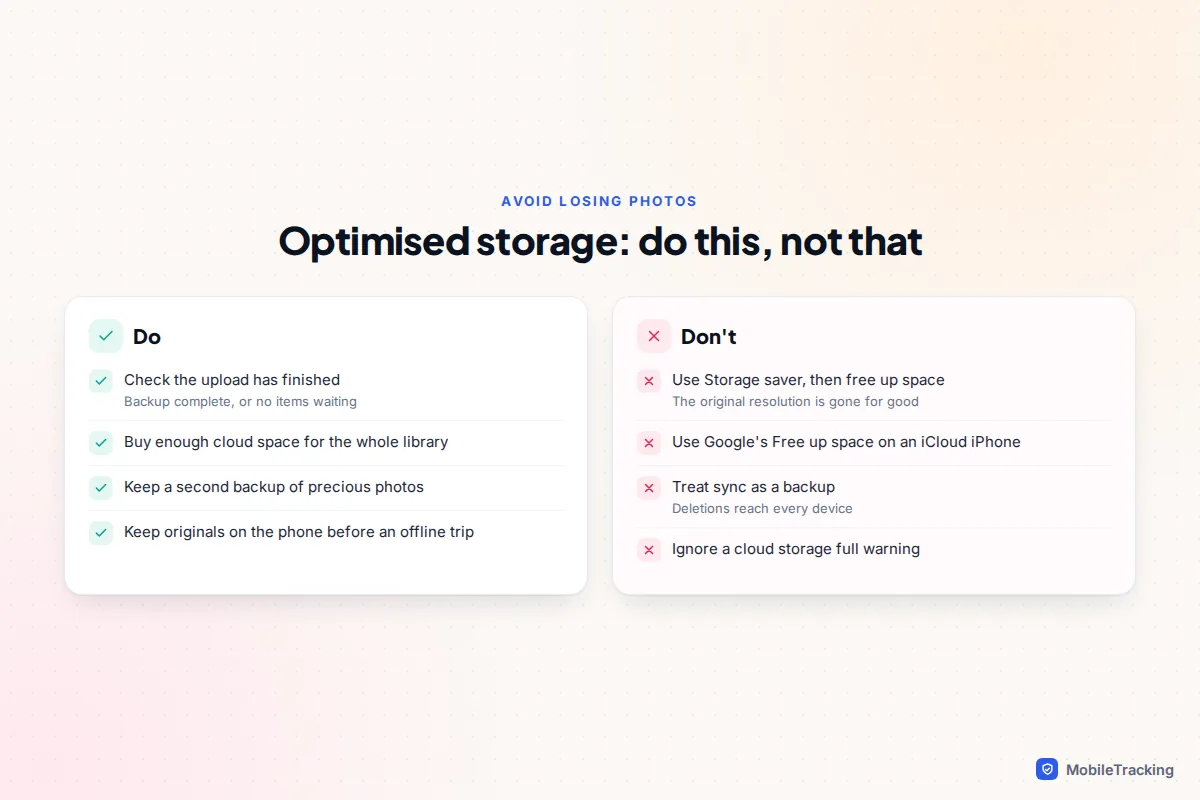
- Treating sync as a backup. iCloud Photos and Google Photos sync deletions. Delete a photo on one device and it is deleted everywhere, with only the Recently Deleted album (30 days on iPhone) or the Google Photos Bin as a safety net. Apple itself recommends keeping a separate backup.
- Using Google Photos’ Free up space on an iPhone that also uses iCloud Photos. Google Photos deletes from the iPhone’s photo library, and with iCloud Photos on, that deletion reaches iCloud and your other Apple devices too.
- Choosing Storage saver and then freeing up space. The only full-resolution copy was on the phone. Once it is deleted, the 16-megapixel version is all you have.
- Travelling without a connection. On a plane or abroad without data, optimised photos show as smaller previews and videos may not play. If you have room, switch to Download and Keep Originals a day before the trip and let the originals download on Wi-Fi.
- Turning off iCloud Photos on an optimised phone. The iPhone warns that optimised photos will be removed from the device and offers to download them first. Choose the download option unless you are sure everything is safe in iCloud.
- Ignoring a full cloud. When storage fills up, new photos quietly stop uploading and are not protected.
If something does go wrong, act quickly: our guide to recovering deleted photos from the cloud explains the time limits, and backing up photos to the cloud shows how to add a second copy.
How to check it worked
Give the first upload a day, then run these checks.
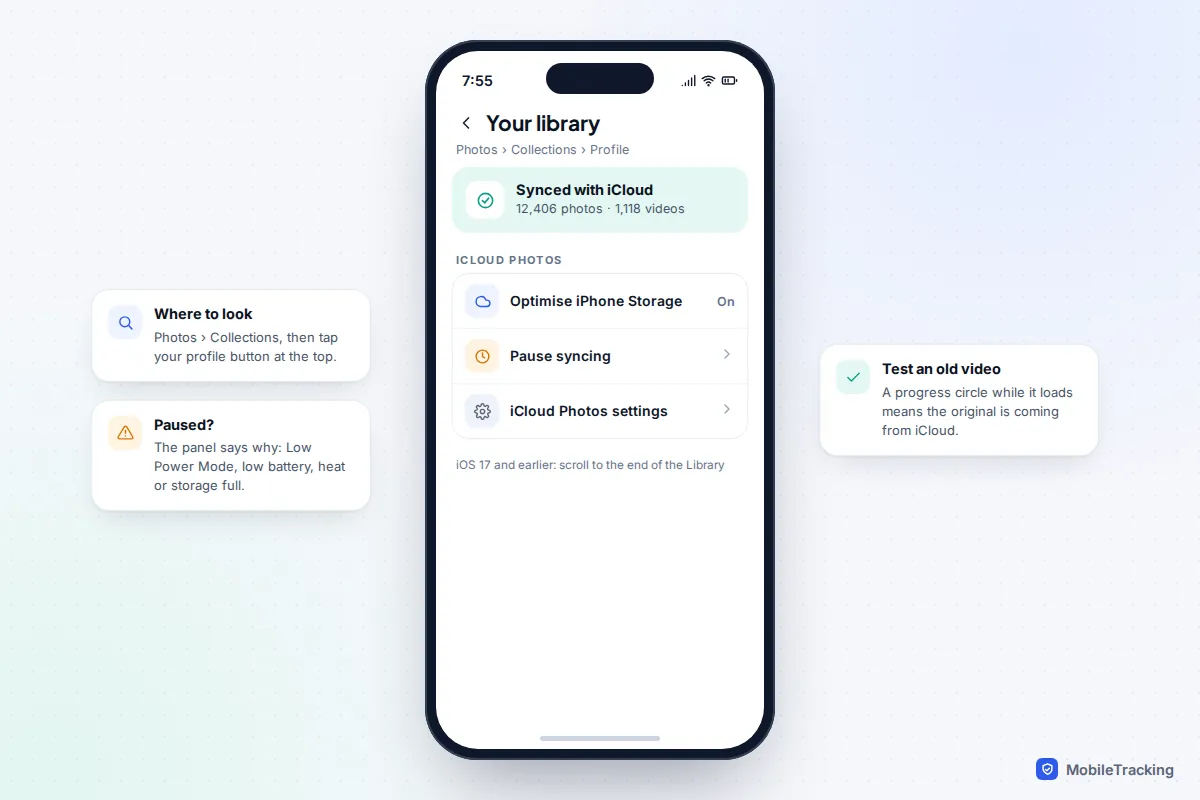
- iPhone upload status: open Photos, go to Collections and tap your profile button at the top. The status under your name shows whether the library is up to date or how many items are still uploading, and why syncing is paused if it is. On iOS 17 and earlier, scroll to the bottom of the Library tab instead.
- iPhone space: go to Settings > General > iPhone Storage and note the size of Photos. Check again after a few days of normal use; it drops as the phone needs space.
- Open an old video. A small progress circle in the corner while it loads shows the phone is fetching the original from iCloud, which proves optimising is working.
- Android: the top of the Google Photos library should say Backup complete. Photos that have not backed up show a crossed-out cloud icon. Check your storage at the Google One or Google Account storage page to see how much space Photos uses.
Apple’s support page on setting up iCloud Photos and Google’s guide to backup quality explain the official behaviour if a label on your phone looks different.
Frequently asked questions
Does Optimise iPhone Storage lower the quality of my photos?
No. The originals stay in iCloud at full quality. The phone keeps smaller versions for viewing and downloads the original whenever you edit, share or export a photo, so nothing you send or print is reduced.
Why hasn’t my iPhone freed up any space yet?
The iPhone only optimises when storage runs low, and only for items that have finished uploading. Check the upload status in Photos, make sure your iCloud storage is not full, and give it time. It does not free space all at once.
Can I use optimised storage with the free 5 GB of iCloud?
Only if your library is under about 5 GB, and that space is shared with backups and iCloud Drive. For most people the upload stops part-way, so the phone cannot optimise the rest. A 50 GB or 200 GB plan is usually needed.
If I delete a photo from my phone, is it deleted from the cloud?
Yes, when iCloud Photos is on, and yes when you delete from the Google Photos app with backup on. To remove a copy only from an Android phone, open the photo in Google Photos, tap More and choose Delete from device.
What happens to my Samsung Gallery photos in OneDrive after 30 September 2026?
They stay in your OneDrive account and are not deleted, but they no longer show in Gallery. View them in the OneDrive app, turn on its Camera backup for new photos, or download them and move to another service.