
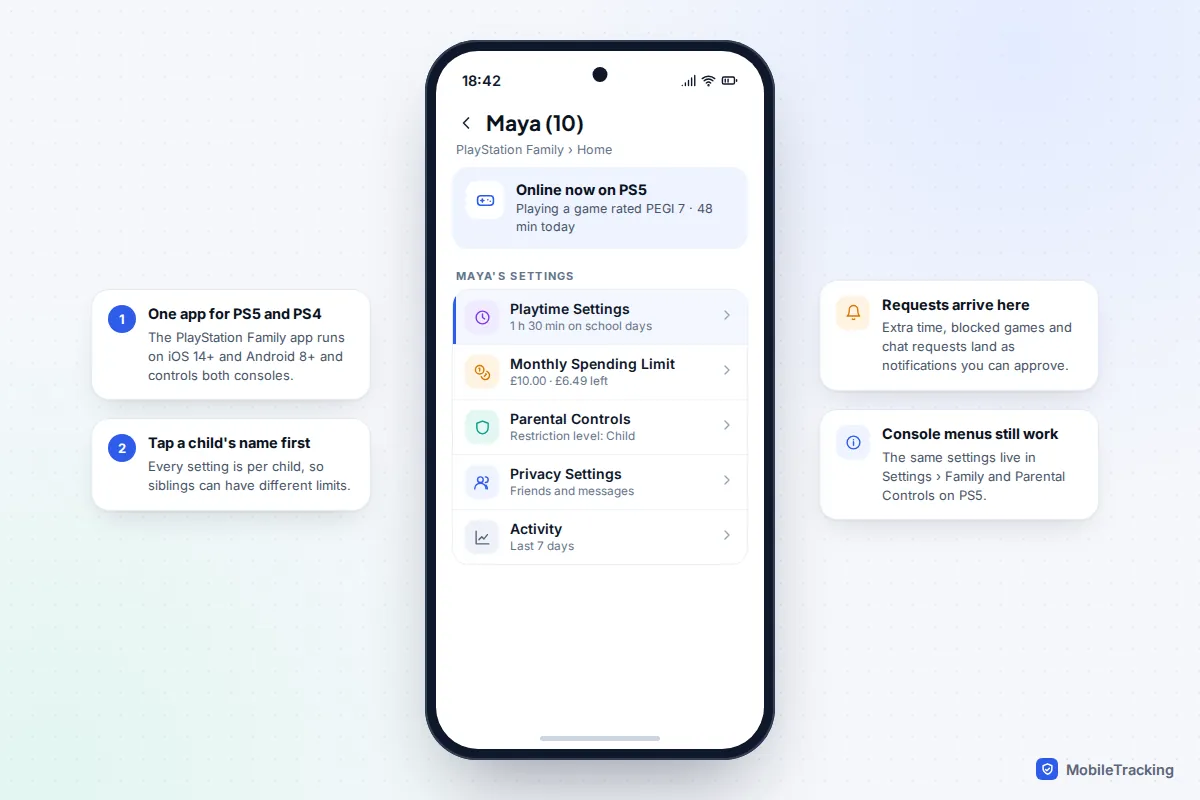
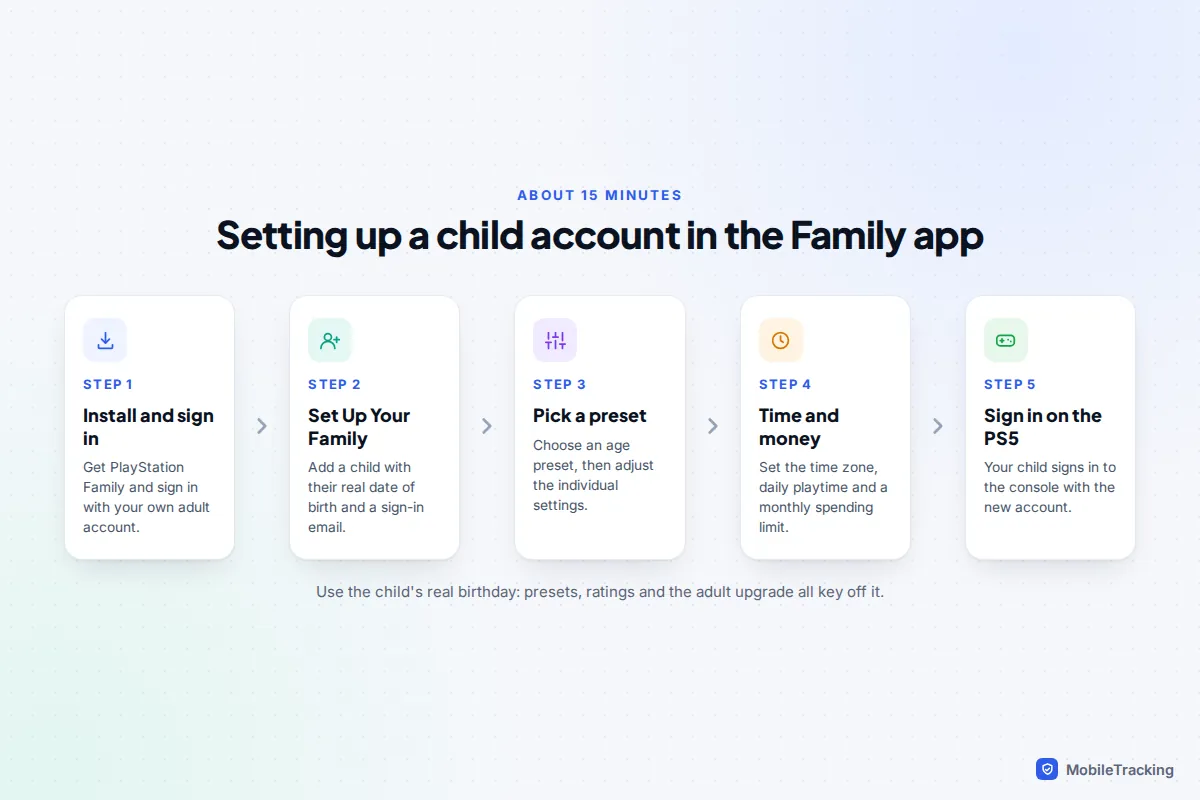
The quickest way to set up parental controls on a PS5 or PS4 is the free PlayStation Family app for iPhone and Android. Sign in with your own adult account, tap Set Up Your Family, create a child account with your child’s real date of birth, pick an age preset, then set a daily playtime limit and a monthly spending limit. Your child signs in to the console with that account and every rule follows them. If you would rather use the console, the same controls are under Settings › Family and Parental Controls › Family Management on a PS5.
Allow about 15 minutes. Two steps that most guides skip matter just as much: changing the console’s restriction passcode from the default and blocking new user accounts, because otherwise a child can simply sign in as someone else. Both are covered below.
Before you start: who’s who in a PlayStation family
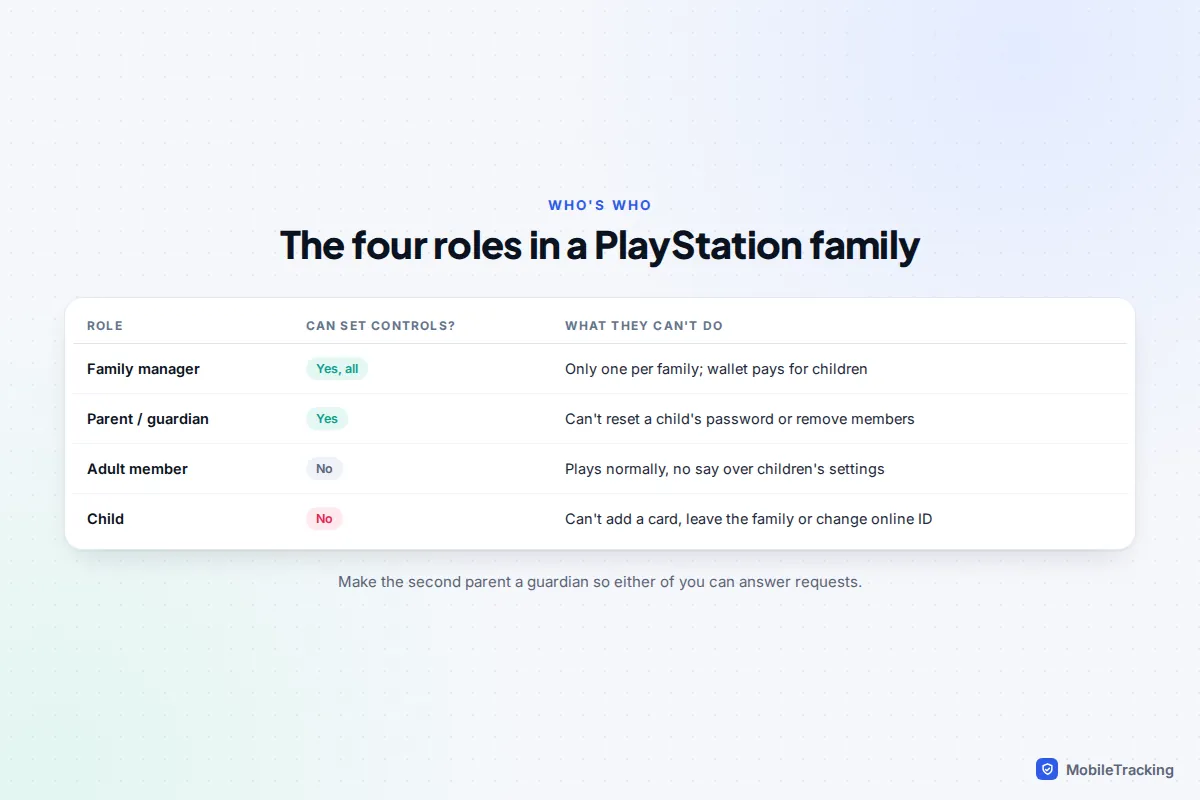
PlayStation controls hang off accounts, not the console. One adult is the family manager, who sets everything and whose wallet pays for children’s purchases. Other adults can be added as a parent/guardian (they can change controls and approve requests) or as a plain adult member with no say. Everyone under 18 should be a child account.
A child account can’t add a payment card, leave the family or change its online ID. When your child reaches adult age in your country, they see a notice offering an upgrade to a normal account. Upgrading is optional, but Sony is clear that it can’t be reversed.
UK and Ireland: age checks now apply
Since June 2026, adult PlayStation accounts registered in the UK or Ireland must pass an age check (by phone contract, facial age estimate or ID, run by Yoti) before they can use voice chat, messaging, parties or broadcasting. Sony says players under 18 must use an account managed by a parent. If your teenager set up their own account years ago with a made-up birthday, they will hit this check, and the fix is to send a family request from Account Management that turns it into a child account. Their games stay in their library, but any saved cards are removed and privacy settings drop to restricted defaults.
Create the child account (app, console or web)
Pick whichever is easiest. The settings are stored on Sony’s servers, so what you set in one place shows up in the others.
In the PlayStation Family app
- Install PlayStation Family from the App Store or Google Play (it needs iOS 14 or Android 8 or later).
- Sign in with your PlayStation account, or create one if you don’t have it.
- Tap Set Up Your Family and follow the prompts to add a child: name, date of birth and an email for their sign-in.
- Choose an age preset when asked, then review each setting before saving.
On a PS5
- Select your profile picture, then Switch User › Add User › Get Started.
- Choose Create an Account and follow the on-screen steps, including the parental controls pages.
- Later changes live in Settings › Family and Parental Controls › Family Management, where you select the child.
On a PS4 the equivalent menu is Settings › Parental Controls/Family Management › Family Management. On the web, sign in to Account Management, open Family Management and choose Add Family Member › Add a Child.
Age ratings for games, apps and video
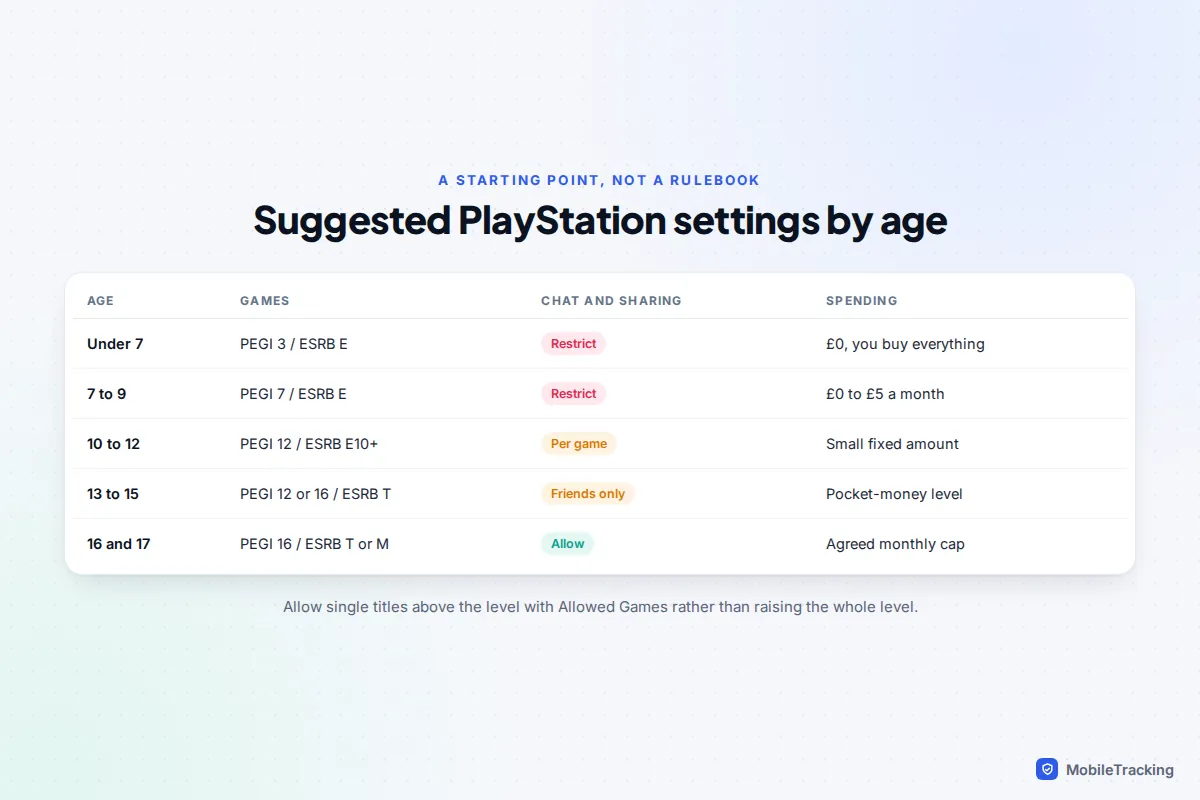
When you create the account, the console offers a restriction level: Child, Early Teens, Late Teens, Older or No Restriction. The Family app has similar age-based presets. A preset is only a starting point. Open Parental Controls afterwards and check each line, because this is where you choose the age level for PS5 and PS4 games and apps, and a separate level for Blu-ray Discs and DVDs.
Levels follow your region’s rating system: PEGI in the UK and Europe (3, 7, 12, 16, 18) and ESRB in the US (E, E10+, T, M). A game rated above the level shows a lock, and your child can send you a request to play it. If you approve, the title goes on the child’s Allowed Games list, which on PS5 you’ll find under Family Management when you select the child.
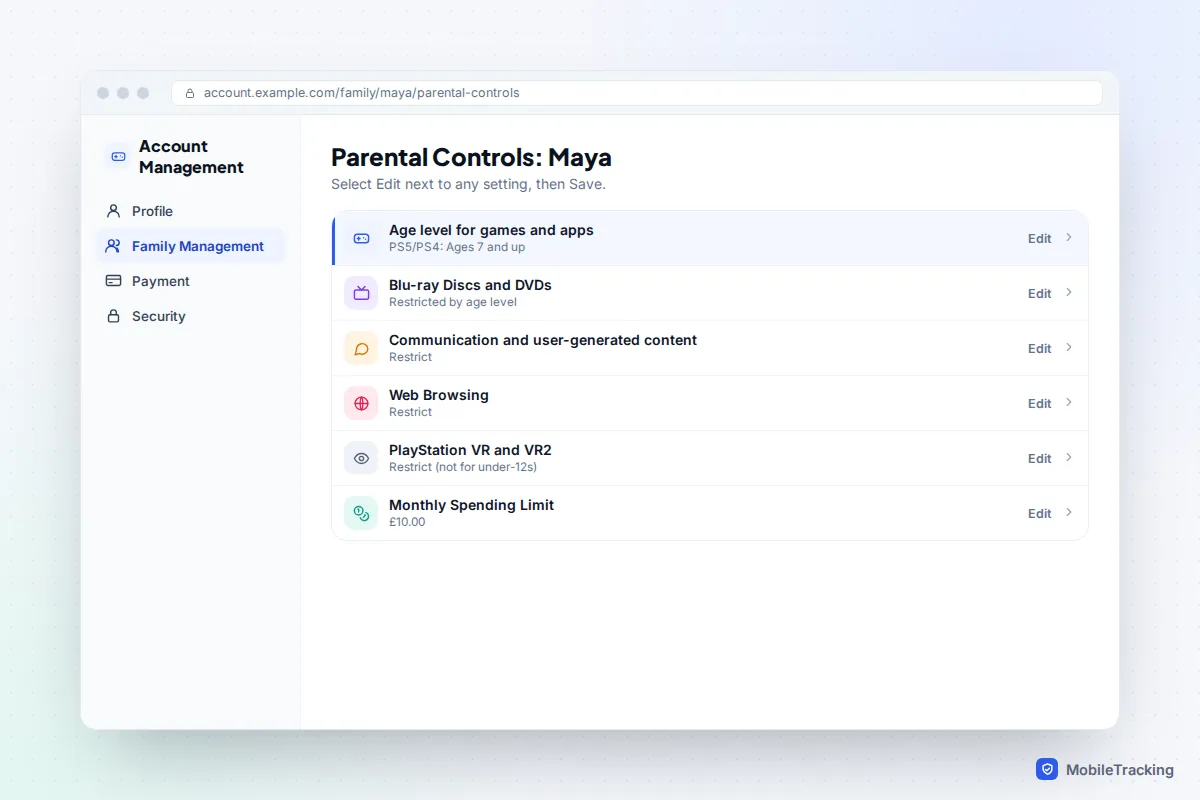
A rating tells you about content, not about chat or spending. A PEGI 3 game can still have open voice chat and a shop, which is why the next two sections matter more than the age level for many families. The table below is a sensible starting point, and our broader guide to console parental controls on PlayStation, Xbox and Switch compares how the three platforms handle the same decisions.
Chat, user-generated content, the web and VR
The setting called Communication and User-Generated Content does the heavy lifting. Set to Restrict, your child can’t send text messages or voice chat with other players, can’t share screenshots, clips or broadcasts, and can’t view content other players create. Games can still offer pre-written stock phrases. If your child wants to talk to friends in one particular game, they can send a request, and you approve it for that game rather than switching chat on everywhere.
Once communication is allowed, the child’s Privacy Settings (in the Family app, or on the console under the child’s name) decide who they talk to. Sony groups them into social settings (friend requests, messages and party invites, who can see the friends list), activity (online status, what they’re playing, crossplay invitations) and followers. For most under-16s, friends-only for messages and invitations is the right default.
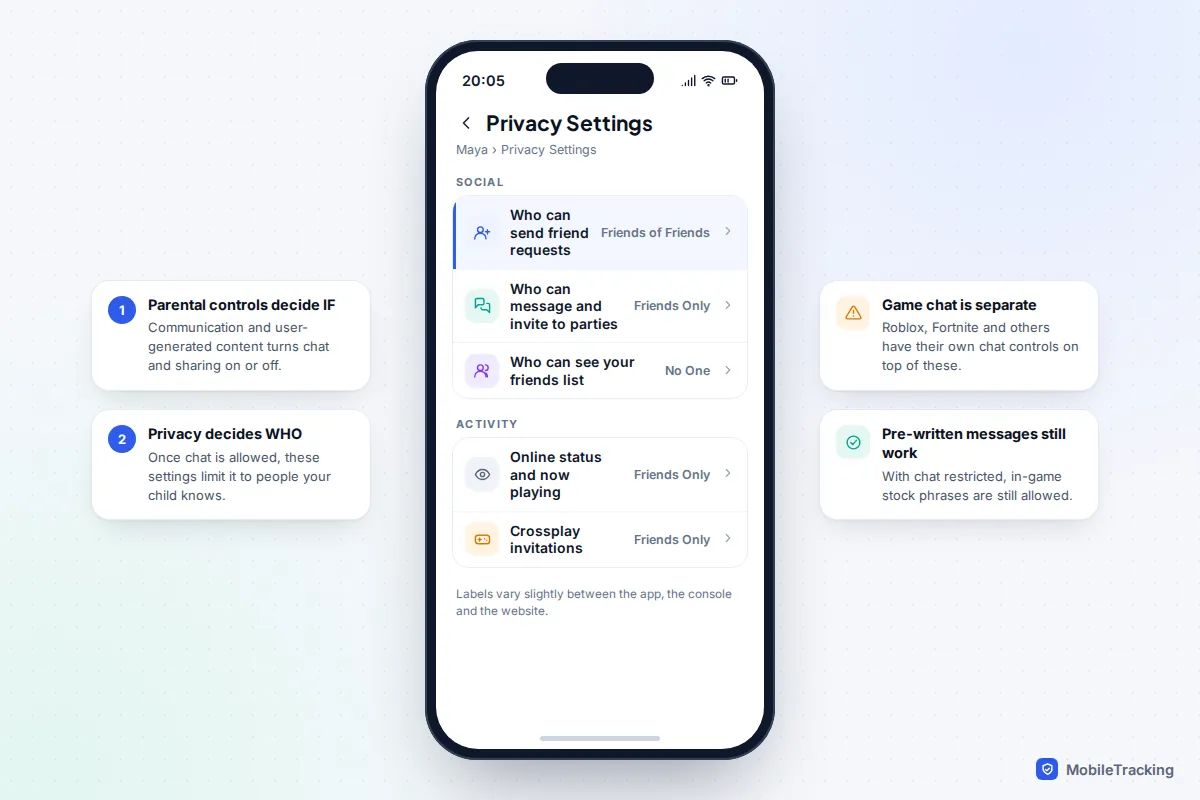
Games with their own accounts keep their own rules. Sony’s help pages point out that Roblox messaging permissions are set separately from PS5 and PS4 controls, and the same is true of Fortnite and Minecraft. Our Roblox safety guide covers that layer.
Web browsing and PlayStation VR
The PS5 has no browser app on the home screen, but a browser does open from some links inside messages, settings and games. Set Web Browsing to Restrict for younger children, since there’s no filtering in it. For VR, the setting is Use of PlayStation VR and PlayStation VR2. Sony states that both headsets are not for children under 12, so restrict it until then.
Monthly spending limits
Child accounts can’t hold a card. Everything they buy, including games, add-ons, battle passes and in-game currency, comes out of the family manager’s wallet, up to the Monthly Spending Limit you set. The default for a new child account is zero, so nothing can be bought until you change it.
- In the Family app, open the child and tap the Monthly Spending Limit card.
- Enter an amount and save. On PS5 it’s under Family Management › the child › Parental Controls › Monthly Spending Limit.
- Top up your wallet with small amounts rather than loading £50 at once.
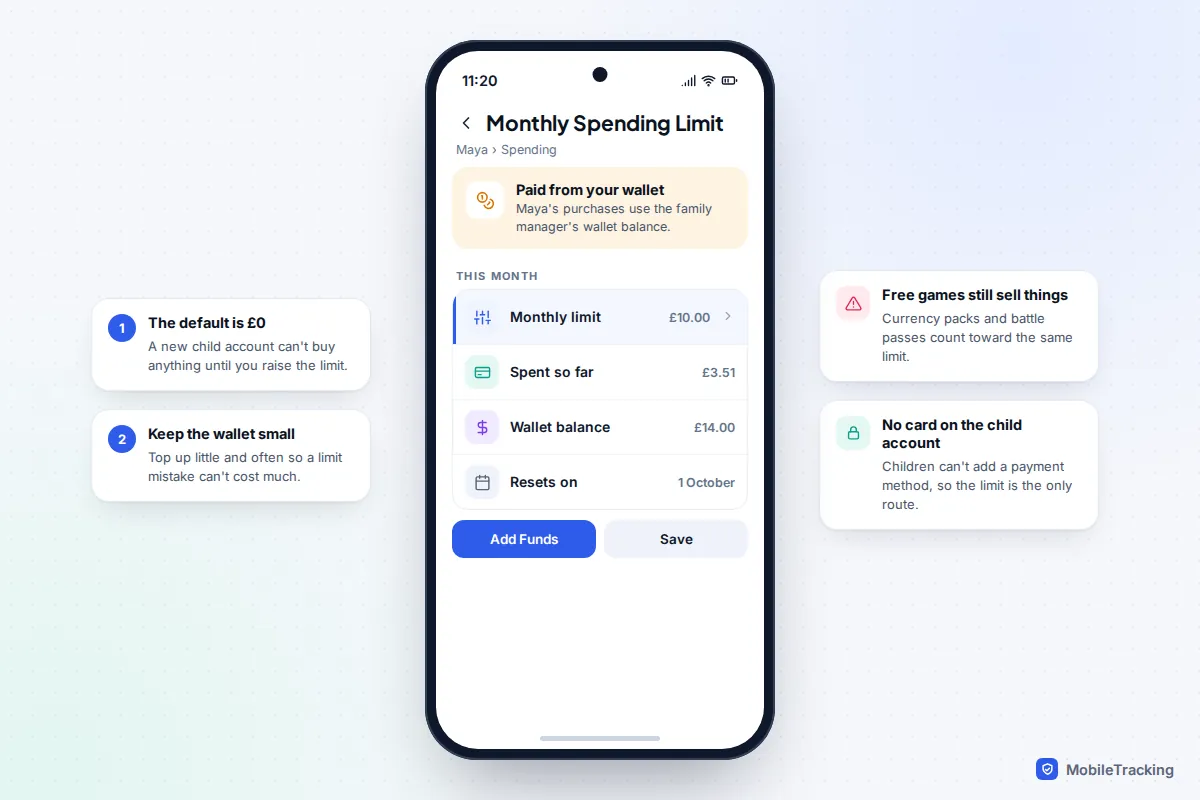
A common surprise is the “free” game that sells currency packs, which draw from the same limit. For the psychology behind those purchases, see our guide to in-app purchases and loot boxes.
Playtime: daily limits and what happens when time’s up
Set the child’s time zone first. Sony won’t enforce playtime without it, and a wrong zone makes the day reset at an odd hour. Then open Playtime Settings:
- Set Restrict Playtime to Restrict.
- Choose Same Every Day or set limits By Days of the Week, for example 1 hour 30 minutes on school days and 3 hours at weekends.
- Set the playable hours too, such as 07:00 to 19:30, so time can’t be spent late at night.
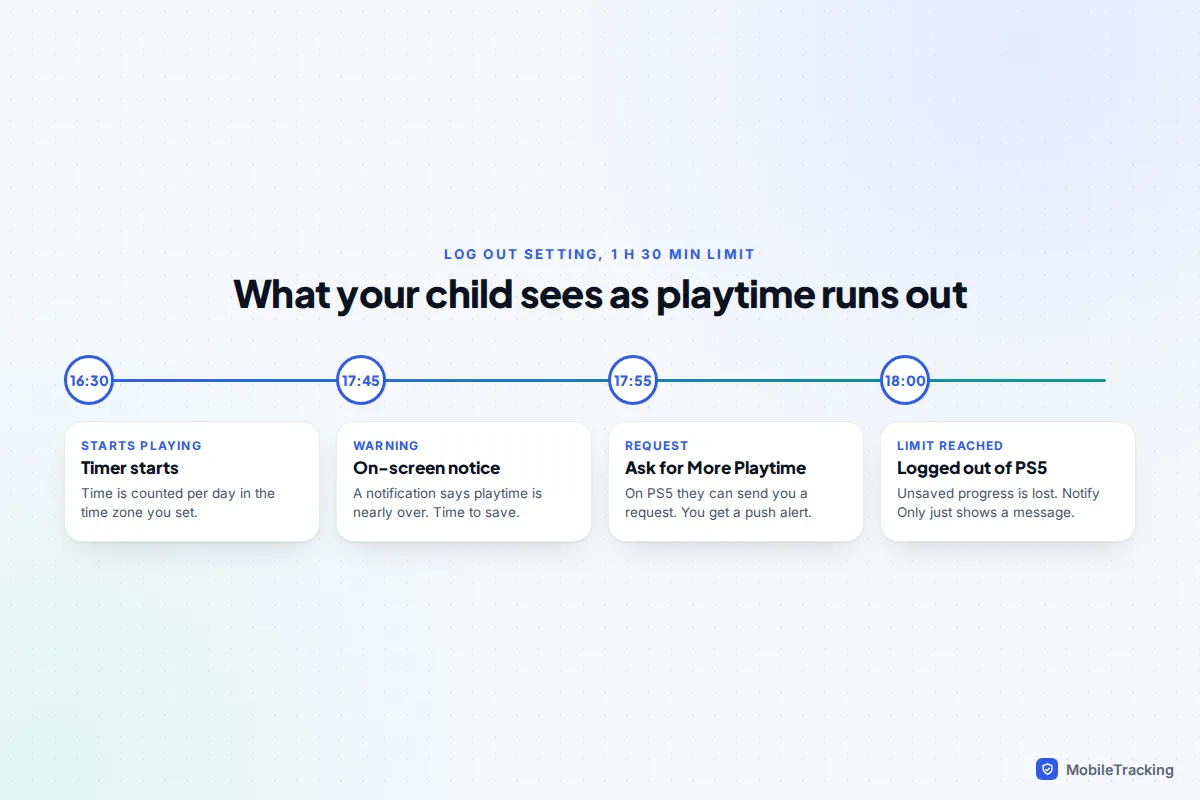
- Under When Playtime Ends, pick Notify Only or Log Out of PS5 (Log Out of PS4 on a PS4).
Notify Only shows a message and lets play continue, which suits children who stop by themselves. Log Out ends the session, and anything not saved is lost. Your child gets on-screen warnings as the limit gets close, so teach them to save when the first one appears. Limits apply across PS5 and PS4 together, so switching consoles doesn’t reset the clock. Sony’s page on setting playtime on PlayStation lists the same options.
Requests and approvals
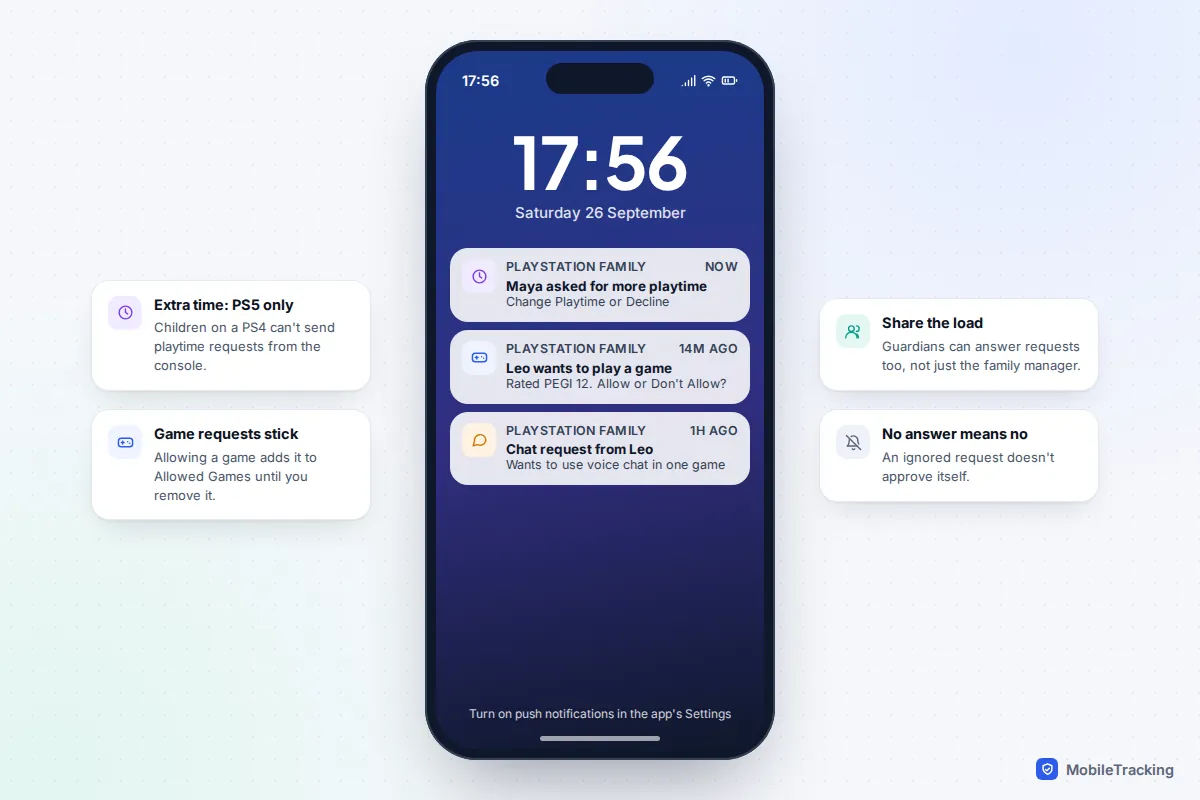
On a PS5, a child can choose Ask for More Playtime from the notification. You get a push alert on your phone and tap Change Playtime or Decline. On the console itself you can also use Change Playtime for Today, which adjusts only the current day. Game requests and chat requests arrive the same way. Children on a PS4 can’t request extra time from the console, so agree how they should ask instead.
Here’s how it works on a normal Saturday. Maya, 10, has 3 hours at weekends with Log Out selected. Twenty minutes before the end she asks for 30 more minutes to finish a race series; you approve from the park, and the extra time applies only today. On Sunday the usual limit is back.
The Family app’s Activity card shows the last seven days: hours played and the most-played games. That’s usually enough to have an informed conversation without looking over your child’s shoulder. If you’re unsure what a reasonable number of hours is, our guide to healthy screen time by age is a sensible place to start.
Close the loopholes: passcode, new users and guests
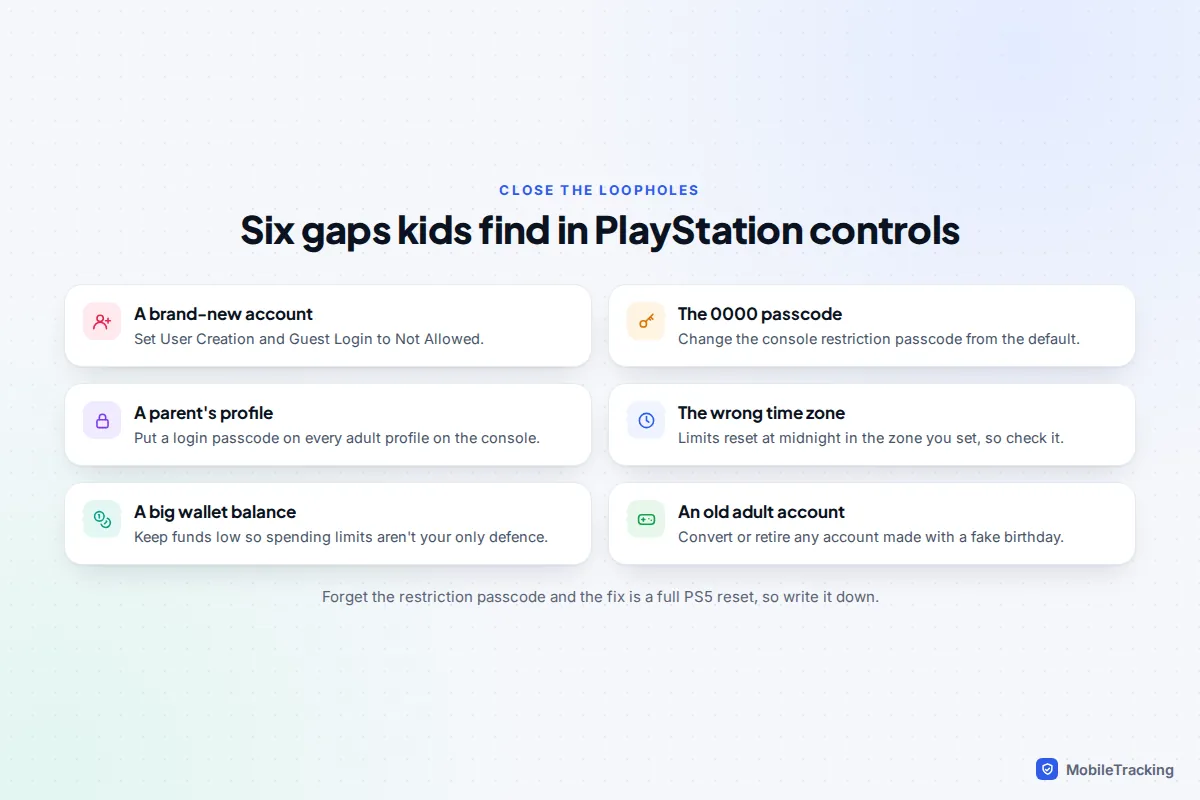
A child who wants to get round controls doesn’t hack anything. They sign in as a guest, make a new account, or use a parent’s profile. Close those routes on the console itself:
- Go to Settings › Family and Parental Controls › PS5 Console Restrictions. The default passcode is 0000 if you’ve never changed it. Set your own four-digit code.
- On the same screen, set User Creation and Guest Login to Not Allowed.
- On every adult profile, add a login passcode: Settings › Users and Accounts › Login Settings › Set a PS5 Login Passcode.
On a PS4, the equivalents are PS4 System Restrictions and New User Creation and Guest Login. Write the restriction passcode down somewhere safe. Sony’s own advice is blunt: if you forget it, the only fix is resetting the PS5 (or initialising a PS4), which wipes it.
Troubleshooting by symptom
| What you notice | Likely cause | Fix |
|---|---|---|
| Playtime limit never kicks in | No time zone set, or Restrict Playtime still on Do Not Restrict | Set the time zone first, then Restrict, then Save |
| Limit resets at the wrong time | Time zone doesn’t match where you live | Change the child’s time zone in Family Management |
| Child is playing an 18-rated game | Signed in as a parent, a guest or a second account | Block guest login, add login passcodes, check Allowed Games |
| Requests never reach your phone | Push notifications off in the Family app, or you aren’t the manager or a guardian | Turn on push notifications; make the other parent a guardian |
| Child says they can’t ask for more time | They’re on a PS4 | Requests for extra time only work from a PS5 |
| Purchases you don’t recognise | Spending limit higher than intended, or a big wallet balance | Lower the limit, check transaction history, top up in smaller amounts |
Frequently asked questions
Do I need the PlayStation Family app, or is the console enough?
The console and the Account Management website cover the core controls. The app adds live requests, push notifications and weekly activity, and Sony says some family features are only available there. If you want to approve extra time without walking to the TV, use the app.
Can my child tell what controls are on?
Yes. Locked games show a lock, the playtime warnings appear on screen and requests are sent openly. That’s a good thing: agree the limits together and explain what happens at the end of the time, so the console isn’t the one delivering bad news.
Do PS5 parental controls work for PS4 games?
Yes. The age level setting covers PS5 and PS4 games and apps (Sony’s menu label also names PS3), and playtime is counted across both consoles if your child uses both, so a spare PS4 in a bedroom doesn’t become a way round the limit.
What happens to the controls when my child turns 18?
They’re offered an upgrade to an adult account when they sign in. They don’t have to accept, but once upgraded the account can’t go back to being a child account, and your controls no longer apply.
Does PlayStation Plus change anything?
Not the controls themselves. Plus adds online multiplayer and a catalogue of games, but those games still respect your child’s age level, chat inside them still follows your communication setting, and time spent in them counts toward the daily limit like any other game.
Can I see who my child is chatting with?
Not message by message. The Family app shows playtime and games, and you control who can contact your child, but PlayStation doesn’t show you their conversations. Friends-only messaging and a regular chat about who they play with work better than trying to read everything. Sony’s PlayStation Family app page lists what parents can and can’t see.
This guide is general information, not legal or financial advice. Read our editorial policy.