
An iPhone has no Recently Deleted folder for calls, and iOS 27 hasn’t added one, so recovering cleared call history means finding a copy that was made before you cleared it. There are three realistic places: your carrier’s record of network calls, an iPad, Mac or old iPhone that hasn’t synced since you cleared the list, and an encrypted backup on a computer. iCloud Backup is not one of them. Apple states plainly that Phone and FaceTime data isn’t part of your iCloud Backup, so wiping your phone and restoring from iCloud gets you nothing.
The most useful thing you can do in the next five minutes is stop those copies being overwritten. This guide goes further than our overview of finding cleared calls on iPhone and Android: exactly how to catch an offline device before it syncs, how to read an old backup without wiping your iPhone, and which “recovery” promises don’t hold up.
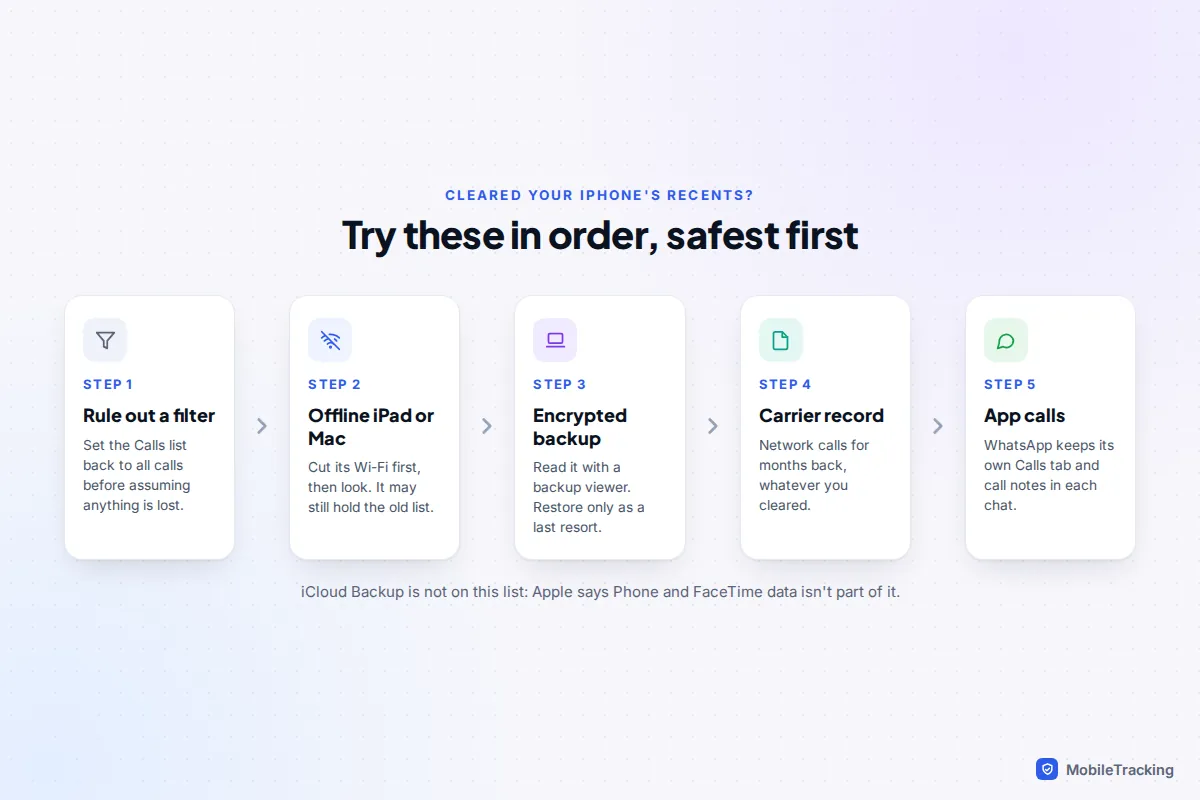
First, make sure the calls are really gone
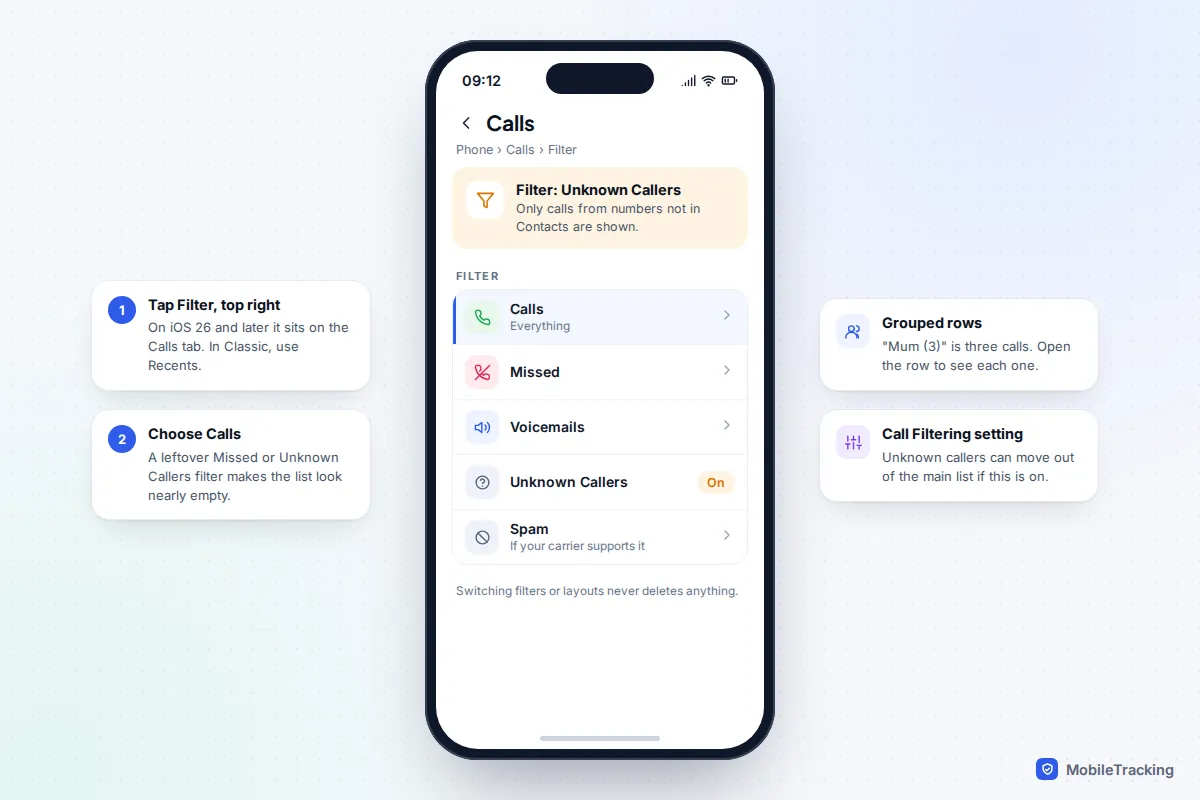
A surprising number of “deleted” calls are simply hidden. Apple redesigned the Phone app in iOS 26, and the new layout makes it easy to leave a filter switched on without noticing.
- Open Phone and go to the Calls tab. If you use the Classic layout, tap Recents instead.
- Tap Filter in the top-right corner and choose Calls, which shows everything. If Missed, Voicemails, Unknown Callers or Spam is selected, the list will look far shorter than it should.
- Look for grouped rows. “Leo (3)” is three calls in a row with the same person, and only the group appears in the list. Open it to see each call.
- Check Settings › Apps › Phone › Call Filtering. If unknown callers are being filtered, their calls sit under the Unknown Callers filter rather than the main list.
Two other things can make a call seem missing. If you deleted a contact, their calls now show as a bare number. And your iPhone only keeps roughly the last 100 calls (Apple doesn’t publish the exact figure), so an older call may have dropped off the bottom rather than been deleted. Our guide to checking your call history on iPhone walks through the layout in more detail.
Stop the deletion spreading, and protect your backups
If the calls really are gone, don’t destroy the copies that might still exist. Each route below can be closed off by an innocent action in the next hour.
- Leave other Apple devices switched off. If an iPad, Mac or old iPhone signed in to your Apple Account has been off or offline since you cleared the list, don’t turn it on yet. The next section explains how to look at it safely.
- Don’t plug your iPhone into the computer that backs it up. If Finder or iTunes is set to back up automatically, a new backup made now could replace the only copy from before the clear. On a Mac, the backups live in ~/Library/Application Support/MobileSync/Backup. Copy that whole folder to an external drive before you connect anything.
- Don’t erase your iPhone “to restore from iCloud”. It won’t bring the calls back, and it can cost you data that exists only on the phone.
Catch an iPad, Mac or old iPhone before it syncs
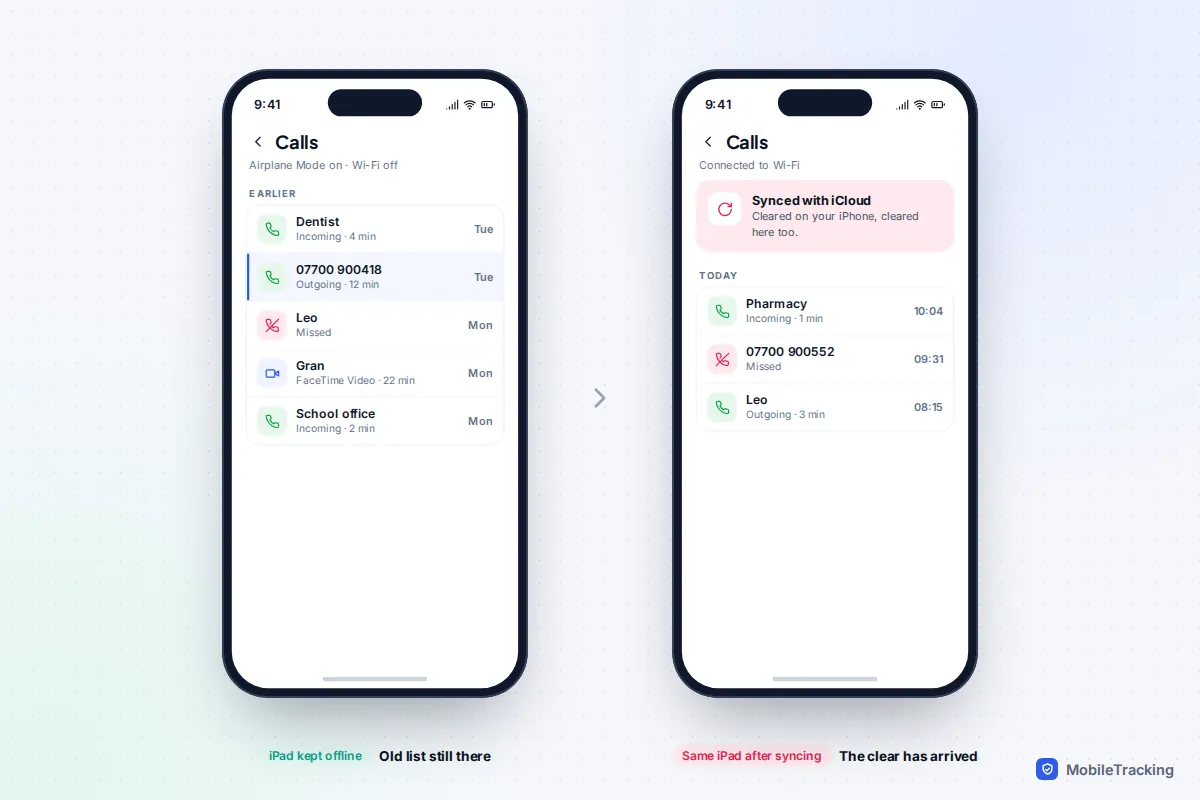
When Phone & FaceTime is turned on under Settings › [your name] › iCloud › See All, Apple keeps your call history in iCloud and shows it on every device signed in to the same Apple Account. Each device also keeps its own copy of the list, and it only learns about your deletion when it next connects. So a device that has been switched off, asleep in a bag with no Wi-Fi, or sitting in a drawer since the clear may still show the old list, right up until it gets online.
The trick is to stop it reaching the internet before you look. Switching on Airplane Mode after it has booted is often too late, because a device rejoins a known Wi-Fi network within seconds.
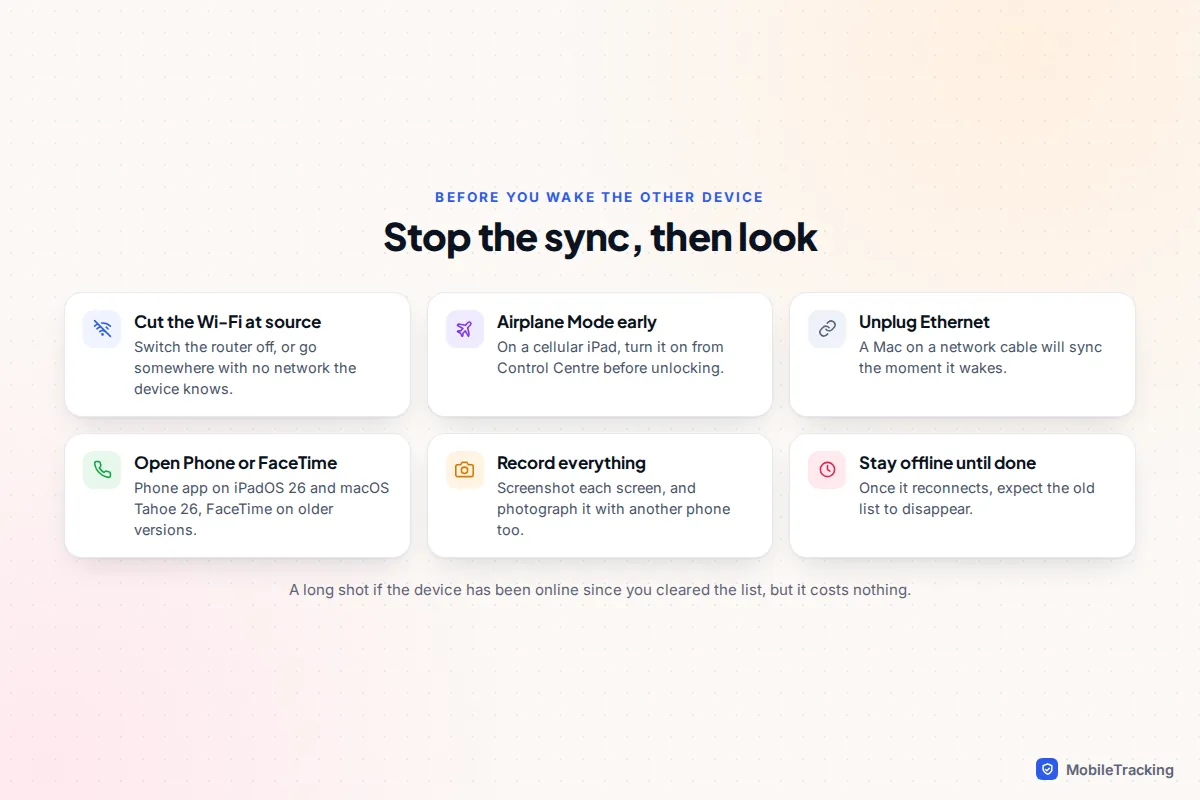
- Cut the network at the source. Switch off your home router, or take the device somewhere it has never joined a Wi-Fi network. For a Mac on a network cable, unplug the cable too.
- For an iPad or iPhone with mobile data, turn it on and open Control Centre from the Lock Screen (swipe down from the top-right corner) to switch on Airplane Mode before you unlock it. If you have disabled Control Centre on the Lock Screen, remove the SIM first where you can.
- Open the right app. On iPadOS 26 and macOS Tahoe 26 and later, open the Phone app. On older versions, calls relayed from your iPhone appear in the FaceTime app’s list. An old iPhone uses its own Phone app as normal.
- Record everything. Take screenshots, open any grouped rows, and photograph the screen with another phone as a second copy.
- Only then reconnect. Expect the old entries to disappear once it syncs.
Be realistic: a Mac asleep on charge may have synced overnight, and an iPad locked on the sofa almost certainly synced within minutes. This works best for a device that was genuinely off or away from any network.
Which backups actually hold your call history
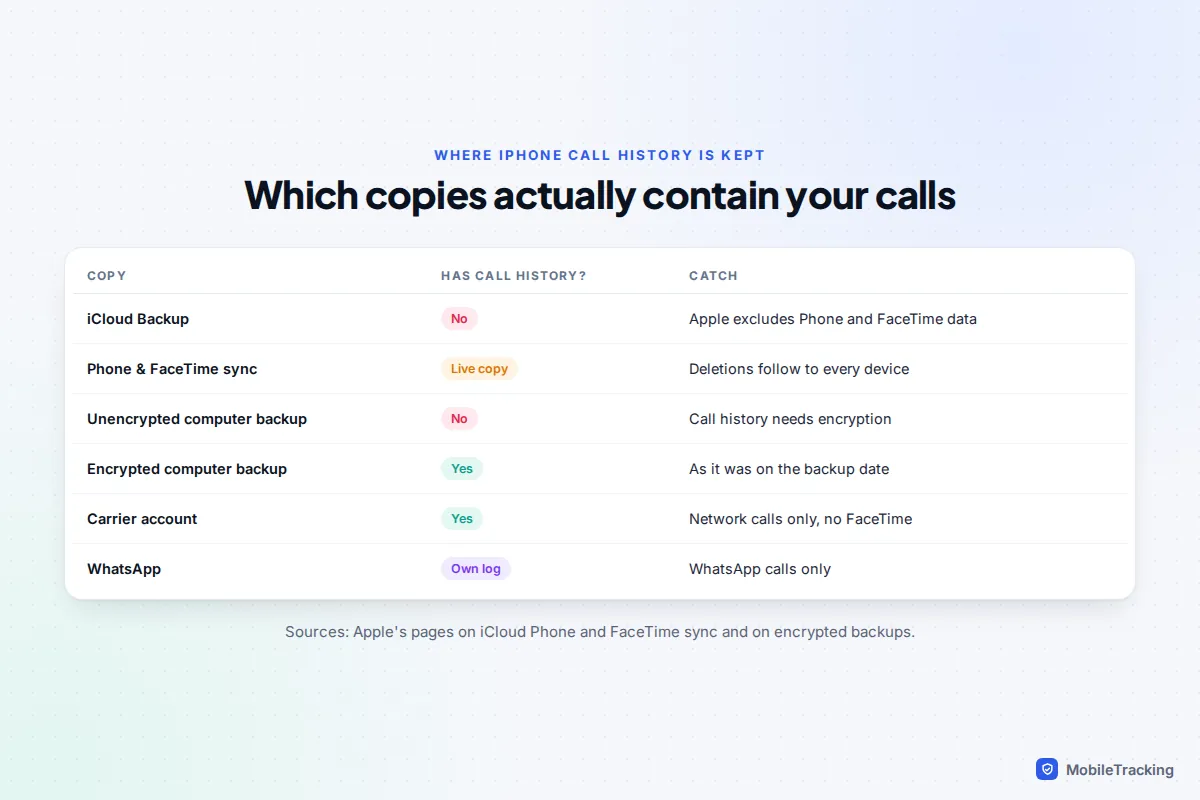
Here is where a lot of online advice goes wrong. Apple’s own pages settle it:
| Copy | Contains call history? | What to know |
|---|---|---|
| iCloud Backup | No | Apple says Phone and FaceTime data isn’t part of iCloud Backup. With syncing off, the history is stored only on the device. |
| Phone & FaceTime in iCloud | Yes, but live | A synced list, not a backup. Deletions spread to every device. |
| Unencrypted computer backup | No | Call history is one of the items left out unless encryption is on. |
| Encrypted computer backup | Yes | Holds the list as it was on the day of the backup. |
Both points come straight from Apple: its page on syncing Phone and FaceTime data with iCloud excludes it from iCloud Backup, and its page about encrypted backups lists call history alongside saved passwords, Wi-Fi settings, website history and Health data as things only an encrypted backup includes.
Find out whether you have a usable backup
On a Mac, connect the iPhone, select it in the Finder sidebar and click Manage Backups on the General tab. On Windows, use the same option in the Apple Devices app, or Edit › Preferences › Devices in iTunes. Each backup shows its date and time, and encrypted ones have a padlock. You need one that is encrypted, dated before you cleared the list, and whose password you know.
If you’ve forgotten the password, that backup can’t be opened by you, Apple or any tool. Resetting all settings on the iPhone lets you set a new encryption password, but only for future backups.
A quick example. Sam cleared his Recents on Thursday, then needed the number of a tradesman who rang on Monday. His last encrypted backup ran the Sunday before, so it can’t contain that call. His carrier account listed it in two minutes. Always check the backup date against the call before spending an hour on a restore.
Read an old backup without wiping your iPhone
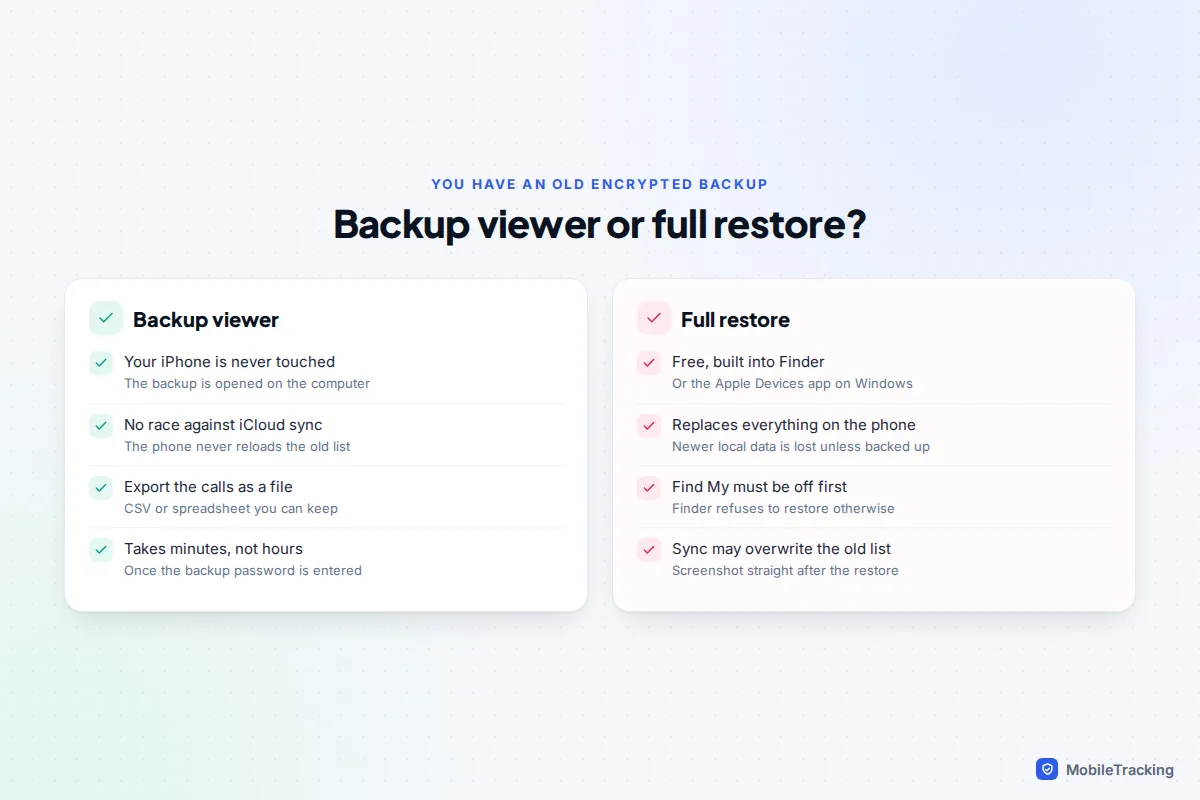
You don’t have to restore a backup to see what’s in it. A backup viewer (iMazing is a long-established example; several others exist) opens the backup files on your computer and shows the call list inside, which you can then export as a spreadsheet or CSV file. Your iPhone is never touched.
- Install the tool from the developer’s own website, not a download site or an advert.
- On a Mac, grant it Full Disk Access in System Settings › Privacy & Security, or it can’t see the Finder backup folder. On Windows it reads the iTunes and Apple Devices backup locations directly.
- Open the backup dated before the clear and enter its encryption password.
- Open the call history section, check the dates, and export it.
This is the better route for most people. It takes minutes, loses nothing, and sidesteps the restore route’s weak spot: a restored list may be overwritten by iCloud sync once the phone gets online.
Restore the backup, knowing what you lose
Restoring an old encrypted backup puts the call list back on the phone, but it replaces everything else with that day’s version too. Photos not in iCloud Photos, messages if Messages in iCloud is off, app data and settings from after the backup date all go. The calls you get back are also only the phone’s own short list as it stood that day, not a longer archive.
Two practical rules apply. Finder won’t restore while Find My is on, so switch it off in Settings › [your name] › Find My. And a backup from a newer version of iOS can’t be restored to an iPhone on an older one.
There’s also a catch that most guides miss. Encrypted backups include your Wi-Fi passwords, so the restored phone rejoins your network the moment it starts up. If Phone & FaceTime sync is on, it then reconciles with iCloud, and Apple doesn’t document whether an old restored list survives that. Plan to see the calls before it happens:
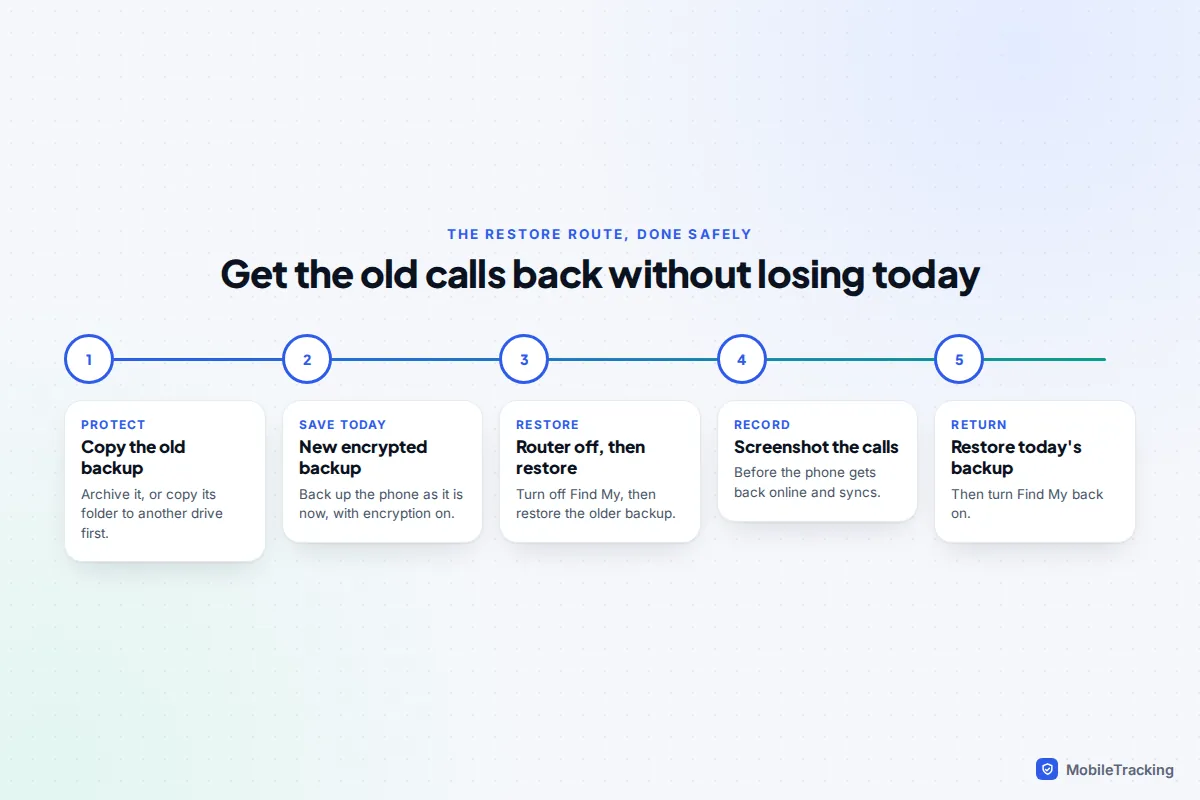
- Protect the old backup. On a Mac, Control-click it in Manage Backups and choose Archive, or copy its folder to another drive.
- Make a fresh encrypted backup of the phone as it is today.
- Switch off your router (and take out a physical SIM if you have one), turn off Find My, then click Restore Backup and choose the old one.
- As soon as the phone starts, switch on Airplane Mode, open Phone and screenshot the calls you need.
- Restore today’s backup, then turn Find My back on.
Allow one to three hours. If you have a spare iPhone on the same or a later iOS version, restore the old backup to that instead.
Your carrier’s record: the copy you can’t clear
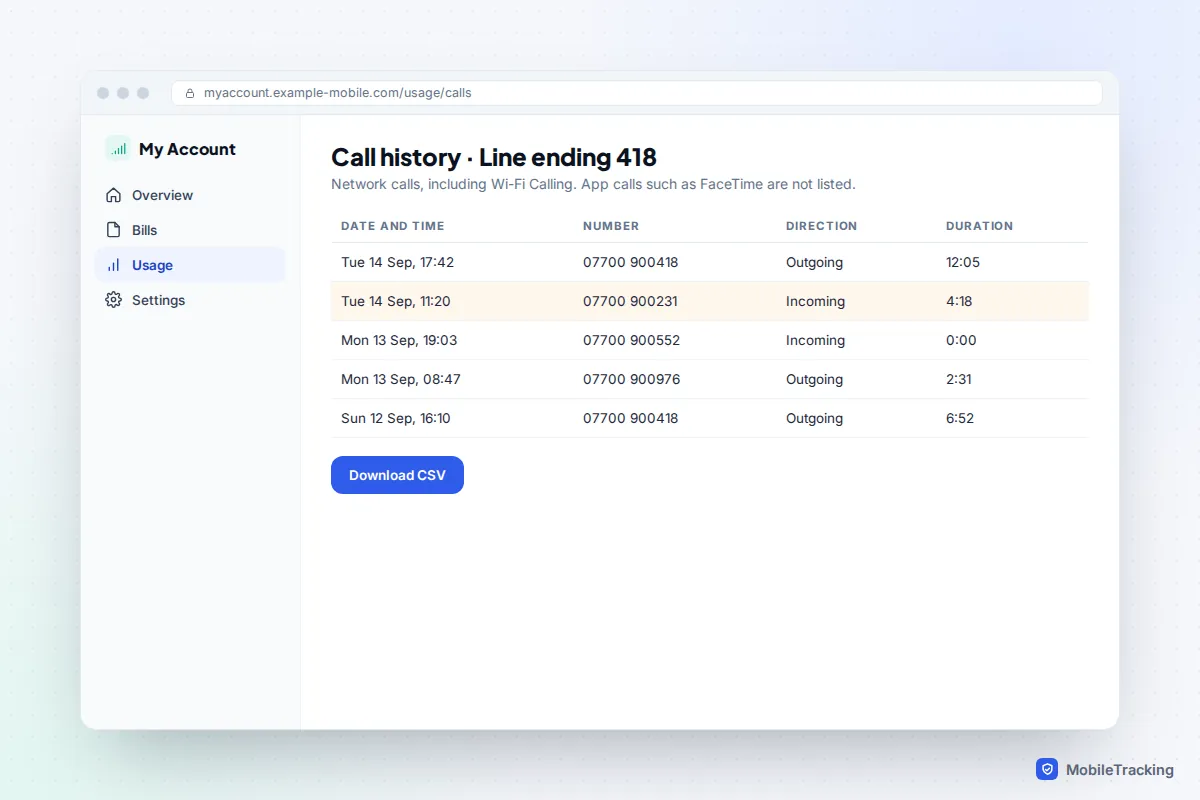
Clearing Recents changes nothing on the network. Every ordinary call, including Wi-Fi Calling, is logged by your carrier, usually for months. For most people this is the fastest, most reliable answer.
- Sign in to your carrier’s app or website and look for usage, call history or itemised bills. Many let you download the list.
- Dual SIM iPhones have two carriers, or two lines on one account, so check the line the call used.
- What you’ll see is numbers, dates, times and durations, not contact names. In the UK, standard itemised bills often show only chargeable outgoing calls, so you may need to ask for a full record.
- What you won’t see is FaceTime, WhatsApp or any other app call, because they travel as internet data.
Our guide to getting deleted call logs from your carrier covers requesting older records and what to do if a network is slow to respond.
FaceTime, WhatsApp and other app calls
FaceTime calls sit in the same Phone app history, labelled FaceTime Audio or FaceTime Video, and they sync the same way. That means the offline-device trick and an encrypted backup are your only options: no carrier holds a record of them. The other person’s device keeps its own history, so asking them is often quickest.
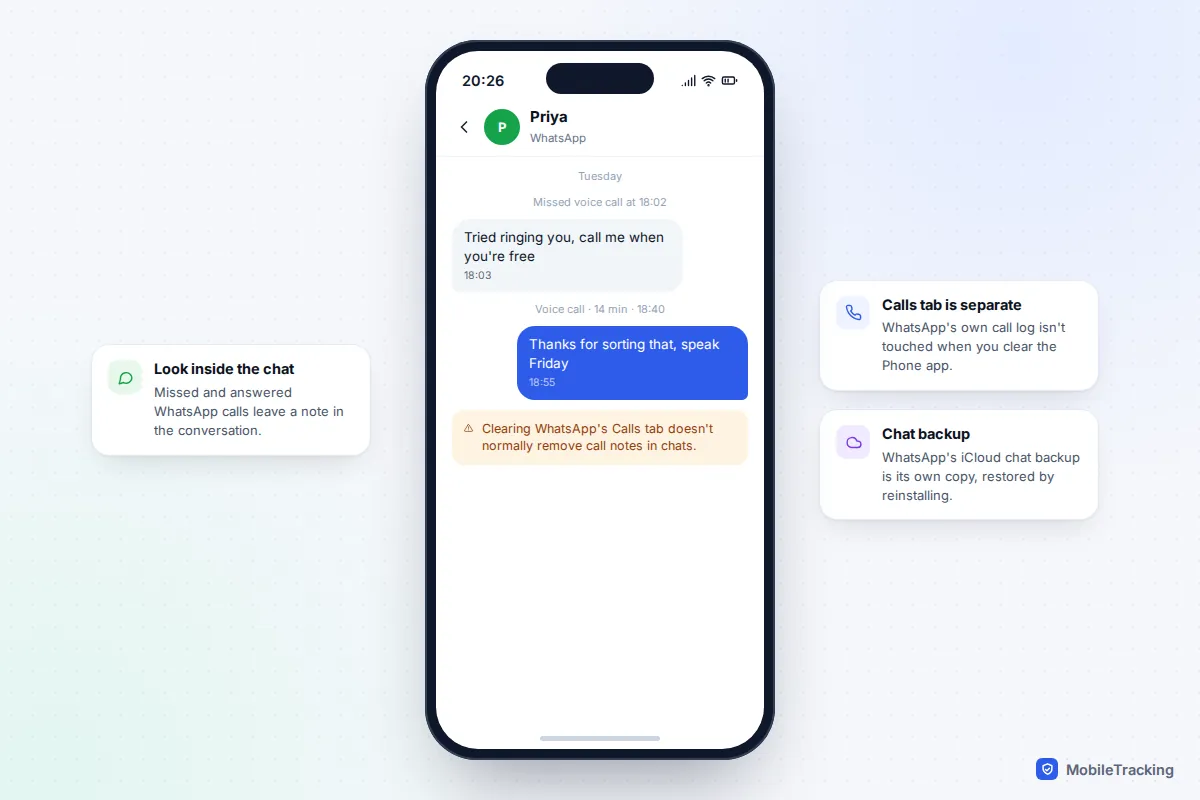
WhatsApp keeps a completely separate log in its own Calls tab, which clearing the Phone app doesn’t touch. Even if you cleared WhatsApp’s call log as well, one-to-one chats usually still show a small note such as “Missed voice call” or “Voice call, 14 min” at the point in the conversation where it happened. Other apps such as Signal, Messenger and Teams also keep their own histories.
One last place to look: if the caller left a voicemail, it may still be in your voicemail list, or under Deleted Messages at the bottom of Voicemail in the Classic layout, which keeps the number and time even after the call entry is gone.
To avoid this next time, tick Encrypt local backup in Finder or the Apple Devices app, back up to a computer every few weeks, and keep the password in a password manager.
Frequently asked questions
Will restoring from iCloud Backup bring back deleted calls?
No. Apple states that Phone and FaceTime data isn’t part of iCloud Backup. With Phone & FaceTime sync on, the history lives in iCloud sync, which already reflects your deletion; with it off, the history exists only on the phone. Erasing and restoring from iCloud gives you the same cleared list.
Can I recover call history without a computer?
Only through other copies: an offline iPad, Mac or old iPhone, your carrier’s account, or an app’s own log such as WhatsApp. Reading or restoring an encrypted backup needs the computer it was made on, or a copy of its backup folder.
Can iCloud.com’s Data Recovery restore calls?
No. The data recovery options on iCloud.com cover files, contacts, calendars and bookmarks. There is no option for call history, and Apple Support can’t restore a cleared list for you.
Are paid “iPhone data recovery” apps worth it for calls?
Only as backup viewers, and only if you already have an encrypted backup from before the clear. Claims to recover deleted calls straight from the iPhone rarely hold up. Check that any preview shows the exact calls you need before paying.
This guide is general information, not legal or financial advice. Read our editorial policy.