
WhatsApp has no built-in time limit, so you set one on the phone instead. On an iPhone running iOS 27, give WhatsApp its own daily budget in Time Allowances; on iOS 26 or earlier, use Screen Time › App Limits with Block at End of Limit turned on. On Android, open Google Family Link and go to Screen time › Time limits › App limits › WhatsApp. Whichever you use, keep ordinary phone calls available so your child can always reach you, and check for WhatsApp Web on a laptop or tablet, because a limit on the phone doesn’t follow it there.
This guide covers each method step by step, how to switch WhatsApp off during school hours and at bedtime, what WhatsApp’s new parent-managed accounts do (and don’t) include, and how to handle the workarounds children find first.
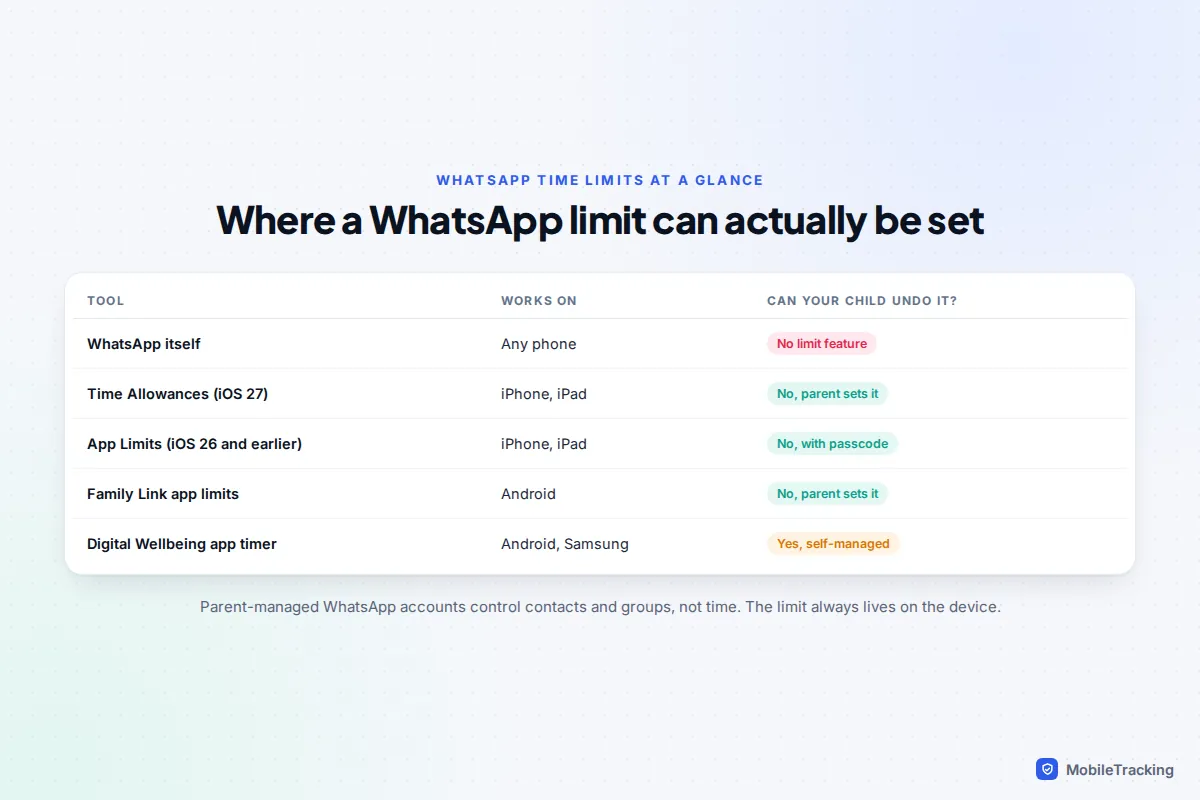
Does WhatsApp have its own time limit?
No. There is no setting inside WhatsApp that caps daily use or blocks the app at night, for adults or for children. Muting chats or hiding last seen changes how it feels, not how long it opens.
WhatsApp’s minimum age is 13 in most countries, or older where local law requires it. In the UK and EU it was 16 until April 2024, when WhatsApp lowered it to 13 to match the rest of the world. If your child is 13 or over, they will have an ordinary account, and any time limit has to come from the phone.
Parent-managed accounts for pre-teens
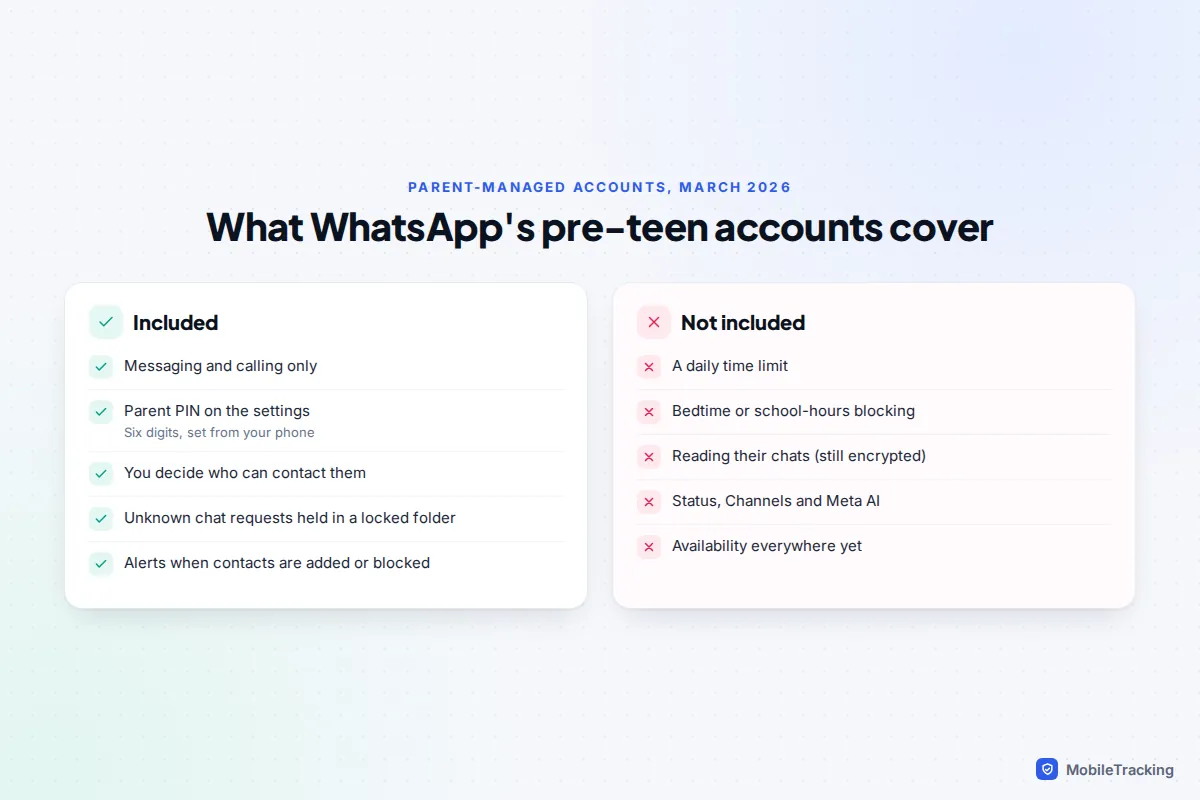
In March 2026 WhatsApp started rolling out parent-managed accounts for children under 13. You set the account up with both phones side by side, link them by scanning a QR code, and protect the parental settings with a six-digit PIN. The account is limited to messaging and calling, with no Status, Channels or Meta AI.
From your phone you choose who can contact your child and which groups they can join. Chat requests from unknown numbers land in a separate PIN-locked folder, and by default you get alerts when your child adds, blocks or reports a contact. Chats stay end-to-end encrypted, so you can’t read them.
What the parent-managed account does not include is any time control. There is no daily limit, bedtime or school-hours setting, so even a pre-teen account needs a device limit alongside it. WhatsApp says the rollout is gradual and may not have reached your country yet.
On iPhone: Time Allowances or App Limits
iOS 27: a Time Allowance for WhatsApp
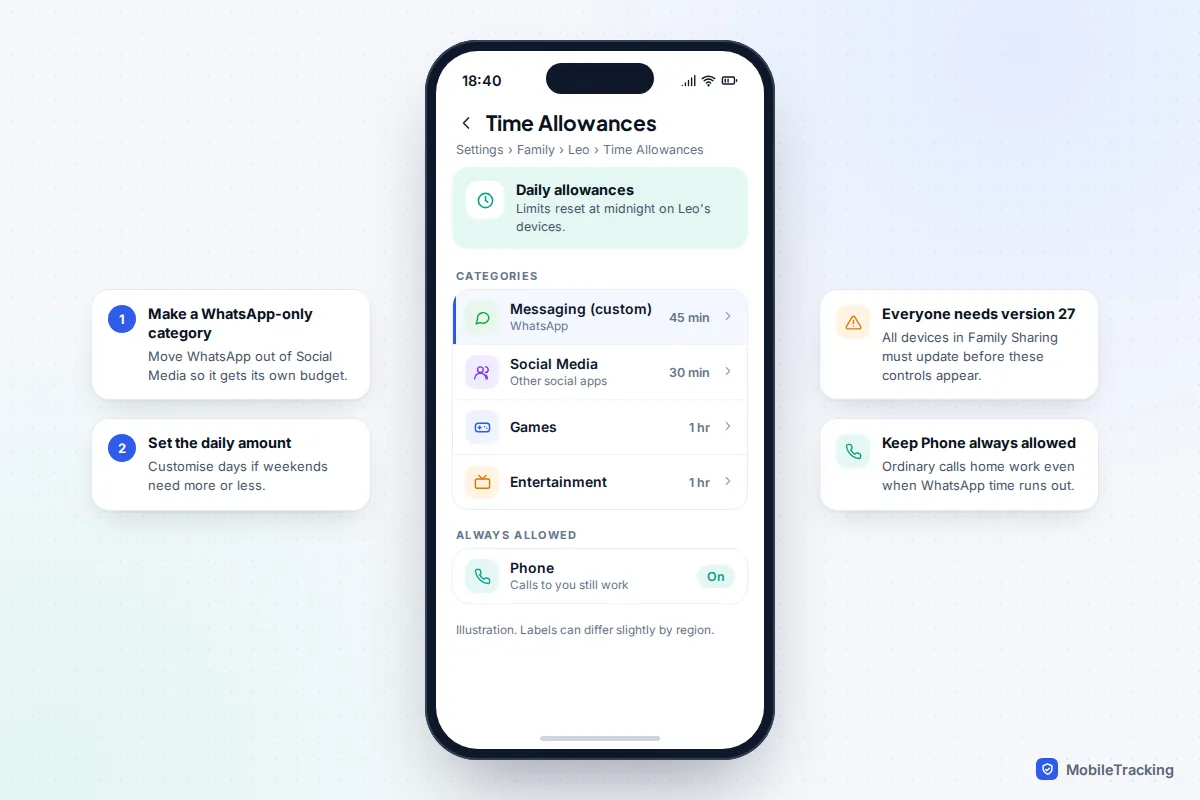
iOS 27, released on 14 September 2026, replaced App Limits for children with Time Allowances. These set a daily budget for a category of apps, such as Social Media, Games or Entertainment, and Apple suggests starting amounts based on your child’s age. You can also create your own categories and move apps between them, which is the key step for WhatsApp.
WhatsApp used for family logistics and school groups is different from an hour of scrolling, so it usually makes sense to give it a budget of its own rather than let it share one with every social app.
- On your iPhone, open Settings › Family and tap your child’s name.
- Tap Time Allowances.
- Create a new category (for example “Messaging”) and move WhatsApp into it.
- Set the daily amount, and adjust individual days if weekends should differ.
- Check that Phone is still in your child’s always-allowed apps, so calls home keep working once the allowance runs out.
The new controls only appear once every device in your Family Sharing group is on version 27. If one device can’t update, you can keep using the iOS 26 controls below. Apple’s guide to using Screen Time on your child’s iPhone has the official steps for both.
One point that catches parents out: Apple’s contact controls, including iOS 27’s option to approve new contacts, cover Phone, Messages and FaceTime only. They don’t apply to WhatsApp, which keeps its own contact list. On WhatsApp, the only contact controls are its own privacy settings or a parent-managed account.
iOS 26 or earlier: App Limits
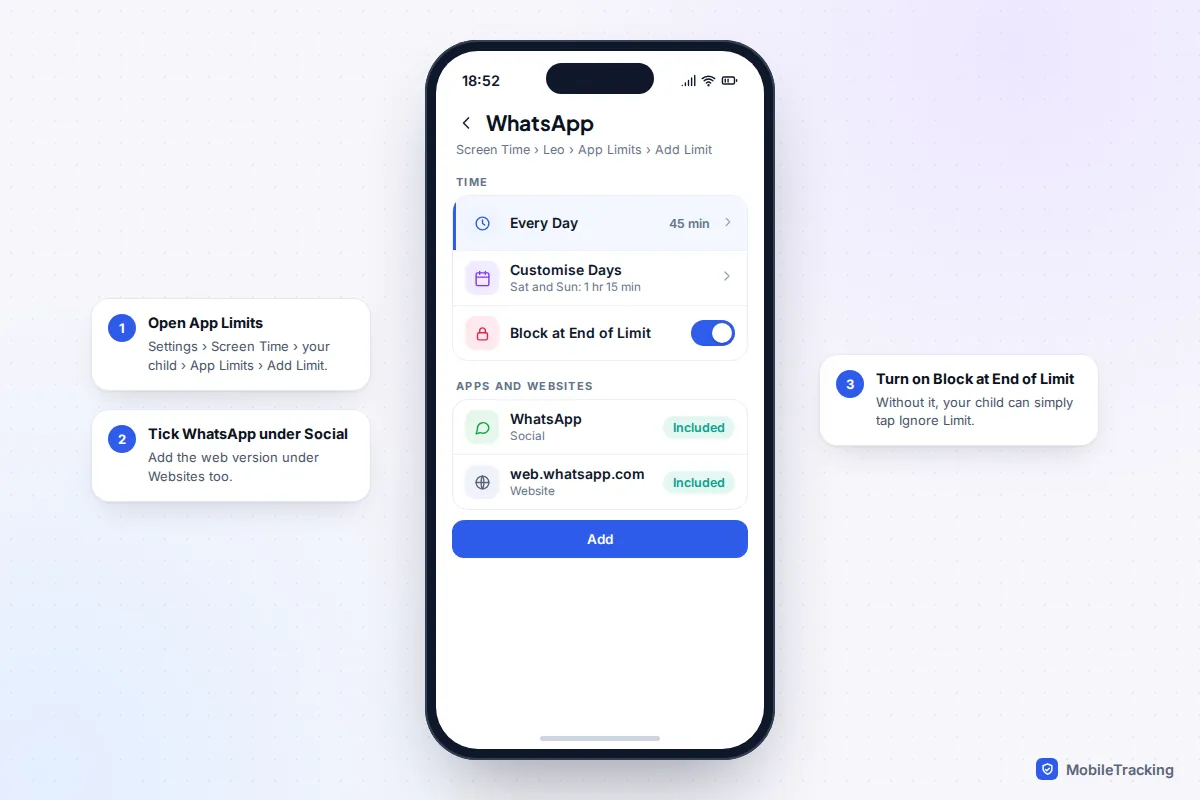
If your family isn’t on version 27 yet, App Limits does the job. Do this on your own phone through Family Sharing, or on your child’s phone protected by a Screen Time passcode they don’t know.
- Go to Settings › Screen Time and tap your child’s name.
- Tap App Limits › Add Limit, open Social and tick WhatsApp.
- Under Websites, add web.whatsapp.com.
- Tap Next, set the time, and use Customise Days if weekends differ.
- Turn on Block at End of Limit, then tap Add.
Without Block at End of Limit, your child sees a reminder they can dismiss with Ignore Limit. With it on, they can tap Ask For More Time and you approve or decline from your phone, which handles the genuine “we’re arranging a lift” moment without changing the rule.
Android: Family Link and Samsung Digital Wellbeing
On Android phones, including Samsung Galaxy and Pixel, Google Family Link is the parent-controlled option. If you haven’t supervised your child’s account yet, start with our guide to setting up Google Family Link.
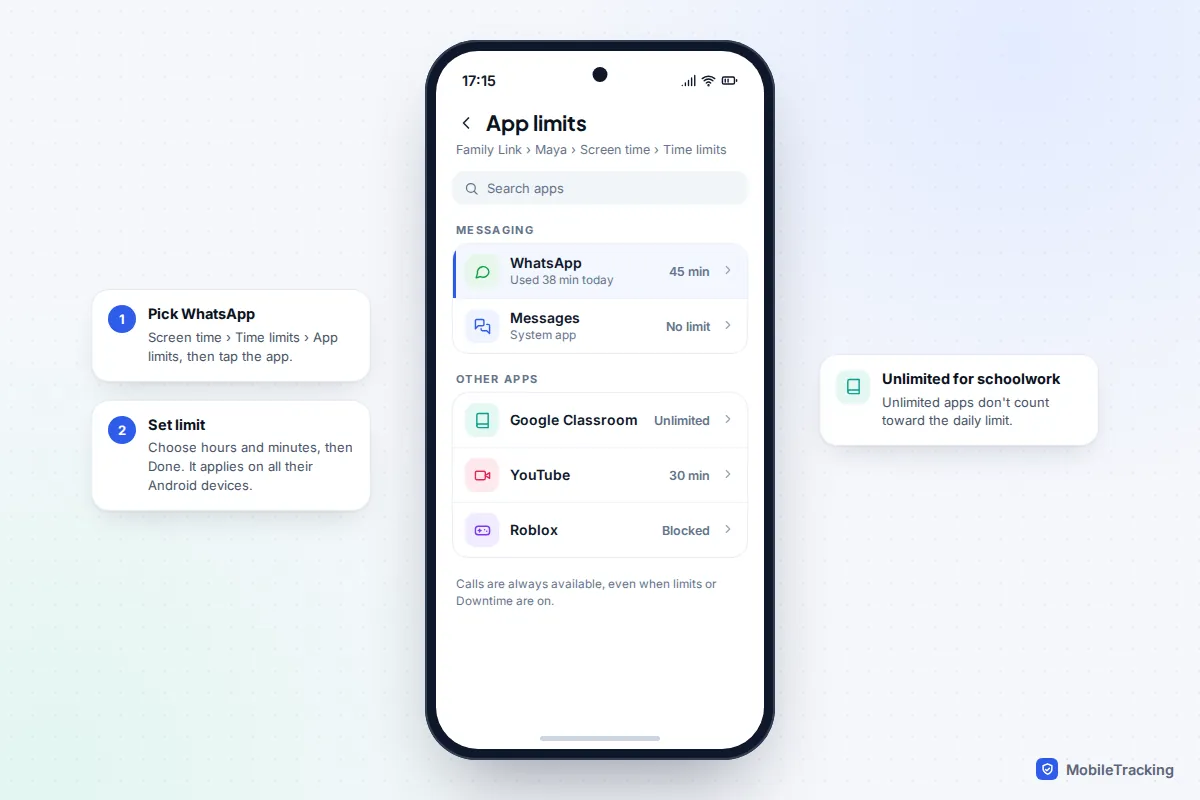
- Open Family Link on your phone and choose your child.
- Tap Screen time › Time limits › App limits.
- Tap WhatsApp, then Set limit.
- Choose the hours and minutes and tap Done.
Google says app limits apply across all your child’s Android and Chromebook devices. You can also mark schoolwork apps as Unlimited time, so they don’t count toward the daily total and stay available after it runs out. Family Link can’t limit system apps, and calls are always available, even when the phone is locked or in Downtime.
Samsung Digital Wellbeing app timers
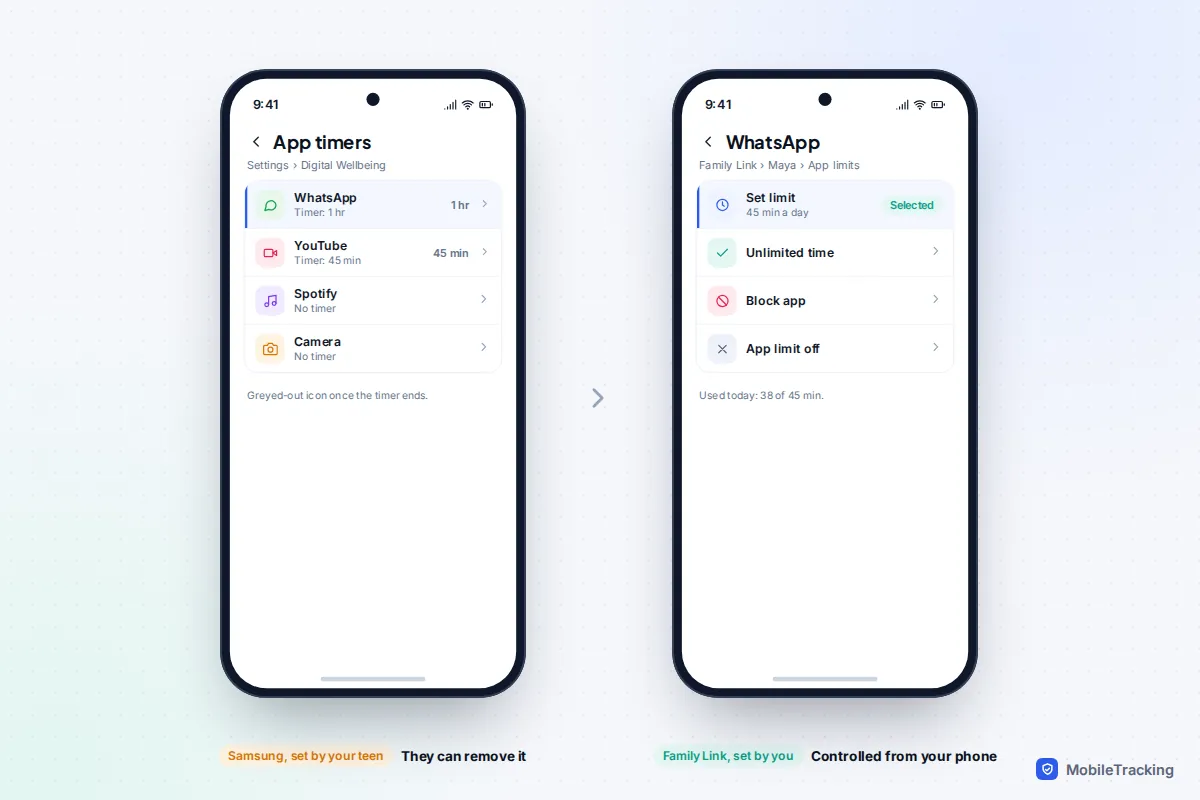
Every Galaxy phone also has its own app timers under Settings › Digital Wellbeing and parental controls (on some One UI versions you tap Screen time first, then App timers). Pixels and most other Android phones have the same feature in Digital Wellbeing: tap the dashboard, choose WhatsApp and set an app timer. When the timer ends, the app pauses and its icon turns grey until midnight.
The catch is that these timers belong to whoever uses the phone. Your child can change or remove them in a few taps, so they suit a 16 or 17-year-old who wants help sticking to a limit, not a younger child who needs one enforced. On a Samsung, the Parental controls entry in the same menu simply opens Family Link.
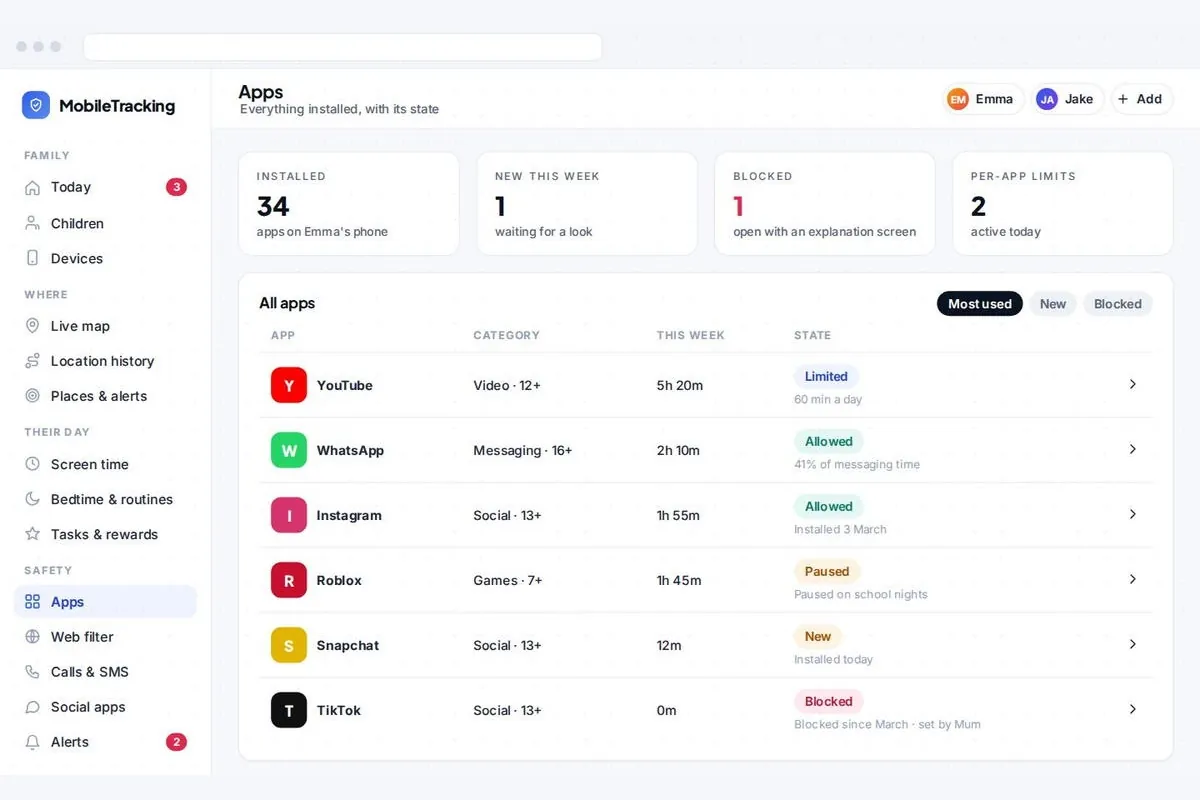
A transparent family app such as MobileTracking can also set a daily budget and per-app limits on an Android phone, with a weekly view of which apps take the time. The child app is visible on the phone and it never reads messages, which matters for an encrypted chat app like WhatsApp.
Keep calls to you working
Many families use WhatsApp as their main way to call each other, and that is where a time limit can backfire. When WhatsApp is blocked, don’t count on WhatsApp calls getting through or on your child being able to call you back on it.
- Agree that urgent contact uses the ordinary Phone app. Save your number as a normal contact and make sure your child knows how to call it.
- On iPhone, Phone is always allowed by default. Check it hasn’t been removed, and add anyone else who must always get through, such as a grandparent who does the school run.
- On Android, Family Link keeps calls available during limits, Downtime and School time. If your child texts rather than calls, set the Messages app to Unlimited time so texts work during Downtime too.
- Test it. Once the limit is on, let it run out and ring your child’s phone, so you both know what happens before it matters.
If WhatsApp is genuinely the only way a parent in another country can reach your child, a more generous allowance is better than making WhatsApp always allowed, which removes the limit entirely.
Switch WhatsApp off for school hours and bedtime
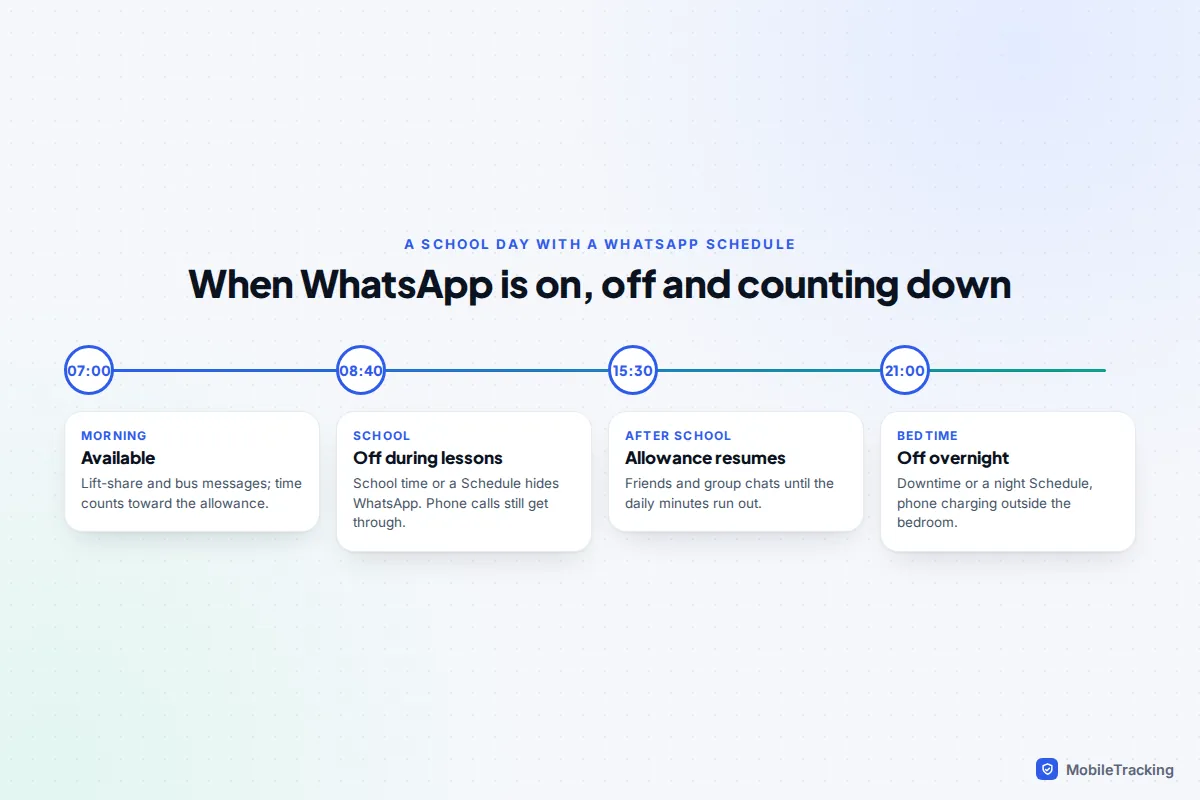
For many families the problem isn’t total time but timing: messages in lessons and group chats at midnight. A schedule often fixes more than a daily cap.
- iOS 27: Screen Time Schedules replaced Downtime. Under Settings › Family › your child › Schedules, you decide which apps are available at different times, with separate weekday and weekend versions. Leave WhatsApp out of the school-hours and night-time windows.
- iOS 26 and earlier: use Downtime in your child’s Screen Time settings, and leave WhatsApp off the Always Allowed list.
- Android: in Family Link, tap Screen time › Schedules and turn on School time and Downtime. School time lets you add breaks such as lunch. Calls stay available, though Google says their notifications are silent during School time.
Our guides to blocking apps during school hours and blocking apps at bedtime go into each schedule in more detail. Charging the phone outside the bedroom backs up any night-time rule.
Which set-up should you use?
The right mix depends on your child’s age and what you are actually trying to fix. A tired 13-year-old chatting at midnight needs a night schedule more than a daily cap; a 16-year-old who wants to cut down may only need a timer they set themselves.
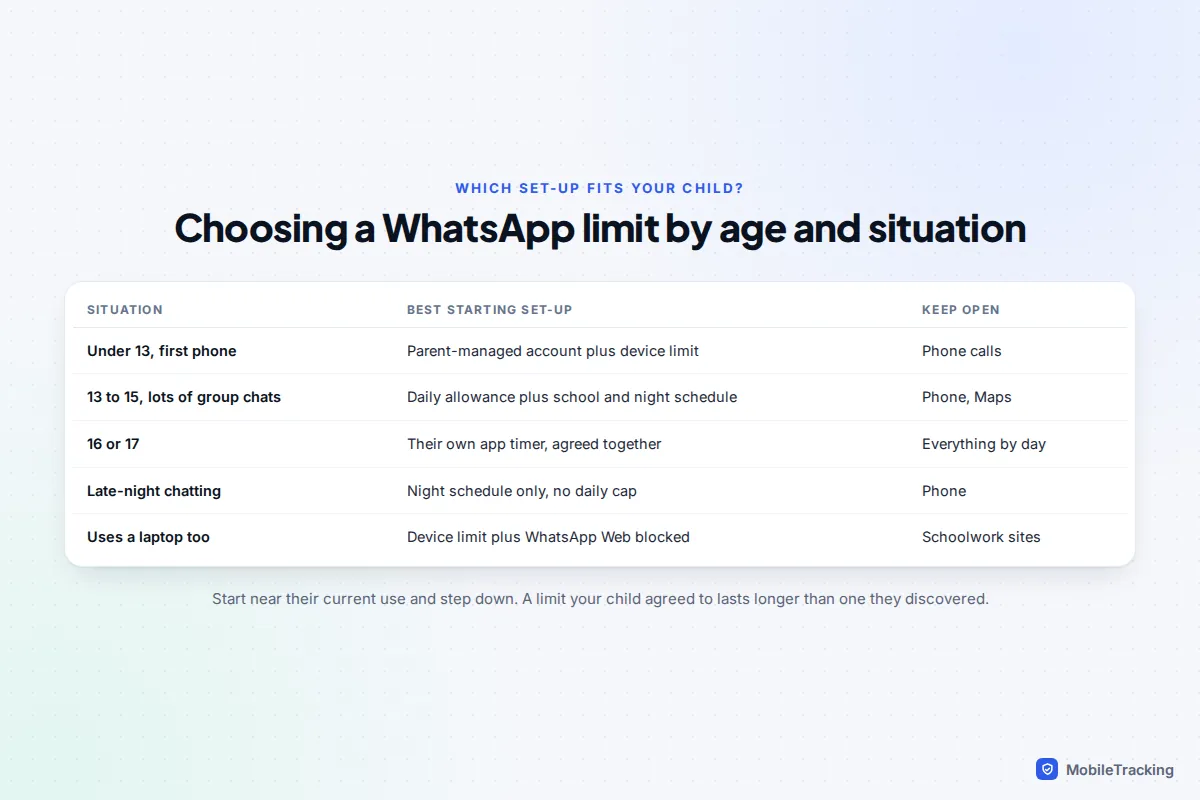
To pick a number, look first at the real figure in Screen Time, Family Link or Digital Wellbeing. If your child averages 90 minutes, a limit of 60 to 75 minutes is a realistic start. Review it after two weeks and adjust by 10 or 15 minutes at a time.
Workarounds children find, and how to handle them
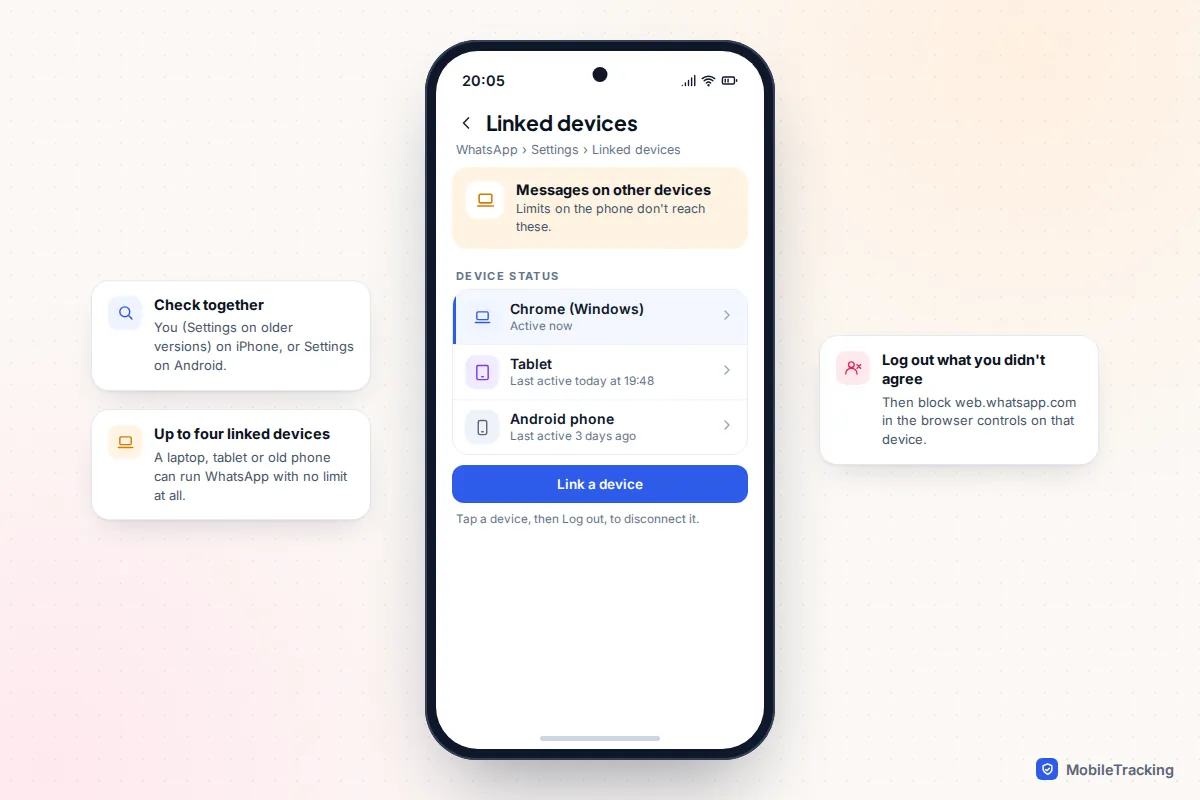
A limit on the phone covers the WhatsApp app on that phone. It doesn’t cover the same account running somewhere else, and WhatsApp makes that easy: one account can be linked to up to four other devices, including a laptop, a tablet or a second phone.
- WhatsApp Web or the desktop app. Scanning a QR code on a laptop puts every chat on a big screen with no limit. On a school or family computer, block web.whatsapp.com in the browser’s parental controls or Family Link’s Chrome settings.
- A tablet or old phone. A spare device on home Wi-Fi can run WhatsApp as a linked device. Put it under the same Screen Time or Family Link controls, or use your router’s schedules.
- Asking for time you didn’t mean to give. Approving every Ask For More Time request quietly becomes no limit. Agree when extra time is fair, such as a group project, and say no the rest of the time.
- Removing Samsung or Digital Wellbeing timers. Expected, since they are self-managed. If it keeps happening, move to Family Link.
To check for linked devices, open WhatsApp on your child’s phone and go to You (Settings on older versions) on iPhone, or the three-dot menu › Linked devices on Android. Each device shows when it was last active, and you can tap one and choose Log out. Do this with your child rather than behind their back: a laptop they use for homework is a conversation, not a crime.
Talking with your child about the limit
A WhatsApp limit is harder to agree than a gaming one, because it feels like being cut off from friends. Take Leo, 13, whose class group chat runs late into the evening. His parents didn’t set a tight daily cap. They showed him his weekly average, agreed WhatsApp would switch off during lessons and at 9pm on school nights, and kept 60 minutes a day for everything else. Phone calls to home stayed open. After a fortnight Leo asked for 9:30pm on Fridays, and got it, because the school-night rule had held.
A few things help:
- Explain the reason (sleep, schoolwork, feeling left out of a chat that never stops) before the rule.
- Tell your child to let friends know they’re offline after a set time, so silence isn’t read as rudeness.
- Agree in advance what happens for lifts, clubs and school trips, so exceptions don’t become arguments.
- Review the limit on a set date rather than whenever it causes a row.
Our guide on how to talk to your kid about screen time has more on those conversations, and the WhatsApp safety guide for parents covers group invites, strangers and scam forwards.
Frequently asked questions
Can I set a time limit inside WhatsApp?
No. WhatsApp has no daily limit or bedtime setting, including on its parent-managed accounts for pre-teens. Use Screen Time on iPhone, Family Link on Android, or a family app that sets per-app limits.
Will my child know I’ve limited WhatsApp?
Yes. When the time runs out, iPhone and Android both show a message and the app won’t open until the next day or until you give more time. That is better than a hidden rule, because your child knows exactly what was agreed.
Can my child still receive WhatsApp messages when the limit is reached?
Messages aren’t lost. They are waiting when WhatsApp opens again, but your child can’t open the app or reply until then. If you need to reach them, use an ordinary phone call, which stays available.
Does a WhatsApp limit on the phone cover WhatsApp Web?
No. WhatsApp Web and the desktop app run on another device, so a limit on the phone doesn’t apply there. Include web.whatsapp.com in your child’s iPhone limit so browser use counts too, and use the parental controls on any laptop or tablet they use.
How much WhatsApp time is reasonable for a 13-year-old?
There is no official figure. Many families find 45 to 60 minutes on school days works, with WhatsApp off in lessons and before bed. Start from your child’s current average and step it down gradually.
This guide is general information, not legal or financial advice. Read our editorial policy.