A family safety circle is a private group whose members share their location with each other and get alerts when it matters: someone arrives at school, has a car crash or presses an SOS button. To set one up in Life360, the best-known app for this, tap the Circle Switcher at the top of the map, choose Create a Circle, name it and tap Send Code. Each person installs the app, creates their own account and enters the code within 72 hours. Then make a second adult an admin, add home and school as Places, and add emergency contacts.
The app is the easy part. Circles that last are the ones where everyone knows who can see what, agrees what the alerts are for, and gets asked again as children grow up. If you haven’t yet picked an app, our comparison of ways to track your whole family in one app helps you choose first.
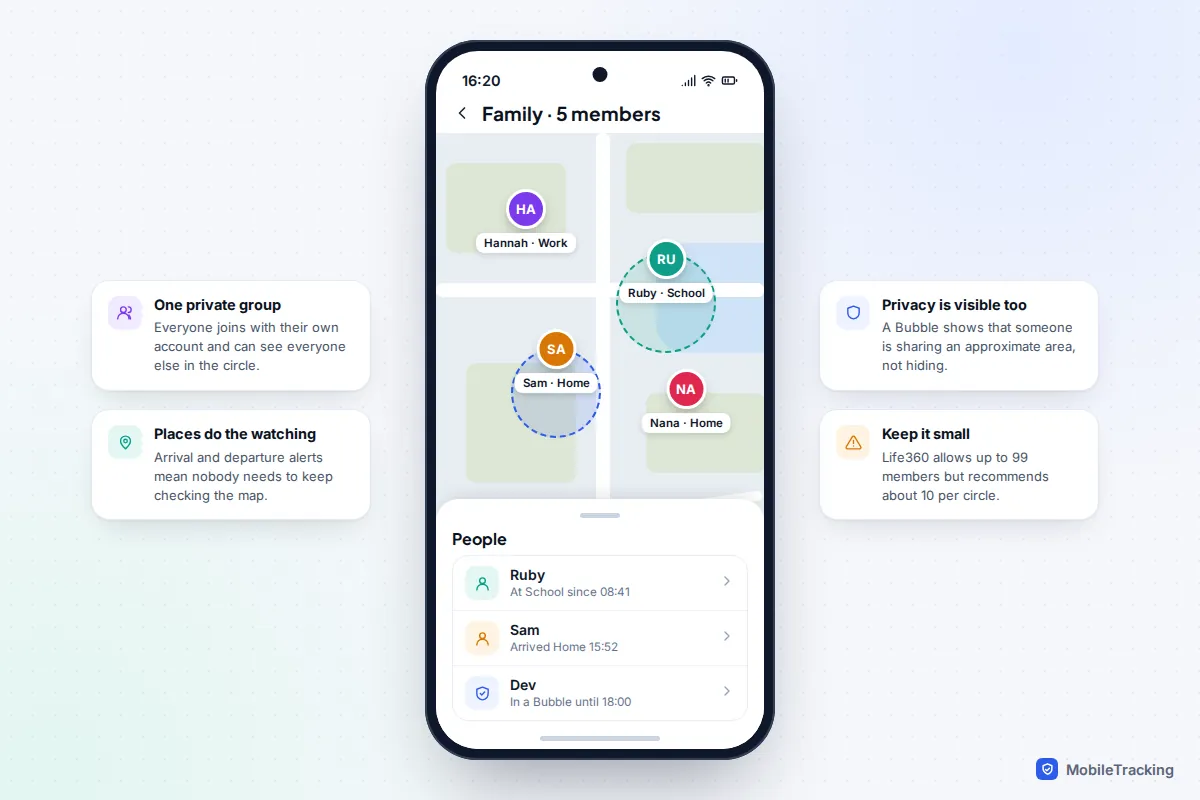
Decide who belongs in the circle
Start with a list on paper. Life360 allows up to 99 people in one circle but recommends about 10 for the app to perform well, and a small circle is easier to trust. A useful test for each name: would this person need to know where the others are in an emergency?
- The household: parents or carers and children with their own phones. This is the core circle and the one with the most alerts.
- Grandparents: often better in a second circle with just the adults who help them, so they aren’t sent every school arrival. Our guide to sharing location with elderly parents, with their consent covers the conversation to have first.
- Teenagers: include them as full members who can see the parents too. Sharing that only runs one way feels like surveillance and gets switched off.
- Babysitters, friends and exchange students: use a temporary arrangement instead. Life360’s Temporary Circles share location for 1 day, 3 days, 5 days, 1 week or 2 weeks, then stop automatically.
Every adult must join on their own phone, knowing what the app does. Nobody should ever be added by someone else installing an app on their phone. That applies to partners too, and it is the line between a safety circle and controlling behaviour.
Take a real example. Hannah and Dev have Ruby, 15, and Sam, 11. Their household circle has four people. Nana joins a second circle with Hannah and her brother, with one alert: when Nana gets home from the shops. When Ruby’s friend stays for a week, her parents join a one-week Temporary Circle that ends on its own.
Create the circle and invite everyone
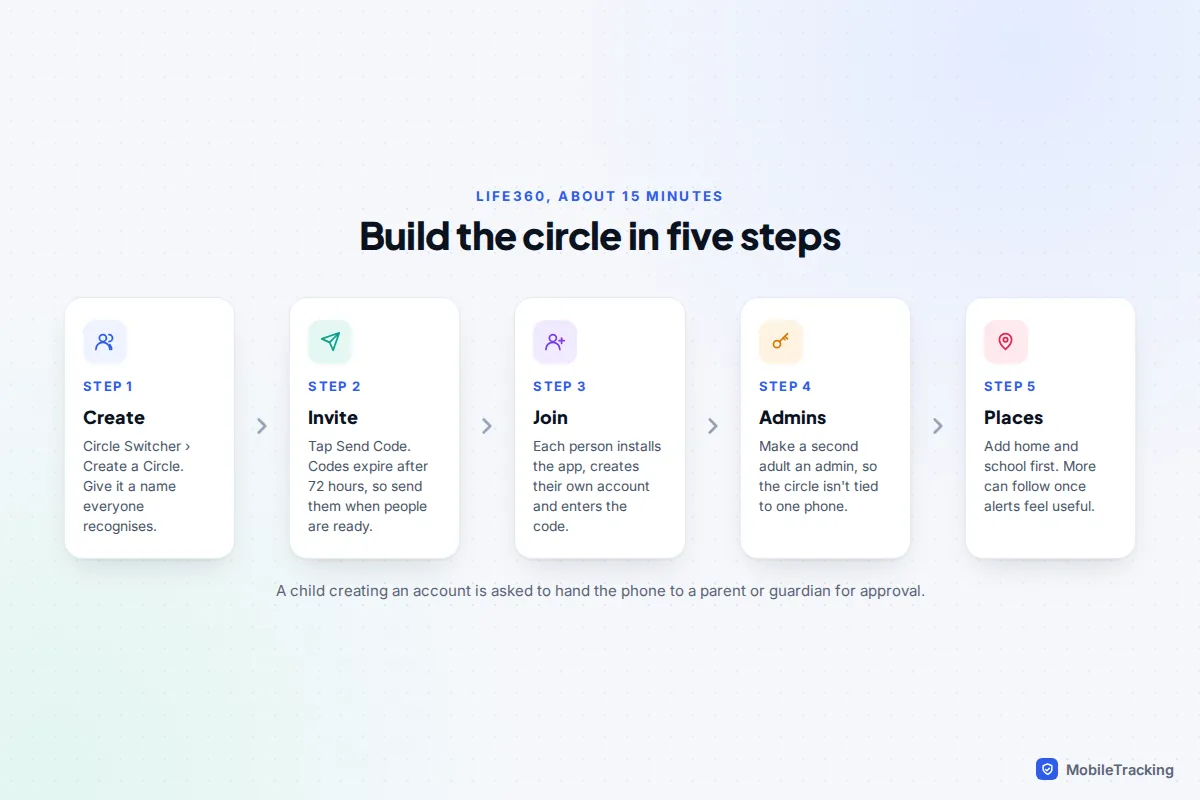
Set aside about 15 minutes with everyone in the same room, so you can answer questions as the permission prompts appear.
- Install Life360 on your phone and create your account with your phone number and email address.
- Tap the Circle Switcher at the top of the screen, then Create a Circle. Name it something everyone recognises, such as “Home”.
- Tap Send Code and choose Messages, WhatsApp or email to send the invite. Codes expire after 72 hours.
- Each person installs Life360, creates their own account and enters the code. They see a preview of who is already in the circle and can accept or decline.
- When each person is asked for location access, choose Always (iPhone) or Allow all the time (Android), and allow precise location and motion. Without these, locations lag and driving features won’t work.
Children need a parent at this point. Life360’s help centre says that when a minor creates an account, they are asked to hand the phone to their legal guardian for approval, with a photo ID. Enter your child’s real date of birth: the app’s protections for under-18s depend on it. A younger child with no phone can join through an Apple Watch as a managed member, set up from the parent’s app.
Set up admins properly
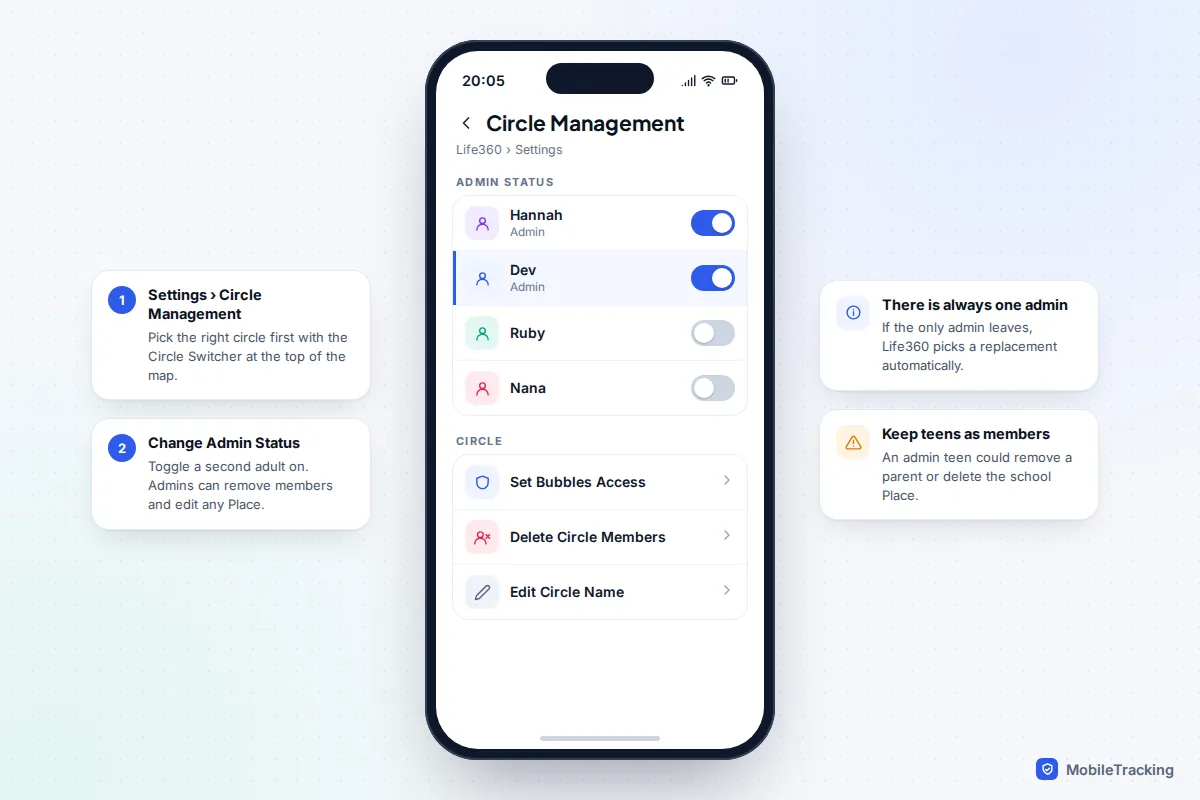
The person who creates the circle becomes its admin. Admins can remove members and edit or delete any of the circle’s Places, which makes the role worth thinking about. Make a second adult an admin too, so the circle doesn’t depend on one phone: go to Settings › Circle Management › Change Admin Status and turn on the switch next to their name.
Keep children as ordinary members: an admin teenager could remove a parent or delete the school Place by accident. Life360 always keeps at least one admin: if the only admin leaves without naming a successor, it picks one automatically, which may not be who you’d choose.
Places, check-ins and Bubbles
Places and alerts
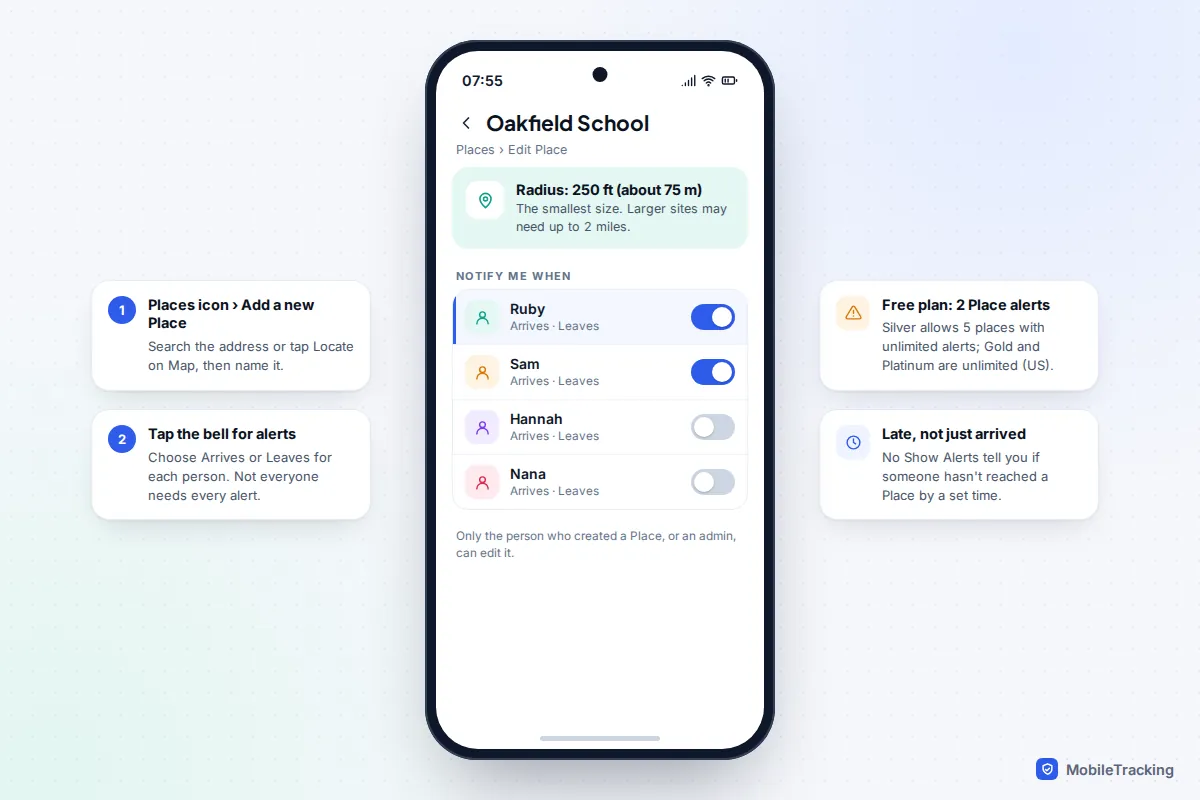
Places are what turn a map into a safety tool. Tap the Places icon below the map, then Add a new Place, search for the address or tap Locate on Map, and name it. The radius runs from 250 feet (about 75 metres) up to 2 miles. Then tap the bell next to the Place and choose Arrives or Leaves for each person.
Be sparing. The free US plan gives you 2 Place alerts, so pick the ones that answer a real worry, usually home and school. No Show Alerts are often more useful than arrival alerts: they tell you when someone hasn’t reached a Place by a set time, or if their arrival can’t be confirmed because location sharing is off. For the finer points of radius and timing, see our guide to setting up geofence alerts for your kids.
For older children, a Check in can replace constant watching. They tap Check in on the map, choose where they are, and the circle gets a notification. Some families agree that a check-in on arrival counts as “home safe”, and that nobody opens the map unless one is missed. Our guide to check-ins instead of constant tracking has more on making that work.
Bubbles: privacy without disappearing
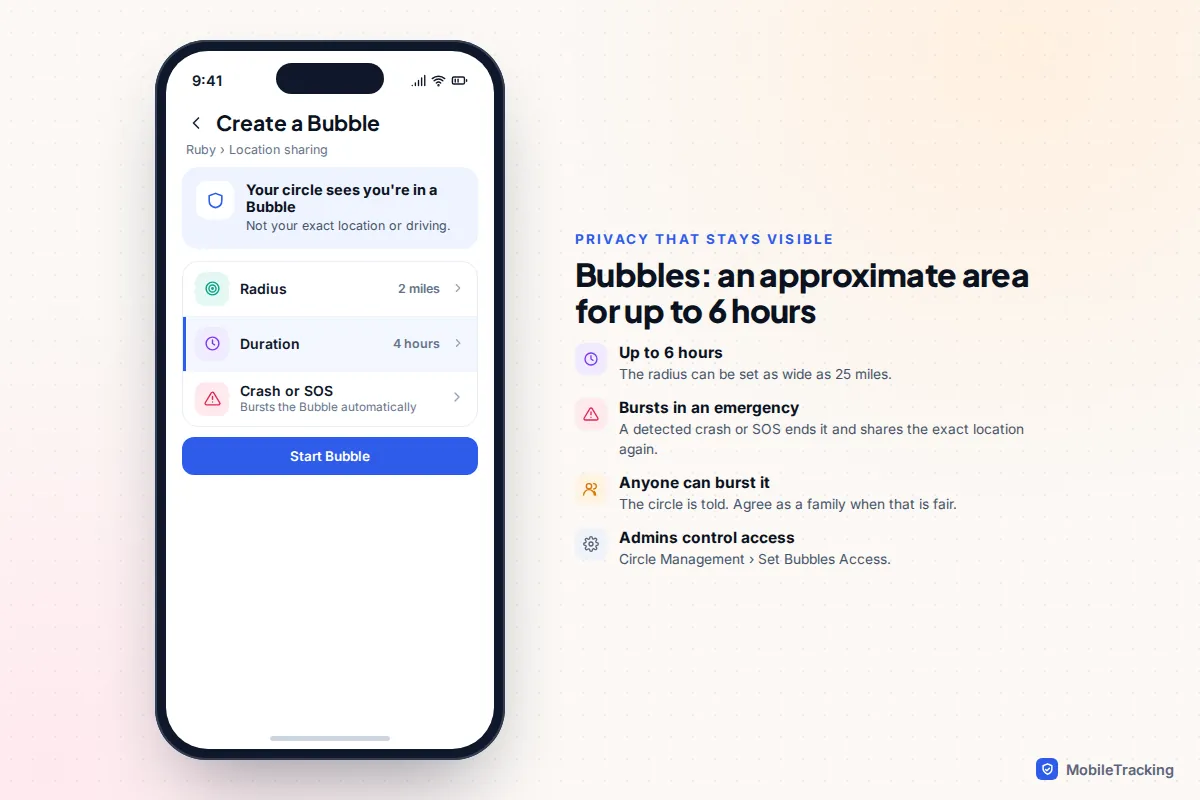
A Bubble lets any member share an approximate area instead of their exact location, for up to 6 hours, with a radius of up to 25 miles. The circle sees that the person is in a Bubble, but not their exact position or their driving. Safety features stay on: if a crash or emergency is detected, the Bubble bursts automatically and exact sharing resumes.
Any member can also burst someone else’s Bubble if they are worried, and the whole circle is told. Agree in advance when that is fair, for example “if you’re more than an hour late and not answering”. Admins can switch Bubbles on or off for the circle under Circle Management › Set Bubbles Access, but taking them away from a teenager usually just moves the privacy to the phone’s off switch.
Emergency contacts, SOS and crash detection
These are the features that make a circle a safety circle rather than a map, and they need setting up.
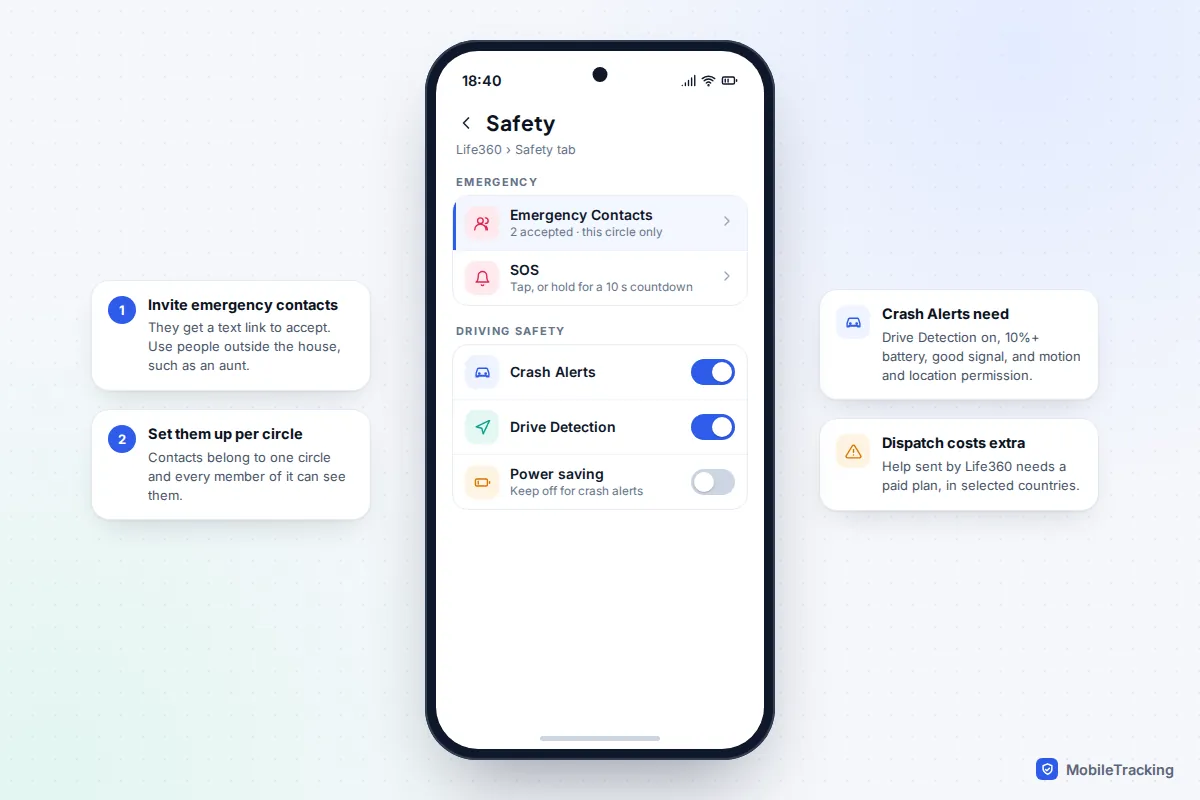
- Emergency contacts: tap Safety at the bottom of the screen, then Emergency Contacts and Invite first contact. They receive a text with a link and must accept it. Choose at least one adult who lives elsewhere, such as an aunt or a close neighbour. Contacts are set up separately for each circle and are visible to everyone in it.
- SOS: teach everyone where it is. On the free plan, an SOS sends a push notification to every circle member and a text to your emergency contacts. Tapping sends it straight away; holding starts a 10-second countdown you can cancel.
- Crash alerts: in the Safety tab, under Driving Safety, turn on Crash Alerts. They need Drive Detection on, at least 10% battery, power saving off, a decent signal, and permission for location, motion and notifications. Life360 says the car must be going at least 25 mph at some point in the 5 seconds before a collision.
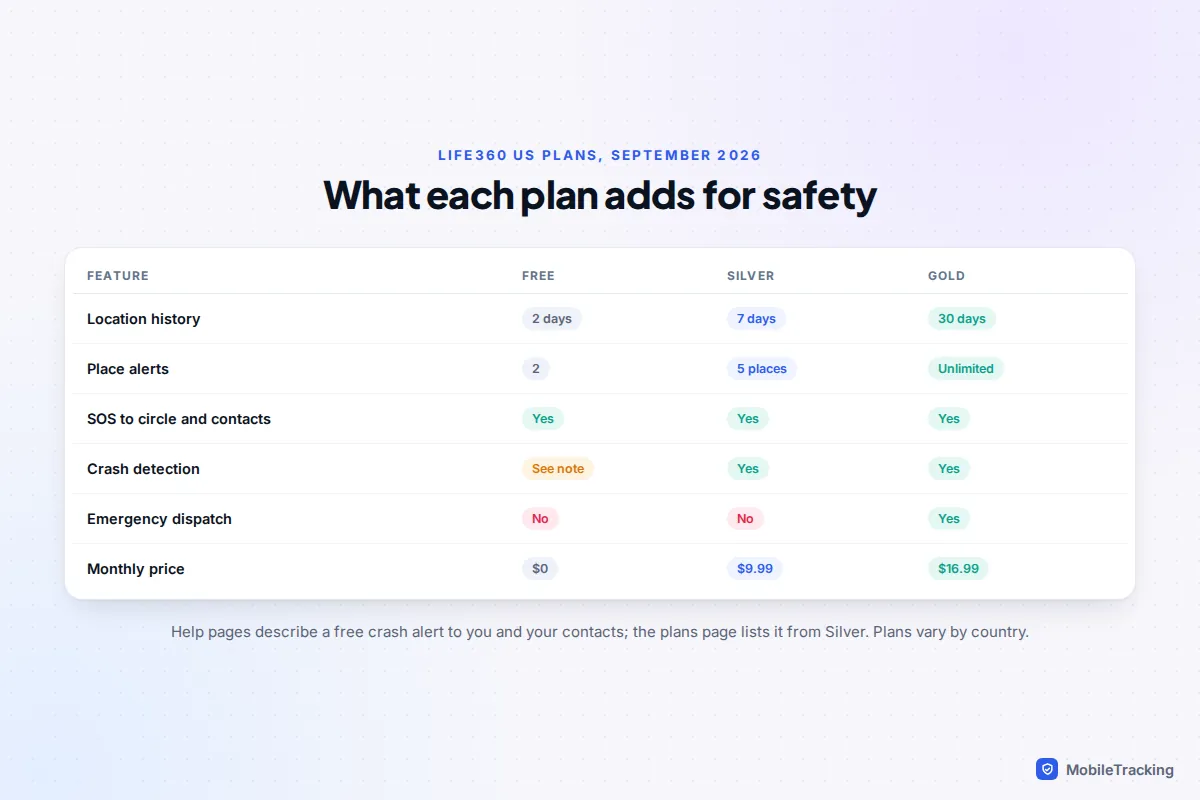
What you get depends on your plan and country. Life360’s help pages describe a free crash alert that contacts you and your emergency contacts, while its US plans page lists crash detection from the Silver plan up. Having Life360 send emergency services is a paid feature, offered in selected countries including the US, Canada, the UK, Australia and New Zealand. Open the Safety tab on your own phone to see what your plan includes before you rely on it.
Other ways to build a family circle
You don’t need Life360 to have a circle. The built-in options have fewer features but no subscription, and some keep far less data. In brief:
| Option | Circle size | Works on | Safety extras |
|---|---|---|---|
| Apple Family Sharing with Find My | Up to 6 | iPhone only | Arrival alerts, Check In in Messages |
| Google family group with Find Hub and Family Link | Up to 6 | Android; Google Maps sharing on iPhone | Arrival and departure alerts, child supervision |
| Samsung account family group with Samsung Find | Family group | Galaxy phones | Location sharing in the People tab |
| Transparent family app | Your children | Varies; often a child’s Android phone | Places, alerts, screen time |
On iPhone, the family organiser manages the group in Settings › Family; in iOS 27, each child’s controls sit under Settings › Family › [child’s name]. Google’s family group is created at g.co/yourfamily by a family manager over the age of majority. Whichever you choose, pick one system for everyone: two half-used apps give you two sets of gaps.
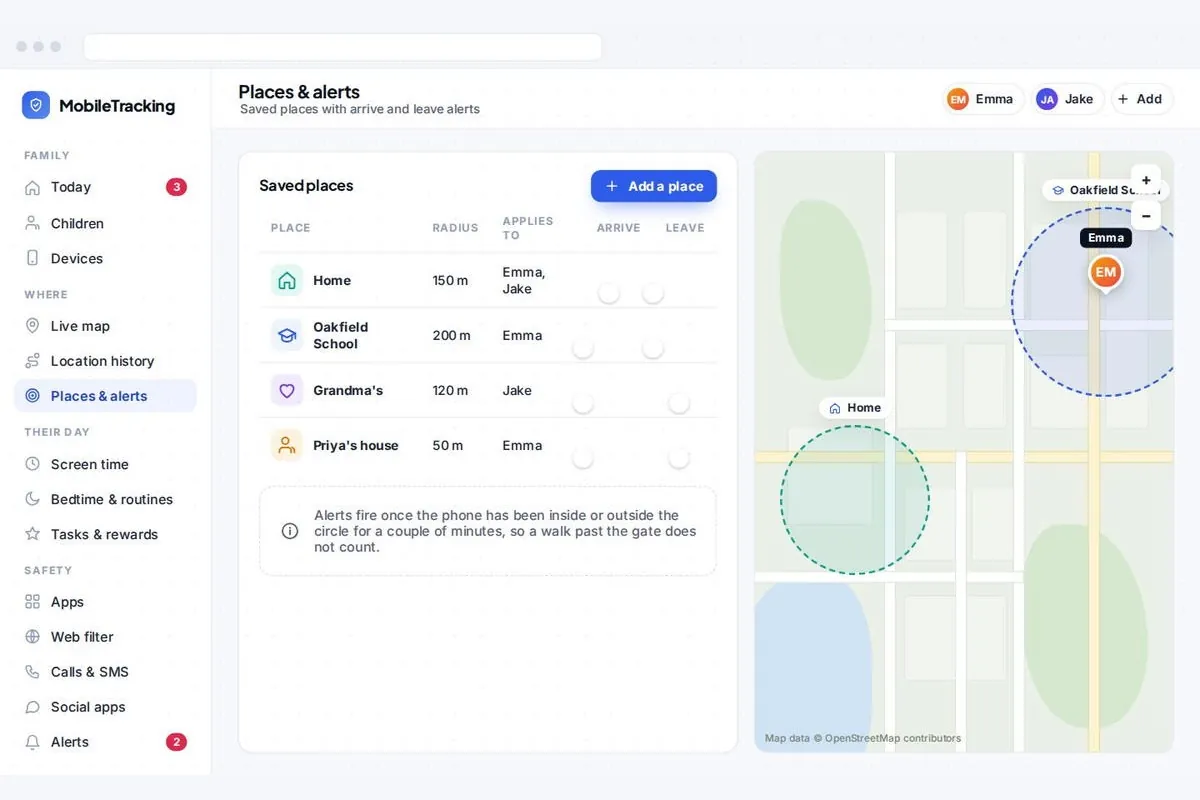
For younger children, a parental app can sit alongside the family circle rather than replace it. A transparent family app such as MobileTracking puts a visible app on a child’s Android phone and gives parents named places with arrival and leaving alerts in a web dashboard, without reading the child’s messages.
Agree the rules before the first alert
Ten minutes of talking prevents most circle arguments. Write the answers down, or add them to a family media agreement, and keep them short:
- What it is for: emergencies, lifts and “did you get there?” Not checking up on who someone is with.
- Who looks, and when: for example, parents check the map only if a check-in or arrival is missed.
- Privacy: when a Bubble is fine, and when a burst is justified.
- Switching off: how to say you are pausing sharing, and that doing so is not a crime. Silently turning it off is what destroys trust.
- Everyone shares: parents appear on the map too.
If a teenager objects, offering fewer alerts, check-ins or a review date often gets a yes where a flat rule would not. Our guide to location sharing etiquette for families has scripts for the trickier conversations.
What happens to your family’s location data
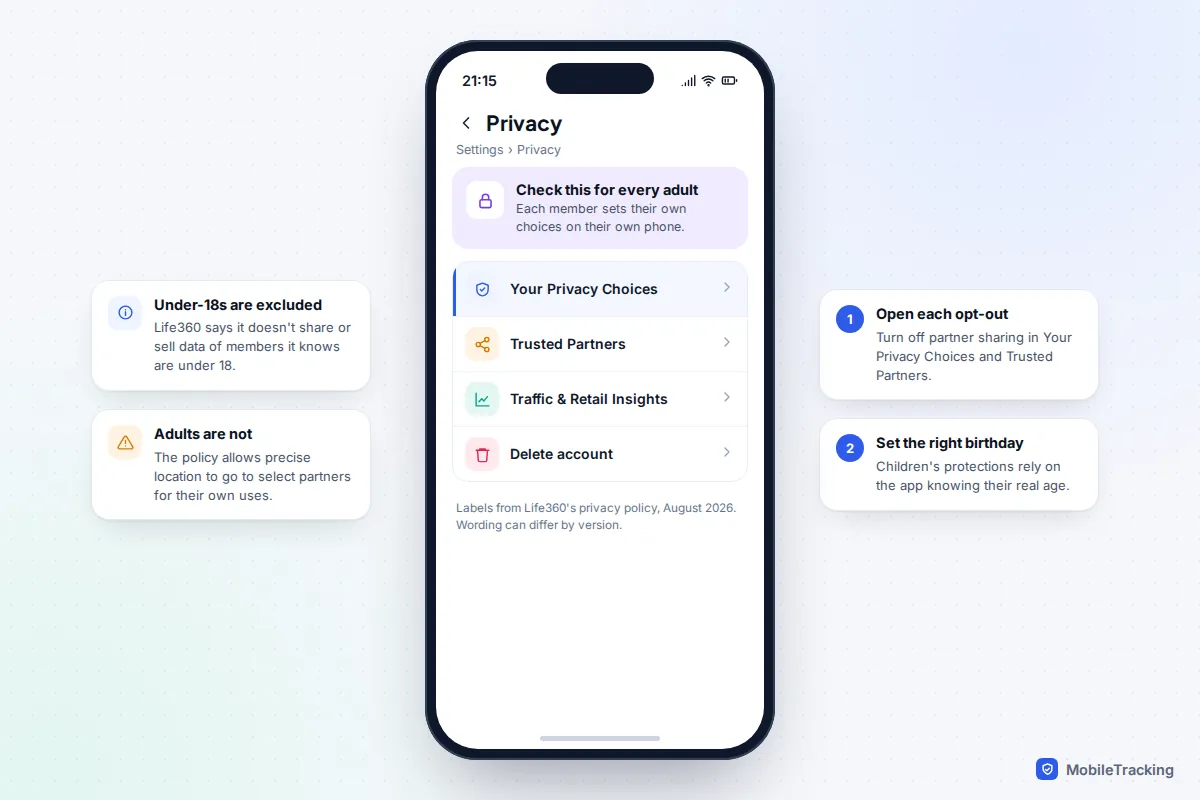
A safety circle records where your children sleep, study and spend weekends, so check what the company does with it. In December 2021, an investigation by The Markup reported that Life360 was selling precise location data from its users to up to a dozen data brokers. In January 2022 the company said it would stop selling precise location data to most of them, keeping a partnership with Allstate’s Arity for driving features and giving another partner aggregated data instead.
That was not the end of the story. Life360’s privacy policy, last updated in August 2026, still allows it to disclose precise geolocation and movement data to select business partners for their own uses, and to share advertising identifiers with ad partners. In January 2026 it completed its purchase of the advertising company Nativo. The policy also says Life360 does not share or sell personal information of members it knows to be under 18, and shows no ads in Child or Teen accounts.
In practice, that means two things. First, every adult in the circle should check their own settings: in the app’s settings, find the Privacy section and open Your Privacy Choices and Trusted Partners to limit sharing. Second, make sure each child’s account has their real date of birth. If this trade-off doesn’t suit you, Apple says it cannot see your shared location in Find My when both people use iOS 17 or later, which makes it the most private option for iPhone families.
Review the circle as your family changes
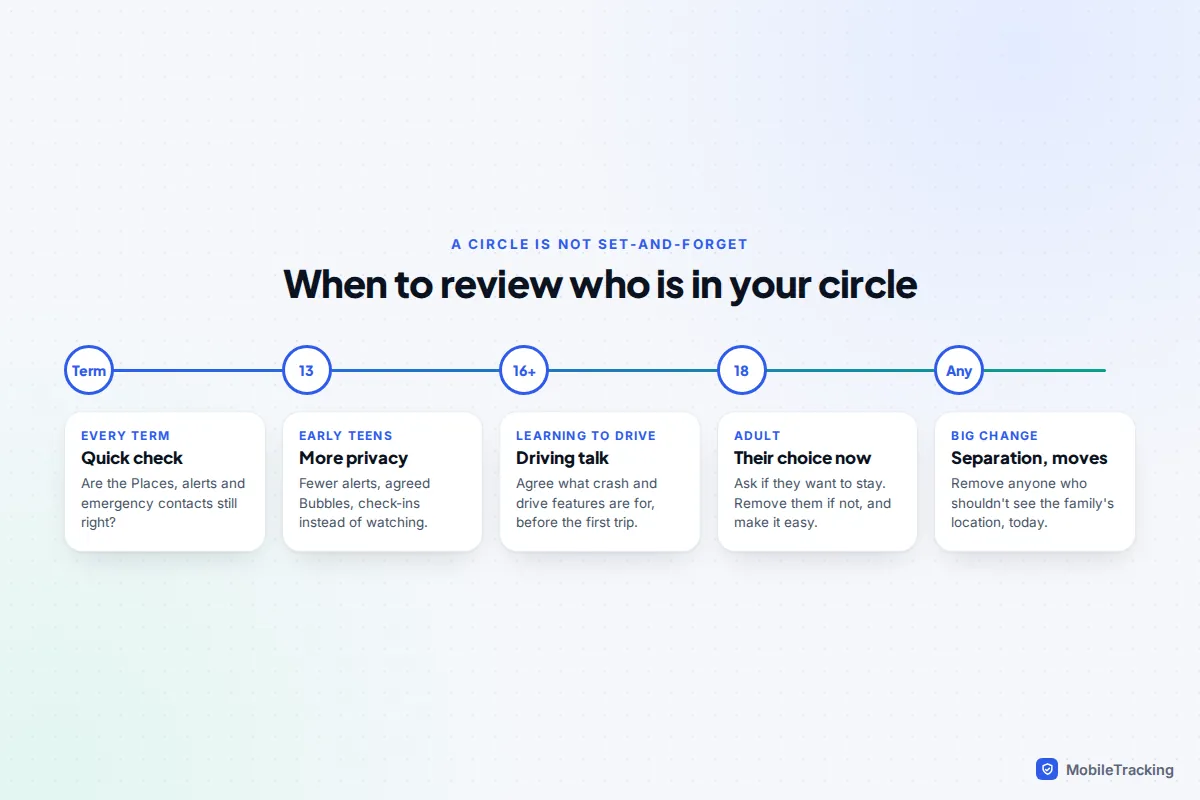
A circle that suited a ten-year-old won’t suit a seventeen-year-old. Put a review in the calendar at the start of each term, and look again at these moments:
- Early teens: fewer alerts, more Bubbles and check-ins.
- Learning to drive: agree what crash detection and driving features are for before the first solo trip, so they feel like a safety net rather than a report card.
- Turning 18 or leaving home: ask whether they want to stay in the circle. If not, remove them warmly and make leaving easy.
- Separation or a change of carer: remove anyone who should no longer see the family’s location the same day, and check the emergency contacts too.
Each time, check that Places, emergency contacts and members are still right. Also look beyond the app: on an iPhone, Settings › Privacy & Security › Safety Check shows everyone you share your location with, across all of Apple’s features.
Frequently asked questions
Can someone be in more than one circle?
Yes. You switch between them with the Circle Switcher, and each person can turn location sharing off for one circle while staying visible in another. Emergency contacts are set per circle, so add them in each one.
Will members know if I remove them?
Yes. Life360 notifies a member when they are removed. Tell them yourself first, especially if it is a grandparent or an older child.
Can a teenager hide from the circle?
They can use a Bubble, which shows an approximate area and is visible to everyone, or turn sharing off, which a No Show Alert will reveal. A check-in or SOS still shares their exact location with every circle. If hiding keeps happening, the rules need another conversation, not tighter settings.
What is the most private way to run a family circle?
For an all-iPhone family, Find My with Family Sharing, because Apple says it cannot access shared locations between up-to-date iPhones. For mixed families, keep the circle small, limit partner sharing in each adult’s settings and review members regularly.
This guide is general information, not legal or financial advice. Read our editorial policy.