
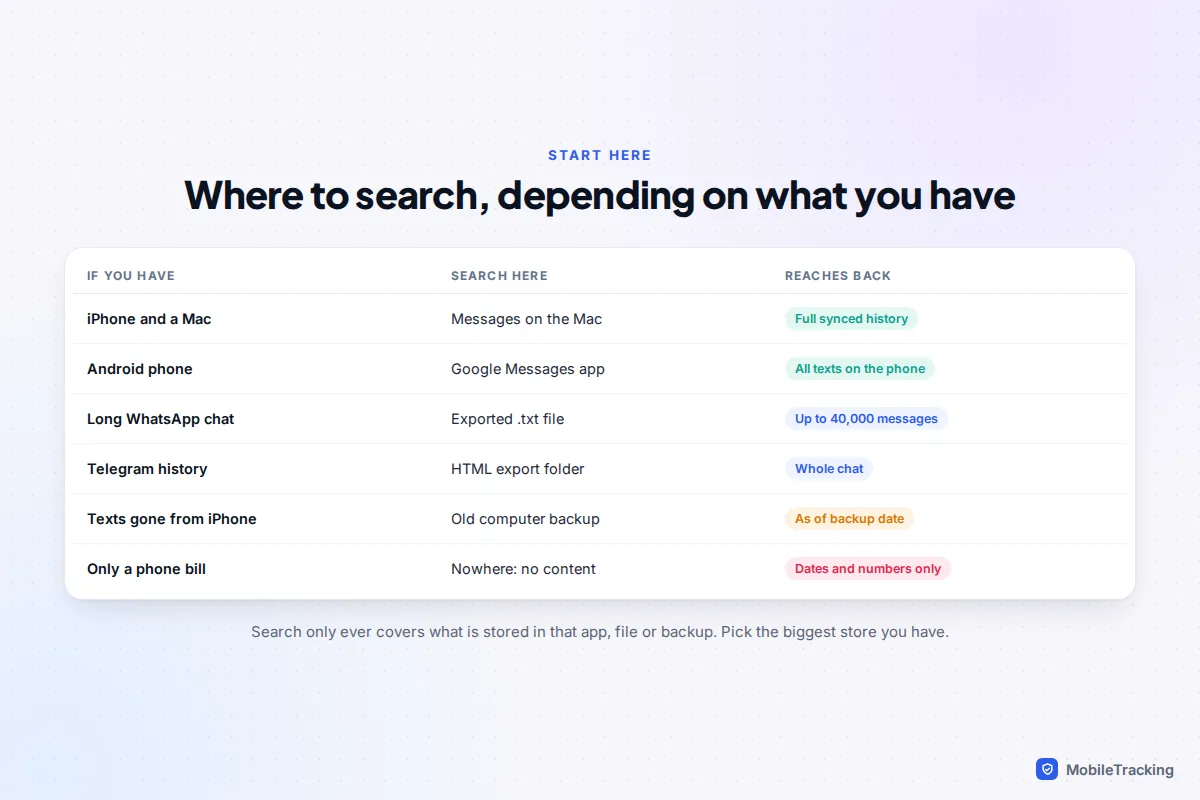
To search your whole text history, rather than whatever your phone happens to show, search wherever the biggest copy lives. With an iPhone and a Mac that both use Messages in iCloud, Messages on the Mac is usually the most complete and comfortable place to search. For long WhatsApp or Telegram chats, export them to a computer and search the file, which lets you match exact phrases, numbers and dates. For texts already gone from your iPhone, a backup viewer can search a computer backup made before they disappeared. Your mobile network can’t help: it records when texts were sent and to which number, never what they said.
If you only need one recent message, the shortcuts in our guide to finding old text messages fast are quicker. This guide is for the harder jobs: years of history, archives, old backups and searches that come back empty.
Choose where to search first
Every messaging app searches only what is stored on that device or in that file. So the real question is which copy of your history is the biggest. In rough order:
- A Mac with Messages in iCloud on. It holds the full synced history on a big screen.
- The phone itself. iPhone Messages, Google Messages and WhatsApp have no search cut-off; they search everything still on the phone.
- An export. WhatsApp and Telegram can save chats as files that any computer can search, with better tools than the apps offer.
- A computer backup. An iPhone backup on a Mac or PC contains your Messages database as it was on the day of the backup, including texts deleted since.
Your phone company isn’t on the list. Carrier accounts show the date, time and number of each text, but never the words: AT&T states that no one on your account can see the content of your texts, and Verizon’s records cover only times, dates and numbers. iMessages, RCS chats between Google Messages users and WhatsApp messages are also end-to-end encrypted, so the network never held readable copies.
Search on a Mac: the biggest index most iPhone owners have
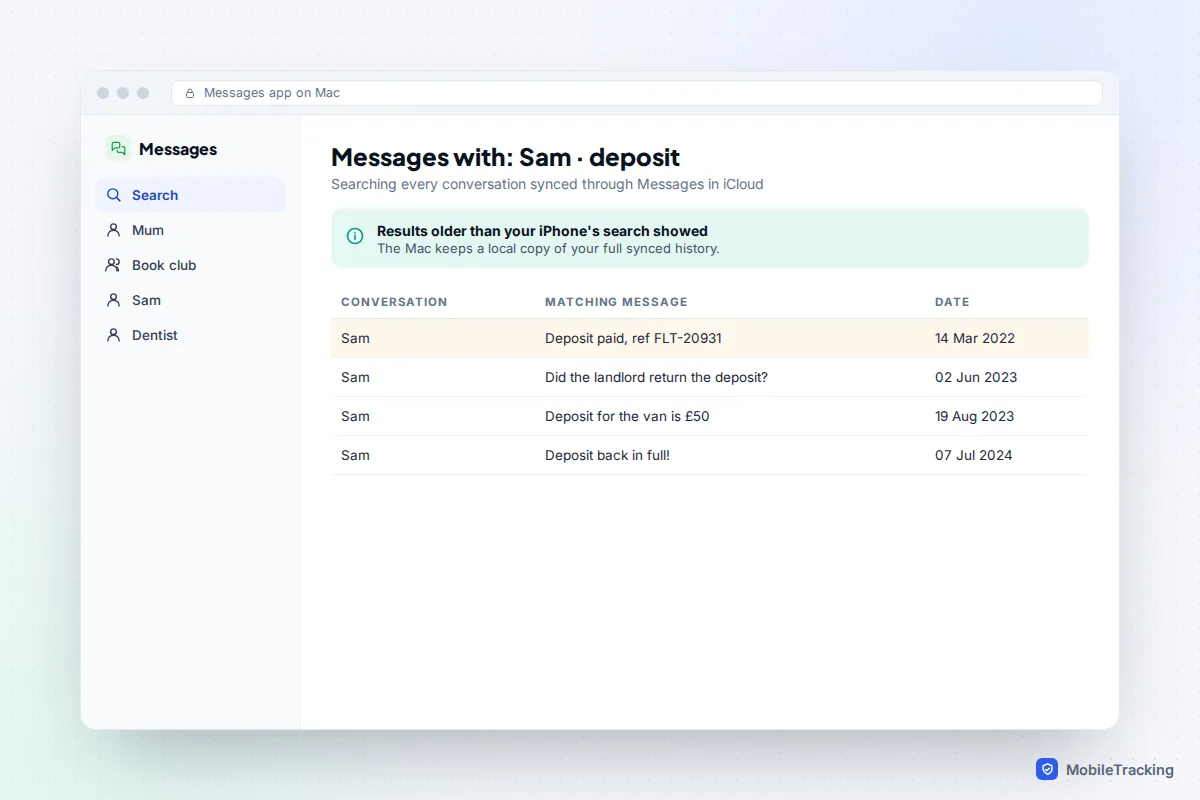
With Messages in iCloud on, a Mac signed in to the same Apple Account keeps a copy of your conversations on its own drive. An iPhone short of space may keep older attachments only in iCloud, but a Mac with free disk space usually holds everything locally.
- On the iPhone, check Settings › [your name] › iCloud and make sure Messages in iCloud is on (it may sit under See All).
- On the Mac, open Messages › Settings › iMessage and tick Enable Messages in iCloud. A big history can take hours to download, so leave the Mac on and online overnight.
- Under Messages › Settings › General, set Keep messages to Forever, or the Mac will trim older conversations.
- Click the search field above the conversation list and type one distinctive word. To narrow it, type a name and pick the contact suggestion, then add a word, or choose Photos, Links, Locations or Documents.
- Click a result to open the conversation at that point.
Spotlight (Command-Space) can find messages too. If message results never appear, open System Settings › Spotlight and check that messages are included; the category has been called Mail & Messages in recent versions.
Android: Google Messages on the phone and on the web
On Android, texts are stored on the phone, and Google Messages searches all of them: tap the search icon, then type a word or name, or tap a filter such as Images, Links or Starred. There’s no online archive of your texts to search. Google’s Android backup includes SMS and MMS, but only so they can be restored to a new phone; you can’t open or search it.
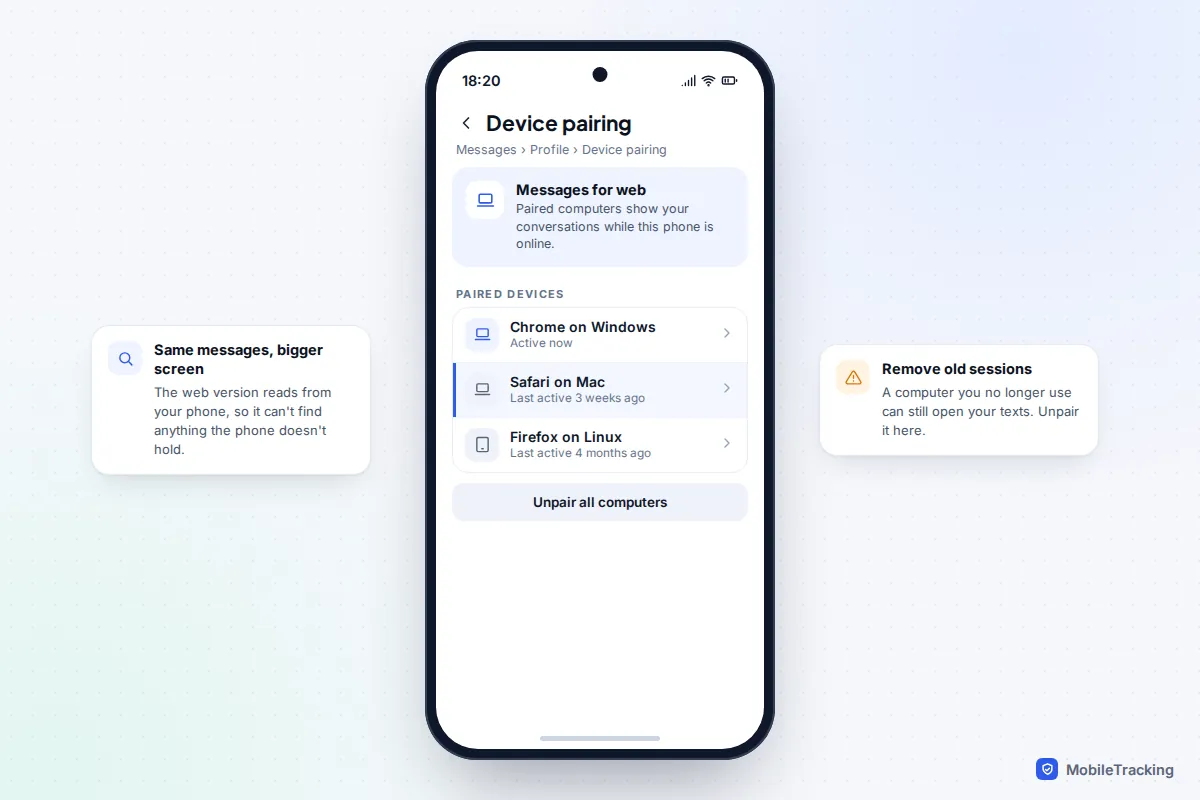
Google Messages for web shows your phone’s conversations in a browser. It works by talking to your phone, so it can never find anything the phone doesn’t hold, and for digging through years of history the phone app’s own search is more dependable. One useful trick in the browser: scroll up a long thread to load older messages, then press Ctrl+F (Command-F on a Mac). Unlike app search, the browser’s Find matches an exact phrase. For a permanent archive you can search without the phone, export your texts to a computer.
Search exported WhatsApp and Telegram chats on a computer
Exporting turns a chat into an ordinary file that free tools can search and that opens without the app.
WhatsApp: export to a text file
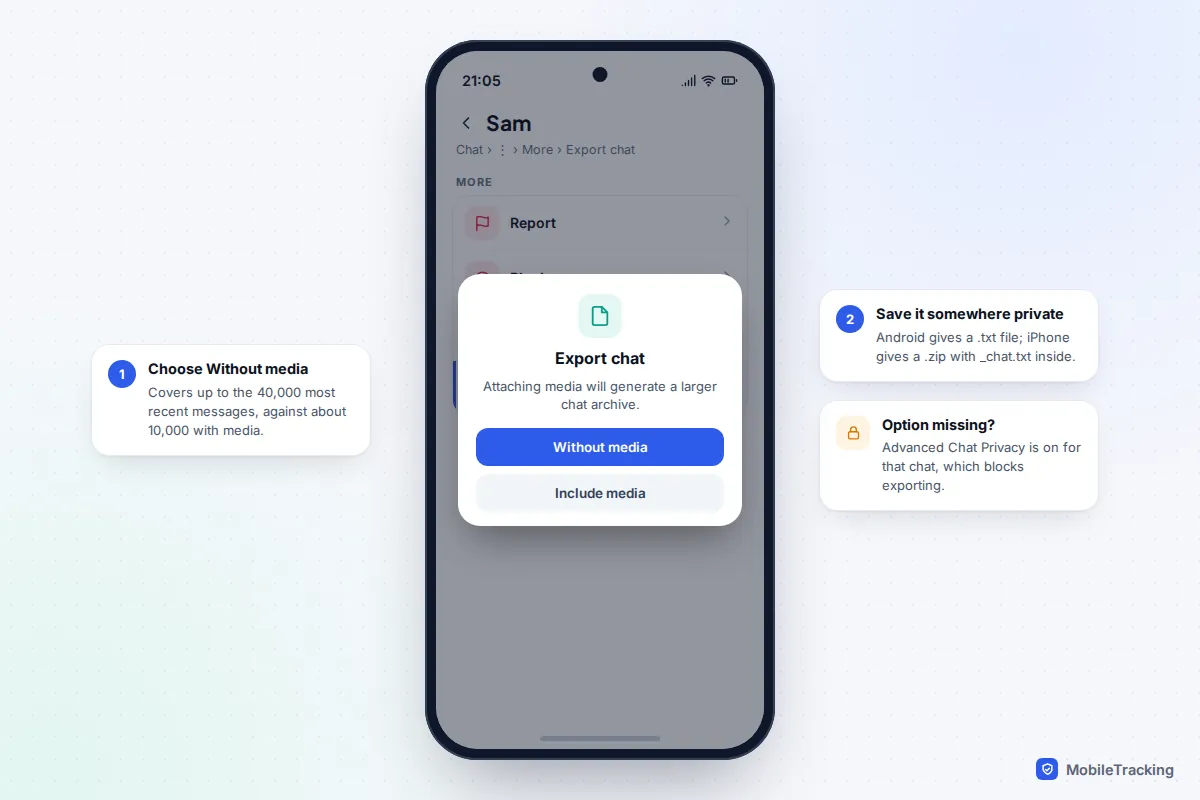
- Open the chat. On Android, tap ⋮ › More › Export chat. On iPhone, tap the contact or group name, scroll down and tap Export Chat.
- Choose Without media. An export without media can include up to the 40,000 most recent messages, against about 10,000 with media.
- Save it somewhere private, such as a folder on your own computer, not a shared drive.
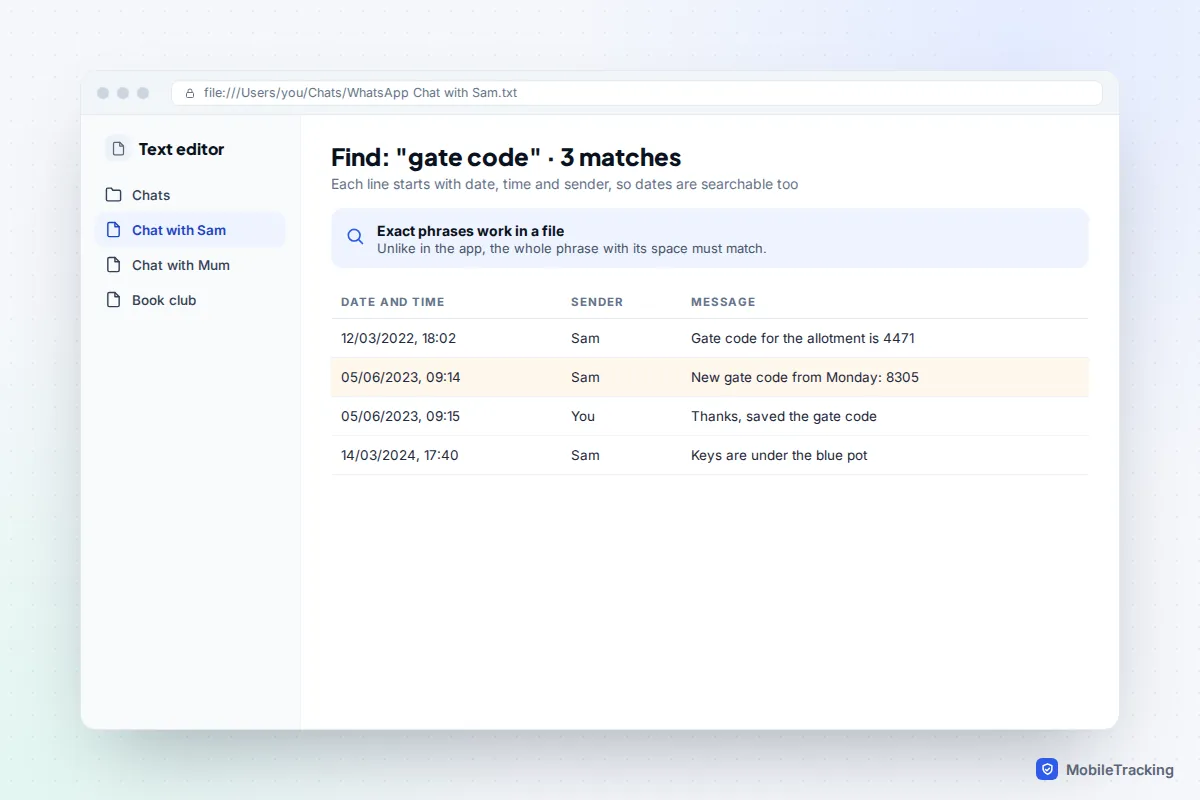
Android produces a .txt file such as “WhatsApp Chat with Sam.txt”; iPhone produces a .zip with _chat.txt inside. Every line starts with the date and time, then the sender, so the file is searchable by date as well as by word. WhatsApp’s page on exporting your chat history has the latest details. If Export chat is missing for one conversation, someone in it has turned on Advanced Chat Privacy, a setting added in April 2025 that blocks exporting that chat.
Telegram: export to HTML
Telegram exports from its desktop app, Telegram Desktop, as explained in Telegram’s announcement of chat export. Open a chat, click ⋮ and choose Export chat history, or use Settings › Advanced › Export Telegram data for many chats. Pick HTML (or JSON for scripts) and untick photos and videos if you only need the words. The export lands in a ChatExport folder inside Downloads › Telegram Desktop by default, split into pages named messages.html, messages2.html and so on, so Ctrl+F in one page only searches part of the chat.

Searching every file at once
- Any computer: open the folder in a free code editor such as Visual Studio Code and press Ctrl+Shift+F (Command-Shift-F on a Mac). Every match is listed with its line; click one to jump there.
- Windows Command Prompt: in the folder, type findstr /s /i /c:”gate code” *.txt *.html. The /c: keeps the phrase together and /i ignores capitals.
- Mac Terminal: type grep -rin “gate code”, a space, then drag the folder into the window. It prints every matching line with its file name.
Search an old iPhone backup without restoring it
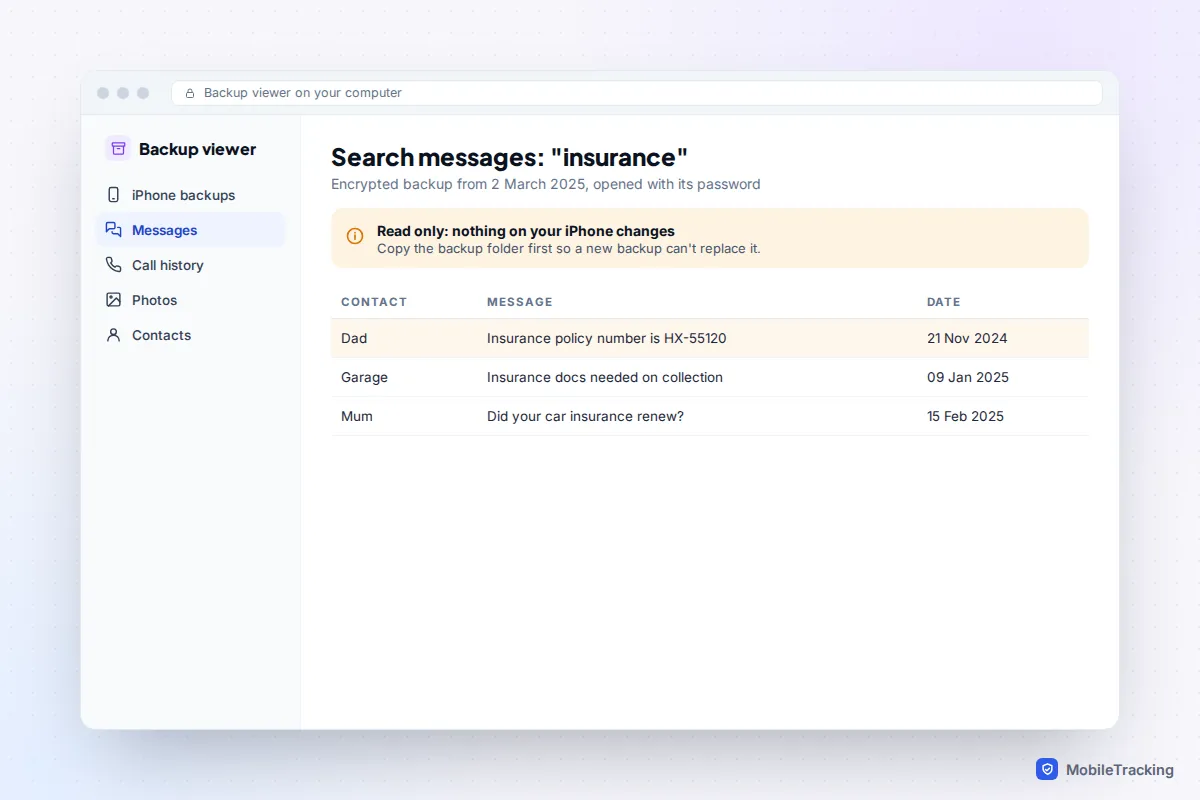
When texts have vanished from your iPhone and Mac, a computer backup made before they went may still hold them. Local backups made with Finder, the Apple Devices app or iTunes contain the whole Messages database, even with Messages in iCloud on. iCloud backups don’t help here: with Messages in iCloud on, messages are left out of them because they sync separately. Restoring an old backup to your phone would wipe everything newer, so use a backup viewer, which reads the backup on the computer.
- Find the backup. On a Mac, select the iPhone in Finder and click Manage Backups to see dates; the files are in ~/Library/Application Support/MobileSync/Backup. On Windows, look in %APPDATA%\Apple Computer\MobileSync\Backup, or %USERPROFILE%\Apple\MobileSync\Backup for the Microsoft Store version.
- Copy the backup folder elsewhere first, so a new backup can’t overwrite it.
- Open it in a reputable viewer such as iMazing. An encrypted backup needs its password; nobody can bypass that, so avoid tools claiming they can.
- Open Messages in the viewer and search. Export what you need as PDF or text.
Check the free version’s limits before paying: iMazing’s trial lets you browse everything but, at the time of writing, exports only 25 messages. If you’re comfortable with databases, the texts sit in a SQLite file, sms.db, stored in unencrypted backups under the name 3d0d7e5fb2ce288813306e4d4636395e047a3d28, which a free tool such as DB Browser for SQLite can open. If the messages were deleted rather than just hard to find, see our guide to retrieving texts from a backup.
Search tricks that work, and operators that don’t
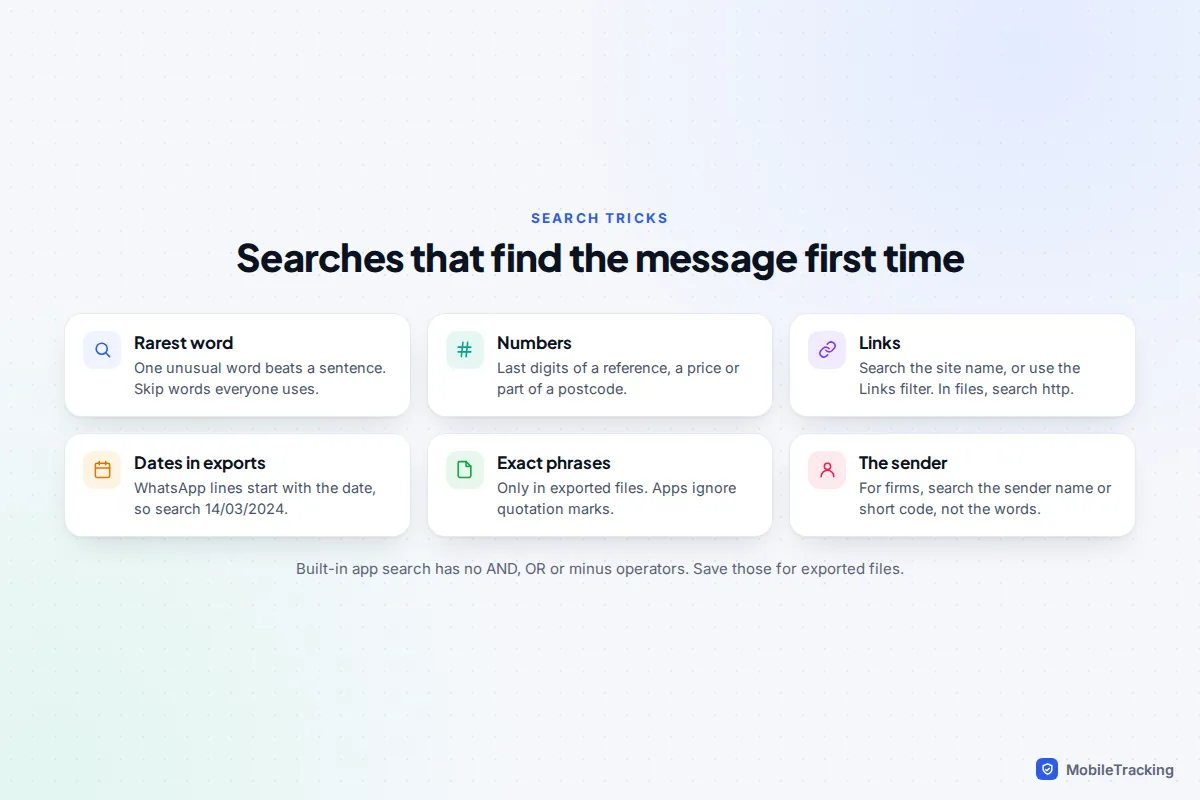
Built-in message search is deliberately simple. iPhone Messages, Google Messages and WhatsApp don’t support web-search operators such as quotation marks, AND, OR or a minus sign; adding them usually just gives fewer results. Use these instead:
- The rarest word. “Invoice” or “allotment” beats a sentence. Try the other person’s likely wording too: “flat” where you remember “apartment”.
- The start of a word. Partial words often work, so “resched” can catch “rescheduled” and “rescheduling”.
- Numbers. The last digits of a reference, part of a postcode or an amount such as 450. On iOS 27 you can also find a conversation by typing the phone number.
- Links. Type the website’s name, or use the Links filter. In an export, search for “http” to list every link.
- Dates, in exports. Each WhatsApp export line begins with a date, so searching “14/03/2024” lists that day’s messages. The format follows your phone’s settings, so check one line first.
- Patterns, in exports. On a Mac, grep -rE “[0-9]{6}” plus the folder finds every six-digit number, such as a confirmation code.
- The sender. For businesses, search the company name or short number rather than the wording.
When search misses messages you know are there
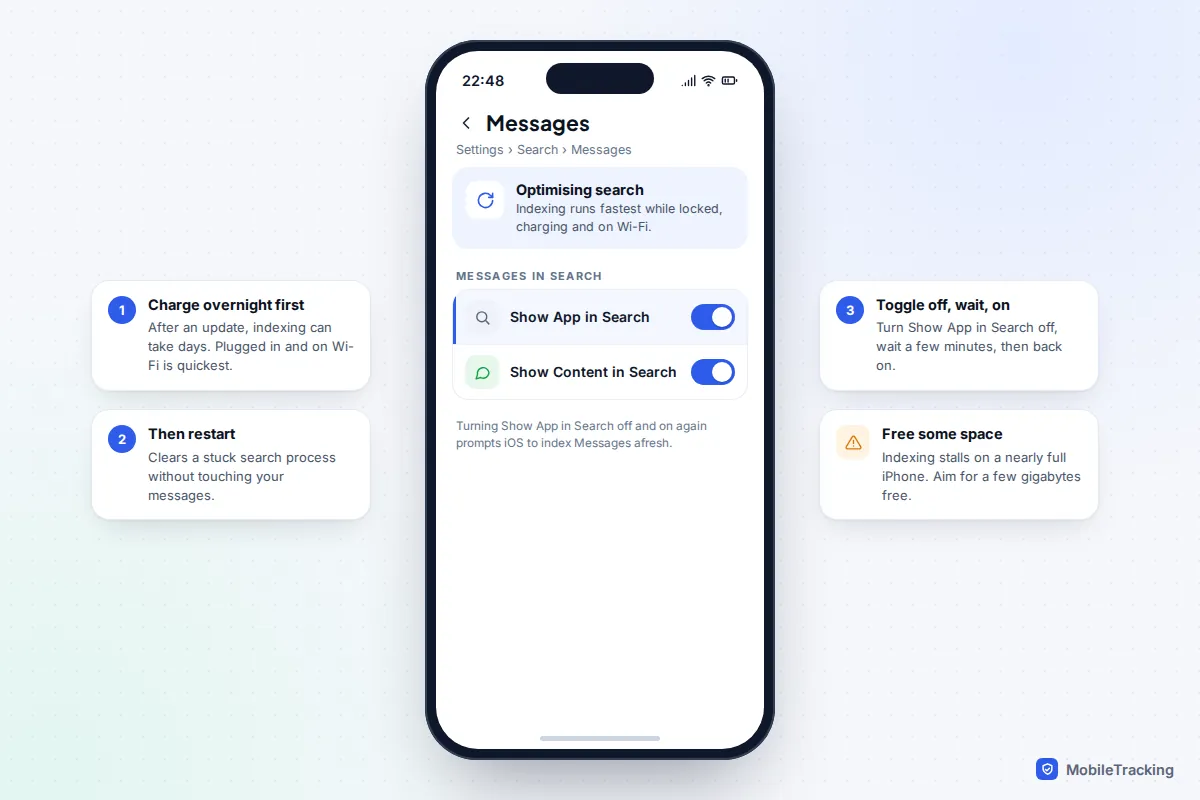
Search relies on an index, a catalogue your device builds in the background. After a major update, a restore or a move to a new phone, the index is rebuilt, and until it’s complete search quietly misses things, usually older ones. Apple’s page about Spotlight indexing and search results says indexing goes fastest when the device is unused, charging and on Wi-Fi, and iPhone and iPad show a notice in Settings while search is being optimised. After the move to iOS 27 this can take days on a phone with a big history.
On iPhone
- Leave the phone locked, charging and on Wi-Fi overnight, for a couple of nights if needed. This fixes most cases after an update.
- Restart the iPhone. It clears a stuck search process without touching your messages.
- Go to Settings › Search › Messages and check Show App in Search and Show Content in Search are on. If they are, turn Show App in Search off, wait a few minutes and turn it back on to prompt a fresh index.
- Free up space if the phone is nearly full; indexing stalls without room. A few gigabytes free is a sensible target.
On a Mac or Android phone
On a Mac, Apple suggests rebuilding part of the Spotlight index. Open System Settings › Spotlight, click the privacy button at the bottom (Spotlight Privacy or Search Privacy, depending on version), add your startup disk with +, then remove it again. Spotlight re-indexes the disk, which can take hours. On Android, update Google Messages and restart; if search still fails, go to Settings › Apps › Messages › Storage & cache and tap Clear cache, not Clear storage.
Keep your history private on shared devices
A searchable archive helps anyone who picks up the device, not just you. A few checks:
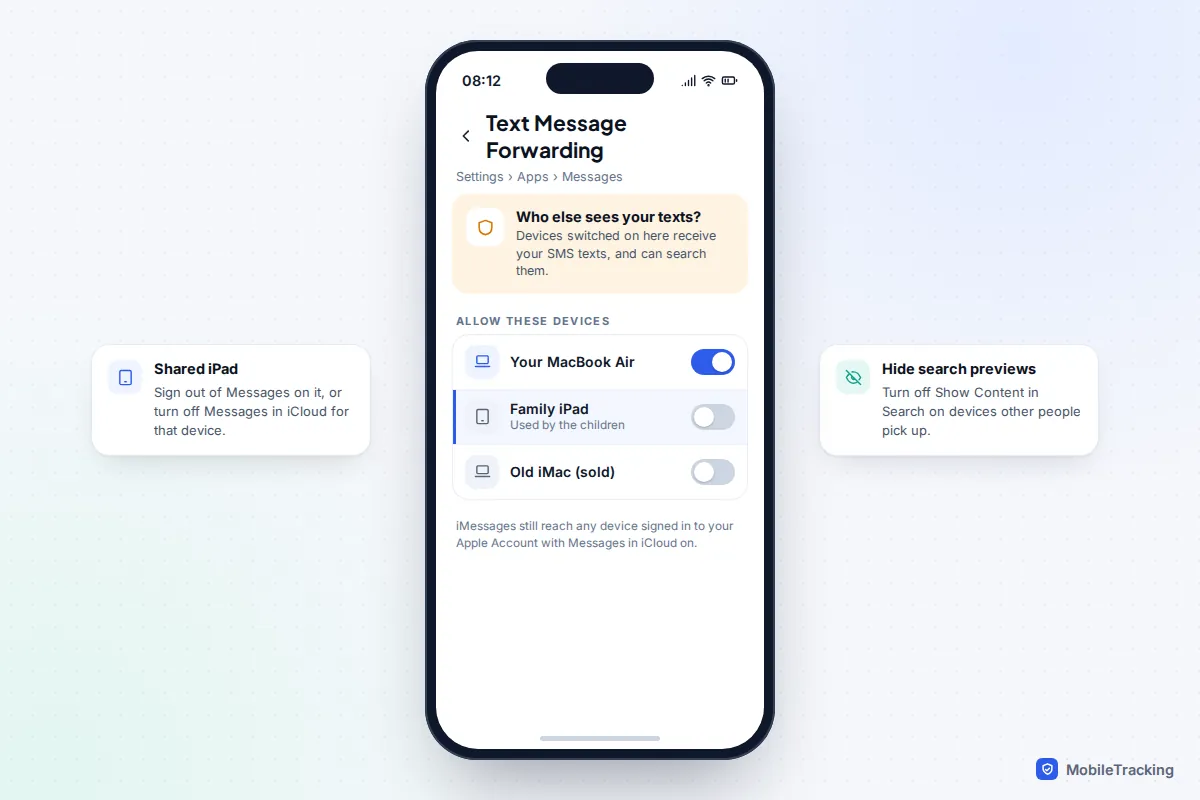
- Macs and iPads get your texts. Any Apple device signed in to your Apple Account with Messages in iCloud on shows and searches your full history. On a family iPad, sign out of Messages or turn off Messages in iCloud there. On your iPhone, Settings › Apps › Messages › Text Message Forwarding lists which devices also receive your SMS texts.
- Search previews. Turn off Show Content in Search under Settings › Search › Messages on devices other people use.
- Messages for web. On a shared computer, choose Unpair from the web page’s menu when you finish, or remove it under Device pairing on your phone.
- Exports aren’t protected. A .txt or HTML export has no passcode or encryption. Keep it out of shared folders, delete it when you’re done and empty the bin. Tick Encrypt local backup for iPhone backups too.
- Search only your own history. Reading another adult’s messages without permission breaks trust and can be illegal; with children, agree openly what you’ll look at. If you think someone is reading yours, check whether someone has access to your iCloud.
A typical case: Priya’s iPhone can’t find the builder her dad recommended in 2021. The spare-room Mac, on Messages in iCloud for years, finds it in seconds, and also reveals that the family iPad is still signed in to her account, so she signs it out while she’s there.
Frequently asked questions
Can I search iMessage, WhatsApp and Telegram in one place?
No app searches them all. The closest is exporting WhatsApp and Telegram chats into one folder and searching it with a code editor.
Can I search my texts on iCloud.com?
No. iCloud.com has no Messages app. Messages synced through iCloud can only be read and searched in the Messages app on an Apple device signed in to your account.
Why does my Mac find messages my iPhone can’t?
Each device builds its own search index, and the Mac may hold older attachments locally that the iPhone keeps only in iCloud. The iPhone’s index may also still be rebuilding after an update; charging it overnight on Wi-Fi usually closes the gap.
Can my phone company search my old texts for me?
No. Carriers keep records of when texts were sent and which numbers were involved, not what they said, and encrypted messages such as iMessage and WhatsApp never cross the network in readable form.
Does exporting a chat tell the other person?
No. Exporting creates a copy on your side and nobody in the chat is notified. Be careful where the copy goes, though: uploading it to an online “chat analyser” hands other people’s messages to a third party.
This guide is general information, not legal or financial advice. Read our editorial policy.