
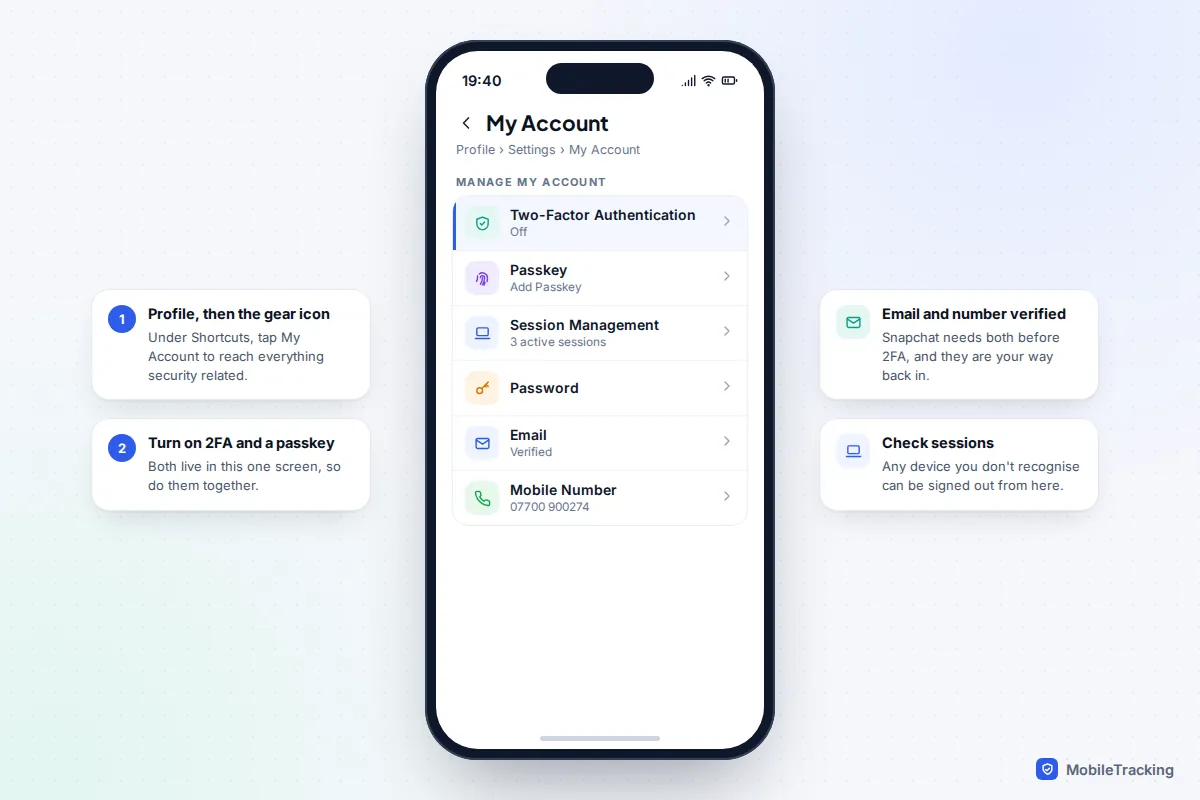
The quickest way to secure Snapchat takes about ten minutes. Tap your profile, then the gear icon, and under Shortcuts tap My Account. From there: turn on Two-Factor Authentication (an authenticator app is stronger than SMS), add a Passkey, generate a Recovery Code and store it offline, check that your email and mobile number are yours and verified, and open Session Management to sign out any device you don’t recognise.
Then keep one rule for life: never give anyone your password or a login code, whoever they say they are. Snapchat says it will never email or text you asking for either. Many account takeovers begin with a code or password handed over in a panic, not with clever hacking. This guide walks through each setting, the scams to watch for, extra steps for teens and parents, and exactly what to do if someone has already got in.
Start with the basics: password, email and phone number
Your email address and mobile number are how you get back in if something goes wrong, and Snapchat requires both before you can turn on two-factor authentication. In Settings > My Account, tap Email and Mobile Number in turn and check each one is current and verified. An old school email you can no longer open is almost as bad as no email at all.
Next, look at your password. Snapchat recommends at least eight characters, but length alone isn’t enough. What matters most is that it is unique: if you use the same password on a gaming site or shopping account that leaks, attackers will try it on Snapchat within days. A password manager, or a passphrase of three or four random words, solves this. Our guide to creating strong passwords you’ll remember shows how. To change it, tap Password in My Account, or use accounts.snapchat.com on a computer.
Two smaller habits help too. On a shared or friend’s device, log out and remove your account from the saved login screen afterwards. And don’t let anyone add their email address to your account “to help”, which effectively hands them a way to reset your password.
Turn on two-factor authentication and add a passkey
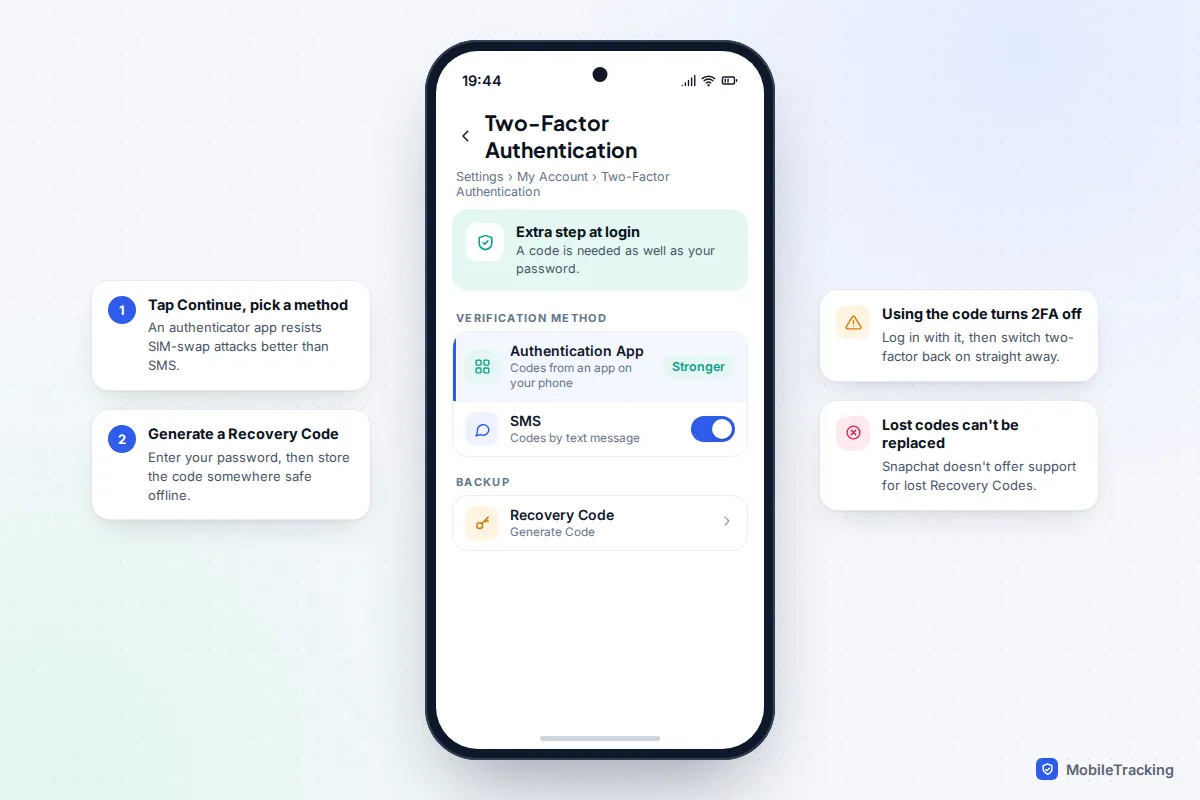
Two-factor authentication (2FA) means a password alone won’t get anyone in: they also need a short code. Snapchat offers two ways to receive it.
- Tap your profile, then the gear icon to open Settings.
- Under Shortcuts, tap My Account, then under Manage My Account tap Two-Factor Authentication.
- Tap Continue and choose SMS or Authentication App.
- For an app, follow the prompts to add Snapchat to an authenticator such as Google Authenticator, Microsoft Authenticator or Duo, which then shows a fresh six-digit code every 30 seconds or so.
- Back on the Two-Factor Authentication screen, tap Recovery Code, then Generate Code, and enter your password.
Write the Recovery Code on paper or save it in a password manager. Don’t screenshot it into your camera roll or email it to yourself, because both are the first places an attacker looks. Snapchat doesn’t offer support for lost Recovery Codes, and using the code to log in switches 2FA off, so turn it straight back on afterwards.
Add a passkey as well
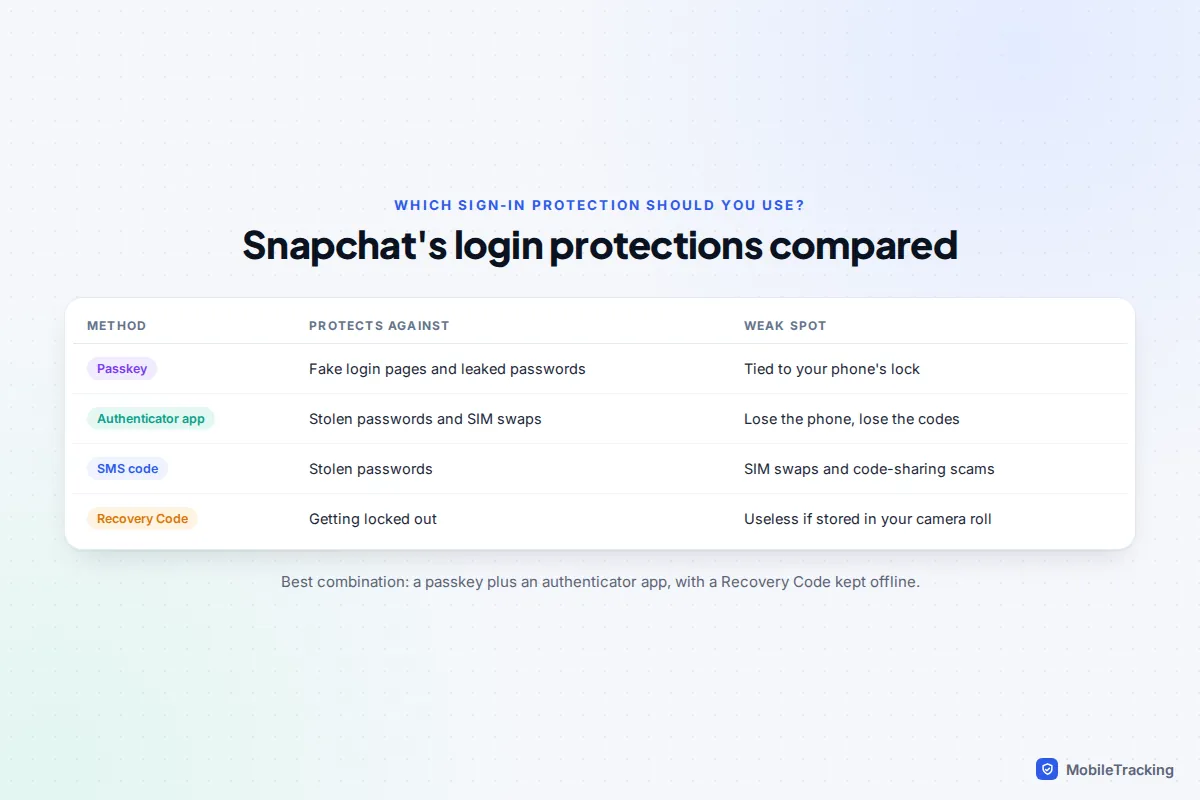
A passkey lets you log in with Face ID, your fingerprint or your phone’s PIN instead of typing a password. Because it only works on the real Snapchat app and site, a fake login page can’t capture it. In Settings > My Account, tap Passkey, then Add Passkey and follow the prompts. Snapchat has been rolling passkeys out gradually, so if you don’t see the option yet, update the app and check again later. Your fingerprint or face data stays on your phone; Snapchat never receives it.
Which option should you choose?
If you can, use a passkey plus 2FA through an authenticator app, and keep your Recovery Code somewhere safe. SMS codes are better than nothing, but they can be intercepted through SIM-swap fraud and are exactly what scammers trick people into forwarding. For teens, SMS to a number a parent can also access is sometimes the practical choice, as long as everyone knows the code must never be shared. If you want the same protection on your other accounts, see our guide to turning on two-factor authentication everywhere.
Check where you’re logged in
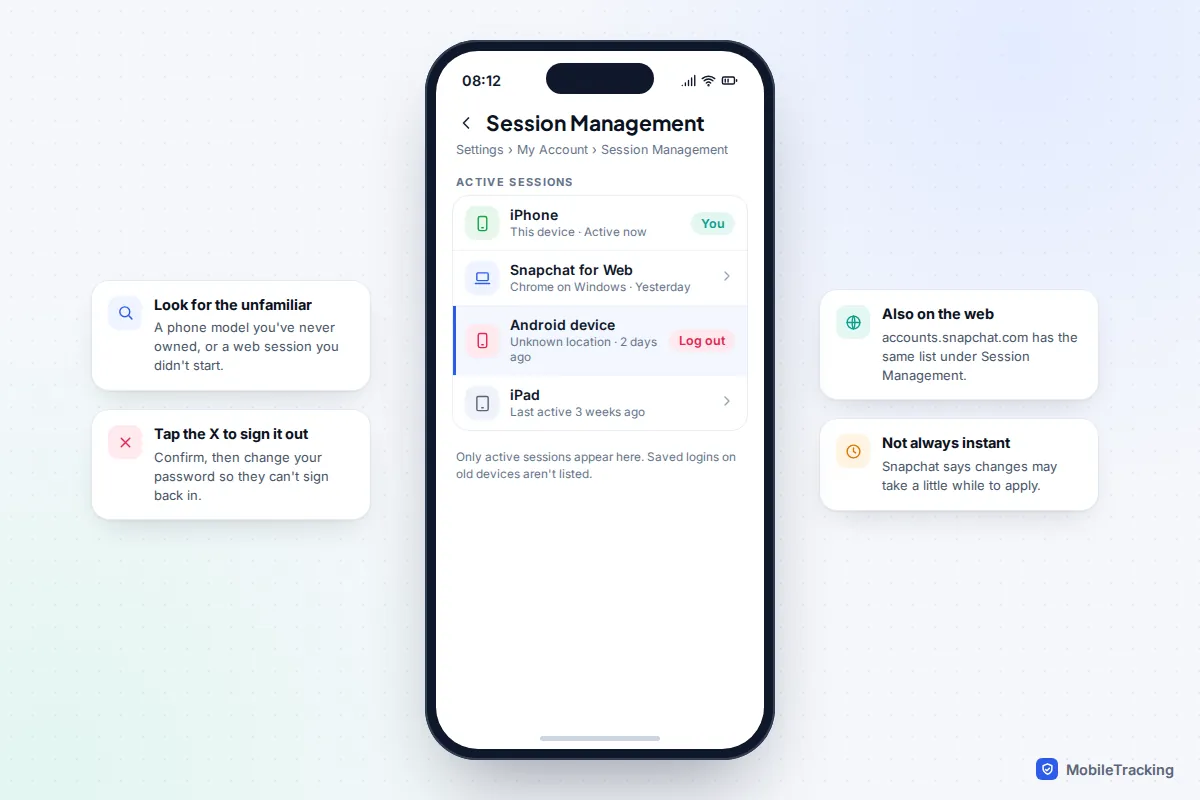
Snapchat’s Session Management list shows every device currently signed in to your account. Open Settings > My Account > Session Management, or go to accounts.snapchat.com on a computer and choose Session Management there.
- Look for device types you’ve never owned, web sessions you didn’t start, or an old phone you sold or passed on.
- Tap the X beside anything unfamiliar and confirm to sign it out. Snapchat notes the change may not apply instantly.
- After signing out a stranger, change your password straight away so they can’t simply log back in.
Session Management only shows active sessions. Logins saved on an old device won’t appear, which is why wiping a phone before selling it matters. For a longer history, request your data under My Data in Settings: the download includes a Login History section with login times and devices. It can take several days to prepare, and you download it from accounts.snapchat.com.
Unofficial apps and connected apps
Modified versions and add-ons such as Snapchat++, SnapEnhance, Phantom or SnapTools ask for your login details directly. Snapchat says they break its terms, put your account at risk and can get it locked, and that it won’t unlock accounts locked for this reason. Delete any you’ve installed and change your password. Legitimate apps connect through Snap’s official login and should only receive your display name and Bitmoji; review and remove them under Connected Apps in Settings.
Spot the scams that steal Snapchat accounts
Account takeovers almost always rely on persuading you to hand something over. Learn the patterns and you’ve blocked most of them:
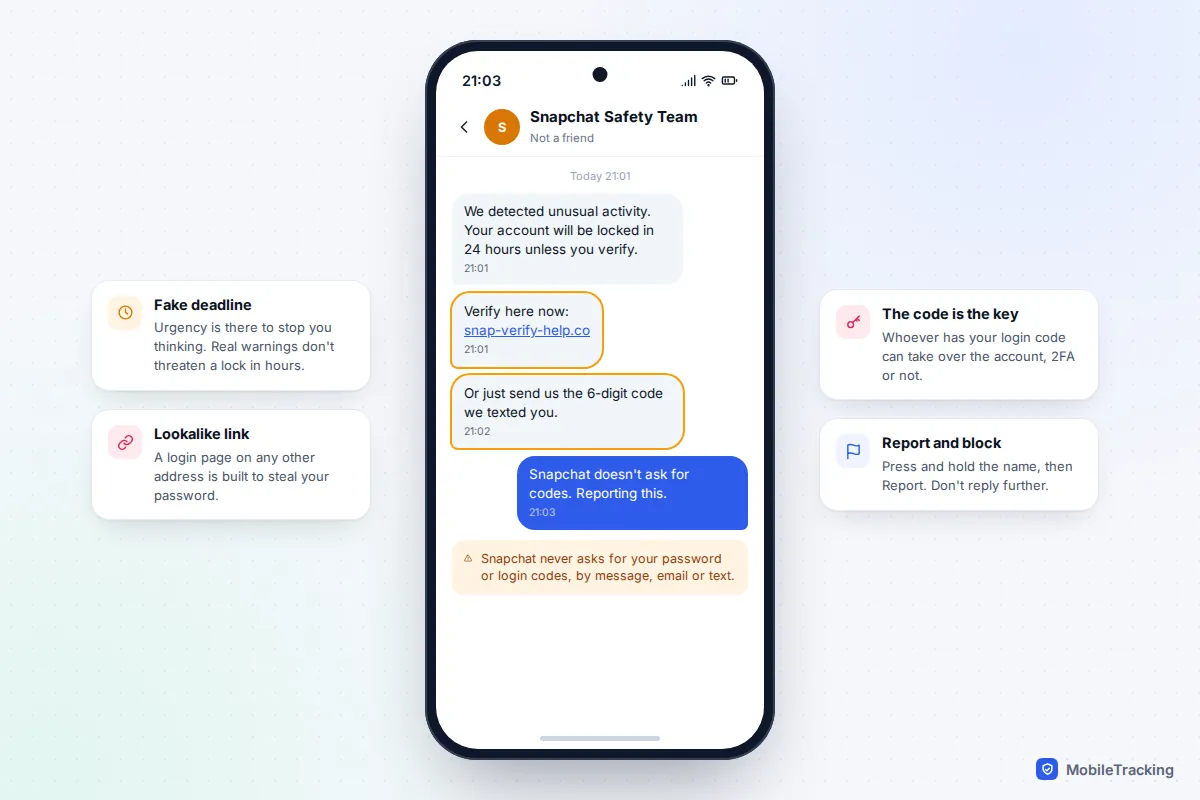
- Fake support. A message from “Snapchat Safety” or “Team Support” warns your account will be locked unless you verify. Real warnings don’t come as chat messages demanding action within hours.
- “Send me the code.” A friend’s account (already hacked) says they’ve sent a code to your phone by mistake and asks you to forward it. That code is your login or reset code.
- Lookalike links. A page that looks like Snapchat’s login but sits on another address. If in doubt, type accounts.snapchat.com yourself rather than tapping a link.
- Too-good offers. Free Snapchat+, boosted scores, followers or “see who viewed your profile” tools that need your login.
If you’ve already typed your password or shared a code, go straight to the hacked section below and change your password now. Report the account in the app: press and hold its name, tap Report, then block it.
Our guide to what parents need to know about sextortion covers how to talk about it before it happens, which is the best protection of all.
Tighten the privacy settings attackers exploit
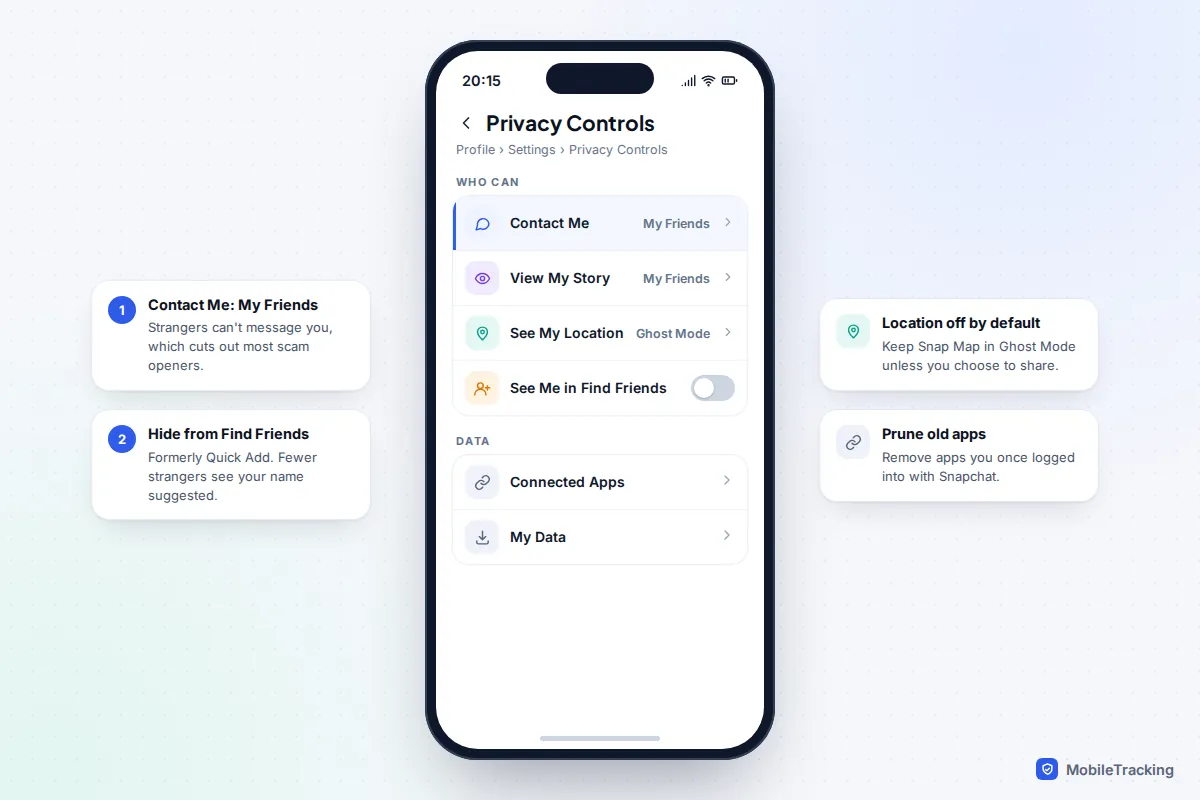
Security and privacy overlap on Snapchat. Scammers need to reach you before they can fool you, and anyone who breaks in inherits whatever your account can see. Open Settings > Privacy Controls and work through these:
- Contact Me: set to My Friends. Strangers then can’t message you, which removes most scam openers.
- View My Story: My Friends, or a custom list if you’d rather exclude people.
- Find Friends (formerly Quick Add): turn off the option to appear there if you don’t want your name suggested to people with mutual friends.
- My Eyes Only: private Snaps in Memories are protected by a four-digit passcode, or an alphanumeric passphrase if you tap Use Passphrase during setup. Choose the passphrase, and never reuse your phone PIN. If you forget it, resetting deletes everything in My Eyes Only, and Snapchat can’t recover it.
Snap Map and Ghost Mode
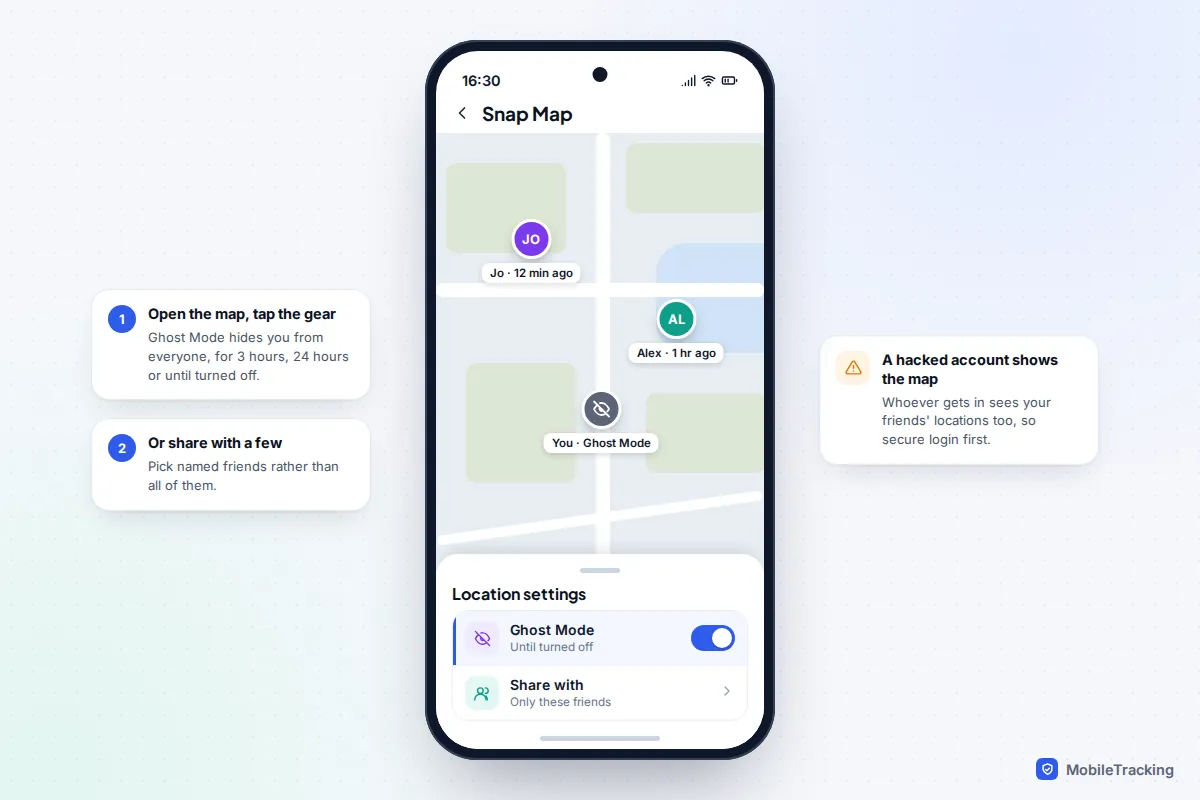
Location sharing on Snap Map is off by default. If you’ve turned it on, check who sees you: open the map, tap the gear icon, and either switch on Ghost Mode (for 3 hours, 24 hours or until you turn it off) or choose specific friends rather than all of them. Remember that a hacked account shows the intruder your friends’ shared locations too, which is one more reason to secure your login first.
For teens and parents
Snapchat is for ages 13 and up, and teen accounts come with some protections already switched on. By default, 13 to 17 year olds can only communicate with accepted friends or people already in their phone contacts, get a warning when messaging someone outside their network, and are kept out of search results for strangers unless there are signs of a real connection. Public profiles aren’t available at all for 13 to 15 year olds.
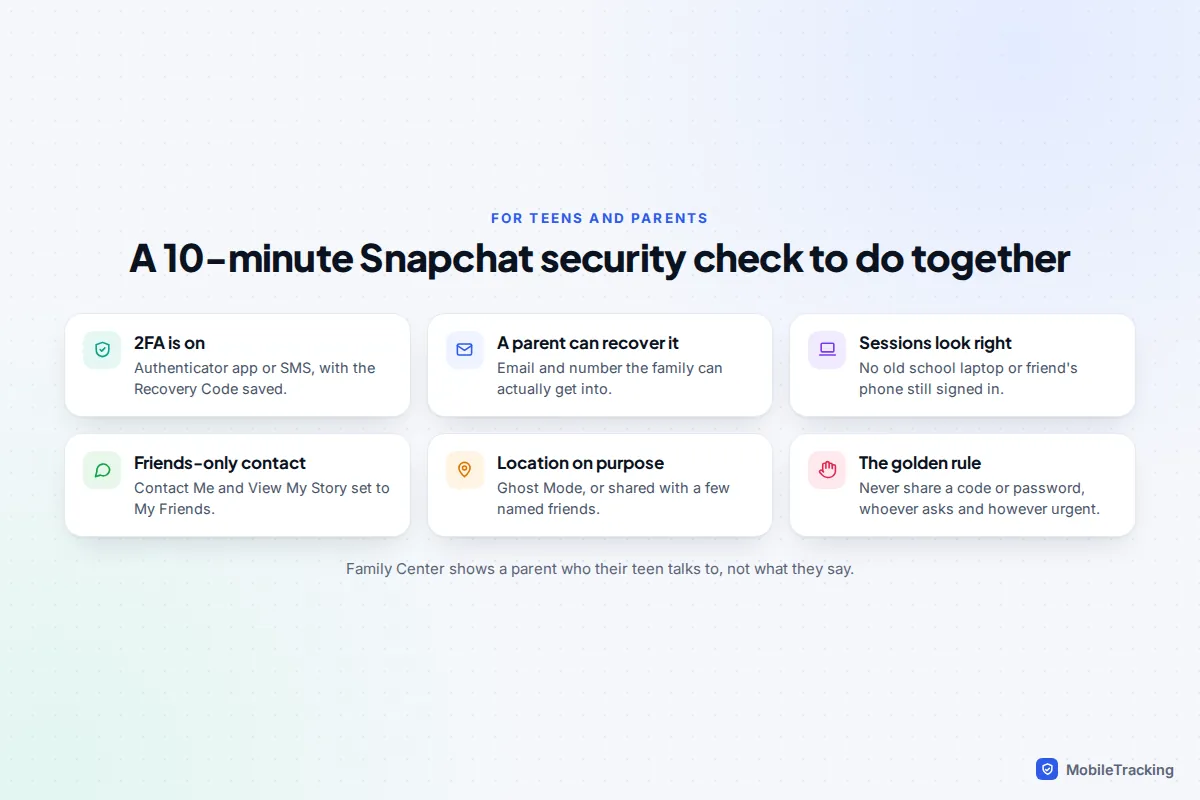
None of that stops a teen being talked into sharing a login code, so the conversation matters more than the settings. Sit down together and do the ten-minute check: 2FA on, a Recovery Code saved where you can both find it, email and phone number that the family can actually access, and a look at Session Management for an old school laptop or a friend’s phone still signed in.
Parents can also connect through Snapchat’s Family Center, which shows who a teen is friends with and has messaged recently, without showing message content. Our step-by-step guide to setting up Snapchat Family Center explains what it shows and how to agree on it together.
What to do if your account is hacked
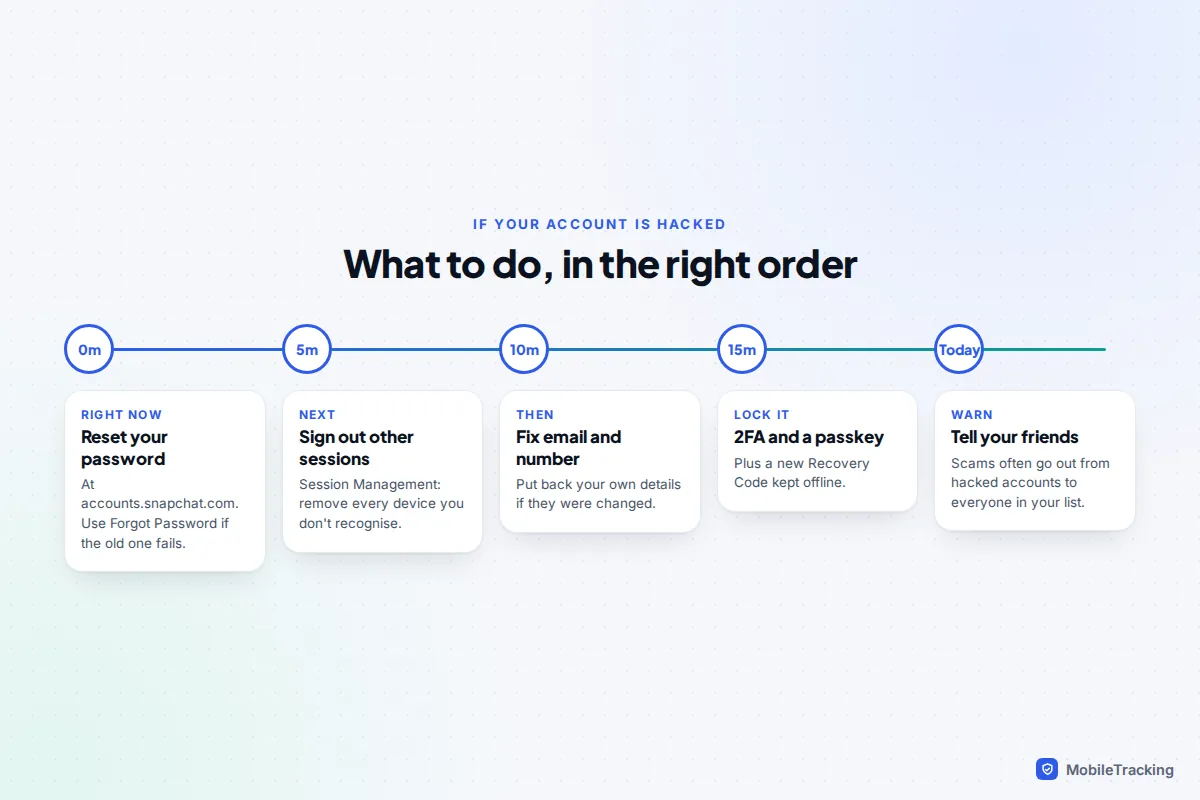
Signs of trouble include login alerts you didn’t expect, unknown devices in Session Management, a changed email, number or display name, 2FA turned on by someone else, friends receiving strange messages from you, or posts you didn’t make. Act in this order:
- Reset your password at accounts.snapchat.com. If the old password no longer works, use Forgot Password and choose to get the reset link by email or SMS.
- Sign out every session you don’t recognise in Session Management.
- Check your email and mobile number in Settings and put your own details back if they were changed.
- Turn on 2FA and add a passkey, then generate a new Recovery Code.
- Remove friends you didn’t add and delete anything posted in your name.
- Warn your friends, because scammers often message everyone on a hacked account’s list asking for codes or money.
If you can’t get in at all, because the attacker changed both your email and phone number, use Snapchat’s support pages rather than anyone offering “recovery services” online, which are almost always scams themselves. Snapchat’s help article My account is compromised leads to its support options. If the account was deleted rather than hijacked, our guide to recovering a deleted Snapchat account explains the 30-day window.
Frequently asked questions
Will Snapchat ever ask for my password or a code?
No. Snapchat says it will never email or text you to ask for your password or 2FA codes. The only place to enter them is the Snapchat app itself or accounts.snapchat.com, typed in by you.
Is SMS two-factor authentication good enough?
It is much better than no 2FA, but an authenticator app or passkey is stronger. SMS codes can be stolen through SIM-swap fraud, and they’re what scammers most often trick people into forwarding.
Can someone see my Snaps if they hack my account?
They can see anything the account can: saved chats, Memories outside My Eyes Only, your friends list and any locations friends share with you. My Eyes Only stays locked behind its separate passcode, which is why it shouldn’t match your phone PIN.
I lost my phone and my authenticator app. How do I get back in?
Use your Recovery Code at the login screen; it gets you in and turns 2FA off, so switch it back on afterwards. Without a Recovery Code, go through Snapchat’s support pages, and be prepared to verify your identity.
How do I know a login alert is genuine?
Don’t tap links in the alert. Open the Snapchat app yourself and check Session Management. If there’s a session you don’t recognise, sign it out and change your password.
This guide is general information, not legal or financial advice. Read our editorial policy.