
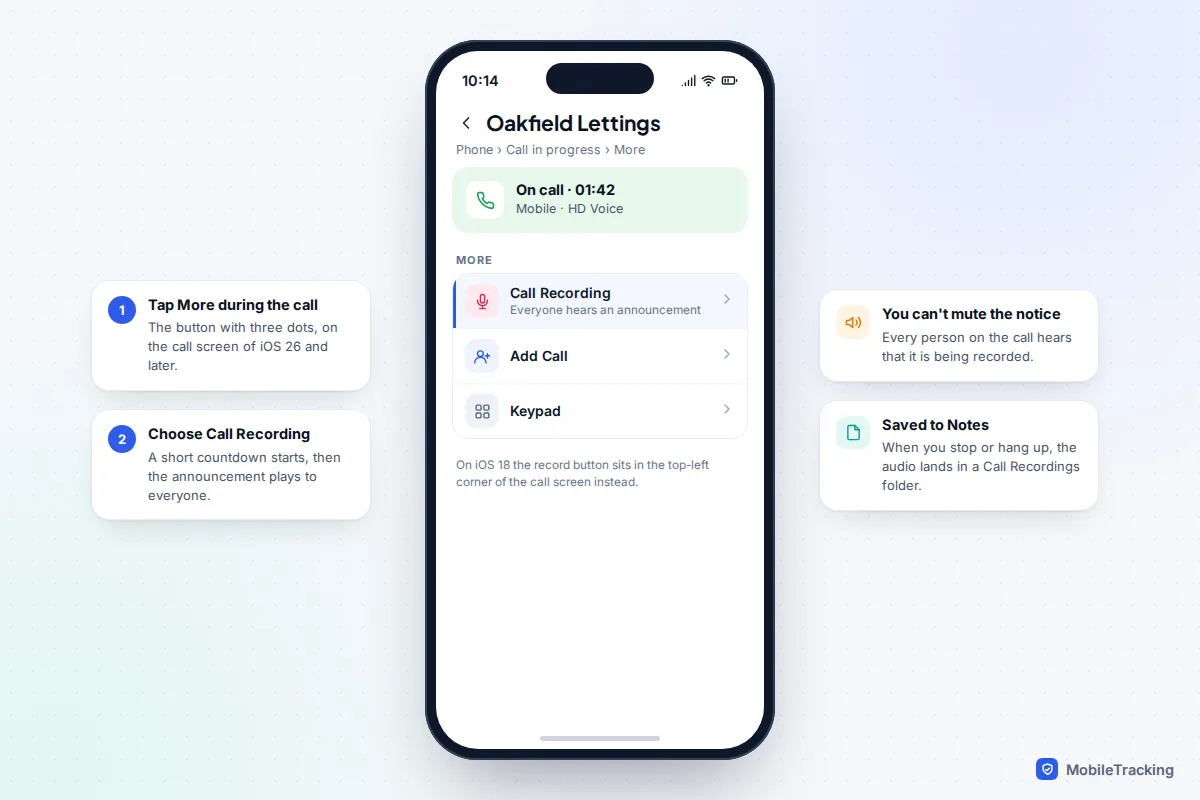
Your iPhone can record calls on its own, with no app to install. On iOS 26 and later, tap More (the button with three dots) on the call screen, then Call Recording. On iOS 18.1 to 18.x, tap the record button in the top-left corner instead. After a short countdown, everyone on the call hears an automated announcement that the call is being recorded, and the audio is saved in the Notes app with a written transcript.
Two things decide whether this works for you. The feature is only offered in some countries (not in the EU, for example), and the law where you and the other person live decides whether you need their consent. The announcement helps, but it isn’t a substitute for asking. This guide covers the built-in recorder, where your recordings go, what to do when the button is missing, the alternatives, and how to record without breaking the law or someone’s trust.
Record a call with the built-in Phone app
Apple added call recording in iOS 18.1 in October 2024, and it has stayed largely the same since. iOS 27, released in September 2026, focused its Phone app changes elsewhere, so the steps below apply to iOS 26 and 27 alike.
- Make or answer the call as normal, in the Phone app or as a one-to-one FaceTime audio call.
- Tap More on the call screen. On iOS 18, look for the small record button at the top left instead.
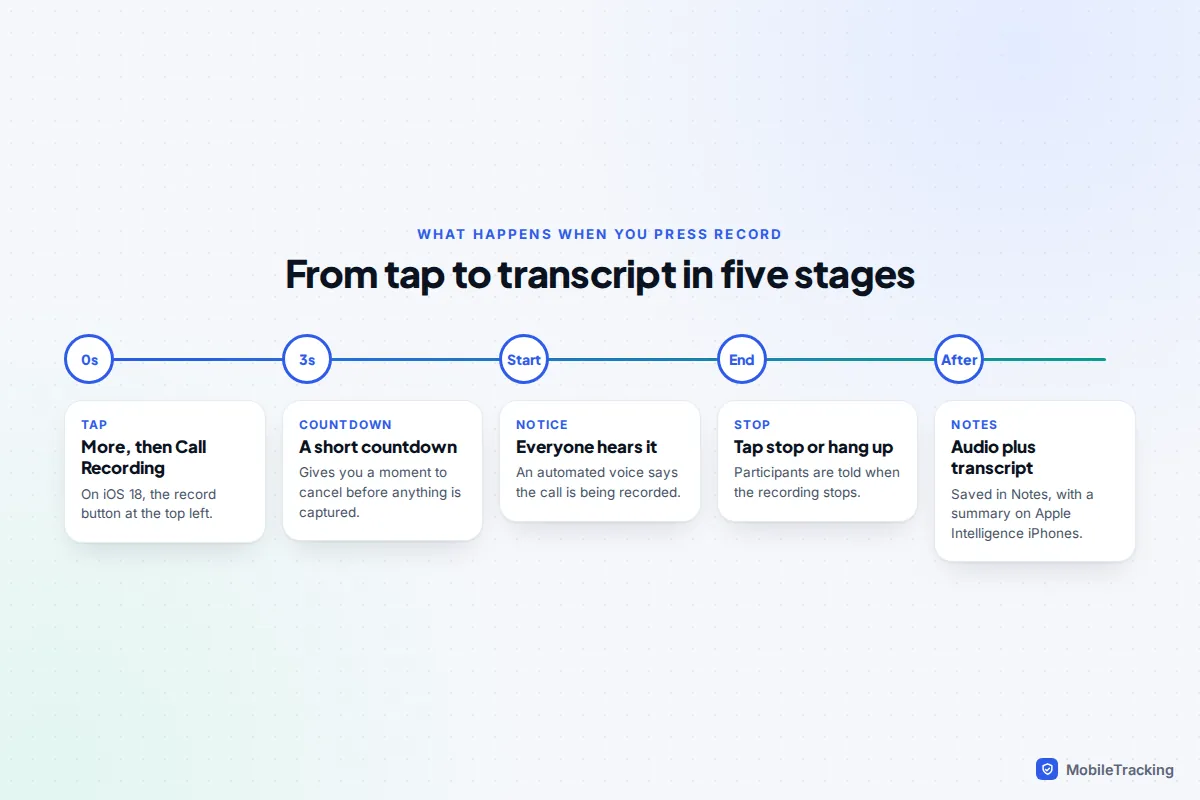
- Tap Call Recording. A three-second countdown appears, which is your chance to cancel.
- When the countdown ends, an automated voice tells everyone the call is being recorded. A timer shows on your screen while it runs.
- To stop, tap the stop button, or simply hang up. The other person is told when the recording ends.
A banner then tells you the recording has been saved to Notes. Tap it to jump straight there, or open Notes later. If you dismiss the recording banner with the X while it is counting down, the recording is cancelled, which catches people out.
You can’t switch off the announcement, and there is no silent mode. Telling every participant is deliberate: it lets the feature work in places where recording without notice is illegal. Apple’s own guide, How to record and transcribe a call on iPhone, describes the same process.
Check you can use it: countries, languages and models
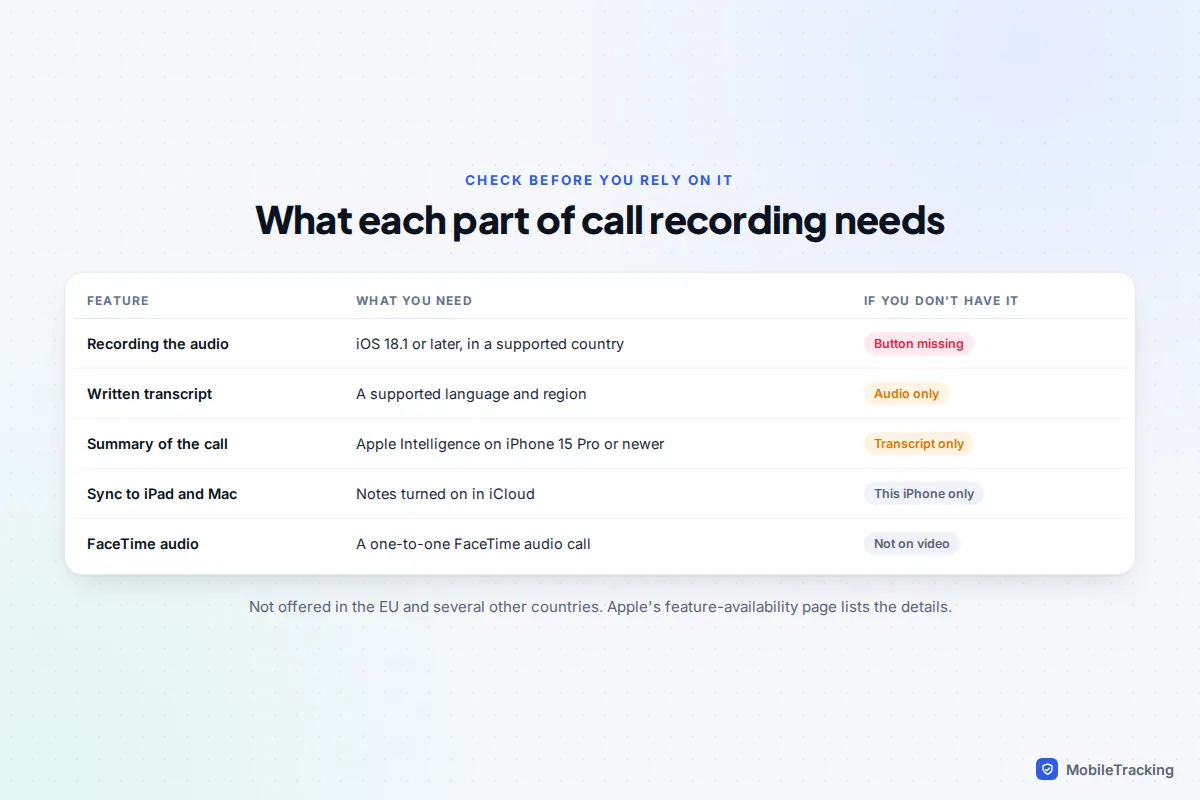
Call recording needs iOS 18.1 or later, which means an iPhone XR, XS or newer. The bigger limit is geography. Apple doesn’t offer it in the European Union or in a list of other countries that includes Turkey, Russia, Saudi Arabia, the United Arab Emirates, Egypt, Pakistan and South Africa. It is available in the UK, the US, Canada, Australia and India, among others. Apple keeps the current list on its iOS feature availability page.
The recording, the transcript and the summary each have their own requirements, so you might get one without the others:
- Transcripts need a supported language. English is covered in the UK, US, Australia, Canada, India, New Zealand and Singapore, along with a shorter list of other languages such as Japanese, Korean and Spanish. If your language isn’t supported, you still get the audio.
- Summaries need Apple Intelligence, which runs on iPhone 15 Pro and 15 Pro Max, the iPhone 16 range and newer models. Older iPhones get the transcript without a summary.
- FaceTime recording works on one-to-one FaceTime audio calls, not FaceTime video.
Recording from inside WhatsApp, Messenger or other internet calling apps isn’t part of this feature. Those apps don’t offer a record button of their own either.
Find, play and share your recordings in Notes
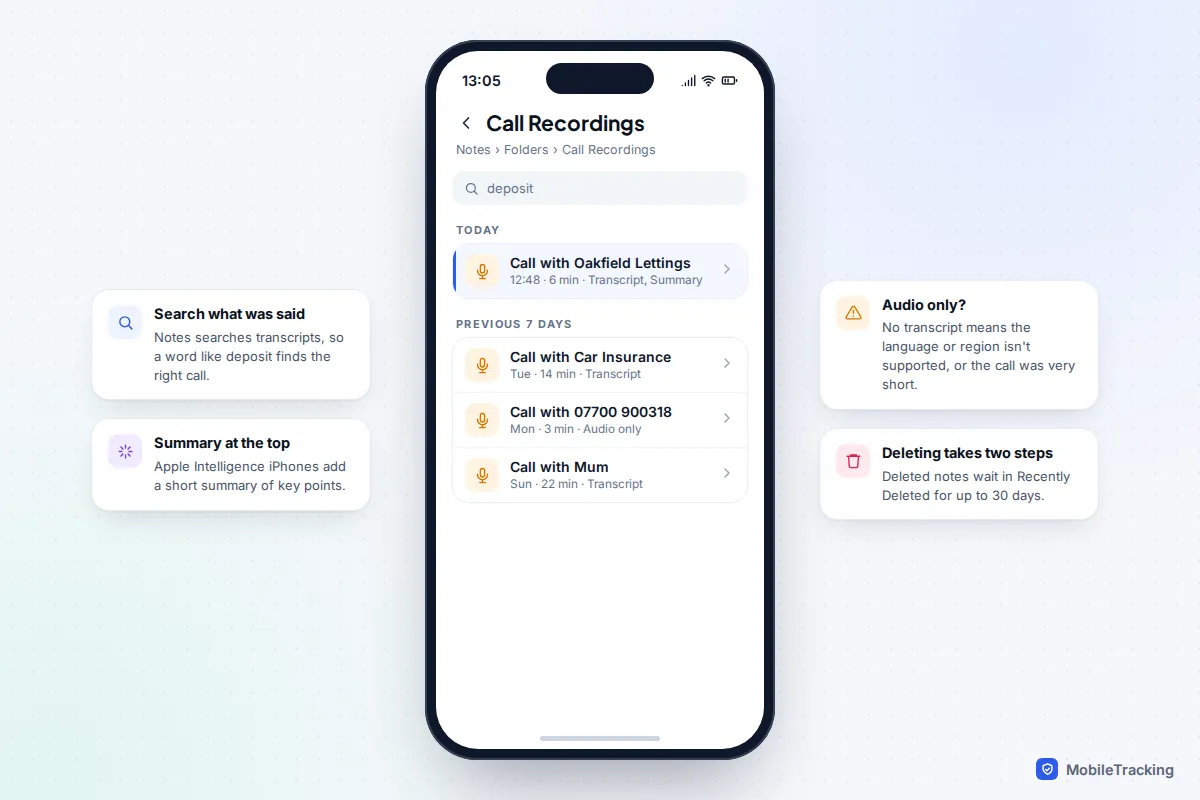
Every recording goes into a folder called Call Recordings in the Notes app, with each note titled after the person or number you spoke to. Open one and you’ll find the audio at the top, the transcript underneath, split by speaker, and on Apple Intelligence iPhones a short summary of the key points.
A few things are handy once you have several calls saved:
- Search works on transcripts. Type a word you remember, such as “deposit” or a reference number, in the Notes search bar and the right call appears.
- Read before you listen. Skimming the transcript or summary tells you roughly where in a long call something was said, so you don’t have to replay all of it.
- Share only what’s needed. From the note’s share or options menu you can send the audio, save it to Files, or copy the transcript text. Labels vary slightly between versions.
- Sync is automatic if Notes is switched on in iCloud, so recordings also appear on your iPad and Mac.
Treat transcripts as a guide, not a record. Apple itself warns they may not be flawless, and names, numbers and accents trip them up. Before you quote a line to anyone, play that part of the audio.
When the record option is missing or recordings don’t save
Work through these in order. Most missing buttons come down to the first three.
| What you see | Likely cause | What to do |
|---|---|---|
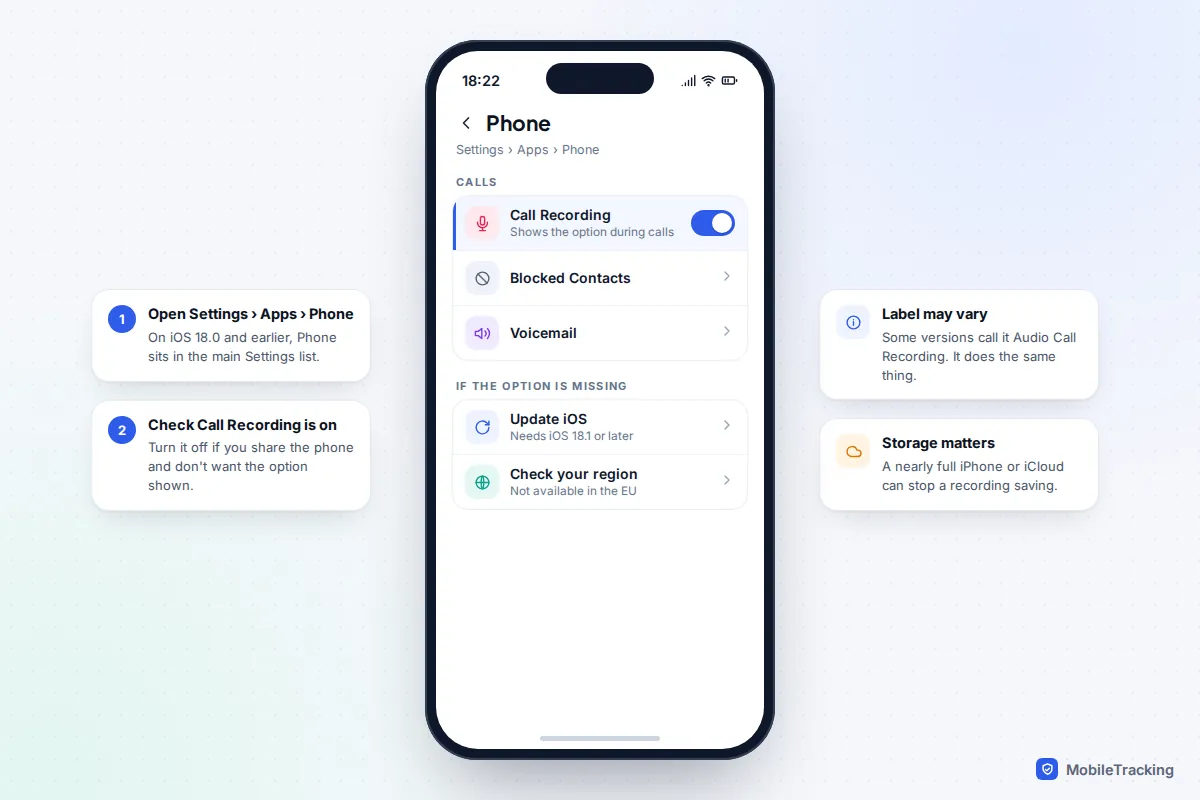
| No Call Recording option at all | iOS older than 18.1, or the setting is off | Update iOS, then check Settings > Apps > Phone > Call Recording |
| Option missing after moving abroad | Your region isn’t supported | Check Apple’s availability page; availability depends on where you are, not just your phone |
| Recording starts, then vanishes | The banner was dismissed during the countdown | Let the countdown finish before tapping anything |
| Recording doesn’t appear in Notes | Storage full on the iPhone or in iCloud | Free some space, then look again in the Call Recordings folder |
| Audio but no transcript | Unsupported language, or a very short call | Check the language list; the audio is still usable |
If none of those apply, restart the iPhone and try a test call to a friend who knows what you’re doing. Some versions label the setting Audio Call Recording; it is the same switch. On iOS 18.0 and earlier, Phone settings appear in the main Settings list rather than under Apps.
Other ways to record calls, and which to choose
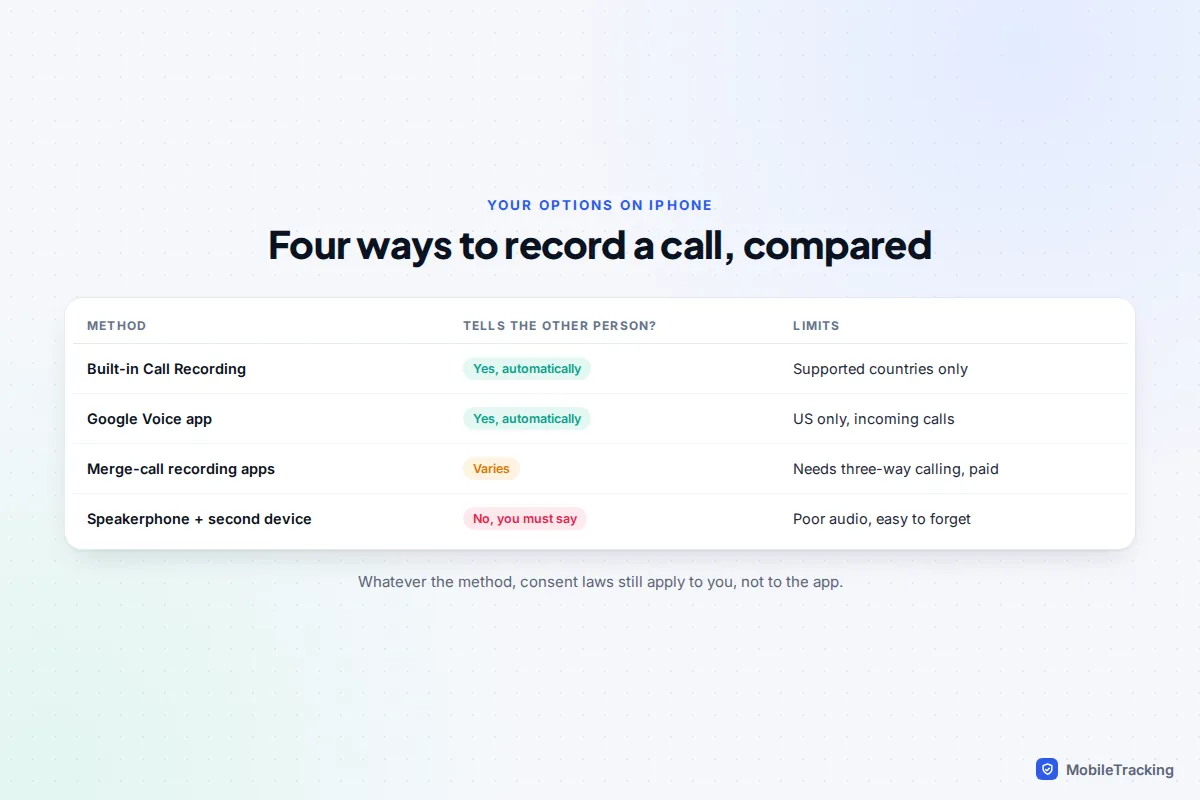
If the built-in recorder isn’t available where you live, or you need something it doesn’t do, there are a few alternatives. Each one comes with trade-offs, and none of them changes your legal duty to get consent.
Google Voice (US only)
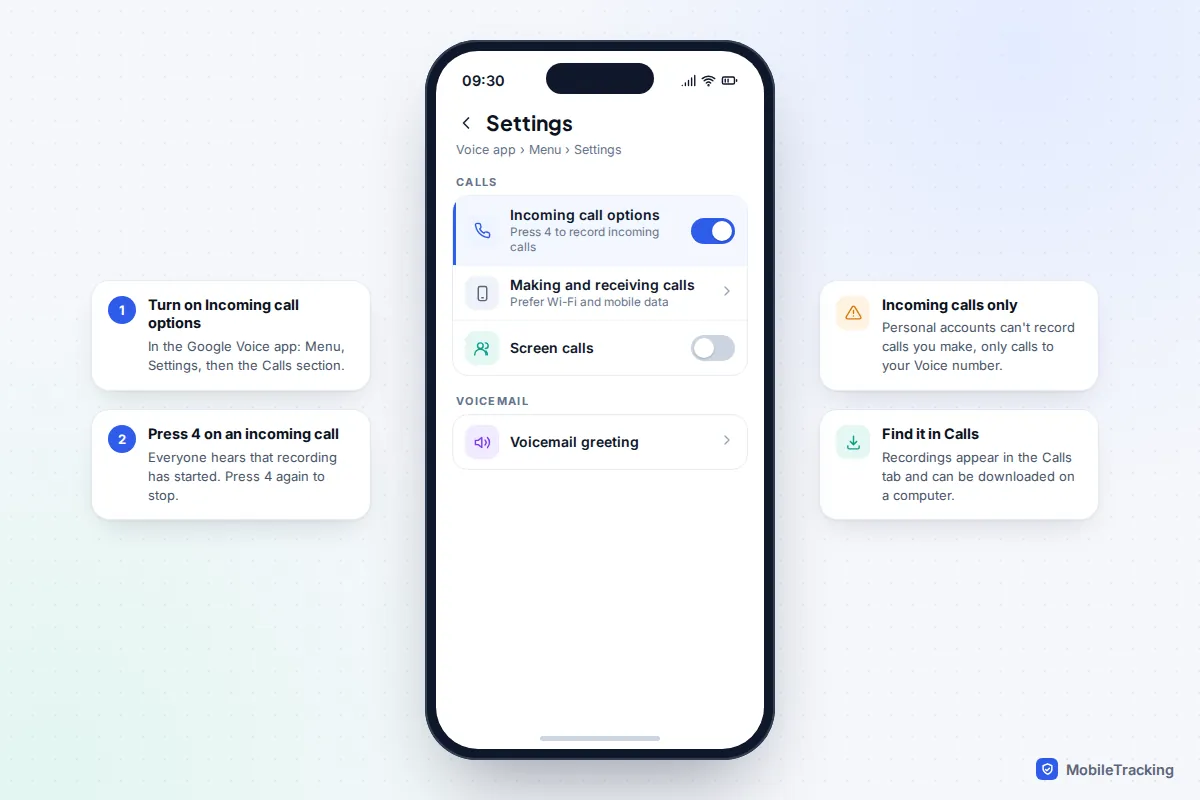
If you have a personal Google Voice number, the Voice app on iPhone can record calls to that number. Open the app, tap Menu > Settings, and under Calls turn on Incoming call options. During an incoming call, press 4 to start recording; everyone hears an announcement, and pressing 4 again stops it. Personal accounts can’t record calls you make, only calls you receive. Recordings appear in the Calls tab. Google’s Record calls help page has the details.
Merge-call recording apps
Because iOS doesn’t let other apps capture call audio, App Store recorders such as TapeACall work by dialling a recording line and merging it into your call as a three-way conference. You need three-way calling enabled on your mobile plan, most charge a subscription, and the setup is fiddly mid-call. It’s also a shrinking category: Truecaller dropped its iPhone call recording on 30 September 2025, citing the cost and complexity of the merged-line method. Check whether an app announces the recording; if it doesn’t, you must tell the other person yourself.
Speakerphone and a second device
Putting the call on speaker and recording with another phone or a voice recorder works anywhere, but the quality is poor and there’s no automatic notice, so the whole burden of telling the other person is yours. Screen recording on the same iPhone won’t help: it doesn’t capture call audio, and neither can Voice Memos while a call is in progress. Our guide to screen recording on iPhone covers what it can capture.
Business lines are different again. Many workplace phone systems and some carrier business plans include call recording; ask your provider or IT team rather than bolting on a consumer app.
Which should you use?
If the built-in option appears on your call screen, use it: it is free, it announces itself, and the transcript saves you replaying a long call. In the US without it, Google Voice suits incoming calls. Keep merge-call apps for when you regularly need to record outgoing calls and can’t use either, and treat speakerphone recording as a last resort.
The law: when you need permission
Recording laws are about consent, and they vary by country and, in the US, by state. The short version:
- United States: federal law and most states allow a call to be recorded if one person on it (you) consents. Around a dozen states, including California, Florida, Illinois, Maryland, Massachusetts, Pennsylvania and Washington, require everyone’s consent. When the two people are in different states, following the stricter rule is the safe choice.
- United Kingdom: you can generally record your own calls for personal use, such as keeping a note of what a company told you. Sharing that recording with others, or using it for business, brings in data protection rules and usually requires telling people first.
- Elsewhere: many countries require all parties to agree, and some restrict recording almost entirely. That is one reason Apple doesn’t offer the feature in some regions.
Our guide on how to check the call-recording laws where you live goes through how to find the rule that applies to you. This isn’t legal advice, and if a recording might end up in a dispute or court case, a solicitor or lawyer can tell you whether it will be usable.
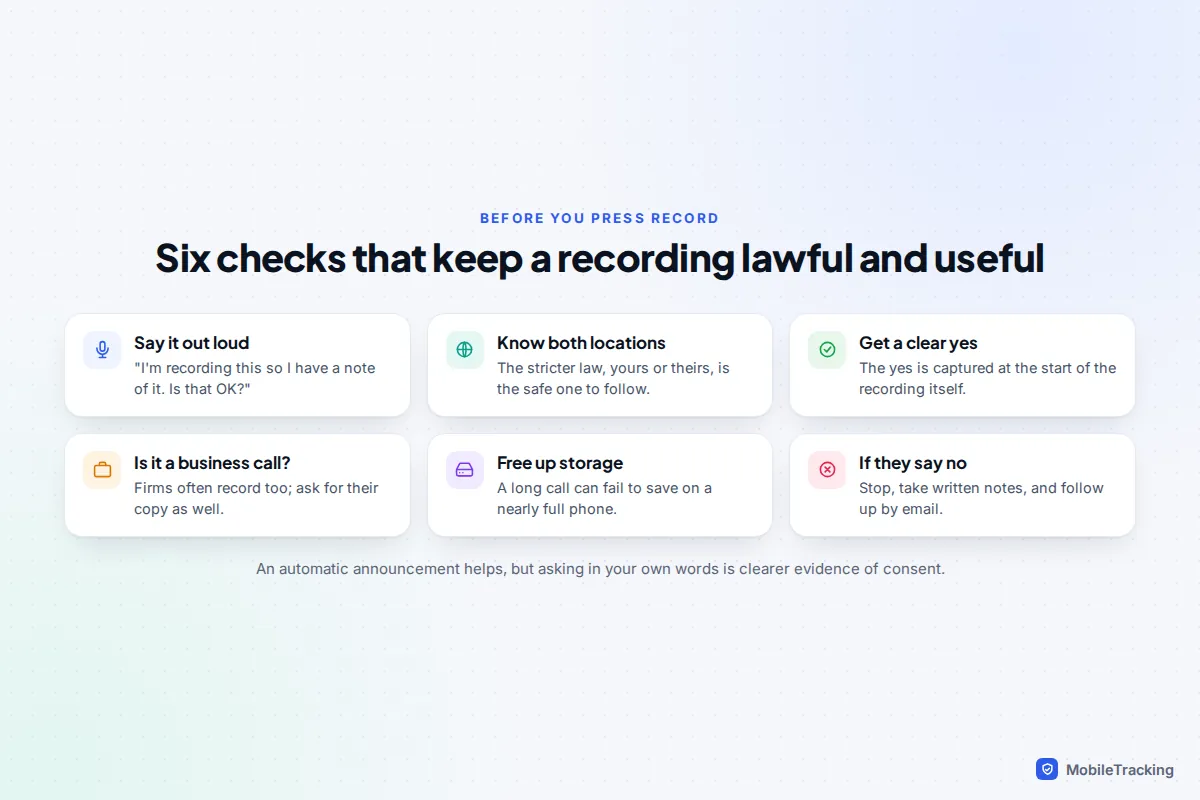
The practical habit that covers you almost everywhere is simple: say it. “I’d like to record this so I have a note of what we agreed. Is that OK?” Their yes is then on the recording itself. If they say no, stop, take notes by hand and confirm the key points by email afterwards.
A real-world example
Priya is arguing with her letting agent about a deposit. She calls them from her iPhone in the UK, and when the agent picks up she says she’d like to record the call so there’s no confusion later. The agent agrees, and she taps More, then Call Recording. The announcement plays, and the agent confirms the date the deposit will be returned.
Afterwards she searches Notes for “deposit”, checks the transcript line against the audio, and emails the agent a one-line summary with the confirmed date. She doesn’t post the recording anywhere or forward the whole call to friends. When the deposit arrives, she deletes the note and empties Recently Deleted. That is call recording working exactly as intended: a lawful memory aid, not a weapon.
Store and share recordings responsibly
A recording contains someone else’s voice and often their personal details, so look after it the way you’d want your own words looked after.
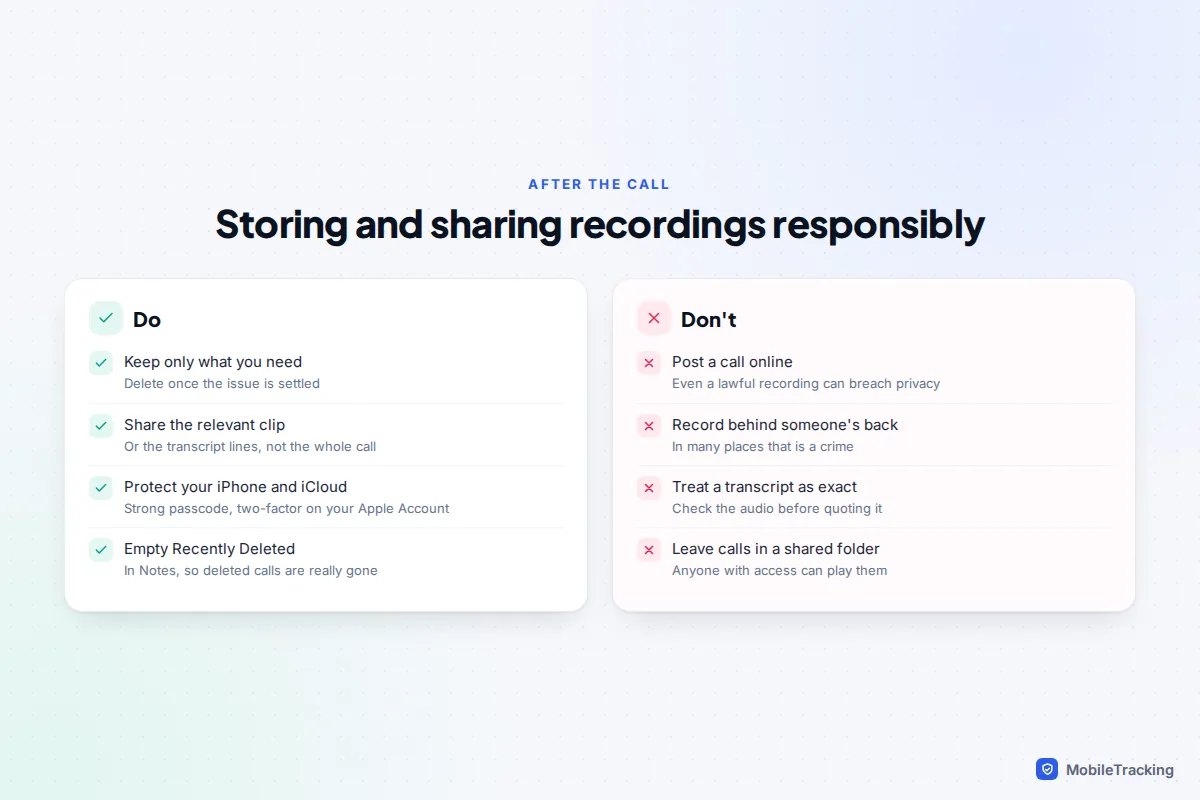
- Keep it only as long as you need it. Once the complaint, claim or arrangement is settled, delete the note.
- Empty Recently Deleted. Deleted notes stay in the Notes Recently Deleted folder for up to 30 days, and synced copies stay on your other devices until then too.
- Share the minimum. If a company needs proof, send the relevant clip or transcript lines rather than the whole call.
- Lock down your accounts. Use a strong iPhone passcode and two-factor authentication on your Apple Account. For end-to-end encryption of Notes in iCloud, you can turn on Advanced Data Protection.
- Never publish a call online without the other person’s agreement, even if recording it was lawful.
If you were recording because of a nuisance or scam caller, the recording is useful evidence, but the more important step is reporting the number. Our guide on how to report a scam call explains where to send it.
Frequently asked questions
Can I record a call on iPhone without the other person knowing?
Not with the built-in feature: the announcement plays to everyone and can’t be turned off. Workarounds exist, but recording someone secretly is illegal in many places and a breach of trust everywhere. Ask first, every time.
Does the other person see anything on their screen?
They hear the spoken announcement when recording starts and again when it stops. It’s an audio notice, so it works the same on an Android phone or landline.
Why don’t I have the Call Recording option?
The usual reasons are an iOS version older than 18.1, the switch being off in Settings > Apps > Phone, or living in a country where Apple doesn’t offer it, including all EU countries. Update iOS and check the setting first.
Can I record WhatsApp or FaceTime video calls?
No. The built-in recorder covers ordinary phone calls and one-to-one FaceTime audio calls. WhatsApp and other internet calling apps don’t offer recording, and screen recording on iPhone doesn’t capture call audio.
How long can a recording be, and how much space does it use?
Apple doesn’t publish a fixed limit, but very long calls produce large files and may not get a complete transcript. If you expect a long call, make sure your iPhone and iCloud storage aren’t nearly full before you start.
Can I use a recording as evidence?
Sometimes. A lawfully made recording, with consent captured at the start, is far more likely to be accepted. Rules differ between courts, tribunals and complaint schemes, so ask the body handling your case or a legal adviser before relying on it.
This guide is general information, not legal or financial advice. Read our editorial policy.