
To properly hide an app on iPhone, touch and hold its icon, tap Require Face ID, then choose Hide and Require Face ID and confirm. The app disappears from the Home Screen and search and moves into a locked Hidden folder at the bottom of the App Library, which only opens with your face, fingerprint or passcode. This needs iOS 18 or later and works the same way on iOS 26 and iOS 27.
If you only want a tidier Home Screen rather than privacy, you don’t need any of that: Remove from Home Screen takes an icon off your pages while keeping the app installed. Below are both methods and four others, plus the part most guides skip: what hiding does to notifications, where hidden apps still show up, and what parents should know now that children can hide apps too.
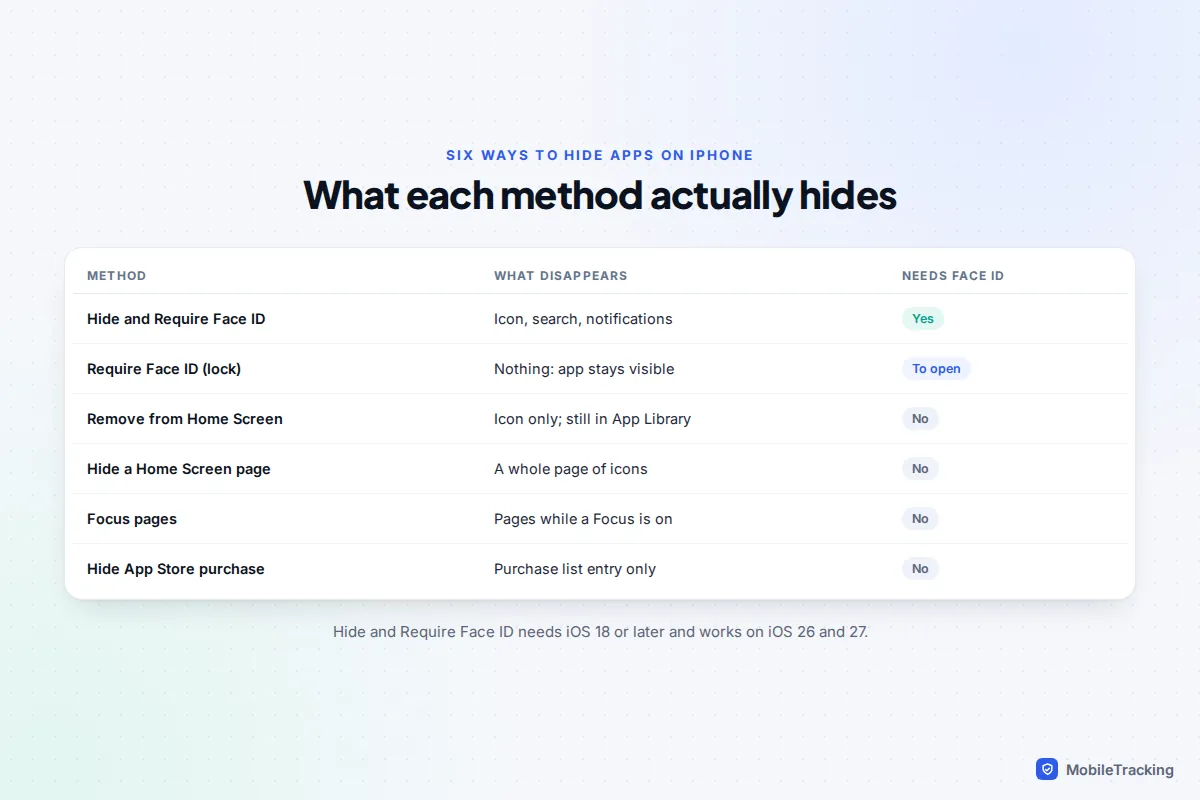
Which method should you use?
Start with what you’re trying to achieve. Hiding for privacy and hiding for tidiness are different jobs, and using the wrong one either leaves the app easy to find or cuts off notifications you wanted.
| You want to | Use | Trade-off |
|---|---|---|
| Stop someone finding or opening an app when they borrow your phone | Hide and Require Face ID | No notifications or calls from that app |
| Keep the app visible but stop others opening it | Require Face ID (lock only) | Icon still shows; previews hidden |
| Declutter without losing anything | Remove from Home Screen | Still in App Library and search |
| Put away a whole screen of apps | Hide a Home Screen page | Anyone can unhide it in seconds |
| Show different apps at work, school or bedtime | Focus pages | Changes the whole Home Screen |
| Keep an app out of your purchase list | Hide the App Store purchase | Doesn’t touch the installed app |
Hide an app completely with Face ID
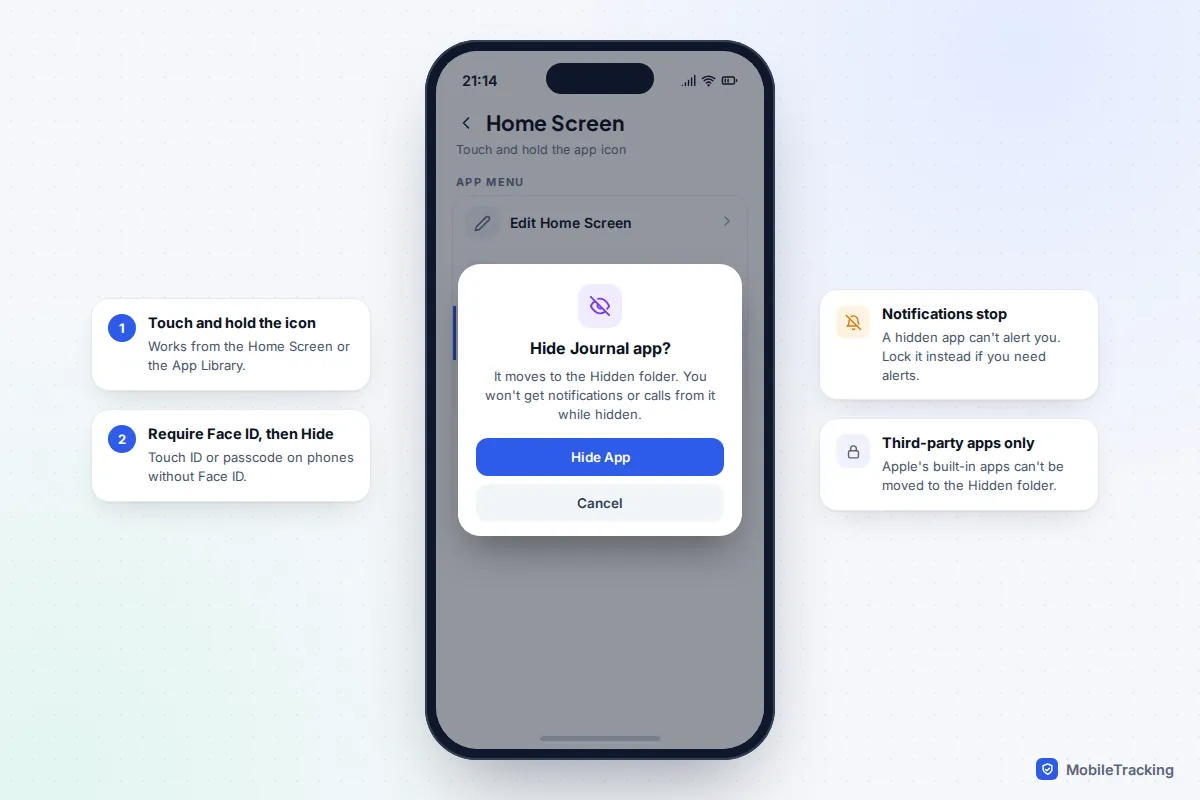
This is the only method that hides an app from someone holding your unlocked phone. It works for most third-party apps, such as banking, dating, health or chat apps. Apple’s own built-in apps can’t be hidden, and some, such as Settings, Maps and Clock, can’t even be locked.
- Find the app on your Home Screen or in the App Library, then touch and hold its icon until the menu appears.
- Tap Require Face ID. On older models this reads Require Touch ID, or Require Passcode if you haven’t set up either.
- Tap Hide and Require Face ID.
- Confirm with your face, finger or passcode, then confirm again on the notice that explains what hiding does.
The icon vanishes from every Home Screen page. You need a passcode on the phone for this to work, and with Stolen Device Protection on, changing an app’s lock settings may insist on Face ID or Touch ID rather than the passcode.
Where the app goes, and how to open it
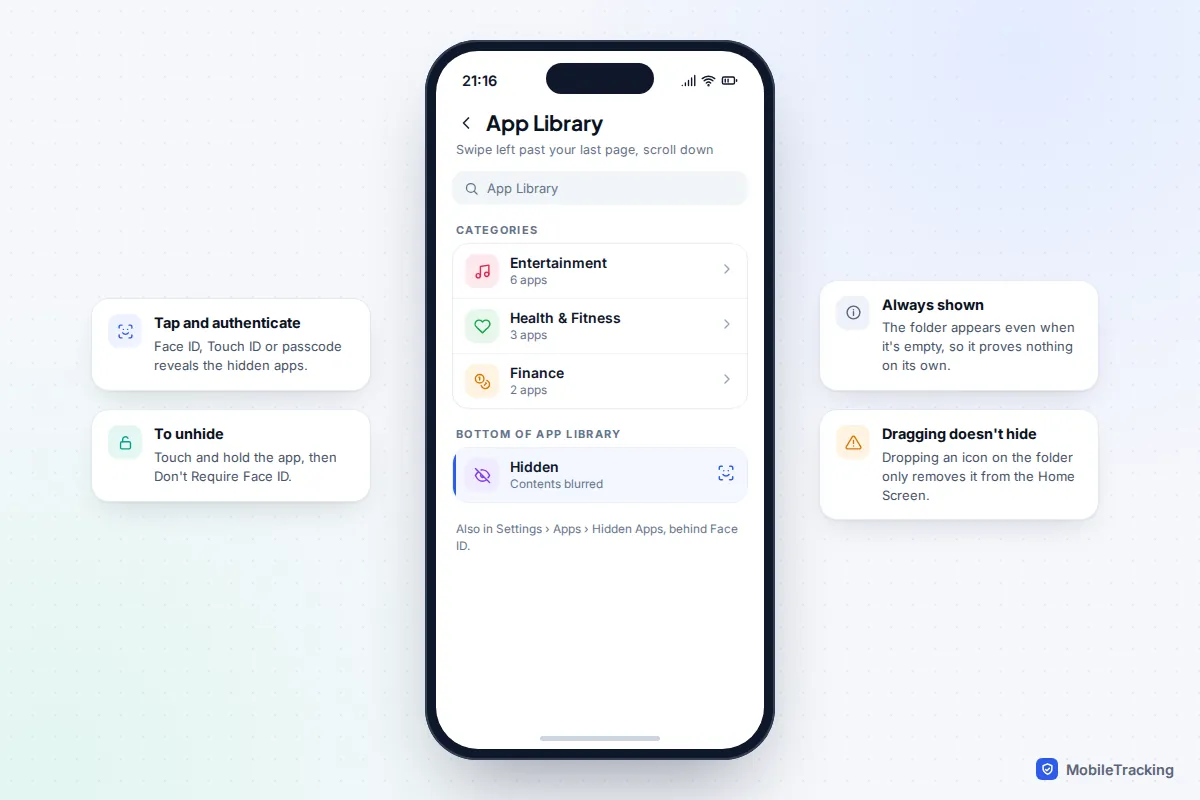
Swipe left past your last Home Screen page to open the App Library and scroll to the very bottom. The Hidden folder sits there with its contents blurred. Tap it, authenticate, and the hidden apps appear; tap one to open it. You can also find them in Settings > Apps > Hidden Apps, which also asks for Face ID.
How to unhide an app
- Open the Hidden folder in the App Library and authenticate.
- Touch and hold the app and tap Don’t Require Face ID, then authenticate again.
- The app returns to the App Library. Drag it back to a Home Screen page if you want it there.
A quirk worth knowing on iOS 26: dragging an icon onto the Hidden folder does not hide it. It only removes it from the Home Screen. Always use the menu.
What hiding doesn’t do
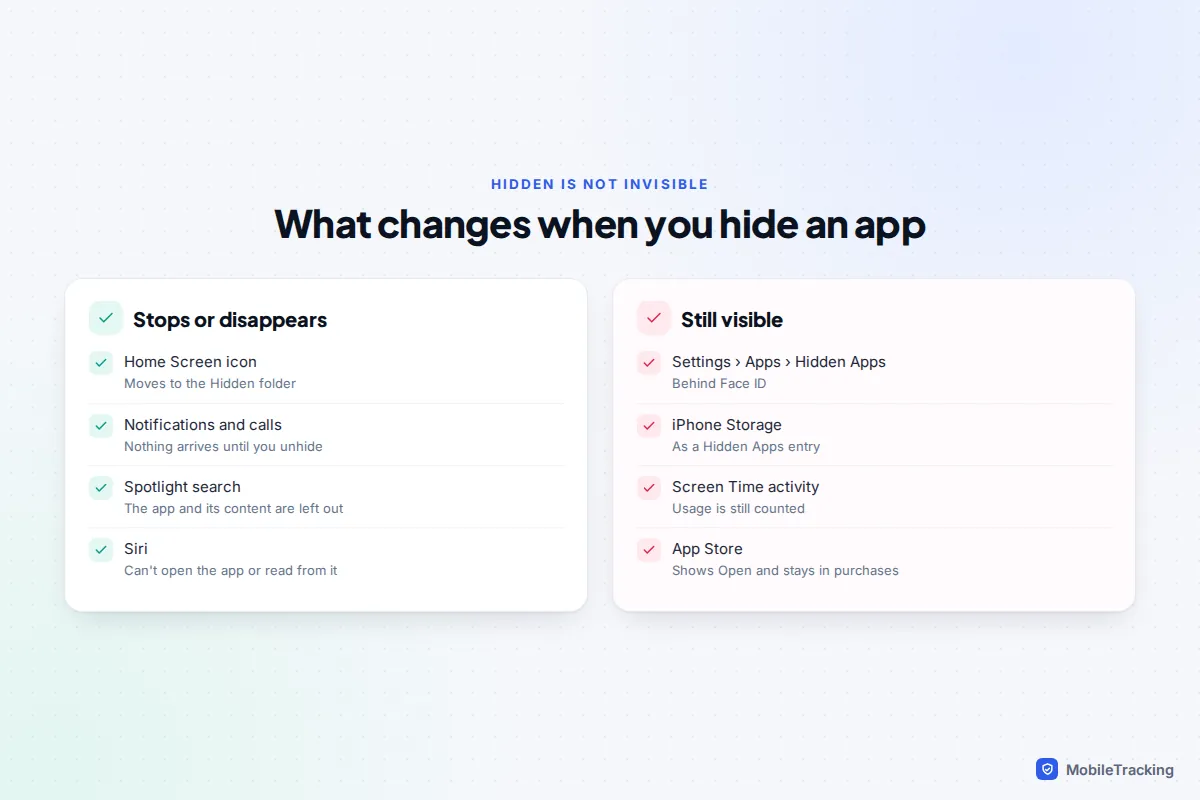
Hidden is not invisible, and Apple doesn’t claim it is. When you hide an app, the confirmation itself warns that it may still appear in a few places, such as Settings. Here is what changes and what doesn’t.
- Notifications and calls stop. A hidden app can’t send you notifications, and you won’t get incoming calls through it. Hide WhatsApp and you will miss messages and calls until you open it. This is the biggest surprise for most people.
- Search and Siri skip it. The app doesn’t show in Spotlight, and Siri won’t open it or read its content.
- Settings still knows. The app sits behind Face ID in Settings > Apps > Hidden Apps, but it can still appear in lists such as Background App Refresh or an app’s access to Photos.
- Storage and activity reports still count it. iPhone Storage shows a Hidden Apps entry, and Screen Time’s activity report still includes the app’s usage.
- The App Store still shows it installed. Search for the app and you’ll see Open, and it stays in your purchase history.
If you need a hidden app to keep sending alerts, lock it instead of hiding it: the icon stays visible, notifications still arrive, but previews and the app’s contents stay behind Face ID. Our guide to locking apps on iPhone covers that option in detail.
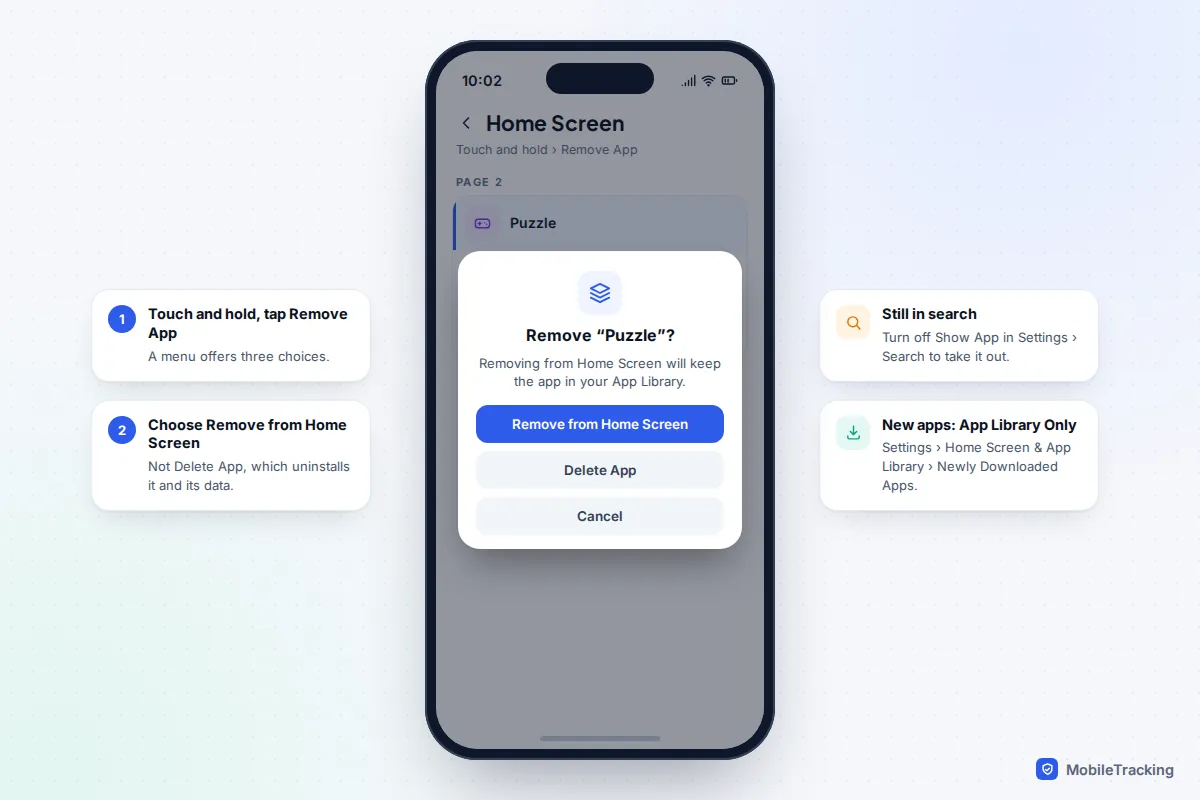
Remove an app from the Home Screen
For decluttering, this is the simplest option and the easiest to undo. Nothing is locked and notifications carry on as normal.
- Touch and hold the app icon.
- Tap Remove App, then Remove from Home Screen. Don’t tap Delete App, which uninstalls it.
The app stays in the App Library, in its category folder and the alphabetical list, and it still appears in search. To stop new downloads landing on your Home Screen at all, go to Settings > Home Screen & App Library and set Newly Downloaded Apps to App Library Only. If you can’t find an app later, Apple’s page on finding an app that’s missing from the Home Screen walks through where it may have gone.
Hide a whole page, or show pages only in a Focus
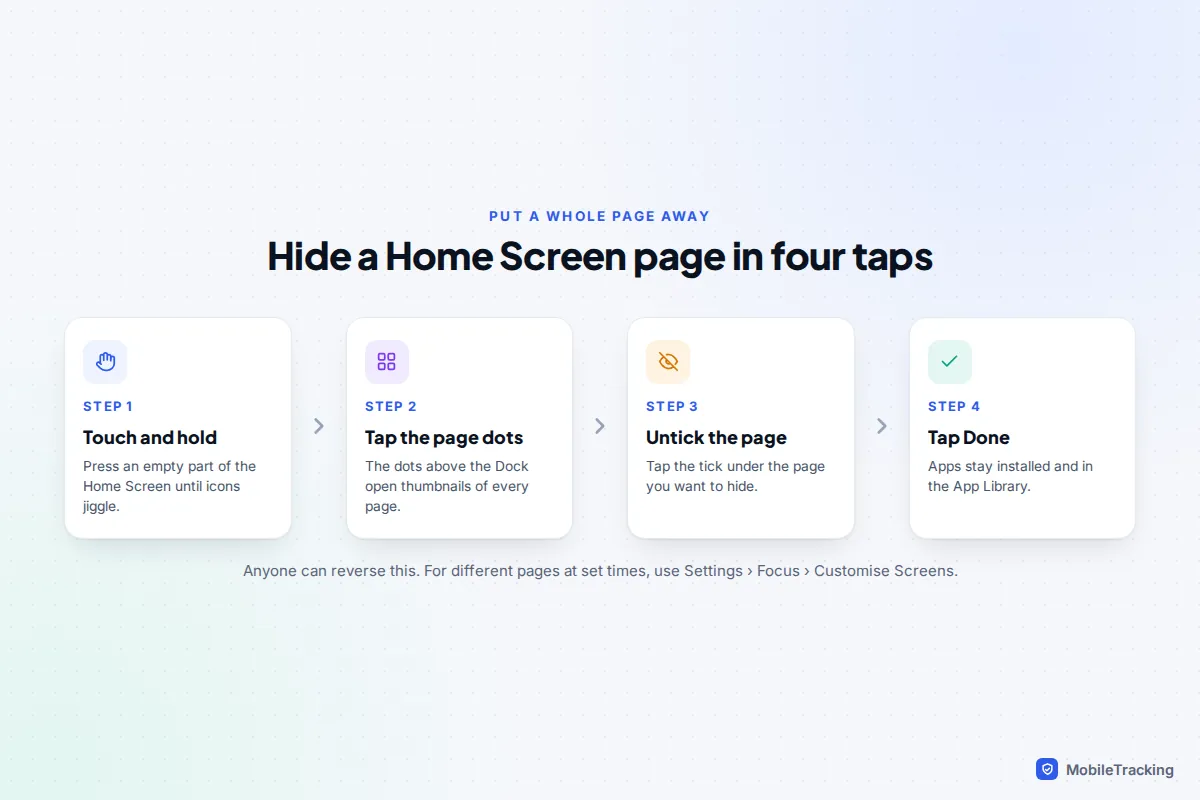
If you’ve gathered several apps on one page, games for example, you can hide that page in one go.
- Touch and hold an empty part of the Home Screen until the icons jiggle.
- Tap the row of dots just above the Dock. You’ll see thumbnails of every page.
- Tap the tick under a page to hide it, then tap Done.
The apps stay installed and in the App Library. Repeat the steps and tick the page to bring it back. It’s quick, which is also its weakness: anyone who knows the trick can undo it.
Different pages for different times
Focus modes can show only chosen pages while a Focus is on. Go to Settings > Focus, pick a Focus such as Work or Sleep, and under Customise Screens tap the Home Screen preview and select the pages to show. Distracting apps then fade away during school hours or bedtime without you hiding anything permanently. See how to set up Focus modes on iPhone for scheduling.
Keep an app out of search and suggestions
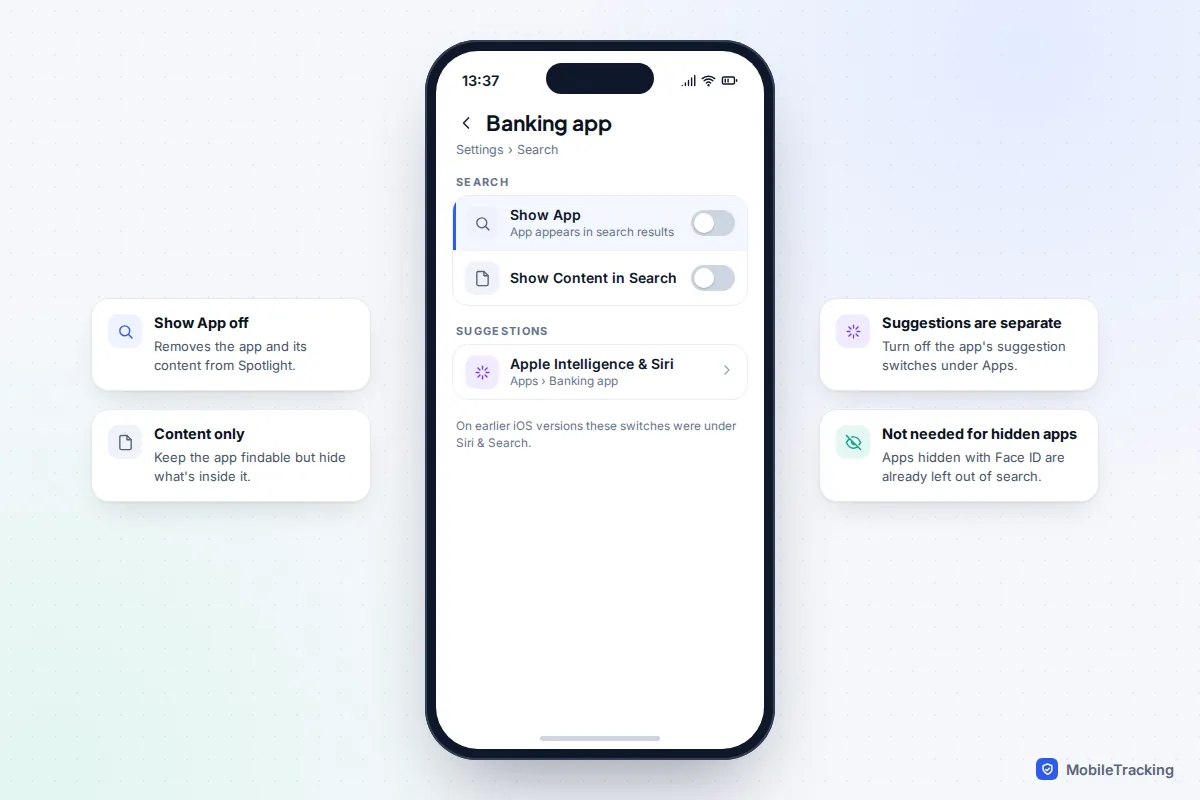
Even after you remove an icon, iOS may suggest the app when you swipe down to search or in the Siri Suggestions on the Home Screen. On iOS 26 and later:
- Go to Settings > Search, tap the app, and turn off Show App to remove it and its content from search, or just Show Content in Search to keep the app but hide what’s inside. On earlier versions these switches were under Siri & Search.
- For suggestions, open Settings > Apple Intelligence & Siri (just Siri on iPhones without Apple Intelligence), tap Apps, choose the app and turn off its suggestion switches.
Apps hidden with Face ID are already left out of search, so you only need this for apps you’ve removed from the Home Screen.
Hide App Store purchases and restrict apps with Screen Time
Hide an app from your purchase list
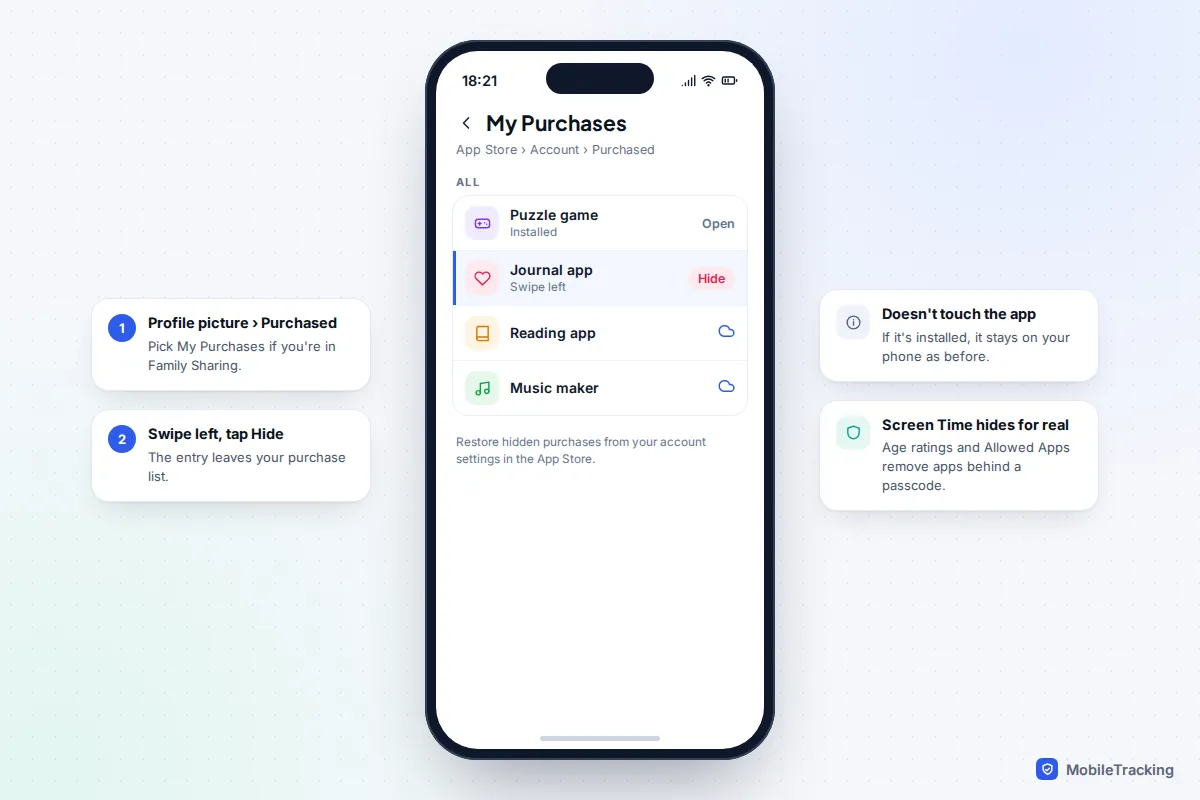
Open the App Store, tap your profile picture, then Purchased (and My Purchases if you use Family Sharing). Swipe left on the app and tap Hide. This only tidies the list: the app stays installed, and hidden purchases can be restored from your account settings in the App Store.
Hide apps with Screen Time
Screen Time can remove apps from view entirely, and it’s the method parents use. In Settings > Screen Time > Content & Privacy Restrictions:
- Allowed Apps & Features switches off built-in apps such as Safari or Camera, and they disappear from the Home Screen until you allow them again.
- App Store, Media, Web & Games > Apps sets an age rating. Installed apps rated above it vanish from the Home Screen. Apple’s current ratings are 4+, 9+, 13+, 16+ and 18+.
Both are protected by the Screen Time passcode, so unlike a hidden page, they can’t be undone by whoever is holding the phone.
For parents: when your child hides apps
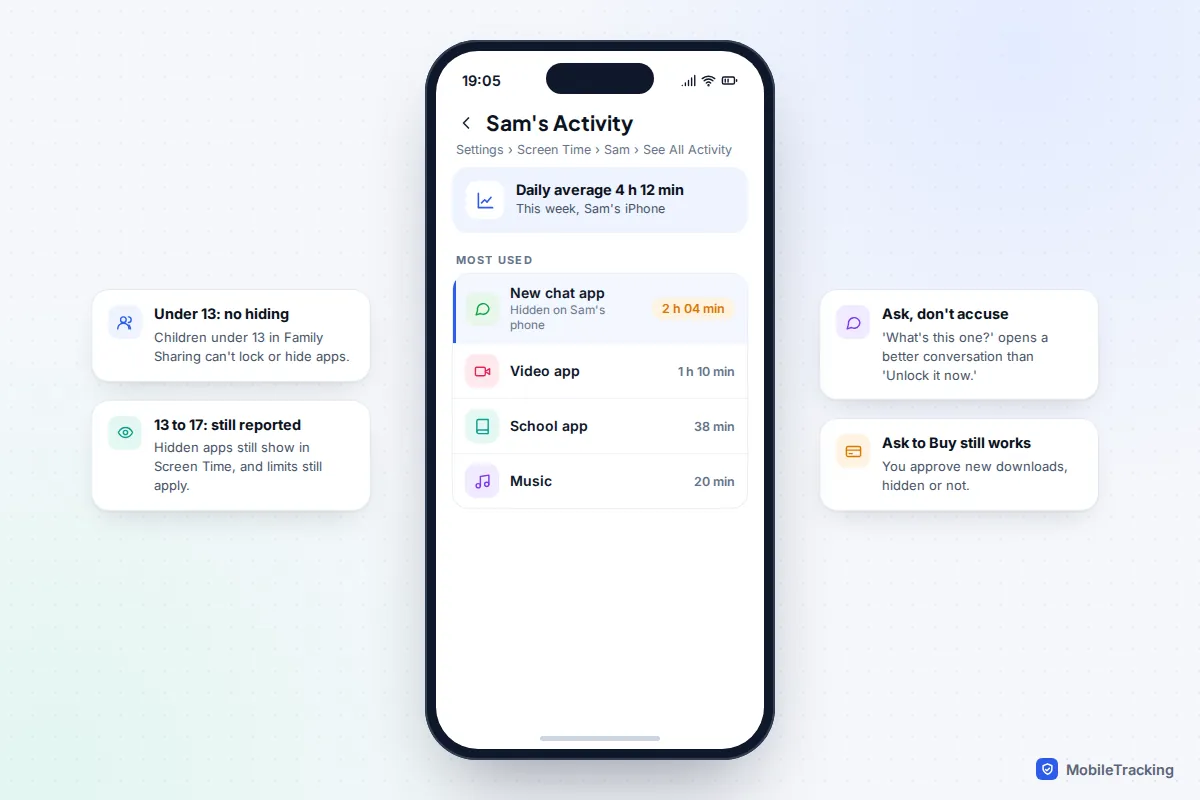
Children in Family Sharing who are under 13 can’t lock or hide apps at all. Teenagers aged 13 to 17 can, which is sensible: a teen might reasonably want a diary or a health app out of sight when a sibling borrows the phone. The good news is that hiding doesn’t hide anything from Screen Time.
- Screen Time reports still show hidden apps. Open Settings > Screen Time, tap your child’s name, then See All App & Website Activity. Usage for hidden apps is listed there, and any app limits you set still apply.
- Ask to Buy still asks you. If it’s on, you approve new downloads before they happen, hidden or not.
- The Hidden folder always exists. Seeing it on your child’s phone means nothing on its own. Opening it needs their face or passcode.
Consider a short scenario. Sam, 14, hides a new chat app. On Sunday you notice an unfamiliar name with two hours of use in the Screen Time report. Rather than demanding the passcode, ask what it is and who they talk to there. Most of the time the answer is ordinary; if it isn’t, you’ve opened the conversation calmly instead of starting a game of hide and seek.
It helps to agree the rules in advance: which apps are fine to hide, and that you’ll look at the Screen Time report together each week. Our iPhone parental controls guide covers Ask to Buy and age ratings, and how to lock individual chats explains the chat-level locks teens often use alongside hidden apps.
Frequently asked questions
Can I hide an app without Face ID?
Yes. Phones with Touch ID show Hide and Require Touch ID, and phones without either use your passcode. What you can’t do is hide an app properly without any lock at all; removing it from the Home Screen is the nearest alternative.
Why can’t I hide Photos, Messages or Settings?
Apple only allows third-party apps to be hidden. Some built-in apps, including Photos and Messages, can be locked with Face ID, but they can’t be moved to the Hidden folder.
Will I still get WhatsApp messages if I hide it?
No notifications or calls will come through while it’s hidden; messages wait until you open the app. If you need alerts, lock WhatsApp instead of hiding it, or use its own chat lock for specific conversations.
Does hiding an app delete its data?
No. The app, its data and any iCloud backups are unchanged. Unhide it and it opens exactly as you left it.
Can someone else see my hidden apps?
Not without your face, fingerprint or passcode. But anyone who knows your passcode can open the Hidden folder, so if someone has it, change it first.
Does this work on iPad?
Yes. iPadOS 18 and later have the same Require Face ID and Hide options, with Touch ID on iPads that use it.
This guide is general information, not legal or financial advice. Read our editorial policy.