Any computer with a web browser can find your phone, as long as the phone’s find feature was switched on before it went missing. For an iPhone, go to icloud.com/find. For an Android phone, go to google.com/android/find (typing android.com/find gets you there too). For a Samsung Galaxy, you can also use samsungfind.samsung.com. On a Mac that is signed in to your Apple Account, the Find My app does the same job without a browser.
There is no Find My app for Windows, and the “Find my device” setting built into Windows only finds Windows laptops and tablets, not phones. On a Windows PC or a Chromebook, the browser is the tool. Below is what to open on each kind of computer, what every button does once you’re in, and how to use a library or work computer without leaving your account open behind you.
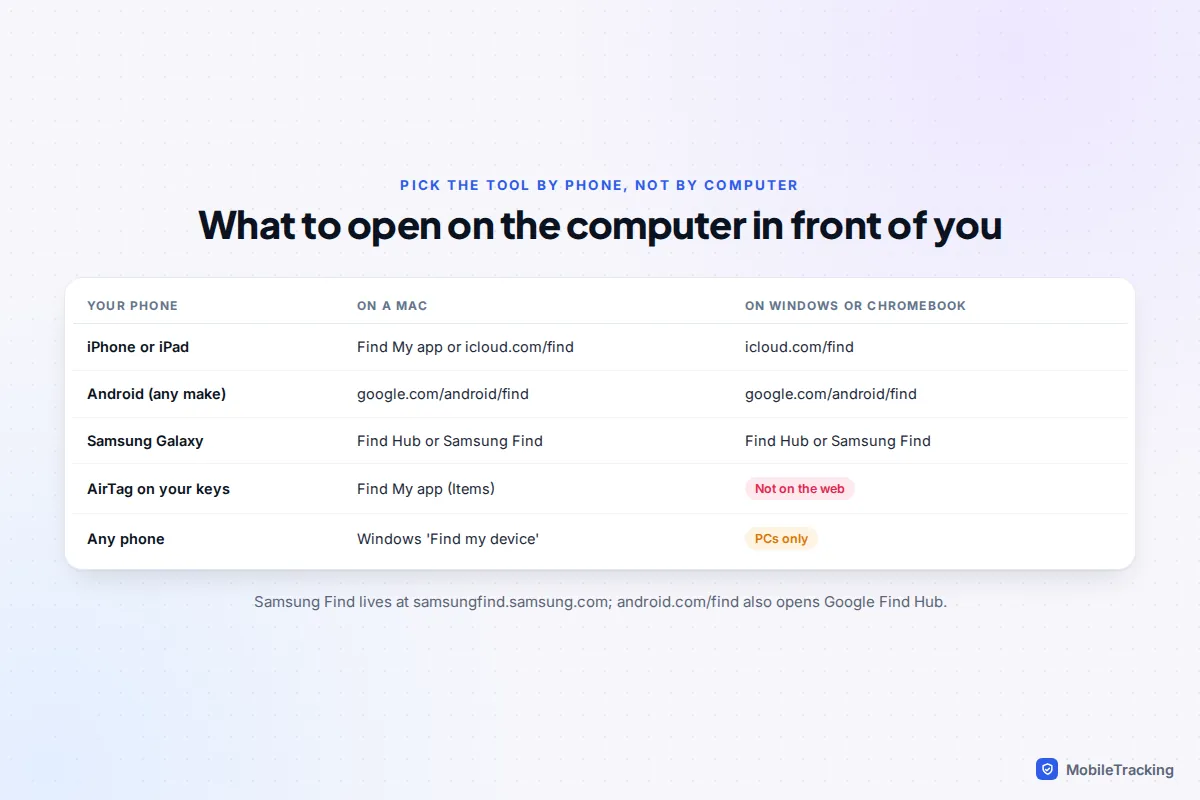
Which website or app to use
The phone decides the service, not the computer. An iPhone reports its location to your Apple Account, an Android phone reports to your Google account, and a Galaxy phone usually reports to both Google and Samsung. So you sign in to whichever account the phone uses, from whatever computer is in front of you.
| Your phone | On a Mac | On Windows or a Chromebook |
|---|---|---|
| iPhone | Find My app, or icloud.com/find | icloud.com/find in any browser |
| Android (any make) | google.com/android/find | google.com/android/find |
| Samsung Galaxy | Either Google Find Hub or samsungfind.samsung.com | Either Google Find Hub or samsungfind.samsung.com |
If signing in is the problem, for example because the security code goes to the phone you’ve lost, our guide to finding a lost phone using your email sign-in covers every way past it. This guide assumes you can get in and focuses on what to do on the computer itself.
iPhone or iPad: Find Devices in any browser
Apple’s web tool is called Find Devices and it works in Safari, Chrome, Edge and Firefox on any computer.
- Type icloud.com/find into the address bar yourself, rather than following a link.
- Sign in with your Apple Account email or phone number and password.
- If a six-digit code is requested and your only trusted device is the lost iPhone, select the Find Devices button at the bottom of the window. That opens Find Devices without the code (Photos, Mail and iCloud Drive still need it).
- Select the iPhone in the device list. Its position appears on the map with the time it was last located.
The device list shows more than you might expect. If you’re in a Family Sharing group, family members’ devices appear too, provided each person has chosen to share their location with the family. That makes a parent’s laptop a quick way to find a teenager’s phone left at a friend’s house, with the teenager’s knowledge.
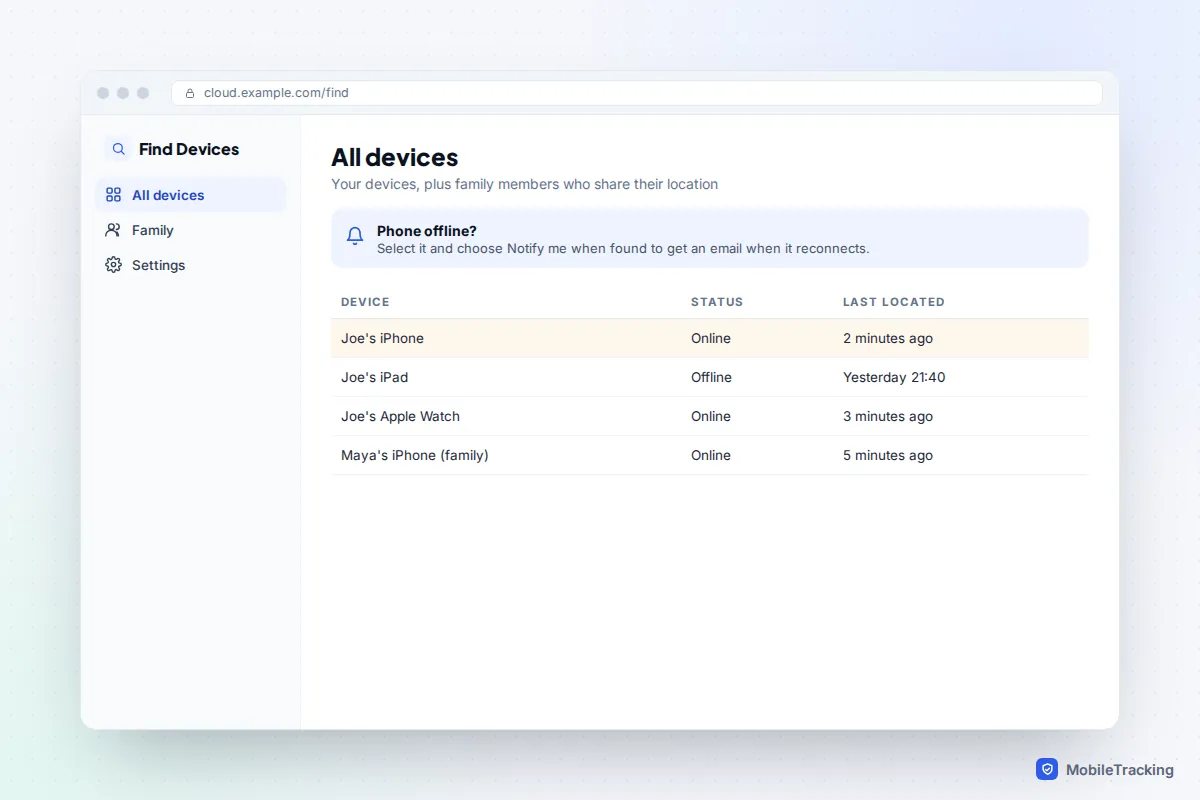
If the iPhone shows as Offline, Apple keeps its last known location on iCloud.com for up to 24 hours, or up to seven days if the Find My network was turned on. Select Notify me when found and Apple will email you when it reports in again. What iCloud.com won’t show is AirTags or people who share their location with you; Apple keeps those to the Find My app on its own devices. Apple’s Find Devices overview lists everything the web version can do.
On a Mac: the Find My app
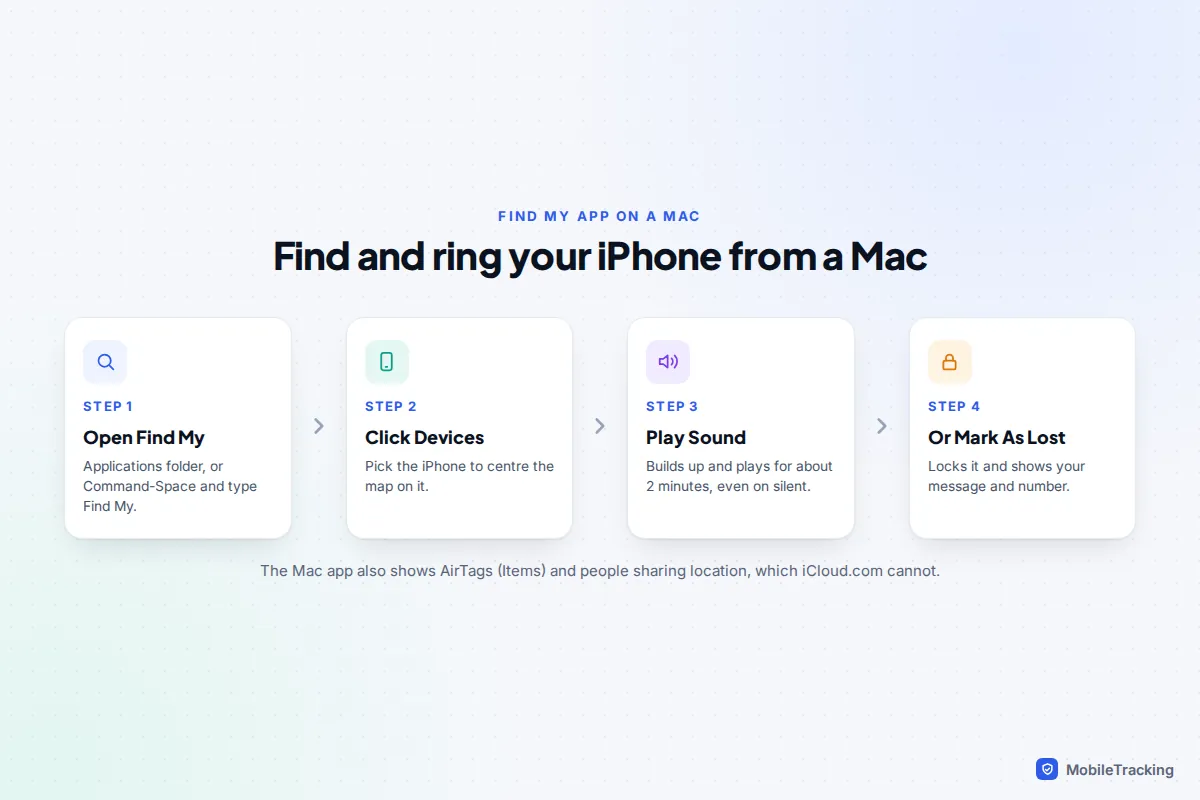
If the Mac is yours and signed in to the same Apple Account as the phone, you don’t need a browser at all. Open Find My from the Applications folder or Spotlight (press Command and Space, then type “Find My”).
- Click Devices in the sidebar. Your iPhone, iPad, Apple Watch and AirPods are listed with their locations.
- Select the iPhone to centre the map on it.
- Use the options for that device: Play Sound, Mark As Lost or Erase This Device.
The app has one clear advantage over the website: it also has Items for AirTags and People for anyone sharing their location with you. If your AirTag is on the keyring with the lost phone, the Mac app can find the keys even when the phone’s battery is flat.
On someone else’s Mac, don’t sign their Mac out of their account to sign in with yours. Open a private window in Safari and use icloud.com/find instead. It leaves their setup untouched and is easy to close off afterwards.
On a Windows PC or Chromebook
This is where people lose time looking for an app that doesn’t exist. Apple’s iCloud for Windows app syncs photos, iCloud Drive, passwords, mail, contacts and calendars, but it has no Find My section. Apple’s Apple Devices app for Windows manages backups and updates over a cable and can’t locate anything. As Macworld has pointed out, Apple has never released a Find My app for Windows.
Windows does have a feature called Find my device, under Settings, Privacy and security. Microsoft’s help page on finding a lost Windows device is clear that it locates Windows 10 and 11 devices such as laptops and Surface tablets. It will not show your phone, even an Android phone linked to the same Microsoft account.
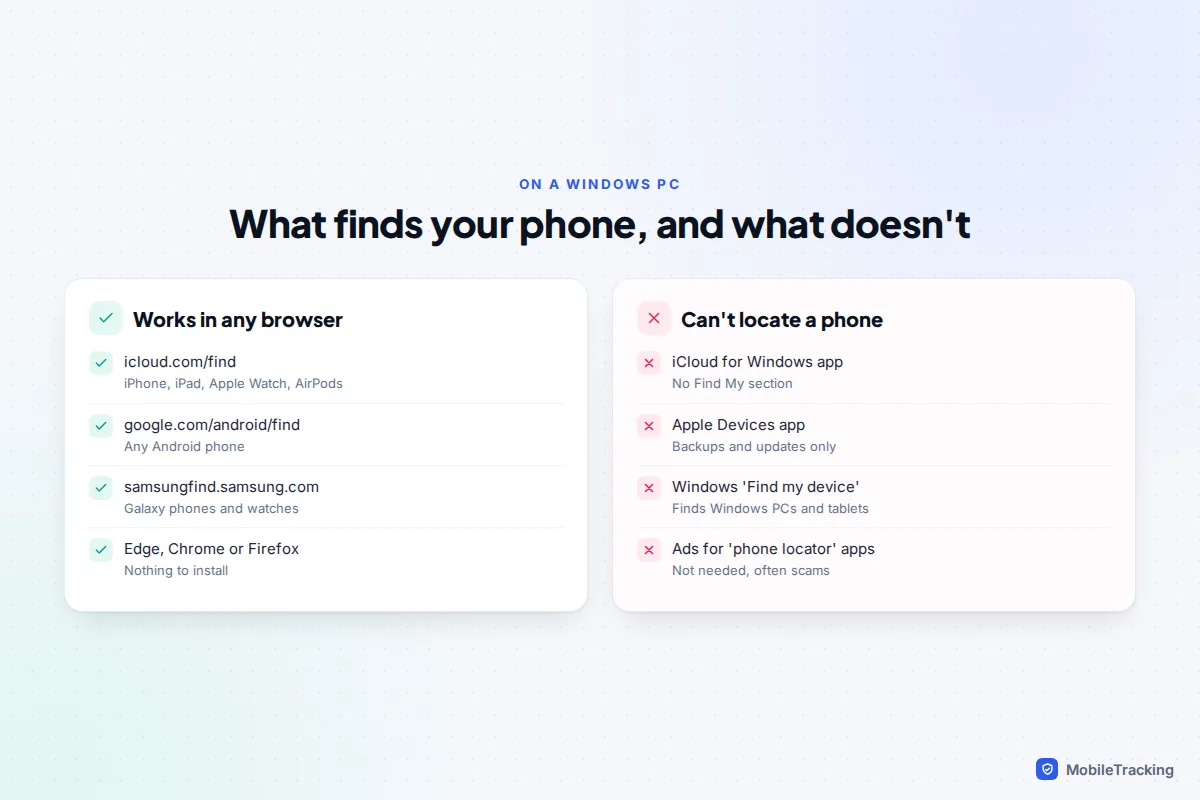
So on Windows or a Chromebook, open Edge, Chrome or Firefox and use the same websites as everyone else: icloud.com/find for an iPhone, google.com/android/find for Android. A Chromebook is often signed in to Google already, which can take you straight to your Android phone on the map.
Android: Find Hub on the web
Google renamed Find My Device to Find Hub in 2025. The website works for any Android phone signed in to a Google account, whether it’s a Pixel, Samsung, Motorola or another make.
- Go to google.com/android/find and sign in with the Google account on the lost phone.
- Pick the phone from the list if you have several devices. Google may ask for the PIN you use on an Android device, or your Google password, before it shows the location.
- Check the time it was last seen and the battery level shown next to the map.
- Choose Play sound, Mark as lost or Factory reset device.
Pay attention to the circle around the pin. Google says a GPS fix is accurate to about 20 metres, while a location worked out from mobile masts can be out by a few thousand metres. A big circle means “somewhere in this area”, not “in this building”. Google’s page on finding, securing or erasing a lost Android device explains the requirements: the phone needs power, a data connection, a signed-in Google account and Find Hub switched on.
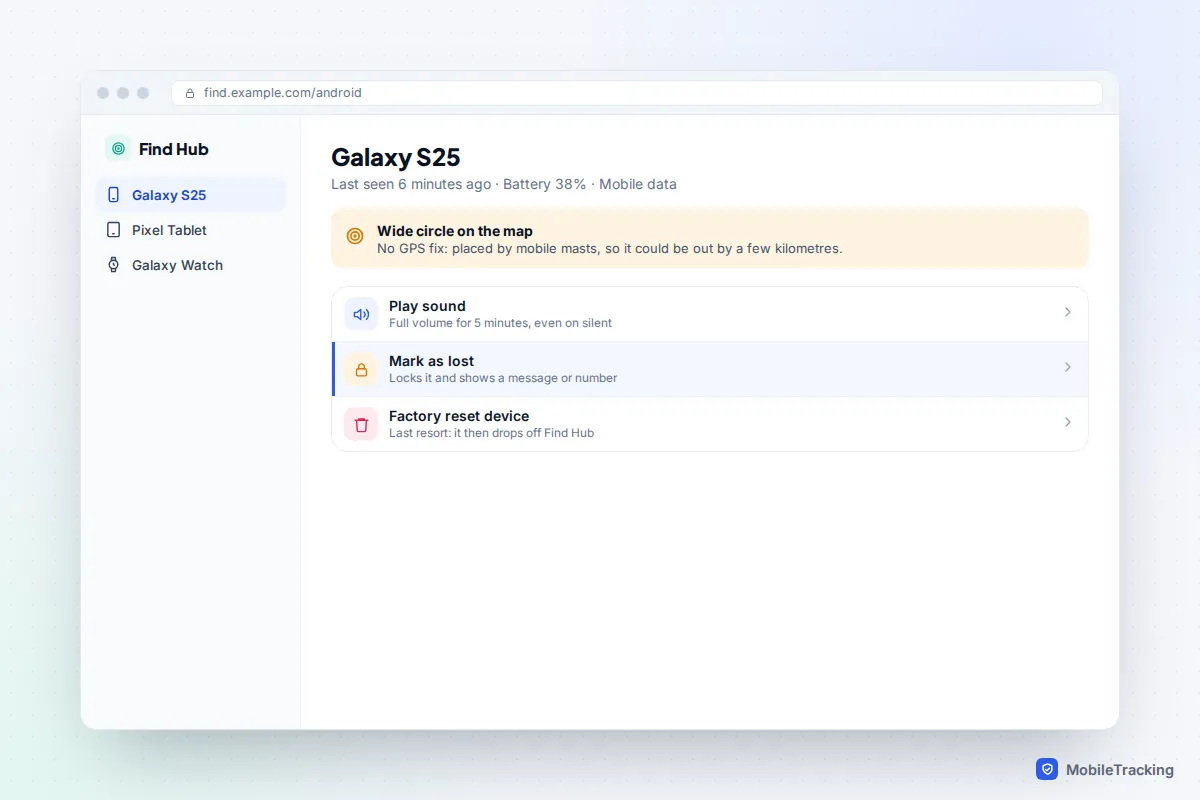
The “find my phone” Google search shortcut
For years, typing “find my phone” into Google while signed in showed your Android phone on a small map with a Ring button. Google removed that ring option in May 2025, when Find My Device became Find Hub. The search may still lead to a “Find your phone” page in your Google Account, but for the map and the ring, go straight to google.com/android/find. The shortcut never worked for iPhones, and search results for “find my phone” also contain ads for apps you don’t need.
Samsung Galaxy: Samsung Find
Galaxy owners have a second option at samsungfind.samsung.com, signed in with a Samsung account. It only works if Lost device protection was switched on (Settings › Security and privacy › Lost device protection; labels vary between One UI versions). Its extra tools are useful from a desktop: Track location sends an updated position every 15 minutes, which beats refreshing a map by hand, and Extend battery life turns on maximum power saving remotely so a dying phone stays findable for longer.
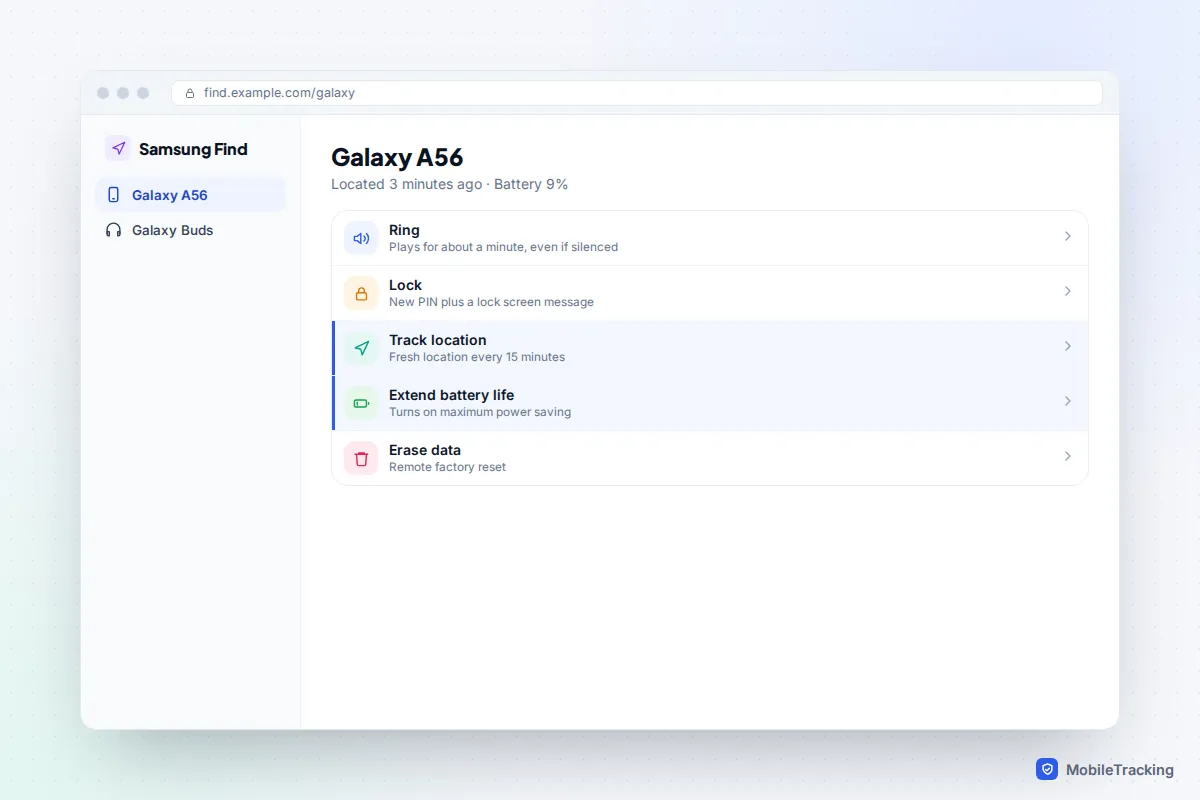
What each button does from a computer
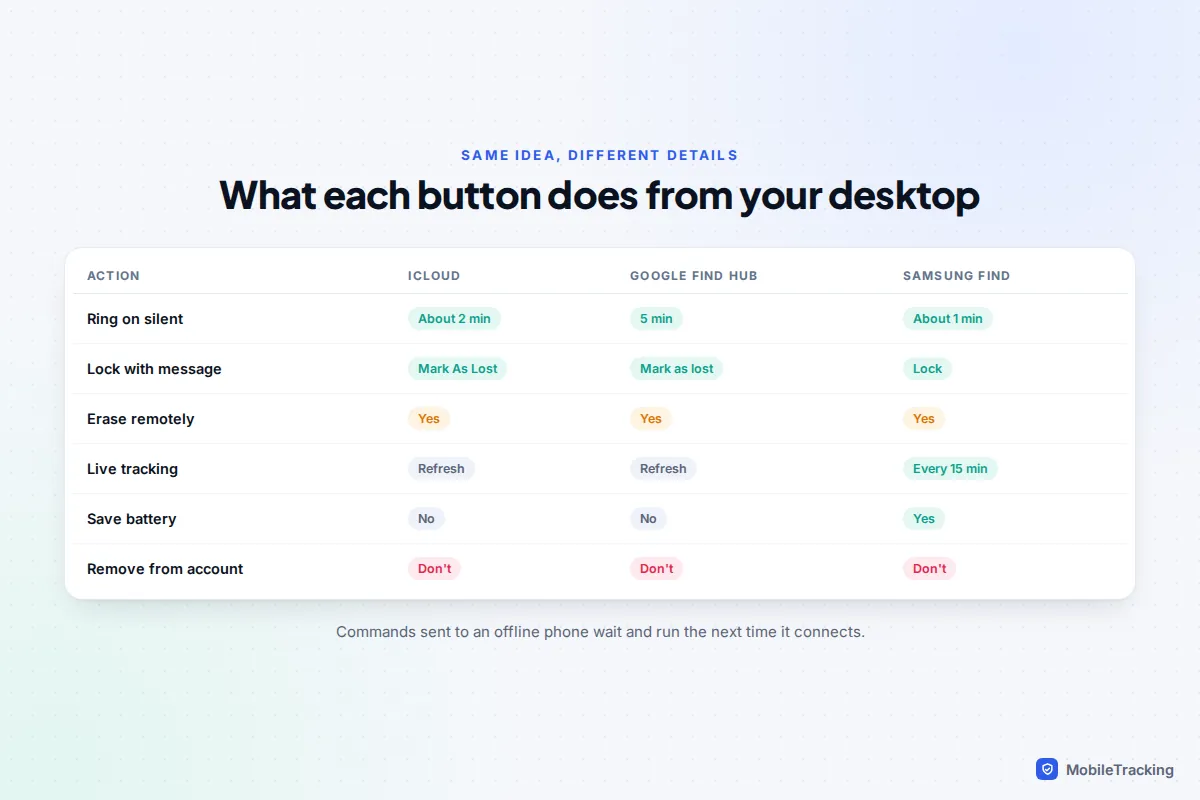
The buttons look alike on all three services, but what happens on the phone differs.
- Ring or Play Sound. Apple’s sound starts quietly, builds up and plays for about two minutes, even on silent. Google rings at full volume for five minutes. Samsung plays for about a minute. Use it only when the map suggests the phone is close, such as down the side of the sofa or in a colleague’s bag.
- Mark As Lost or Lock. Locks the phone with its passcode and shows your message and a contact number on the lock screen. On iPhone it also suspends Apple Pay cards. If the phone is offline, the message appears once it reconnects. Our guide to writing a Lost Mode message covers what to say.
- Erase. Wipes the phone. On an iPhone, Activation Lock stays on, so nobody can set it up without your password, but you can no longer locate it or play a sound afterwards. Save this for when you have given up on getting it back; see erasing a lost phone remotely.
- Remove This Device (iCloud). Takes the phone off your account and turns off Activation Lock. Don’t use it while the phone is missing.
A sensible order at the computer is: check the map, ring it if it looks nearby, mark it as lost if it doesn’t, and only then think about police reports and erasing. If the map shows the phone somewhere you don’t recognise, don’t go and confront anyone. Give the location to the police instead.
Using a library, work or friend’s computer safely
Your Apple or Google password opens far more than a map: email, photos, backups and saved passwords. On a computer you don’t control, treat the session as something to clean up after.
- Open a private window (InPrivate in Edge, Incognito in Chrome, Private Window in Safari and Firefox). It doesn’t save your history or cookies once closed.
- Untick “Keep me signed in” on the iCloud sign-in page, and don’t let the browser save your password.
- Don’t trust the browser. If iCloud asks “Trust this browser?”, choose Don’t Trust. If Google offers to stop asking for codes on this computer, decline.
- Sign out, then close every private window before you walk away.
- Tidy up later from your own device. On icloud.com, open iCloud Settings and choose Sign Out Of All Browsers. In your Google Account, go to Security, then Your devices, and sign out the computer you used.
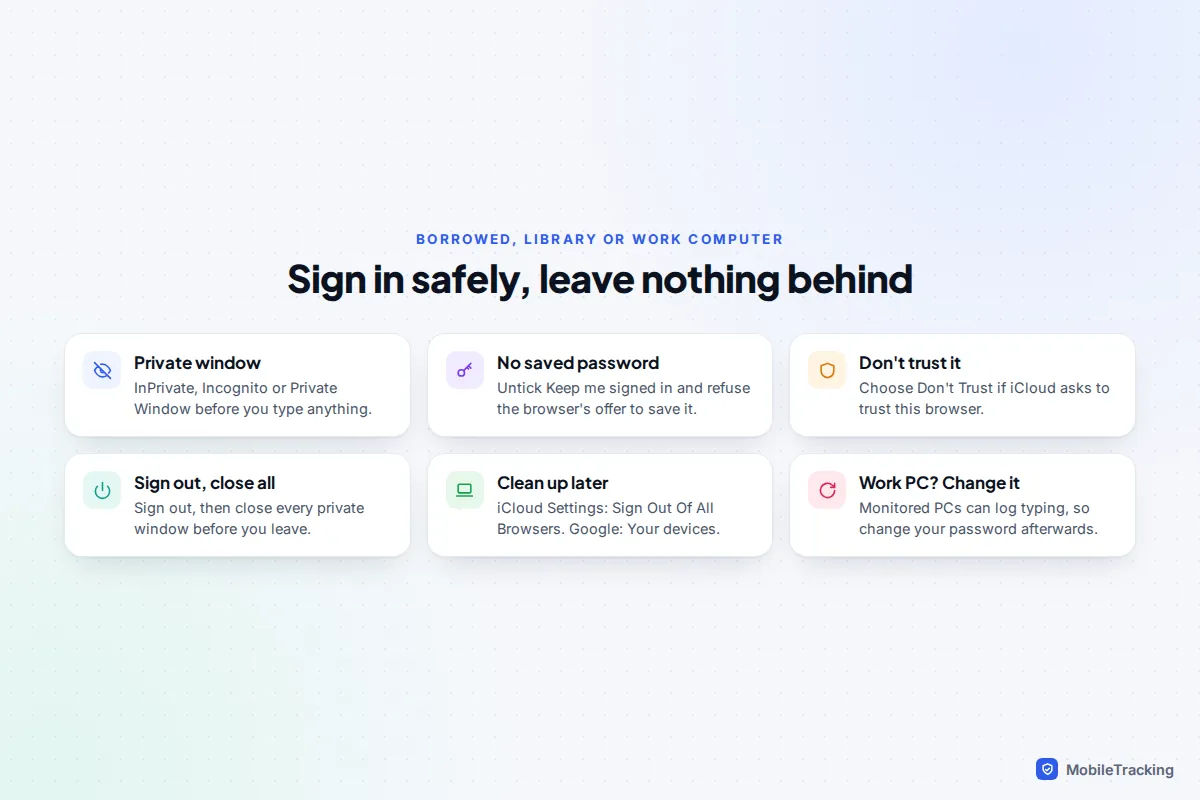
That last point matters on work computers. Company PCs are often monitored, and a private window doesn’t hide what you type from management software. If you have a choice, a trusted friend’s phone or your own tablet is better. If you have to use a work or library PC, change your password once you’re back on your own device.
A real example: Joe left his iPhone in a taxi and got to the office before he noticed. He opened an InPrivate window on his work laptop, went to icloud.com/find and used the Find Devices button because the code went to the lost phone. The map showed the phone moving across town, so he marked it as lost with his desk number in the message. The driver called within the hour. Joe then signed out, closed the window and, that evening at home, signed out of all browsers from iCloud Settings.
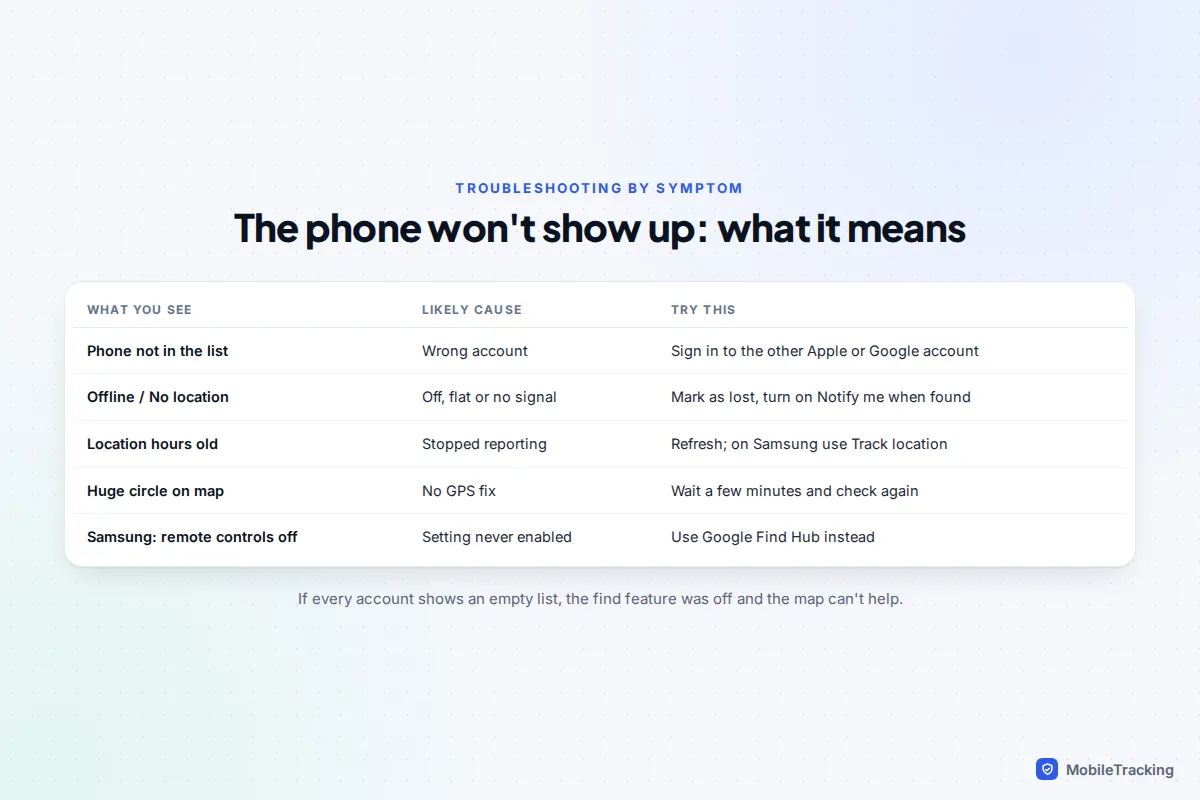
If the phone doesn’t show up: troubleshooting by symptom
- The phone isn’t in the list at all. You’re probably signed in to the wrong account. Families often set a child’s phone up with a parent’s Google account, and some people have two Apple Accounts. Try the other one. If the list is empty on every account, the find feature was off, and the map can’t help.
- “Offline” or “No location”. The phone is switched off, out of signal or out of battery. Note the last location and time, turn on Notify me when found on iCloud, and mark it as lost so it locks the moment it reconnects. Our guide to finding a phone that is turned off covers what the Find My and Find Hub networks can still do.
- The location looks old. Refresh the page or select the device again. On Samsung Find, start Track location for updates every 15 minutes.
- The circle covers half the town. The phone has no GPS fix and is being placed by Wi-Fi or mobile masts. Wait a few minutes and check again.
- Samsung Find says remote controls are off. Use Google Find Hub instead; it doesn’t depend on the Samsung setting.
These tools only find your own phones and those of family members who have agreed to share. No website can locate someone else’s phone from a computer without their account, and sites claiming otherwise are scams.
Frequently asked questions
Is there a Find My app for Windows?
No. iCloud for Windows and the Apple Devices app don’t include it. Use icloud.com/find in Edge, Chrome or Firefox, which shows your Apple devices and has the same Play Sound, Mark As Lost and Erase options.
Can I find my Android phone from a Mac, or my iPhone from a Chromebook?
Yes. The services are websites, so the computer’s make doesn’t matter. Use google.com/android/find for Android and icloud.com/find for iPhone on any computer with a modern browser.
Can I see my AirTag on iCloud.com?
No. The website shows Apple devices only. AirTags and people sharing their location appear in the Find My app on an iPhone, iPad or Mac, so borrow a family member’s Apple device if you need them.
Does the phone’s owner see that I located it?
Locating a phone doesn’t show anything on it. Playing a sound, marking it as lost or erasing does, and Apple also sends an email to the account address. That’s why these tools are for your own phone or a family phone with the owner’s agreement.
Will typing “find my phone” into Google still ring my phone?
Not any more. Google removed the ring button from that search shortcut in 2025. Go to google.com/android/find, where Play sound rings the phone at full volume for five minutes, even on silent.
This guide is general information, not legal or financial advice. Read our editorial policy.