
The reliable way to set up parental controls on an iPad is to give your child their own Apple Account through Family Sharing, sign the iPad in with it, and manage everything from your own iPhone. On iPadOS 27, go to Settings › Family › your child’s name and set a Screen Time Schedule, Time Allowances, Apps & Websites, Allowed Contacts and Content & Privacy Restrictions. If the iPad cannot update to iPadOS 27, or anyone in your family group is still on version 26, you use the older Downtime and App Limits in Settings › Screen Time instead.
For a toddler using your iPad for one game, skip all of that and use Guided Access, which locks the screen to a single app. The sections below cover each route, what each setting really does, and the gaps that catch parents out, especially on a shared family iPad.
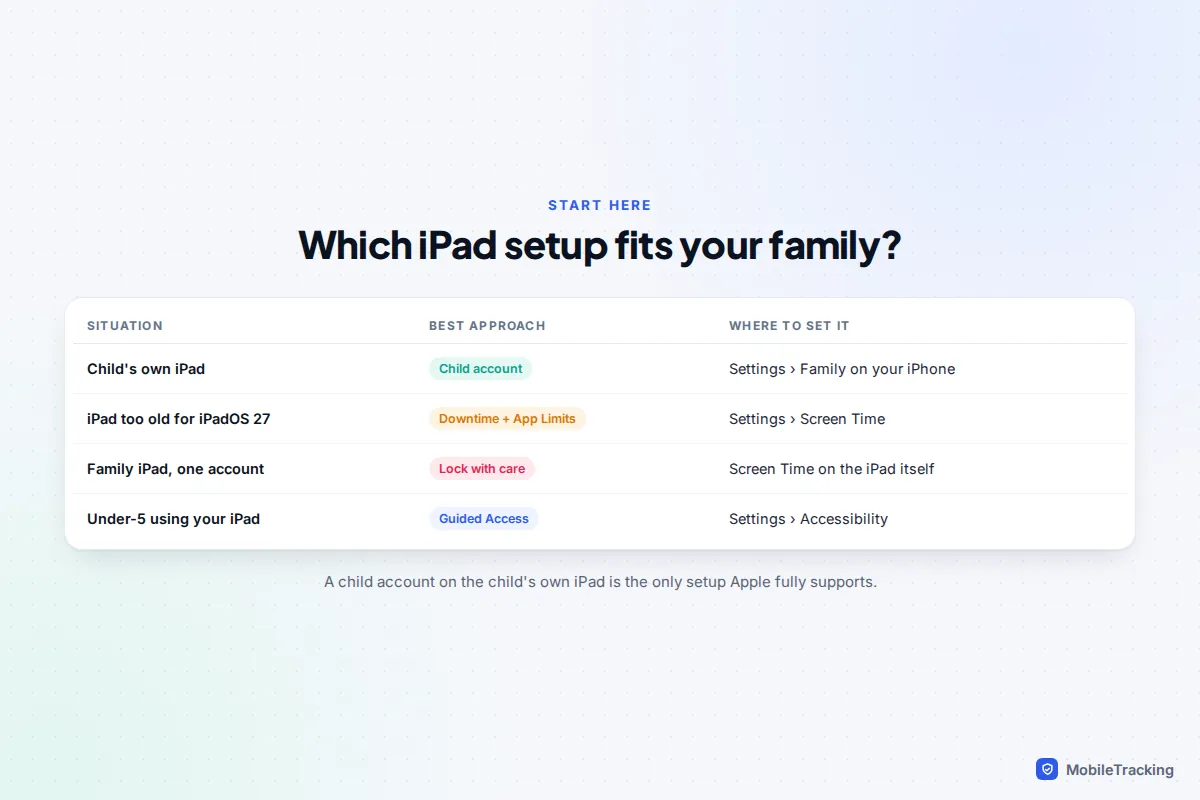
First, work out which kind of iPad you have
iPads get handed down more than any other family device, so there are three questions to answer first.
Whose account will it use? If the iPad is mainly your child’s, it should use their own child account. Screen Time then follows them, requests come to you, and none of your messages or photos are on it. If it is a family iPad that stays signed in to a parent’s account, the controls are weaker and need more care (see the shared iPad section below).
Can it run iPadOS 27? iPadOS 27, released on 14 September 2026, supports the iPad (9th generation) and later, iPad mini (6th generation) and later, iPad Air (4th generation) and later, and the 11-inch iPad Pro (2nd generation) and 12.9-inch iPad Pro (4th generation) onwards. An iPad (8th generation) or older, iPad Air (3rd generation) or iPad mini (5th generation) stops at iPadOS 26. Check under Settings › General › About.
Is everyone else updated? Apple’s redesigned Screen Time only switches on when every device in your Family Sharing group runs version 27 software. One old iPad in the family, or a grandparent’s iPhone in your group that has not updated, keeps everyone on the previous controls. Apple says you can carry on using those if a device cannot update.
Create a child account and sign the iPad in
A child under 13 needs a child account created by a parent; in some countries the same applies to older teenagers. You create it from your own iPhone.
- On your iPhone, go to Settings › Family, tap the add-member button, then Create Child Account. Enter your child’s real date of birth, because age sets the defaults.
- Erase or start the iPad fresh if it was someone else’s: Settings › General › Transfer or Reset iPad › Erase All Content and Settings.
- During setup, sign in with the child’s Apple Account. Apple lets the organiser set up a child’s device with Quick Start by holding a parent’s iPhone nearby.
- On version 27, setup asks which Apple apps your child starts with: a small essential set, a recommended starter set, or your own choice. Start small; adding an app later takes one tap.
- When asked, create a Screen Time passcode. Apple says the parent must set it from their own device, not the child’s. Make it different from your iPhone passcode.
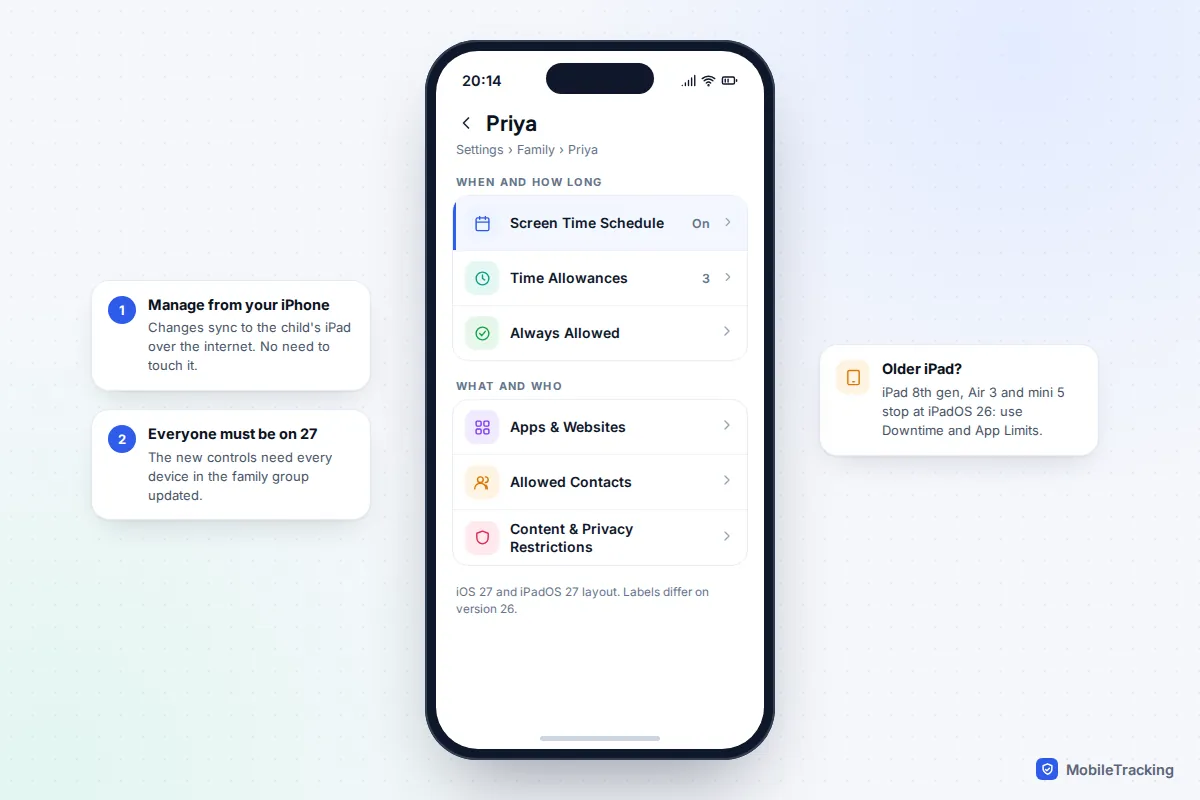
From now on, you rarely need to pick up the iPad. Every setting below is changed from your iPhone (or your own iPad or Mac), and requests from your child arrive in Messages. Our guide to using Find My to share family locations covers the location side of the same Family Sharing group.
Decide when the iPad can be used
On iPadOS 27: Screen Time Schedules
Schedules replace the single Downtime window for child accounts. You split each day into named time windows, and each window has its own list of app types that stay available.
- Go to Settings › Family › your child › Screen Time Schedule and turn on Schedule.
- Tap Add Schedule and choose the days, for example Monday to Friday.
- Tap Add Time Window, give it a name and times, and choose which categories are allowed. Before School, School, After School and Night are the obvious ones.
- Add a second schedule for weekends, and more for holidays if you like.
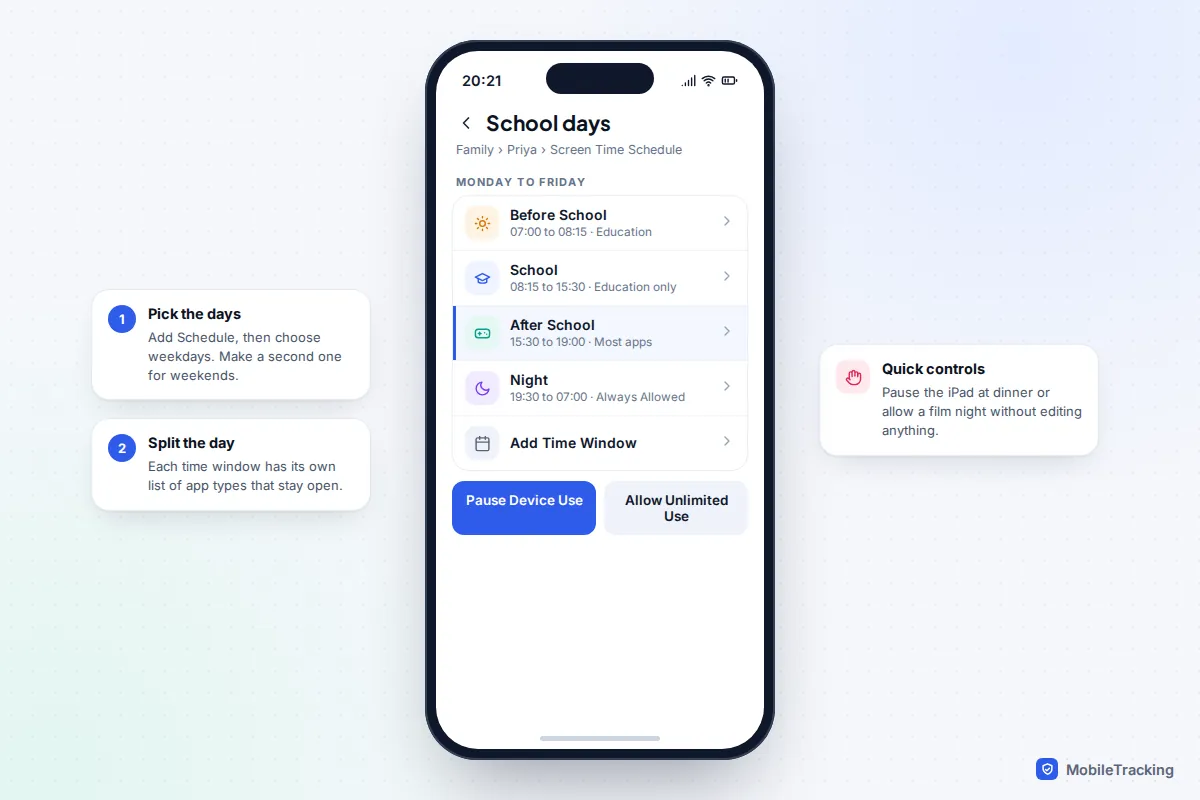
Two extras make schedules livable. Apple’s quick controls let you pause device use instantly, allow unlimited use for a one-off, or change the schedule for the day, without editing anything. And Always Allowed apps and contacts keep working even when the iPad is paused, so a child can still FaceTime you.
On iPadOS 26 or older: Downtime
Go to Settings › Screen Time, tap your child’s name, then Downtime. Turn on Scheduled, set the times (use Customise Days for different school-night and weekend times), and turn on Block at Downtime. Without that last switch, your child simply taps to ignore it. Downtime allows one window per day, so most families use it for the evening and bedtime.
Set how long: Time Allowances or App Limits
On version 27, Time Allowances set a daily budget for categories such as Entertainment, Games and Social Media. Go to Settings › Family › your child › Time Allowances, tap the add button and follow the prompts. Apple suggests starting amounts based on your child’s age, which you can change with the sliders. You can move apps between categories or create your own, and give a newly approved app its allowance at the moment you approve it. Turn on Match Screen Time Schedule if the budget should respect your time windows.
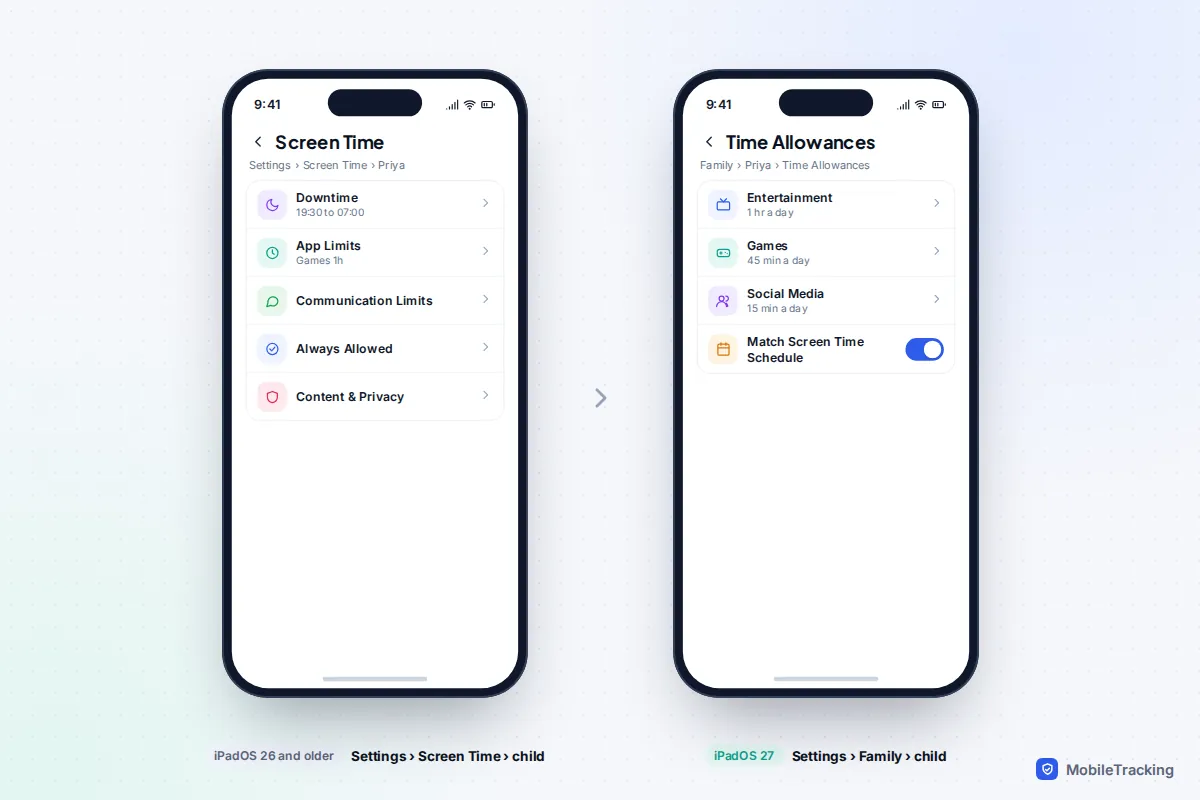
On older versions, use App Limits: Settings › Screen Time › your child › App Limits › Add Limit, choose a category or specific apps, set the time and keep Block at End of Limit on. When time runs out, your child can send an Ask For More Time request, which you approve for 15 minutes, an hour or the rest of the day.
Whichever you use, a budget works best for the apps that eat time, typically games and video, rather than every app. Our guide to ways to limit screen time on an iPhone or iPad compares budgets, schedules and Focus for older children.
Filter apps, websites and purchases
Ask to Buy
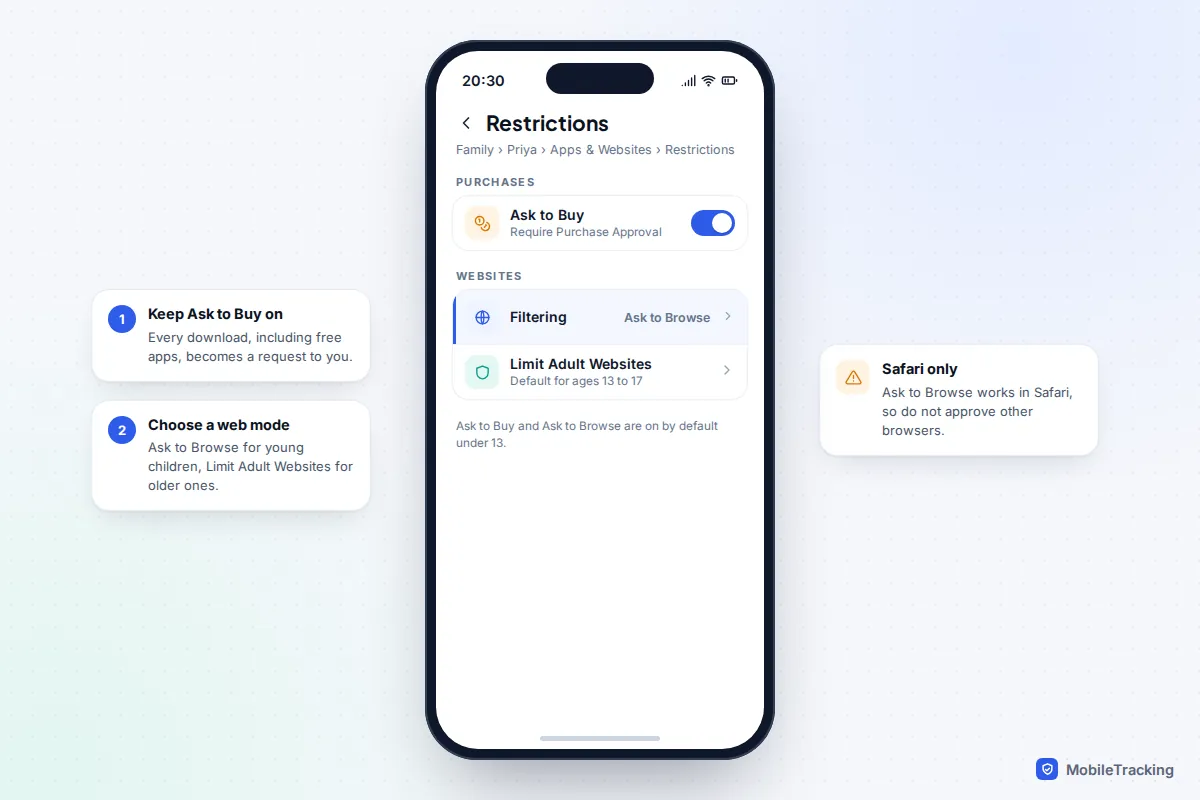
With Ask to Buy on, every download, including free apps, becomes a request to you in Messages. Apple turns it on by default for children under 13, and in some countries it stays on and cannot be switched off for anyone under 18. On version 27, check it at Settings › Family › your child › Apps & Websites › Restrictions › Ask to Buy. On older versions it is Settings › Family › your child › Ask to Buy.
Web filter
Version 27 gives two choices under Apps & Websites › Restrictions › Filtering. Ask to Browse means your child must ask before visiting any new website in Safari, and you approve it in Messages. It is on by default for under-13s. Limit Adult Websites blocks adult sites automatically and is the default for 13 to 17. You can also block a particular app or website from Apps & Websites; a blocked app stays on the Home Screen but is dimmed.
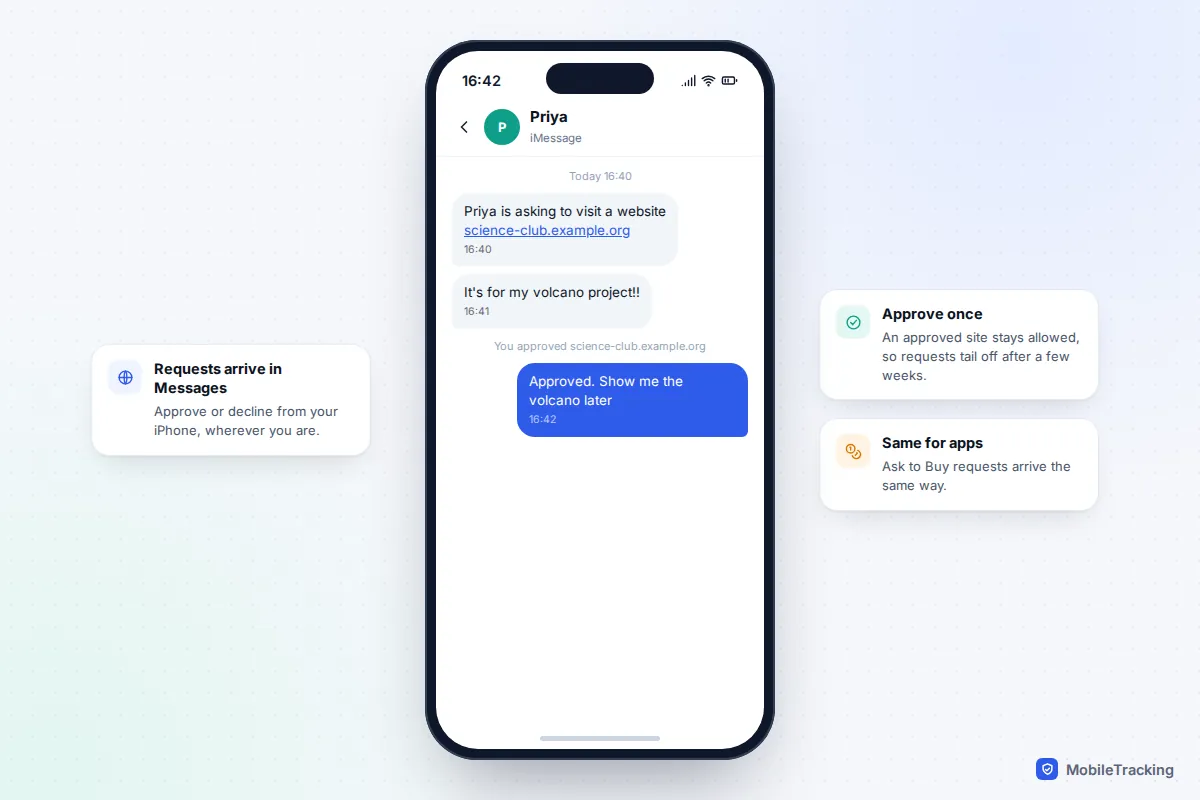
On older versions, go to Content & Privacy Restrictions › App Store, Media, Web & Games › Web Content and choose Limit Adult Websites or Only Approved Websites. Whichever version you are on, the filter is built around Safari, so do not approve a second browser app. For a filter that also covers the games console and smart TV, see our guide to parental controls on your home Wi-Fi.
Age ratings and privacy
In Content & Privacy Restrictions, set age ratings for apps, films, TV and books. Since iPadOS 26, App Store ratings run 4+, 9+, 13+, 16+ and 18+, which gives much finer control for teenagers. While you are there, check Siri, Game Center (multiplayer games and adding friends) and the privacy settings. On iPads with Face ID, Screen Distance nudges your child when they hold the screen too close; Apple turns it on automatically for eligible child accounts.
Manage who your child can talk to
Most children’s iPads have no mobile connection, but iMessage and FaceTime work over Wi-Fi, so contact controls matter just as much as on a phone.
- On version 27, go to Settings › Family › your child › Allowed Contacts.
- Under During Screen Time, choose Contacts Only, Contacts & Groups with at Least One Contact, or Everyone.
- Turn on Manage Contacts and choose the people you approve.
- Leave Allow Contact Editing off if you want your child to send you a request before adding anyone new.
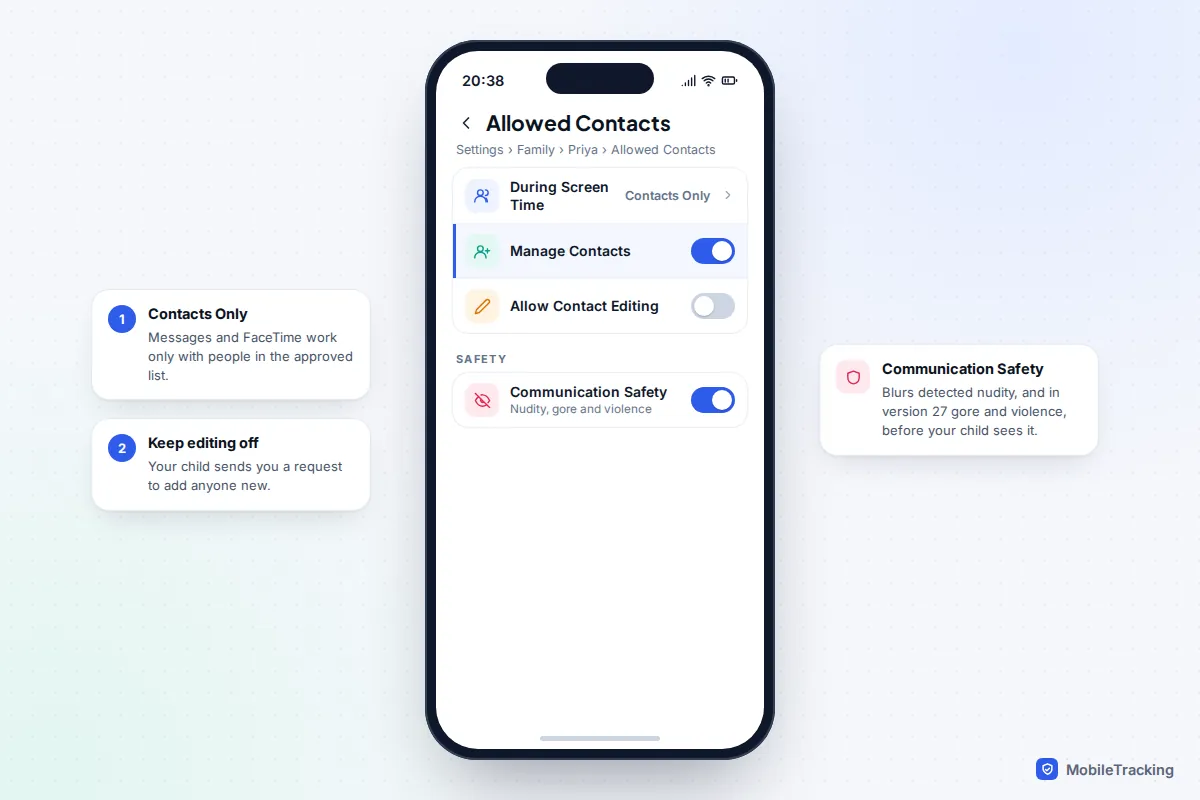
On older versions the same tools are called Communication Limits, under Settings › Screen Time › your child, and they only work with iCloud Contacts switched on. Also turn on Communication Safety. It detects nudity in photos and videos your child receives or tries to send in Apple’s apps, and on version 27 gore and violence too, blurring the image and offering ways to get help. It is on by default for under-18s, but check it.
Guided Access for young children
For a three- or four-year-old, full Screen Time is often more than you need. Guided Access locks the iPad into one app and can switch off parts of the screen, such as a shop button, until you enter a passcode.
- Go to Settings › Accessibility › Guided Access and turn it on.
- Tap Passcode Settings and set a Guided Access passcode, with Face ID or Touch ID as a back-up.
- Open the app, then triple-click the top button (or the Home button on iPads that have one).
- Circle any areas of the screen to disable, tap Options to set a Time Limit or block the volume buttons, then tap Start.
- To finish, triple-click again, enter the passcode and tap End.
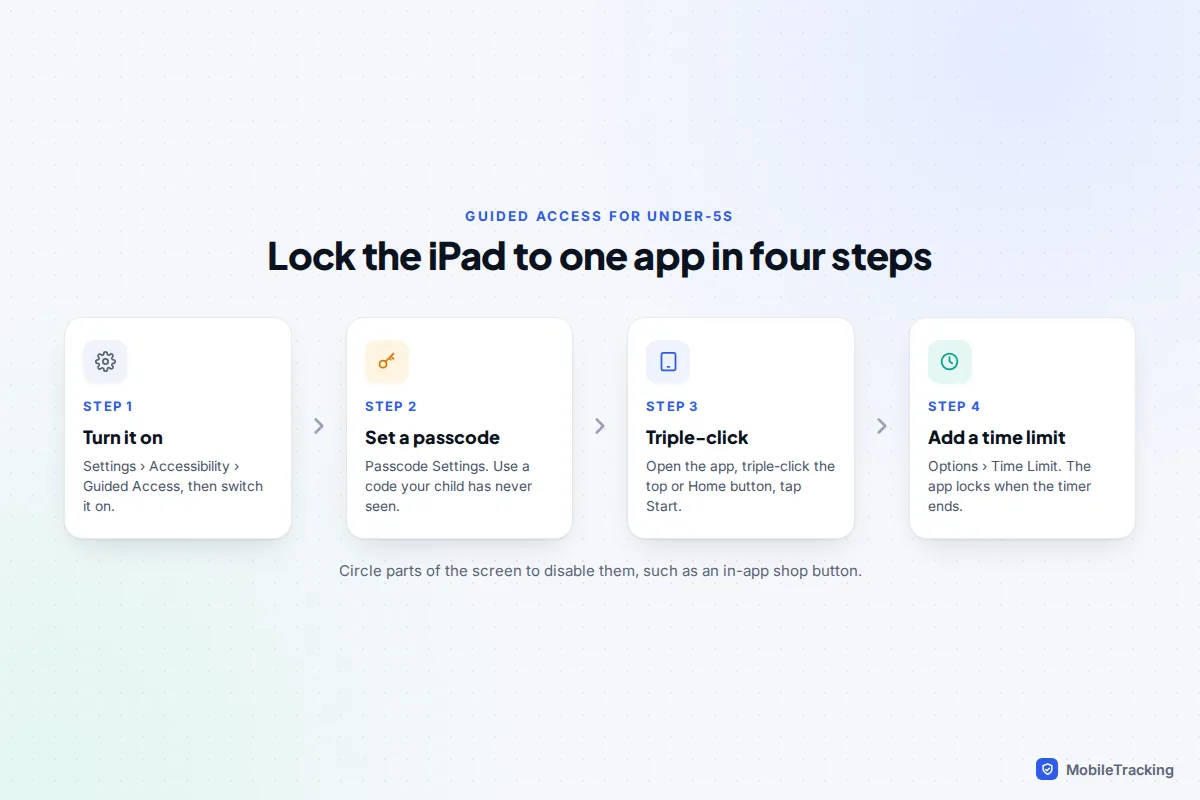
Guided Access is ideal for a car journey or a restaurant. It does not filter anything inside the app, so choose the app with care. Apple’s page on using Guided Access lists every option.
A shared family iPad on your own Apple Account
iPads for home use do not support separate user profiles. Apple’s multi-user Shared iPad only works on devices managed by schools and businesses. A family iPad signed in to a parent’s account is really your iPad, lent to your child.
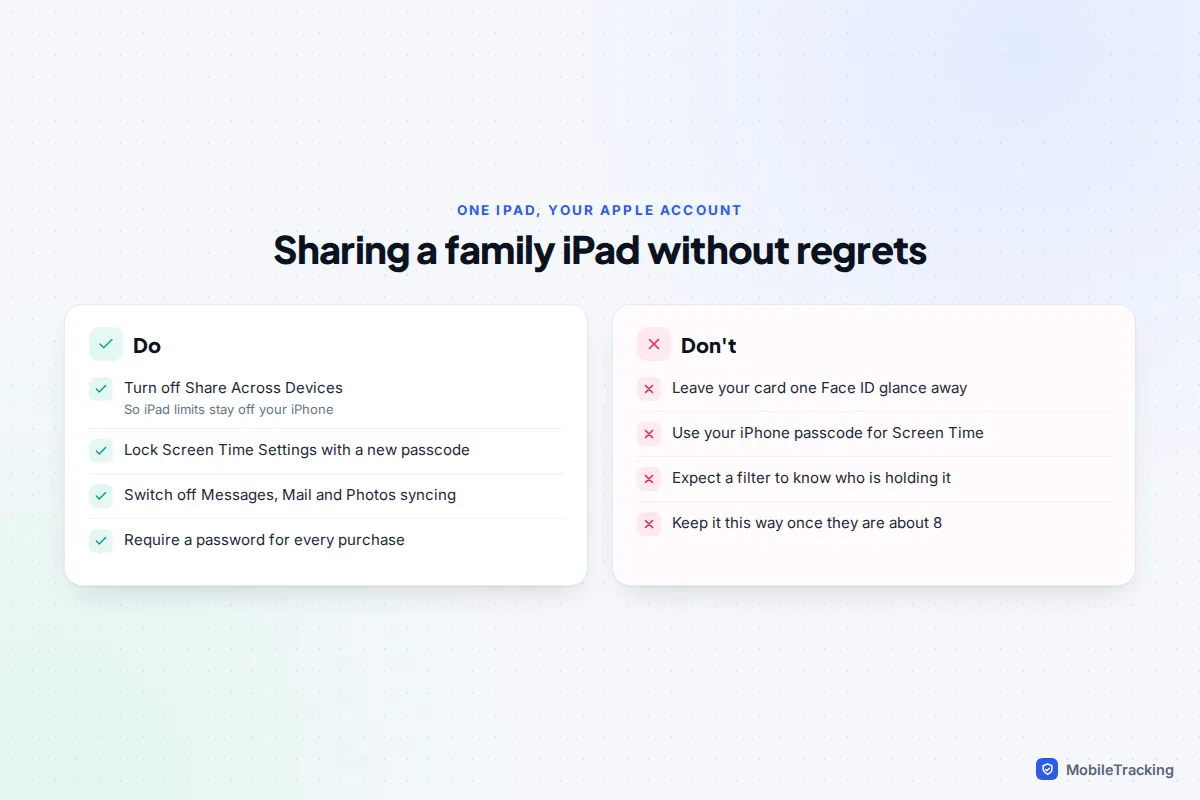
- Your data is on it. Messages, Mail, Photos and Notes sync from your account. Turn them off for this iPad in Settings › your name › iCloud.
- Limits can follow you. If you set Screen Time on the iPad, turn off Share Across Devices in Settings › Screen Time, or your own iPhone inherits the same Downtime.
- Lock the settings. Use Lock Screen Time Settings with a passcode that is not your iPhone code. Anyone who knows it can tap Ignore Limit.
- Protect your card. Under Settings › your name › Media & Purchases › Password Settings, require a password for every purchase, and remove your child’s face from Face ID if it was ever added.
A real example: Dan let his seven-year-old use his iPad and set Downtime from 7pm. With Share Across Devices on, his iPhone started blocking apps at 7pm too, and his daughter could read his family group chat. Moving her onto a child account fixed both problems in twenty minutes.
Common gaps and fixes
| Problem | Likely cause | Fix |
|---|---|---|
| No Screen Time Schedule option | A device in the family is not on version 27 | Update it, or use Downtime |
| Child ignores Downtime | Block at Downtime is off | Turn it on |
| Child knows the passcode | They watched you type it | Change it from your own device |
| Web filter bypassed | A second browser was approved | Block or delete it |
| Contact limits not working | iCloud Contacts off (older versions) | Turn on Contacts in iCloud |
For the full list of settings on a child’s iPhone, which match the iPad almost exactly, see our complete iPhone parental controls guide, and Apple’s parental controls page has the official steps.
Frequently asked questions
Can I set up parental controls on the iPad without Family Sharing?
Partly. You can turn on Screen Time on the iPad itself and lock it with a passcode, which covers limits, filters and restrictions. You lose remote management, Ask to Buy requests, Ask to Browse and the new iPadOS 27 schedules, which all rely on a child account in Family Sharing.
Can my child get around iPad parental controls?
The common workarounds are guessing the Screen Time passcode, using a second browser and asking a friendly adult to approve requests. A private passcode, careful approvals and Always Allowed kept short close most of them. No setting replaces talking to your child about why the limits exist.
What happens to Downtime after we update to iPadOS 27?
Once every device in the family group runs version 27, child accounts move to Screen Time Schedules and Time Allowances. Until then, Downtime and App Limits keep working as before.
Can two children share one iPad with separate controls?
No. A home iPad signs in with one Apple Account at a time, so both children get the same settings. Either set controls for the younger child or sign it into each child’s account in turn, which is fiddly in practice.
Does Screen Time on the iPad also limit my child’s iPhone?
Yes, if both devices use the same child account. Schedules and allowances count across all their devices, so an hour of games is an hour in total, not an hour per device.
This guide is general information, not legal or financial advice. Read our editorial policy.