
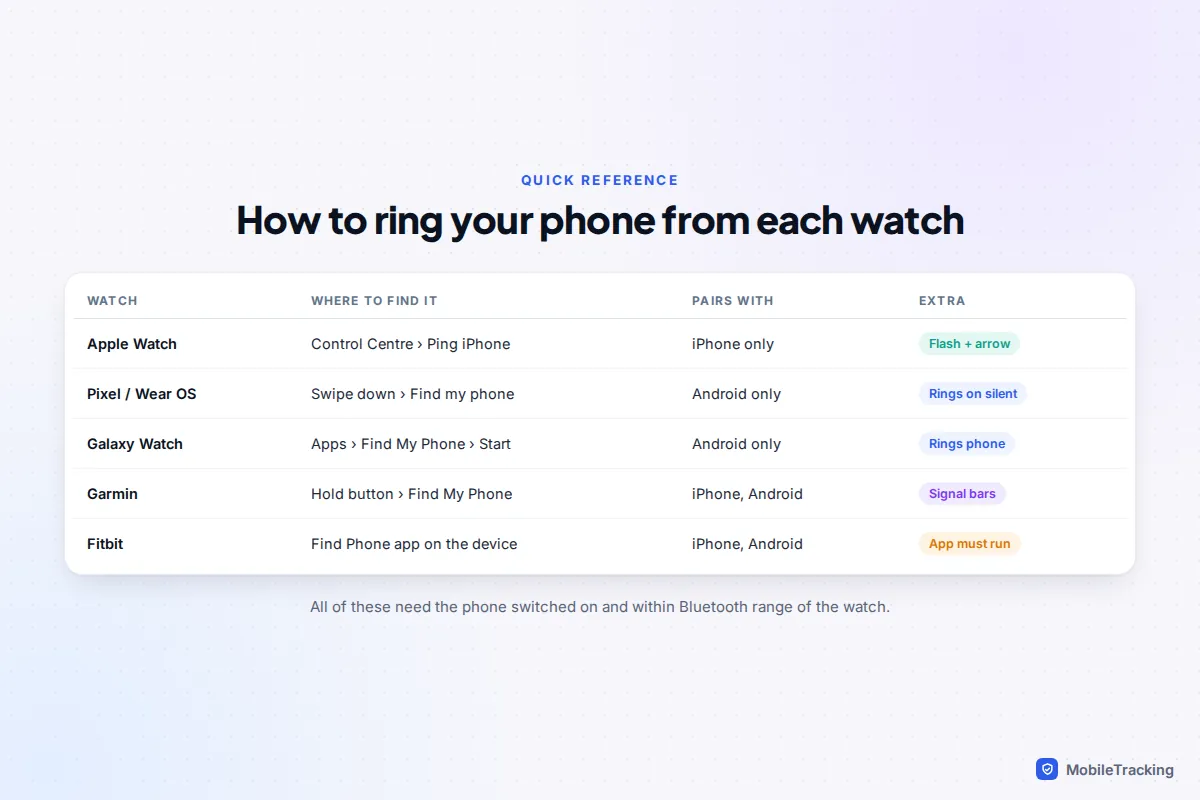
If your phone is somewhere nearby, your smartwatch can make it ring in a couple of seconds. On an Apple Watch, press the side button to open Control Centre and tap Ping iPhone; touch and hold the same button to make the iPhone’s flash blink too. On a Pixel Watch or other Wear OS watch, swipe down and tap Find my phone. On a Galaxy Watch, open Find My Phone and tap Start. Garmin and Fitbit have their own Find My Phone and Find Phone options.
Every one of these works only when the watch and phone are connected, which in practice means Bluetooth range: roughly 10 metres, less through walls and floors. If the watch can’t reach the phone, you need Find My (iPhone) or Find Hub (Android) instead. Below are the exact steps for each watch, what the extras such as Precision Finding need, and what to set up today so this works on the day you need it.
Apple Watch: Ping iPhone, flash and Precision Finding
Apple Watch has the most complete phone-finding tools, and the basic ping works on every model paired with an iPhone.
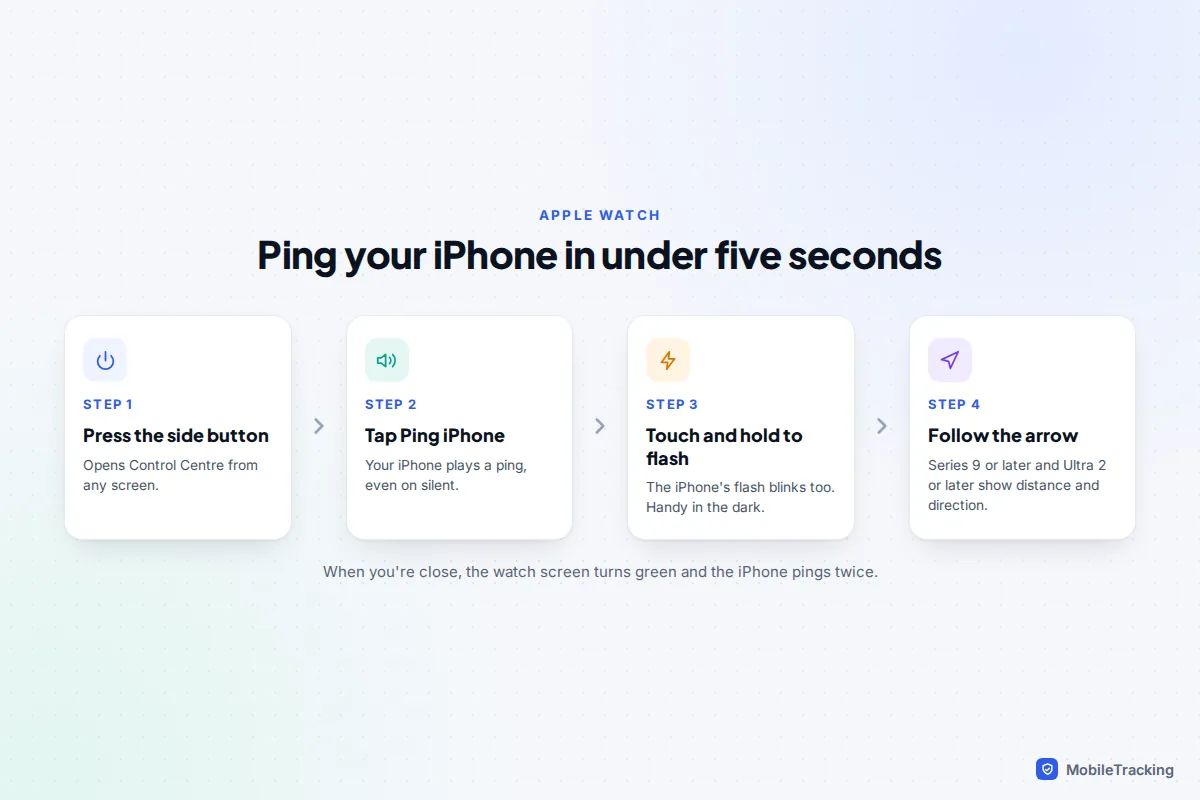
- Press the side button (the flat button below the Digital Crown) to open Control Centre.
- Tap the Ping iPhone button, which shows an iPhone with sound waves. Your iPhone plays a short ping. It sounds even when the iPhone is in silent mode or a Focus, which is exactly when you need it.
- If the room is dark, touch and hold Ping iPhone instead. The iPhone pings and its camera flash blinks, which helps when it has slipped under a bed or into a bag.
- Tap again to repeat the ping until you find it.
The Ping iPhone button also tells you about the connection. When the watch is linked to the phone it can ping it straight away. If the watch shows it is disconnected (a red iPhone icon at the top of the watch face), the button won’t reach the phone, and you need the options further down.
Precision Finding from your wrist
On newer hardware, tapping Ping iPhone also opens Precision Finding. Apple’s guide to pinging your iPhone with Apple Watch says the watch shows a general heading and distance to your iPhone, which updates as you walk. When you are close, the watch screen turns green and the iPhone pings twice.
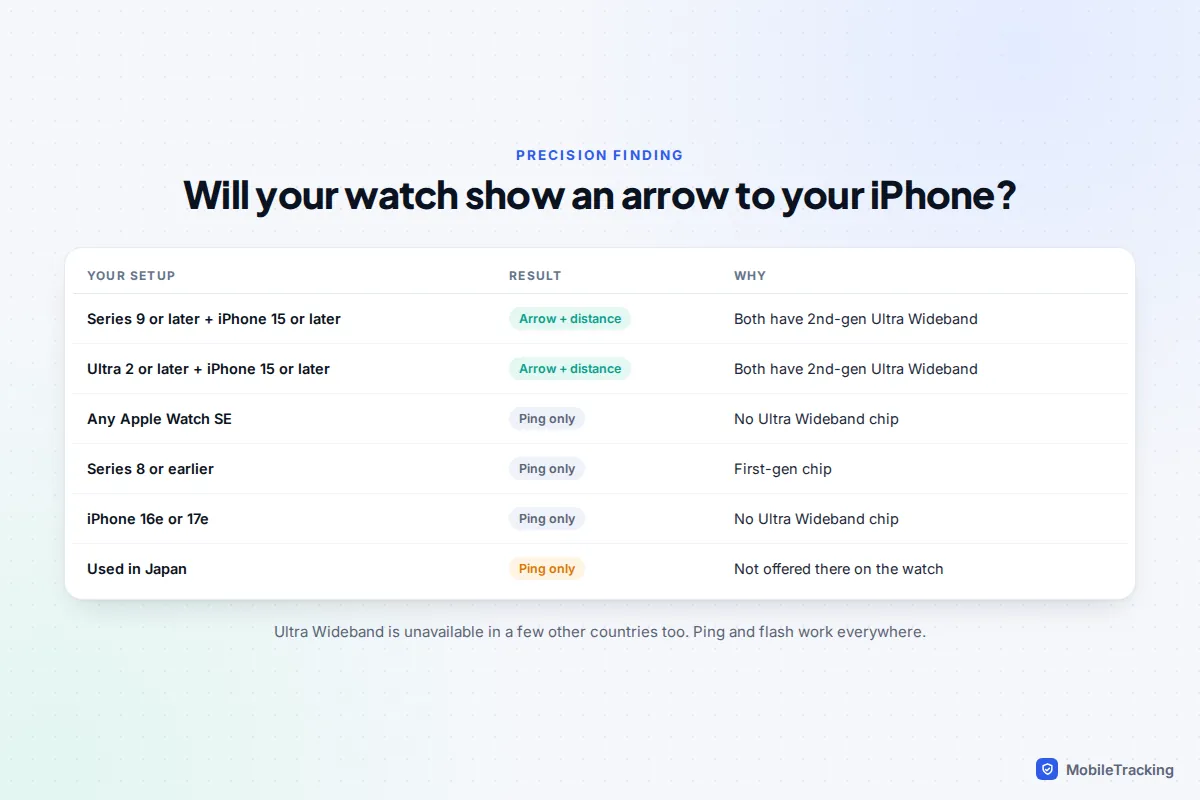
It needs Ultra Wideband chips of the second generation in both devices. In practice that means:
- Watch: Apple Watch Series 9 or later, or Apple Watch Ultra 2 or later. Apple Watch SE models, including the SE 3, don’t support it.
- iPhone: iPhone 15 or later, including iPhone Air, but not iPhone 16e or iPhone 17e, which have no Ultra Wideband chip.
- Country: Ultra Wideband is unavailable in a handful of countries, and in Japan Precision Finding isn’t offered on Apple Watch.
If your pairing doesn’t qualify, nothing is broken: Ping iPhone and the flash still work normally, you just don’t get the arrow.
When Ping iPhone can’t connect
If the iPhone is out of range, use Find My on the watch itself. In watchOS 27 the old Find Devices, Find People and Find Items apps have been merged into a single Find My app; on watchOS 26 and earlier, open Find Devices. Choose your iPhone and tap Play Sound. This goes through iCloud rather than Bluetooth, so it needs the watch to be online through Wi-Fi or its own mobile connection. Apple’s own advice for an out-of-range iPhone is Find My on iCloud.com, which works from any browser.
Pixel Watch and other Wear OS watches
Google’s Wear OS, used by Pixel Watch and many other brands, has a built-in Find my phone option. According to Google’s Wear OS help page:
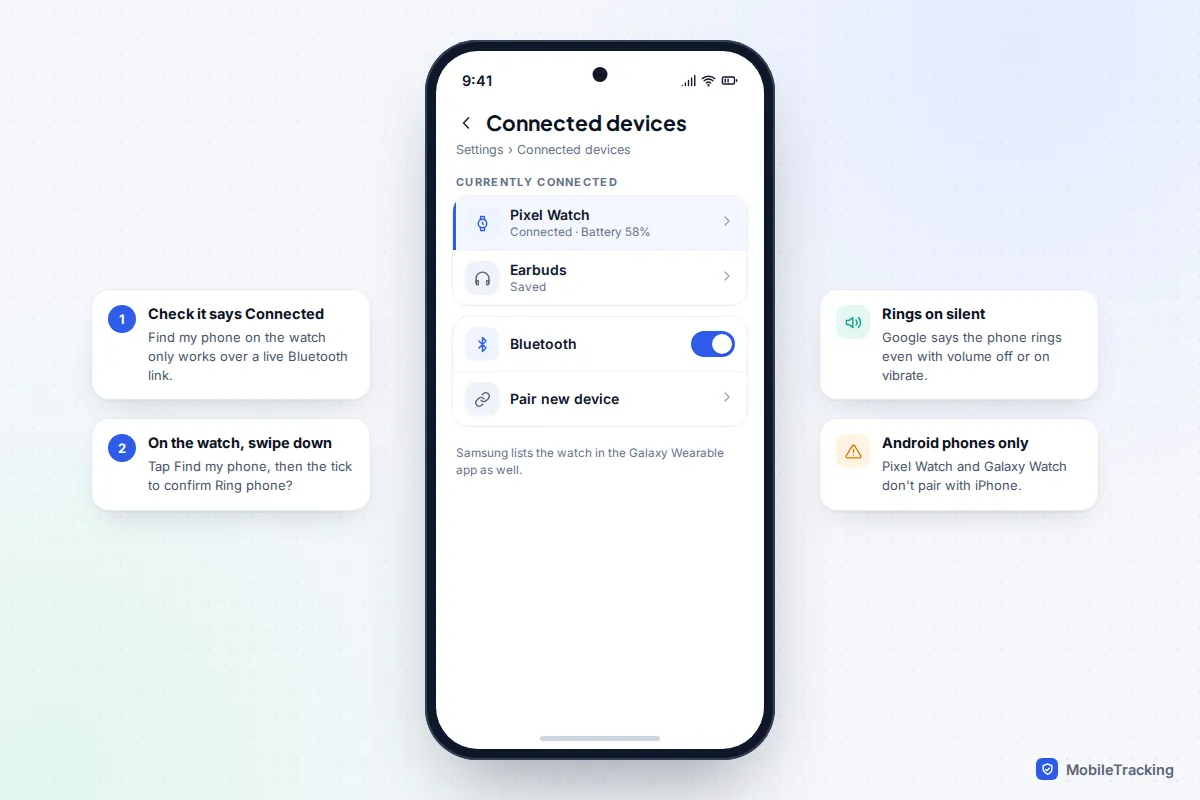
- Wake the watch, then swipe down from the top of the watch face to open quick settings.
- Tap Find my phone (a phone icon with sound waves). You can also open it from the app list.
- A Ring phone? prompt appears. Tap the tick to confirm. This extra step was added in 2025 to stop accidental rings.
- Your phone rings, even if its volume is off or it is set to vibrate. Stop it from the watch once you have found the phone.
The phone must be switched on and connected to the watch by Bluetooth. Wear OS watches only pair with Android phones, so a Pixel Watch can’t help find an iPhone. Unlike Apple Watch, Wear OS watches ring the phone but don’t currently show a direction arrow to it.
Recent Wear OS versions also include a Find Hub app on the watch, which lists your devices and compatible trackers and offers Play sound and directions. It is worth trying when the phone is out of Bluetooth range and the watch has its own Wi-Fi or mobile connection.
Samsung Galaxy Watch
Galaxy Watch models from the Galaxy Watch4 onwards run Wear OS with Samsung’s own interface, and Samsung has its own version of the feature.
- Press the Home button on the watch to open the app list.
- Swipe, or turn the bezel on models that have one, to Find My Phone and tap it.
- The first time, read the disclaimer and tap Agree.
- Tap Start. Your phone rings so you can follow the sound.
- Tap the X on the watch, or dismiss it on the phone, once you’ve found it.
On recent One UI Watch versions you can usually add Find My Phone to the quick panel so it is one swipe away; labels move a little between versions. Like other Wear OS watches, a Galaxy Watch needs a live Bluetooth connection and only pairs with Android phones. For a phone that is further away, use the Samsung Find app on another Galaxy device or Google’s Find Hub.
Fitbit trackers and watches
Several Fitbit devices can ring your phone: Charge 5 and Charge 6, Inspire 3, Luxe, the Versa range and Sense and Sense 2. On the device, open Find Phone, tap Find Phone and wait for the ring, then tap Cancel when you have it.
Two catches trip people up. First, on some models, such as Sense 2, Find Phone isn’t installed by default; you add it from the device’s app gallery in the companion app. Second, the companion app has to be running in the background on your phone, and the phone must be within Bluetooth range, around 10 metres. If you have swiped the app away or your phone’s battery saver has paused it, Find Phone fails.
Note that the Fitbit phone app is becoming the Google Health app in 2026. Your Fitbit keeps working, but menus in the phone app may look different from older guides.
Garmin watches
Most recent Garmin watches that pair with a phone have Find My Phone in the controls menu. It works with both iPhone and Android through the Garmin Connect app.
- Hold the button that opens the controls menu. Which button depends on the model.
- Select Find My Phone (a phone with a question mark).
- Your phone plays an alert. On many models the watch shows Bluetooth signal bars that rise as you get closer, a basic “hotter or colder” guide.
- Press BACK to stop the alert.
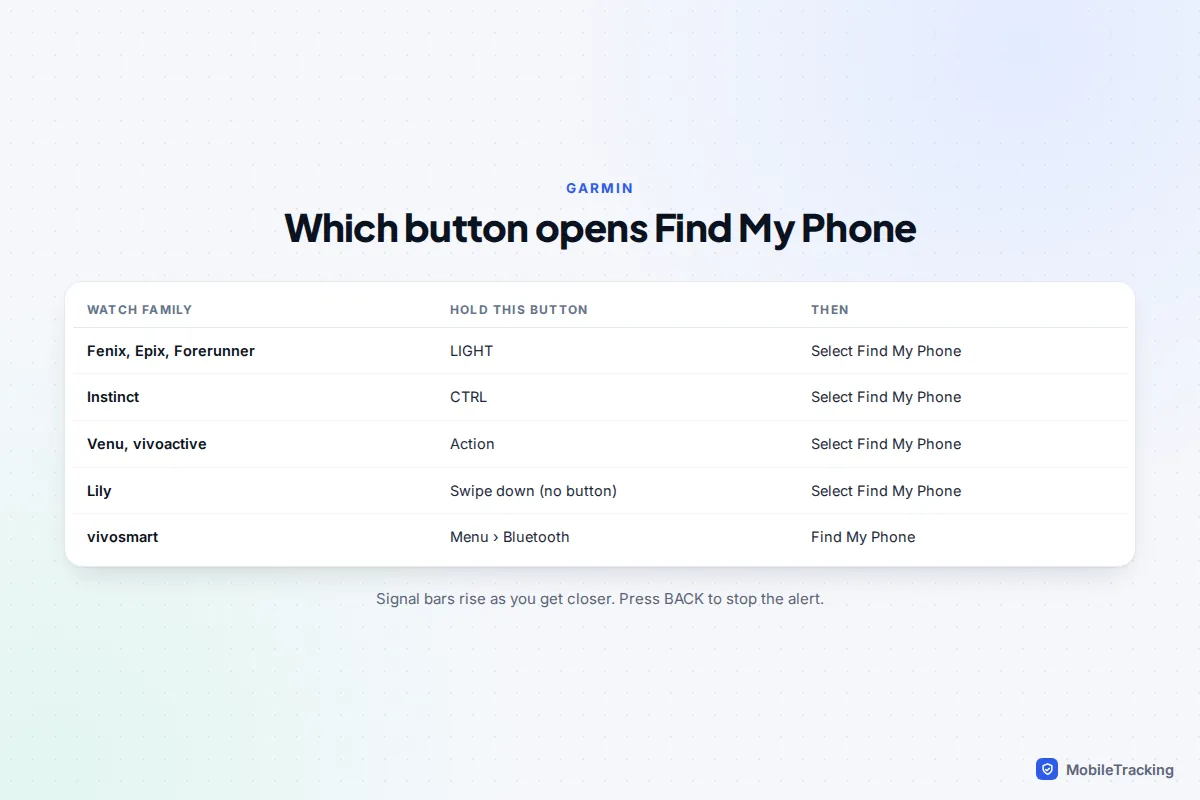
Garmin’s version has limits worth knowing. It works only over Bluetooth, not Wi-Fi or mobile data, so it is a same-room tool. Reviewers report it doesn’t override your phone’s volume, so a phone set very low is hard to hear. On iPhone, Garmin Connect must be open or running in the background; on Android it needs its permissions granted, and some models can flash the phone’s camera light.
Range: why it works in one room and not the next
Almost every watch-to-phone feature uses Bluetooth, which reaches about 10 metres in open air. Walls, floors, a fridge or even your own body can cut that down a lot. A phone upstairs in a brick house may be out of range while you stand directly below it.
Apple Watch is a partial exception. Apple says the watch uses Bluetooth when the iPhone is near and switches to Wi-Fi when Bluetooth isn’t available, which is why the Find My app on the watch can still play a sound when the phone is elsewhere in the building. Garmin and Fitbit rely on Bluetooth alone.
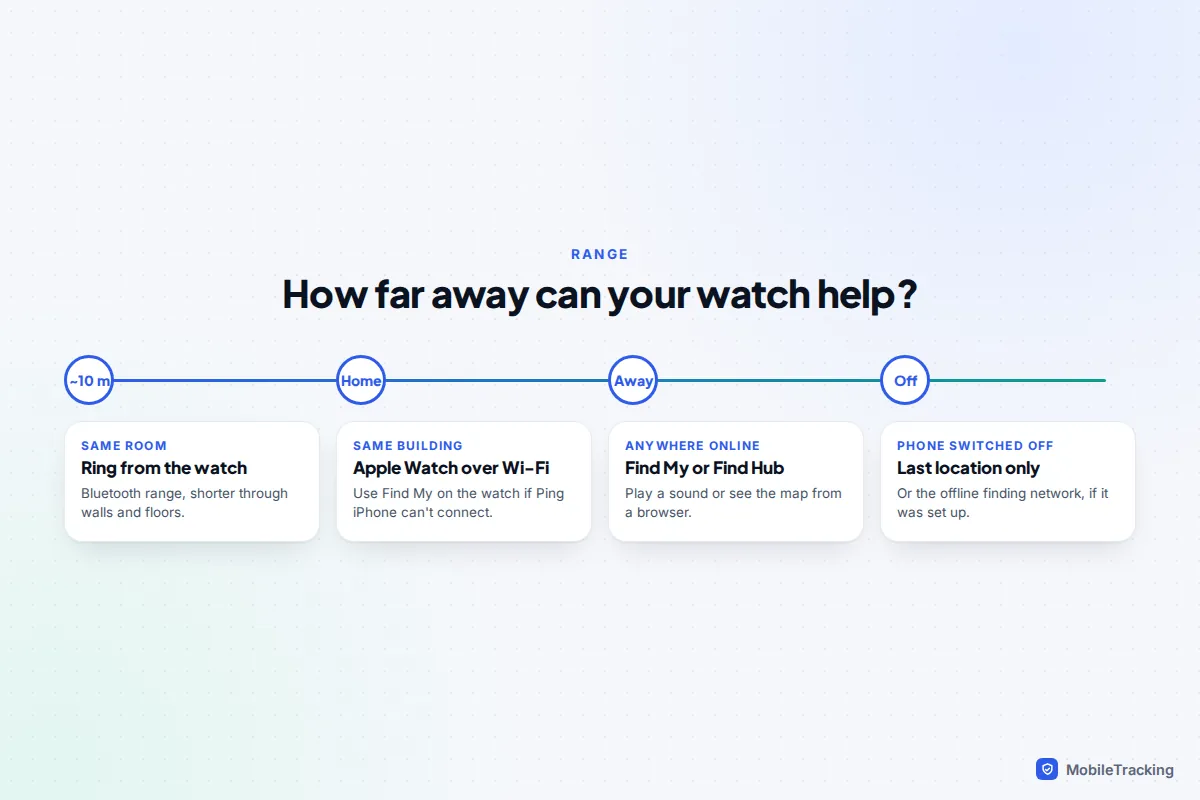
A quick real-world scenario: Tom gets home, puts his phone down somewhere and can’t find it. He taps Ping iPhone and hears nothing. The watch shows a red iPhone icon, so the phone is out of range, probably in the car. He walks to the drive, taps again, and hears it ping from the passenger seat. If the watch still can’t connect, the next step is Find My, not tapping harder.
When the watch can’t reach your phone
Once the phone is beyond Bluetooth range, the watch is no longer the right tool. Use the phone maker’s finding service from a computer, a tablet or someone else’s phone:
- iPhone: sign in at iCloud.com/find, or use Find My on another Apple device. Play Sound makes the iPhone ring, and Lost Mode locks it with a message.
- Android: go to google.com/android/find or open the Find Hub app on another device. Google’s help page says Play sound rings the phone at full volume for 5 minutes, even if it is set to silent or vibrate.
- Samsung Galaxy: Find Hub works, and so does Samsung Find on another Galaxy device if you are signed in to your Samsung account.
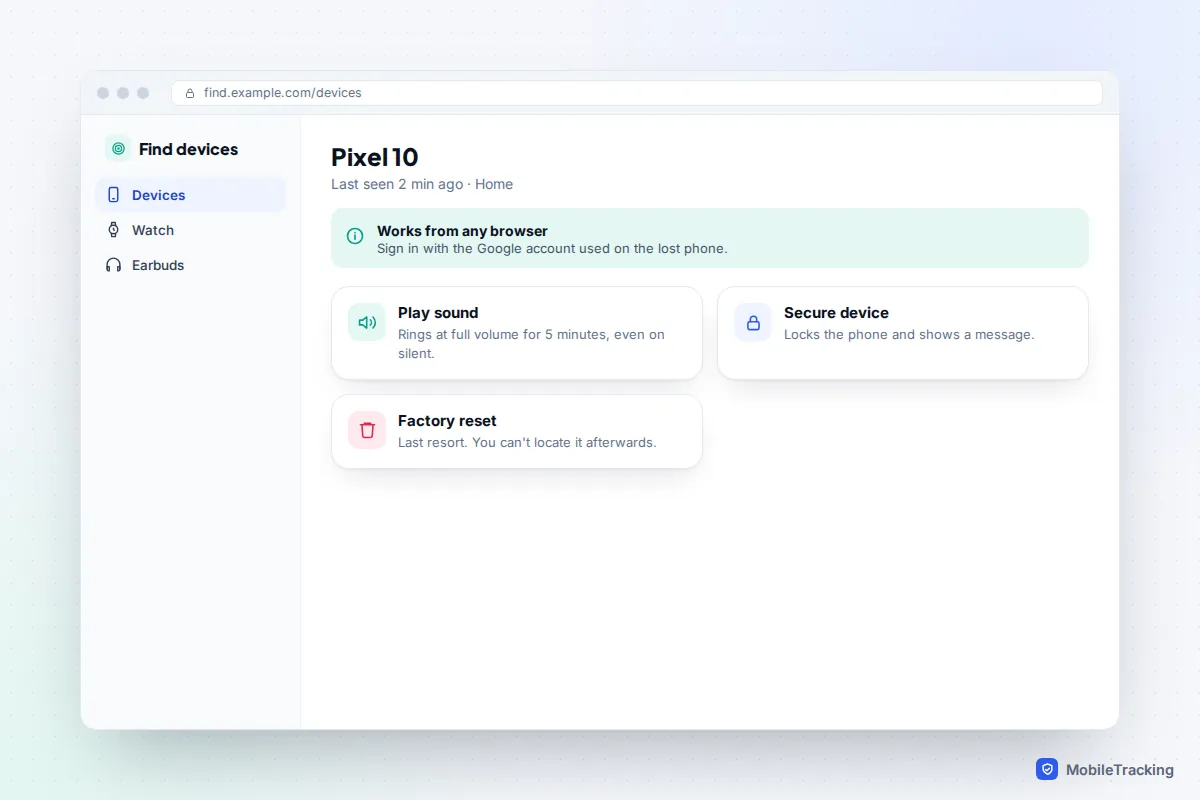
If the phone is on silent in the same house, our guide to finding a lost phone on silent covers every other option. If it may be switched off or flat, see how to find a lost phone that is turned off, and for the Android side in detail, how to use Find Hub on Android.
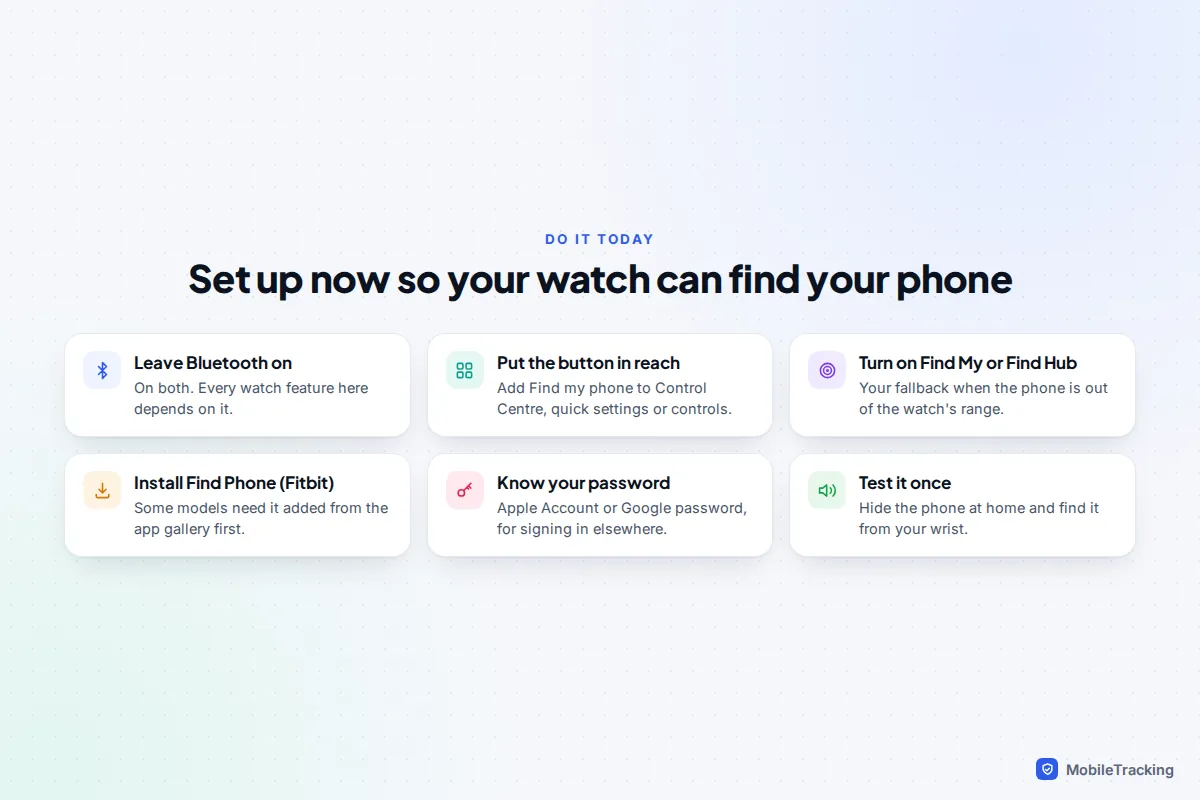
Set it up now, before you need it
Ten minutes today makes the difference between ringing your phone from your wrist and hunting for a laptop to sign in.
- Keep Bluetooth on on both phone and watch. Turning it off to save battery disables every watch feature above.
- Put the button where you can reach it. On Apple Watch, the Ping iPhone button lives in Control Centre, which you can rearrange from the Edit option at the bottom. On Wear OS and Galaxy Watch, edit quick settings so Find my phone is on the first page. On Garmin, add Find My Phone to the controls menu.
- Install Find Phone on Fitbit models that need it, and set the companion app’s battery use to Unrestricted on Android.
- Turn on your phone’s finding service. On iPhone, go to Settings › [your name] › Find My › Find My iPhone and turn on Find My iPhone, Find My network and Send Last Location. On Android, check Find Hub is on in the Google section of Settings; the exact path varies by manufacturer.
- Know your account password. Without your Apple Account or Google password you can’t sign in to iCloud.com or Find Hub on someone else’s device.
- Test it once. Leave your phone in another room and find it from your wrist, so you know how it behaves before it matters.
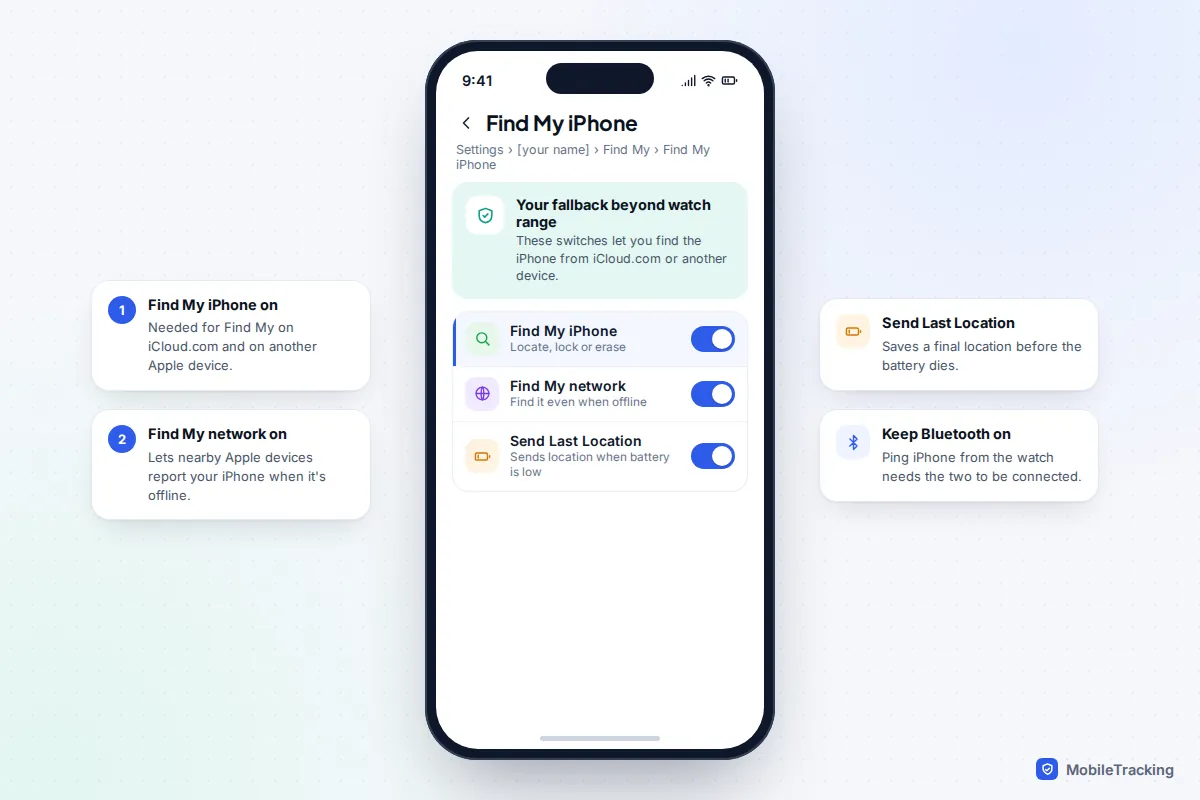
For the full phone-side checklist, see how to turn on Find My before you lose your phone.
Frequently asked questions
Can an Apple Watch find an Android phone?
No. Apple Watch pairs only with an iPhone, and Ping iPhone rings only the iPhone it is paired with. If you use Android, a Wear OS watch, a Garmin or a Fitbit can ring your phone instead.
Will my phone ring if it is on silent?
With Apple Watch and Wear OS watches, yes: the ping or ring sounds even when the phone is on silent or vibrate. Garmin’s alert plays at the phone’s current volume, so a phone turned right down can be hard to hear.
Can my watch find my phone if the phone is switched off?
No. A switched-off phone can’t answer the watch. You can still see its last known location in Find My or Find Hub, and some recent phones can be found for a while after being switched off through Apple’s Find My network or Google’s Find Hub network, if those were turned on beforehand.
What if it’s my watch I’ve lost?
You can do the reverse. On an iPhone, the Ping My Watch button in Control Centre plays a sound on a nearby Apple Watch, and the Find My app locates it further away. On Android, open Find Hub on the phone and choose the watch to play a sound or see its last known location.
Does using Find my phone drain the battery?
No, not in any way you’d notice. The watch and phone are already connected by Bluetooth, and a ring lasts seconds.
This guide is general information, not legal or financial advice. Read our editorial policy.