
Most Bluetooth problems are fixed in three moves. First, turn Bluetooth off and on again in Settings and restart both the phone and the accessory. Second, “forget” the device on your phone and pair it again from scratch, with the accessory properly in pairing mode. Third, if it still fails, reset the accessory itself so it clears its own memory of old pairings. Only if all three fail do you need to reset your phone’s network or Bluetooth settings.
Which of those will work depends on the symptom. A speaker that never shows up in the list, headphones that connect but play no sound, and a car that suddenly refuses your phone all have different usual causes. Start with the table below, then jump to the section that matches what you are seeing.
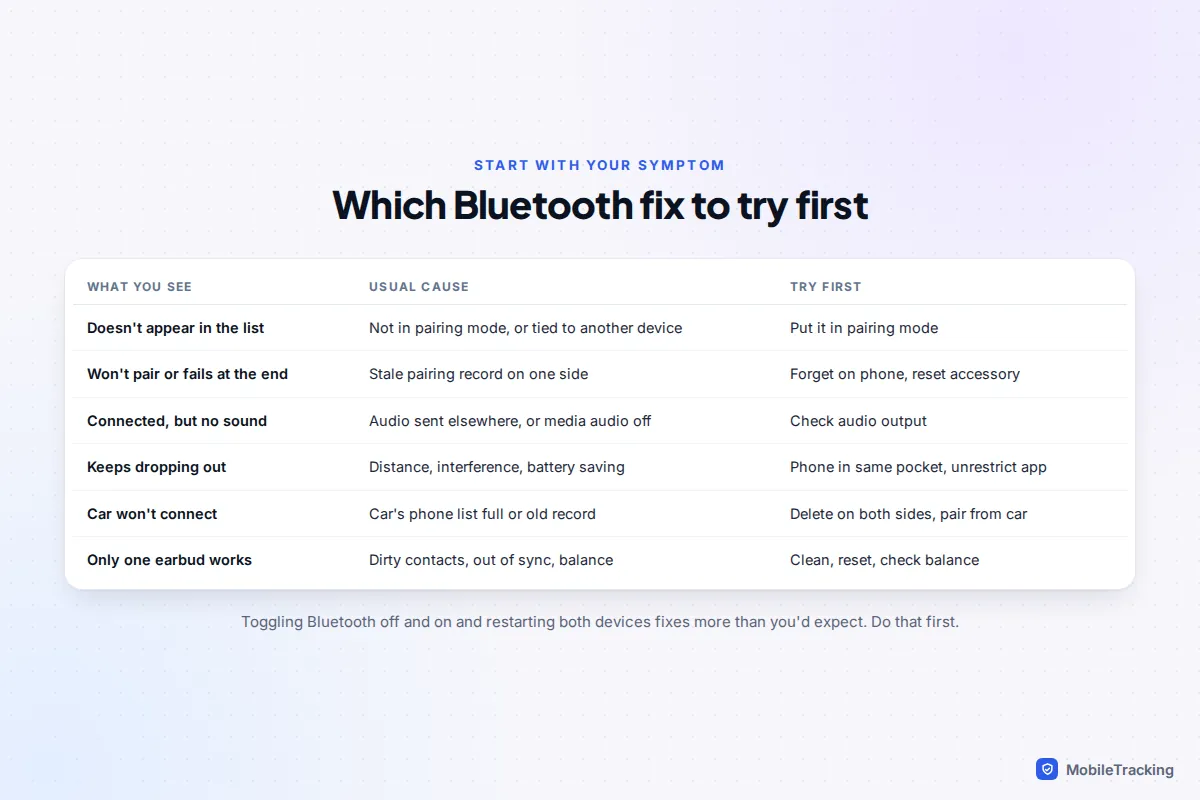
The five-minute fix that solves most cases
Work through these in order and test after each one. Stop as soon as it works.
- Toggle Bluetooth in Settings, not Control Centre. On an iPhone, tapping the Bluetooth icon in Control Centre only disconnects accessories until the next day; it doesn’t fully switch Bluetooth off. Go to Settings › Bluetooth, switch it off, wait ten seconds and switch it on. On Android, use the Quick Settings tile or Settings › Connected devices (Samsung: Settings › Connections › Bluetooth).
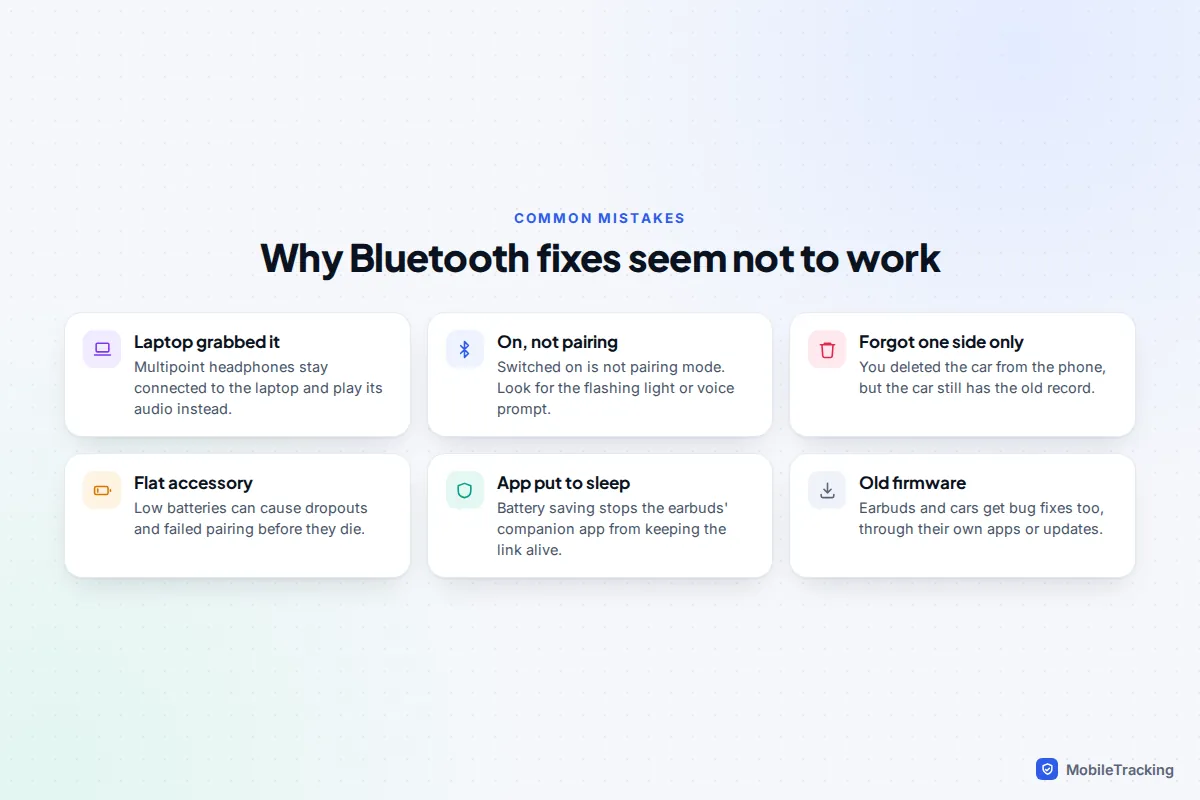
- Charge the accessory. Earbuds and speakers with a low battery can drop connections or refuse to pair before they actually go flat.
- Restart both devices. Turn the accessory fully off and on, and restart the phone.
- Check it isn’t busy elsewhere. Headphones usually connect to the last device they used. If your laptop or tablet is nearby with Bluetooth on, it may have grabbed them first. Turn Bluetooth off on the other device while you test.
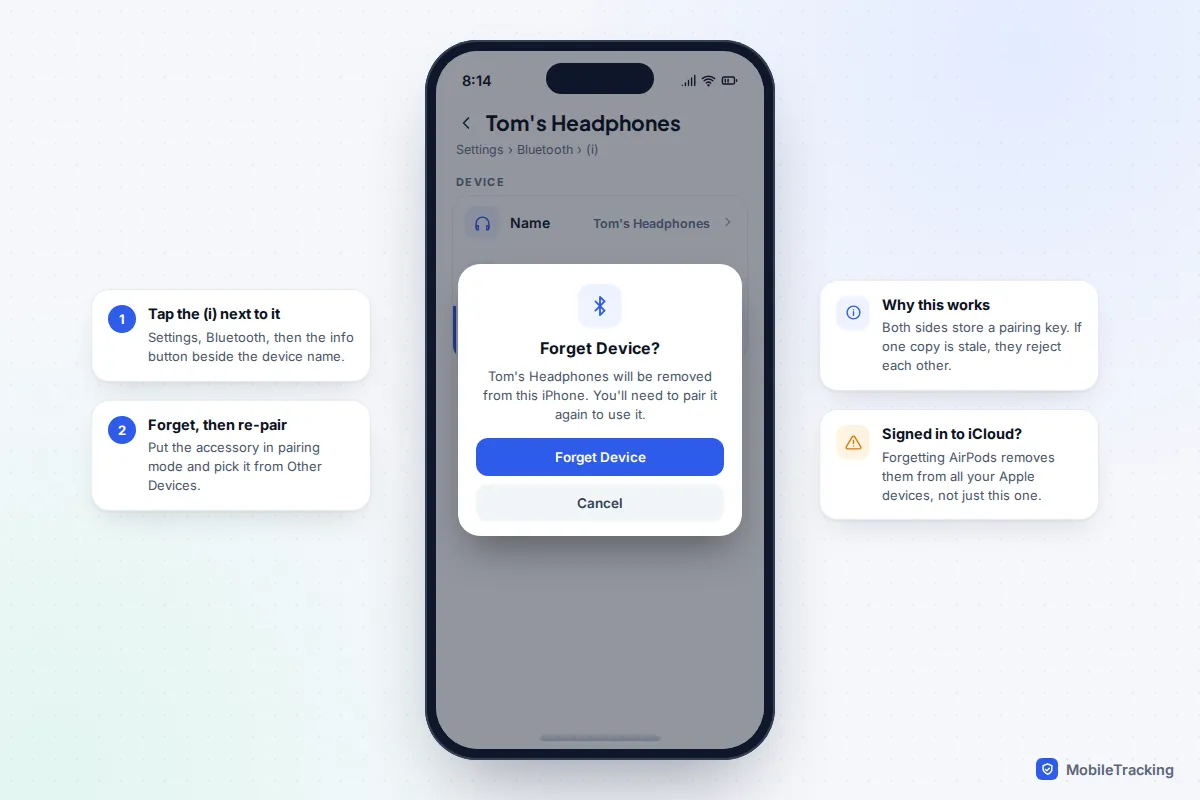
- Forget and re-pair. On iPhone, go to Settings › Bluetooth, tap the (i) next to the device and choose Forget This Device. On Android, tap the gear icon next to the device and choose Forget. Then put the accessory in pairing mode and select it as a new device.
Forgetting works because both sides store a shared pairing key. If one copy is corrupt or out of date, for example after the accessory was paired to another phone, the two devices recognise each other but refuse the connection. Pairing from scratch creates a fresh key on both.
Fixes by symptom
It won’t show up or won’t pair
The most common mistake is assuming an accessory that is switched on is ready to pair. It usually isn’t. Pairing mode is a separate state, normally started by holding the power or Bluetooth button for a few seconds longer than usual, and shown by a flashing light or a voice prompt. Earbuds usually need to be in their open case. Check the manual or the maker’s website for the exact button combination.
If it is definitely in pairing mode and still missing:
- Move closer and away from interference. Bluetooth shares the 2.4GHz band with Wi-Fi routers and microwave ovens. Pair within a metre or so of the phone.
- Clear the accessory’s memory. Headphones and speakers can only remember a limited number of devices, often around eight according to many manuals. A reset (see below) clears the list.
- Check app permissions. If the accessory is set up through the maker’s app, make sure the app has Bluetooth access. On iPhone that is Settings › Privacy & Security › Bluetooth. On Android, open Settings › Apps, pick the app, then Permissions › Nearby devices.
It connects, but there is no sound
If the phone says “Connected” but the music still comes out of the phone’s speaker, or nowhere at all, the audio is being routed somewhere else.
- Pick the output manually. On iPhone, open Control Centre, touch and hold the music controls and tap the AirPlay icon to choose the headphones. On Android, open the media player in Quick Settings and tap the output button in its corner.
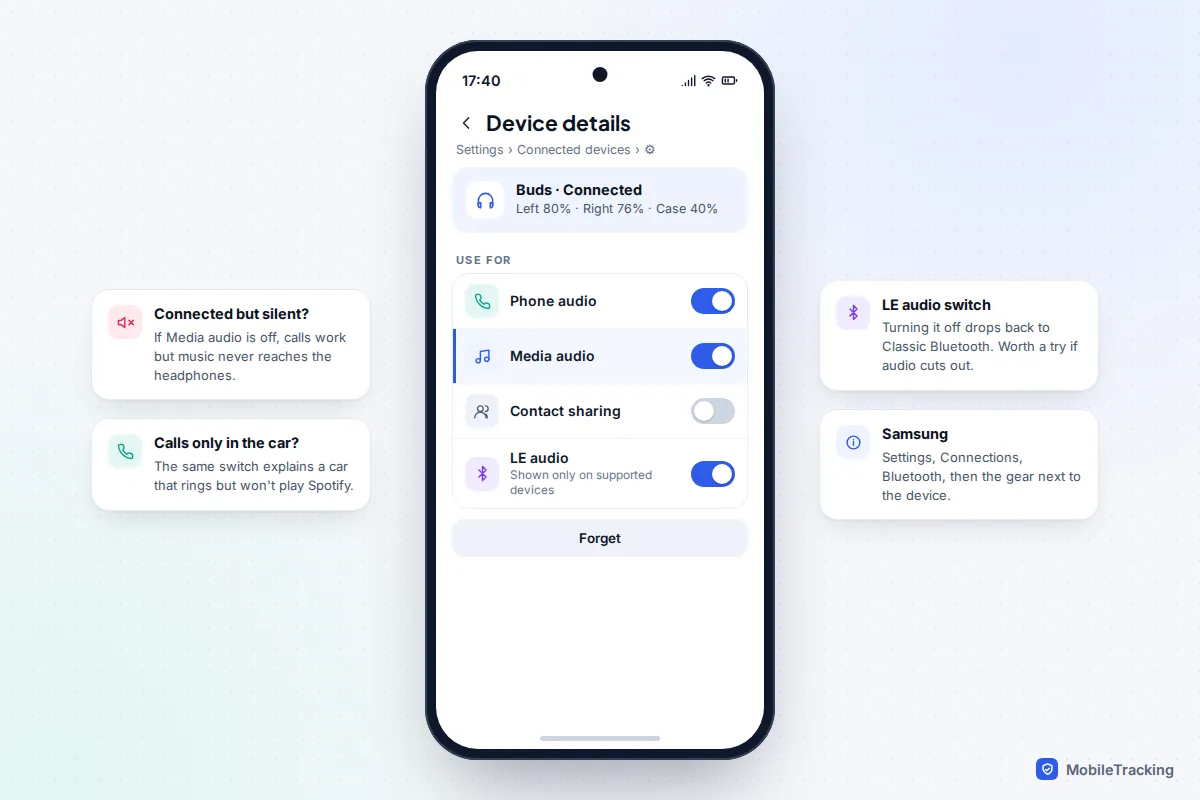
- Check the audio profile switches. On Android, tap the gear next to the device. If Media audio is off, calls work but music never reaches the accessory. Google’s own Pixel Bluetooth help page lists this as the first thing to check.
- Turn the volume up on the accessory itself. Many speakers and headphones have their own volume separate from the phone’s.
- Disconnect multipoint partners. Headphones that support multipoint connect to two devices at once and may be playing a silent laptop instead of your phone.
It keeps disconnecting or cutting out
Dropouts are usually about signal, power saving or a compatibility glitch.
- Mind the body. Water in your body blocks Bluetooth well. A phone in a back pocket with earbuds on the other side of your head is a classic cause of stutter when you walk. Keep the phone in a front pocket on the same side.
- Stop battery saving from cutting the link. On Android, battery optimisation can put the earbuds’ companion app to sleep. Open Settings › Apps, pick the app, tap Battery (or App battery usage) and choose Unrestricted. Our guide to Android battery settings explains what the three levels do.
- Try switching LE Audio off. Newer Android phones and earbuds can use LE Audio, a newer Bluetooth audio standard. It is efficient, but early firmware on some models is unreliable. If the device’s settings page shows an LE audio switch, turn it off to fall back to classic Bluetooth and see if the dropouts stop.
- Change the codec (advanced). On Android, high-quality codecs such as LDAC need a strong signal. If you have Developer options enabled, Settings › System › Developer options › Bluetooth audio codec lets you choose a more robust one such as AAC or SBC. Many earbud apps have a “prioritise connection” option that does the same thing more simply.
- Update the firmware. Earbud dropouts are among the most common bugs fixed in accessory updates. See the updates section below.
Only one earbud works
- Put both earbuds in the case, close the lid for 30 seconds, and check both are charging. Dirt or earwax on the charging contacts can stop one bud charging, so clean them gently with a dry cotton bud.
- Check the audio balance. On iPhone: Settings › Accessibility › Audio & Visual › Balance, which should sit in the middle. On Android the balance slider is under Settings › Accessibility, in an Audio or Hearing enhancements section depending on the brand. Make sure Mono Audio is off unless you want it.
- If one bud still won’t connect, reset the earbuds. This re-syncs the two buds with each other as well as with the phone.
How to reset the accessory
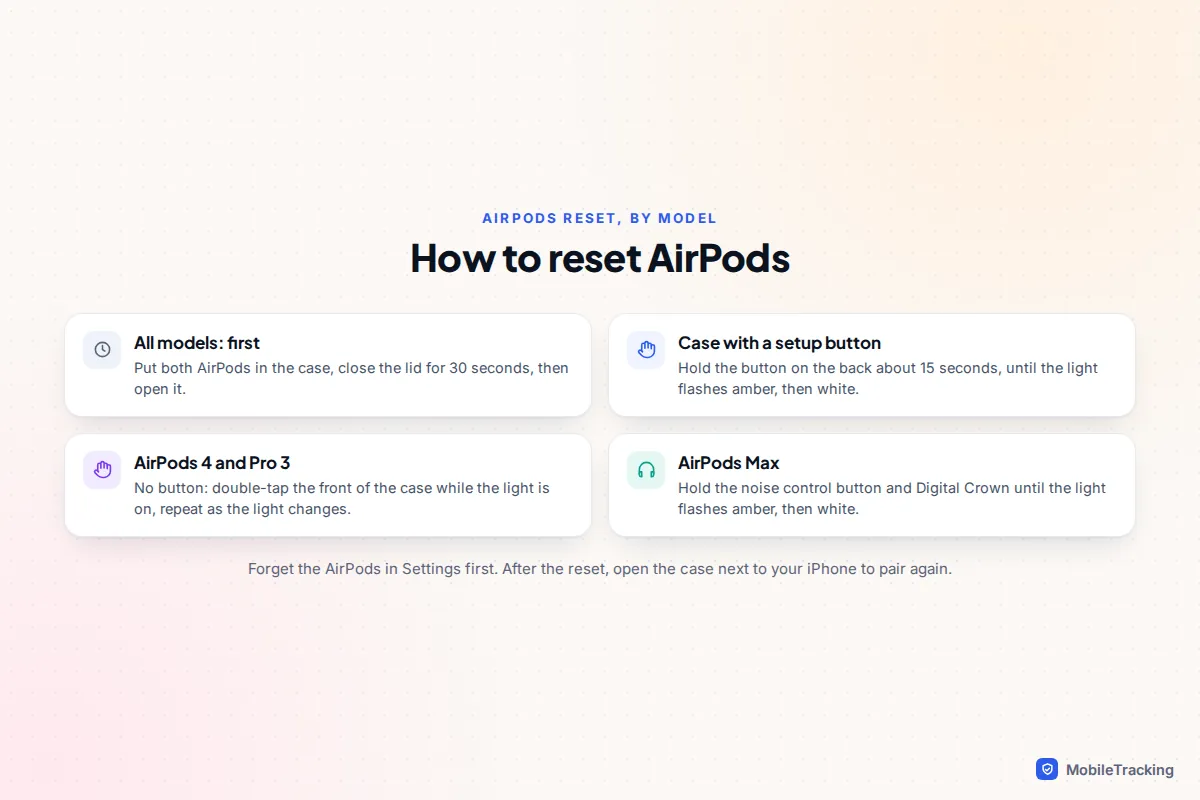
A reset wipes the accessory’s own list of paired devices and settings. It is the step people skip most often, and it fixes a large share of “tried everything” cases. Always forget the device on your phone first.
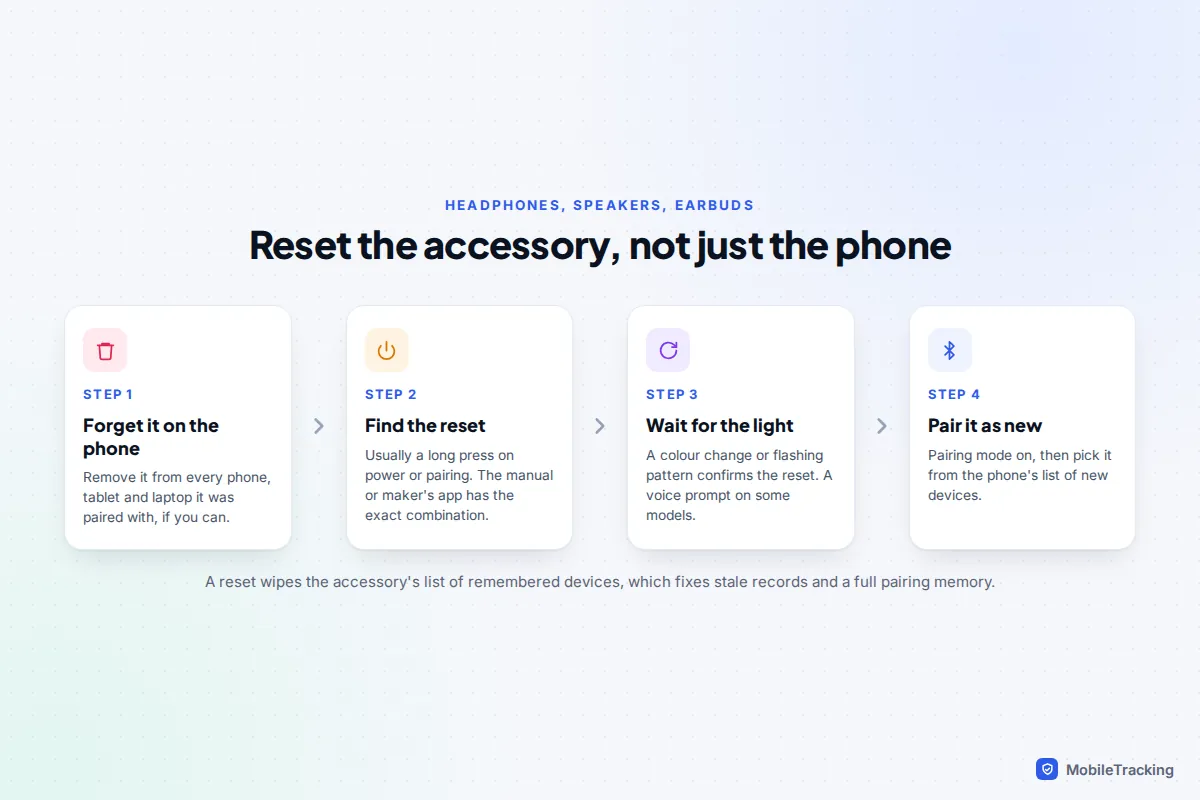
AirPods reset slightly differently depending on the case. On cases with a setup button, hold it for about 15 seconds until the light flashes amber, then white. AirPods 4 and AirPods Pro 3 cases have no button: you double-tap the front of the case in a sequence instead. Apple’s AirPods reset guide covers every model. If you also can’t find one of the buds, our guide to finding lost AirPods and earbuds can help.
Galaxy Buds on One UI 8 are managed from Settings › Connections › Bluetooth, then the gear next to the buds; older phones use the Galaxy Wearable app. Other headphones and speakers usually reset with a long press of power, or power and volume together, for ten seconds or more.
When your car won’t connect
Car systems are the most stubborn Bluetooth devices because they have limited memory, slow software and safety locks. Try these in order:
- Delete the pairing on both sides. Forget the car on your phone, then find the car’s list of paired phones in its Bluetooth or phone menu and delete your phone there too. Deleting only one side is the most common reason re-pairing fails.
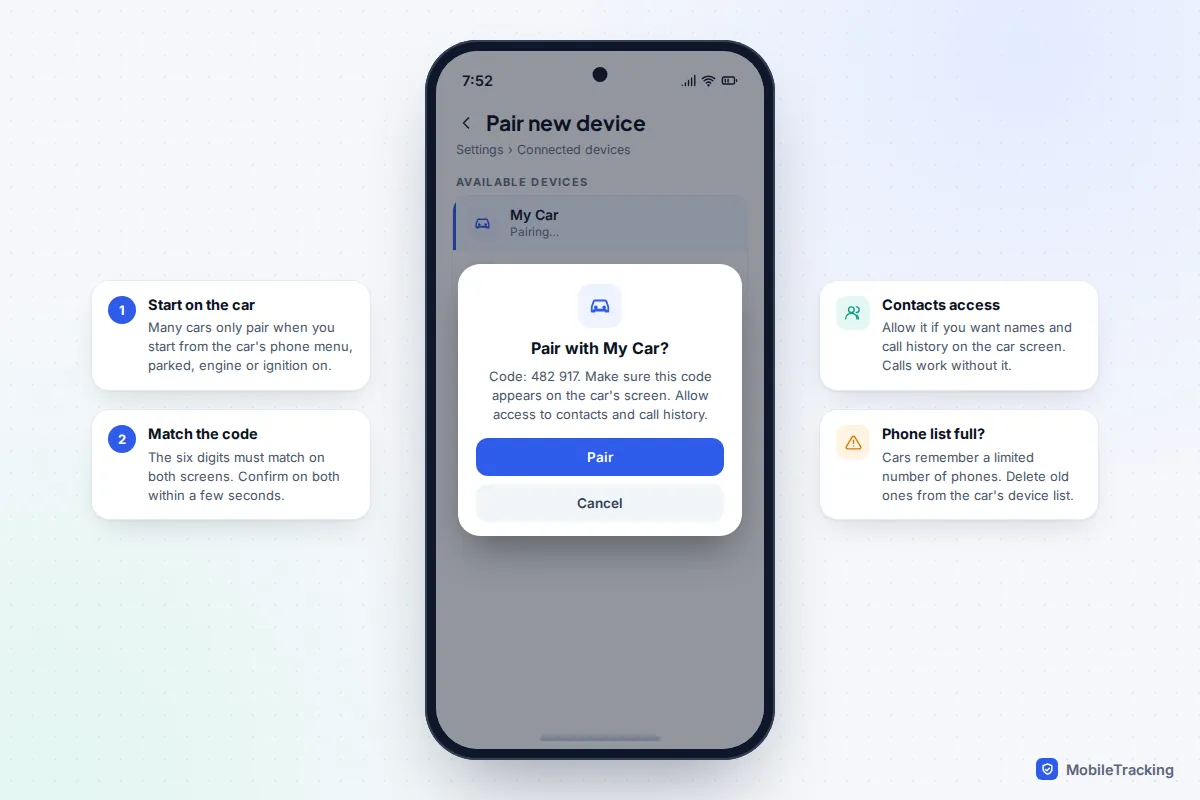
- Clear space in the car’s memory. Most cars remember a limited number of phones, and when the list is full, new ones are refused, sometimes with a “memory full” message and sometimes silently. Delete old phones from previous owners, family members or rental customers.
- Start pairing from the car. Many systems only accept pairing when you start from the car’s own menu, and some block it while the car is moving. Park, leave the ignition on, choose “add phone” on the car screen, then select the car on your phone.
- Accept the prompts. Check the six-digit code matches on both screens, then allow contacts and call history if you want names on the car display. On iPhone, the Sync Contacts switch is under the (i) next to the car in Settings › Bluetooth.
- Restart the infotainment system. Switching the car off, locking it and waiting a few minutes often resets the head unit. Some systems have a restart option or a long press on the power knob: check the manual.
- Update it. Newer cars update over the air; others need a USB stick or a dealer visit. Old car software often struggles with new phone software.
If you use CarPlay or Android Auto, forget the car there as well: on iPhone, Settings › General › CarPlay, choose the car and tap Forget This Car. On a Pixel, Android Auto’s settings are under Settings › Connected devices › Connection preferences › Android Auto (Samsung: Settings › Connected devices › Android Auto), where you can forget previously connected cars.
Reset your phone’s Bluetooth and network settings
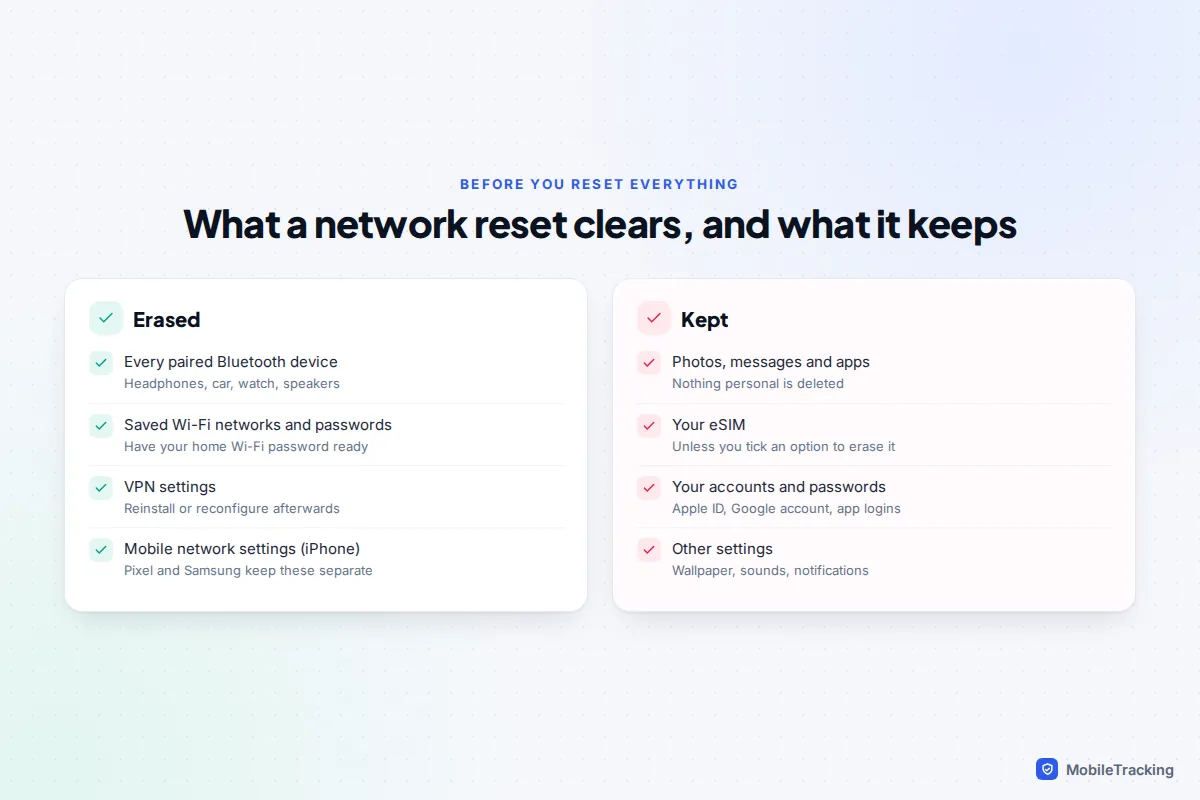
If several accessories misbehave, or one refuses to connect even after a reset on both sides, reset the phone’s connection settings. This does not delete apps, photos or messages, but it does remove every paired Bluetooth device and every saved Wi-Fi network, so have your Wi-Fi password to hand.
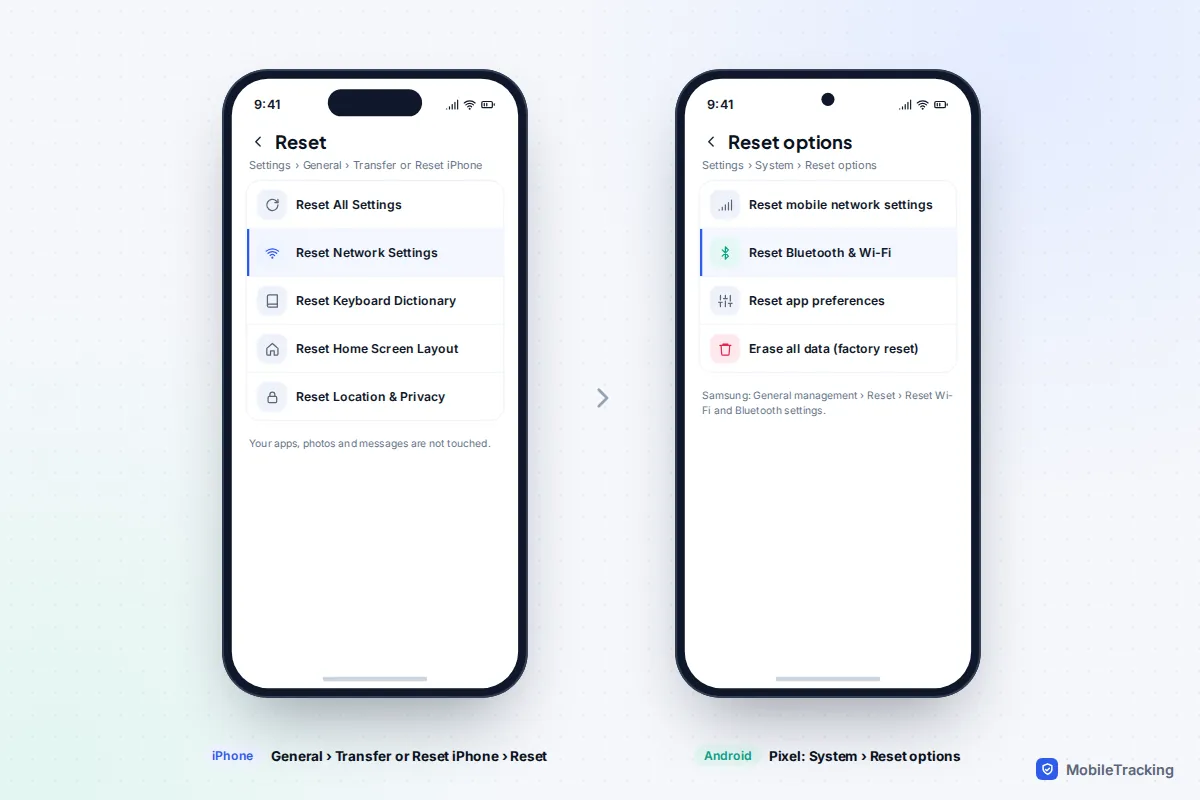
- iPhone (iOS 26 and 27): Settings › General › Transfer or Reset iPhone › Reset › Reset Network Settings. Choose Reset, not Erase All Content and Settings. It also clears VPN and mobile network settings.
- Pixel: Settings › System › Reset options › Reset Bluetooth & Wi-Fi. Mobile network settings have their own separate reset. On older Android versions and some other brands the option is a single Reset Wi-Fi, mobile & Bluetooth.
- Samsung: Settings › General management › Reset › Reset Wi-Fi and Bluetooth settings (called Reset network settings on older One UI versions). Samsung warns it takes effect as soon as you confirm.
The phone restarts or reconnects in a minute or so. Pair your most important accessory first and test it before adding the rest.
Keep phone, accessory and car software up to date
Bluetooth bugs are fixed on all three sides, so update each of them:
- Your phone. Install the latest iOS or Android update. Our guide to turning on automatic updates shows how to keep this hands-off.
- AirPods. Firmware installs by itself when the AirPods are charging in their case, within range of an iPhone, iPad or Mac that is connected to Wi-Fi. Apple says to allow at least 30 minutes. Check the version under Settings › Bluetooth › (i) next to the AirPods.
- Galaxy Buds and Pixel Buds. Updates are offered from the buds’ settings page on the phone, or in the maker’s app on other phones.
- Other headphones and speakers. Most major brands push firmware through their companion app. Open it occasionally even if you don’t use its features.
If nothing on this page works, pair the accessory with a different phone. If it fails there too, the accessory is faulty. If it works there, the problem is on your phone, and a full backup and factory reset, or a repair, is the last step.
Frequently asked questions
Why does Bluetooth turn itself back on on my iPhone?
Turning Bluetooth off in Control Centre only disconnects accessories until the next morning, and it stays available for things like Apple Watch and AirDrop. To switch it off fully, use Settings › Bluetooth.
Can I use AirPods with an Android phone?
Yes. Open the case, hold the setup button (or follow the reset sequence on buttonless cases) until the light flashes white, and pair them from Android’s Bluetooth settings. You lose Apple-only features such as automatic switching and firmware updates, which need an Apple device.
Why is there a delay between video and sound?
All Bluetooth audio has some latency. Video apps usually compensate, but games and some browsers don’t. Earbuds with a low-latency or gaming mode, or a wired connection, are the fix for competitive gaming.
How many devices can I connect at once?
Your phone can connect to several accessories at the same time, such as a watch, earbuds and a car. Headphones are the limit: most play audio from one device at a time, and multipoint models from two.
Will resetting network settings delete anything important?
It removes Bluetooth pairings, Wi-Fi networks and passwords, and VPN settings. Your photos, messages, apps, accounts and eSIM are not affected.
This guide is general information, not legal or financial advice. Read our editorial policy.