
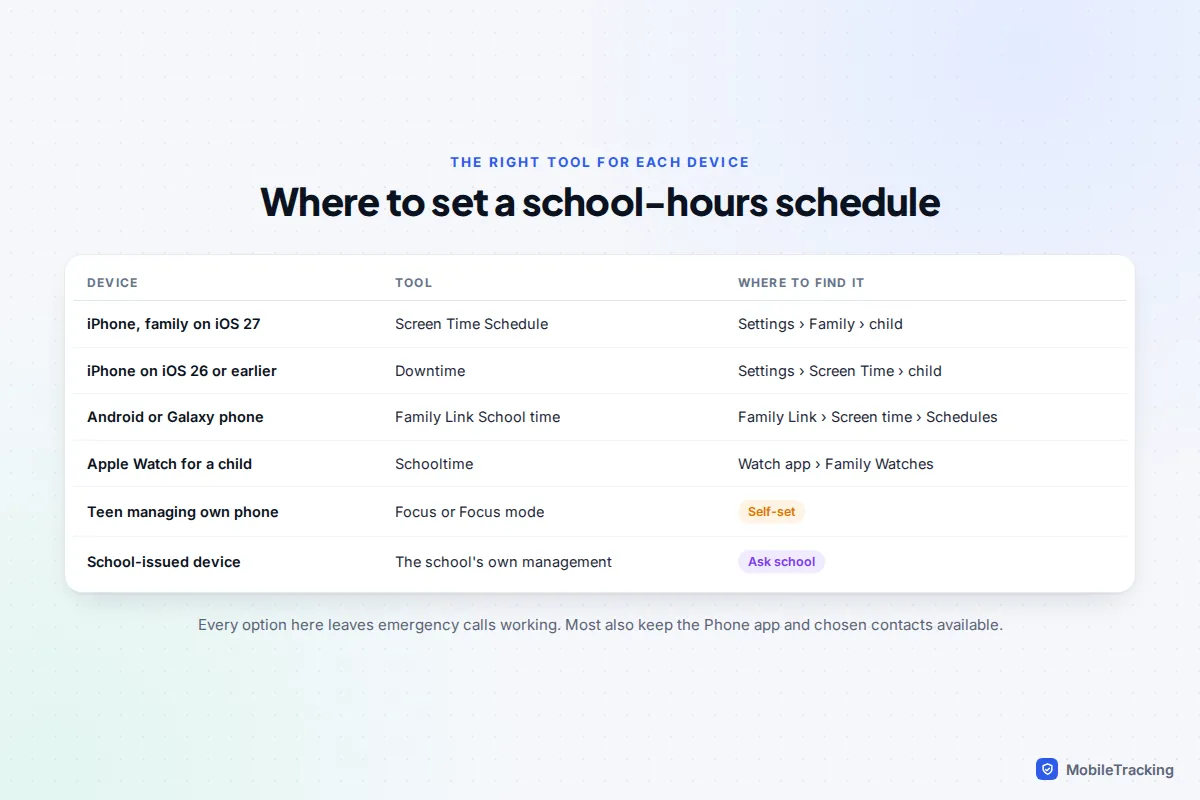
To block apps during school hours, set a weekday schedule in your phone’s parental controls and choose which apps stay available. On an iPhone where the whole family is on iOS 27, go to Settings › Family › your child › Screen Time Schedule and add a School time window. On iOS 26 or earlier, use Downtime with Block at Downtime turned on. On Android, including Samsung Galaxy, open Family Link, pick your child and go to Screen time › Schedules › School time. Emergency calls keep working with every one of these, and calls to family can too.
Before you set anything, check your child’s school phone policy. Many schools now expect phones to be off and out of sight for the whole day, so your schedule is often a back-up to the school’s rule rather than the main event. This guide covers each device step by step, what stays available, the settings for teenagers who manage their own phones, and the mistakes that make school-hours blocking fall apart by October.
Start with the school’s own phone rule
Phone rules in schools have tightened fast. In England, the Department for Education’s mobile phones in schools guidance says schools should be phone-free for the entire school day, including breaks and lunchtimes, and in 2026 it became statutory, with schools expected to comply from September 2026. In the US, Ballotpedia counted 26 states with full-day, “bell-to-bell” restrictions by January 2026, and many districts in other states have their own.
So why set a schedule at all? Because a school rule controls where the phone is, not what it does. A phone in a bag still buzzes with game notifications, still tempts a child in the toilets, and still pulls attention on the walk between buildings in schools that allow phones outside lessons. A matching schedule means the phone and the classroom tell your child the same thing, and it helps in schools that have no ban, in sixth forms with looser rules, and on study days at home.
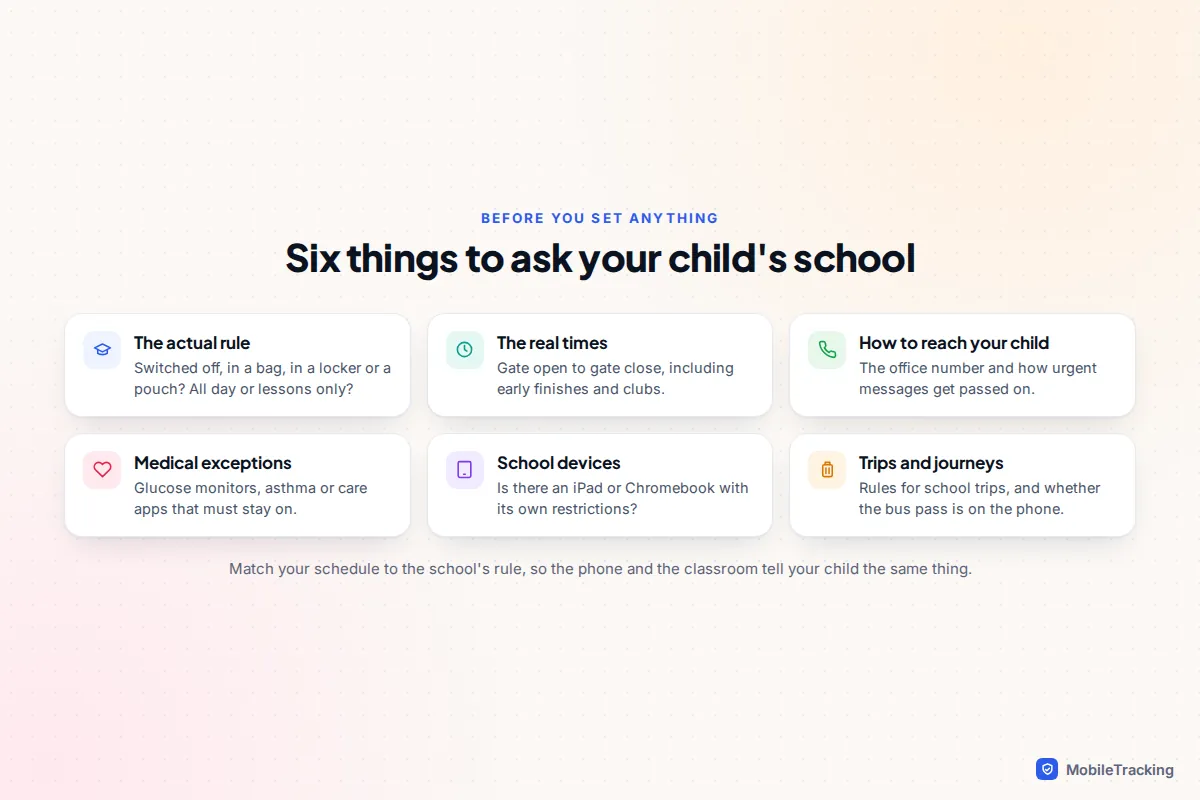
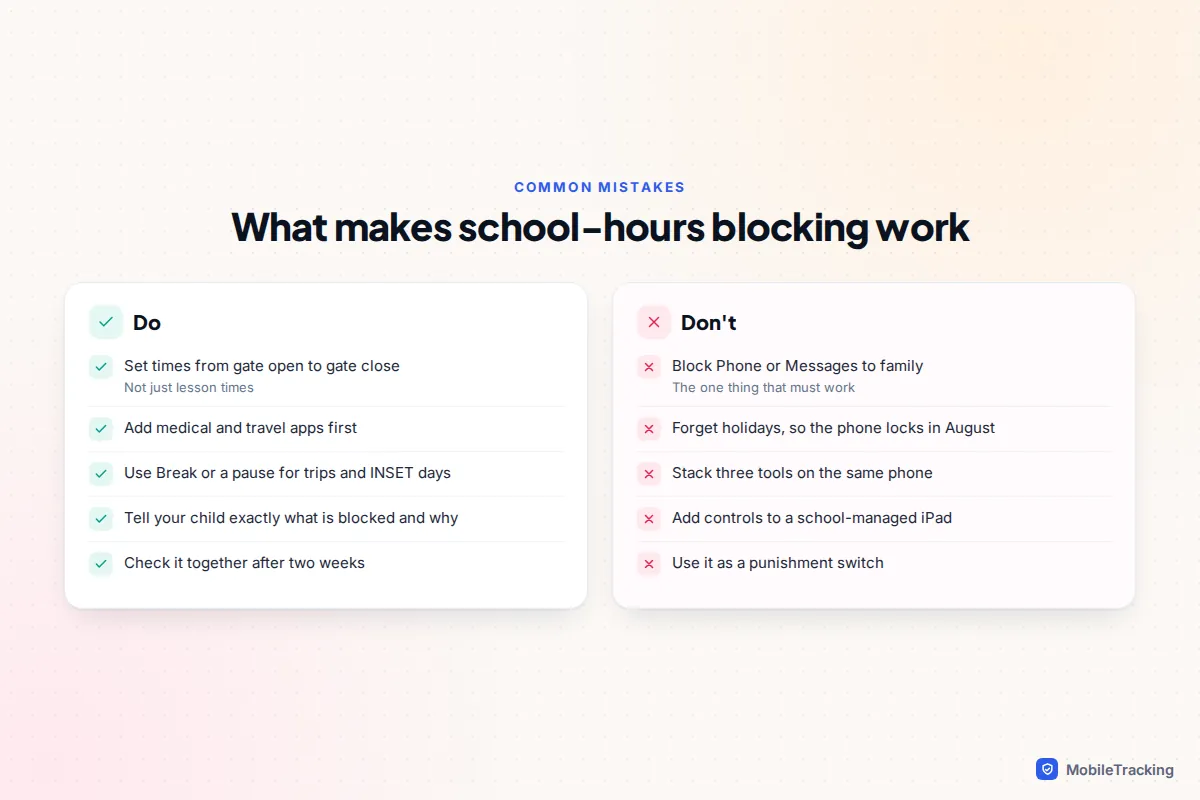
Get the real times, from gate open to gate close, not just lesson times. Ask how you reach your child in an emergency (almost always the school office), and whether medical devices such as a continuous glucose monitor that reads through the phone are allowed. Pupils who need their phone for health reasons are a standard exception in England’s guidance, and any schedule you set must leave those apps untouched.
iPhone on iOS 27: add a School window to the Screen Time Schedule
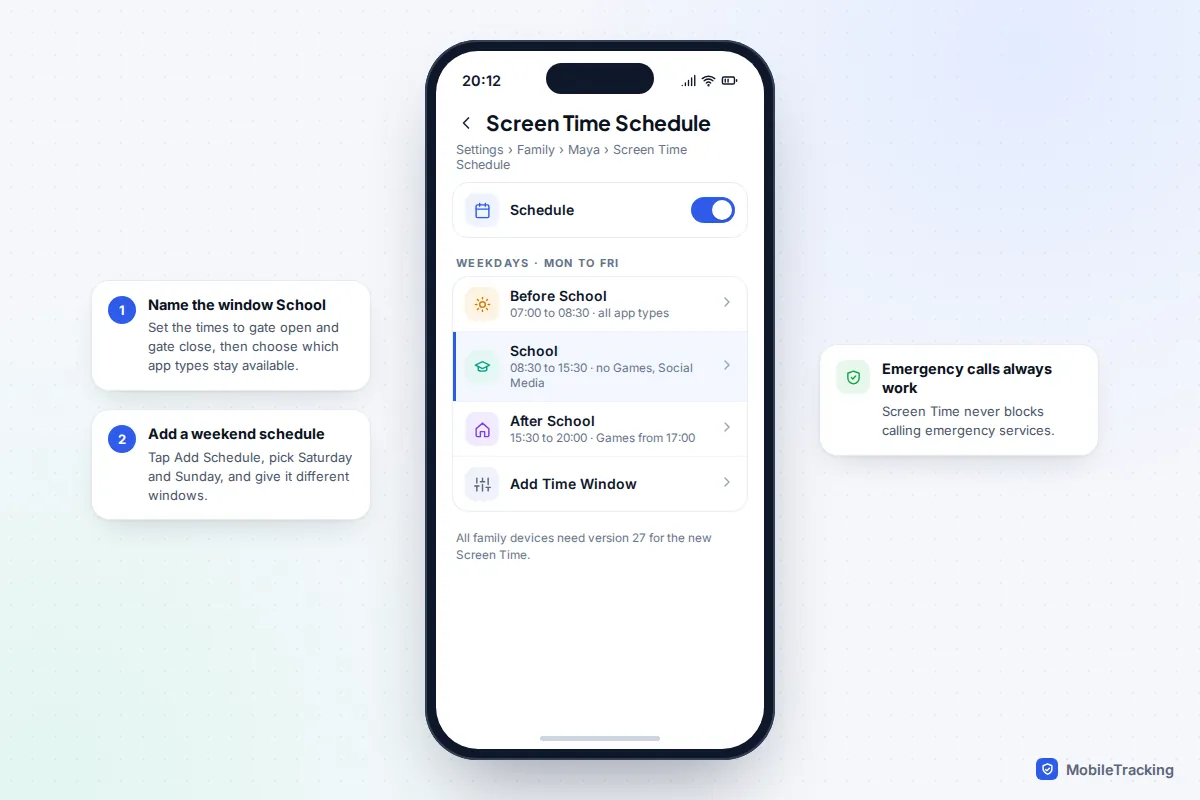
iOS 27, released on 14 September 2026, rebuilt Screen Time for children. Instead of one Downtime window, you create a schedule for a set of days and split it into named time windows, each with its own choice of app types. Apple’s own examples are Before School, School and After School. There is one catch: every device in your Family Sharing group needs version 27 software for the new controls. If one device cannot update, Apple says you can keep using the previous version of Screen Time, covered in the next section.
- On your iPhone, open Settings, tap Family, then your child’s name.
- Tap Screen Time Schedule and turn on Schedule.
- Tap Add Schedule and choose the school days, usually Monday to Friday.
- Tap Add Time Window. Name it School, set the start and end to gate open and gate close, and choose which types of apps stay available. Categories such as Games, Social Media and Entertainment are the usual ones to leave out.
- Add Before School and After School windows if you want different rules either side of the day.
- Repeat with a separate schedule for Saturday and Sunday.
The redesigned Screen Time also has quick buttons for the moment: Pause Device Use for an instant stop, Allow Unlimited Use for a one-off, and a way to switch schedules. Those are useful on a non-school weekday, such as a strike day or a trip, without editing the schedule itself. If you also use the new Time Allowances, turn on Match Screen Time Schedule so the daily budgets respect the school window.
Decide what is always allowed
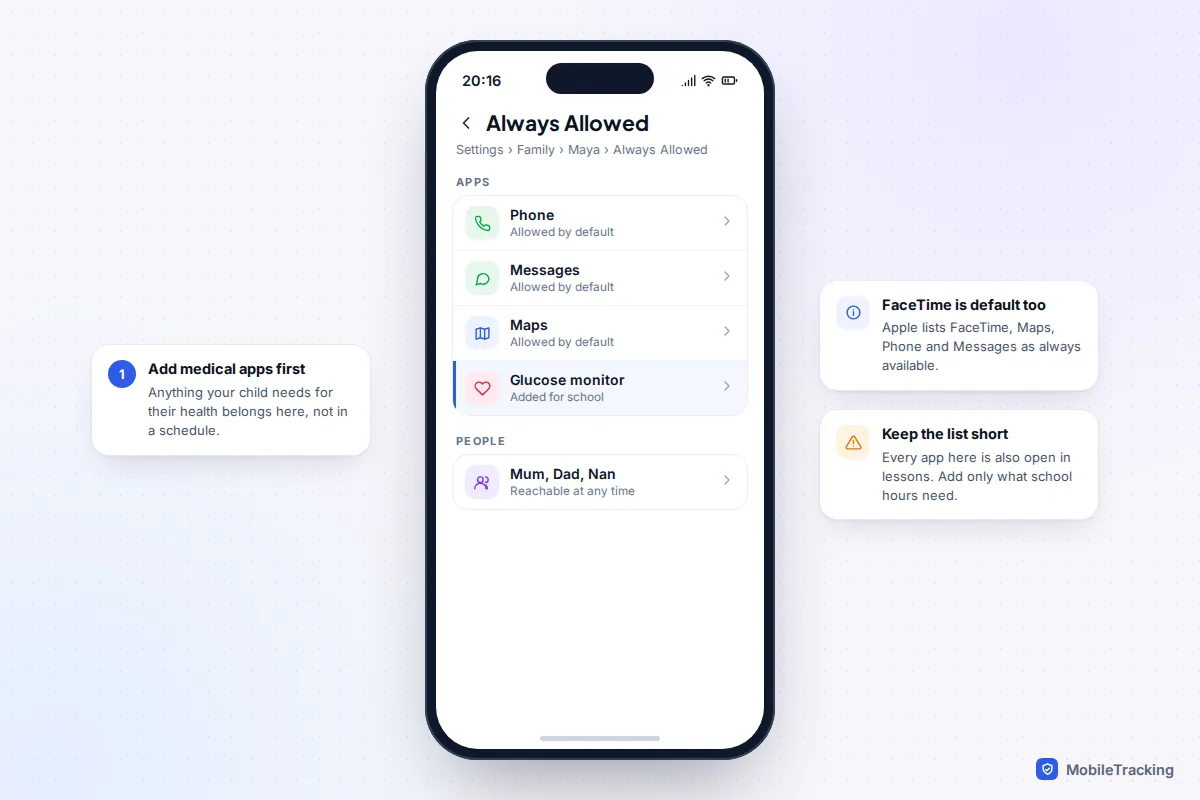
Go to Settings › Family › your child › Always Allowed. Apple keeps FaceTime, Maps, Phone and Messages available by default, so your child can reach you. Tap Add Apps for anything else your child genuinely needs in school hours, such as a medical app or a bus-ticket app, and Add People for the contacts who can always get through.
Apple’s guide to Screen Time Schedules and Time Allowances has the official steps if your screens look slightly different.
iPhone on iOS 26 or earlier: use Downtime
If your family is still on the previous Screen Time, Downtime is the tool. On your iPhone, go to Settings › Screen Time, tap your child’s name under Family, then Downtime.
- Turn on Scheduled.
- Choose Customise Days rather than Every Day, so weekends stay open.
- Set each school day’s start and end times.
- Turn on Block at Downtime. Without it, your child sees an Ignore Limit option and can carry on.
- Check Always Allowed in the same Screen Time menu. Phone is always allowed and cannot be removed; add Messages, Maps and any medical app.
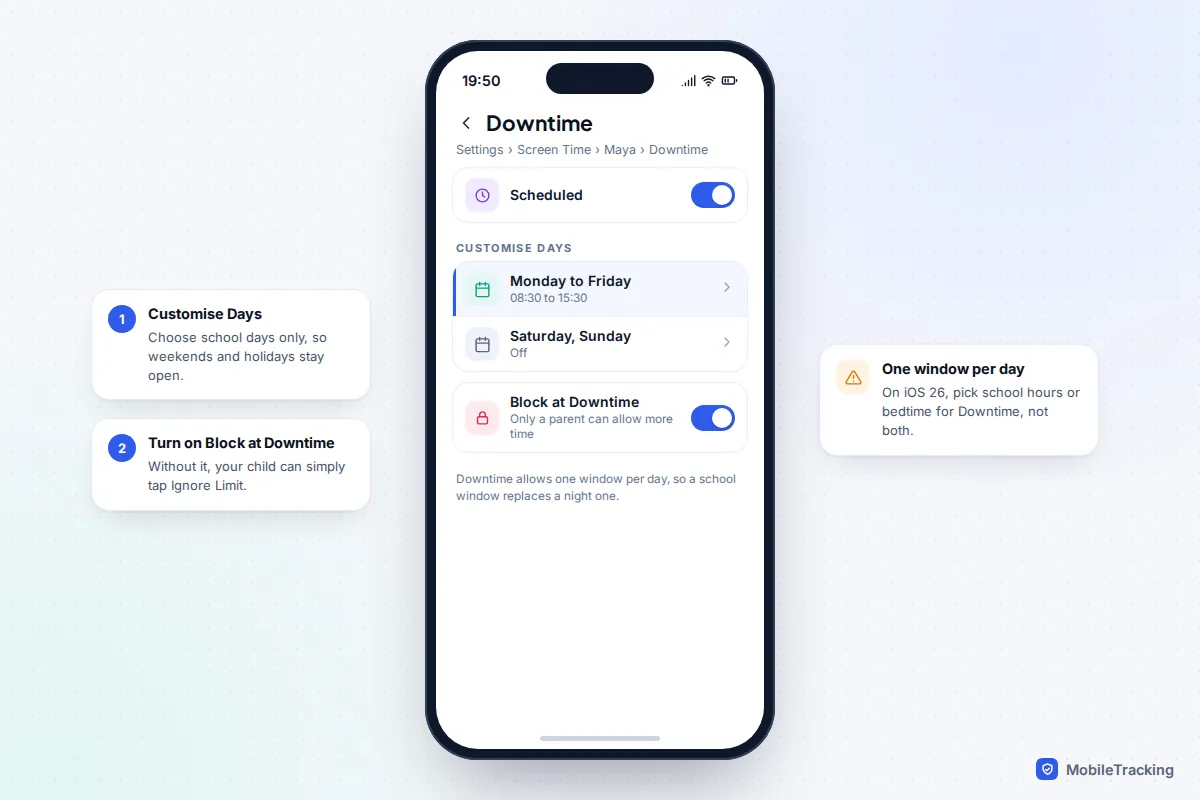
The big limit: Downtime allows one window per day. If you already use it for bedtime, a school window replaces it on those days. Many families keep Downtime for the night, because sleep is the harder battle, and handle school hours with the school’s rule plus App Limits on the worst offenders. Our guide to blocking apps at bedtime covers the night side. Communication Limits also has a During Downtime setting, which you can set to specific contacts.
Apple Watch: Schooltime
A child’s Apple Watch set up through Family Sharing has its own mode. On your iPhone, open the Watch app, tap All Watches, pick your child’s watch under Family Watches, then Schooltime. Turn it on, tap Edit Schedule, and use Customise Days or Add Time for more than one period a day. The watch face turns into a simple clock with a yellow circle. Your child can still call emergency services, and can exit Schooltime by holding the Digital Crown, but you are notified and can see when and for how long it was unlocked.
Android and Samsung: Family Link School time
Google added School time to Family Link for Android phones and tablets in February 2025, after first launching it on children’s smartwatches. It works on supervised devices running Android 7 or later, which includes Samsung Galaxy phones, since Galaxy parental controls are Family Link under Settings › Digital Wellbeing and parental controls. If your child is not supervised yet, start with our guide to setting up Google Family Link.
- Open Family Link on your phone (iPhone or Android) and choose your child.
- Go to the Screen time tab, then the Schedules card, then School time.
- Open Weekly schedule, pick the days and set the start and end times.
- To open a gap, such as lunch on a day the school allows phones, select the day and tap Break.
- Turn on Unlimited apps and choose the apps that should keep working, such as a bus pass or calculator.
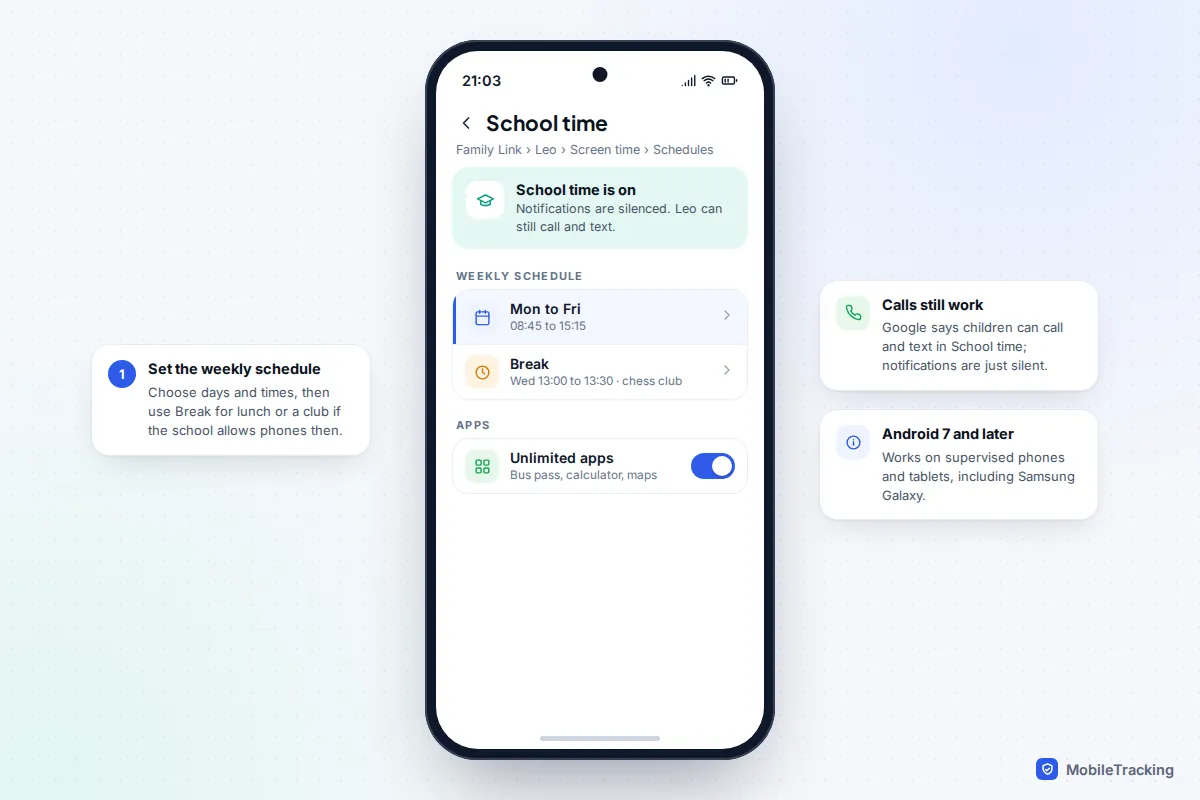
During School time, your child’s notifications are silenced, including calls and texts, but Google says they can still make calls and send texts. Family Link’s separate Downtime schedule sits on the same Schedules card, so unlike older iPhones you can run both a school window and a night window. On Android 14 and later, Family Link can also limit calls and texts to contacts you approve. Google’s help page on setting a schedule on your child’s device has the current menu names.
Older teens: Focus instead of a lock
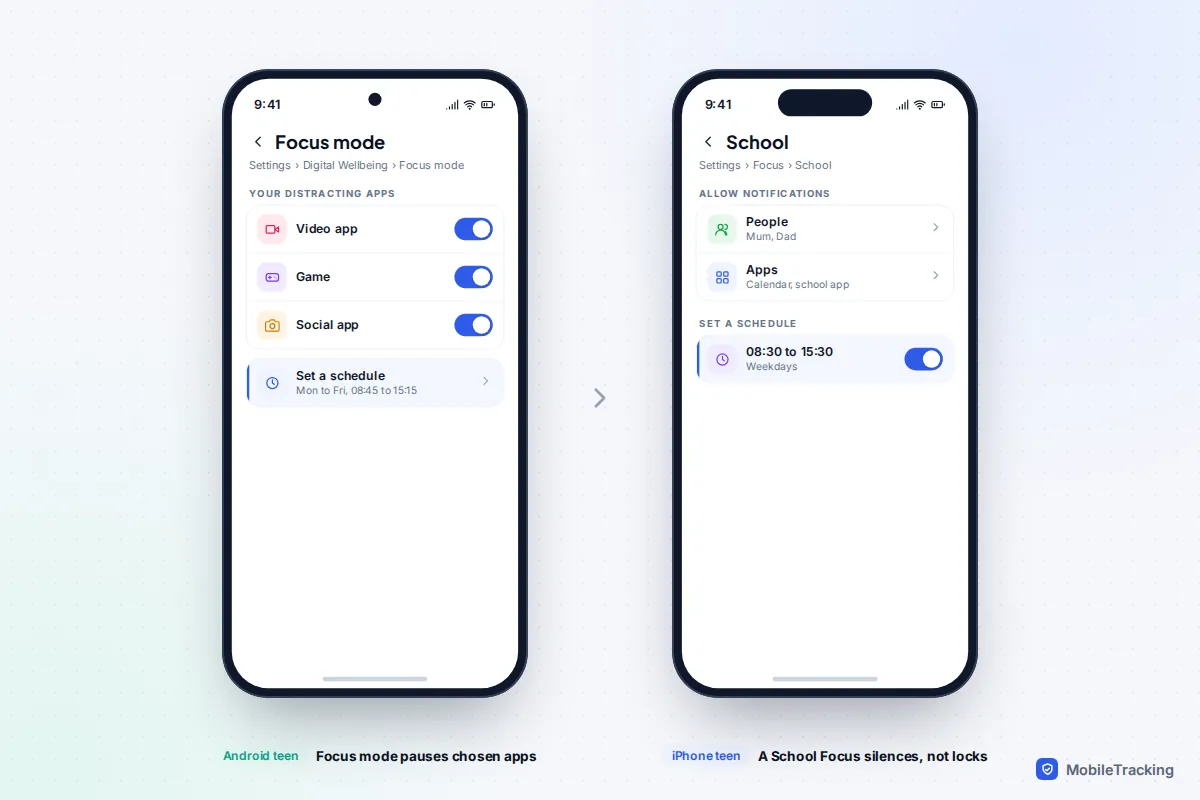
A 16-year-old with their own account is better served by a tool they set themselves. It will not stop a determined teenager, which is the point: it is a support, not a rule, and it carries into adult life.
On iPhone, a custom Focus called School can switch on at 8:30 on weekdays, allow notifications only from family and a school app, and show a stripped-back Home Screen page. It silences apps rather than locking them. Our guide to setting up Focus modes on iPhone walks through it. On Android, Settings › Digital Wellbeing › Focus mode goes further: the apps you choose are paused and their notifications hidden, you can Set a schedule, and Take a break unpauses them for a set time. On a Galaxy, Settings › Modes and Routines can build a custom school mode on a schedule, though modes mainly silence notifications rather than block apps.
School-managed devices and family apps
A school-issued iPad or Chromebook is managed by the school, which usually sets its own restrictions and can often lock pupils into one app during a lesson. Do not try to layer your own controls on top. Many managed devices will not accept them, and the ones that do can break apps the school relies on. Put your effort into the child’s personal phone, and ask the school what the device blocks after hours. Our guide to school-issued devices and Chromebooks covers the rest.
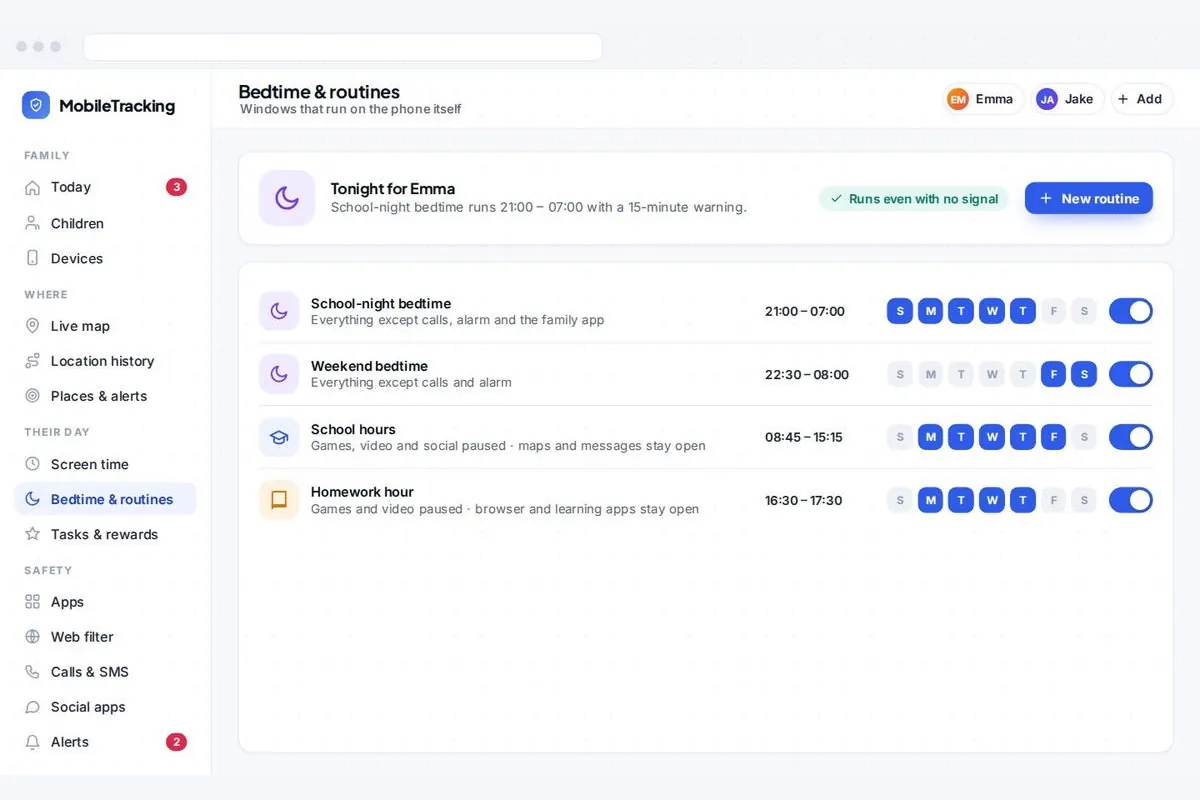
If your child has an Android phone and you want school hours alongside other routines in one place, a transparent family app such as MobileTracking can pause chosen app types on a schedule. Its child app stays visible on the phone, shows your child what is set, and never reads messages, and you manage it from a browser on any device.
Make sure your child can always get help
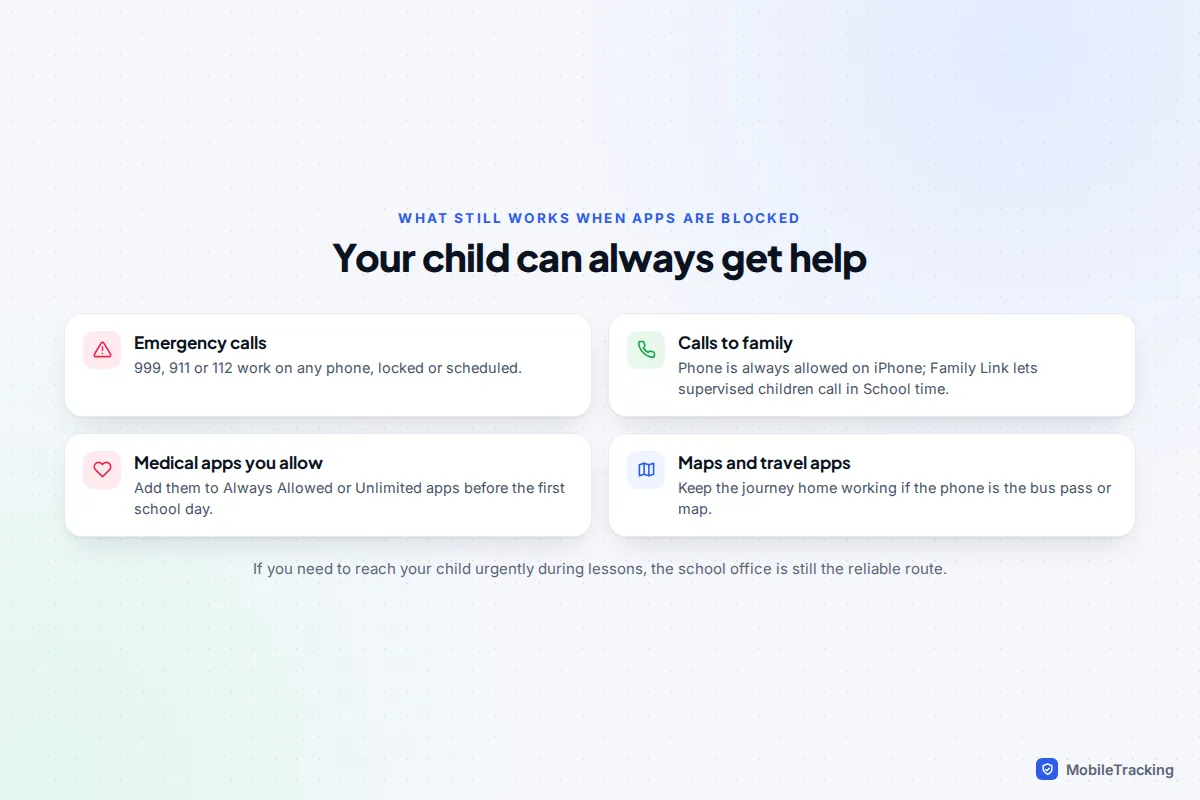
No schedule on any iPhone or Android phone blocks emergency calls. On a locked Android phone your child taps Emergency; on an iPhone, emergency calls and Emergency SOS work whatever Screen Time says. The things that do need thought are everyday: calling you after a cancelled club, a medical app, the map home.
Talk it through, and avoid the common mistakes
Schedules land better when your child helps set them. Show them the settings, explain that it matches the school’s rule, and let them choose one or two apps for the always-allowed list. A simple line works: “School time is 8:30 to 3:30 on school days. Phone, messages to us and maps work. Everything else wakes up at 3:30.” Then agree to check it together after two weeks. Our guide on talking to your kid about screen time has more on those conversations.
| Problem | Likely cause | Fix |
|---|---|---|
| Phone locked in the summer holidays | Weekly schedule runs all year | Pause School time or switch schedules for the break |
| Child can still open games at school | Block at Downtime off, or a game in Always Allowed | Turn it on and trim the list |
| iOS 27 schedule options missing | A device in the family is not on version 27 | Update it, or use Downtime |
| Bedtime stopped working on iOS 26 | A school Downtime replaced the night window | Keep Downtime for nights, use App Limits by day |
| Bus pass will not open after school | Travel app not allowed | Add it to Always Allowed or Unlimited apps |
Frequently asked questions
Can my child still call me when apps are blocked at school?
Yes, if you set it up that way. On iPhone, Phone is always available and you can add yourself under Always Allowed. Family Link lets supervised children call and text during School time. Emergency calls work on every phone regardless.
Does School time work on Samsung phones?
Yes. Samsung Galaxy phones use Google Family Link for parental controls, so School time works as long as the phone is supervised and runs Android 7 or later, which any current Galaxy does.
Can I block apps during school hours without my child knowing?
Not with the built-in tools, and it is better that way. Blocked apps show a limit screen, and both Apple and Google show children that they are supervised. Telling your child what is blocked and why makes it far less likely they will look for a workaround.
What if the school already bans phones all day?
Then the ban does most of the work. A schedule still stops notifications buzzing in a bag, covers corridors and journeys, and keeps things consistent on INSET and study days. Match your times to the school’s.
Why can’t I see Screen Time Schedule on my iPhone?
The new schedules need every device in your Family Sharing group on iOS 27 or the matching version for iPad, Mac or Apple Watch. If one device cannot update, you keep the previous Screen Time, where Downtime is the equivalent.
This guide is general information, not legal or financial advice. Read our editorial policy.