
Messenger Kids is still running in 2026. Meta was updating the Android app as recently as August 2026, and it remains aimed at children aged 6 to 12. To set it up, install Messenger Kids on your child’s phone or tablet, sign in with your own Facebook account to verify that you’re the parent, then create your child’s profile with a first name and photo. Your child doesn’t need a phone number or a Facebook account. Everything after that happens in the Parent Dashboard inside your Facebook app: Menu › Messenger Kids, then your child’s name.
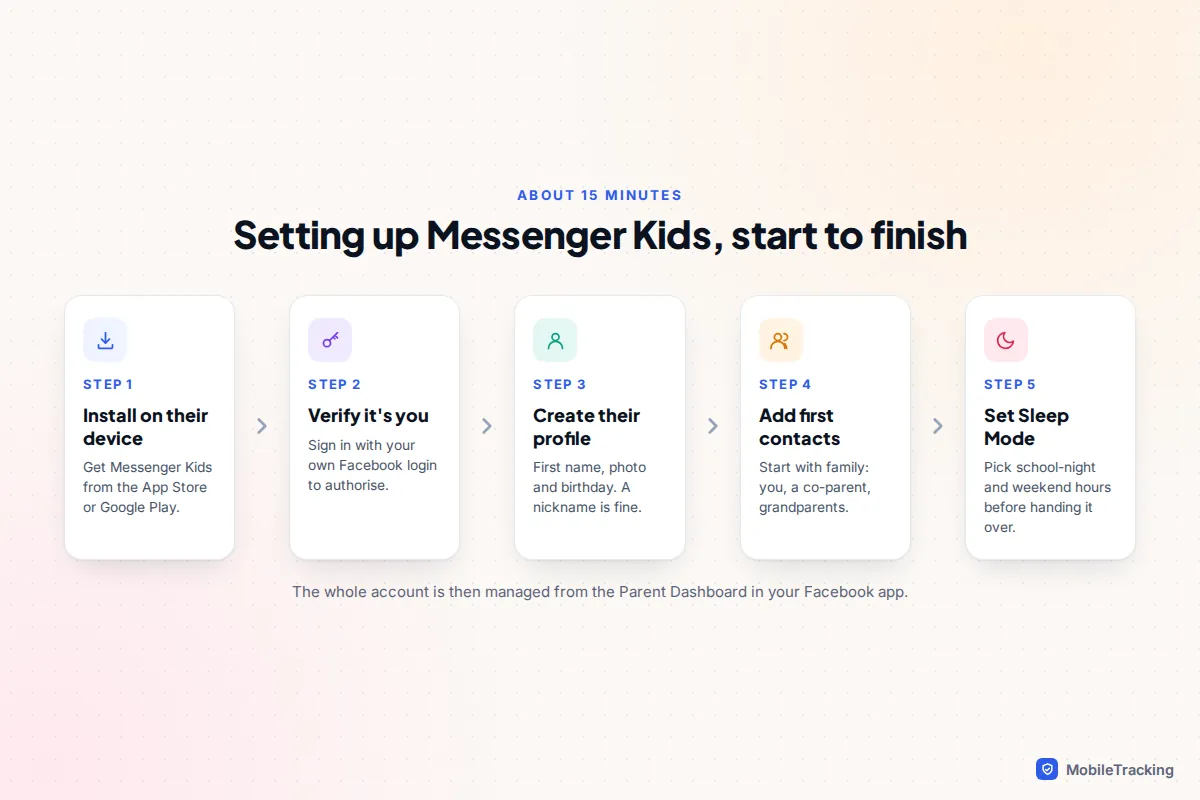
Doing it “the right way” comes down to three choices made before you hand the device over: who approves contacts, when the app sleeps, and how often you’ll look at the activity log together. One catch first: Messenger Kids has never launched in the UK or most of Europe. It is available in the US, Canada, Mexico, much of Latin America and dozens of other countries. If you can’t find it in your app store, that’s why, and there’s no approved way round it.
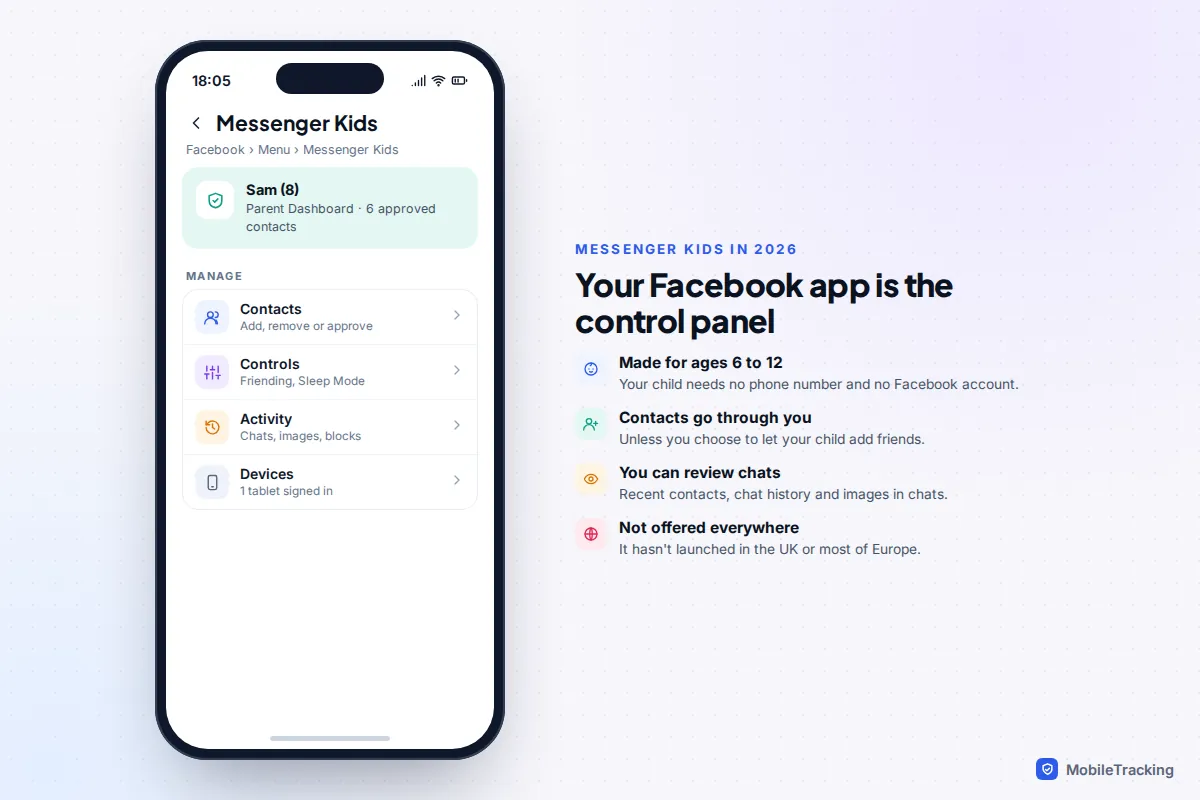
What Messenger Kids is, and what’s changed by 2026
Messenger Kids launched in the US in December 2017 as a video calling and messaging app for under-13s. Children can only chat with contacts a parent has allowed, there are no ads or in-app purchases, and Australia’s eSafety Commissioner notes that it doesn’t include the Meta AI chatbot. It has passed 50 million downloads on Google Play.
A few things are different from the guides you may find online:
- Messenger.com has closed. Meta shut the standalone Messenger website and desktop apps in April 2026. The Parent Dashboard lives in the Facebook app, or in Facebook on a computer.
- Older children can now pick their own friends if you allow it, through a feature Meta calls supervised friending.
- At 13, the next step is a Teen Account. Since September 2025, teens on Facebook and Messenger worldwide get Meta’s Teen Account restrictions by default, which changes what “graduating” looks like.
It’s also worth knowing the app’s history. In 2023 the US Federal Trade Commission said that from late 2017 until mid-2019, children could in some circumstances talk to unapproved contacts in group chats and group video calls, despite Meta’s promises. That flaw was fixed, but it’s a good reason to check the activity log rather than trusting the settings alone.
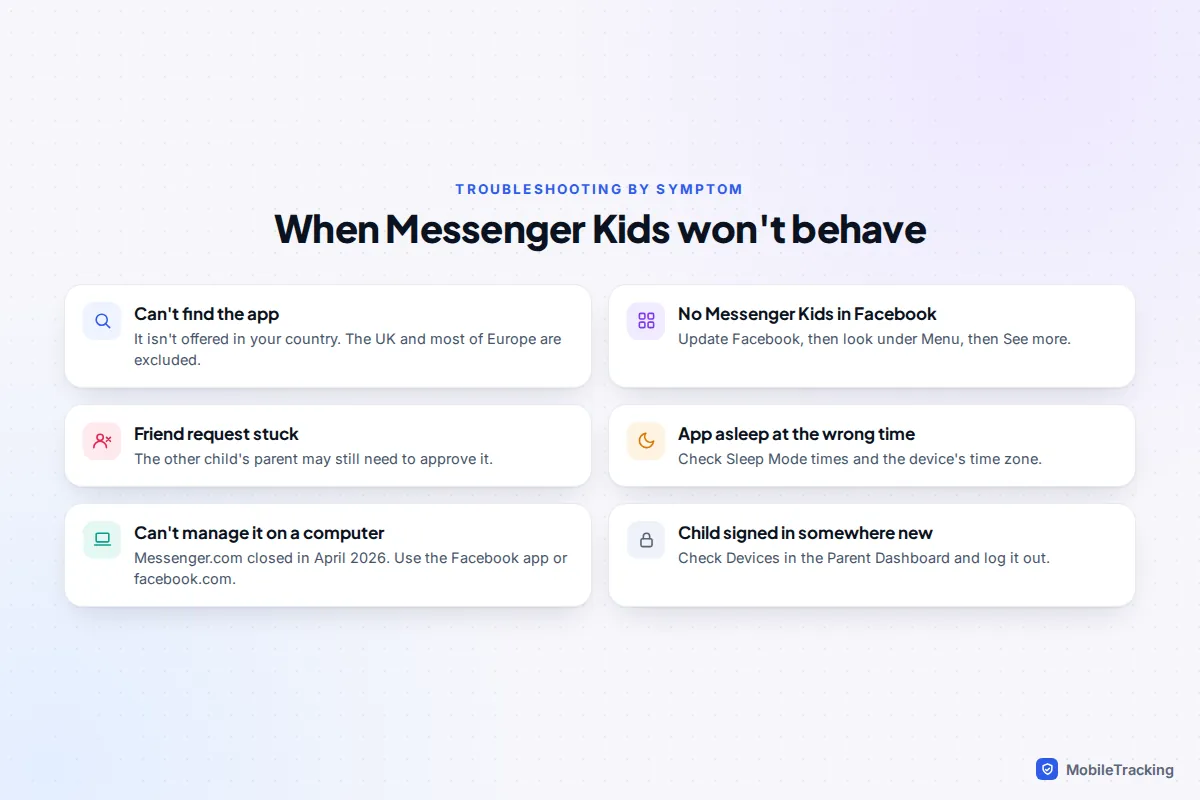
How to set up Messenger Kids step by step
Before you start
You’ll need your own Facebook account, your child’s device, and about 15 minutes with your child next to you. Setting it up together matters: children who help choose their contacts and bedtime are far more likely to stick to the rules than children who are handed a finished app.
Decide in advance who the first contacts will be. A good starting list is you, a co-parent, grandparents and one or two friends whose parents you know. You can add more later in seconds, but removing someone your child already chats with is a much harder conversation.
If there’s another parent or carer at home, plan to add them to the Parent Dashboard as well. Two sets of eyes means requests get approved quickly, which stops a frustrated child looking for a less supervised app.
The setup
- Install the app. On your child’s device, download Messenger Kids from the App Store or Google Play.
- Verify yourself. Open the app and sign in with your Facebook email or phone number and password. This proves a parent is setting it up. It doesn’t put your Facebook account on your child’s device.
- Create your child’s profile. Enter their first name (a nickname is fine), add a photo, and enter their birthday if asked. Surnames and photos of their face are optional, and leaving them out costs nothing.
- Add contacts. Choose people from your Facebook friends, or invite another child’s parent. Parents no longer need to be Facebook friends with each other; you can find the other parent and send a request.
- Set the controls. Before handing the device back, open the Parent Dashboard and set up friending and Sleep Mode, covered below.
You can also start from your own phone: in the Facebook app tap Menu, then Messenger Kids (look under See more if it isn’t listed), and follow the prompts to create an account. Menu labels shift between Facebook versions, so if you can’t see it, update the app first. Meta’s help page on managing your child’s Messenger Kids account has the current wording.
Contacts: parent approval, supervised friending and other parents
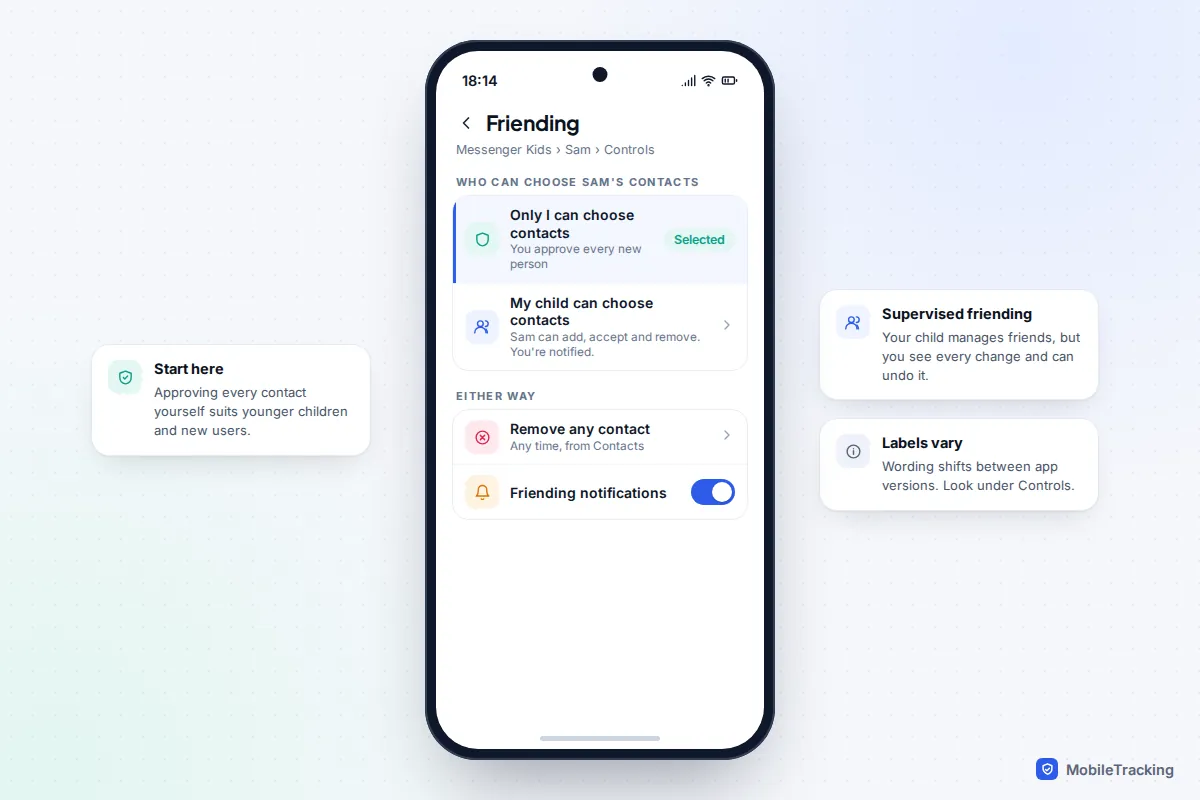
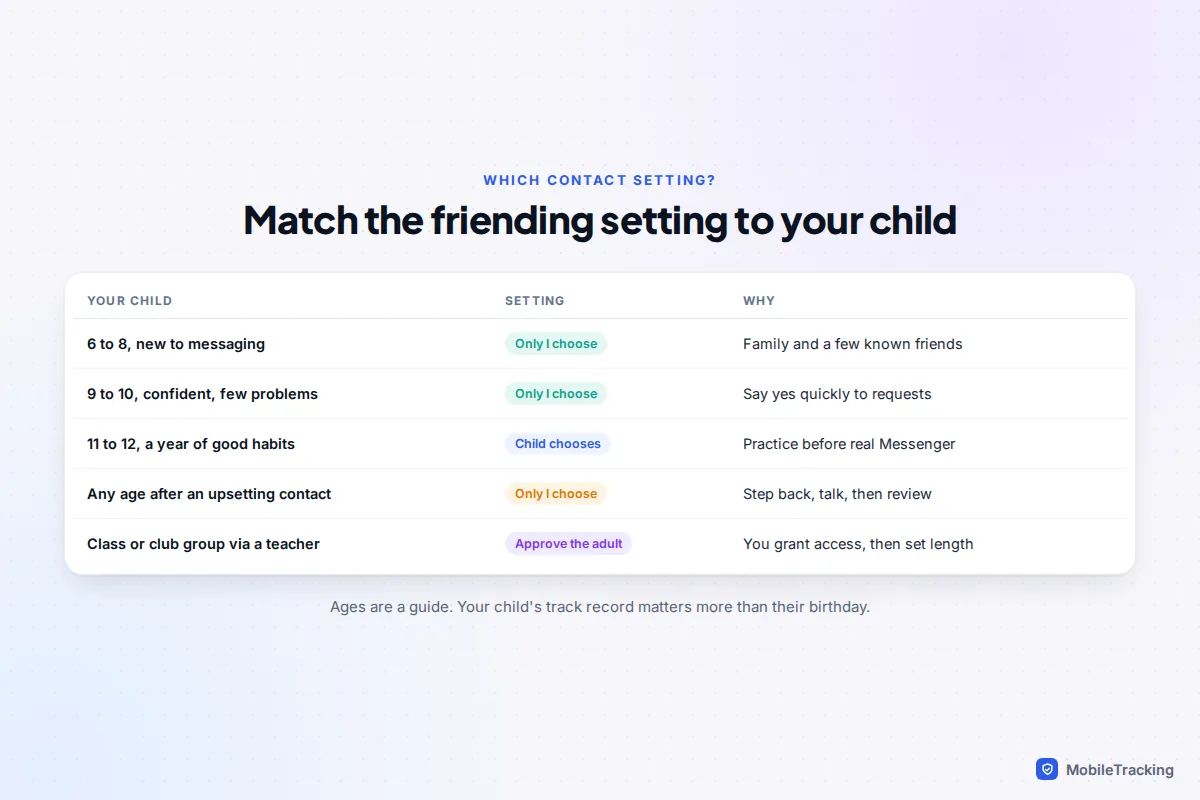
This is the setting that decides how safe Messenger Kids actually is. In the Parent Dashboard, choose your child, open Controls, then the friending setting. You’ll see two options, labelled along the lines of Only I can choose contacts and My child can choose contacts.
Only you approve contacts
Every new person needs your approval. When your child wants to add a friend, you get a request to accept or decline. This is the right starting point for nearly every child, and it’s what most families should keep until about 10 or 11.
Supervised friending
Your child can send, accept and decline friend requests, and remove contacts, on their own. You’re notified of each change, you can see the full friending history, and you can remove anyone at any time. Meta designed it to teach children to choose friends well before they’re on regular apps. It works best for older children who’ve already shown good judgement, not as a way to cut down on requests.
Other parents and approved adults
Messenger Kids connections run parent to parent. The other child’s own settings still apply, so if their parent approves every contact, your child’s request waits for them. For clubs and classes, a teacher or coach can share a link that lets parents add their child to a group. You tap Allow, pick your child and choose how long the permission lasts. Children can leave a group whenever they like.
Sleep Mode: when the app switches off
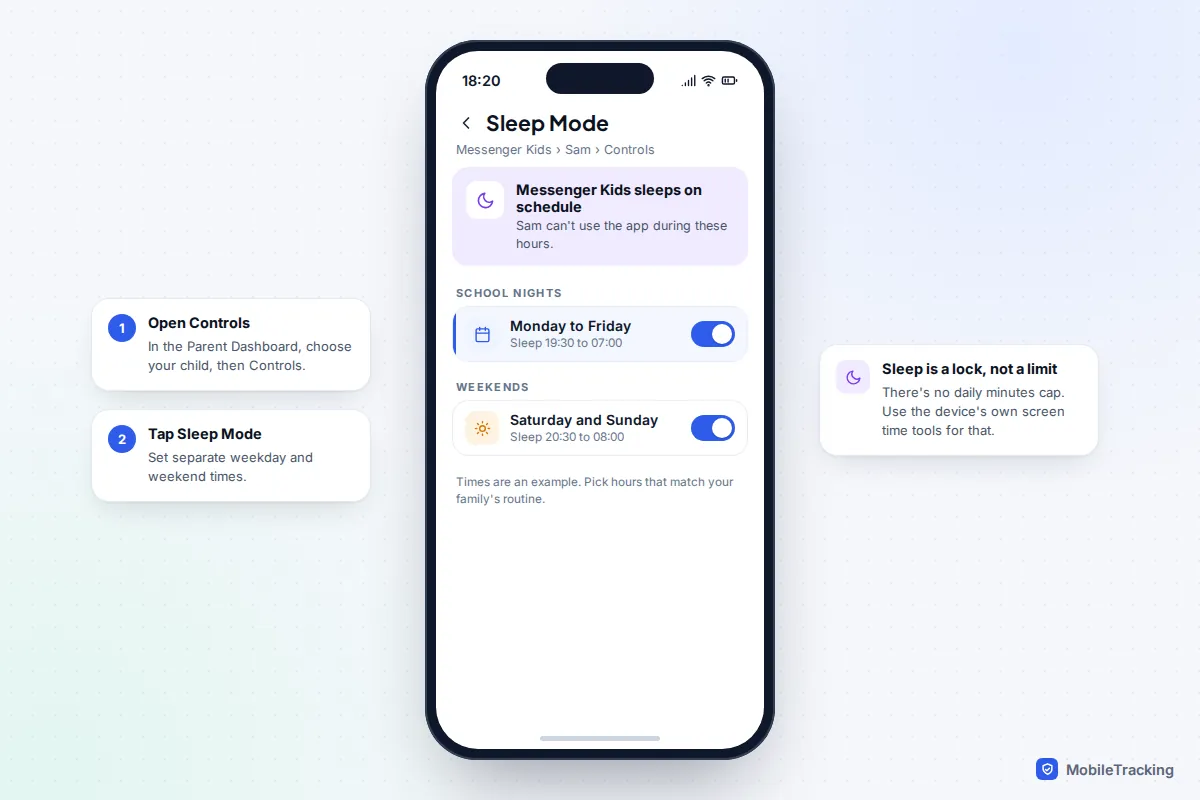
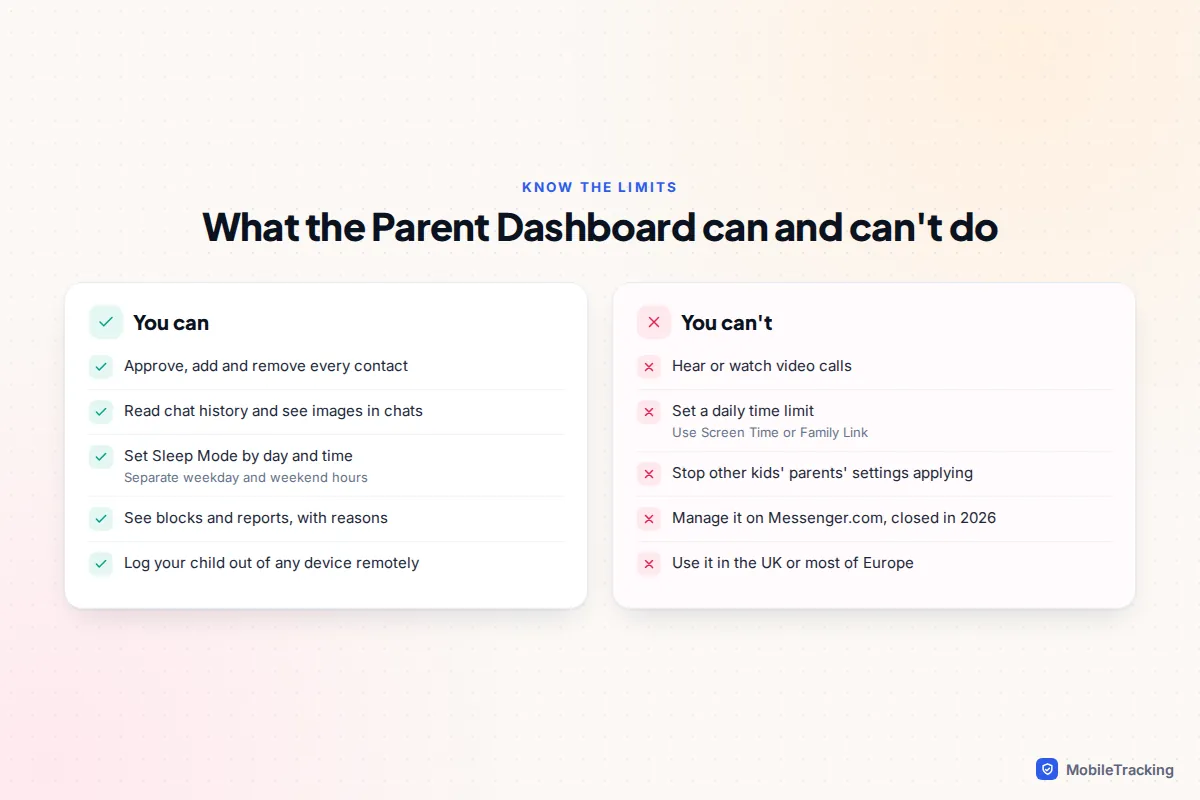
Sleep Mode makes Messenger Kids unavailable at times you choose. In the Parent Dashboard, choose your child, open Controls, then Sleep Mode. Set separate times for weekdays and weekends, for example 19:30 to 07:00 on school nights and 20:30 to 08:00 at weekends.
Two things to know. Sleep Mode is a schedule, not a daily allowance, so it can’t limit your child to 30 minutes a day. For that, use the device’s own tools: Screen Time on iPhone and iPad, or Google Family Link on Android. And it only affects Messenger Kids, so a tablet full of games stays awake unless you schedule downtime there too.
Using the Parent Dashboard well
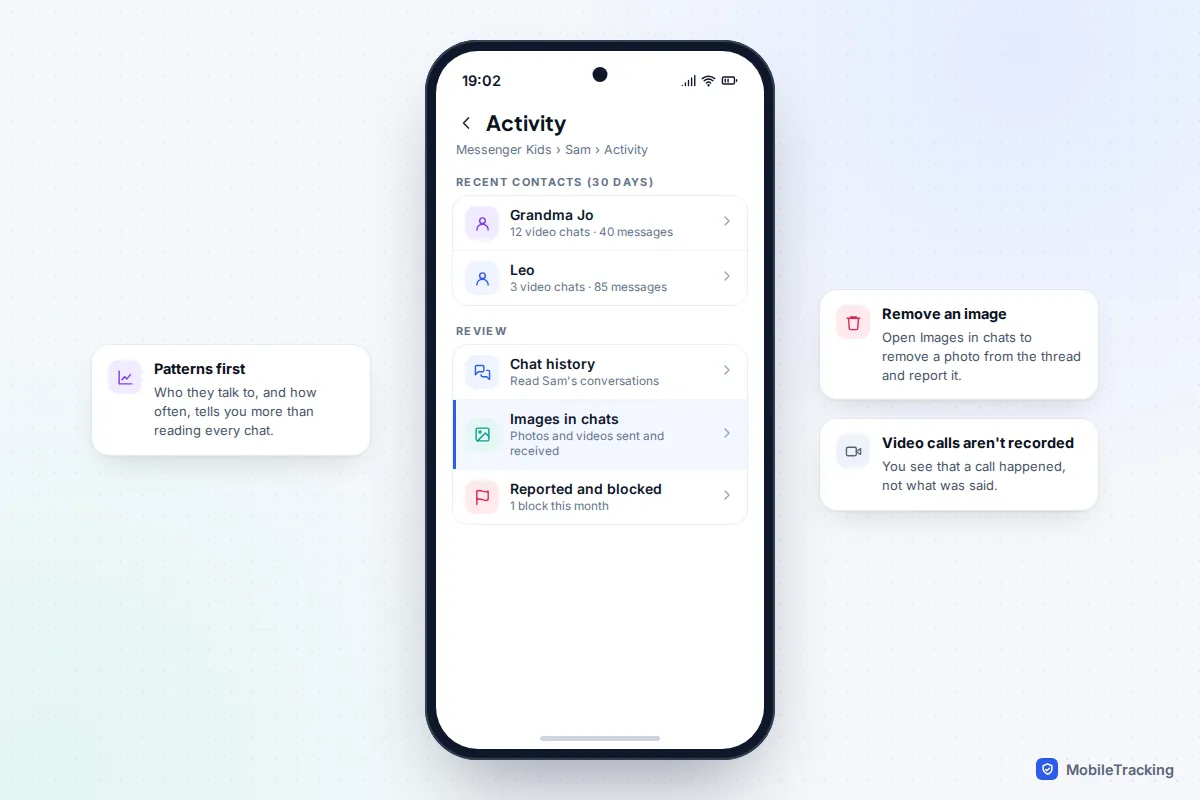
The dashboard gives you more visibility than most children’s apps. For each child you can see:
- Recent contacts: who your child has messaged and video called, and how often, over the past 30 days.
- Chat history: the messages themselves.
- Images in chats: a log of recent photos and videos sent and received. You can remove anything inappropriate from the conversation and report it.
- Reported and blocked: anyone your child has blocked or unblocked, and messages they’ve reported, with the reason they gave.
- Devices: every device your child is logged in on, with the option to log out remotely.
- Download: a copy of your child’s contacts, messages, images and videos. Your child is told in the app when you request this.
What you can’t see is inside a video call. You’ll know a call happened, who with and how often, but nothing is recorded.
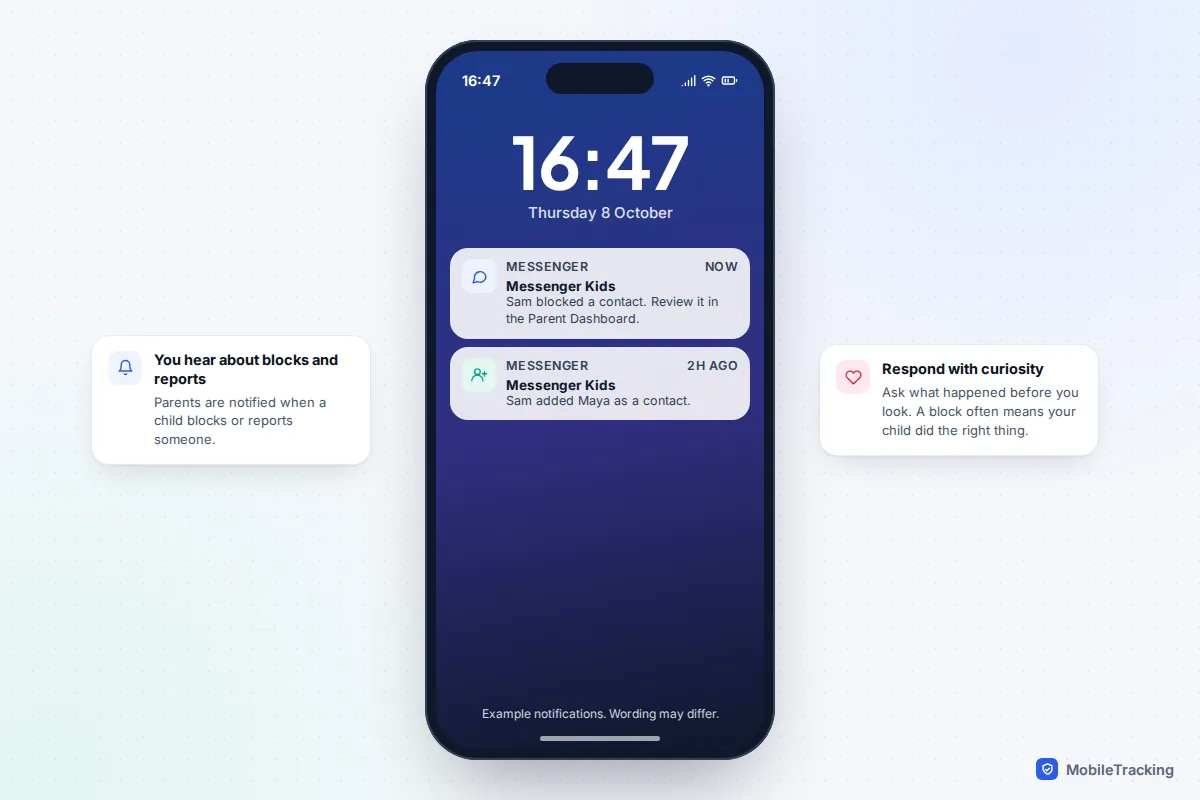
A short weekly look together works better than reading every message in secret. Take Priya, who is nine. Her dad checks the dashboard with her on Sunday evenings, and they scroll the images log side by side. When a classmate sent a mean sticker, Priya had already blocked him, and her dad got a notification. The Sunday chat was about how she handled it well, not about what she’d done wrong. Our guide to online safety for 8 to 12 year olds has more on pitching these talks.
Teach reporting and blocking before anything goes wrong
Children can block a contact or report a message from inside Messenger Kids, and you’re notified through Messenger when they do. Show your child how, with a real contact such as your own profile, on day one. Explain that blocking is never rude, and that they won’t lose the app for using it.
Common mistakes
- Approving every request without asking. Ask “How do you know them?” every time, even when it’s obviously a classmate. The habit is what lasts.
- Treating the app as the whole plan. Messenger Kids is safe partly because it’s closed. If a child can also install other chat apps or games with open chat, those need their own controls.
- Using the dashboard as a trap. If your child only learns that you read their chats when you confront them, they’ll move to somewhere you can’t see.
- Adding adults you don’t know well. Approve coaches and teachers through the group link for a set period, not as permanent one-to-one contacts. Our guide to recognising online grooming explains why one-to-one adult contact deserves extra care.
Privacy, data and what Meta collects
Messenger Kids has no ads, and Meta says it doesn’t use children’s information for advertising. It still collects a lot. The App Store privacy label lists data linked to your child’s identity including contacts, photos and videos, audio, location, device identifiers and usage data, used for app functionality, analytics and personalisation within the app. Common Sense Media gives Messenger Kids a privacy warning and suggests 13 and over for independent use.
You can reduce what’s shared. Use a first name or nickname rather than a full name, pick a profile picture that isn’t a clear face photo, leave location off on the device for Messenger Kids, and delete the account when your child stops using it. If you want to talk about data with your child, our piece on what apps collect is written to share with them.
What happens at 13: moving to Messenger
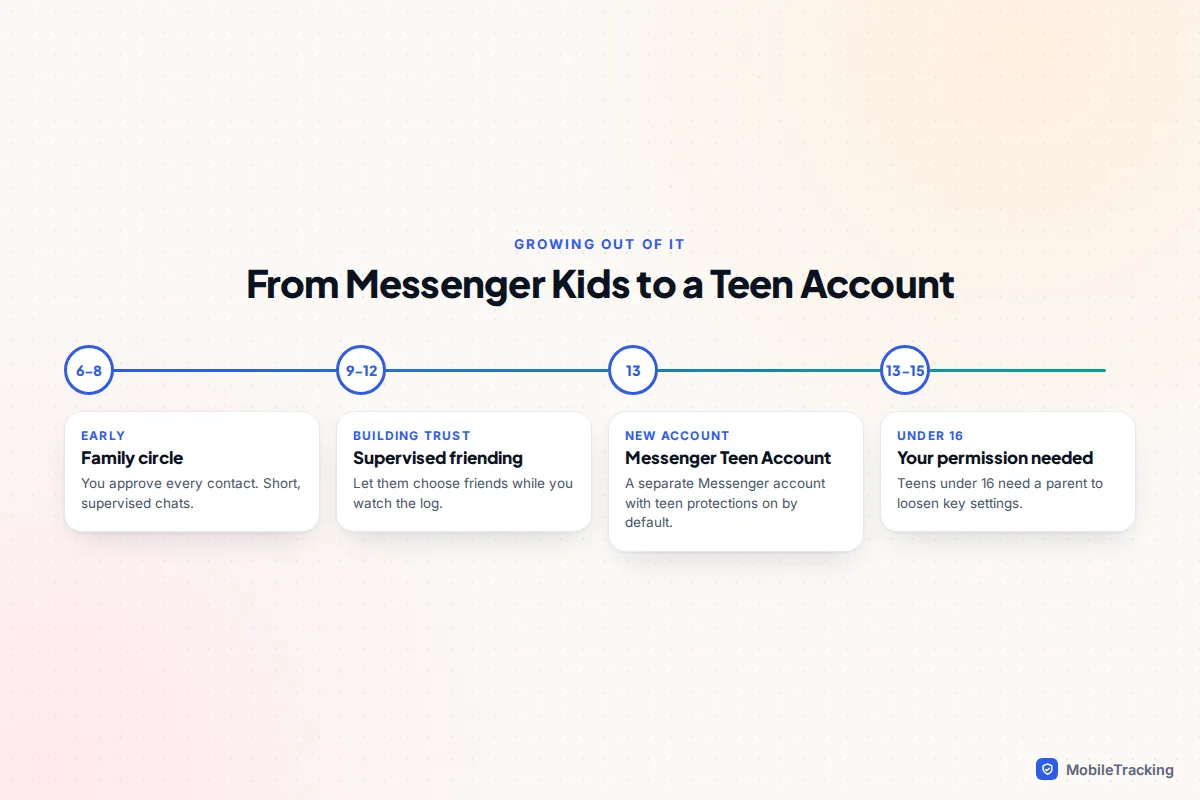
Messenger Kids is designed for under-13s. At 13, your child can have their own account for Facebook and Messenger. It is separate from Messenger Kids, so expect to set up the new account and its contacts together rather than having everything move across.
The new account will be a Meta Teen Account. Since September 2025, teens on Facebook and Messenger worldwide have these protections on by default:
- They only receive messages from people they follow or have messaged before.
- Stories are visible to friends only, and tags, mentions and comments are limited to friends and followers.
- They get a reminder to leave after an hour of use each day, and Quiet mode switches on overnight.
- Teens under 16 need a parent’s permission to change these settings.
You can link your account through Meta’s Family Center supervision to see time spent and approve setting changes. It shows far less than the Messenger Kids dashboard: no chat history and no images log. Use the last year of Messenger Kids as practice with supervised friending, so your child arrives at 13 already choosing contacts well. The same approach works for Instagram supervision if that comes next.
Frequently asked questions
Is Messenger Kids still available in 2026?
Yes. It is still listed on the App Store and Google Play, and the Android app was updated in August 2026. It isn’t offered in the UK or most European countries, and there’s no official way to use it there.
What age is Messenger Kids for?
Meta aims it at children aged 6 to 12. At 13 a child can have a regular account, which comes with Teen Account restrictions. Common Sense Media suggests 13 and over for independent use because of its privacy concerns.
Does my child need a Facebook account?
No. Your child only needs a name and photo. You need a Facebook account to create and manage theirs, and any other parent your child connects with needs one too.
Can I read my child’s Messenger Kids messages?
Yes. The Parent Dashboard shows chat history, recent contacts and images in chats. You can’t see or hear video calls. Telling your child you can read their messages, and when you’ll look, keeps the arrangement honest.
Can I set a daily time limit in Messenger Kids?
No. Sleep Mode only blocks the app during scheduled hours. For a daily limit, use Screen Time on iPhone and iPad or Google Family Link on Android.
What can I use in the UK instead?
For younger children, the simplest option is often video calls and messages on a device you control, such as FaceTime or WhatsApp on a family tablet, with contacts you’ve added. Check each app’s minimum age: WhatsApp’s is 13 in the UK.
This guide is general information, not legal or financial advice. Read our editorial policy.