
You can’t find a phone just by typing an email address into a website. What you can do is sign in with the email and password of the account the phone uses, from any computer or borrowed phone, and that account shows you where the phone is. For an iPhone, go to icloud.com/find and sign in with your Apple Account. For an Android phone, go to google.com/android/find (android.com/find takes you there) and sign in with your Google account. Samsung Galaxy owners can also use samsungfind.samsung.com with their Samsung account.
The snag most people hit is the security code. Two-step verification often sends that code to the very phone you’ve lost. Apple has a button that skips it for finding devices. Google and Samsung don’t, but there are other ways in, covered below, along with the fake “we found your phone” messages that thieves send soon afterwards.
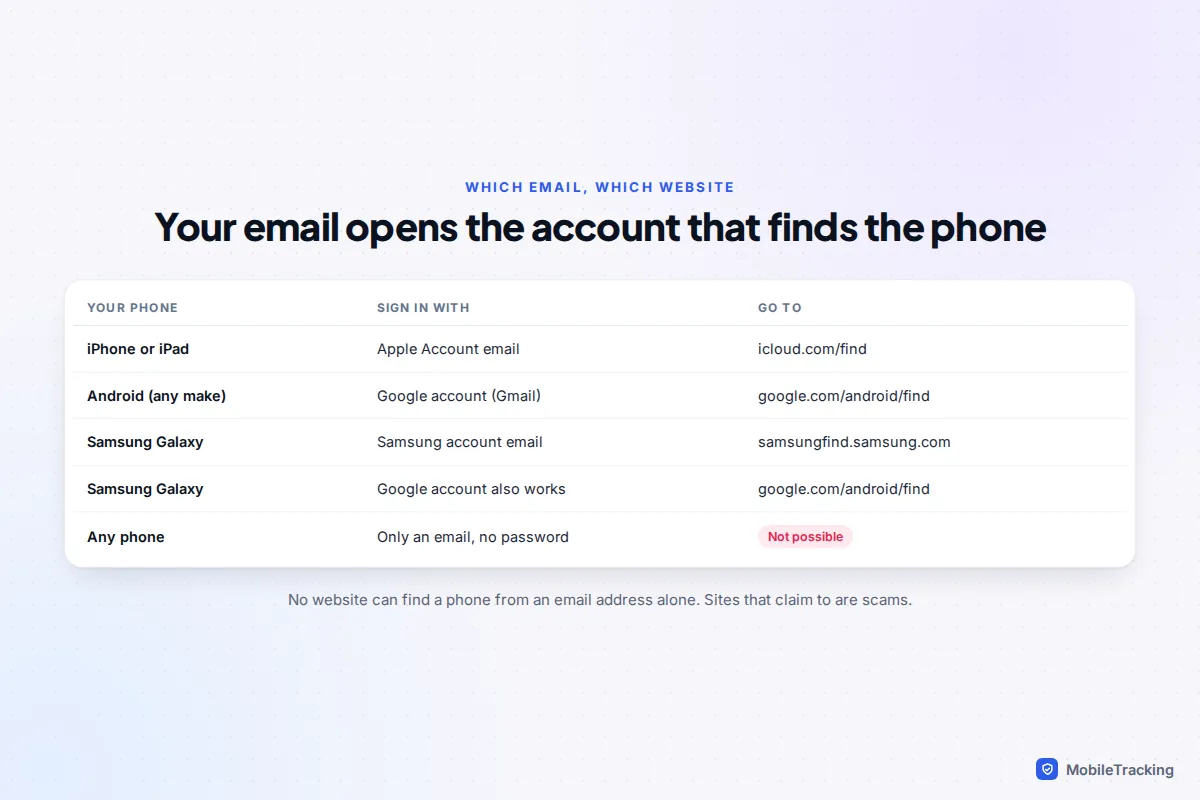
What “finding a phone by email” really means
Your email address is the username for an account: Apple Account, Google account or Samsung account. When you set up the phone, you signed it in to that account, and its find feature (Find My on iPhone, Find Hub on Android, Samsung Find on Galaxy phones) started reporting its location to it. Signing in to the same account on the web lets you see that location and send commands to the phone.
That leads to three practical points:
- You need the password as well as the email. If you’ve forgotten it, start the account’s password reset at once, because recovery can take time.
- It must be the account the phone is actually signed in to. Families often mix these up. If a child’s phone was set up with a parent’s Google account, that is the account to sign in with.
- It only finds your own phones. Signing in to another adult’s account without permission to track them is illegal in most countries, and no legitimate site lets you look up someone else’s phone by email.
iPhone or iPad: sign in at icloud.com/find
- On a computer, tablet or a friend’s phone, open a browser and go to icloud.com/find.
- Enter your Apple Account email (or phone number) and password.
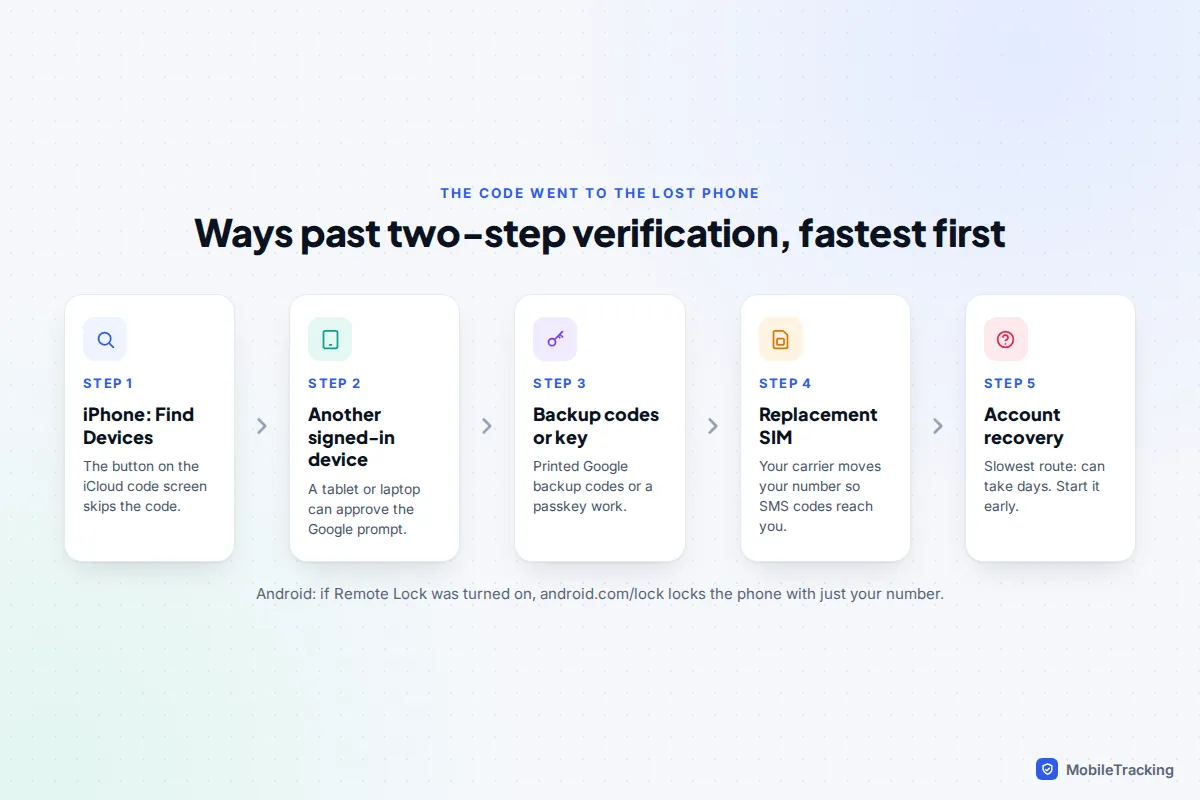
- If you’re asked for a six-digit code and your only trusted device is the lost iPhone, don’t wait for it. Select Find Devices below the code boxes. Apple built this so you can find a lost phone without the code; its guide to signing in to Find Devices on iCloud.com describes it.
- Choose your iPhone from the device list to see it on the map, with the time it was last located.
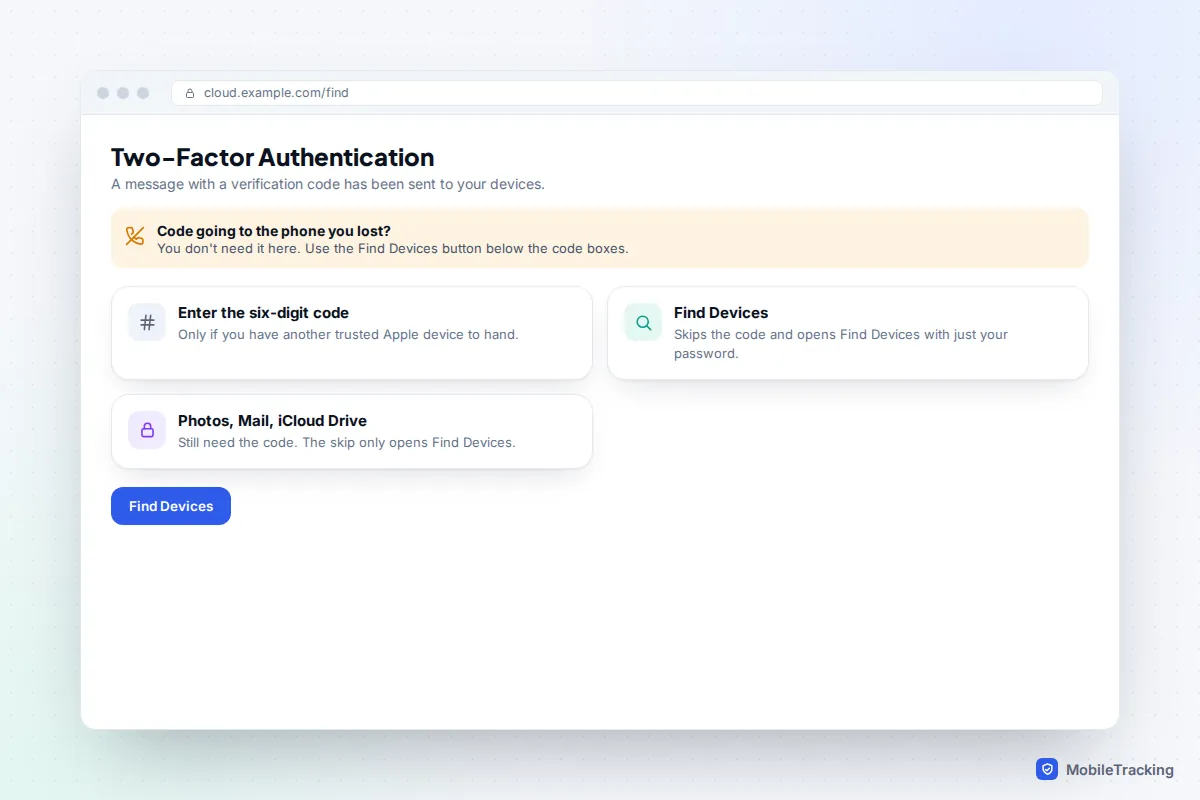
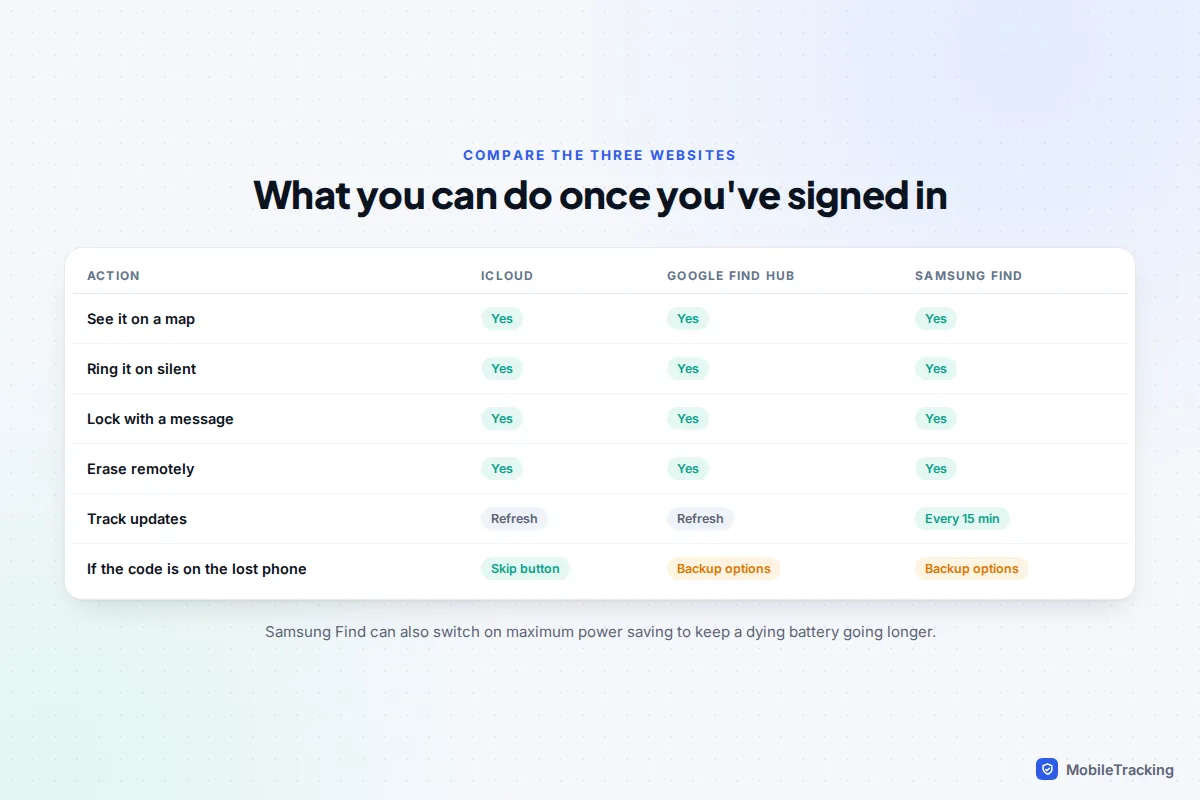
From there you can Play Sound, which rings even on silent, or Mark As Lost. Lost Mode locks the phone, shows a message and contact number on the lock screen, and pauses Apple Pay cards. Erase This Device wipes it and is best saved for when you’ve given up on getting it back. Avoid Remove This Device: that takes it off your account and switches off Activation Lock, which is the main thing stopping a thief from using or selling it. Our step-by-step guide to Find My iPhone covers each option in more detail.
The web version has limits. It shows your iPhones, iPads, Macs, Apple Watches and AirPods, but not AirTags or people sharing their location with you, which need the Find My app on an Apple device. If you’re in a Family Sharing group and share your location with family, a family member’s Find My app can also show your devices, which is handy if you’d rather not type your password on a borrowed laptop.
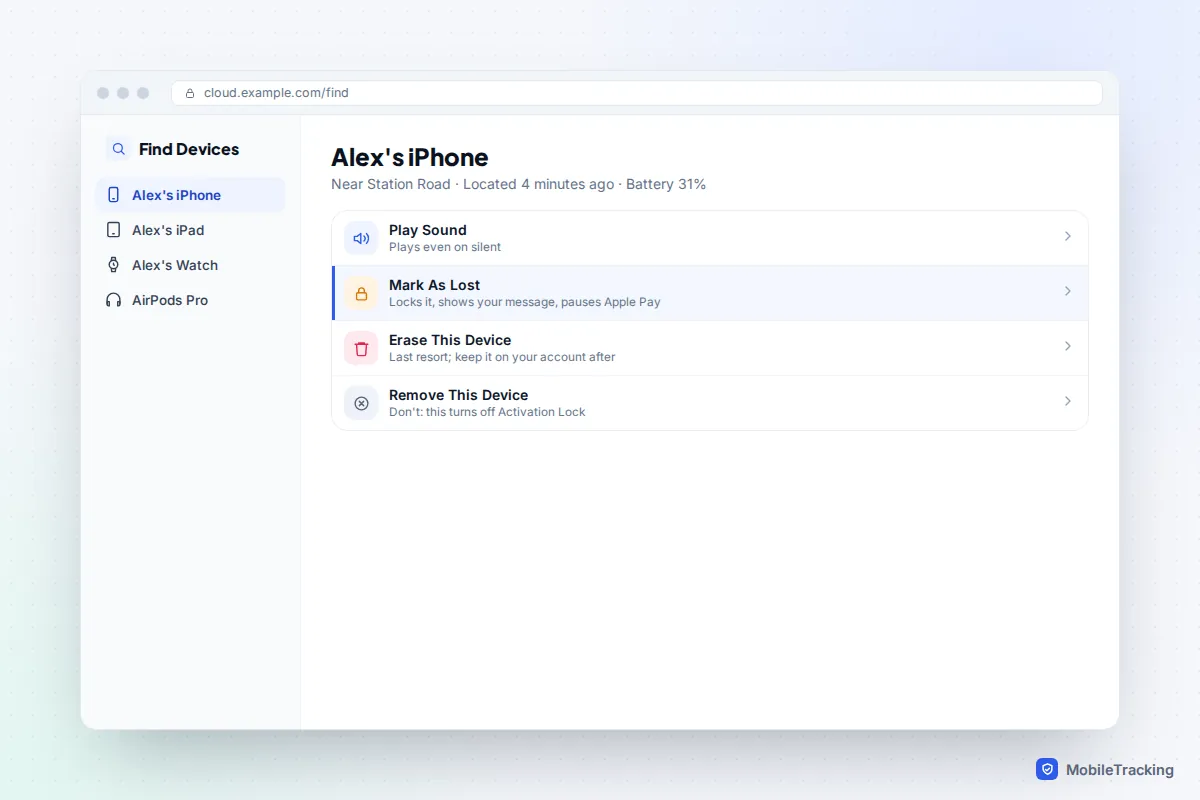
Android: sign in to Google Find Hub
Google renamed Find My Device to Find Hub in 2025, but the web address still works the same way. It covers every Android phone signed in to a Google account, including Samsung, Pixel, Motorola and others.
- Go to google.com/android/find and sign in with the Google account (usually your Gmail address) that is on the lost phone.
- Pick the phone from the list if you have several devices. The map shows its location, with when it was last seen and its battery level.
- Choose Play sound if it might be nearby. Google says it rings at full volume for five minutes, even on silent or vibrate.
- Choose Mark as lost to lock it and put a message or callback number on the screen.
- Choose Factory reset device only as a last resort. Google warns that an erased phone no longer appears in Find Hub, although it still needs your Google password before anyone can set it up again.
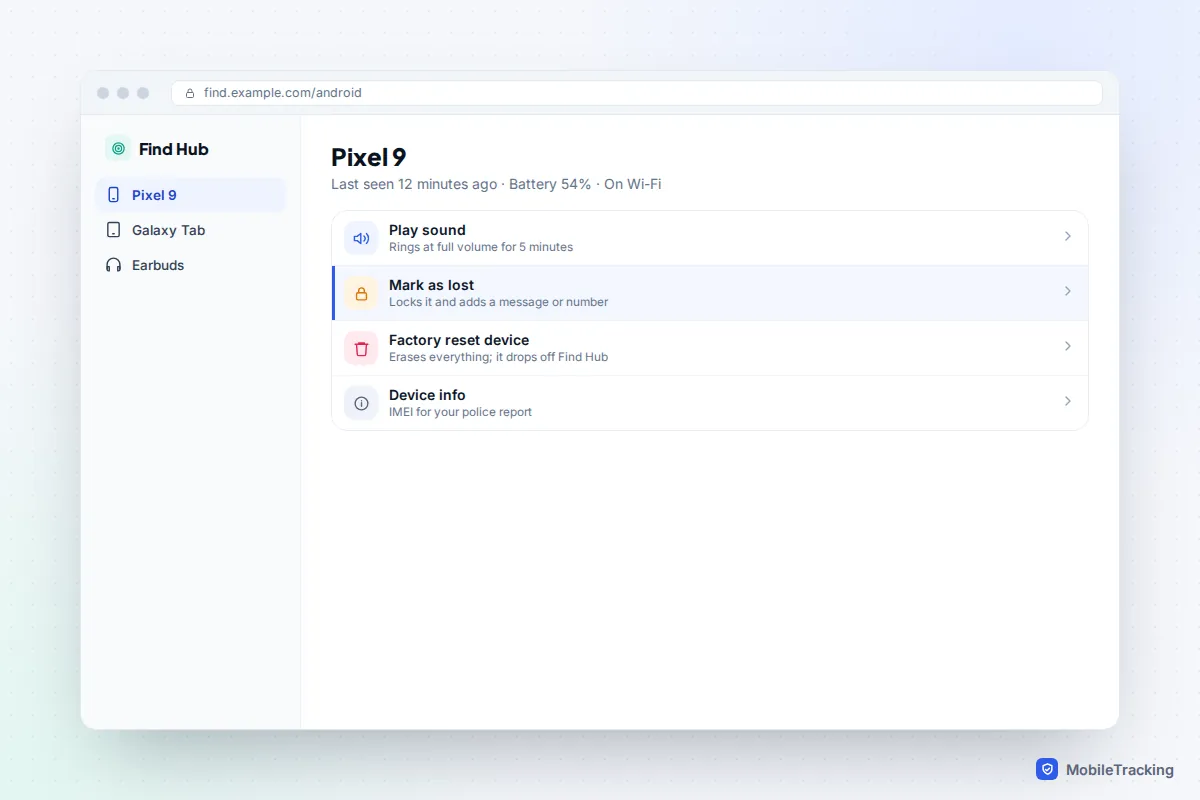
If you’re already signed in to Gmail in a browser, you’ll often go straight to the map without signing in again. If the phone shows as offline, see what to do in our guide on finding a phone that is turned off. For the full app walk-through, see how to use Find Hub on Android, and Google’s own page on finding, securing or erasing a lost Android device.
Samsung Galaxy: Samsung Find with your Samsung account
A Galaxy phone usually has two accounts on it, Google and Samsung, and either can find it. Samsung’s own service lives at samsungfind.samsung.com. Sign in with your Samsung account email and password, pick the phone, and you’ll see these options:
- Ring, which plays a sound even when the phone is on silent.
- Lock, which locks the screen with a message and suspends Samsung Wallet cards.
- Track location, which sends a fresh location every 15 minutes, useful if the phone is moving.
- Erase data, a remote factory reset.
- Extend battery life, which switches on maximum power saving so a low battery lasts longer and the phone stays findable.
These only work if remote controls were enabled on the phone under Settings › Security and privacy › Lost device protection (the exact wording varies between One UI versions). If Samsung Find shows nothing, try Google Find Hub with your Google account instead; one of the two often works when the other doesn’t.
When the verification code goes to the lost phone
This is where most searches stall. On iPhone, the Find Devices button solves it. For Google and Samsung accounts, try these in order:
- Another device that’s already signed in. A tablet, second phone or computer where you’re signed in can approve the sign-in prompt.
- Backup codes or a security key. Google lets you print ten one-time backup codes; if they’re in a drawer at home, now is their moment. A passkey or security key on another device also works.
- A backup phone number, if you added one, such as a partner’s mobile.
- A replacement SIM or eSIM from your carrier. If codes arrive by text, your carrier can move your number to a new SIM, usually the same day in a shop. This also stops anyone else using your number on the lost phone.
- Account recovery. The slowest route, sometimes days. Start it early if nothing else works.
Google’s page on fixing common 2-Step Verification problems lists the same options. There is one more Android shortcut: if you turned on Remote Lock in advance (Settings › Google › All services › Theft protection), you can go to android.com/lock, enter your phone number and pass a quick check to lock the screen, without signing in. It doesn’t show the phone’s location, but it buys time while you sort out the code.
Here is a typical case. Priya left her Android phone on a train and borrowed a colleague’s laptop. Google asked for a code on her phone. Her tablet at home was still signed in, so her partner approved the prompt, and Find Hub showed the phone at the end of the line in a lost property office. Without the tablet, her printed backup codes would have done the same job. Our guide to turning on two-factor authentication everywhere explains how to set up these fallbacks.
Use your account’s device list for clues
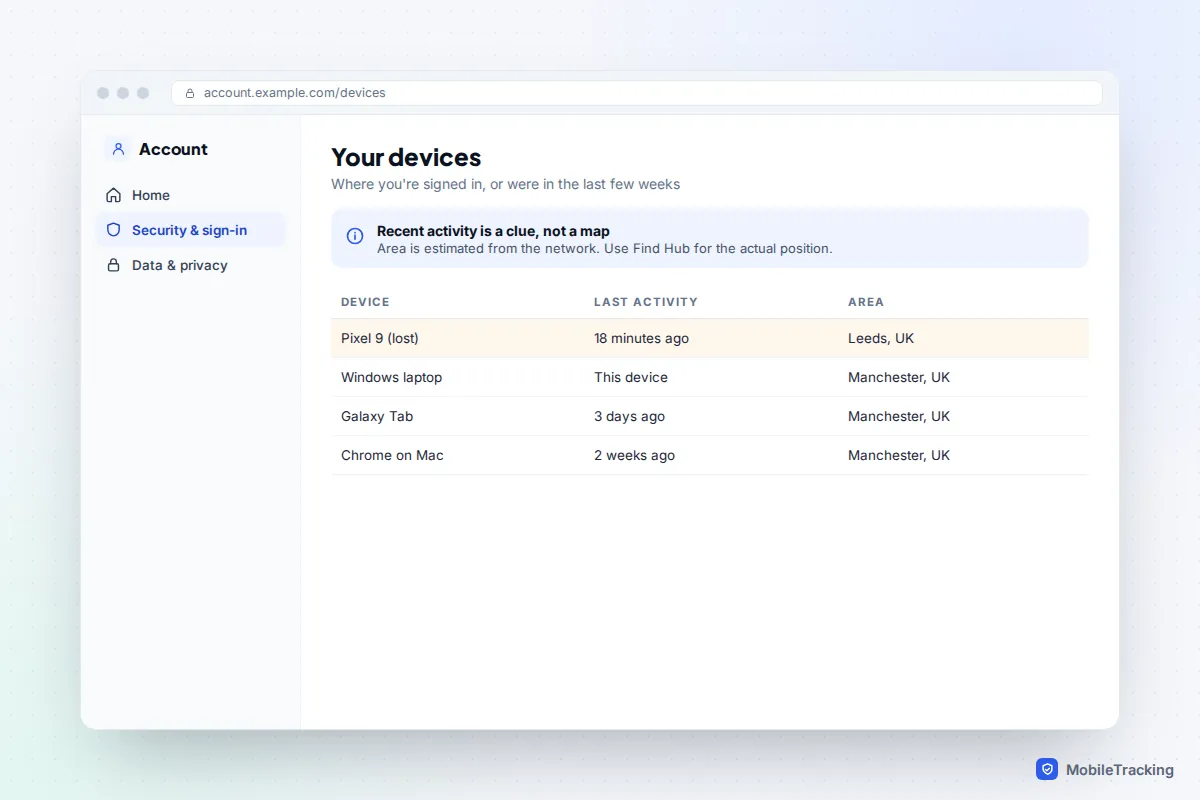
Your Google account keeps a list of devices that have been signed in recently. Go to your Google Account, choose Security (called Security & sign-in in some versions), then Your devices and Manage all devices. Each entry shows the device type, a rough location and when it last communicated with Google. A recent time tells you the phone is switched on and connected, even if Find Hub is slow to update.
Treat it as a clue rather than a map, because the area is estimated from the network. And be careful with Sign out: removing your account from the phone also removes it from Find Hub, so locate, lock or erase it first. Apple’s equivalent at account.apple.com lists your devices under Devices, but without locations.
Don’t expect Google Maps Timeline to help from a browser. Google moved Timeline onto the phone itself, so the web version is gone and the history is on the device you’ve lost.
Emails and texts about your lost phone: real and fake
Once you start using these tools, real messages arrive. Apple emails your Apple Account address to confirm actions such as playing a sound, turning on Lost Mode or erasing. Google sends security alerts when you sign in from a new computer. These are normal, and they’re a useful record of when you did what.
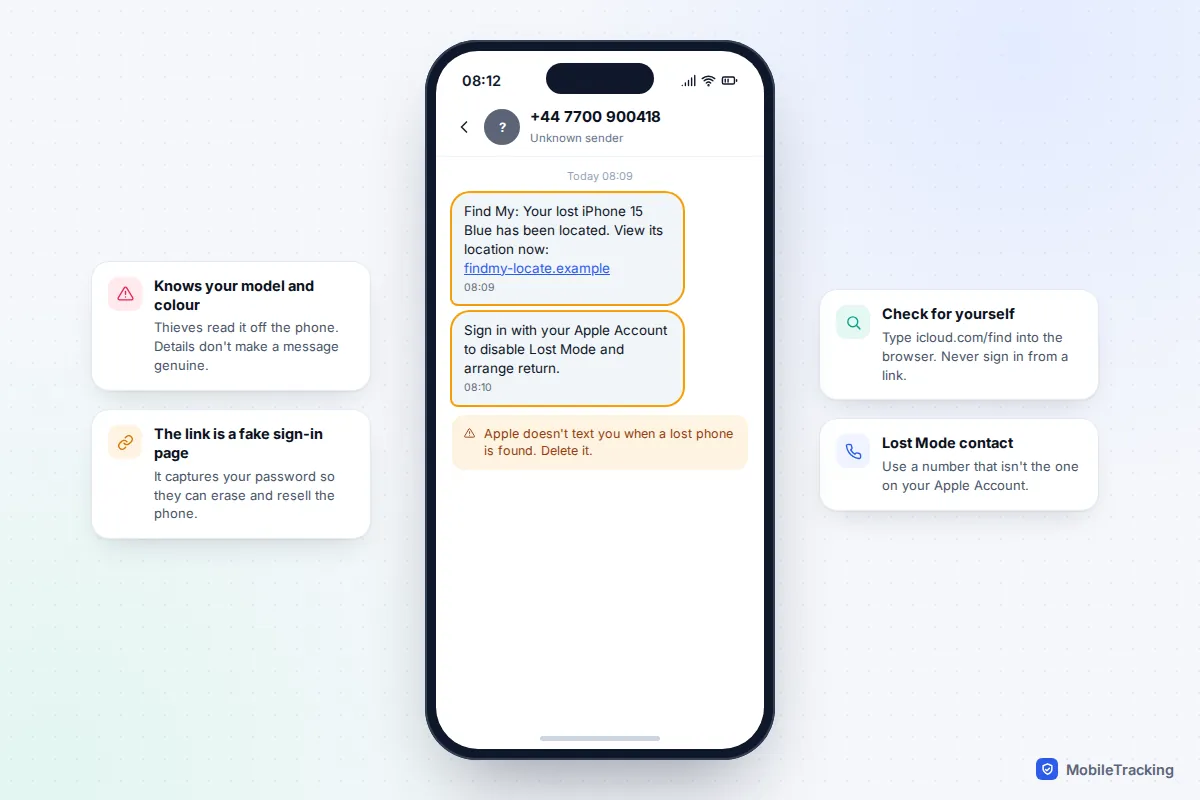
Fakes follow a pattern. A text, iMessage or email says your lost phone “has been located” and gives a link to see where. It may name the exact model and colour, which makes it look real. The link leads to a copy of the iCloud or Google sign-in page. If you enter your password, the thief uses it to remove the phone from your account so it can be wiped and sold. Security firm Malwarebytes has described exactly this scam.
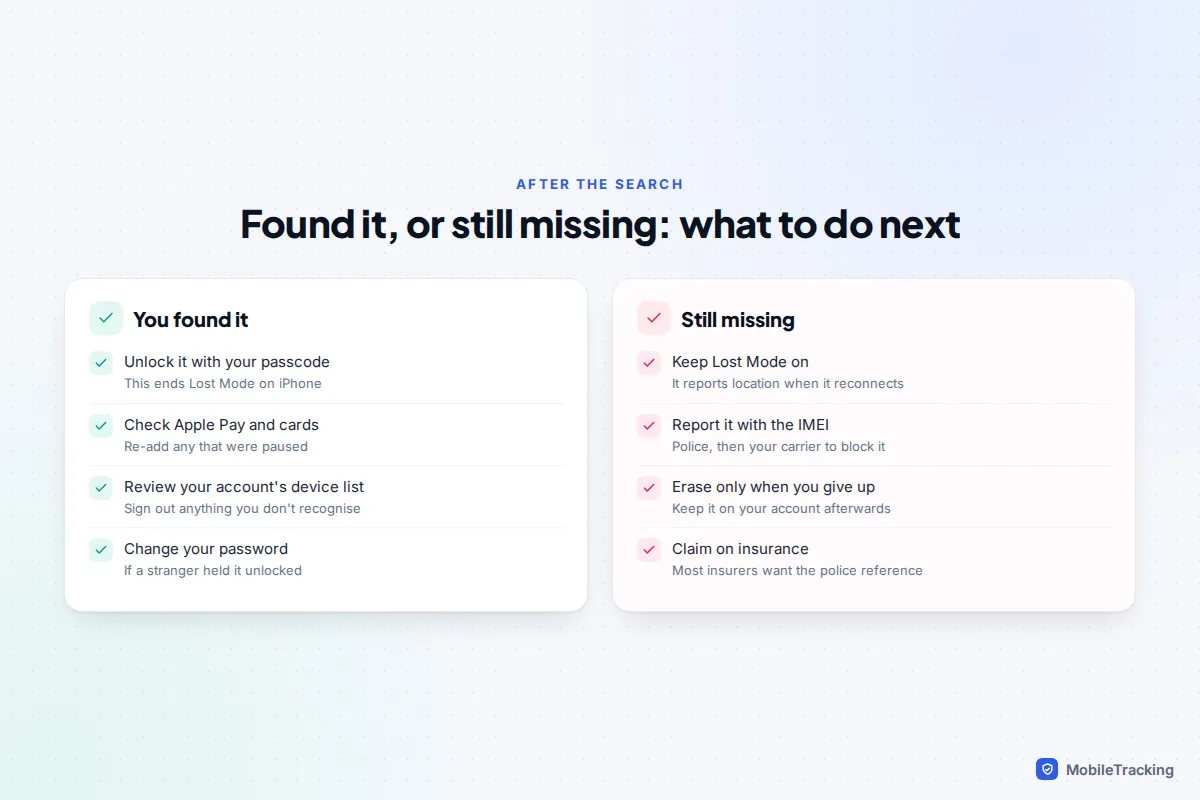
Found it, or not: what to do next
If you get it back, unlock it with your passcode, which ends Lost Mode on an iPhone. Check that Apple Pay or Wallet cards are working, look through your account’s device list for anything you don’t recognise, and change your password if a stranger may have had the phone unlocked.
If it’s still missing, the usual order is:
- Keep it marked as lost. It reports its location if it reconnects.
- Report it to the police with the IMEI from your account or the box, and get a reference number.
- Call your carrier to suspend the SIM and block the handset.
- Erase it when you’ve given up on recovering it. Our guide to erasing a lost phone remotely covers what that does and doesn’t remove. On iPhone, leave it on your account afterwards so Activation Lock stays on.
- Claim on insurance if you have it; most insurers ask for the police reference.
Common mistakes to avoid: removing the device from your account too early, signing out of Google on the lost phone before locating it, and replying to a “found your phone” text. Each one makes the phone easier for someone else to use.
Frequently asked questions
Can I find my phone with just my email address and no password?
No. The email is only the username. You need the account password too, and if you’ve forgotten it, use the account’s password reset. Any website claiming to locate a phone from an email alone is a scam.
Can I find someone else’s phone using their email?
Not legitimately. You’d need their password, and using it to track another adult without permission is illegal in most places. For family members, set up location sharing together instead.
Why does Find Devices show my iPhone but not my AirTags?
The iCloud website only shows Apple devices such as iPhones, iPads, Macs, watches and AirPods. AirTags and people sharing their location need the Find My app on an iPhone, iPad or Mac.
Find Hub says it can’t reach my phone. What now?
It is probably switched off, out of signal or has a flat battery. Find Hub shows its last known location, and phones on the Find Hub network may report it later. Mark it as lost so it locks as soon as it reconnects.
I got an email saying my phone was located. Is it real?
Treat any message with a link as fake. Apple and Google don’t text or email you a link to “see where your phone is”. Sign in yourself at icloud.com/find or google.com/android/find to check.
This guide is general information, not legal or financial advice. Read our editorial policy.