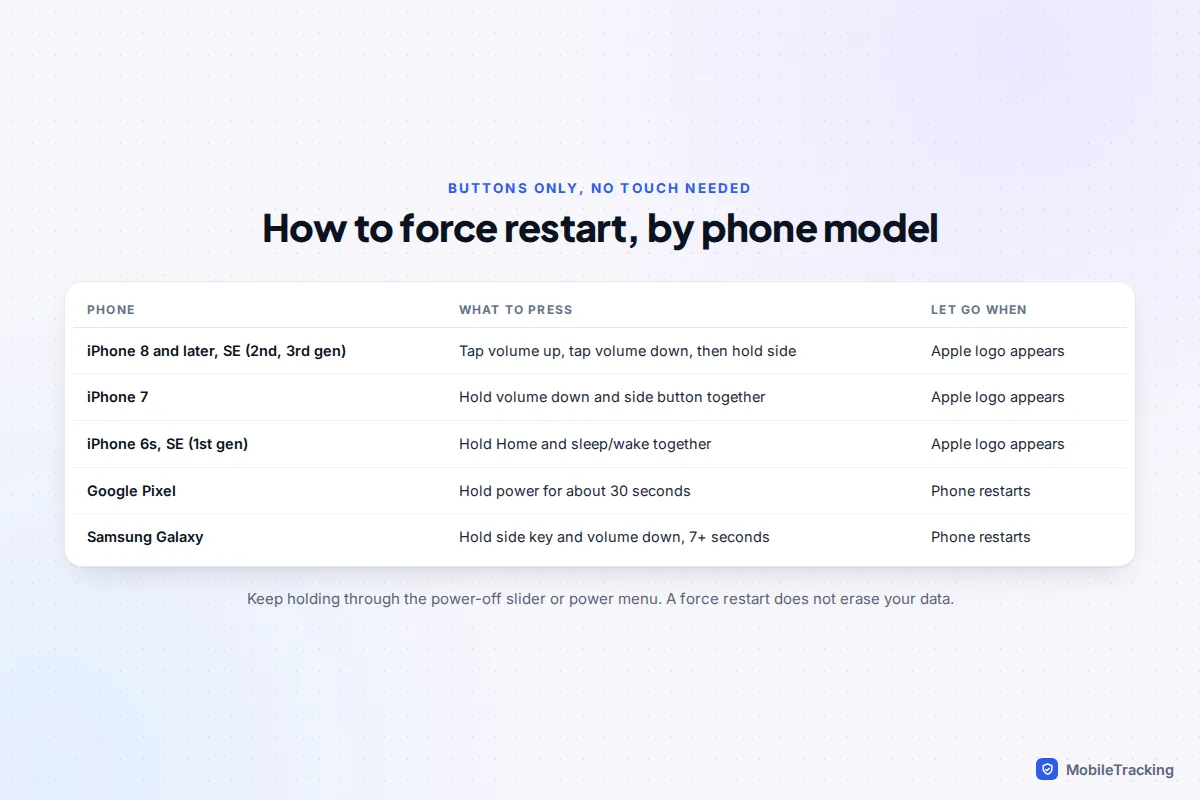
If your screen has stopped responding, force restart the phone first. It uses only the physical buttons, it does not erase anything, and it clears the most common cause: a software hang. On an iPhone 8 or later, press and release volume up, press and release volume down, then hold the side button until the Apple logo appears. On a Pixel, hold the power button for about 30 seconds. On a Samsung Galaxy, hold the side key and volume down together for more than seven seconds.
If the screen still ignores you, take off the protector and case, unplug the charger and dry the glass. Those explain most remaining cases. If one strip is dead, or the trouble began after a drop or a soaking, it is probably hardware, and your priority becomes getting your photos and messages off the phone.
Work out which kind of “unresponsive” you have
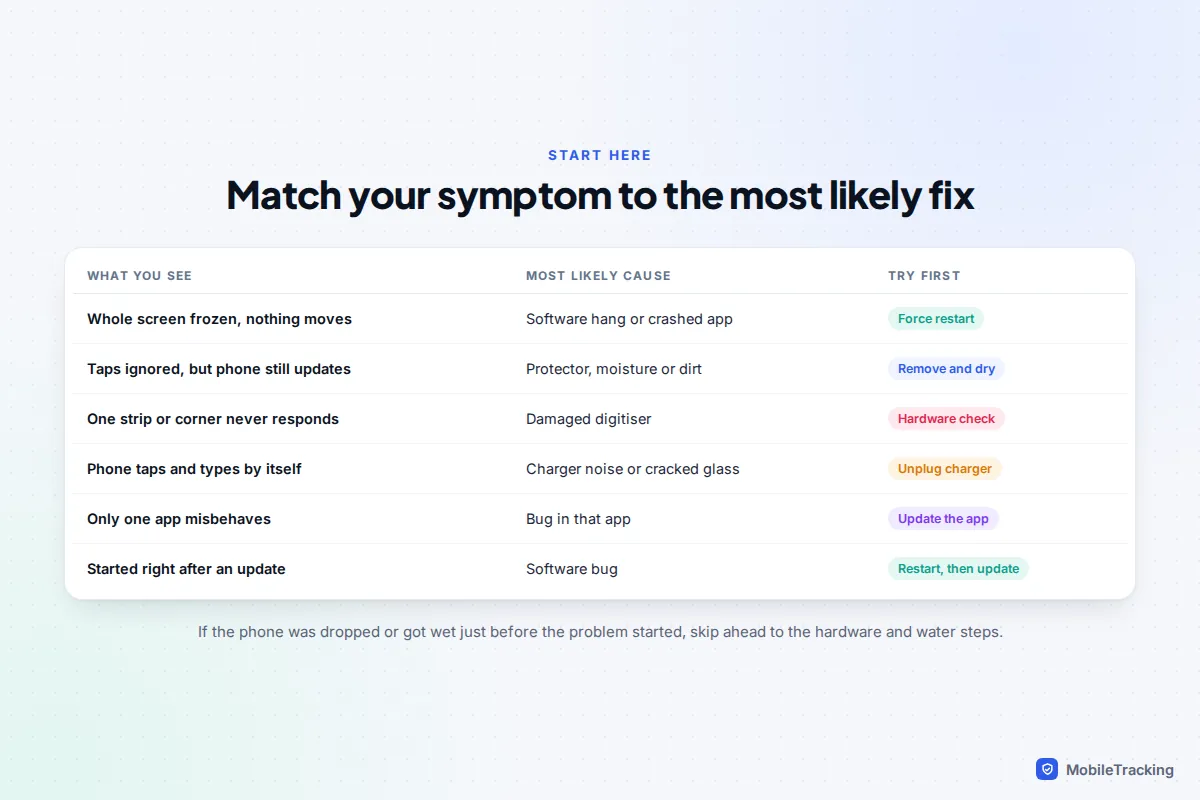
“The screen won’t work” covers several faults with different fixes, so watch the phone for thirty seconds first.
- Everything is frozen. The clock has stopped and pressing volume shows nothing. That is software, and a force restart fixes it.
- Alive but ignoring you. Notifications arrive, but taps don’t register. Suspect the glass: a lifted protector, water, grease or cold.
- Part of the screen is dead. One band never responds while the rest works. That points to a damaged digitiser, the touch layer bonded to the display.
- Ghost touches. Apps open by themselves. Usual triggers are a faulty charger, a cracked screen or a warped case.
- Only one app misbehaves. If the home screen works, the app is the problem.
Force restart a frozen screen, model by model
A normal restart needs a tap on a slider, which is no use when touch has stopped. A force restart reboots using buttons alone, and you will not lose photos, messages or apps.
iPhone
- iPhone 8 and later, including iPhone SE (2nd and 3rd generation) and every Face ID model: press and quickly release volume up, press and quickly release volume down, then press and hold the side button. Keep holding past the power-off slider until the Apple logo shows, which can take over ten seconds.
- iPhone 7: hold the volume down button and the side (sleep/wake) button together until the Apple logo appears.
- iPhone 6s and iPhone SE (1st generation): hold the Home button and the sleep/wake button together until the Apple logo appears.
The usual mistake is holding the volume buttons: they need two quick taps, then the long hold. Apple’s guide to force restarting an iPhone has diagrams of each button layout.
This matters right now. In the first week of iOS 27, reports described a bug where swiping down Notification Centre and Control Centre in quick succession froze icons at the top of the screen and stopped touch working entirely. It is not a hardware fault: a force restart clears it, and it is the kind of bug early point releases fix, so install iOS 27 updates as they arrive.
Android
- Google Pixel: Google’s advice for a frozen Pixel is to hold the power button for about 30 seconds until it restarts.
- Samsung Galaxy: hold the side key and volume down together for more than seven seconds. Keep holding past the power menu until the phone reboots.
- Other Android brands: most respond to holding power for 10 to 30 seconds, or power plus volume down. Check your maker’s support site if neither works.
If the screen freezes again within hours, something is causing the hang. Our wider guide to fixing a phone that keeps freezing covers storage, heat and crashing apps in more detail.
Remove whatever sits between your finger and the glass
Touchscreens sense the tiny electrical charge of your skin through the glass. Anything that adds distance or acts as a second “finger” confuses them. Test after each step, so you know which one mattered.
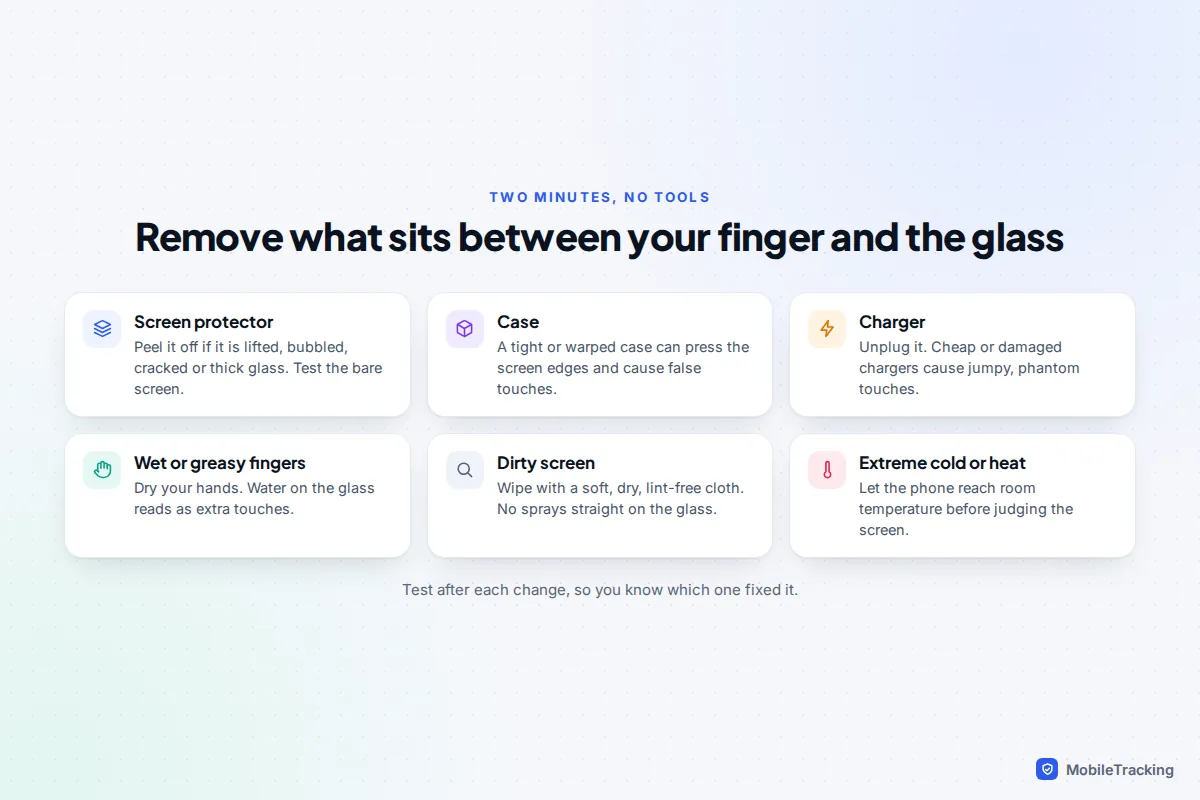
- Take off the screen protector. Thick tempered glass, a cracked protector or one with air bubbles can all block touches in patches. If the bare screen works, buy a thinner one made for your exact model.
- Take off the case. A tight or bent case can press on the edges of the display, which registers as a constant touch.
- Unplug the charger. Damaged cables and cheap unbranded chargers can cause jumpy or phantom touches while charging. Samsung recommends an undamaged charger and avoiding the touchscreen while charging.
- Dry your hands and the screen. Water droplets register as touches of their own. Wipe the glass with a soft, dry, lint-free cloth.
- Let it reach room temperature. Cold fingers and a phone left in a freezing car both reduce sensitivity.
Adjust touch sensitivity for gloves and protectors
If the screen works but feels sluggish through a protector or thin gloves, Android has a setting for it. iPhones don’t, but they have options for touches that register wrongly.
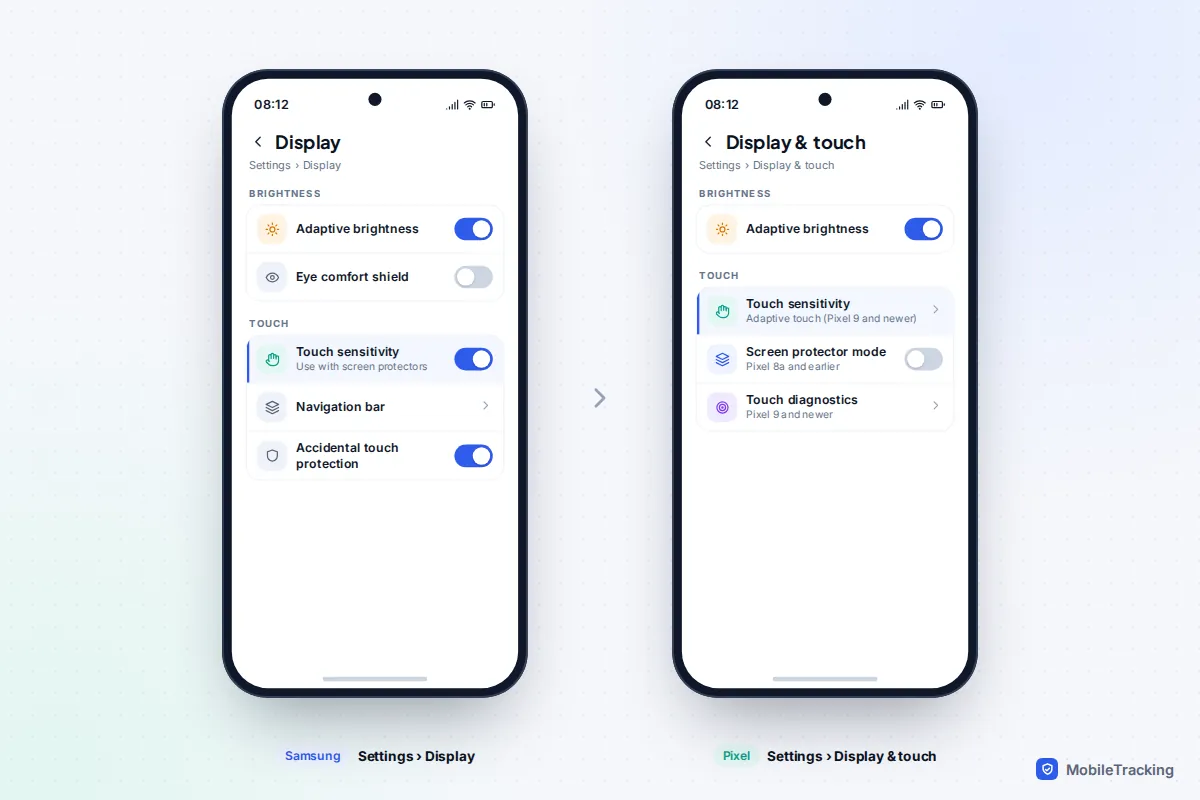
- Samsung Galaxy: go to Settings › Display and turn on Touch sensitivity. This is the closest thing to a glove mode, and it helps with thicker screen protectors.
- Pixel 9 and newer: go to Settings › Display & touch › Touch sensitivity and check that Adaptive touch is on. Google says it adjusts to your environment, activity and screen protector, and it helps noticeably with wet fingers.
- Pixel 8a and earlier: the same menu has Screen protector mode, which raises sensitivity.
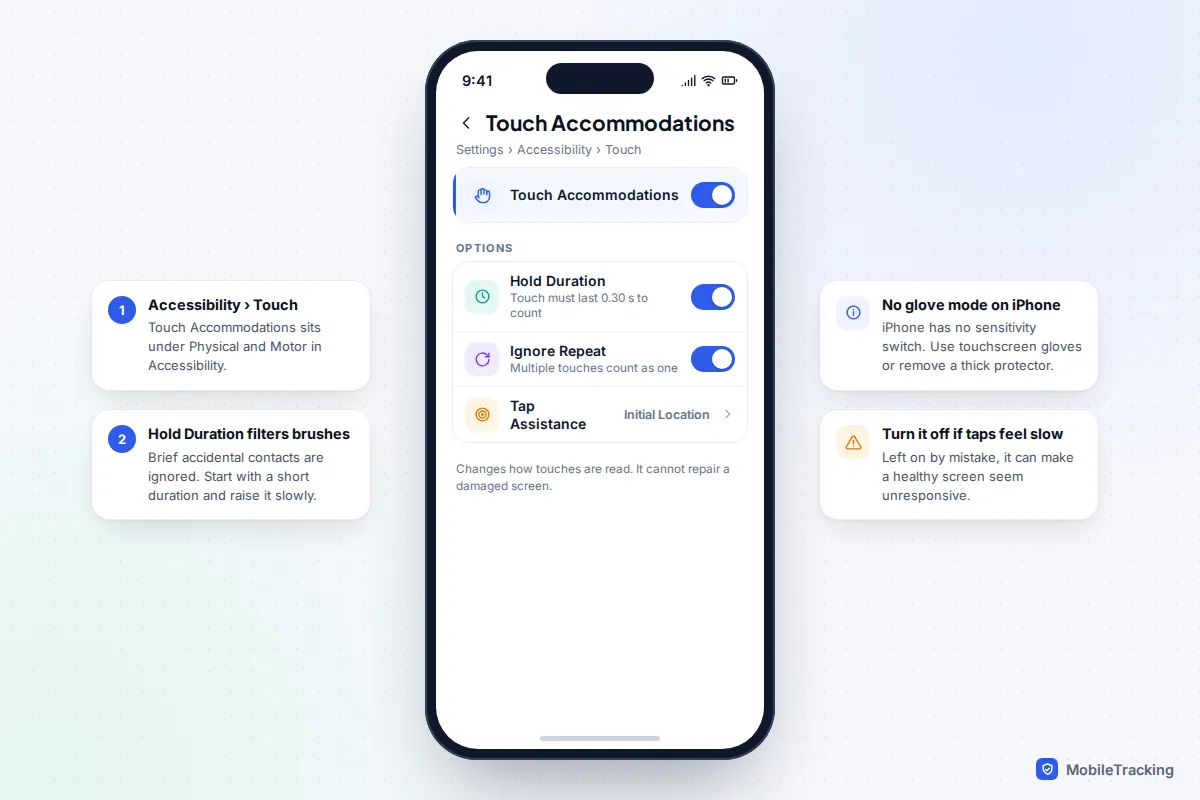
- iPhone: there is no sensitivity or glove switch. Use gloves with conductive fingertips, or a thinner protector.
If your iPhone registers accidental touches or repeated taps, look at Settings › Accessibility › Touch › Touch Accommodations. Hold Duration makes the phone ignore touches shorter than a time you choose, and Ignore Repeat treats several quick touches as one. Both are built for people with tremors, but they also calm a phone that reacts to a brushing palm.
Check the reverse too. If tapping draws a box around items instead of opening them, a screen reader (TalkBack or VoiceOver) is on, and single taps only select. On iPhone, ask Siri to “Turn off VoiceOver”; on Android, turn off TalkBack in Settings › Accessibility, or ask Google Assistant to do it.
If it only happens in one app, or after an update
When the home screen responds but a single app freezes or ignores taps, the app is at fault. Update it, force close and reopen it, then reinstall it. If that fails, Google’s advice is to contact the app’s developer.
When problems appear across the phone but started recently, a background app can still be responsible, particularly launchers, screen dimmers and apps that draw over other apps. Android’s safe mode tests this by temporarily turning off every app you installed yourself.
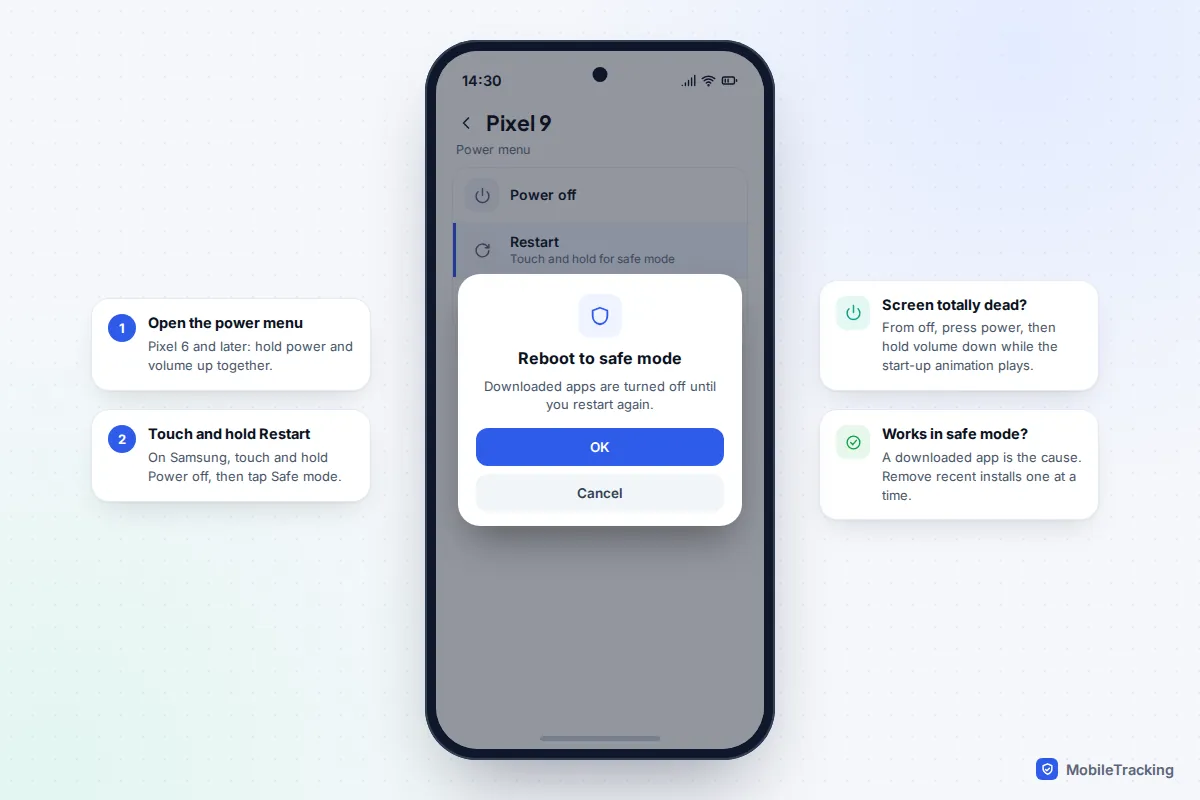
- Pixel 6 and later: press and hold power and volume up together, then touch and hold Restart (or Power off) and tap OK.
- Samsung: open the power menu with the side key and volume down (or the power icon in the quick panel), touch and hold Power off, then tap Safe mode.
- If you can’t tap at all: turn the phone off with a force restart, then press power and hold volume down while the start-up animation plays. Keep holding until the phone finishes starting. “Safe mode” appears at the bottom of the screen.
If touch works properly in safe mode, restart normally and remove recently installed apps one at a time, restarting after each. If it is just as bad, apps are not the cause. iPhones have no safe mode, so update or remove your most recent apps instead.
Finally, install any pending system update: Settings › General › Software Update on iPhone, Settings › System › Software updates on Pixel, and Settings › Software update on Samsung.
If the phone got wet
Water resistance weakens with age and drops. If the trouble began after rain, a spill or a swim, how you handle the next day matters more than any setting.
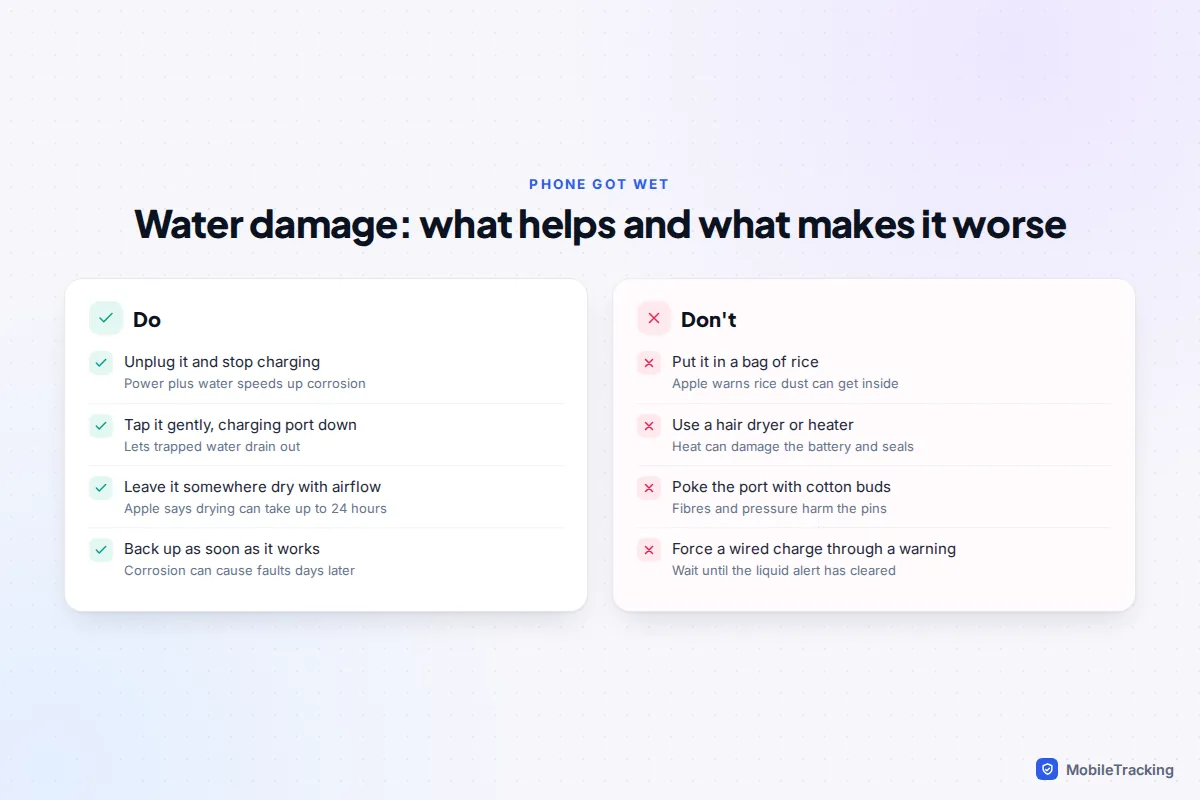
Apple’s advice for a wet iPhone is to unplug it, tap it gently against your hand with the charging port facing down, and leave it somewhere dry with airflow. After at least 30 minutes you can try a cable again, and complete drying can take up to 24 hours. If you see a “Liquid Detected” alert, don’t override it unless it is an emergency. The same rules apply to Android phones.
No rice, hair dryer, radiator, compressed air or cotton buds. If it was salt water, pool water or a sugary drink, back it up as soon as it works and get it inspected, because corrosion can cause faults weeks later.
Rescue your data while the screen is dead
Before any reset or repair, get your data off. If the display lights up but touch is dead, you can often drive the phone another way.
iPhone: voice first
Hold the side button and ask Siri to “Turn on Voice Control”. This works from the lock screen if Siri is allowed there, which is the default. Voice Control listens for commands such as “Show numbers” and “Tap 5”, so you can unlock by saying each digit of your passcode as a tap. With the phone unlocked, you can also ask Siri to turn on AssistiveTouch, which is the setting that lets an iPhone accept a mouse.
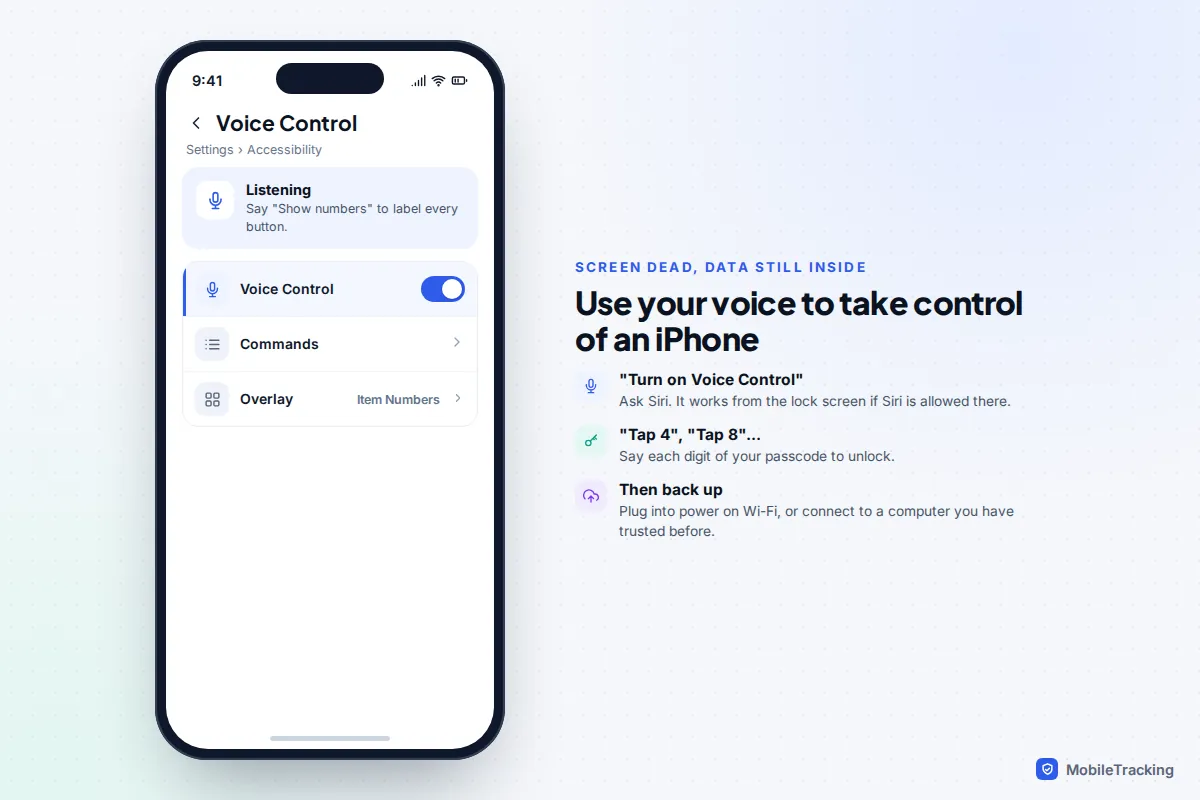
For the backup itself, the simplest route is iCloud: if iCloud Backup is on, the phone backs up by itself when it is locked, charging and on Wi-Fi, so leave it plugged in overnight. Or connect it to a Mac or PC it has trusted before and back up in Finder or the Apple Devices app; you may still need to enter your passcode on the phone. Our step-by-step guide to backing up an iPhone covers both.
Android: plug in a mouse
Most Android phones accept a wired USB mouse, either directly with a USB-C mouse or through a USB-C to USB-A adapter. A pointer appears on screen, and you can click through your PIN or drag your pattern. From there, start a backup in Settings › System › Backup on a Pixel or Settings › Accounts and backup on Samsung, or search Settings for “backup”.
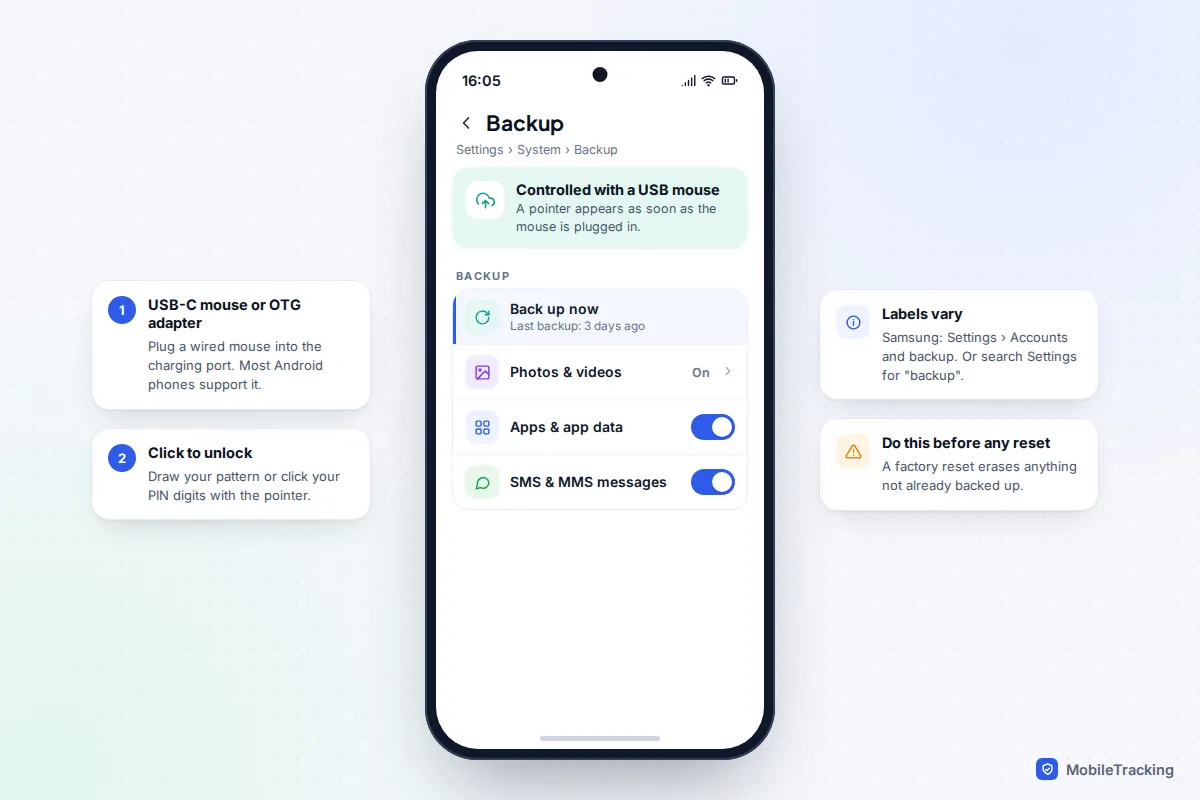
Google’s Voice Access app is an alternative, but it must be switched on beforehand, so a mouse is usually quicker. If the display itself is black, some higher-end Samsung Galaxy models can show their screen on a TV or monitor through a USB-C to HDMI adapter, which you can then work through with a mouse. See also our guide to backing up an Android phone.
When it’s hardware: reset, warranty and repair
With software, interference, settings and apps ruled out, two tests settle the question:
- Built-in diagnostics. On Pixel 9 and newer, open Settings › Display & touch › Touch diagnostics. On Samsung, open the Samsung Members app, go to Support, start phone diagnostics and choose Touch screen. iPhones don’t have a user touch test, but Apple Support can run diagnostics remotely.
- The drawing test. Open a notes or drawing app and slowly drag one finger across the whole screen in rows. Gaps in the line show the dead zones, which is useful to show a repairer.
If diagnostics pass but problems continue, a factory reset is the last software step. It erases the phone, so back up first. On iPhone it is Settings › General › Transfer or Reset iPhone › Erase All Content and Settings; on Samsung, Settings › General management › Reset › Factory data reset; on Pixel, Settings › System › Reset options › Erase all data. Read our checklist for backing up before a reset first.
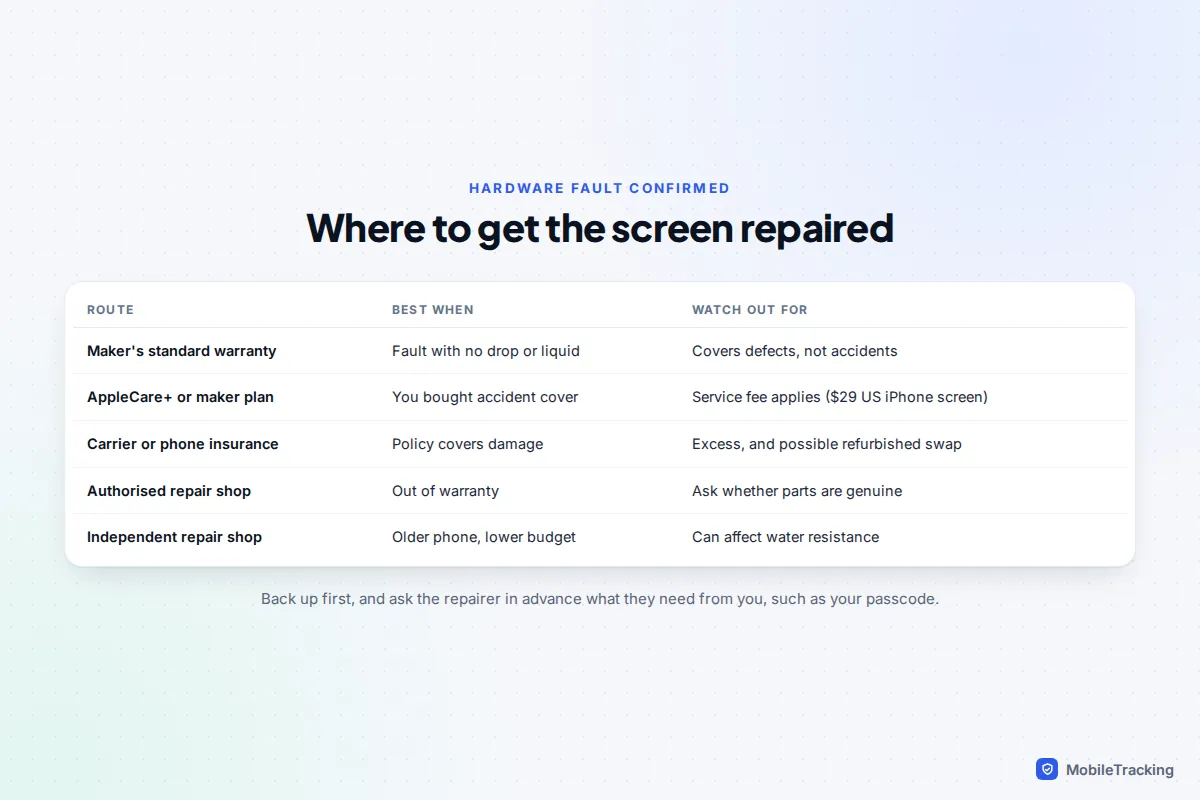
If the touch layer is dead, the fix is a new display assembly. Your options, cheapest first:
- Standard warranty. Apple’s one-year limited warranty, and Samsung’s and Google’s equivalents, cover manufacturing defects, not drops or liquid. In the UK, the Consumer Rights Act also gives you rights against the retailer, and a fault within six months of purchase is presumed to have been there from the start.
- AppleCare+ or a maker’s protection plan. In the US, an iPhone screen repair under AppleCare+ costs a $29 service fee, compared with several hundred dollars out of warranty on recent models. Samsung Care+ and Google’s Preferred Care work in a similar way with their own fees.
- Insurance. Carrier and standalone policies may cover it, minus an excess. Our guide to phone insurance explains what to look for.
- Independent repair. Often cheaper for older phones. Ask whether the part is genuine, and expect weaker water resistance afterwards.
Before booking, skim Samsung’s Galaxy touchscreen troubleshooting or Google’s Pixel touch fixes for model-specific settings.
Frequently asked questions
Will a force restart delete my photos or messages?
No. It reboots the phone without the usual shutdown steps, and your data, apps and settings stay as they were. At most you lose unsaved work in an open app, such as a half-written message.
Why does my phone type and open apps by itself?
Usually a faulty charger, a cracked or lifted protector, a tight case or a damaged display. If it continues on a bare, unplugged phone, the display needs inspecting.
Is there a glove mode on iPhone?
No. iPhones have no touch sensitivity or glove setting, so you need gloves with conductive fingertips. Samsung phones have Touch sensitivity under Settings › Display, and Pixel 9 and newer adjust automatically with Adaptive touch.
Can I get my data off a phone with a completely broken screen?
Often, yes, using the voice and mouse methods above. If nothing appears on the display at all, a repair shop can fit a replacement screen, even temporarily, so you can reach your data before deciding on a full repair.