To set up Snapchat Family Center, you need your own Snapchat account (you must be 18 or over) and your teen (aged 13 to 17) must be one of your Snapchat friends. Tap your profile icon, then the gear icon, scroll to Privacy Controls and tap Family Center. Choose your teen and tap Send Invitation. Your teen then opens the invite in their chat with you and accepts it. With both phones in the same room, the whole thing takes about ten minutes.
Once you’re connected, you can see your teen’s friends list, who they’ve messaged in the last seven days, and, since January 2026, how long they spend on Snapchat each day. You can also restrict sensitive content, switch off My AI, request their location and report accounts. What you can’t do is read their messages, set a time limit or stop them leaving. This guide covers the setup, the settings worth changing first and what to do when the invite won’t work.
What Family Center shows you, and what it doesn’t
Snap designed Family Center to mirror how many parents supervise in real life: knowing who your child spends time with without listening in. That is a deliberate choice, and it shapes everything the tool can and can’t do.
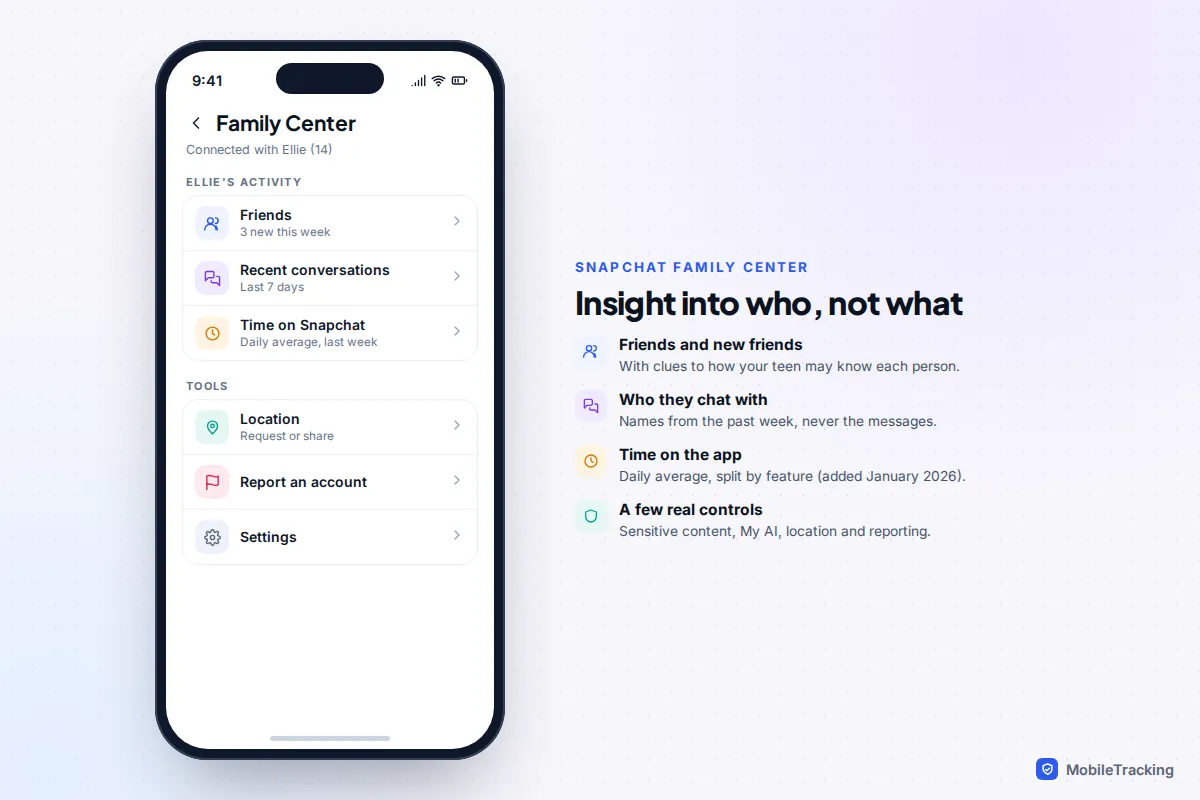
Here is what a connected parent sees today:
- Friends: your teen’s full friends list, with new friends from the past week highlighted. Since January 2026 each new friend comes with clues about how your teen may know them, such as mutual friends, whether they’re saved in your teen’s contacts, or a shared community like a school.
- Recent conversations: the names of people your teen has sent Snaps or chats to in the past seven days, plus the members of active group chats. No message content, photos or videos.
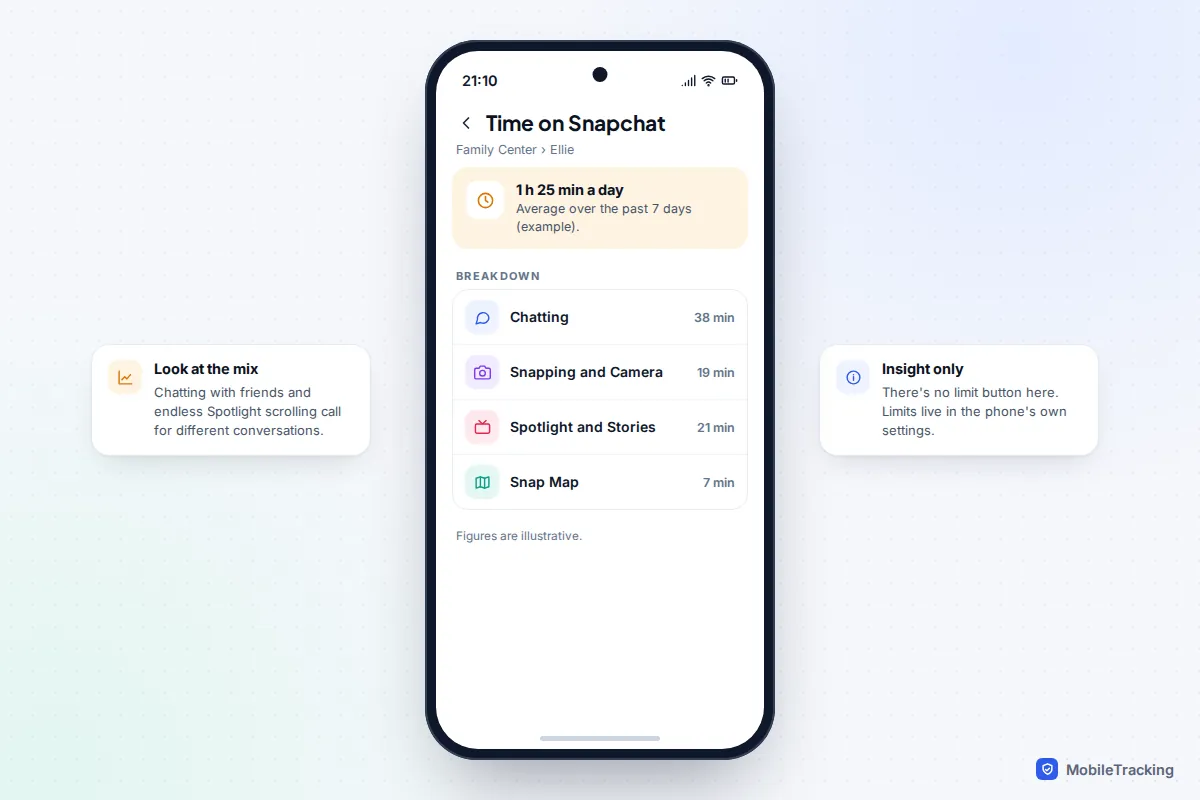
- Time on Snapchat: the average daily time over the previous week, split into chatting, snapping, camera, Snap Map, and Spotlight and Stories.
- Privacy settings: a view of key settings such as who can contact your teen, who can see their Story and whether they share their location on Snap Map.
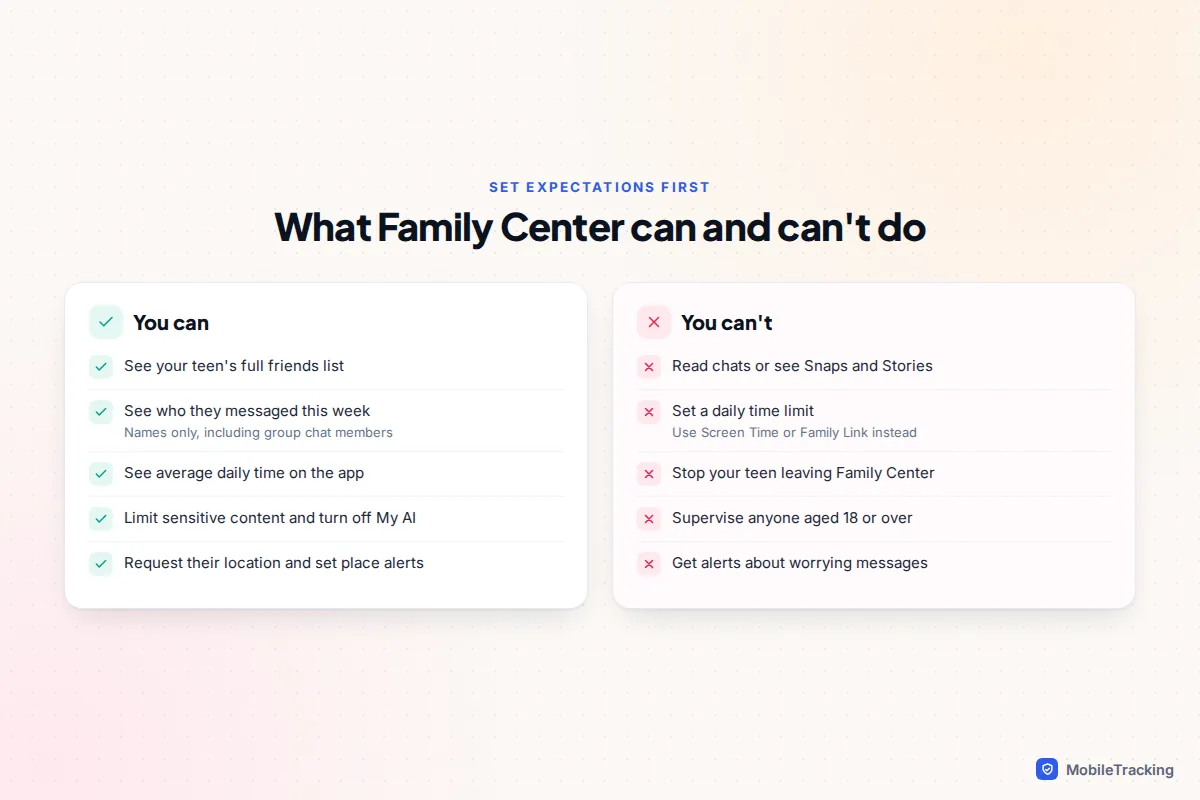
Family Center is not message monitoring, and Snap has been clear that it is designed not to show message content. If you’ve been told a tool can show you your teen’s Snaps, be cautious: apps that promise this usually need invasive access to the phone and can put your child’s data at risk. Our Snapchat safety guide for parents covers the wider risks, from Snap Map to disappearing messages.
Before you start: a quick checklist
Most failed setups trace back to one of these. Run through them first.
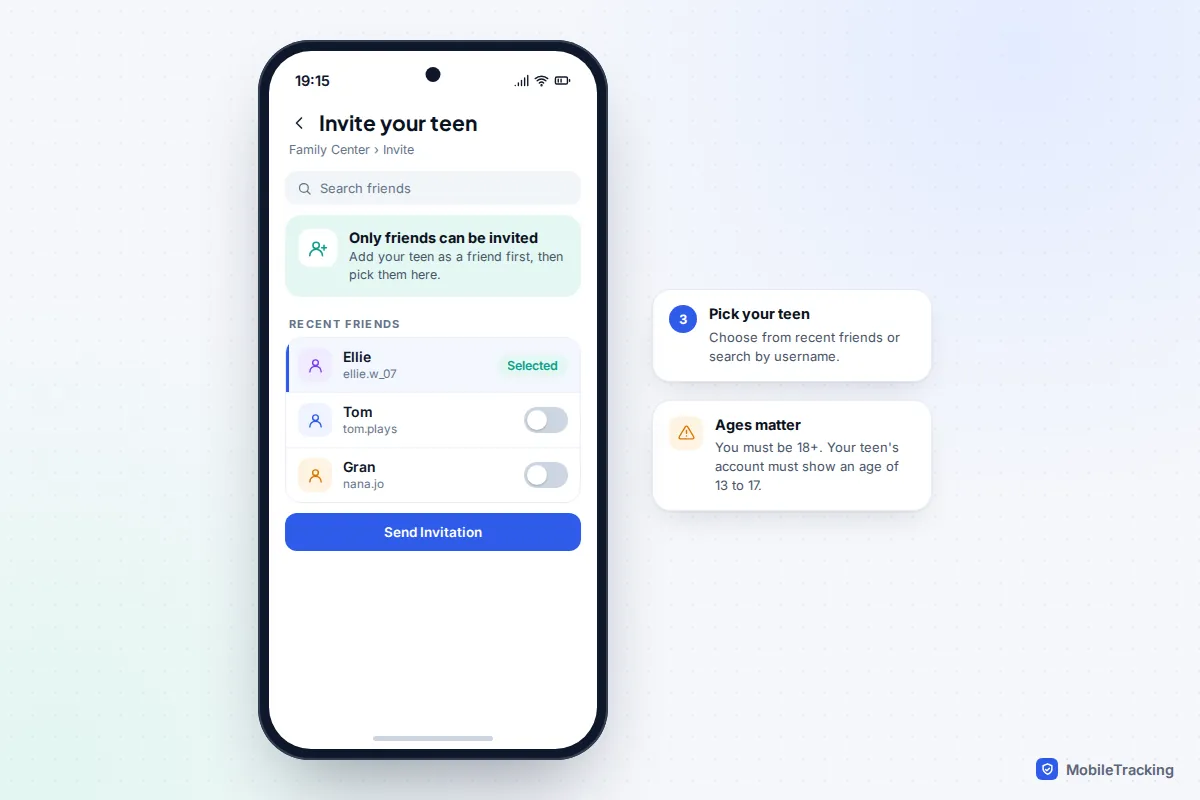
- Ages on both accounts. You must be 18 or older. Your teen’s Snapchat account must show an age between 13 and 17. If your teen signed up with a fake adult birthday, Family Center won’t link, and you’ll need to talk about fixing it.
- Your own Snapchat account. Family Center lives inside Snapchat, so you need the app and an account, even if you never send a Snap. Use your real name so your teen’s friends don’t mistake you for a stranger.
- You’re friends on Snapchat. Search for your teen’s username and add them, and have them add you back.
- The latest version of Snapchat on both phones, from the App Store or Google Play.
- Your country. Snap says Family Center is rolling out gradually, so it may not appear everywhere. In Australia, under-16s have not been allowed to hold Snapchat accounts at all since 10 December 2025, even with a parent’s permission.
- A conversation first. Your teen has to accept the invite and can leave whenever they like, so it works far better as something you agree on together.
How to set up Family Center step by step
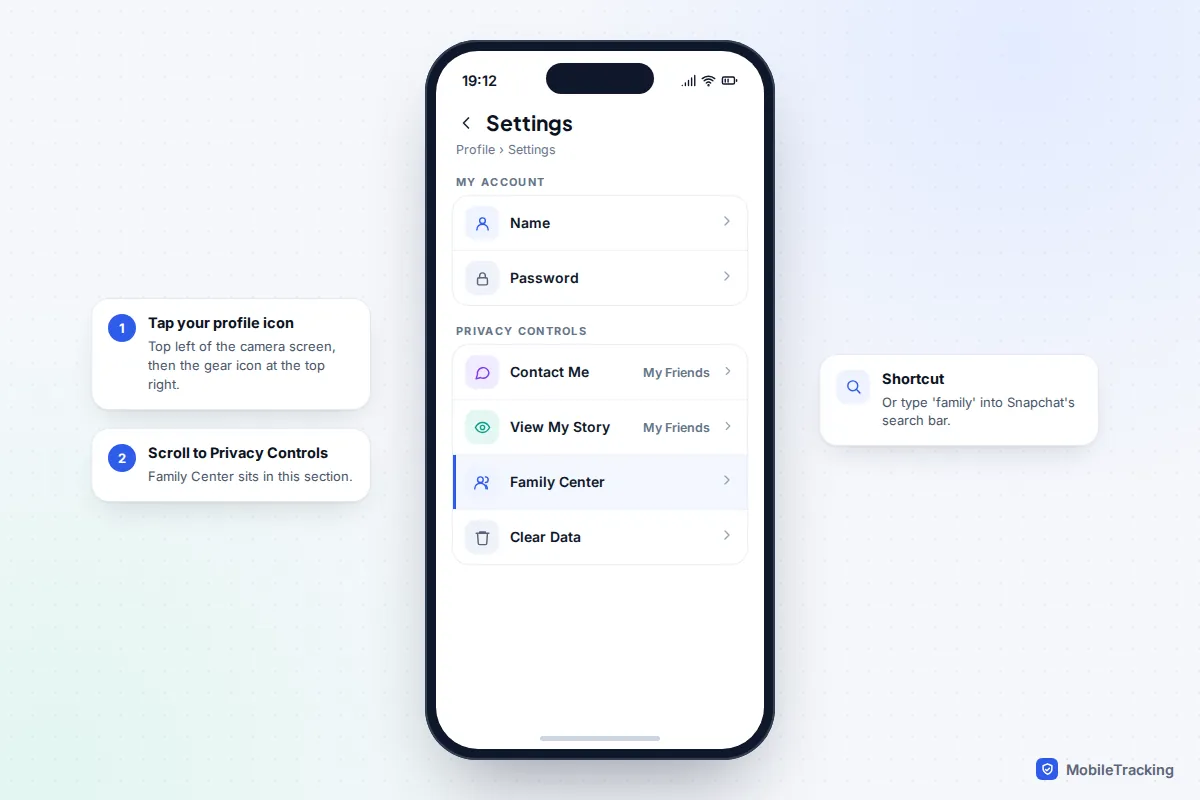
The menus are the same on iPhone and Android, although Snapchat occasionally moves things between updates. If you can’t see a label below, type “family” into Snapchat’s search bar; it takes you straight there.
On your phone (the parent)
- Open Snapchat and tap your profile icon in the top-left corner of the camera screen.
- Tap the gear icon in the top-right corner to open Settings.
- Scroll down to Privacy Controls and tap Family Center.
- Read through the introduction screens and continue.
- On the invitation screen, choose your teen from your recent friends or search for their name.
- Tap Send Invitation. If you have more than one teen, repeat the invitation for each of them.
On your teen’s phone
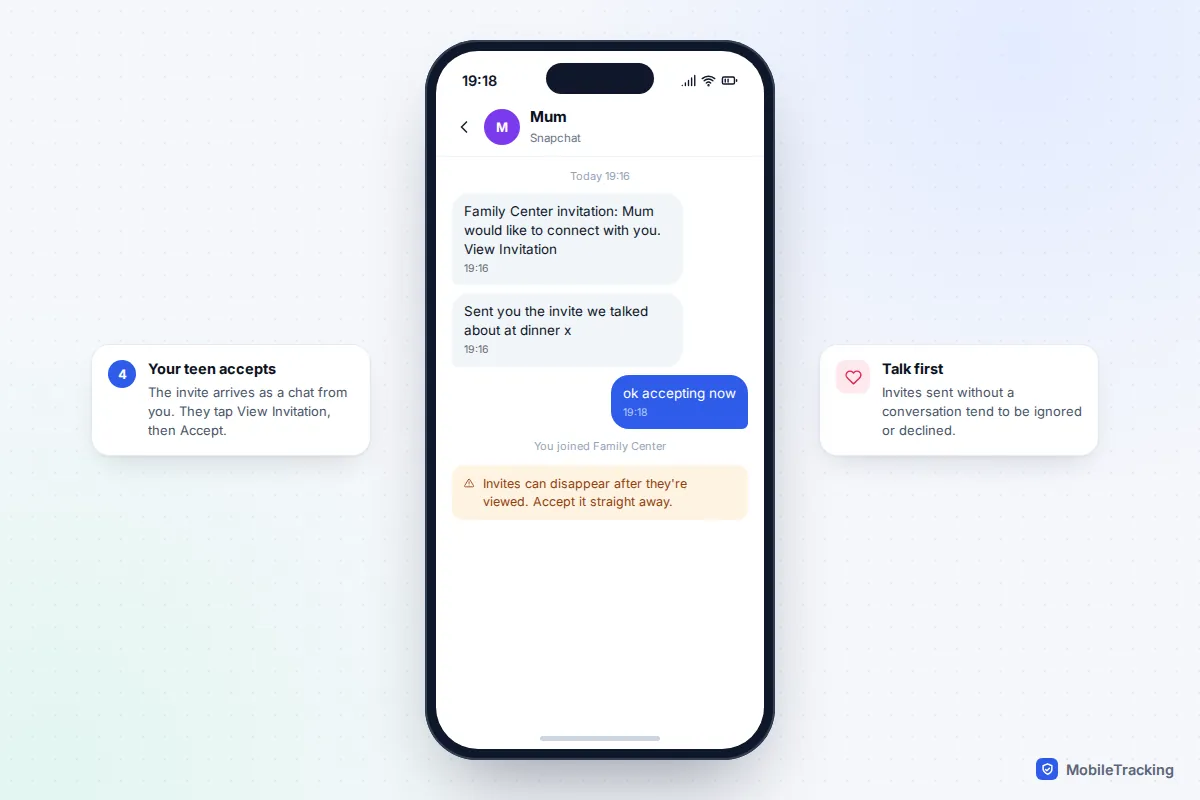
- The invitation arrives as a new chat message from you. Your teen opens it and taps View Invitation.
- They read what you’ll be able to see, then tap Accept.
- Both of you now see the connection in Family Center.
Do this part together, in person. Snap warns that invitations delete either immediately or 24 hours after being viewed, depending on your teen’s chat settings. An invite glanced at on the bus and forgotten will simply vanish, and you’ll need to send another. Snap’s help article on adding your teen to Family Center has the official steps.
The settings to turn on first
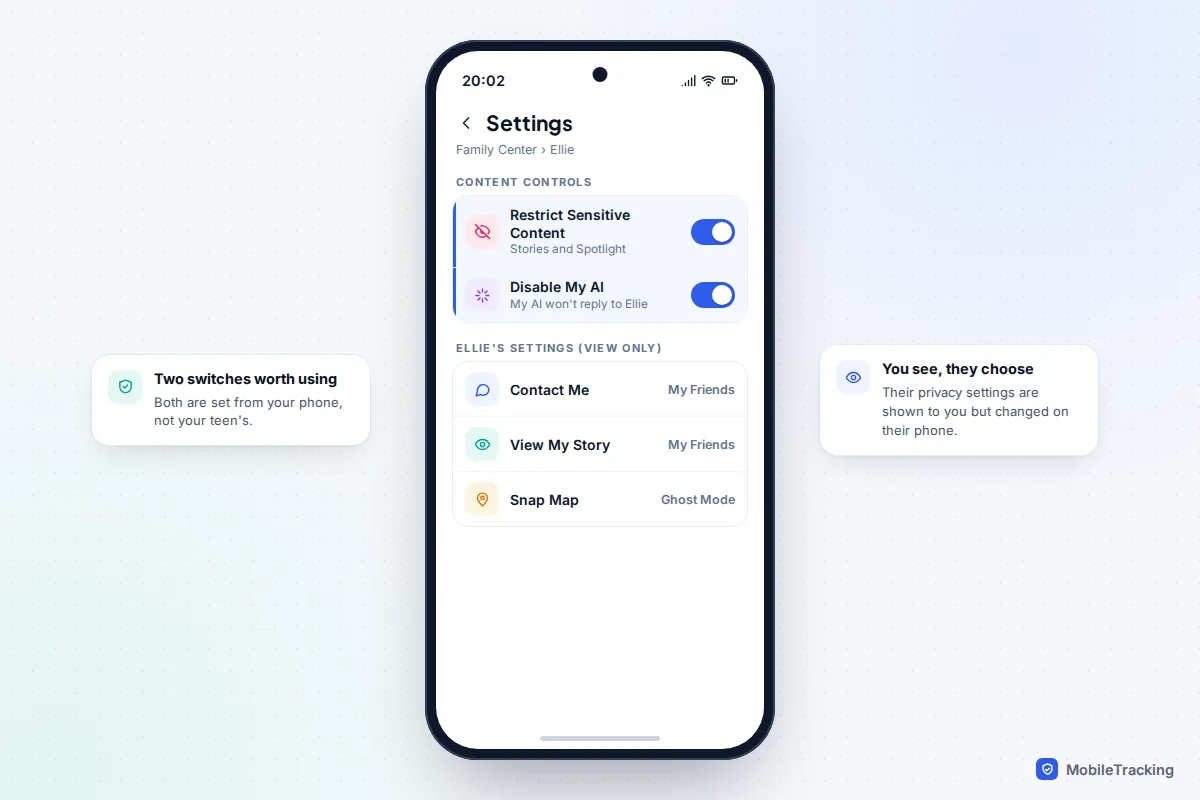
Once connected, open Family Center, select your teen and scroll down to Settings at the bottom of the page. Tap to expand it. Two switches here are genuinely useful for most families.
- Restrict Sensitive Content. Filters suggestive or sensitive posts out of your teen’s Stories and Spotlight feeds. It reduces what they see; it doesn’t eliminate it, so treat it as a filter, not a guarantee.
- Disable My AI. Stops Snapchat’s built-in chatbot from responding to your teen. Snap says that with this on, My AI won’t store, process or reply to their messages. It’s worth considering for younger teens, especially if they’ve been using the bot for advice on personal matters.
Below those, you’ll see a view-only summary of your teen’s privacy settings. You can’t change these from your phone, but you can check they’re sensible and talk about any that aren’t. For under-18s, Contact Me set to My Friends and View My Story set to My Friends are the safest defaults. If location sharing is on, check it’s with close friends only rather than every friend on their list. Pair this with our guide to securing a Snapchat account for passwords and two-factor sign-in.
Location requests and place alerts
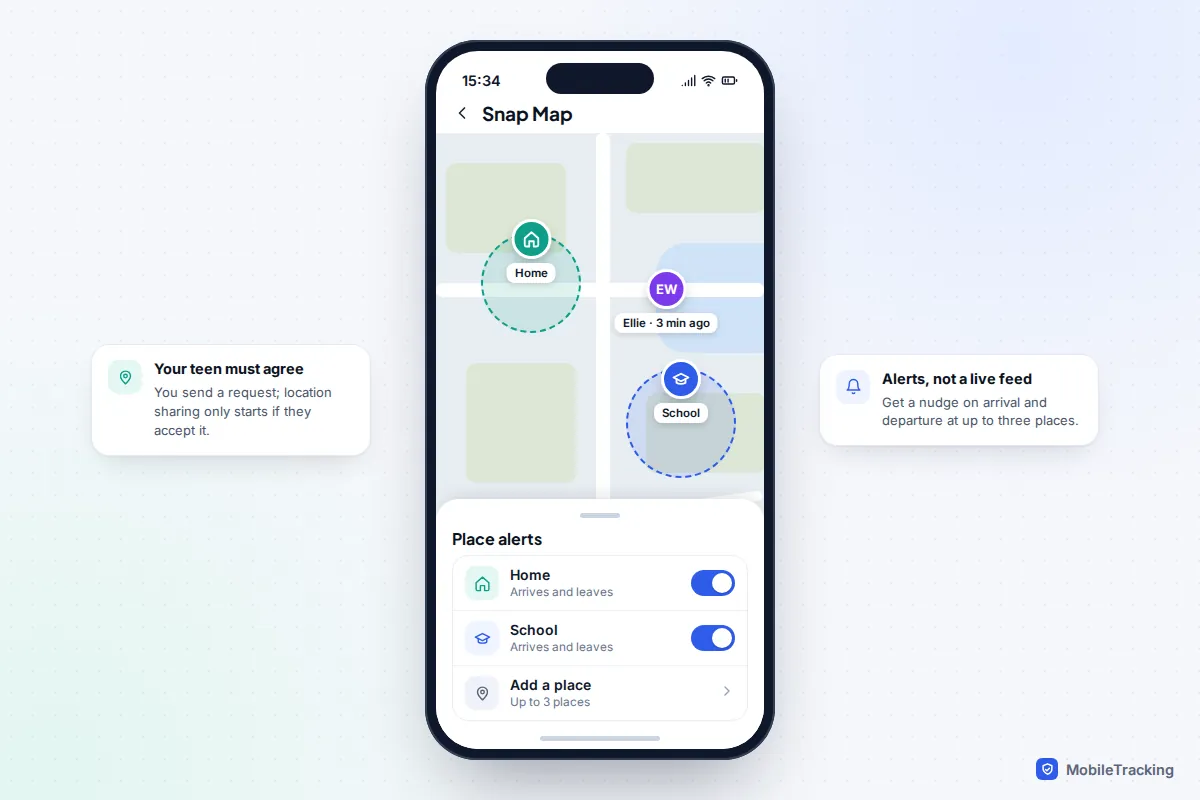
Location on Snapchat is off by default, and it can only ever be shared with accepted friends. From Family Center you can send your teen a request to share their live location with you, and share yours back so it works both ways. They have to accept; you can’t switch it on for them.
If they agree, you can set place alerts for up to three locations, such as home, school or a sports club, and get a notification when a family member arrives or leaves. For many families that’s more useful, and less intrusive, than checking a map. Remember that Ghost Mode on their phone hides their location entirely, so “no location” isn’t automatically a sign of trouble.
Making sense of screen time and new-friend insights
The January 2026 update made Family Center far more useful for everyday parenting, but the numbers need reading with care.
Start with the mix, not the total. An hour a day spent chatting with a small group of classmates is a different conversation from an hour of Spotlight videos late at night. Compare week to week rather than reacting to a single figure, and remember it’s an average over the previous seven days, so one long Saturday can pull it up.
For new friends, the context clues matter most. A new friend with several mutual friends who’s saved in your teen’s contacts is very likely a classmate. A new friend with no mutual friends, no shared community and no saved number deserves a relaxed question, not an interrogation.
A real-world example: Priya notices three new friends in a week for her 14-year-old, Ellie. Two show mutual friends from school. The third shows none. Rather than confronting her, Priya asks over dinner who the new people are. Ellie explains the third is a friend’s cousin she met at a party, which the mutual friends list later confirms. The tool started the conversation; it didn’t replace it. If something doesn’t add up, our guide to red flags in your child’s chats explains what to watch for.
What Family Center can’t do, and how to fill the gaps
Family Center gives visibility, not control over time. There’s no daily limit, bedtime or pause button inside Snapchat. If late-night snapping is the problem, use the phone’s own tools: Screen Time app limits and Downtime on an iPhone, or Google Family Link (and Digital Wellbeing on Samsung and Pixel) on Android. We walk through each in how to set a time limit on Snapchat for kids.
Family Center also won’t alert you to worrying messages, won’t show you Snaps, Stories or saved chats, and stops working if your teen chooses to leave. It is only for teens aged 13 to 17, so expect it to end at 18. That’s why the relationship matters more than the settings. Agree what happens if something goes wrong online, make sure your teen knows how to block and report, and use the report option in Family Center if they show you an account that worries them. Snap lets you report on your teen’s behalf, confidentially.
If your teen leaves Family Center, resist re-sending the invite straight away. Ask why. Often it’s embarrassment about a friend list or a feeling of being watched, and a calm conversation will get you further than a standoff.
Troubleshooting by symptom
When the connection won’t work, the cause is usually one of a handful of things.
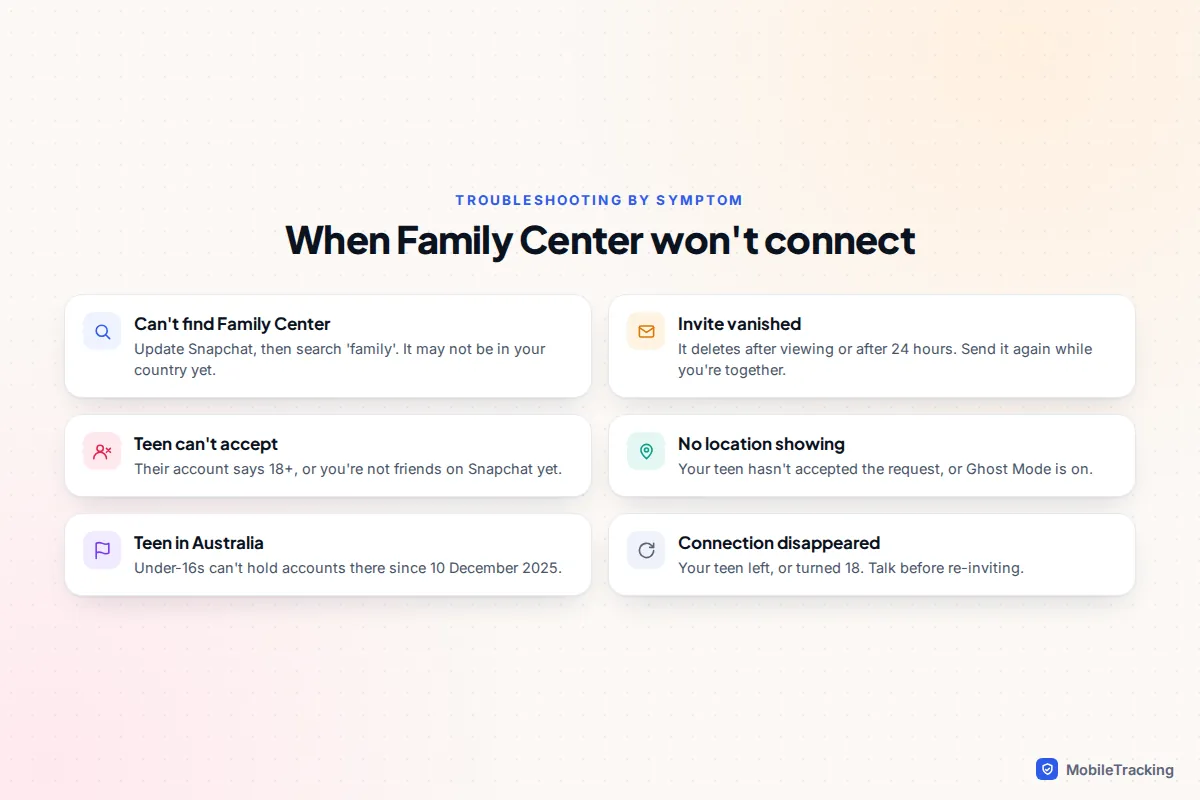
| Symptom | Likely cause | What to do |
|---|---|---|
| No Family Center option | Old app version, or not yet available in your country | Update Snapchat, then search “family” in the app |
| Your teen isn’t on the invite list | You aren’t friends on Snapchat yet | Add each other, then reopen Family Center |
| Invite disappeared | It deleted after being viewed or after 24 hours | Send a new one while you’re together |
| Teen can’t accept | Their account shows an age of 18 or over | Talk honestly about the birthday on their account |
| You can’t send invites | Your account shows you as under 18 | Check the birthday on your own account |
| Location never appears | Request not accepted, or Ghost Mode on | Ask them to accept, or agree check-in times instead |
Snap’s own page on why you might not be able to access Family Center confirms the age rules and regional rollout.
Frequently asked questions
Can I read my teen’s Snapchat messages with Family Center?
No. You can see who your teen has messaged in the last seven days and who is in their active group chats, but never the content of chats, Snaps or Stories. Snap built it that way deliberately to respect teens’ privacy.
Will my teen know I’ve set up Family Center?
Yes. It only works if your teen accepts your invitation, and the connection shows on their side too. There is no hidden way to use it, which is the point: it’s supervision you agree on together.
Can my teen leave Family Center?
Yes, at any time from their own settings, without needing your permission. Family Center is also only for teens aged 13 to 17, so plan for it to end when they turn 18.
Can I set a time limit on Snapchat through Family Center?
No. Since January 2026 you can see average daily use and a breakdown by feature, but limits have to be set with the phone’s own tools, such as Screen Time on iPhone or Family Link on Android.
Do I have to use Snapchat to use Family Center?
You need a Snapchat account to connect, but you don’t have to post anything. Many parents use their account only for Family Center and to share location with their teen.
Is Family Center free?
Yes. It’s built into the standard Snapchat app and doesn’t need Snapchat+ or any other subscription. There is nothing extra to download beyond Snapchat itself on both phones.