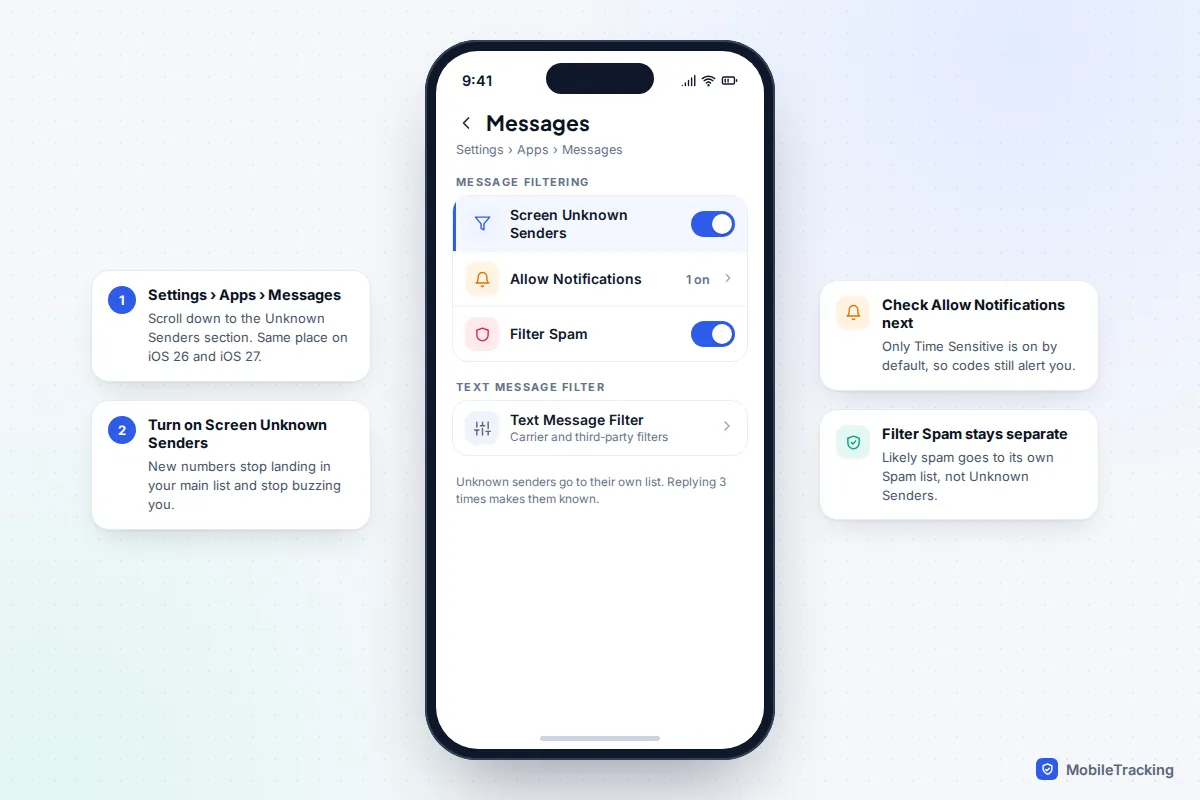
On an iPhone running iOS 26 or later, open Settings › Apps › Messages, scroll to Unknown Senders and turn on Screen Unknown Senders. Texts from numbers that aren’t in your contacts then go into a separate Unknown Senders list and stop buzzing you, while login codes and other time-sensitive messages can still alert you. On Android, the equivalent in Google Messages is spam protection (profile picture › Messages settings › Protection & safety › Spam protection), plus a Known/Unknown filter for sorting your inbox. In WhatsApp, turn on Settings › Privacy › Advanced › Block unknown account messages.
That takes about two minutes. The harder part is making sure you don’t then miss delivery texts, appointment reminders or a new parent from school, which is what most of this guide is about.
Filtering, blocking and spam folders: what each one does
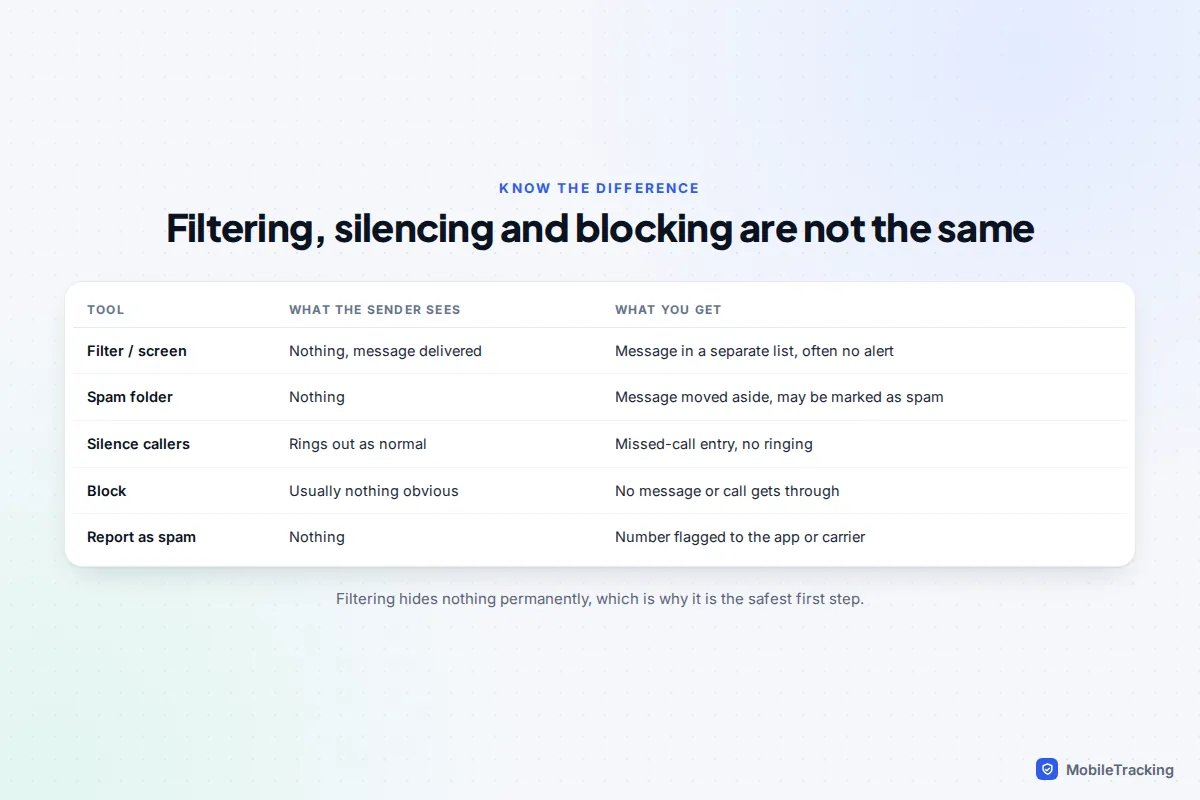
These words get used interchangeably, but they aren’t the same. Filtering (Apple now calls it screening) is gentle: the message is still delivered, it just lands in a separate list, usually without a notification. The sender has no idea. You can read it, reply, or move the sender into your main list whenever you like.
Spam filtering is narrower. Your phone or app judges that a message is probably junk or a scam and moves it into a Spam folder. Blocking is the blunt tool: once a number is blocked, its texts and calls don’t reach you at all, so you should only block numbers you are sure about. Reporting sends the number to Apple, Google or your carrier so their filters get better, and in the UK and US you can also forward a spam text to 7726, a free short code that passes it to your mobile network.
If the real problem is a steady stream of scam texts rather than strangers in general, our guide on blocking spam texts at the source covers the reporting side in more depth.
iPhone: turn on Screen Unknown Senders (iOS 26)
Apple rebuilt message filtering in iOS 26, with a new name and finer control over which filtered messages can still notify you.
- Open Settings, tap Apps, then Messages.
- Scroll down to the Unknown Senders section.
- Turn on Screen Unknown Senders.
- Check that Filter Spam is also on (it is by default), so likely junk goes to a separate Spam list.
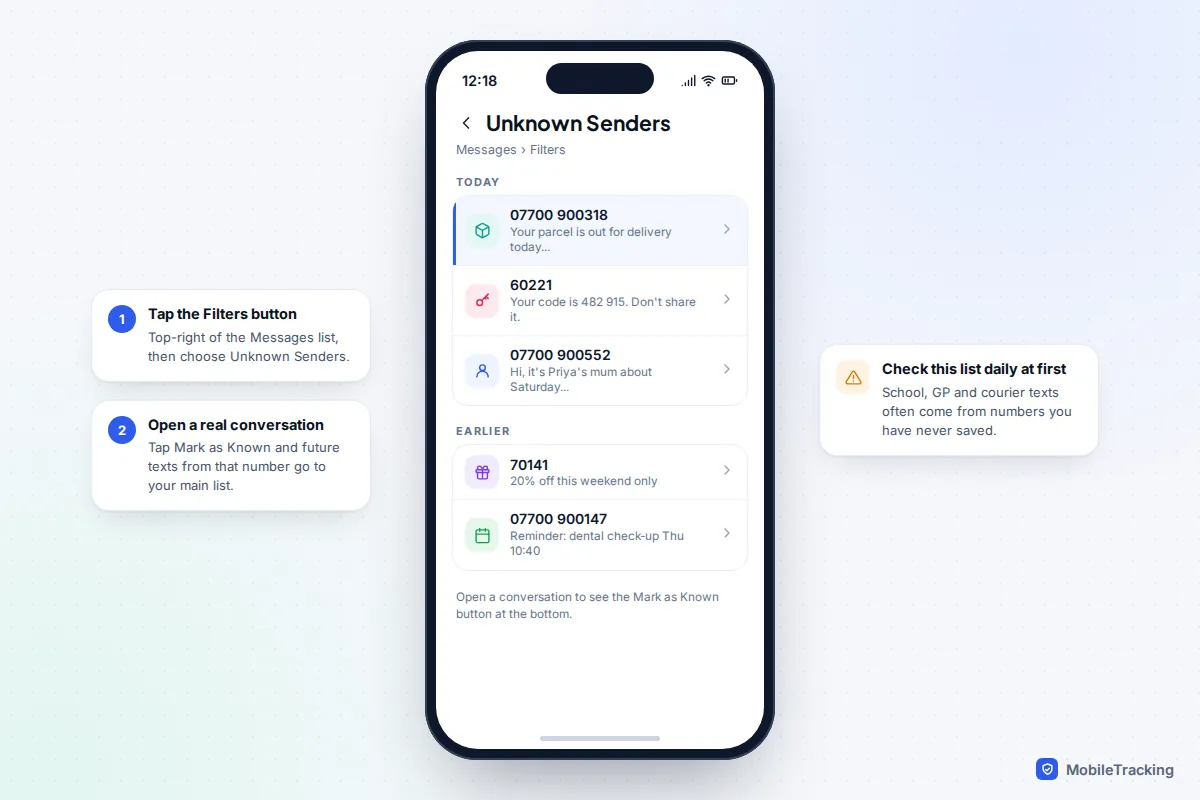
The shortcut is inside the Messages app: tap the Filters button in the top-right corner of your conversation list, tap Manage Filtering, and you land on the same screen.
Choose which unknown senders can still alert you
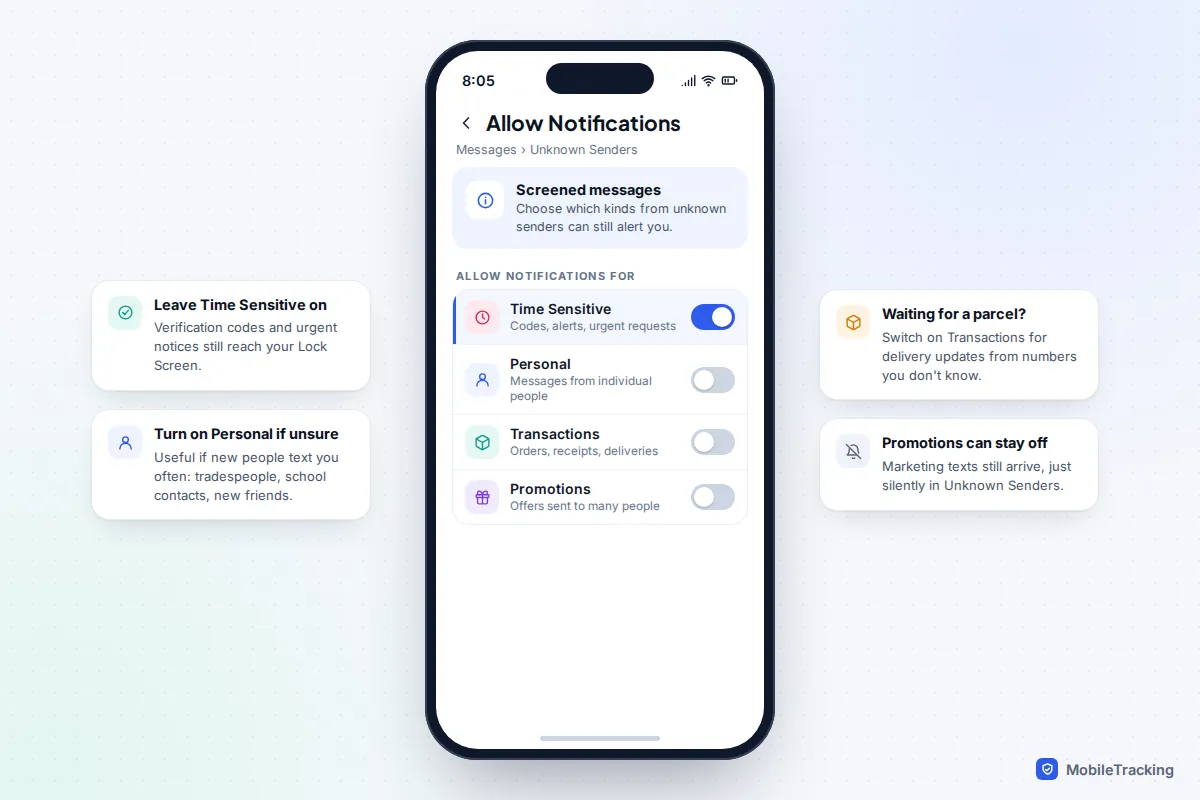
This is the step that decides whether the feature helps or annoys you. In the same Unknown Senders section, tap Allow Notifications. There are four switches: Time Sensitive (verification codes, alerts and urgent requests), Personal (messages that look like they come from an individual), Transactions (orders, receipts, deliveries) and Promotions (offers sent to lots of people).
Out of the box only Time Sensitive is switched on, which means codes still reach your Lock Screen but a genuine text from a person you haven’t saved arrives silently. If new people text you often, for example as a parent with a busy school and clubs calendar, turn on Personal too. Leave Promotions off unless you actually want marketing alerts.
Read and rescue screened messages
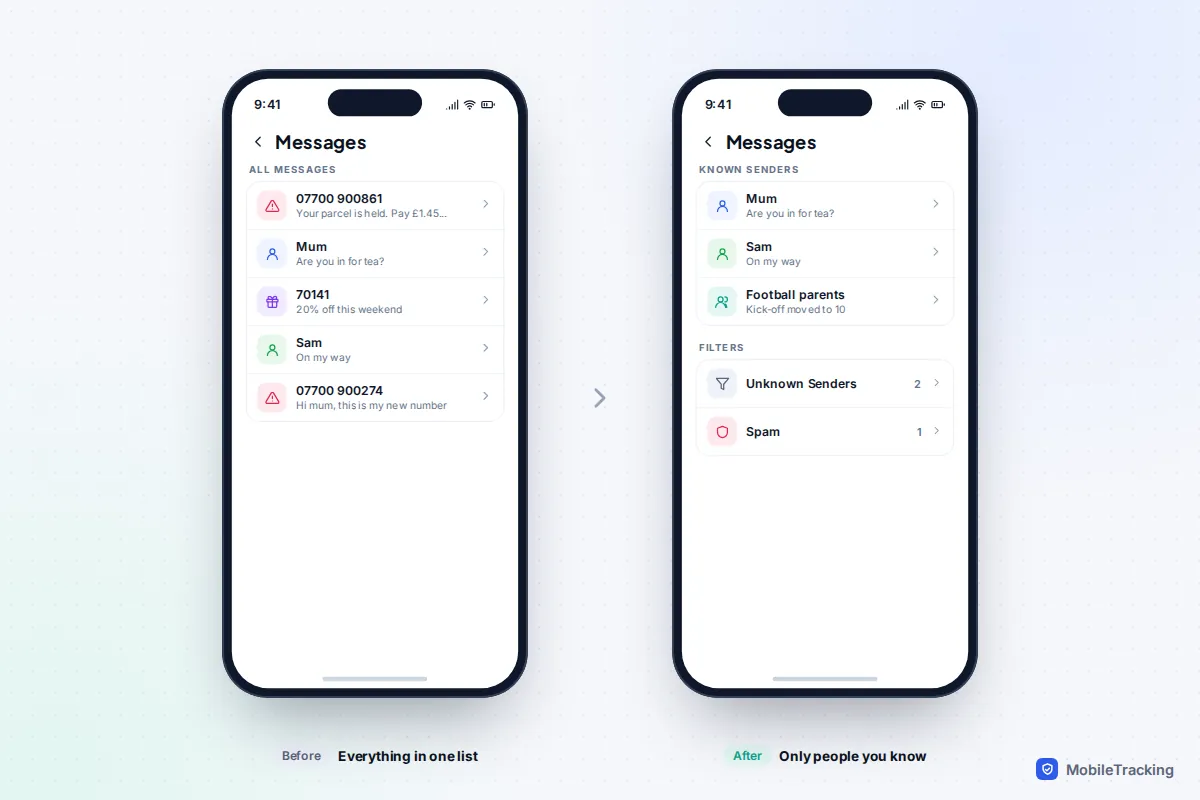
Filtered texts are not hidden away for good. In Messages, tap the Filters button and choose Unknown Senders; a number next to it shows how many new ones are waiting. Open any conversation from a real person and tap Mark as Known at the bottom, and future messages from that number go straight to your main list. Saving the number in Contacts does the same job.
Two rules explain most surprises. First, filtering doesn’t apply to anyone you’ve replied to three or more times, so a regular sender stays in your main list even if you never saved them. Second, anything in the Spam list is kept apart from Unknown Senders: if a real message was wrongly flagged, open it and tap Not Spam to move it back.
On iOS 18 or earlier
Older versions have a simpler switch called Filter Unknown Senders, found in Settings › Apps › Messages on iOS 18 (or Settings › Messages on iOS 17). It sorts unknown senders into their own list but turns off notifications for them entirely, without the four categories. If you rely on text codes and can’t update yet, check the Unknown Senders list whenever you are waiting for one. Apple’s own page on viewing conversations from unknown senders covers the current steps.
Android: Google Messages spam protection and the Unknown filter
Google Messages, the default texting app on Pixel and most other Android phones, has no switch that silently moves every stranger out of your inbox. It concentrates on catching spam and scams, and lets you view unknown senders on demand.
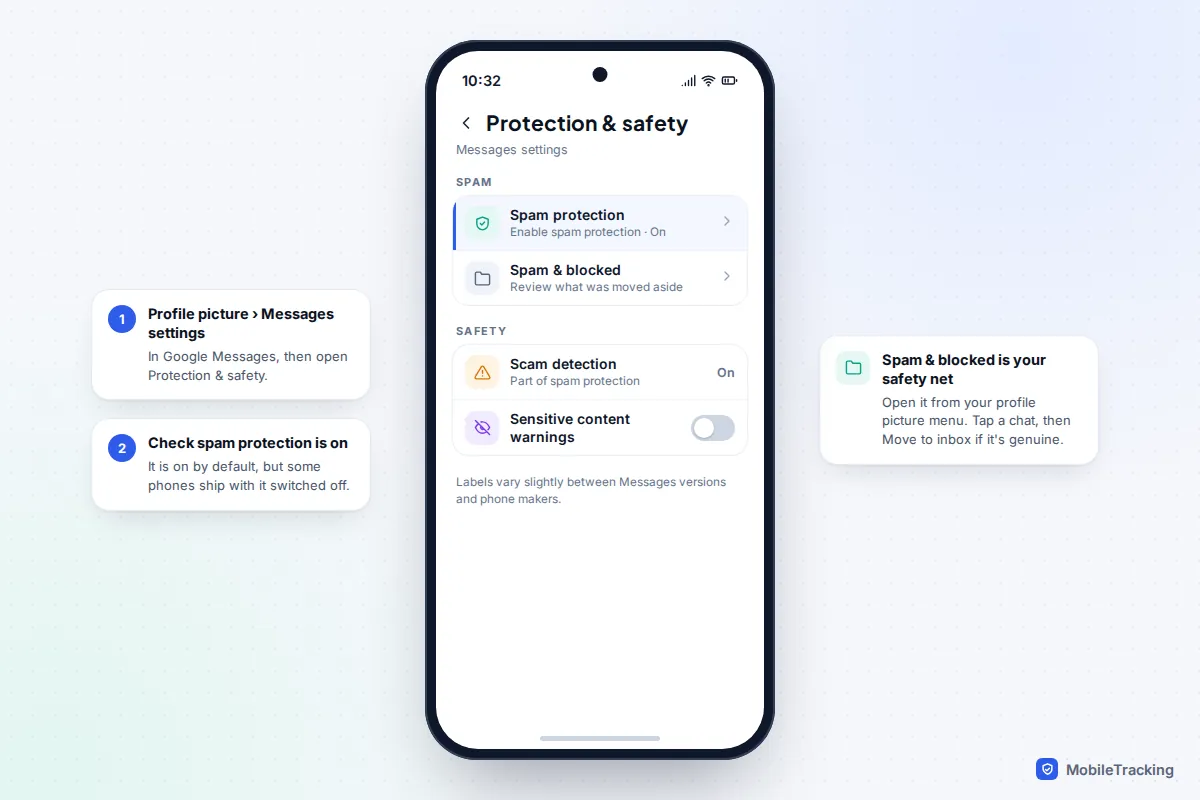
- Open Google Messages and tap your profile picture (or initial) at the top right.
- Tap Messages settings, then Protection & safety.
- Tap Spam protection and make sure Enable spam protection is on.
Spam protection is on by default, but it is worth checking, especially on a phone that came from a carrier or a relative. Scam detection is part of the same setting and looks at conversations with non-contacts for patterns such as fake delivery or job offers, then warns you with the option to dismiss it or report and block the sender. It launched first in English in the US, UK and Canada.
To see only messages from strangers, tap the search box at the top of Google Messages and choose the Unknown filter. Google counts a sender as Known only if they are saved in your Contacts. It is a view, not a folder, so those chats still sit in your inbox the rest of the time.
To rescue a message that went to spam, tap your profile picture, open Spam & blocked, tap the conversation and choose Unblock (or Move to inbox, depending on why it was moved). One regional extra: phones with a Singapore SIM also get Hide international messages, which sends texts from international non-contacts to Spam & blocked. Google has not rolled that out more widely.
Android has no built-in rule to silence only unknown senders. The workaround is to mute noisy unknown conversations one at a time from the chat’s three-dot menu.
Samsung phones: Samsung Messages has been retired in the US
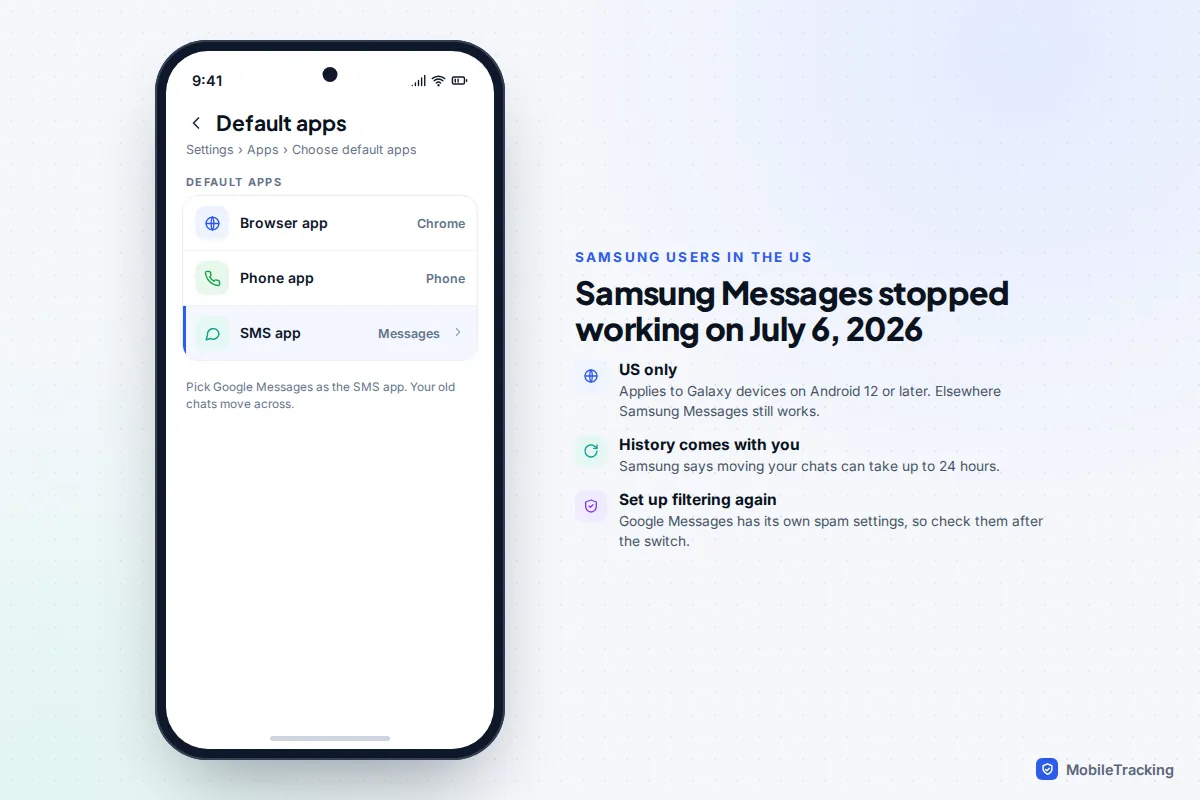
If you have a Galaxy phone in the US, the Samsung Messages app stopped working for everyday texting on 6 July 2026 on devices running Android 12 or later, and the Galaxy S26 can’t install it at all. Samsung’s advice is to set Google Messages as the default: go to Settings › Apps › Choose default apps › SMS app and pick Messages. Your conversations move across automatically, which Samsung says can take up to 24 hours. After switching, go through the Google Messages steps above, because your old blocking and spam settings don’t come with you.
Where Samsung Messages is still in use, its tools are built around blocking rather than screening. Open the app, tap More options (three dots) › Settings › Block numbers and spam. From there you can add numbers under Block numbers and read anything that was stopped in Blocked messages. For a true unknown-senders view, Google Messages is the simpler route.
WhatsApp: block message floods and silence unknown callers
WhatsApp has its own filters, separate from your phone’s. The one for messages is Block unknown account messages. On Android, tap More options › Settings; on iPhone, tap the Settings tab. Then go to Privacy › Advanced and switch it on.
Be clear about what it does. WhatsApp describes it as protection against unknown accounts that send an unusually high volume of messages, so it stops spam floods rather than every stranger. A single message from a new number will still arrive, shown with a prompt that the sender isn’t in your contacts and options to block or report them.
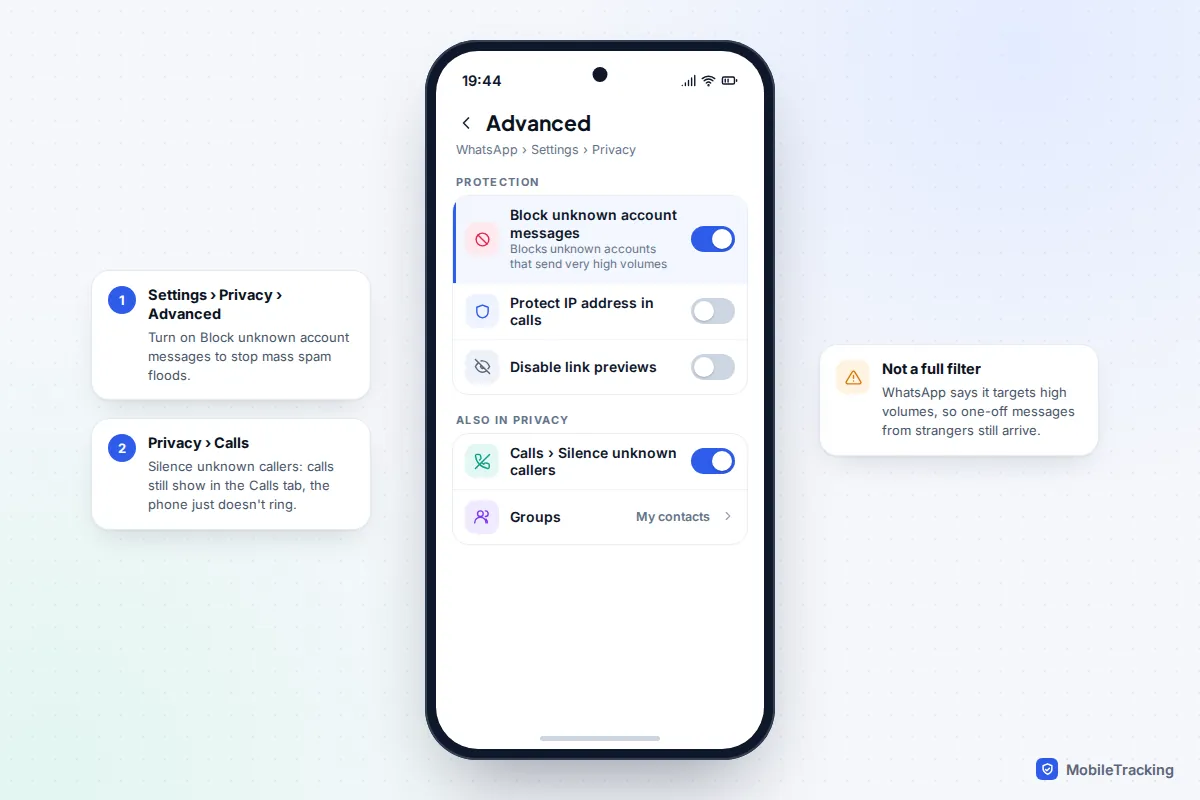
Two more WhatsApp settings help. Under Settings › Privacy › Calls, turn on Silence unknown callers: calls from numbers you haven’t saved won’t ring, but they still appear in the Calls tab and your notifications so you can call back. And under Settings › Privacy › Groups, choose My contacts so strangers can’t drop you into group chats; our guide to stopping random group invites goes through the options.
What you might miss, and how to stop that happening
Every filter asks one question: is this number saved in your contacts? Plenty of important messages fail that test. Delivery drivers text from their own phones on the day. Banks and shops send codes from short numbers you would never save. GP surgeries, dentists and schools often use a shared messaging service whose number changes.
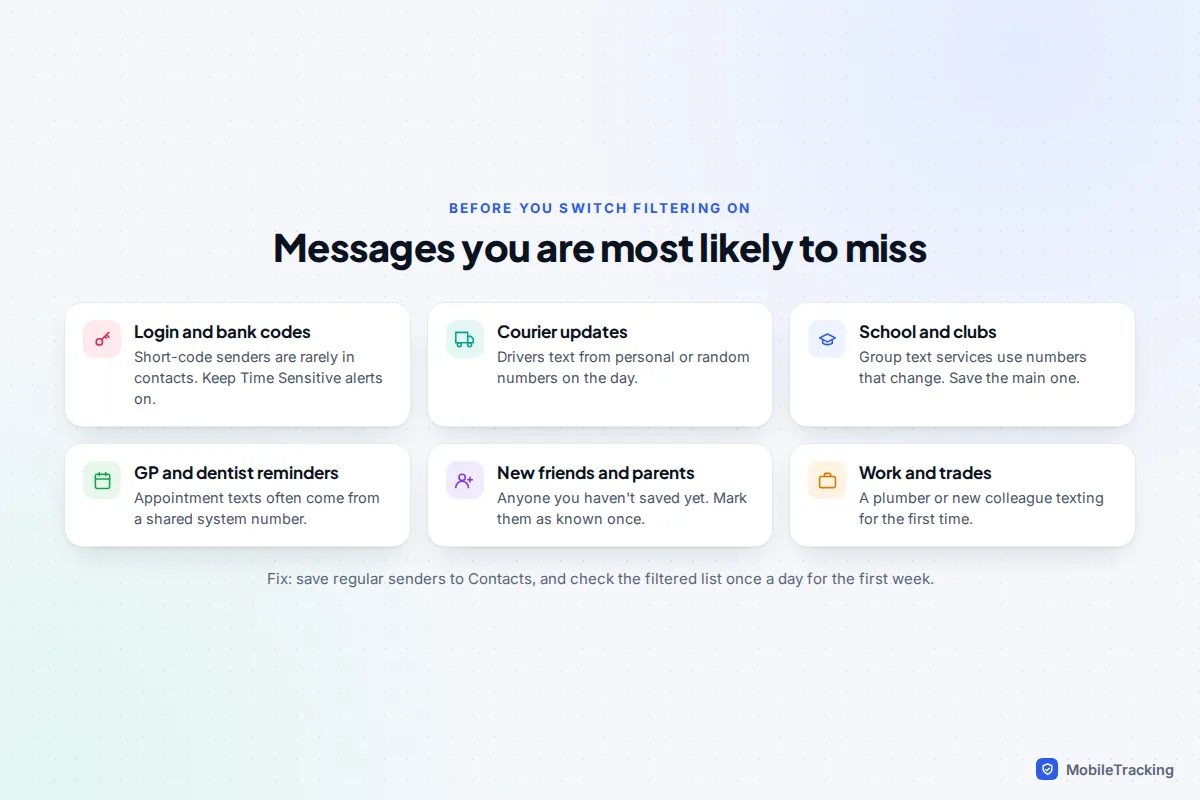
A few habits keep you covered:
- Save regular senders once. Add your school’s text number, your surgery and your usual courier’s number to Contacts. On iPhone, Mark as Known does the same thing in one tap.
- Check the filtered list daily for the first week. After that, every few days is enough.
- Match notifications to your life. On iPhone, turn on Transactions around busy delivery periods and Personal if people you don’t know text you for work or school.
- Don’t trust a message just because it was delivered to your inbox. Scam texts that pretend to be couriers are designed to get through; our guide on spotting a fake delivery text shows the tell-tale signs.
Here is how it plays out. Maya turned on Screen Unknown Senders on a Monday and was pleased with how quiet her phone went. On Thursday she missed a text from a new swimming coach moving the lesson time, because Personal alerts were off. She opened Unknown Senders, tapped Mark as Known on the coach’s number and switched on Personal.
Which option should you use?
The best setting depends less on the phone than on who uses it.
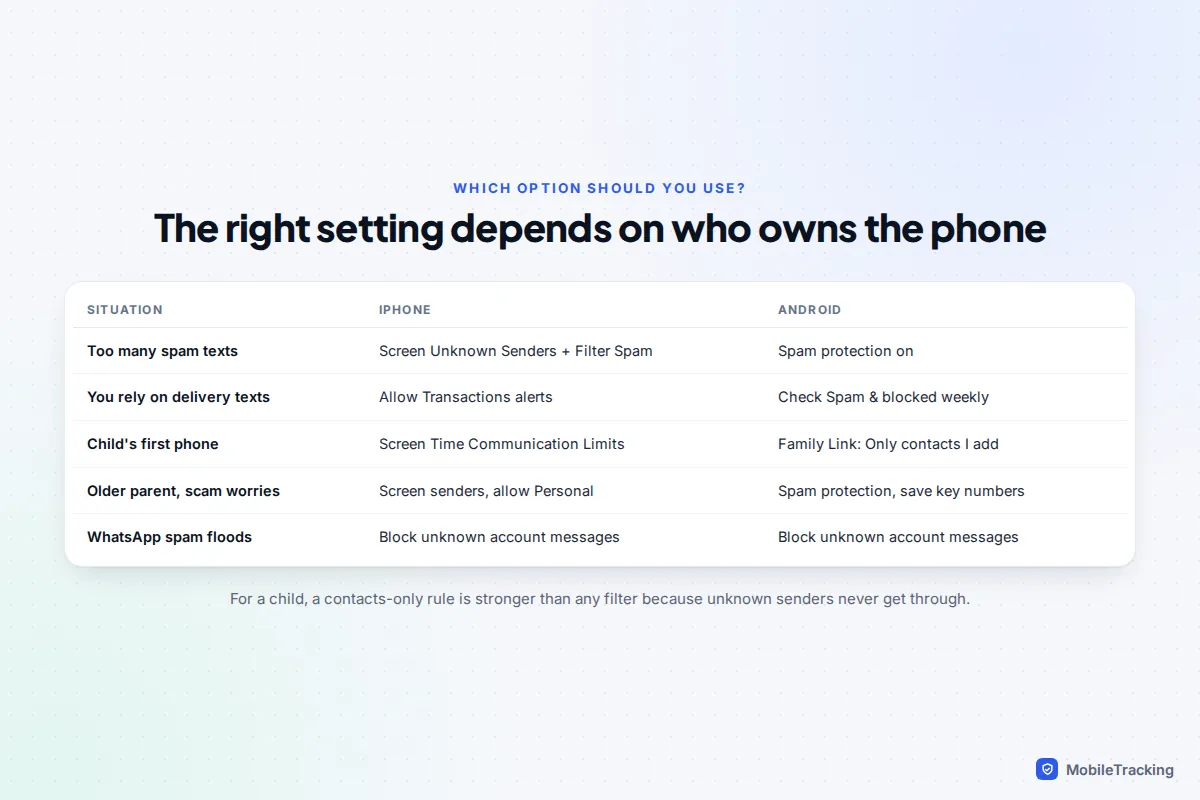
For a child’s iPhone, filtering is a weak control on its own, because your child can simply open the Unknown Senders list. Communication Limits in Screen Time is stronger: in Settings › Screen Time, choose your child, tap Communication Limits and set it to Contacts Only. Our iPhone parental controls guide covers it alongside the other settings worth turning on. On Android 14 or later, Google Family Link does the same job for Google Messages and the Phone by Google app: open Family Link, choose your child, then Controls › Contacts, calls & texts, and set allowed calls and texts to Only contacts I add. Neither control covers WhatsApp or other chat apps, so also agree that your child shows you any message from a number they don’t recognise.
For an older parent who worries about scams, turn on screening but keep Personal notifications on, so a new neighbour or a hospital volunteer still gets through. Then save the numbers they really need, such as their GP, pharmacy and family.
Troubleshooting by symptom
“I stopped getting verification codes”
On iPhone, go to Settings › Apps › Messages › Allow Notifications and check Time Sensitive is on. Also look in the Spam list, not just Unknown Senders. On Android, open Spam & blocked; if a bank’s code keeps landing there, unblock it once and it will stay in your inbox.
“There is no Unknown Senders option in my Filters menu”
The filter only appears once screening is on. Turn on Screen Unknown Senders first. If you still don’t see it, check your iOS version in Settings › General › About; on iOS 18 or earlier the switch is called Filter Unknown Senders.
“A friend’s messages keep being filtered”
Save them to Contacts with the exact number they text from. People with two SIMs often message from a line you haven’t saved.
“I still get lots of spam”
Filters sort messages; they don’t stop them being sent. Report the worst ones, block repeat numbers, and on iPhone check Text Message Filter for carrier or third-party filter apps available in your country.
Frequently asked questions
Does the sender know their message was filtered?
No. Filtering and spam folders happen on your phone. The message is delivered as normal, and for iMessage the sender only sees Read if you open it with read receipts turned on.
Will I still get one-time passcodes if I filter unknown senders?
On iOS 26 and later, yes, as long as Time Sensitive stays on under Allow Notifications, which is the default. On iOS 18 and earlier the codes still arrive, but silently in the Unknown Senders list, so you have to open the filter to read them.
Is filtering the same as blocking?
No. Filtered messages are delivered and kept; you can read them any time. Blocked numbers can’t reach you at all. Filter first and block only numbers you are certain about. If unknown calls are the bigger problem, see our guide on blocking unknown callers.
Does Google Messages have a hidden folder for unknown senders like the iPhone?
Not in most countries. It has a Known/Unknown filter in search and a Spam & blocked folder, but unknown senders stay in the main inbox. The option that moves international non-contacts aside is currently limited to phones with a Singapore SIM.
Can I filter unknown senders on WhatsApp completely?
Not completely. Block unknown account messages stops high-volume senders, and Silence unknown callers stops calls ringing, but a single message from a stranger will still arrive, with options to block or report the sender.