
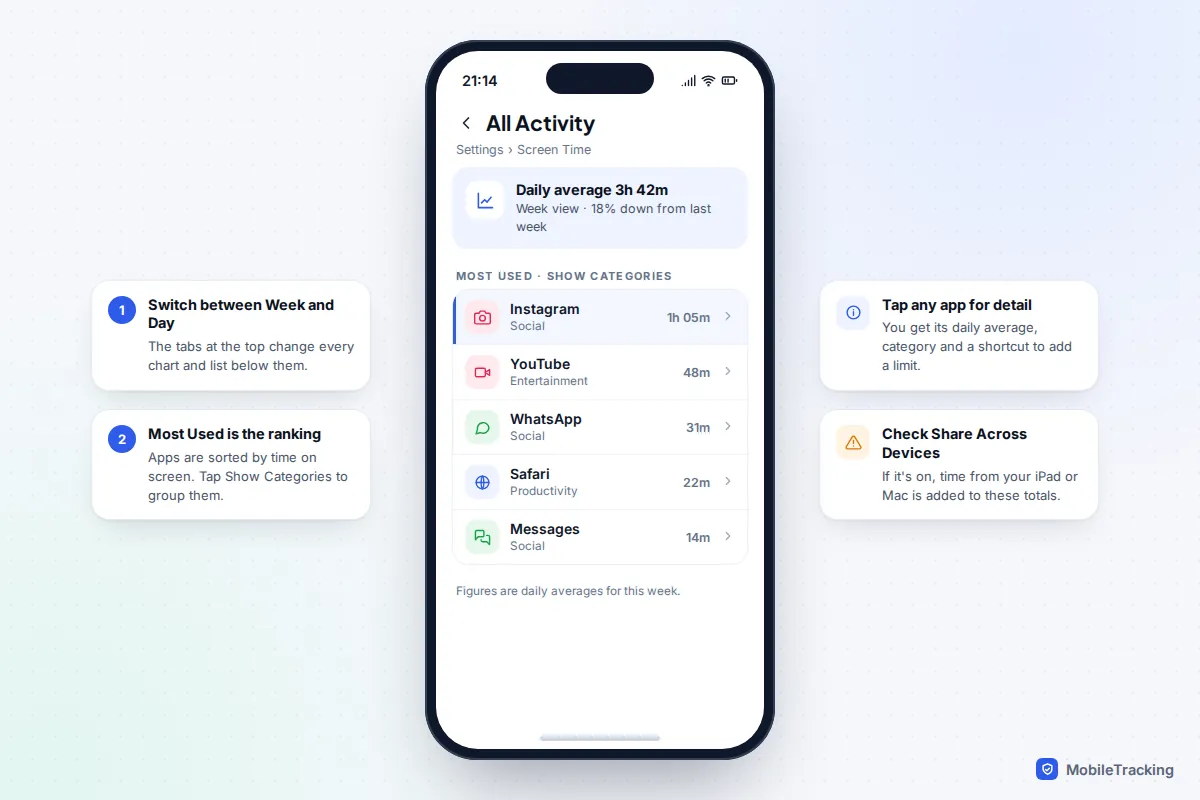
On an iPhone, open Settings › Screen Time › See All App & Website Activity, choose Week or Day at the top, and scroll to Most Used: that list ranks your apps by time on screen. On Android, open Settings › Digital Wellbeing & parental controls (just Digital Wellbeing on Samsung and some other phones). The chart at the top shows today’s total, and the apps underneath are sorted from most to least used.
Those lists answer “where does my time go?” They don’t tell you why you keep picking the phone up, or which app is busy while the screen is off. For that you need two more numbers, pickups and battery use, and this guide shows where to find each one, how to read them together, and how to turn what you find into a limit that actually works.
iPhone: the Screen Time activity report
Screen Time has to be recording before it can show you anything. If you’ve never used it, go to Settings › Screen Time and tap App & Website Activity, then Turn On App & Website Activity. You’ll see useful figures after a day and a meaningful weekly average after a full week.
- Open Settings › Screen Time. The chart at the top shows today’s total or your daily average.
- Tap See All App & Website Activity under the chart.
- Pick Week for averages or Day for a single day. In Week view, swipe the chart right to see last week.
- Scroll to Most Used. Tap Show Categories to group apps into Social, Entertainment, Games and so on, and tap Show Apps & Websites to switch back.
- Tap any app to see its daily average, its category and an Add Limit option.
Websites you visit in Safari appear in the same list by domain, which is handy when most of your “browsing” is really one site. Before you trust the totals, check the Share Across Devices switch on the main Screen Time page. When it’s on, time from your iPad and Mac signed in to the same Apple Account is added in, which is why some people see more hours than they spent on their phone.
Pickups and notifications
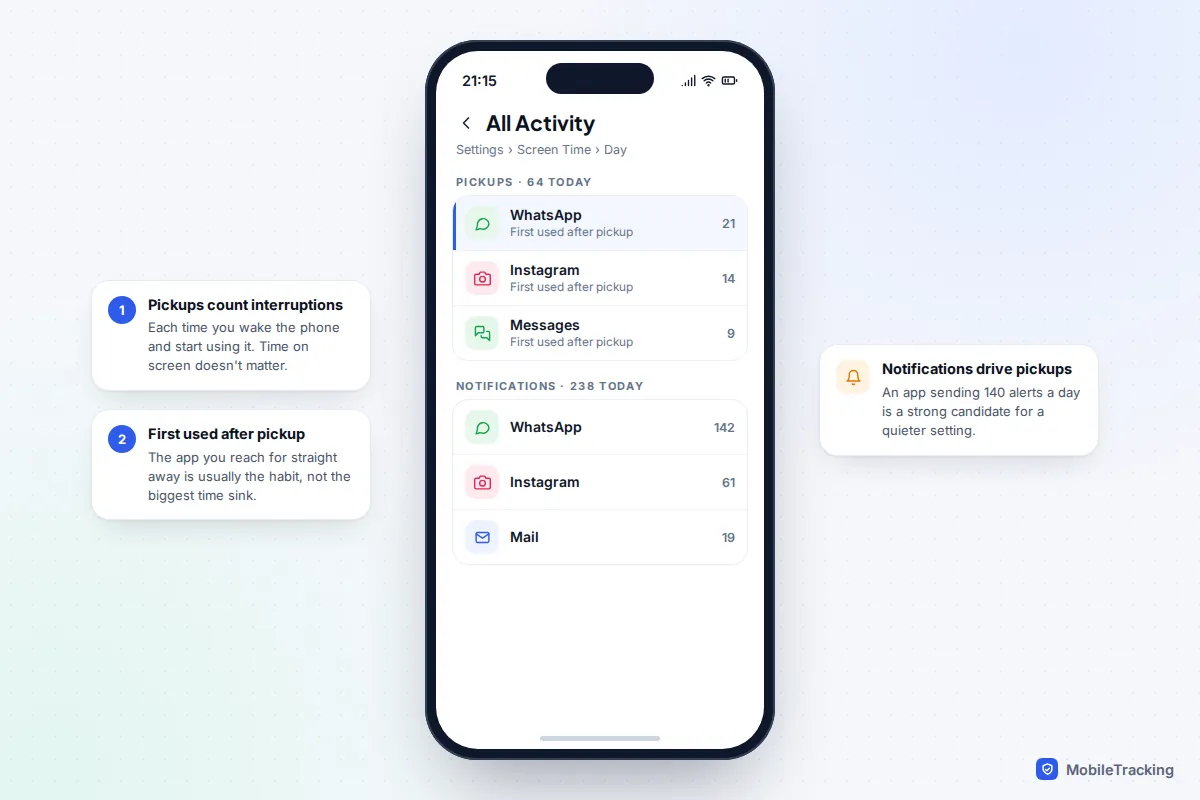
Keep scrolling past Most Used. Pickups counts how many times you woke the phone and started using it, with a chart by hour. Under it, First Used After Pickup lists the app you opened first each time. Further down, Notifications counts the alerts each app sent you. These two sections are often more revealing than the time ranking, as the section on reading the numbers explains.
What changed in iOS 26 and iOS 27
For your own phone, very little. The activity report, pickups and notification counts work the same way in iOS 26 and iOS 27. The big iOS 27 changes are for parents managing a child’s device: child settings moved to Settings › Family, Downtime was replaced by Screen Time Schedules, and parents now get a weekly summary with the child’s most-used apps at a glance. That family view is covered further down.
Android: the Digital Wellbeing dashboard
Android’s version is called Digital Wellbeing, and it’s built into Pixels, Samsung Galaxy phones and most other Android phones. It tracks automatically, so there’s nothing to switch on first.
Pixel and most Android phones
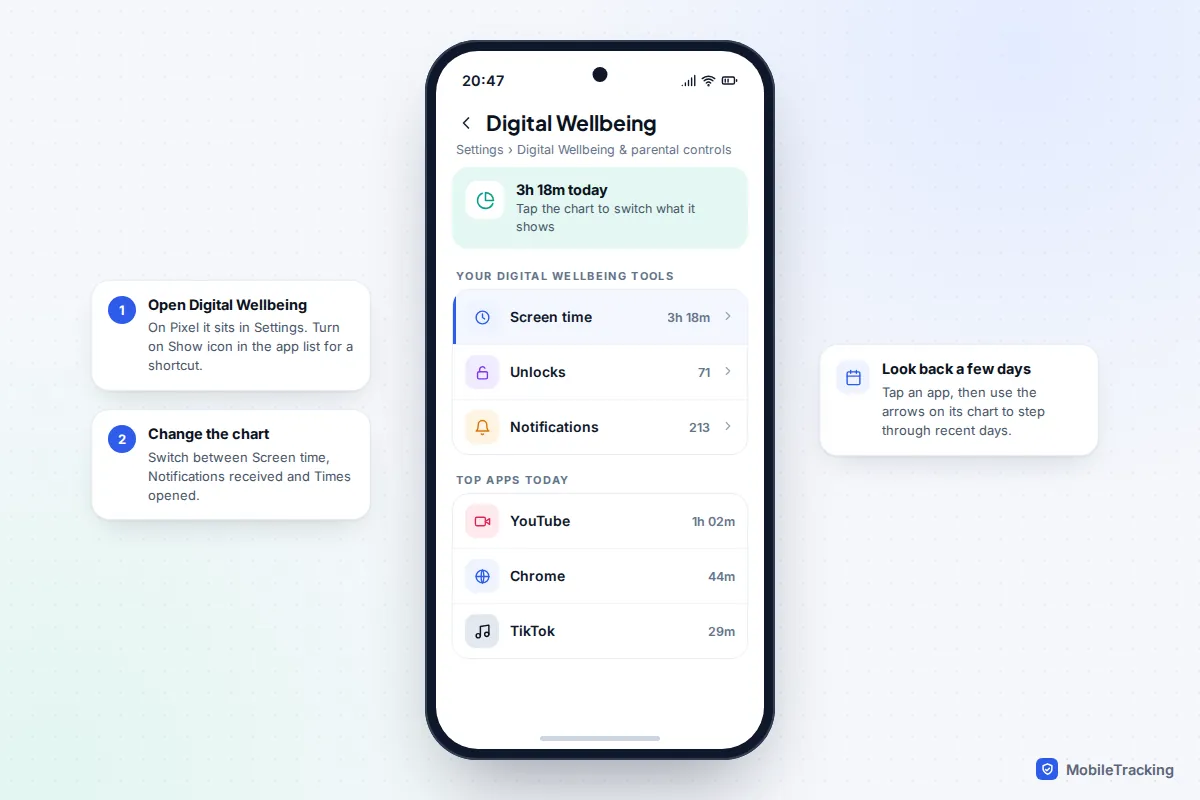
- Open Settings › Digital Wellbeing & parental controls.
- The ring chart shows today’s screen time, with your top apps listed below it.
- Tap the chart, then use the drop-down at the top to switch between Screen time, Notifications received and Times opened.
- Tap an app to see its daily bar chart and step back through recent days with the arrows.
If you check this often, turn on Show icon in the app list inside Digital Wellbeing so it appears in your app drawer like any other app. Google’s Digital Wellbeing help page lists the same three views if your phone’s labels look slightly different.
Samsung Galaxy
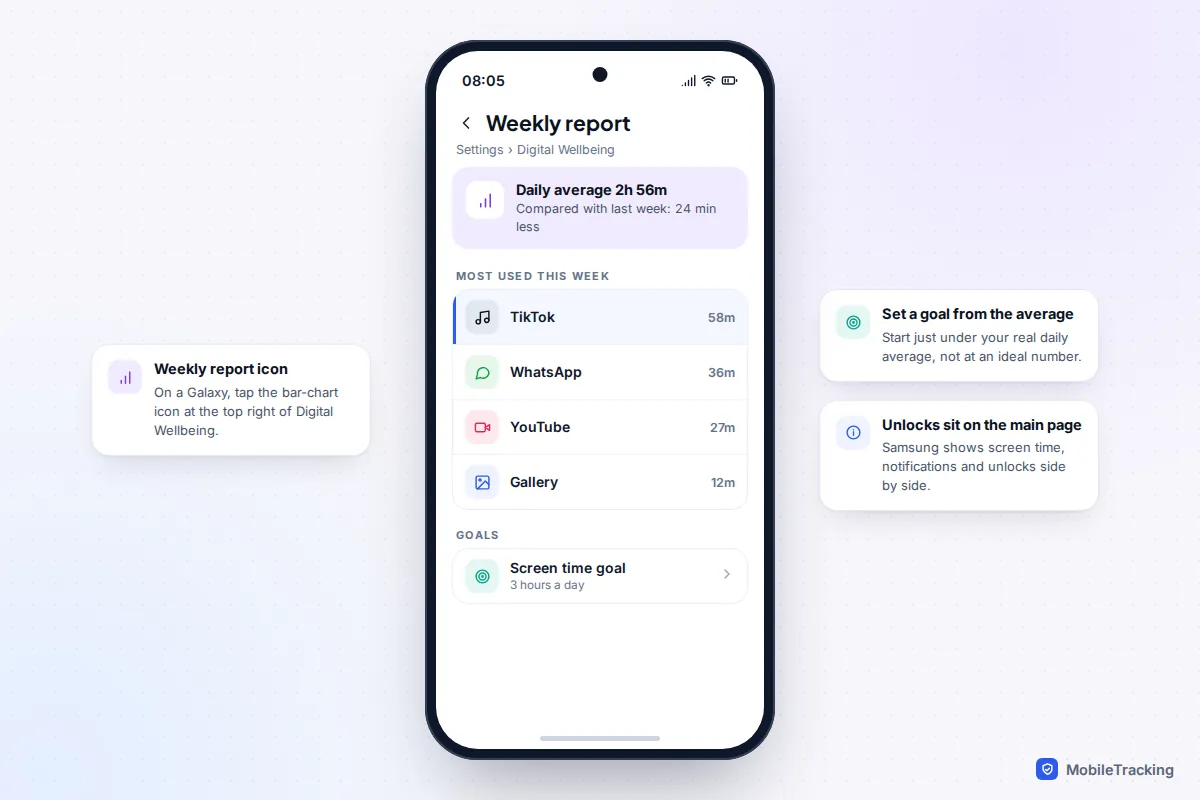
On a Galaxy, go to Settings › Digital Wellbeing (older One UI versions call it Digital Wellbeing and parental controls). The main page shows screen time, notifications and unlocks side by side, with your most-used apps below. Tap the weekly report icon, the small bar chart at the top right, to see your daily average for the week and which apps dominated it. From the same page you can set a Screen time goal, which Samsung then tracks against your real use.
Battery usage: the view that catches background apps
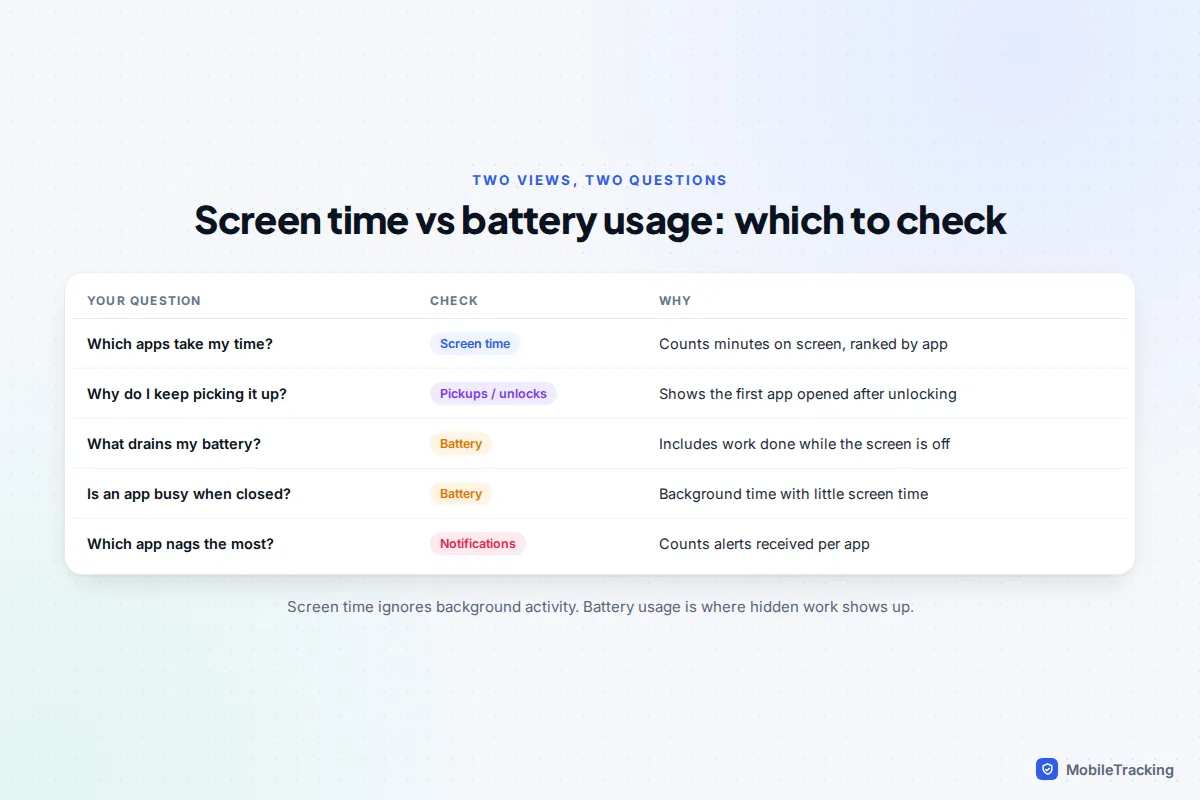
Screen time only counts minutes an app spends on your screen. An app that syncs, tracks location or plays audio while the phone is in your pocket barely shows up in Screen Time or Digital Wellbeing, yet it can top your battery list. So if the question is “which apps are busiest?” rather than “which apps take my attention?”, look here too.
- iPhone: Settings › Battery. Since iOS 26 the screen shows a weekly chart compared with your average, and the app list explains why an app used more than usual, for example because it ran in the background longer or sent more notifications. Apps using unusually high amounts are shown in orange.
- Pixel: Settings › Battery › Battery usage, then View by apps. Tap an app to see its screen time and background time since the last full charge.
- Samsung: Settings › Battery (on older phones, Battery and device care › Battery), then tap the usage graph for the app list.
The telling combination is lots of background time with very little screen time. If you find an app like that, our guide to stopping apps from running in the background covers what to change without breaking the apps you rely on.
Per-app stats in Instagram, YouTube and TikTok
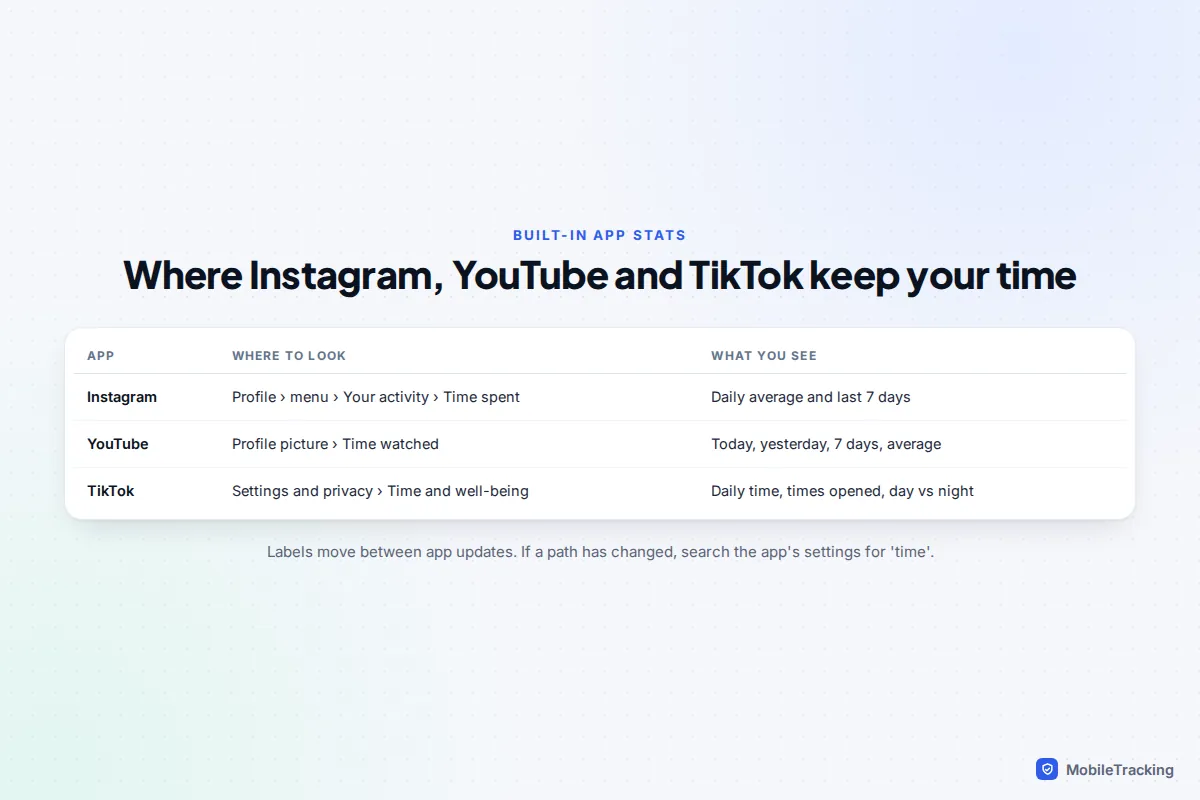
Several big apps keep their own count. It’s worth a look because these figures include time on other devices where you’re signed in, such as a tablet or a laptop browser, which your phone’s report can’t see.
- Instagram: tap your profile, then the menu (three lines) › Your activity › Time spent. You get a daily average and a bar for each of the last seven days; press and hold a bar for that day’s figure. Some recent versions list it as Time management in the same menu, where you can also set a daily limit and break reminders.
- YouTube: tap your profile picture, then Time watched (Time management on some iPhone versions). It shows today, yesterday, the past seven days and a daily average. It doesn’t include YouTube Music or YouTube TV, and YouTube notes that it can’t count anything you’ve removed from watch history or watched with history paused.
- TikTok: tap your profile, the menu, then Settings and privacy › Time and well-being (called Digital Wellbeing or Screen time in older versions) and open the screen time dashboard. It shows daily time, how many times you opened the app, and a daytime and night-time split.
Expect these numbers to disagree with your phone’s. Instagram counts time inside Instagram on any device, while Screen Time counts time the app was on this phone’s screen. Neither is wrong: they’re measuring slightly different things.
How to read the numbers: time, pickups and notifications
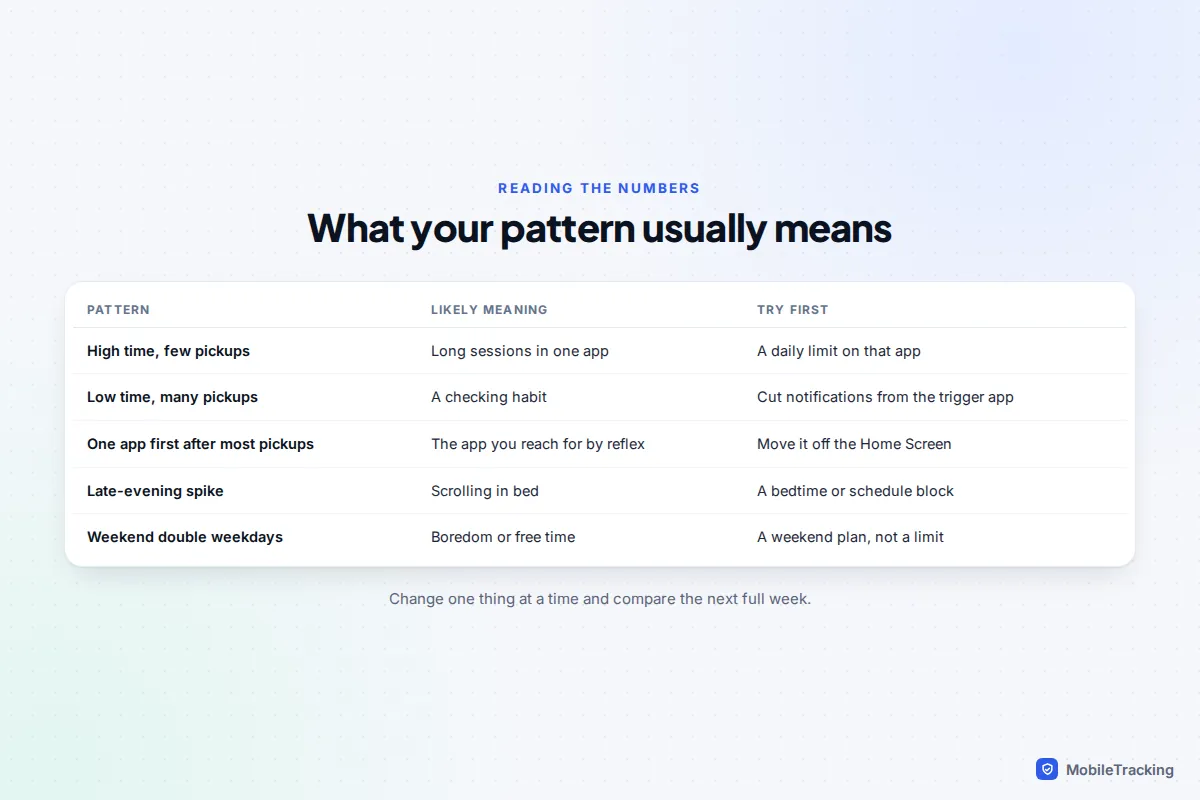
The most-used list tells you where the hours go. The pickup and notification counts tell you why. Read them together and patterns jump out that neither shows alone.
| What you see | What it usually means | What to try first |
|---|---|---|
| High screen time, fairly few pickups | Long sessions in one or two apps, often video or games | A daily limit on that one app |
| Modest screen time, 80+ pickups | A checking habit: lots of short visits | Silence notifications from the app you open first |
| One app first after most pickups | The app you reach for by reflex | Move it off your Home Screen or into a folder |
| Notifications in the hundreds from one app | That app is pulling you back in | Turn off its non-essential alert types in the app |
| A late-evening spike in the hourly chart | Scrolling in bed | A bedtime schedule and charging outside the bedroom |
A quick example. Tom thought YouTube was his problem because it topped his most-used list at 48 minutes a day. His pickups told a different story: 70 a day, and WhatsApp was first after a third of them, driven by two busy group chats. Muting those groups and leaving direct messages on cut his pickups to about 40 within a week, while his YouTube time barely changed and didn’t need to.
Turn what you find into goals and limits
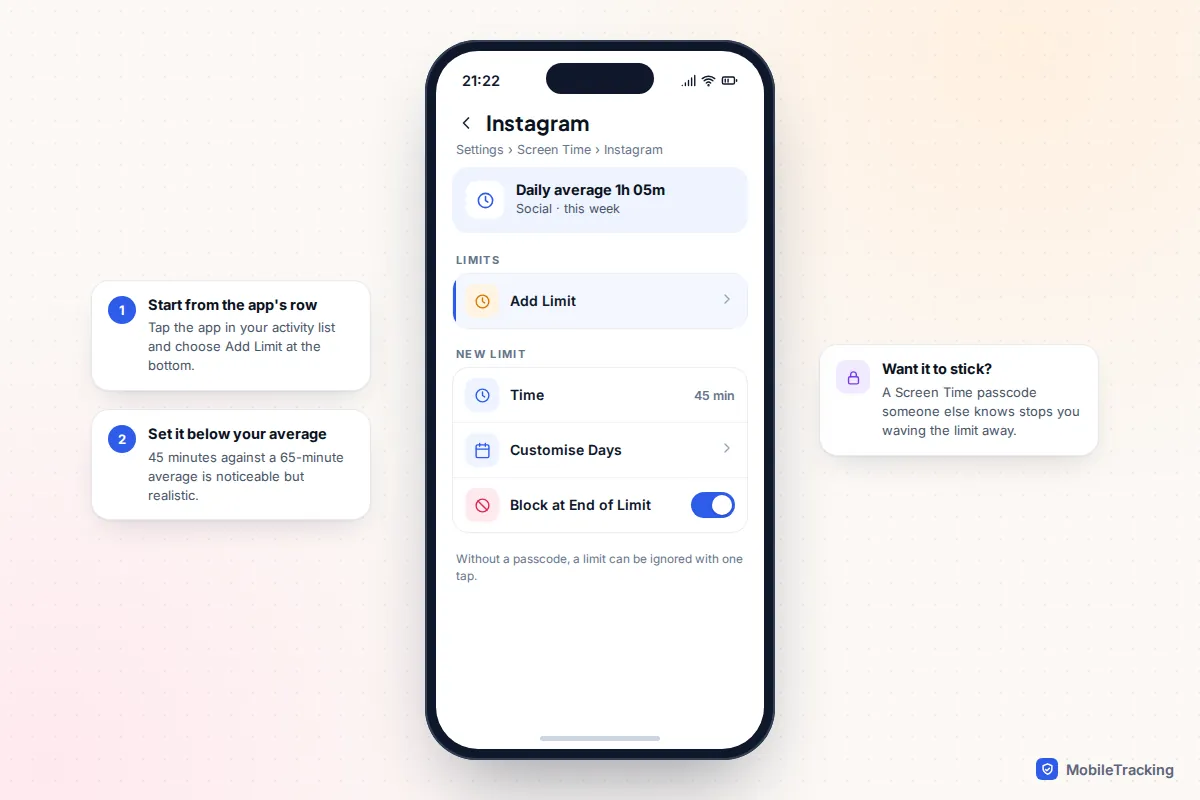
Pick one number to change, not five. Use your real weekly average as the starting point and set the target a little below it. Dropping from three hours to one overnight usually fails by Wednesday.
On iPhone
- In the activity report, tap the app you want to rein in.
- Tap Add Limit, set a time, and use Customise Days if weekends should differ.
- Or go to Settings › Screen Time › App Limits › Add Limit to cover a whole category such as Social.
On your own phone, a limit shows a “Time Limit” screen with an Ignore Limit button, so it’s a nudge rather than a lock. If you want it to hold, set a Screen Time passcode that someone you trust chooses and turn on Block at End of Limit. For quiet hours, use Downtime on iOS 26 or Screen Time Schedules on iOS 27.
On Android
In Digital Wellbeing, tap App timers (or the hourglass next to an app), set a daily time and tap OK. When time runs out the app closes and its icon greys out until midnight. Focus mode pauses chosen apps during work or homework, and Bedtime mode (called Sleep in Modes and Routines on Samsung) quietens the phone at night. On a Galaxy, the screen time goal gives you a daily target without blocking anything.
Common mistakes
- Limiting the wrong app. The top of the time list isn’t always the problem. Check pickups first.
- Ignoring notifications. Turning off an app’s promotional or “suggested” alerts often does more than a timer.
- Judging one day. A long train journey or a sick day skews everything. Use Week view.
- Forgetting shared devices. Share Across Devices can make an iPhone total look alarming when half of it was the iPad.
Checking a child’s most-used apps
If you manage a child’s phone, you can see the same kind of report from your own device. It works best when your child knows what you can see and you look at it together, rather than using it as evidence in an argument. Our guide on talking to your child about screen time has ideas for that conversation.
- iPhone with iOS 27: go to Settings › Family, tap your child’s name, and you’ll see a weekly usage summary and their most-used apps. Apple’s new Screen Time experience needs every device in the Family Sharing group on version 27 software.
- iPhone with iOS 26: go to Settings › Screen Time, tap your child’s name under Family, then See All App & Website Activity.
- Android: open the Family Link app, pick your child, tap Screen time at the bottom left and then the first card for the per-app breakdown. Google’s Family Link help points out that only time on screen is counted, not background activity. If you haven’t set it up yet, see how to set up Google Family Link.
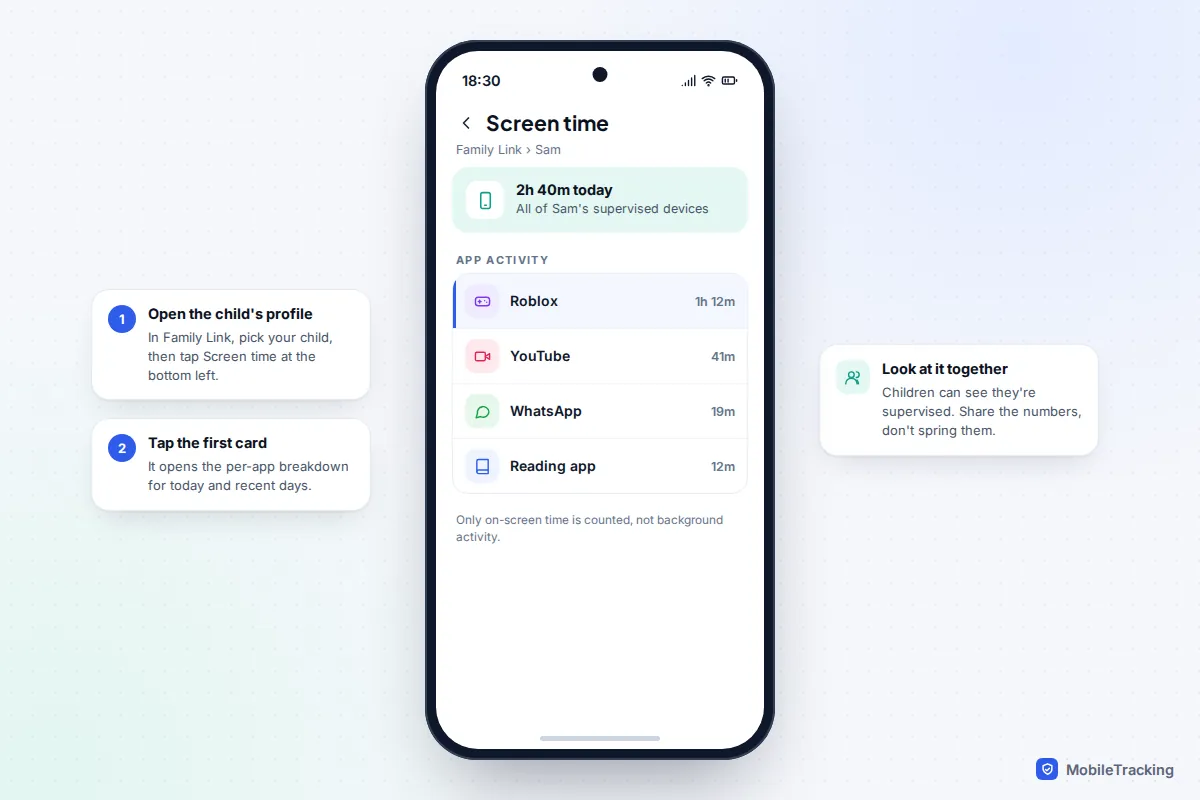
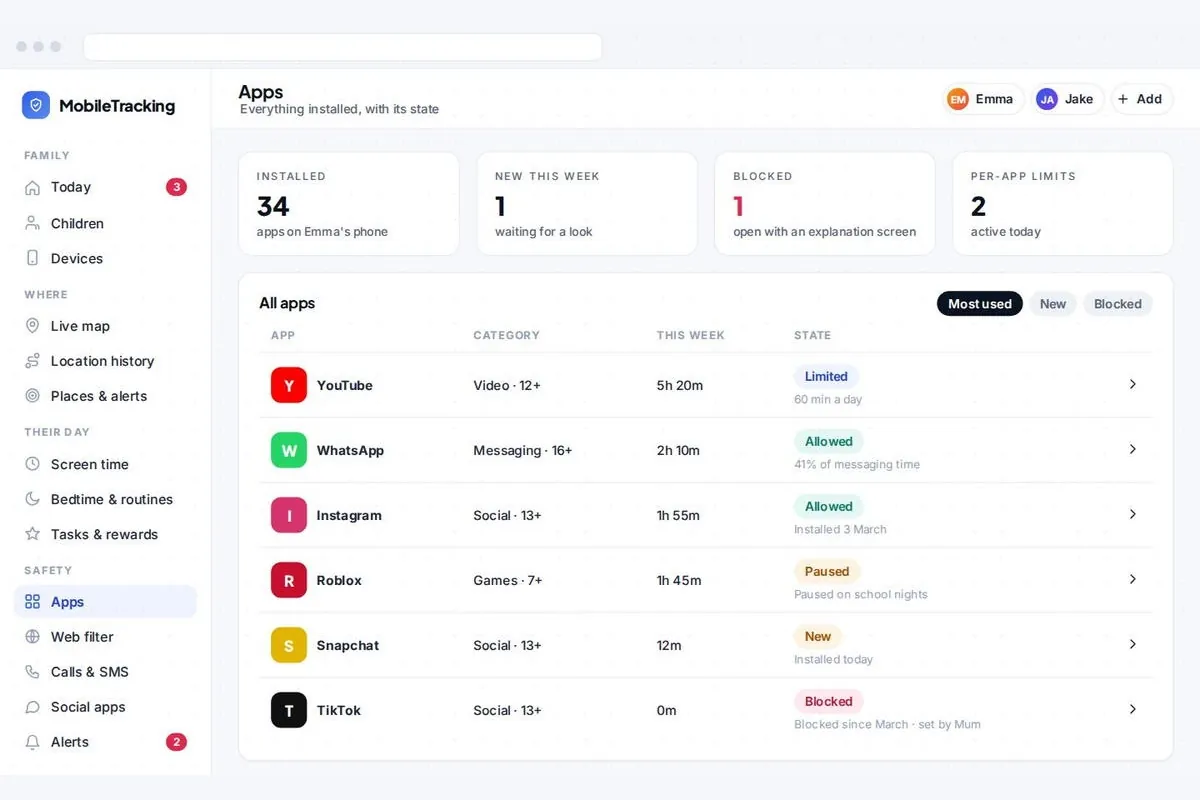
For families with Android phones who want app activity alongside location and routines in one browser dashboard, a transparent family app such as MobileTracking can show which apps a child used and for how long. Its child app stays visible on the phone and doesn’t read messages, which keeps the arrangement open rather than secret.
Frequently asked questions
What exactly counts as a pickup?
On iPhone, a pickup is each time you wake the screen and start using the phone, whether for two seconds or two hours. Glancing at the lock screen to read the time isn’t what drives the number up; unlocking and opening something is. Android’s closest equivalent is the Unlocks or Times opened count in Digital Wellbeing.
Why doesn’t my phone’s figure match Instagram’s own count?
They measure different things. Screen Time and Digital Wellbeing count time an app was on this phone’s screen. Instagram, YouTube and TikTok count time in their app on any device where you’re signed in, so a tablet or laptop adds to their total but not to your phone’s.
How far back can I see my app usage?
Not far. iPhone and Android both keep a rolling window of recent weeks rather than a long history, and older days drop off automatically. If you want to compare months, take a screenshot of the weekly report every Sunday or Monday.
Does music or a podcast playing with the screen off count as screen time?
Generally no. Screen time measures when an app is on the display, so audio playing in your pocket doesn’t count. It does show up under battery usage as background activity, which is why the battery list and the screen time list can look so different.
Can my child see that I’m looking at their usage?
Yes, broadly. A child in Family Sharing can see their own Screen Time and that limits are managed by a parent, and Family Link shows on the child’s phone that it is supervised. Treat the report as shared information and talk about it openly; it works far better than checking quietly and bringing it up later.
This guide is general information, not legal or financial advice. Read our editorial policy.