
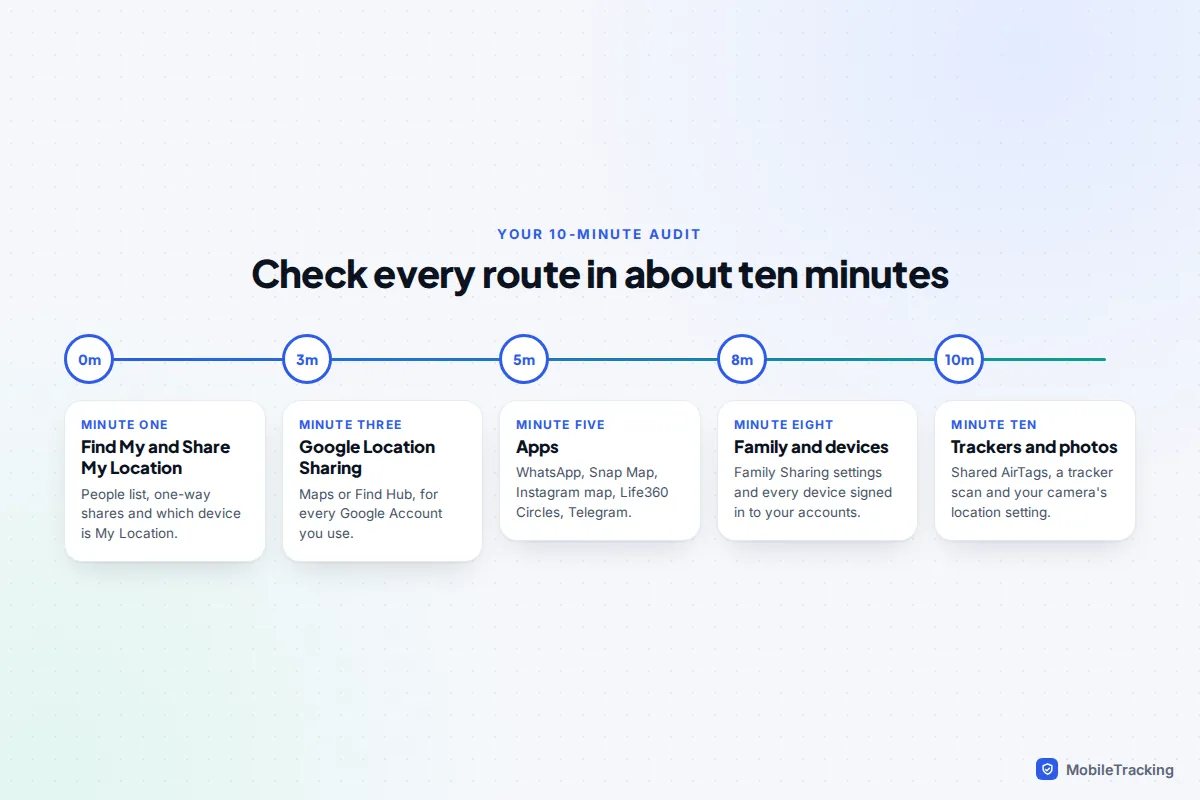
The quickest way to find out is to look at the lists your phone keeps of who can see you. On an iPhone, open Find My › People: anyone listed there with “Can see your location”, or anyone you share with both ways, is still receiving your location. On Android or any phone with Google Maps, tap your profile picture › Location sharing, or open myaccount.google.com/locationsharing in a browser. Those two checks cover most people. The rest of the audit is the apps and accounts that share on their own: WhatsApp, Snap Map, Instagram’s map, Life360, old devices still signed in to your account, and trackers you carry.
Work through the sections below in order and you will have checked every common route in about ten minutes. Looking at a sharing list alerts nobody, but changing things may be noticed, so if you feel watched, read the safety section before you switch anything off.
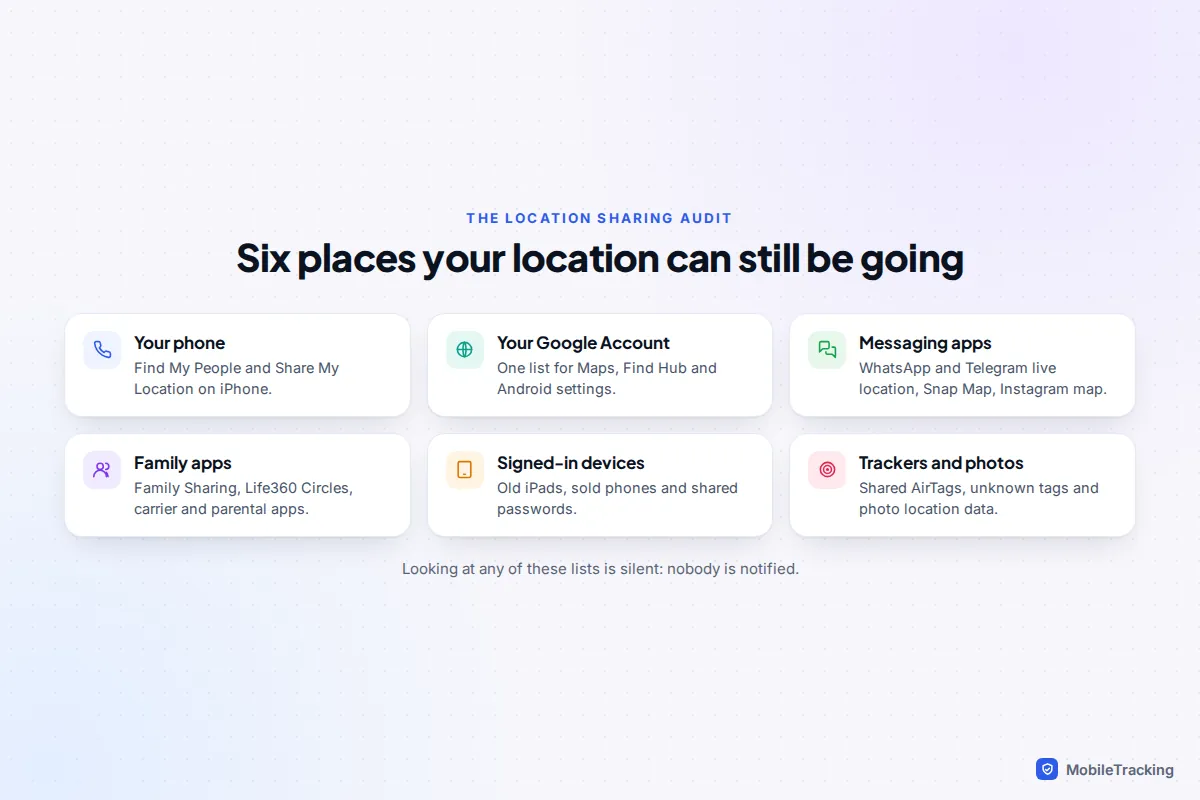
Check your phone’s own sharing first
iPhone: Find My and Share My Location
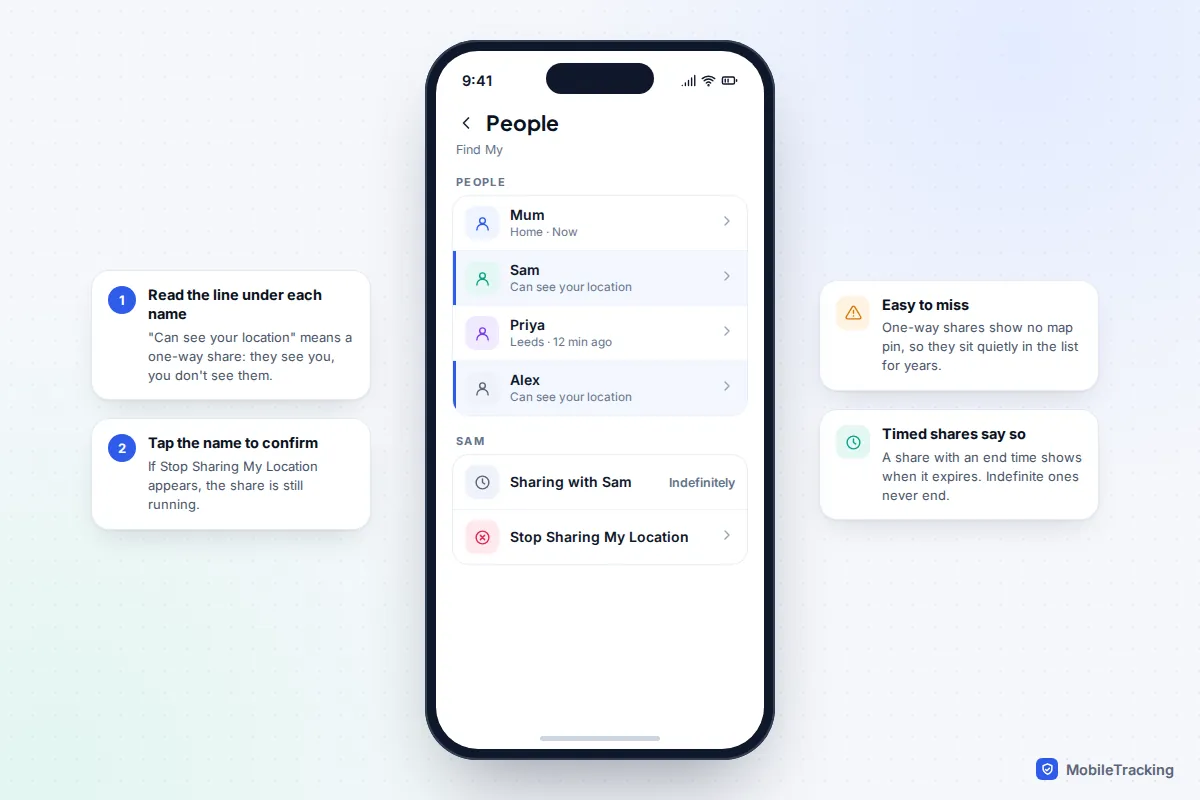
Every Apple share, whether you started it from Find My, from Messages or from Family Sharing, ends up in one list. Open Find My and tap People. Read each name carefully:
- A name with a location under it means they share with you. It says nothing about whether you share with them.
- “Can see your location” under a name means a one-way share: they see you and you do not see them. These are the ones people forget.
- Tap any name and scroll down. If you see Stop Sharing My Location, you are still sharing with that person. A share with an end time shows when it expires.
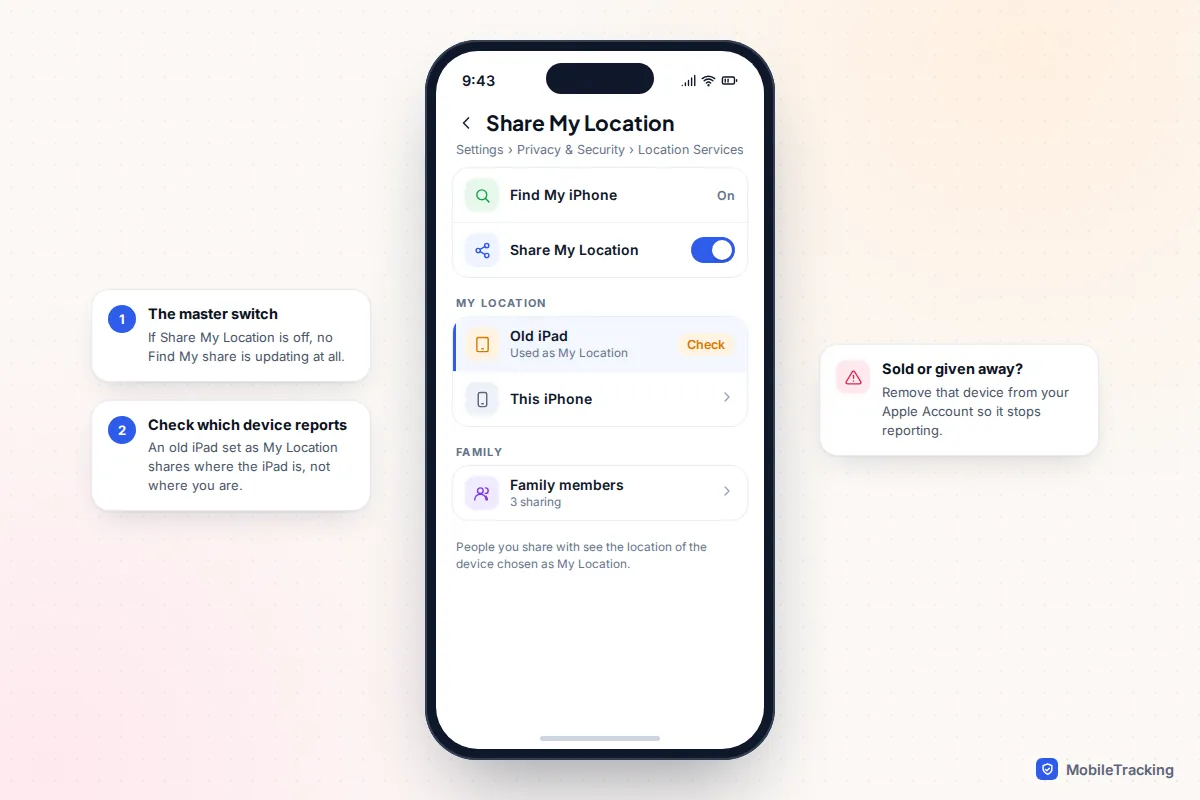
Next, check the master switch. Go to Settings › Privacy & Security › Location Services › Share My Location. If Share My Location is on, the My Location line shows which device is doing the sharing. If it names an iPad, a Mac or an old iPhone rather than the phone in your hand, that device is reporting where it is, and people you share with see that location instead of yours. The same switch is in Find My › Me.
On iOS 27, released on 14 September 2026, Find My also lets you pause sharing with one person using Hide Location, which resumes automatically, and set custom sharing lengths from 15 minutes to 30 days. A hidden share is still a share: it will come back on its own, so do not count it as stopped.
Check In in Messages is different: it sends your location to one contact only if you do not arrive or respond in time, and it ends when you do.
Android and Google: one list for every Google app
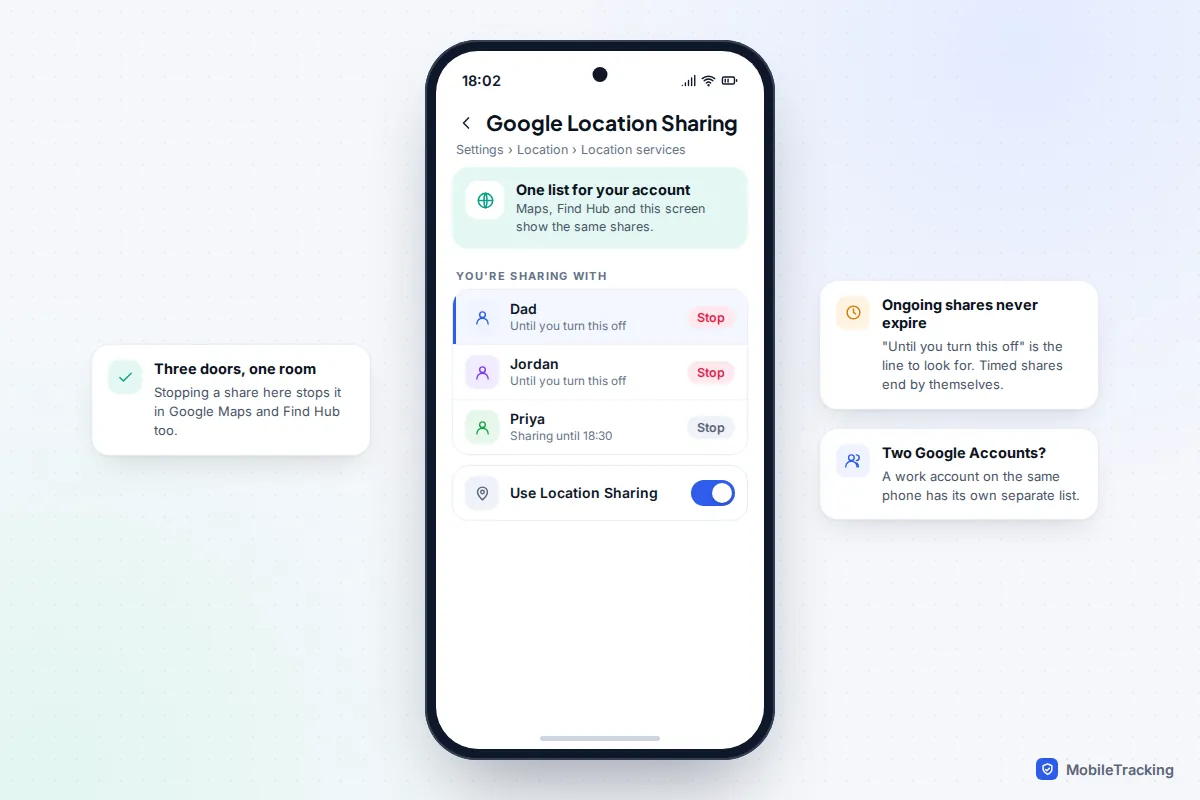
Google keeps one list of shares for your whole Google Account, whichever app you started them in. You can see it in three places, and they all show the same people:
- In Google Maps, tap your profile picture, then Location sharing. Each person shows how long the share lasts, such as “Until you turn this off”.
- In the Find Hub app, which replaced Find My Device in 2025 and added people sharing, use the filter You’re sharing with.
- On most Android phones, go to Settings › Location › Location services › Google Location Sharing. Samsung and Pixel word the first steps slightly differently.
Google’s help pages confirm that stopping a share in any of these stops it for your account and every app that uses Google Location Sharing. If you have more than one Google Account, such as a work account on the same phone, check each one. Google’s page on managing your Location Sharing settings has the exact steps for each device.
Use Safety Check for a one-screen review on iPhone
If you would rather see everything in one place, iPhones on iOS 16 or later have Safety Check. Go to Settings › Privacy & Security › Safety Check and choose Manage Sharing & Access. It lists the people you share with through Apple’s own apps, including Find My location, and the apps that have location access, and lets you review them one at a time. Nothing changes until you choose to stop something.
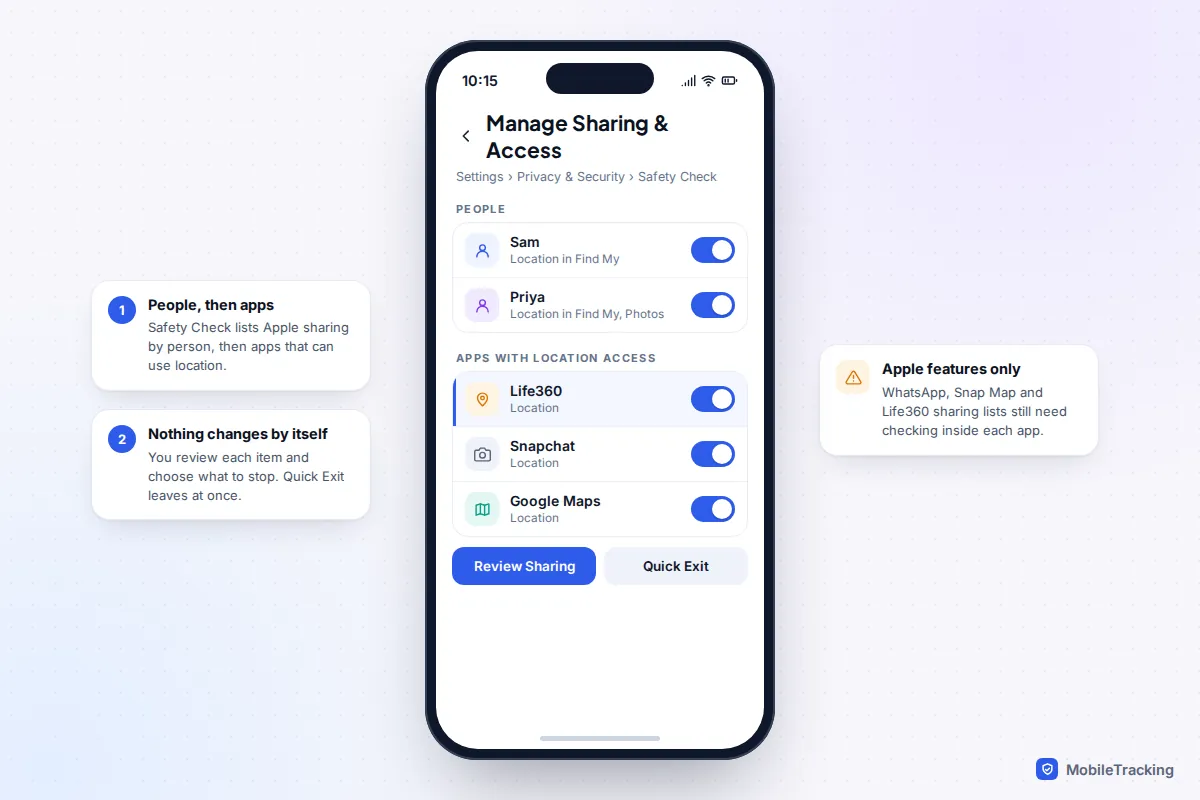
Avoid Emergency Reset unless you mean it. It stops sharing with everyone at once and can sign other devices out of your account, which anyone using them will notice. Apple’s location checklist in its Personal Safety guide walks through the same review with screenshots.
Check the apps that share on their own
Social and messaging apps keep their own sharing, completely separate from Find My and Google. Your phone’s location permission lets them work, but who sees you is set inside each app.
WhatsApp live location
Go to Settings › Privacy › Live location (on Android, the three-dot menu › Settings first). It lists every chat where you are sharing right now, with a Stop sharing button. Live location lasts 15 minutes, 1 hour or 8 hours, so an empty list means nothing is running. A static location you sent once is just a pin in the chat history.
Snapchat’s Snap Map
Open the map by pinching on the camera screen, tap the settings gear and look at who can see your location. Ghost Mode hides you from everyone, for 3 hours, 24 hours or until you turn it off. If it shows My Friends, every Snapchat friend can see you, including people you added years ago and have forgotten. A timed Ghost Mode quietly switches back, so check the timer. Snap Map updates when you open the app.
Instagram’s map
Instagram added a friends map in August 2025 in the US, and it reached the UK in October 2025. It sits at the top of your direct message inbox. Sharing is off unless you opted in, but many people tapped through the prompt. To check, go to your profile › menu › Story, live and location › Location sharing. The choices are friends (followers you follow back), Close Friends, selected people or no one. Your location updates each time you open Instagram. Posts and stories you tag with a place also appear on the map, which is separate from live sharing and worth remembering when you tag your street or your gym.
Life360 and other family apps
Life360 shares with every Circle you belong to, not just the one on screen. Tap the Circle name at the top to see them all, including old ones such as a holiday group or a former partner’s family. Location sharing is switched per Circle in the app’s settings, and a Circle’s members see “Location Sharing Paused” when you turn it off. Leaving a Circle you no longer need is cleaner than pausing it indefinitely. Check any other locator app you have ever installed in the same way.
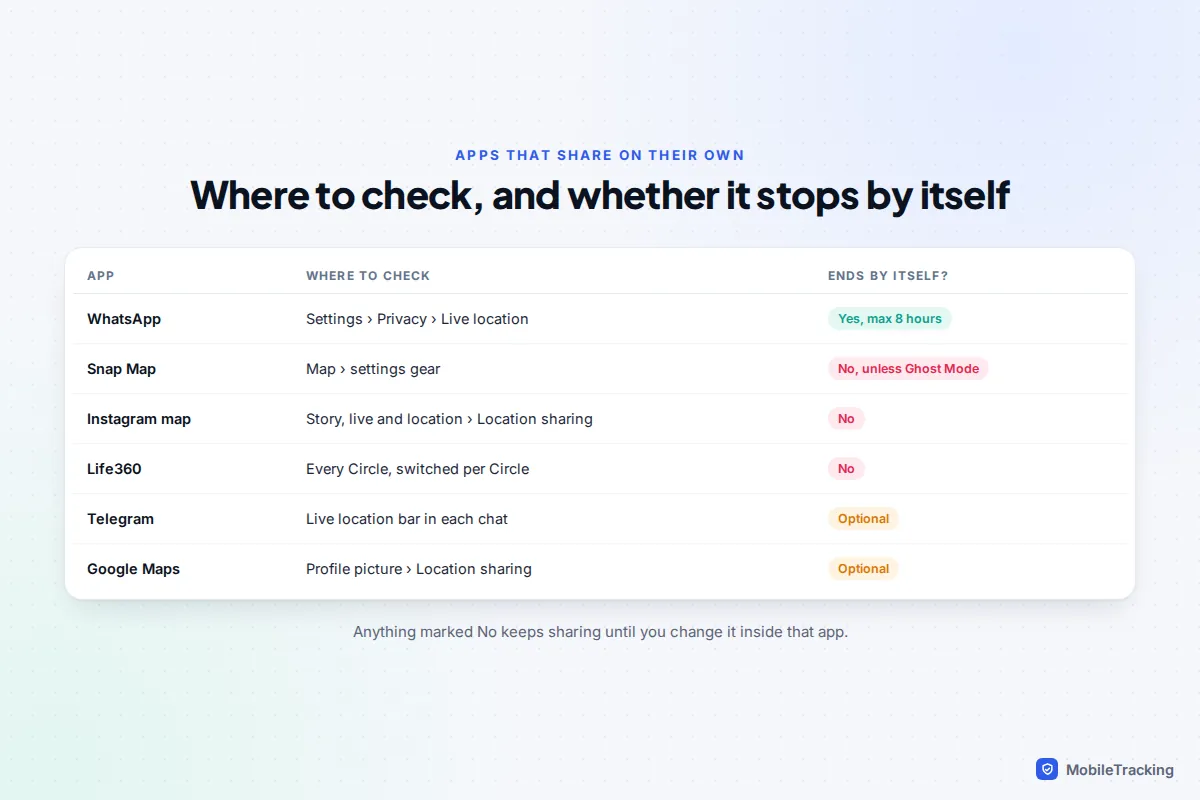
Telegram also offers live location “until I turn it off”, so look for a live location bar at the top of recent chats.
Family groups and devices you forgot were signed in
Account-level sharing survives changing phones, which is why it is the part people miss. Check these four:
- Apple Family Sharing. Go to Settings › Family › Location Sharing. If Automatically Share Location is on, anyone added to the group later sees you too. The organiser’s location is shared with the whole group by default. Family members you share with can also see your devices in Find My’s Devices tab.
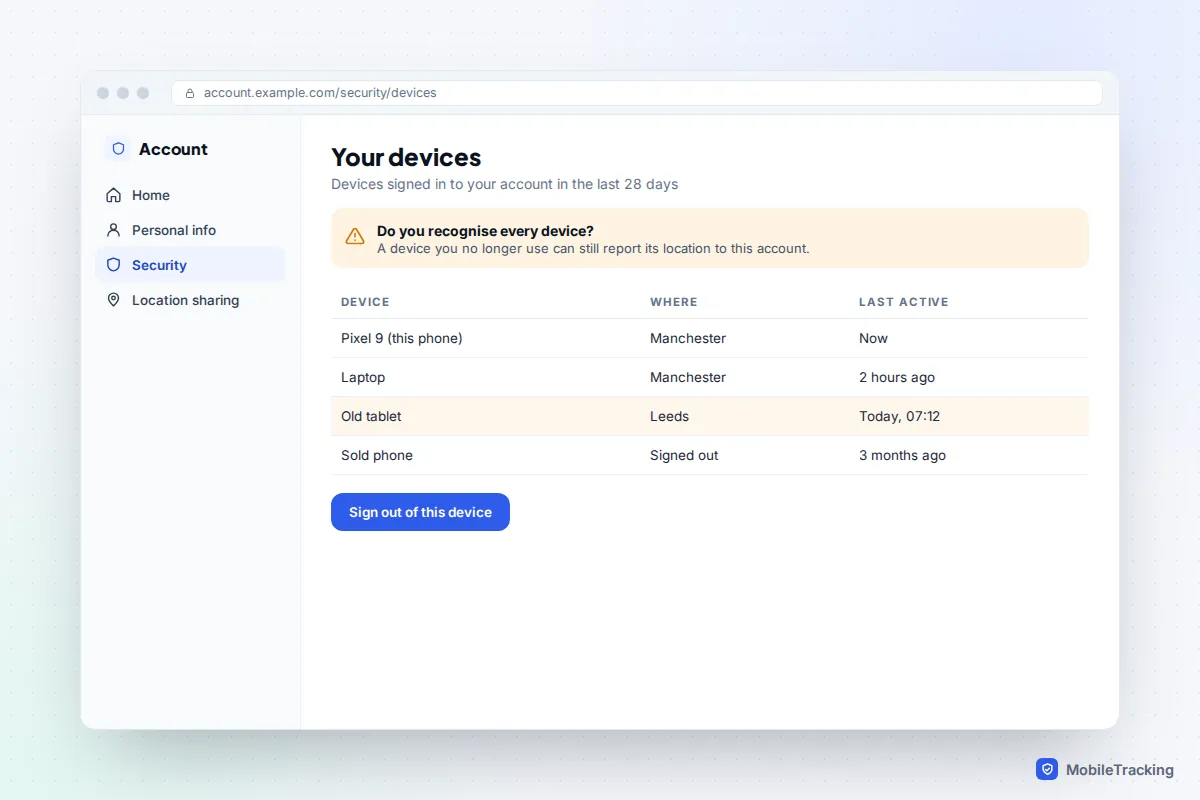
- Signed-in devices. On iPhone, tap your name at the top of Settings and scroll to the device list. On Google, open myaccount.google.com › Security › Your devices. An old iPad at a relative’s house or a phone you sold without signing out can still report its location to your account, and anyone using it can see what your account can see.
- A shared password. Anyone who knows your Apple Account or Google password can sign in on the web and see your devices’ locations. Our guide to checking whether someone has access to your iCloud covers the signs.
- Parental and carrier services. Parental-control apps, a network’s family locator add-on and connected-car apps can all report location. If you once set one up, or someone set one up for you, it may still be running.
Trackers and photos: location that is not “sharing” at all
Some routes never appear in any sharing list, because the thing reporting your location is not your phone.
Tags you carry
Since iOS 17, an AirTag or other Find My item can be shared with up to five people. If a family tag is on your keys or in your car, everyone in that share can see where it is, and so where you are. Check Find My › Items: tap each item and look at who it is shared with. Also think about tags that are not yours, such as a partner’s AirTag on a shared car key.
For tags you do not know about, keep Tracking Notifications allowed in Settings › Notifications on iPhone. On Android, go to Settings › Safety & emergency › Unknown tracker alerts › Scan now, which looks for AirTags and Find Hub tags travelling with you.
Photos
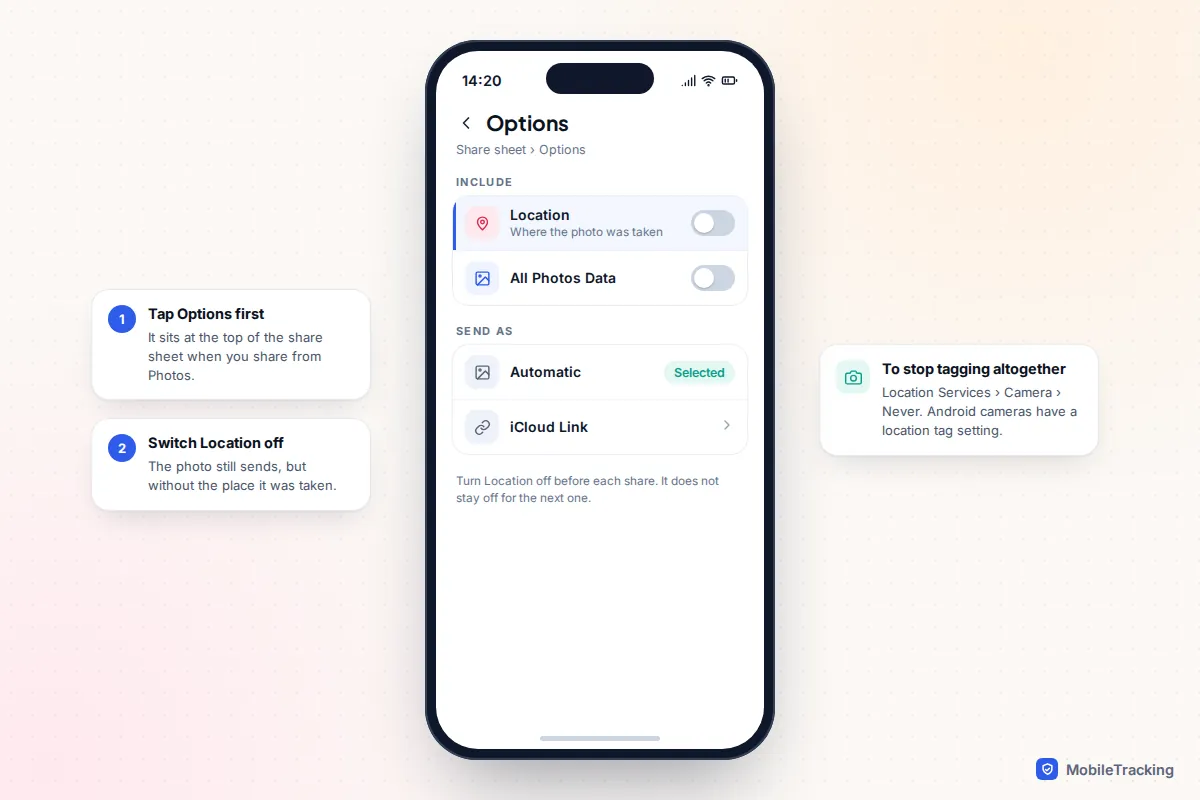
Most phone cameras save where each photo was taken, and sharing the original file can send that location too. On iPhone, tap Options at the top of the share sheet and turn off Location before sending. To stop tagging altogether, set Settings › Privacy & Security › Location Services › Camera to Never. On Android, look in the camera app’s settings for an option such as Location tags (Samsung) or Save location (Pixel).
Your 10-minute location audit, and what the results mean
Run through the checklist below. It takes about ten minutes if you use one or two of these apps, and it is worth repeating after a break-up, a new phone, or a group trip.
| What you find | What it means | What to do |
|---|---|---|
| “Can see your location” in Find My | One-way share still running | Tap the name › Stop Sharing My Location |
| My Location is an old device | That device is reporting for you | Set this iPhone as My Location, or remove the device |
| “Until you turn this off” in Google | Ongoing Google share | Stop it, or replace with a timed share |
| Snap Map set to My Friends | Every Snapchat friend sees you | Ghost Mode, or choose named friends |
| Unknown device in your account | Someone may be signed in | Remove it and change your password |
| Shared AirTag on your keys | Others see the tag’s location | Agree it, or remove the share |
Common mistakes
- Turning off Location Services and assuming you are done. Shares come back as soon as you switch it on again, and family apps label you “location permissions off”, which people notice.
- Relying on Airplane mode. Your last position stays visible, with a time that simply gets older.
- Checking one Google Account. Shares belong to the account, so a second account on the same phone has its own list.
- Forgetting timers that restart. Hide Location and timed Ghost Mode both switch sharing back on by themselves.
If you only want to end one share quietly, our guide to stopping location sharing with one person covers each app step by step.
If you think someone is tracking you
The audit above is safe to do: looking does not notify anyone. Deciding what to change, and when, is where it helps to have support. In the US, The Hotline is on 1-800-799-7233. In the UK, the free 24-hour National Domestic Abuse Helpline run by Refuge is on 0808 2000 247. If you can, contact them from a device the other person cannot access.
Take screenshots of what you find before you change anything, as they can help with a report later. The Coalition Against Stalkerware explains the signs of hidden monitoring apps, and our guide to protecting your phone in an abusive situation sets out safer steps in order. If a partner is the concern, how to tell if your partner is tracking your phone goes further than sharing settings.
Frequently asked questions
Does anyone get told when I check who can see my location?
No. Opening Find My, Google’s Location sharing list, Safety Check or any app’s settings sends no notification. Only changes, such as stopping or starting a share, can be noticed.
If I turn my phone off, am I still sharing?
The share stays set up, but your location stops updating. People see your last known position with a time stamp that keeps getting older.
I deleted the app. Does that stop the sharing?
It usually stops updates from that phone, but not the share itself. Life360, Snapchat and Instagram keep your membership and settings on your account, so reinstalling or signing in on another phone can start sharing again. Stop sharing inside the app first, then delete it.
Why does a family member still see my iPhone after I stopped sharing?
Stopping in the People tab ends people sharing, but family members you shared with may still see your devices in the Devices tab. Check Settings › Family › Location Sharing, and consider whether you want to stay in the Family Sharing group.
Can someone see my location through my phone number alone?
Not through any legitimate app. Location sharing needs your account, your consent or access to your device. Sites that claim to find a phone from its number alone are scams or collect your own data. Sharing you did not start usually comes from an account login, a shared device, a tracker or an app on your phone.
How often should I do this check?
After any big change, such as a new phone, a break-up or a group trip. Otherwise, every few months is plenty.
This guide is general information, not legal or financial advice. Read our editorial policy.