
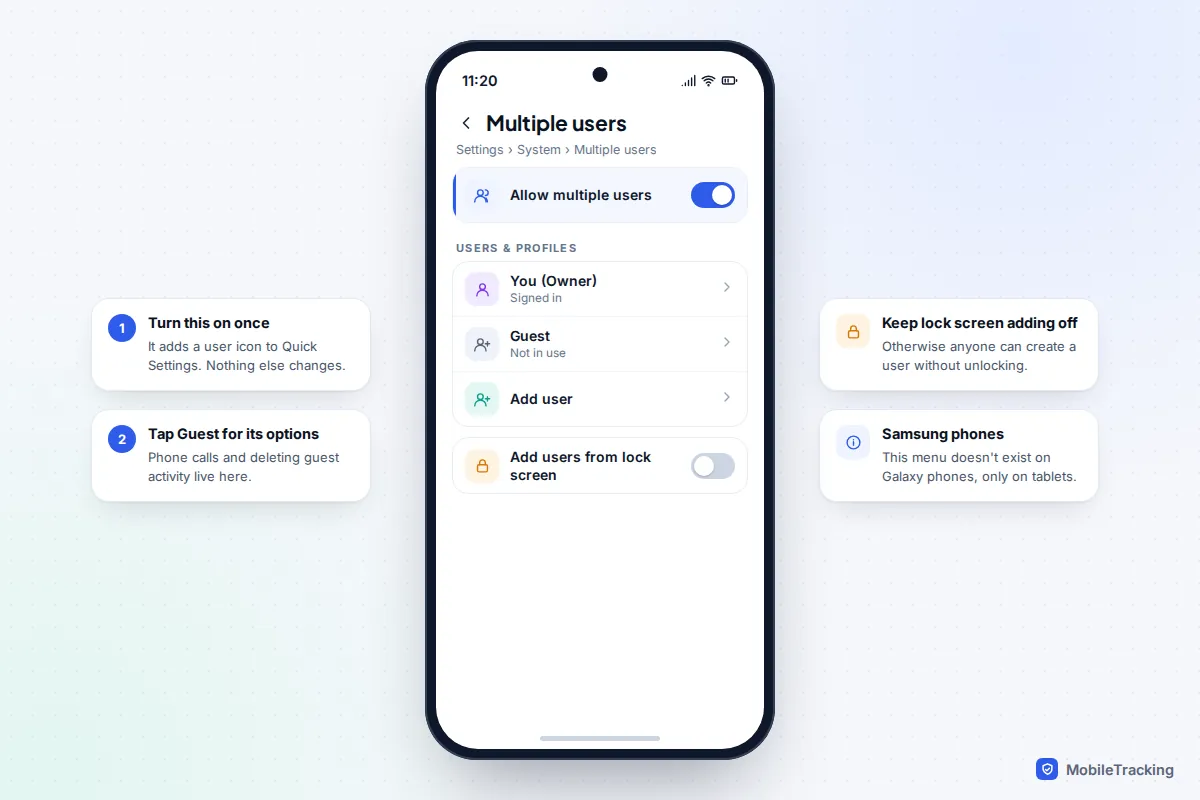
Only some phones have a true guest mode. On a Google Pixel, go to Settings › System › Multiple users, turn on Allow multiple users, then pull down Quick Settings, tap the user icon and choose Add guest. The guest gets a blank phone with none of your apps, photos or messages. Samsung Galaxy phones and iPhones have no guest mode, so on those you lock the phone to a single app instead: Pin app on Samsung, Guided Access on iPhone.
Which tool is right depends on who’s borrowing the phone and for how long. A friend making one call needs something different from a six-year-old playing a game in a restaurant. The table below matches common situations to the best option on each phone.
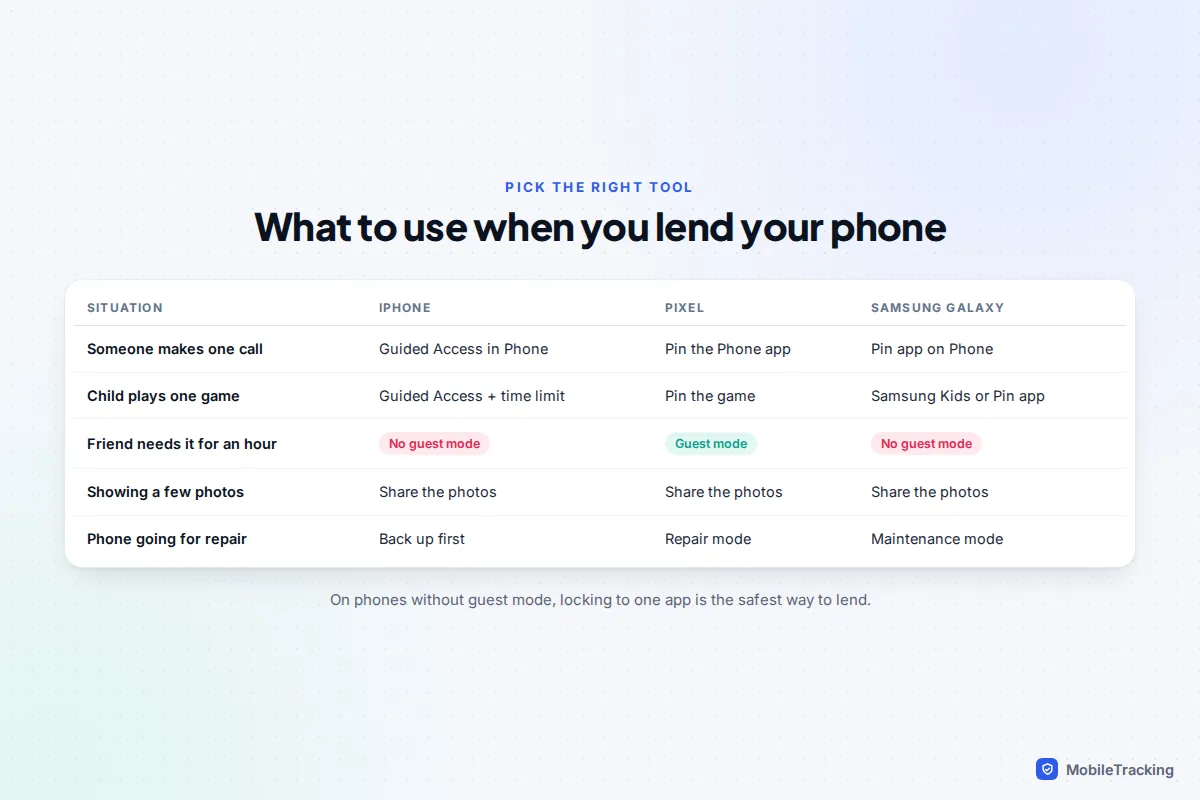
Which option do you actually need?
There are three kinds of “guest mode” tool, and they protect you in different ways.
- A guest or second user (Pixel and many other Android phones, Android tablets): a separate, empty profile. Best when someone needs the whole phone for a while, such as a visiting relative whose phone has died.
- Locking to one app (app pinning on Android, Guided Access on iPhone): the person can use the app you opened and nothing else. Best for a call, a game, a video or a map.
- Hiding and locking what’s private (locked and hidden apps on iPhone, Private space or Secure Folder on Android): your sensitive apps need your face or PIN to open. Useful all the time, and a good second layer on top of the other two.
Samsung also has Maintenance mode (Settings › Device care, called Battery and device care on some models) for when a phone goes in for repair. It restarts into a separate account so the technician can test the phone without seeing your data. Pixels have the same idea, called Repair mode, under Settings › System.
Guest mode on a Pixel and other Android phones
Android’s guest profile has been part of the system for years, but phone makers decide whether to include it. Pixels have it; Samsung removes it from Galaxy phones. Many phones with close-to-standard Android, such as Motorola models, include it too. If you’re not sure, search Settings for “users”.
Turn it on
- Open Settings › System › Multiple users (shown as Users on some versions).
- Turn on Allow multiple users.
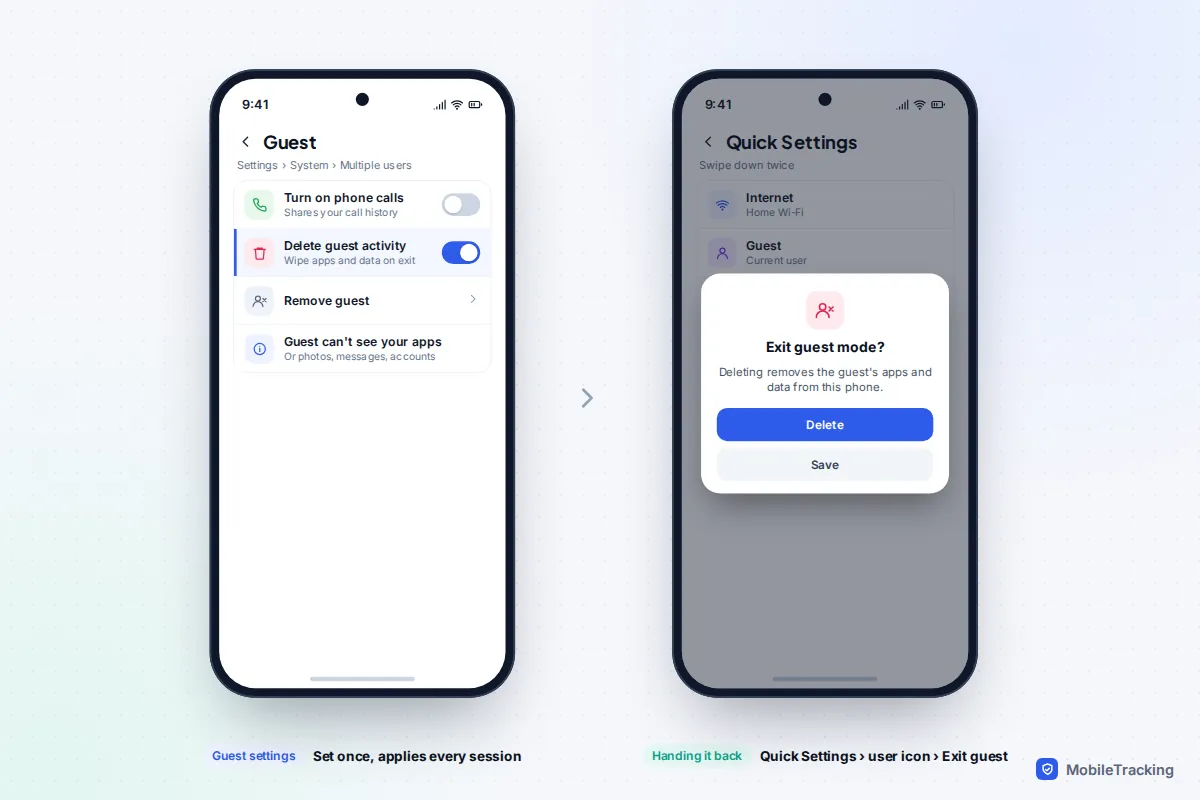
- Decide whether the guest can make phone calls. Tap Guest on this screen to find the option, labelled Turn on phone calls or Allow guest to use phone depending on your Android version. If you allow calls, your call history is shared with the guest, so leave it off unless they need to phone someone.
- Turn on Delete guest activity if you see it, so each session starts clean.
Hand over, then take it back
To start, swipe down twice from the top of the screen, tap the user icon at the bottom of Quick Settings and tap Add guest. The phone switches to a fresh home screen within a few seconds. When you get the phone back, open Quick Settings again, tap the user icon and choose Exit guest, then Delete to wipe what they did. Your own profile then asks for your PIN or fingerprint as normal.
A guest can use Wi-Fi, mobile data, the camera and the web browser, and can sign in to their own Google account to download apps. They can’t see your apps, accounts, photos, messages or notifications. Google’s help page on using and deleting guests has the latest steps for Pixels.
Guest or a proper second user?
A guest is temporary and wiped when you choose. A second user is permanent, with its own Google account, apps and lock screen. Set up a user for someone who borrows the phone regularly, such as a teenager sharing an old family phone. Each user’s apps and data take their own storage, so this works best on phones with plenty of space.
Samsung Galaxy phones: no guest mode
Galaxy phones don’t offer a guest profile or multiple users, even on the latest One UI. Galaxy tablets do. On a Samsung phone, use Pin app for lending, Secure Folder for private apps and Samsung Kids for young children.
App pinning: lock an Android phone to one app
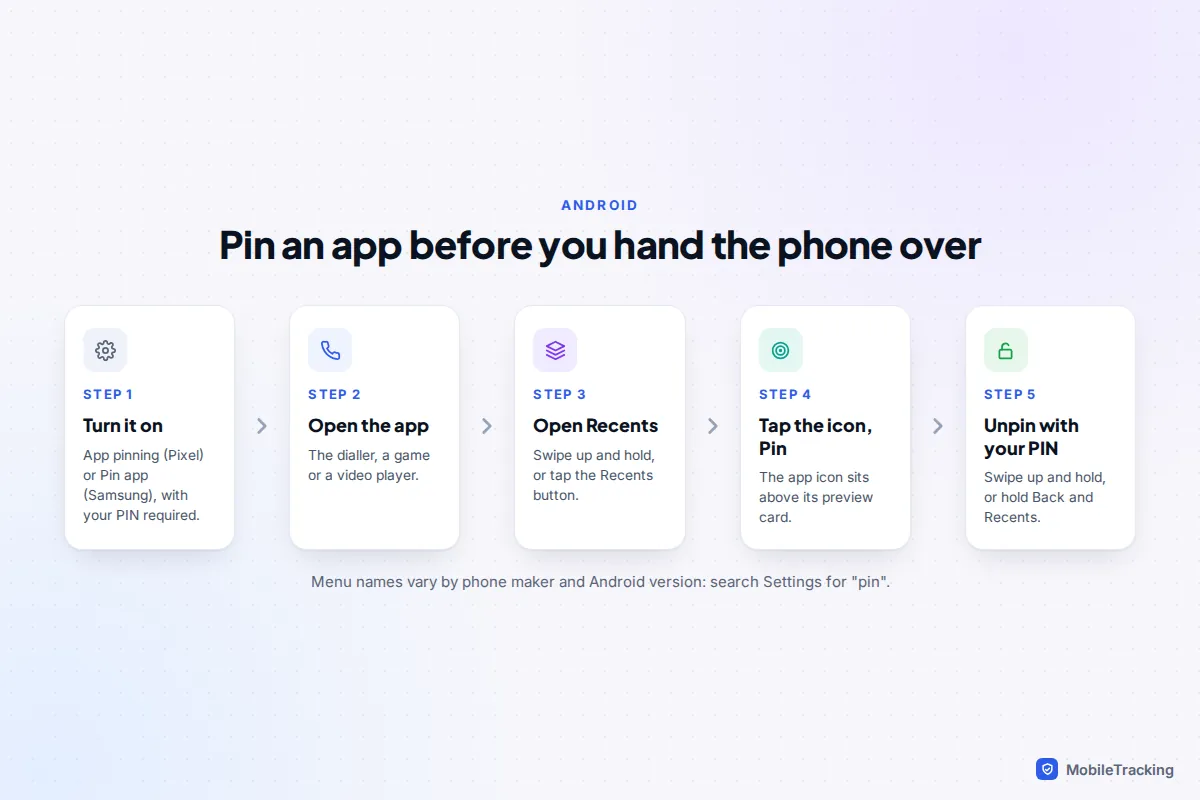
App pinning keeps one app on screen until you unpin it with your PIN. It takes a minute to set up once, then about five seconds each time.
- Turn it on. On a Pixel, go to Settings › Security & privacy › More security & privacy › App pinning, turn on Use app pinning, and make sure Ask for PIN before unpinning is on. On Samsung, go to Settings › Security and privacy › Other security settings (More security settings on some versions) and turn on Pin app.
- Open the app you want to lend, such as Phone or a game.
- Open Recents by swiping up and holding, or tapping the Recents button.
- Tap the app’s icon at the top of its preview and choose Pin (Pixel) or Pin this app (Samsung).
- To unpin, swipe up and hold with gesture navigation, or touch and hold Back and Recents with buttons, then enter your PIN.
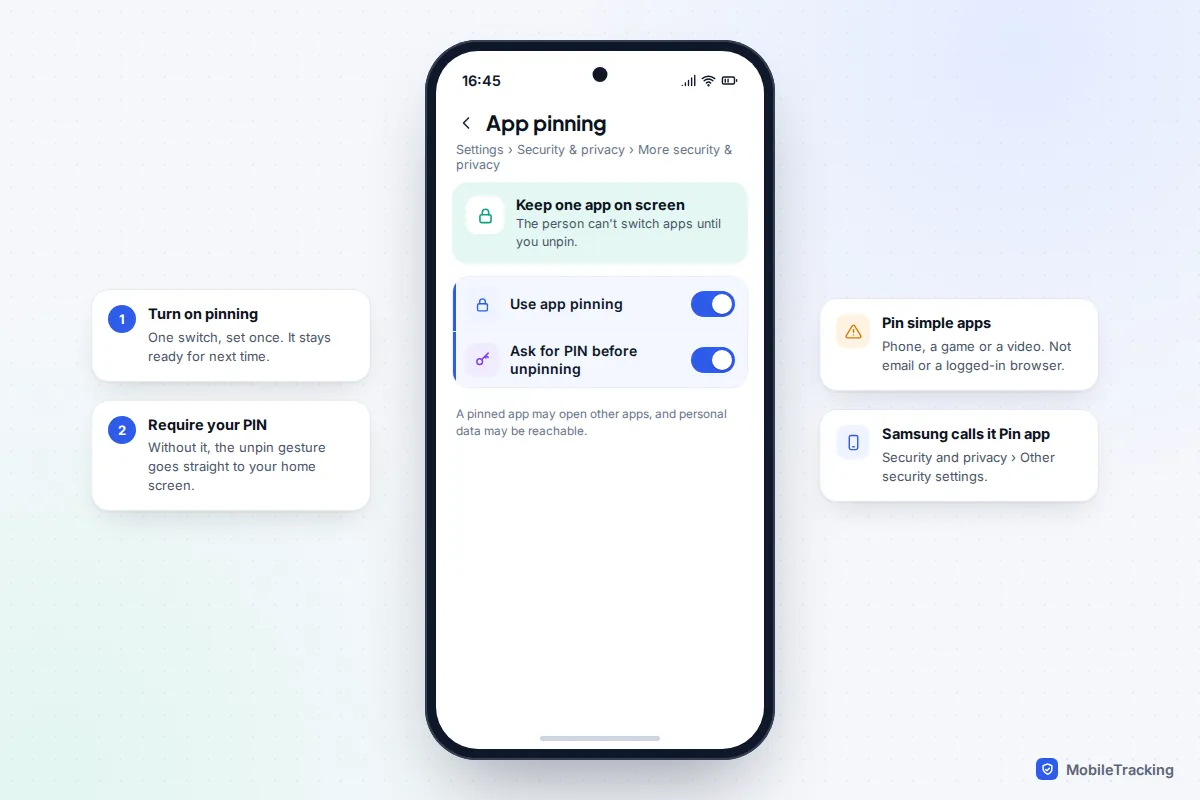
Know the gap: Android warns that a pinned app may open other apps, so personal data may be reachable. A browser can open links in other apps, and a messaging app can open your photo gallery. Pin simple apps, such as the dialler, a game or a video player, rather than your email or a browser logged in to your accounts. Google’s guide to pinning and unpinning screens covers the button layouts.
iPhone: no guest mode, so use Guided Access
iPhone has no guest mode or multiple users, and iOS 27 hasn’t changed that. The closest thing is Guided Access, an accessibility feature that locks the iPhone to one app and can switch off the buttons, block parts of the screen and end after a set time.
Set it up once
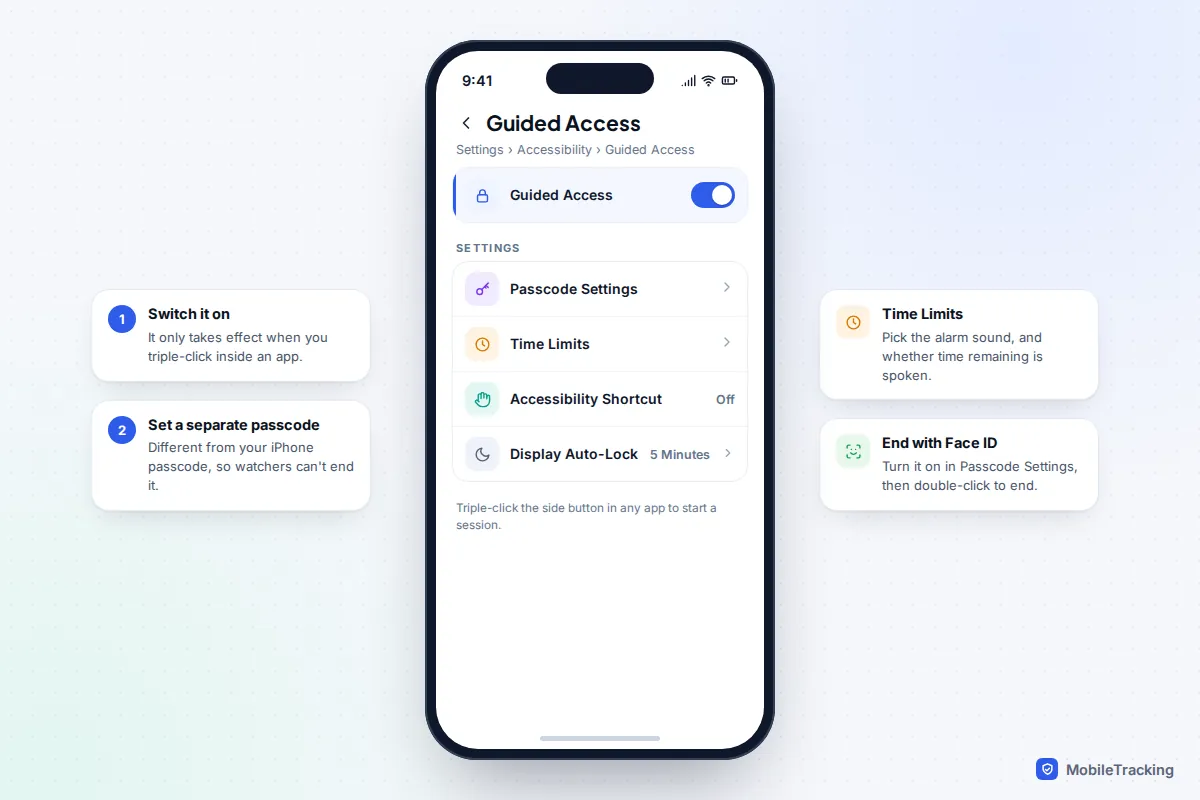
- Go to Settings › Accessibility › Guided Access and turn it on.
- Tap Passcode Settings › Set Guided Access Passcode. Use a code that is different from your iPhone passcode, and turn on Face ID or Touch ID for ending sessions.
- Under Time Limits, choose an alarm sound and whether the iPhone speaks the time remaining.
Start a session
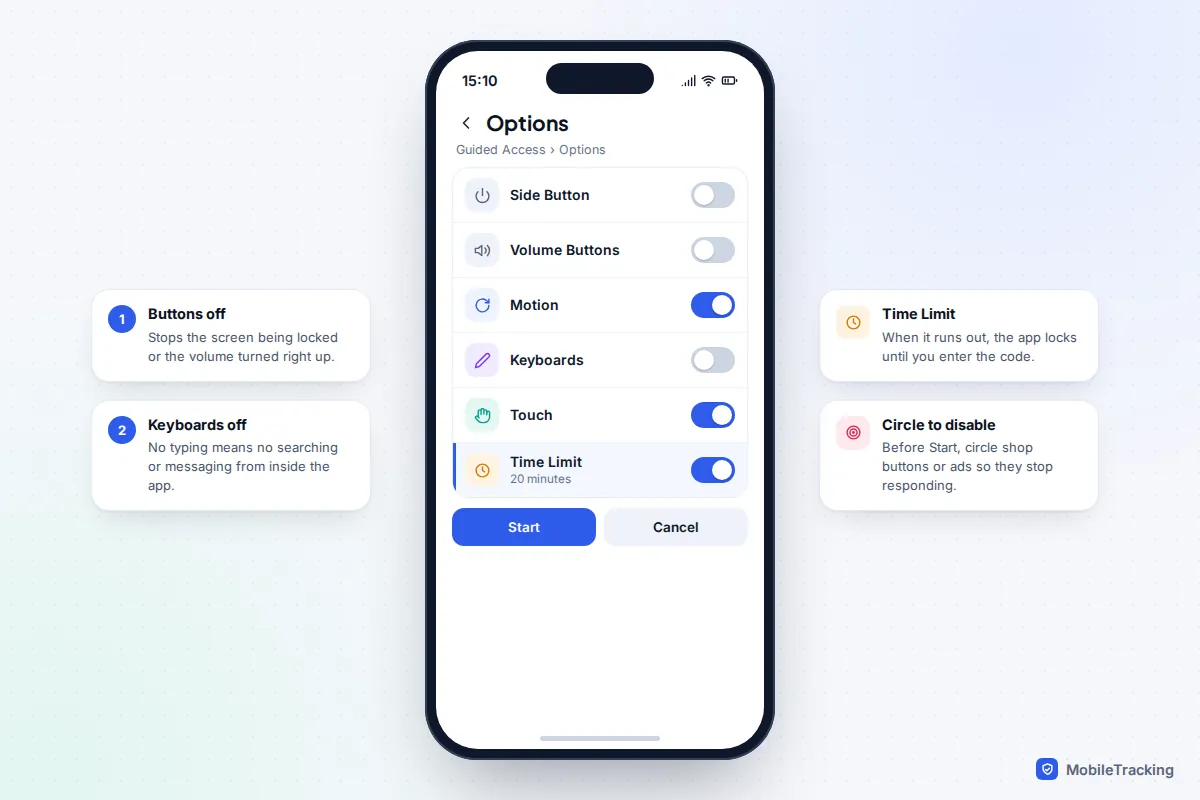
Open the app, then triple-click the side button (the Home button on iPhones that have one). Circle any part of the screen you want to disable, such as an in-app shop button. Tap Options to switch off the Side Button, Volume Buttons, Motion, Keyboards or Touch, and set a Time Limit. Then tap Start. To end it, triple-click again and enter the Guided Access passcode, or double-click and use Face ID. Apple’s page on using Guided Access has the same steps for iPad.
Lending to a child: a real example
Maya, who is five, wants to play a drawing game while her dad waits at the dentist. He opens the game, triple-clicks, circles the “More games” banner so it can’t be tapped, turns off the side button and sets a 20-minute limit. When time is up, the game locks and needs his passcode. There’s no argument about “just one more”, because the phone decided, and she couldn’t wander into his messages or buy anything.
Hide and lock the rest
A second layer means that even if pinning or Guided Access is skipped in a hurry, your most private apps stay shut.
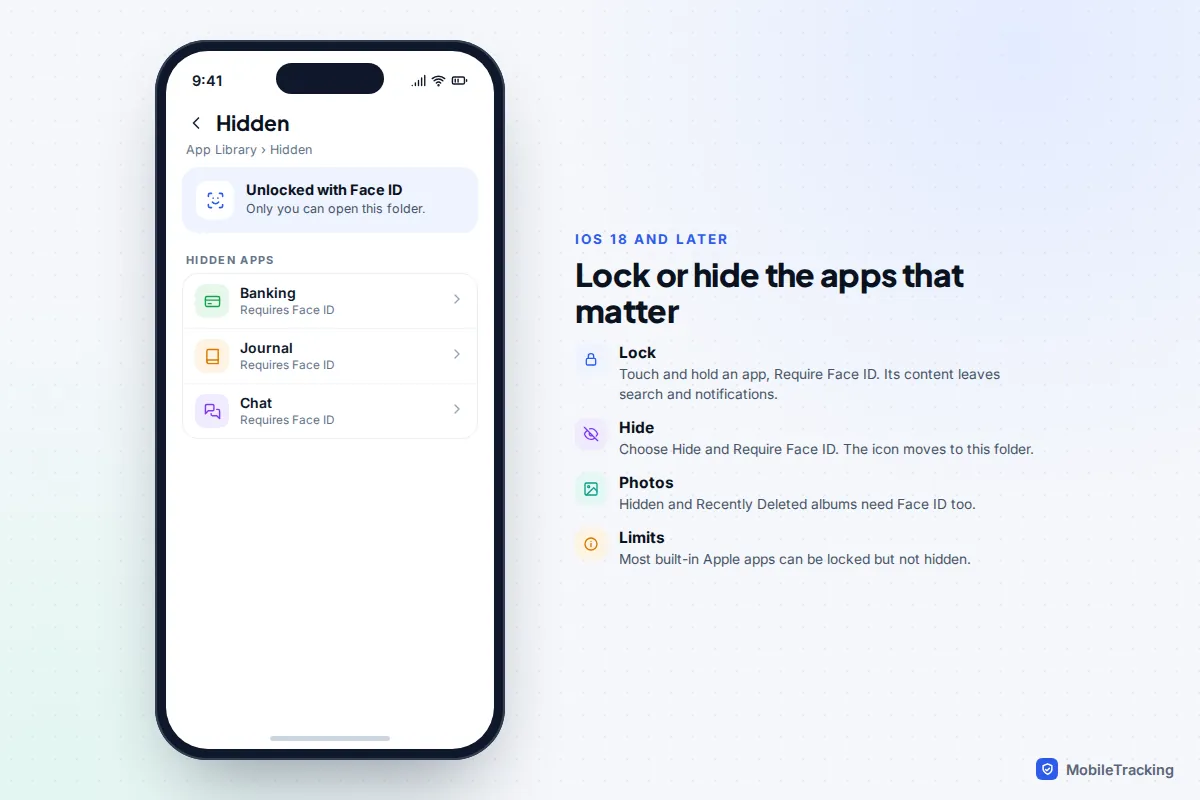
- Locked and hidden apps on iPhone (iOS 18 and later): touch and hold an app, tap Require Face ID, then choose to lock it or Hide and Require Face ID. Locked apps keep their content out of notifications and search. Hidden apps move to a Hidden folder at the bottom of the App Library. Most built-in Apple apps can be locked but not hidden. Our guide to locking apps on iPhone goes further.
- Photos on iPhone: the Hidden and Recently Deleted albums need Face ID when Settings › Apps › Photos › Use Face ID is on.
- Focus on iPhone: a Focus can show only chosen Home Screen pages, which tidies what a borrower sees, but apps are still reachable from search and the App Library. Treat it as a tidy-up, not a lock.
- Private space on Pixel (Android 15 and later) and Secure Folder on Samsung: a locked area for apps you’d rather nobody opened. See our guide to locking apps on Android.
Tablets shared with children
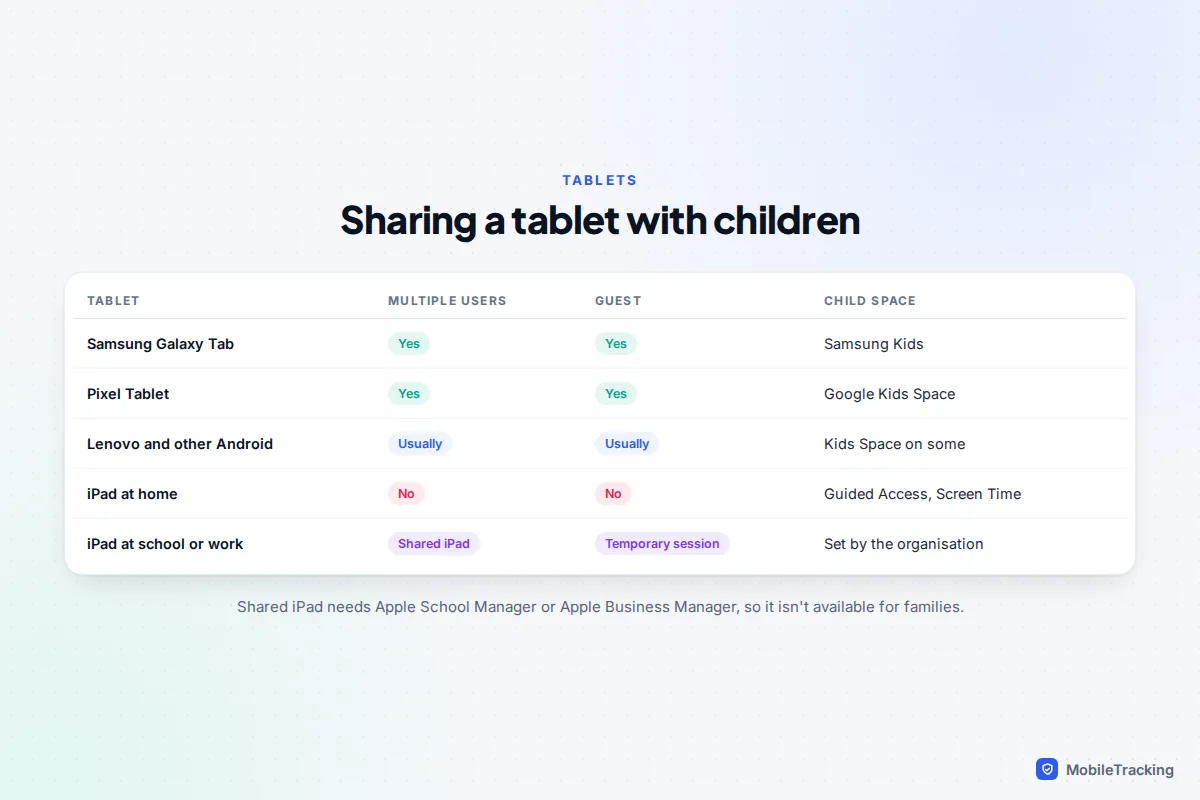
Tablets are where proper multi-user support matters most, and the options differ sharply between Android and iPad.
- Samsung Galaxy tablets: Settings › Accounts and backup › Users lets you add a user, a guest or, on some models, a restricted profile limited to apps you choose. Samsung Kids, opened from Quick Settings, adds a PIN-protected child space with daily playtime limits, on tablets and phones alike.
- Pixel Tablet and other Android tablets: multiple users and guest work as on a Pixel phone. Google Kids Space, preinstalled on Pixel, Lenovo and some other tablets, gives a child a curated home screen linked to a supervised account in Family Link. Google removed the Pixel Tablet from its store in September 2026, but existing tablets keep these features.
- iPad: there is no multi-user mode for families. Shared iPad exists, but only for schools and businesses that manage iPads through Apple School Manager or Apple Business Manager. At home, use Guided Access for short sessions, or give the child an iPad signed in to their own child account with Screen Time. Our guide to iPad parental controls walks through that.
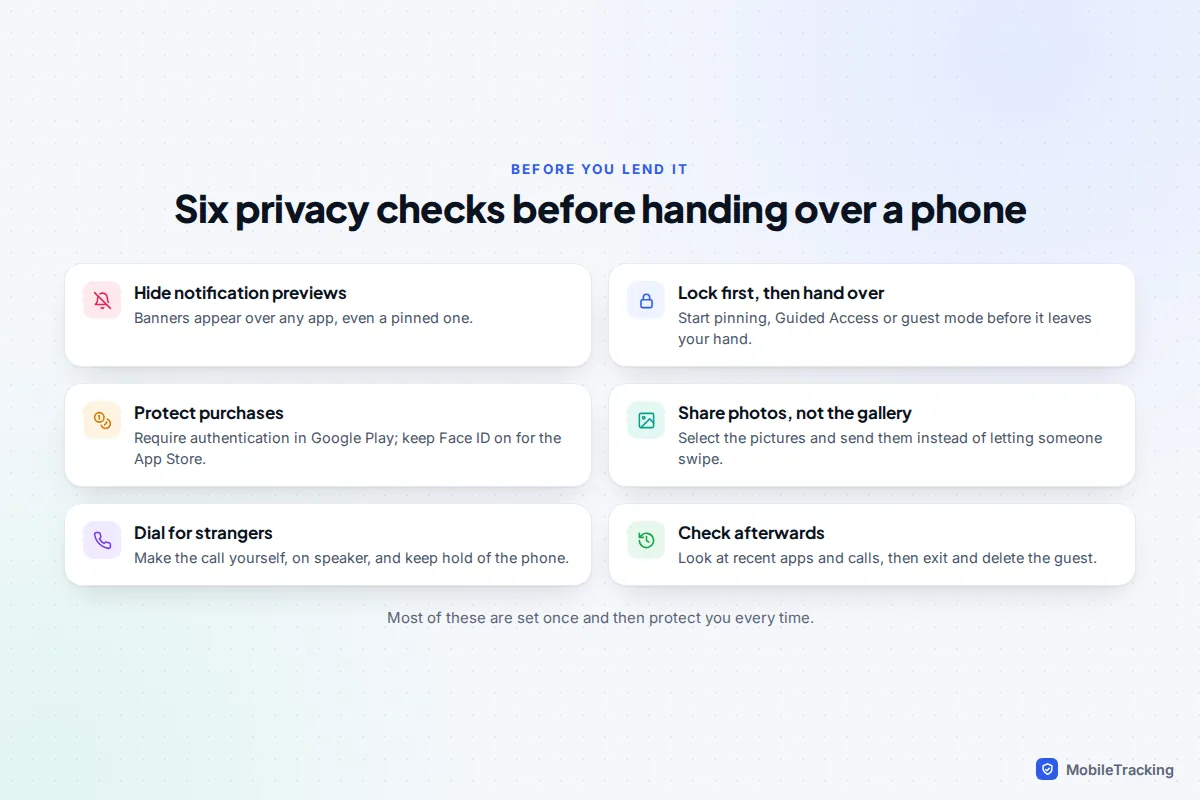
Privacy checklist before you hand over any phone
Run through this once, and most of it stays set for good.
- Hide notification previews. On iPhone, Settings › Notifications › Show Previews › When Unlocked. On Android, turn off sensitive notifications on the lock screen in Settings › Notifications. A banner from your bank or partner pops up over any app, even a pinned one.
- Lock the app first, then hand over. Start pinning, Guided Access or guest mode before the phone leaves your hand.
- Require authentication for purchases. In Google Play, open your profile picture, then Settings › Authentication › Require authentication for purchases. On iPhone, App Store purchases normally need Face ID or your Apple Account password, and a child account can use Ask to Buy.
- Show photos without handing over the gallery. Select the pictures and share them, or use a shared album, rather than letting someone swipe.
- Dial for strangers yourself. If someone in the street asks to borrow your phone for an emergency, offer to call the number for them on speaker. Unlocked phones are a target for snatch thieves and scammers.
- Check afterwards. Look at recent apps and the call log, and exit or delete the guest.
Frequently asked questions
Does iPhone have a guest mode?
No. As of iOS 27 there’s no guest profile or second user on iPhone. Guided Access, locked and hidden apps, and turning off notification previews are the closest you can get.
Why can’t I find guest mode on my Samsung phone?
Samsung doesn’t include multiple users or guest mode on Galaxy phones, only on Galaxy tablets. Use Pin app for lending, Secure Folder for private apps and Samsung Kids for young children.
Can a guest see my photos or messages on a Pixel?
No. A guest profile starts empty and can’t open your apps, files or accounts. The only thing shared by choice is your call history, and only if you let the guest make calls.
Can someone get out of Guided Access or app pinning without my code?
Not by tapping around, as long as you’ve set a Guided Access passcode or turned on the PIN requirement for unpinning. A pinned Android app can open some other apps, though, so pin simple apps only.
Can I use guest mode to keep an eye on what a child does?
No, and it isn’t designed for it. Guest activity is usually deleted when the session ends. For a child who uses a device regularly, set up their own supervised account with Screen Time or Family Link, and tell them what you can see.
This guide is general information, not legal or financial advice. Read our editorial policy.