
If you think you have spyware, don’t start by deleting apps or resetting the phone. First work out who could have done it and whether they could react badly, because removing monitoring can alert the person behind it and destroys evidence. Then write down what you have noticed, move to a device they have never touched, and secure your email, Apple Account or Google Account from there. Only after that should you clean the phone itself, with its built-in protections or a factory reset.
This is an action plan, not a detection guide. If you still need to check for signs, our guide on how to tell if your phone is being monitored walks through the settings to look at on iPhone and Android. Come back here once you have a reason to act.
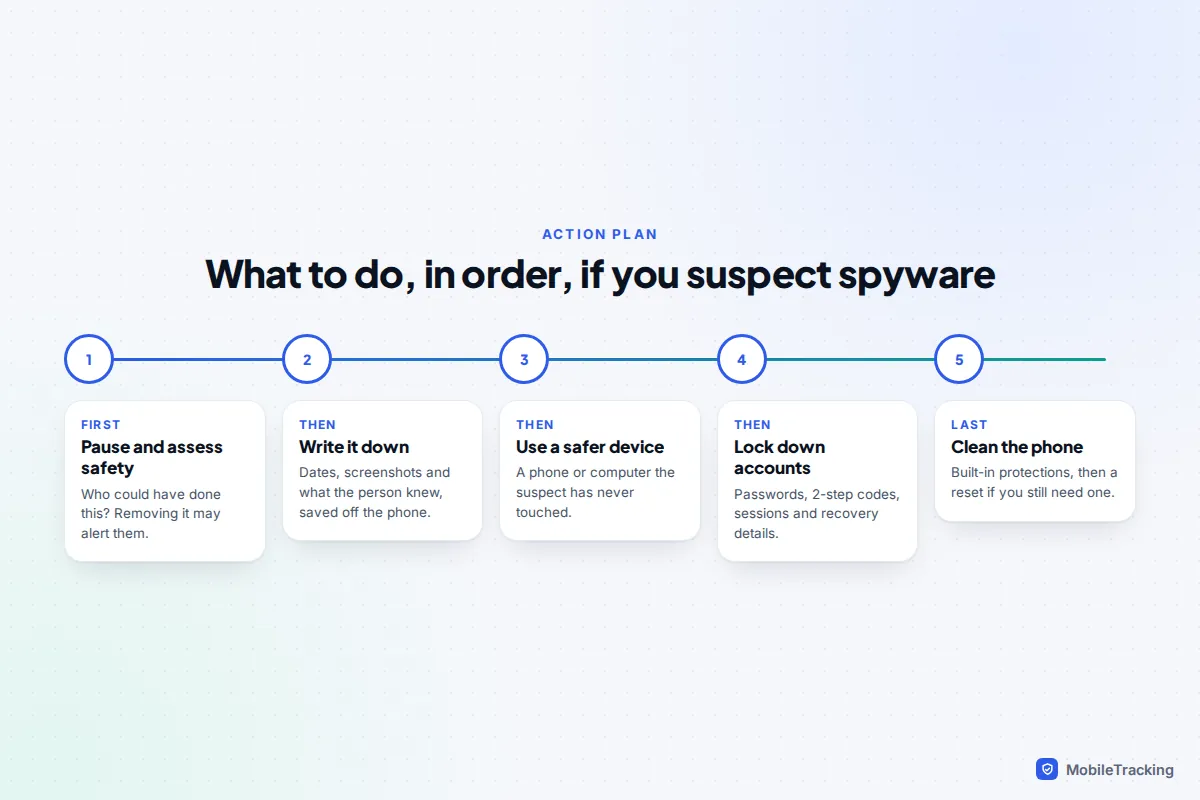
Step 1: Pause and work out who could be behind it
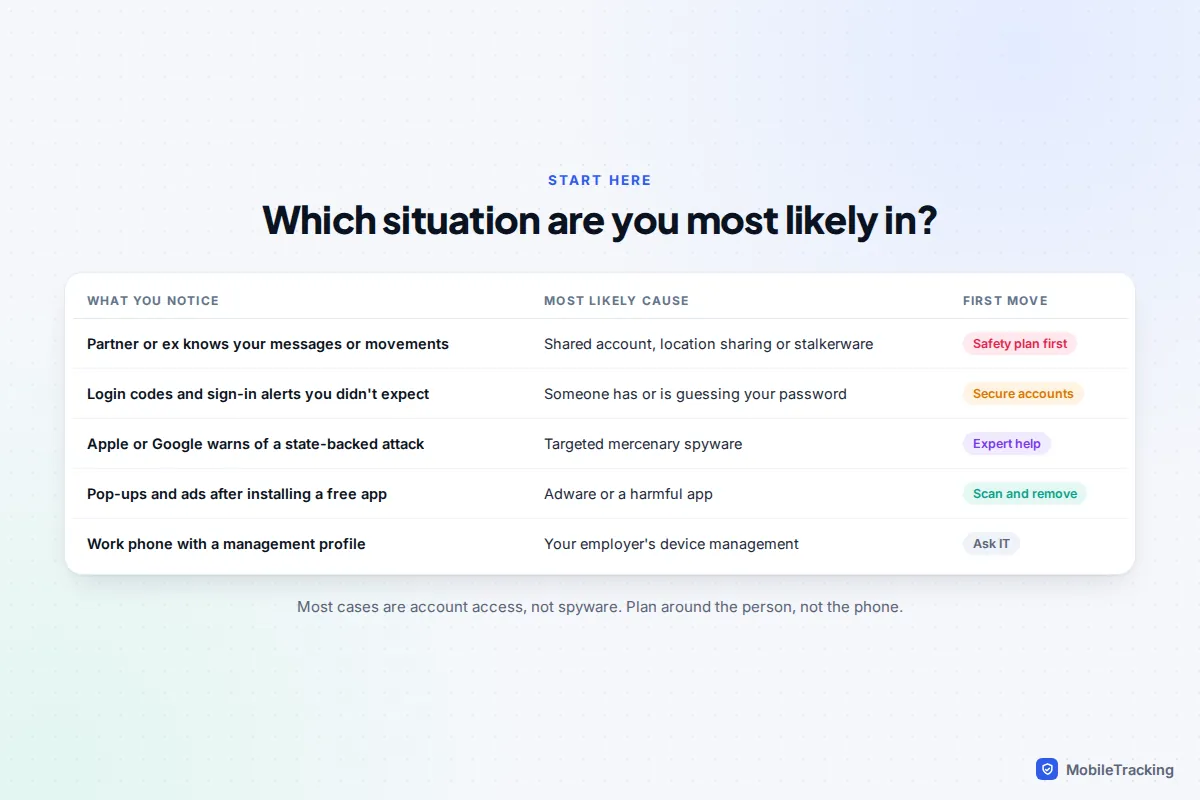
Spyware is a word people use for very different problems, and each one has a different first move. Most people who feel watched are dealing with someone who knows their password, shares a family plan or has location sharing turned on, not with hidden software. Genuine stalkerware is almost always installed by someone who had your unlocked phone in their hands, usually a partner, ex or family member.
| What you are seeing | Most likely cause | Your first move |
|---|---|---|
| A partner or ex knows what you said in messages or where you went | Shared account, location sharing or stalkerware | Safety plan before changing anything |
| Sign-in codes or “new device” emails you didn’t ask for | Someone has, or is guessing, your password | Secure accounts today (Step 4) |
| A threat notification from Apple, or a similar warning from Google | Targeted, state-backed “mercenary” spyware | Expert help before erasing anything |
| Pop-ups, redirects or ads after installing a free app | Adware or a harmful app | Scan and remove the app |
| A work phone with a management profile | Your employer’s device management | Ask IT what it can see |
If the answer to “who?” is someone you live with, share children with or are afraid of, treat this as a safety problem first and a tech problem second. The US Federal Trade Commission warns that an abuser who monitors your phone may escalate if they suspect you are cutting off their access. That doesn’t mean you have to live with it. It means you plan the timing, ideally with a specialist support worker.
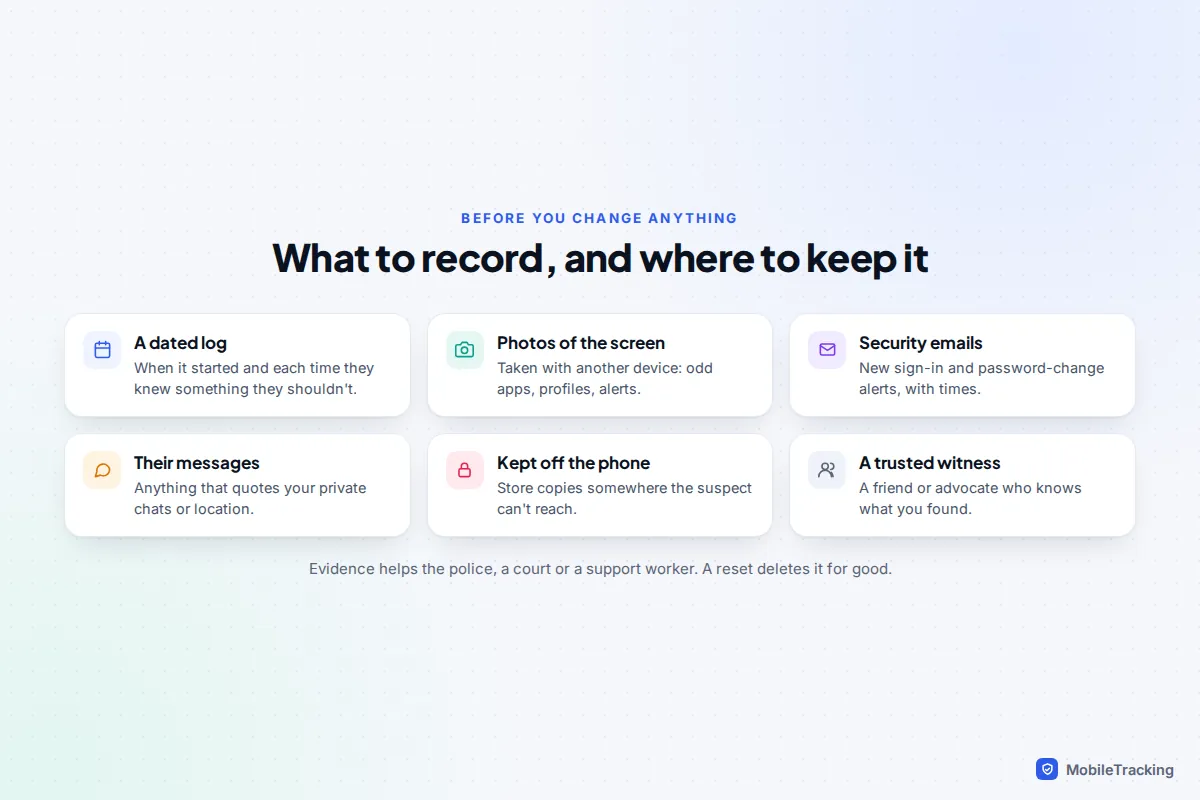
Step 2: Write down what you have noticed
Evidence is easy to lose. A factory reset wipes the app, its settings and any trace of when it was installed. If you later want a protective order, a police report or help from a forensics expert, notes and screenshots made now are what they will ask for.
- Keep a dated log. When did it start? List each time the person knew something they shouldn’t, and what it was.
- Photograph the screen with another device. Capture unfamiliar apps, device admin or accessibility entries, profiles and security warnings. Screenshots taken on the suspect phone may be seen by the spyware.
- Save security emails. “New sign-in” and “password changed” alerts carry times and approximate locations.
- Keep their messages that quote your chats, photos or whereabouts.
- Store copies somewhere they can’t reach, such as a new email account opened on a safer device, or with a trusted friend.
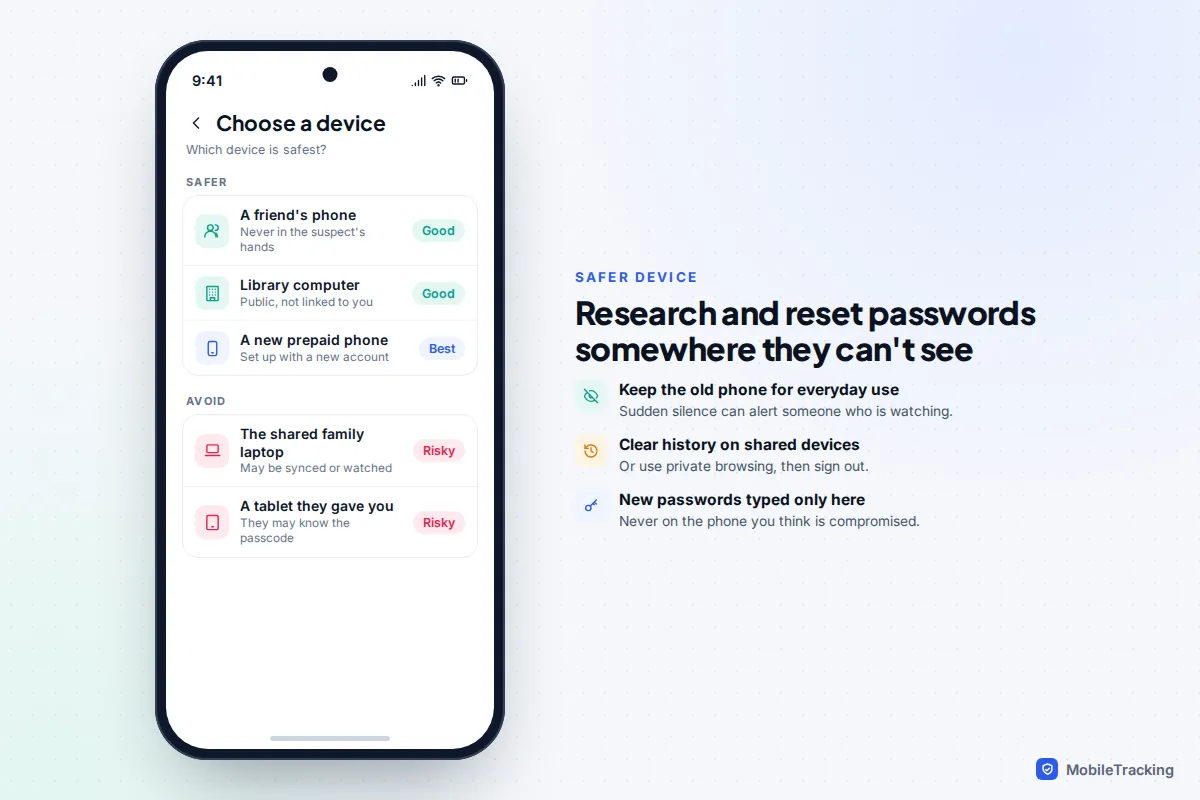
Step 3: Switch to a device nobody else has touched
If your phone is compromised, anything you type on it may be seen, including new passwords and searches for help. Do your research, and every password change in Step 4, on a device the suspect has never used: a friend’s phone, a library or work computer, or a cheap new phone set up with a brand-new account.
Avoid the shared family laptop, a tablet they bought you or any computer where you are already signed in to the same accounts, because those may be synced or watched too. Many people keep using the monitored phone for ordinary, harmless things while they get organised, because a phone that suddenly goes quiet can raise suspicion.
Step 4: Lock down your accounts from the clean device
Account access is how most “spying” really happens, and it survives a factory reset. So secure accounts before you touch the phone, working in this order:
- Email first. Whoever controls your email can reset every other password. Change it to a long, new password nobody has seen.
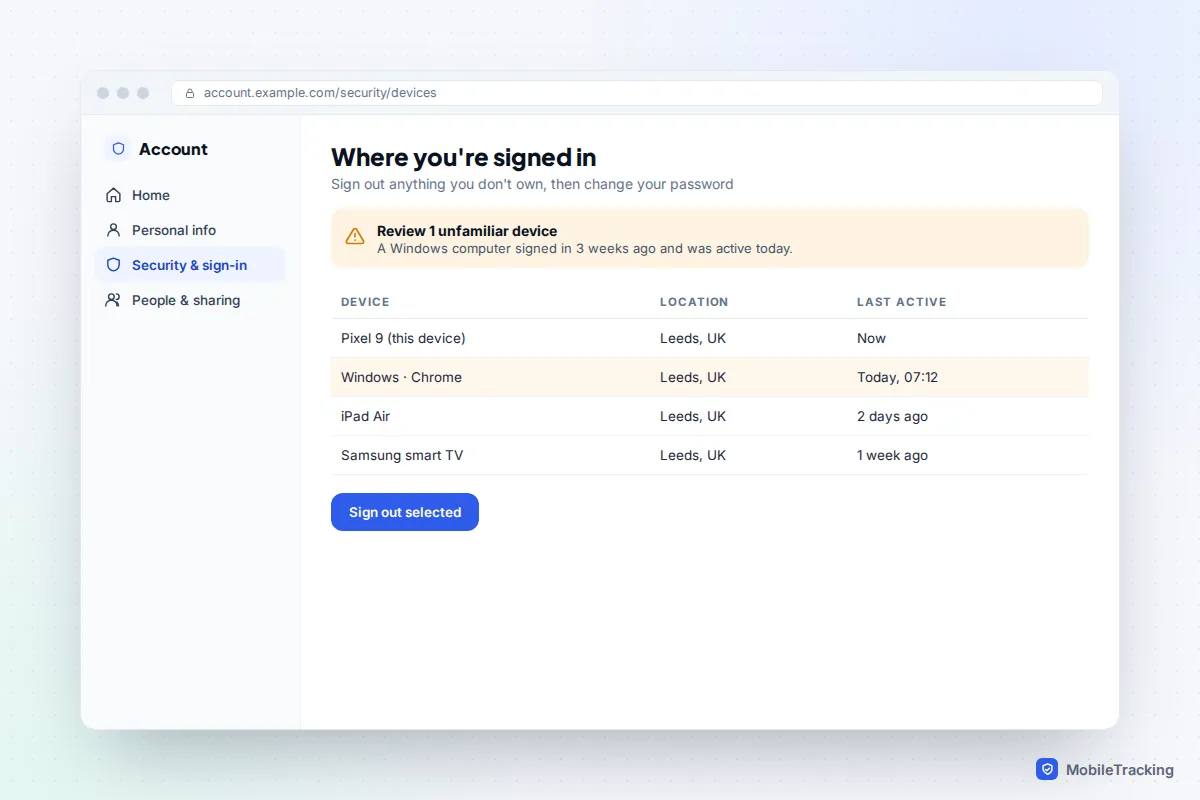
- Your Apple Account or Google Account. Change the password. On iPhone, open Settings, tap your name and scroll to the device list; remove anything you don’t own. For Google, go to myaccount.google.com, then Security & sign-in, then Manage all devices under Your devices. Our guides to checking who has access to your iCloud and seeing devices logged into your Google account cover both lists in detail.
- Two-step verification. Turn it on, then check where the codes go. A trusted phone number or authenticator app that isn’t yours lets someone approve sign-ins as you. On iPhone this is under Settings, your name, Sign-In & Security.
- Sign out other sessions. Changing a Google password signs you out almost everywhere, but Google lists exceptions: devices used to verify sign-ins, some third-party apps and smart home devices. Check the device list again afterwards.
- Recovery details. Replace any recovery email, recovery phone or recovery contact that the other person could control.
- Linked devices in apps. WhatsApp, Signal, Telegram and Messenger can all run on a second computer. Check each app’s linked devices list.
Also think about who pays for or manages your phone. If someone else is the Family Sharing organiser, owns the contract or bought the phone with their account, they may see more than you expect. Setting up two-step verification everywhere is a big job, and our guide to turning on two-factor authentication everywhere takes you through it account by account.
Step 5: Use the phone’s own protections
iPhone: Safety Check
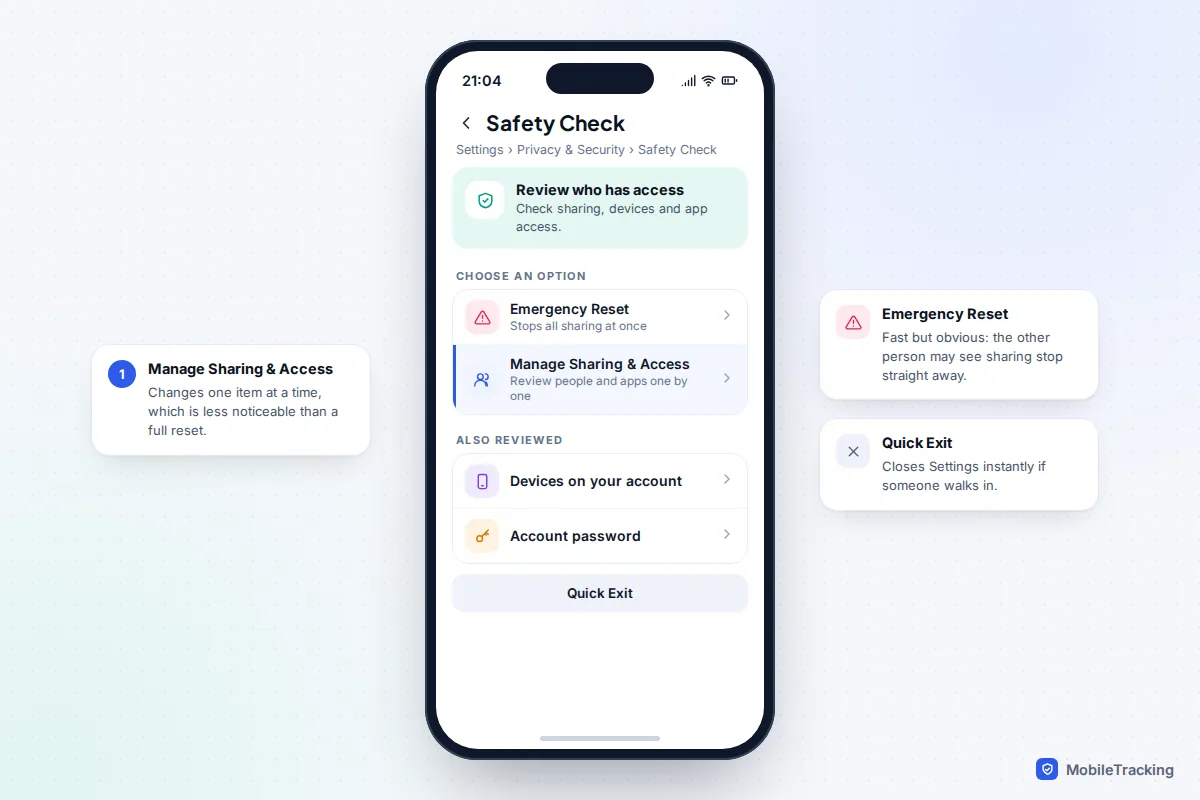
Go to Settings, Privacy & Security, Safety Check (iOS 16 and later). Manage Sharing & Access lets you review, one at a time, who can see your location, photos and notes, which apps can use the camera, microphone and location, and which devices are signed in. Emergency Reset stops all of it at once, which is quick but very noticeable. The Quick Exit button closes Settings immediately if someone walks in.
If Apple says you have been targeted
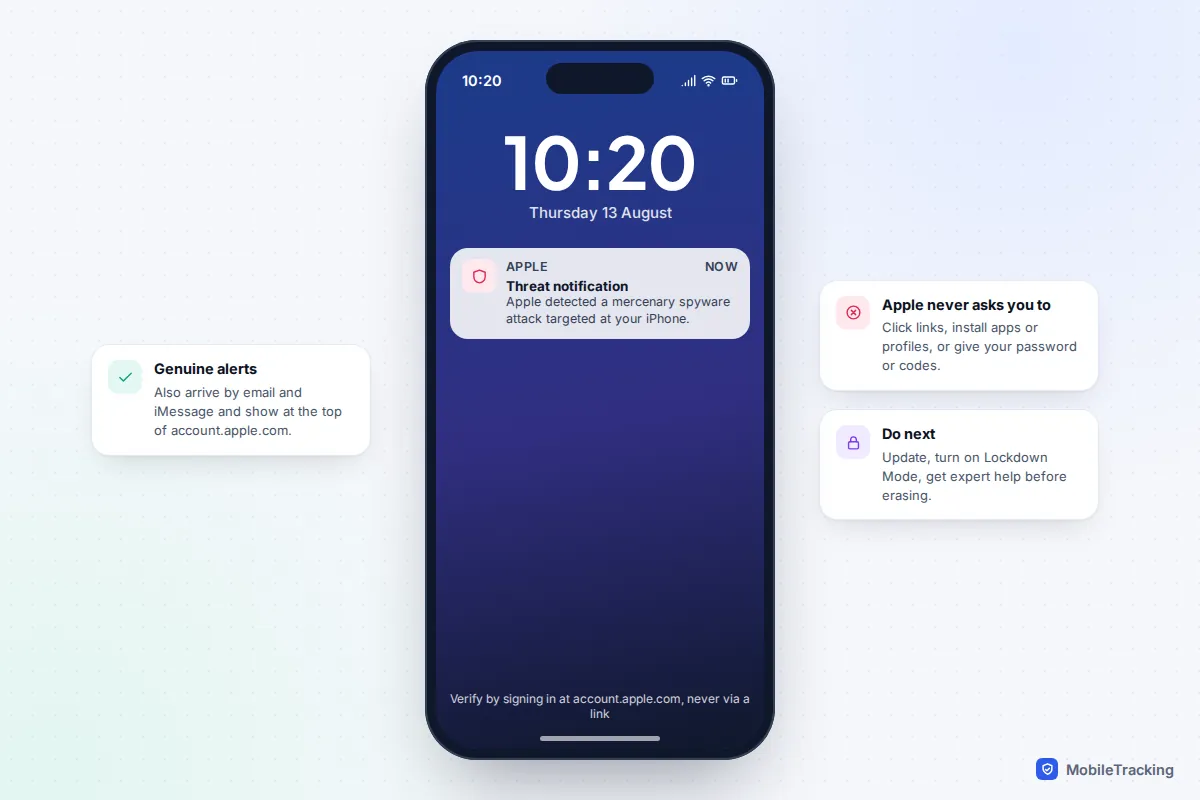
Apple sends threat notifications to people it believes have been individually targeted by mercenary spyware, the expensive, government-grade kind used against journalists, activists, lawyers and politicians. Since 2021 Apple has sent them to people in more than 150 countries. They arrive by email and iMessage, appear at the top of the page when you sign in at account.apple.com, and recent rounds have also shown as an alert on the iPhone itself.
Apple says these notifications never ask you to click links, open files, install apps or profiles, or give your password or verification codes. So never act on a link in the message: sign in at account.apple.com yourself to confirm it. If it’s genuine, update the phone, don’t erase it (a reset destroys the evidence investigators need) and contact an expert helpline, covered in Step 7.
iPhone: Lockdown Mode
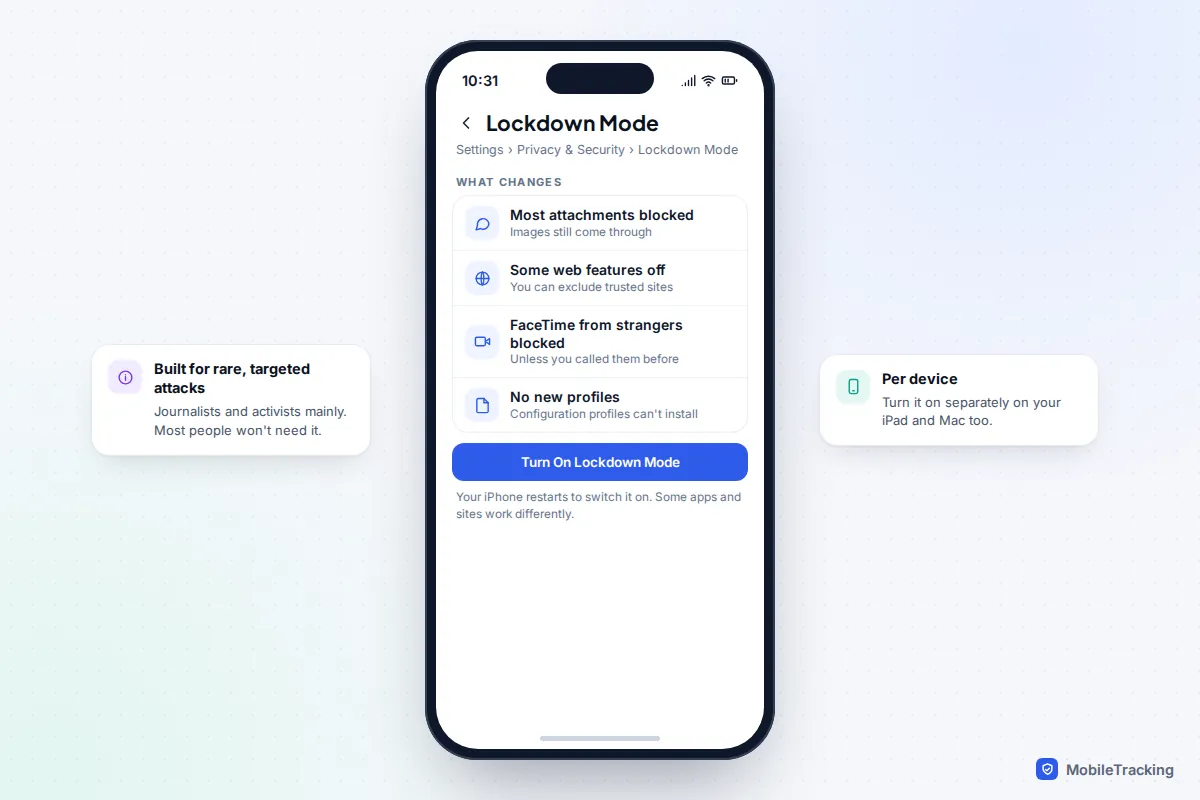
Lockdown Mode is Apple’s extreme protection for people facing targeted attacks. Turn it on in Settings, Privacy & Security, Lockdown Mode, then Turn On Lockdown Mode; the phone restarts. It blocks most message attachments other than images, switches off some web technologies, blocks FaceTime calls from people you haven’t called before and stops configuration profiles being installed. It is set per device, so turn it on for your iPad and Mac too. Most people being watched by a partner won’t need it, because their problem is account access or physical access, not a remote exploit.
Android: Play Protect and Advanced Protection
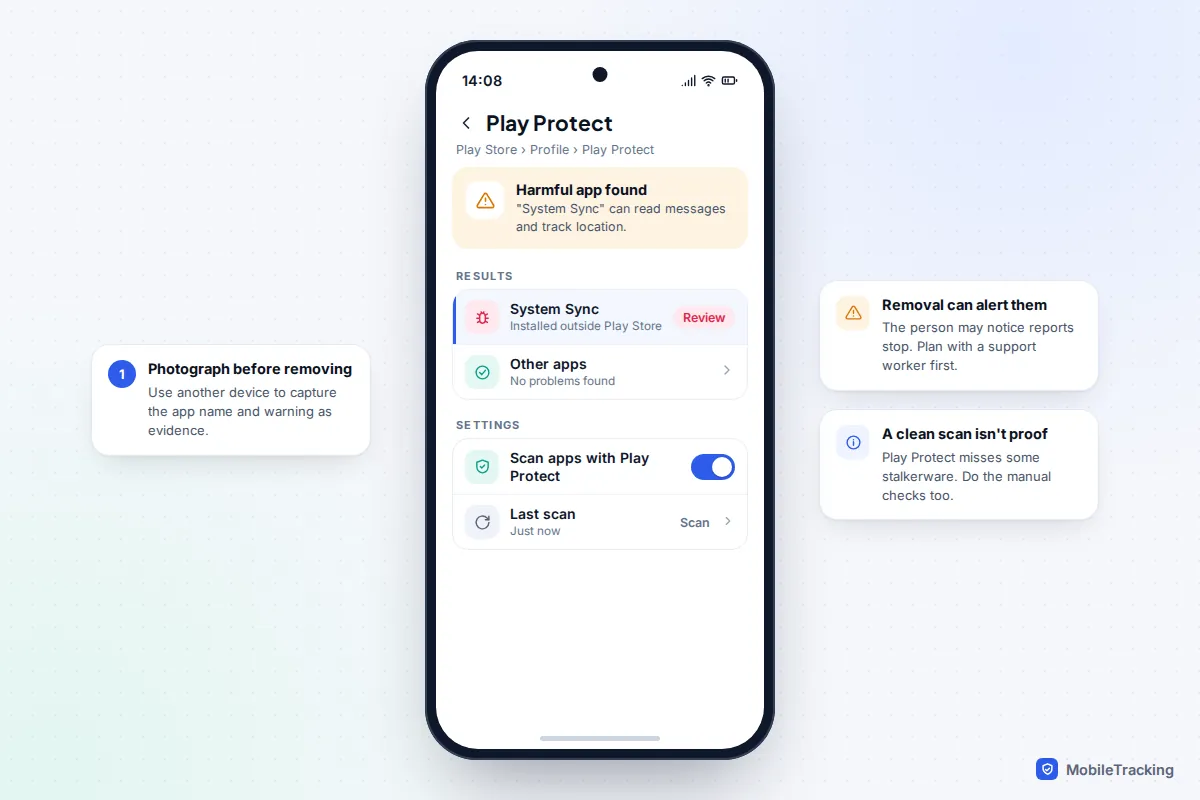
Open the Play Store, tap your profile picture, choose Play Protect and tap Scan. Check that Scan apps with Play Protect is switched on in its settings. If it flags an app, photograph the warning with another device before you remove anything. A clean result is reassuring but not proof, because independent tests have found Play Protect misses some stalkerware.
On Android 16 and later, Settings, Security & privacy, Advanced Protection, then Device protection turns on Google’s strongest settings. It blocks installing apps from outside the Play Store, keeps Play Protect on and blocks 2G connections. It stops new sideloaded apps; it doesn’t remove anything already installed.
Step 6: Factory reset, and restore without reinstalling it
A factory reset removes apps and profiles installed on the phone, including stalkerware. It is worth doing when you found something you can’t explain, when you can’t tell whether an app is harmful, or when someone had your unlocked phone for a long time. Skip it if your checks came back clean and nobody else has had your phone, because securing accounts fixes most real cases. Don’t reset yet if you have an Apple threat notification or might need the phone examined by police; ask the experts first.
The reset itself is simple: on iPhone, Settings, General, Transfer or Reset iPhone, Erase All Content and Settings. On a Pixel, Settings, System, Reset options, Erase all data. On a Samsung, Settings, General management, Reset, Factory data reset. The risky part is what comes back afterwards.
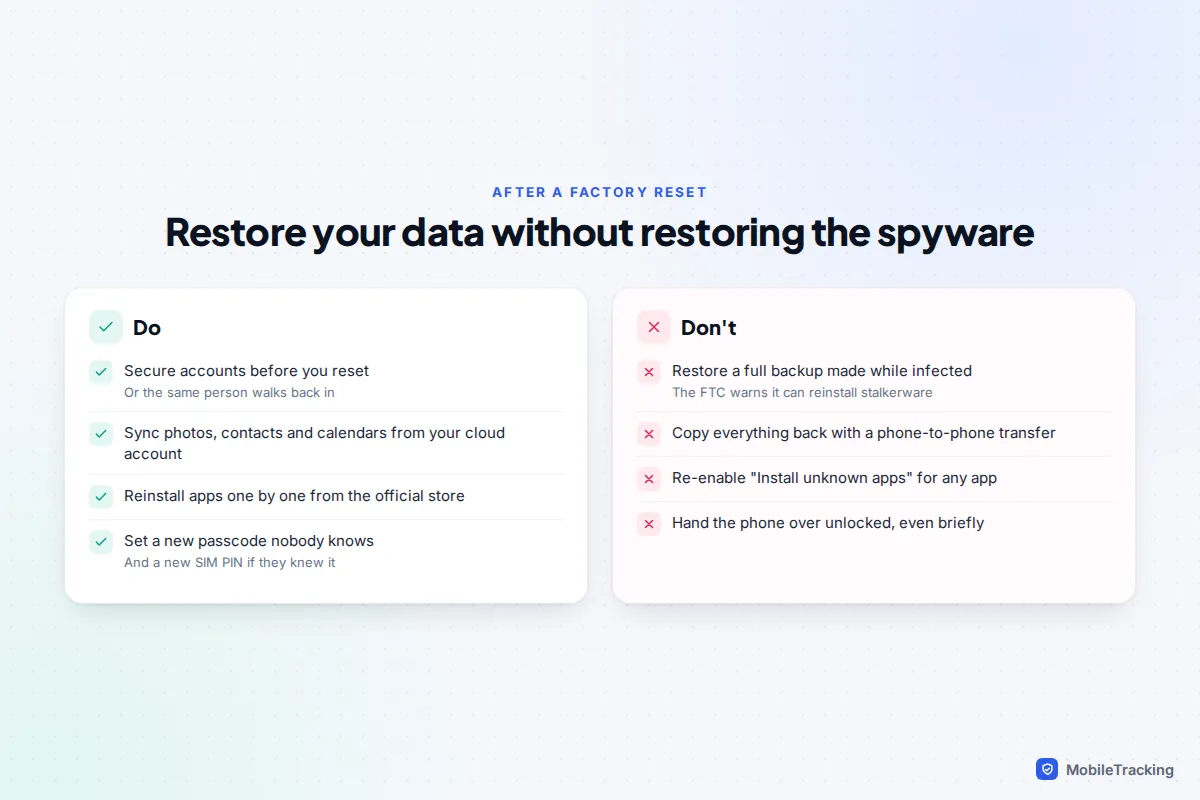
- Don’t restore a full backup of the phone as it was. The FTC warns that reinstalling apps from an old backup can reinstall the stalkerware. The same goes for a phone-to-phone transfer or a computer backup made while the phone was compromised.
- Do bring back your data from the cloud. Once you are signed in to your secured account, photos, contacts, calendars and notes sync down on their own.
- Reinstall apps one at a time from the App Store or Play Store. On iPhone, choose Don’t Transfer Anything when setup asks about apps and data; on Android, skip copying apps from a backup or old device.
- Set a new passcode that nobody else knows, and don’t hand the phone over unlocked. If the same thing appears again after a clean reset, suspect account access or renewed physical access rather than the reset failing.
Step 7: Get the right kind of help
You don’t have to do this alone. Specialist services deal with phone monitoring every day and can help you plan the timing so that removing spyware doesn’t put you at risk.
- US: The National Domestic Violence Hotline, 1-800-799-7233, text START to 88788, or chat online.
- UK: the National Domestic Abuse Helpline, run by Refuge, free on 0808 2000 247, 24 hours a day.
- Anywhere: the Coalition Against Stalkerware at stopstalkerware.org lists support services by country and explains safe next steps.
- Journalists, activists and human rights defenders: Access Now’s Digital Security Helpline ([email protected]) is free, runs 24/7 in ten languages and can arrange forensic analysis. It checks that you work in civil society before it helps.
- Police: call 999 in the UK or 911 in the US if you are in danger now; 101 is the UK non-emergency number. Installing spyware on another adult’s phone without consent is generally a crime, and your notes from Step 2 will help.
For planning a longer exit, including keeping a decoy phone, our guide to protecting your phone in an abusive situation goes into more detail.
A real-world example, and the mistakes to avoid
Take Sam, whose ex kept mentioning places Sam had been. Sam’s first instinct was to delete a strange app and reset the phone that night. Instead, Sam photographed the app with a friend’s phone, called a helpline, and changed the Google password from a library computer. The device list showed the ex’s old tablet still signed in. Signing it out stopped the location leaks, and the phone reset happened a week later, with a support worker’s plan in place.
The most common mistakes follow the same pattern:
- Resetting the phone before securing accounts, so the same person gets straight back in.
- Changing passwords on the compromised phone, where they can be seen.
- Confronting the suspect before you have evidence or a plan.
- Paying for a “spyware removal” app or service found through an advert. Built-in tools are enough for most people.
- Restoring the full old backup after a reset and bringing the problem back.
Frequently asked questions
Will turning my phone off stop spyware?
It stops it while the phone is off, but ordinary stalkerware starts again when you switch back on. A restart may clear some advanced spyware that only lives in memory, which is one reason security experts suggest restarting regularly, but it is not a fix on its own.
Should I just buy a new phone?
A new phone helps only if your accounts are secured first and you set it up as new rather than restoring the old phone’s backup. Otherwise the same account access, or the same restored app, comes with you.
Can someone put spyware on my phone without touching it?
Commercial stalkerware nearly always needs physical access to an unlocked phone. Remote, no-click infections do exist, but they rely on costly exploits used against a small number of targeted people. For everyone else, account access is the realistic remote risk.
Will the person know if I remove it?
Possibly. Once it is gone, the reports they were getting simply stop, and an attentive installer will notice within hours or days. That is why safety planning comes before removal when the person could be dangerous.
Is a security app worth paying for?
A reputable security app from a well-known vendor can give a useful second opinion, especially on Android. Avoid unknown “anti-spy” apps that promise to find everything; no scanner catches every sample, so the manual steps above still matter.
This guide is general information, not legal or financial advice. Read our editorial policy.