
On a Pixel or other phone running recent stock Android, open Settings › Modes › Bedtime, set a schedule (or choose to turn it on while charging), and pick what it does to the screen, such as greyscale and a dimmed wallpaper. If your phone has no Modes menu, the same feature lives in Settings › Digital Wellbeing & parental controls › Bedtime mode. On a Samsung Galaxy, it is called Sleep and sits in Settings › Modes and Routines.
Bedtime mode silences notifications, drains the colour from your screen and can switch off the always-on display, so your phone becomes quieter and duller at night. It doesn’t lock any apps. That makes it a good nudge for adults and older teens, but not a control for younger children, who need Family Link downtime instead. Below you’ll find the setup for each type of phone, how to make sure alarms and important calls still get through, and fixes for when it doesn’t behave.
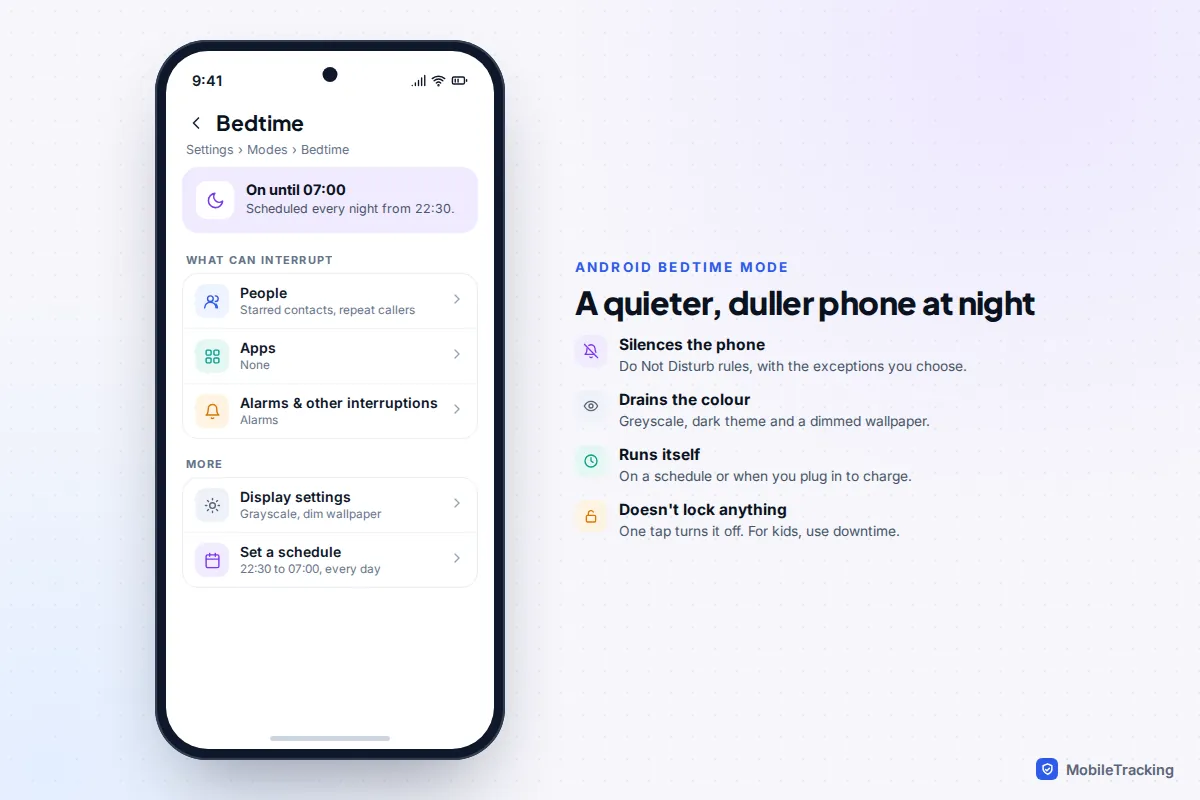
What Bedtime mode does, and what it doesn’t
Bedtime mode started life as Wind Down in Android 9 and has been renamed and moved a few times since. The idea hasn’t changed: at a set time, your phone gets less interesting and less noisy. It combines several settings you could switch on separately.
| Setting | What it does at bedtime | Worth turning on? |
|---|---|---|
| Do Not Disturb | Silences calls and notifications except the exceptions you allow | Yes, with starred contacts and alarms allowed |
| Greyscale | Turns the whole screen black and white | Yes, it’s the part that curbs late scrolling |
| Dim the wallpaper | Darkens the wallpaper and lock screen | Yes, no downside |
| Dark theme | Switches to dark theme only while Bedtime is on | Yes, if you use a light theme by day |
| Keep the screen dark | Turns off the always-on display | Yes, if the clock glow bothers you |
| Turn off Bedtime at next alarm | Ends the mode when your alarm rings | Yes, if your wake time varies |
What it doesn’t do matters just as much. It won’t block apps, it won’t stop you turning it off, and it doesn’t track your sleep on its own. Pixel phones can add sleep data through the Clock app, but that’s optional. If you want apps to actually stop working, you need a stricter tool, which we cover in the section on children and teens below.
How to set up Bedtime mode on a Pixel or stock Android
Since Google’s March 2025 update for Android 15, Pixel phones group Do Not Disturb, Bedtime and Driving under one menu called Modes. Android 16 kept the same layout. Here’s the route:
- Open Settings and tap Modes.
- Tap Bedtime. If it’s your first time, you’ll be asked to set it up.
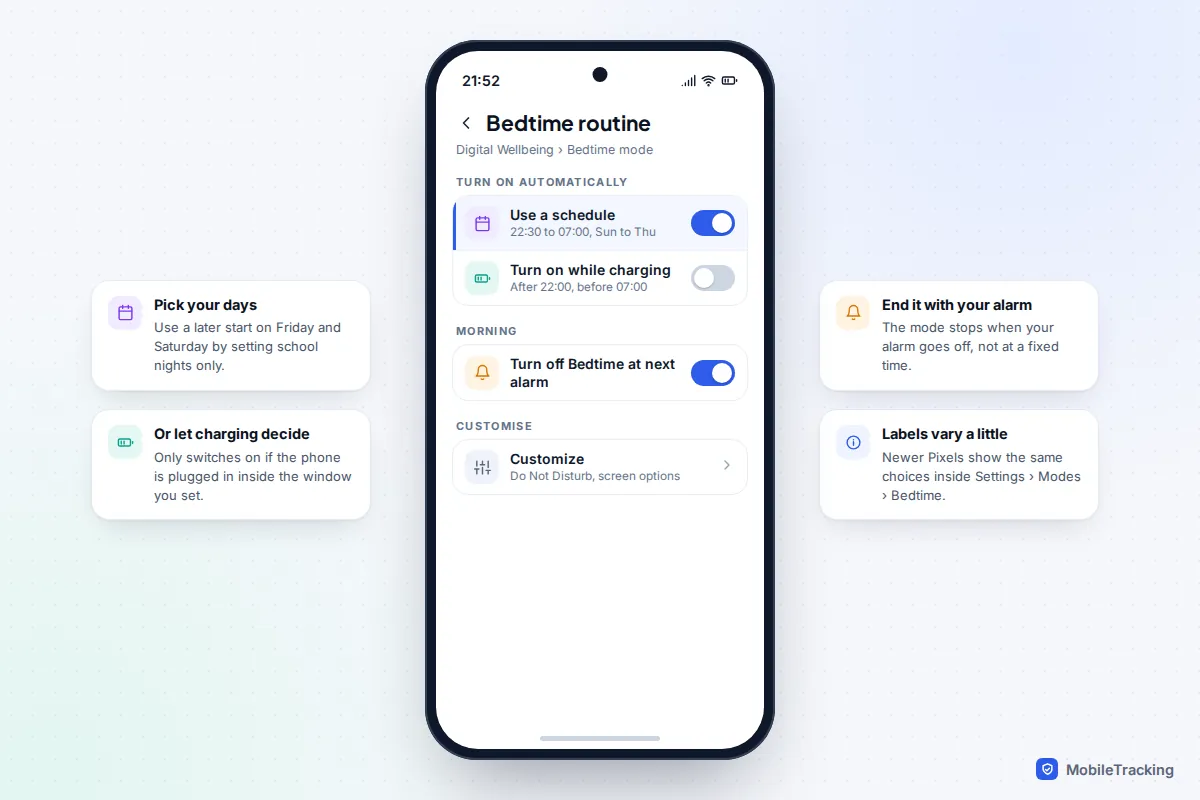
- Choose when it turns on: a schedule with start and end times and days, or while charging within a time window.
- Under People, choose who can still reach you. Starred contacts are a sensible default.
- Under Apps and Alarms & other interruptions, make sure Alarms is allowed.
- Open Display settings and switch on greyscale, dim the wallpaper and dark theme if you want them.
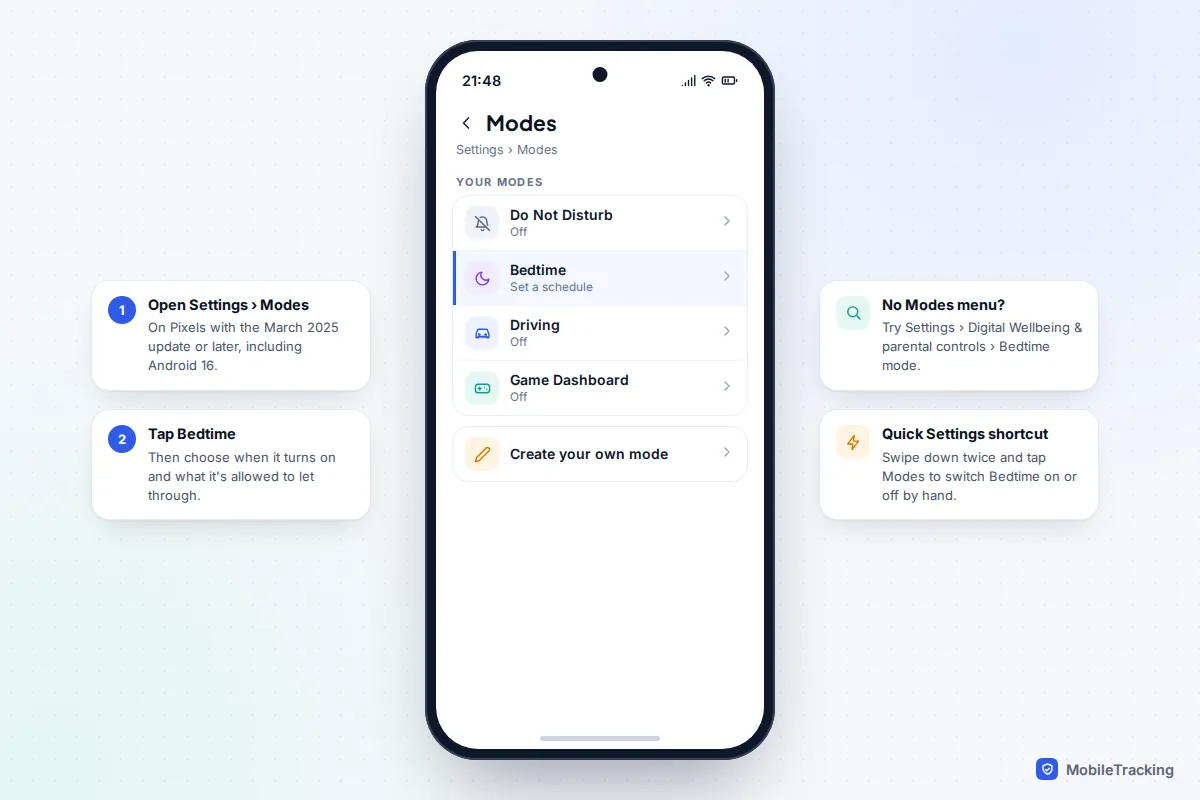
To switch it on or off by hand, swipe down twice from the top of the screen and tap the Modes tile, then Bedtime. You can also reach the schedule from the Clock app’s Bedtime tab, which ties it to your wake-up alarm and adds extras such as a sunrise alarm that slowly brightens the screen.
Phones without the Modes menu
Motorola, Nokia, OnePlus and older Pixels may still use Google’s Digital Wellbeing layout. Go to Settings › Digital Wellbeing & parental controls › Bedtime mode, then Bedtime routine, and pick Use a schedule or Turn on while charging. Tap Customize for Do Not Disturb and the screen options. Some manufacturers rename or hide it, so if you can’t find it, search Settings for “bedtime”.
Schedule or charging: which trigger should you use?
The schedule is the simple choice: it switches on at the same time every night on the days you pick. The charging trigger is cleverer. You set an “after” and “before” time, say 22:00 and 07:00, and Bedtime only starts once the phone is plugged in inside that window.
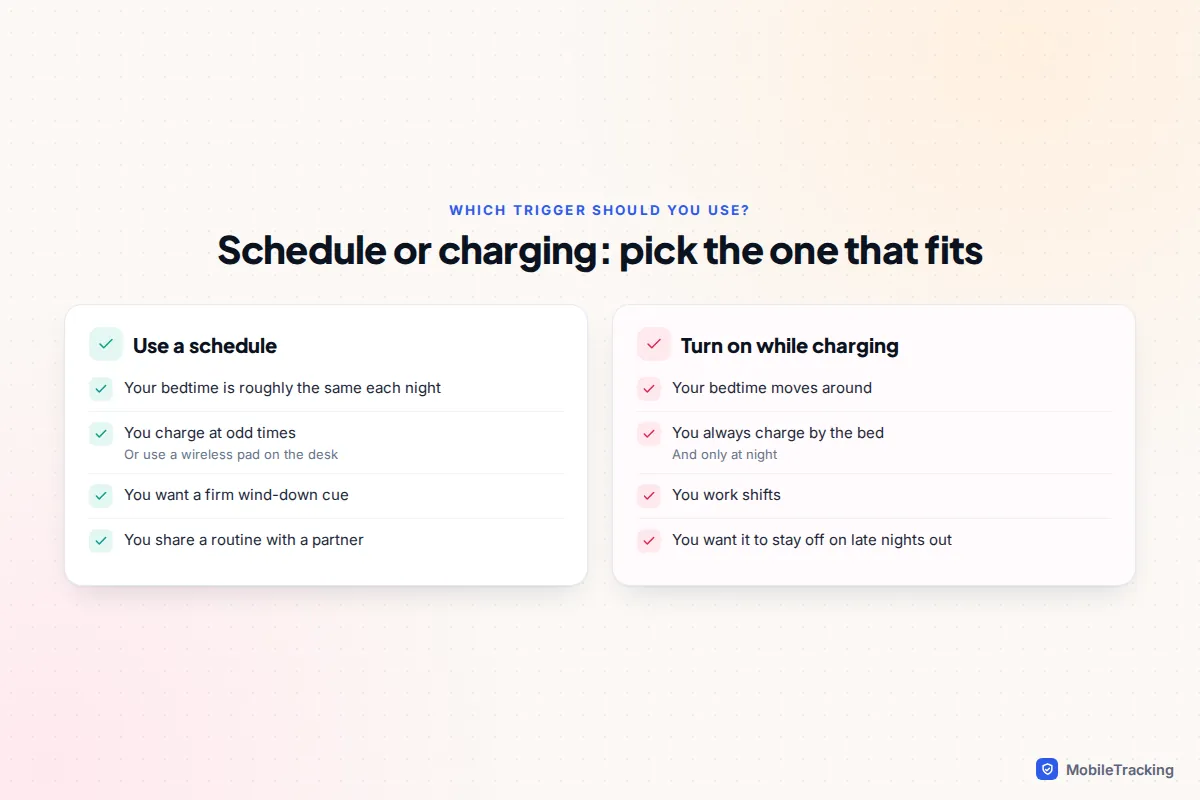
A real-world example: Priya works a mix of early and late shifts. A fixed 22:30 schedule kept silencing her phone during the drive home after a late shift, so she switched to “while charging” between 21:00 and 08:00. Now Bedtime starts when she plugs in by the bed, whatever time that is. The catch is that scrolling in bed before plugging in doesn’t count, so if late-night scrolling is the problem you want to fix, a schedule is the stricter choice.
Customise the screen: greyscale, dark theme and dimming
The screen options are what turn Bedtime from “silent mode” into something that actually helps you put the phone down. Greyscale is the most effective: photos, video thumbnails and red notification badges lose most of their pull when they’re grey.
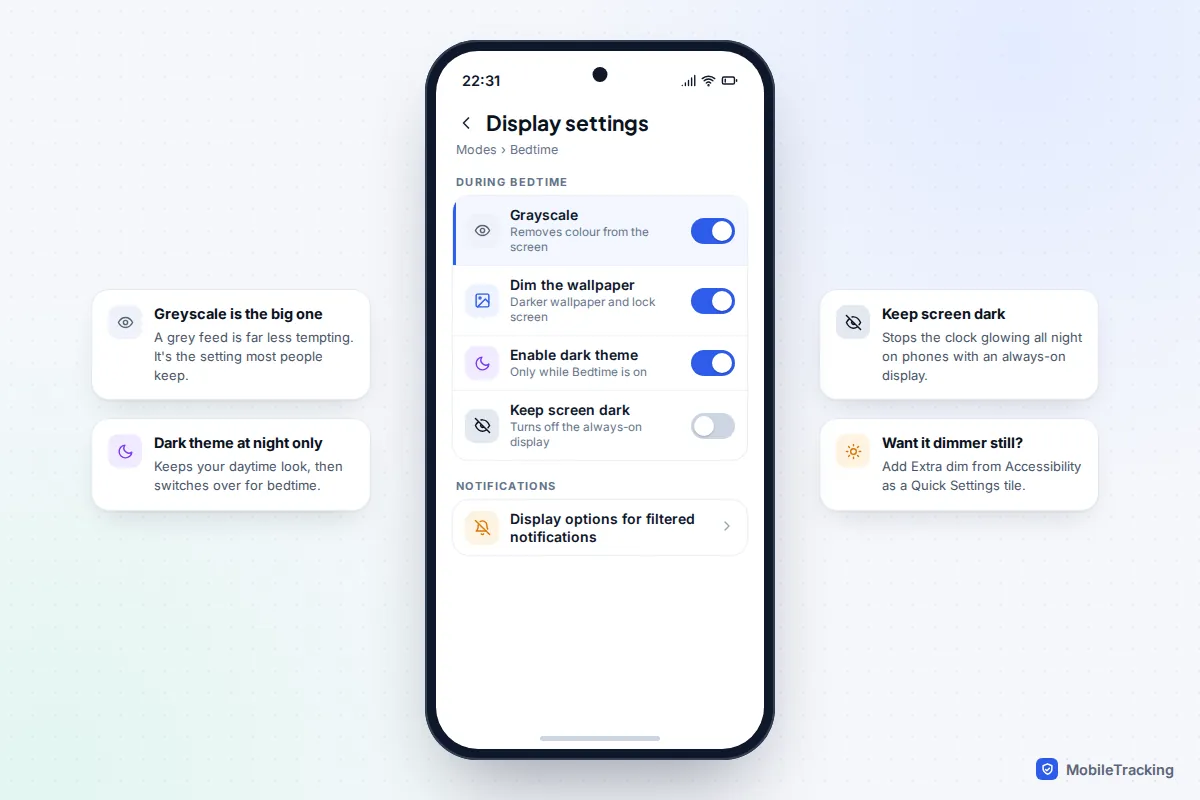
- Greyscale: removes all colour. You can still read and reply to messages normally.
- Dim the wallpaper: darkens the wallpaper and lock screen so the phone is less bright when you glance at it.
- Dark theme: switches system screens and supported apps to dark backgrounds, only while Bedtime is on.
- Keep the screen dark: switches off the always-on display, so the clock doesn’t glow all night.
If the screen is still too bright for reading at night, Android has a separate Extra dim setting that goes below normal minimum brightness. On most phones it’s in Settings › Accessibility, and you can add it as a Quick Settings tile.
How to use Sleep mode on a Samsung Galaxy
Samsung builds its own version into Modes and Routines. It was called Bedtime mode or Wind Down on older One UI versions. On One UI 7 and 8 it works like this:
- Open Settings › Modes and Routines and tap Sleep.
- Tap Start if it’s your first time, then set your sleep and wake-up times and choose the days.
- Set Do not disturb and choose which calls, messages and apps can still get through.
- Choose extras: turn off Always On Display, and switch on Grayscale, Dark mode and Eye comfort shield. You can also change the sound mode or turn on power saving.
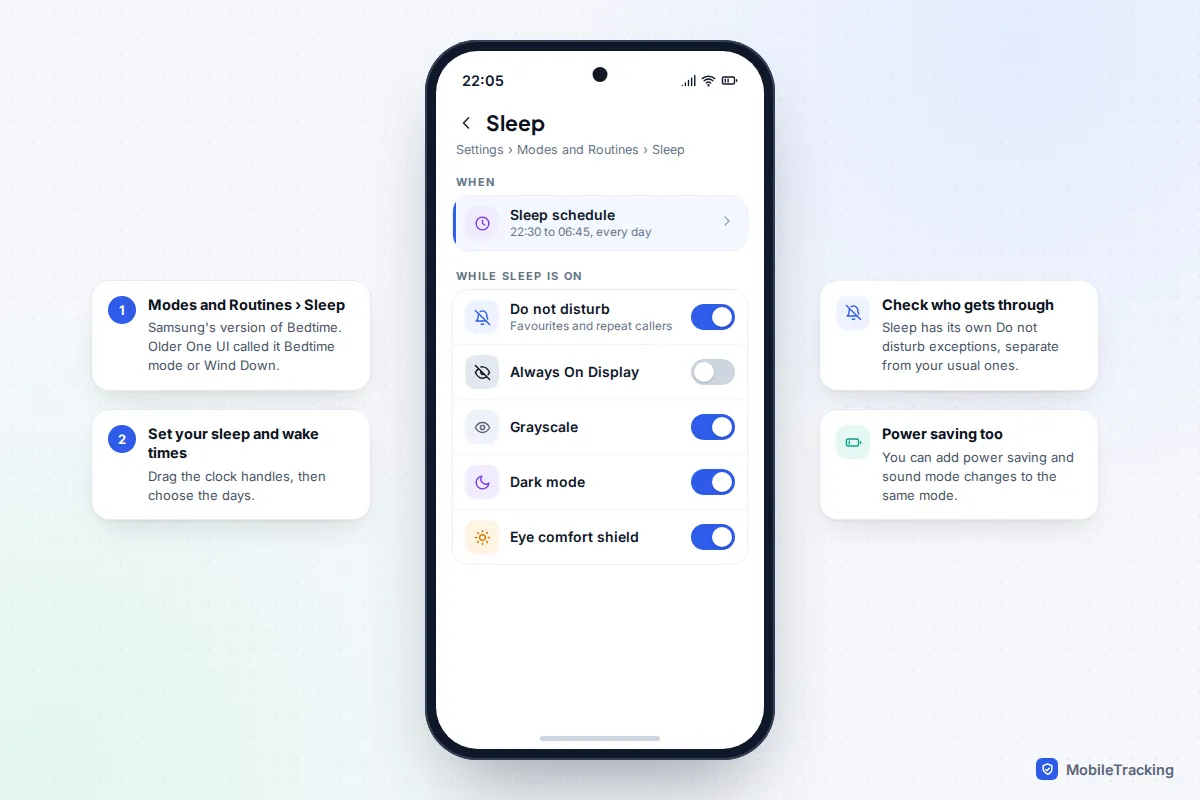
That last point catches people out. Sleep mode’s Do not disturb exceptions can differ from the ones in Settings › Notifications › Do not disturb, so check both. You can also start Sleep by hand from the Modes button in Quick Settings.
Make sure alarms and important calls still get through
The biggest worry with any night-time silence is missing the call that matters: a teenager stuck at a station, or an elderly parent who’s had a fall. Android handles this with two exceptions that work in Bedtime, Sleep and Do Not Disturb.
- Starred contacts: in the Contacts app, open a person and tap the star. In Bedtime’s People settings, allow calls (and messages, if you like) from starred contacts. Samsung calls them Favourites.
- Repeat callers: switch on Allow repeat callers and a second call from the same number within 15 minutes rings through, even if they’re not starred.
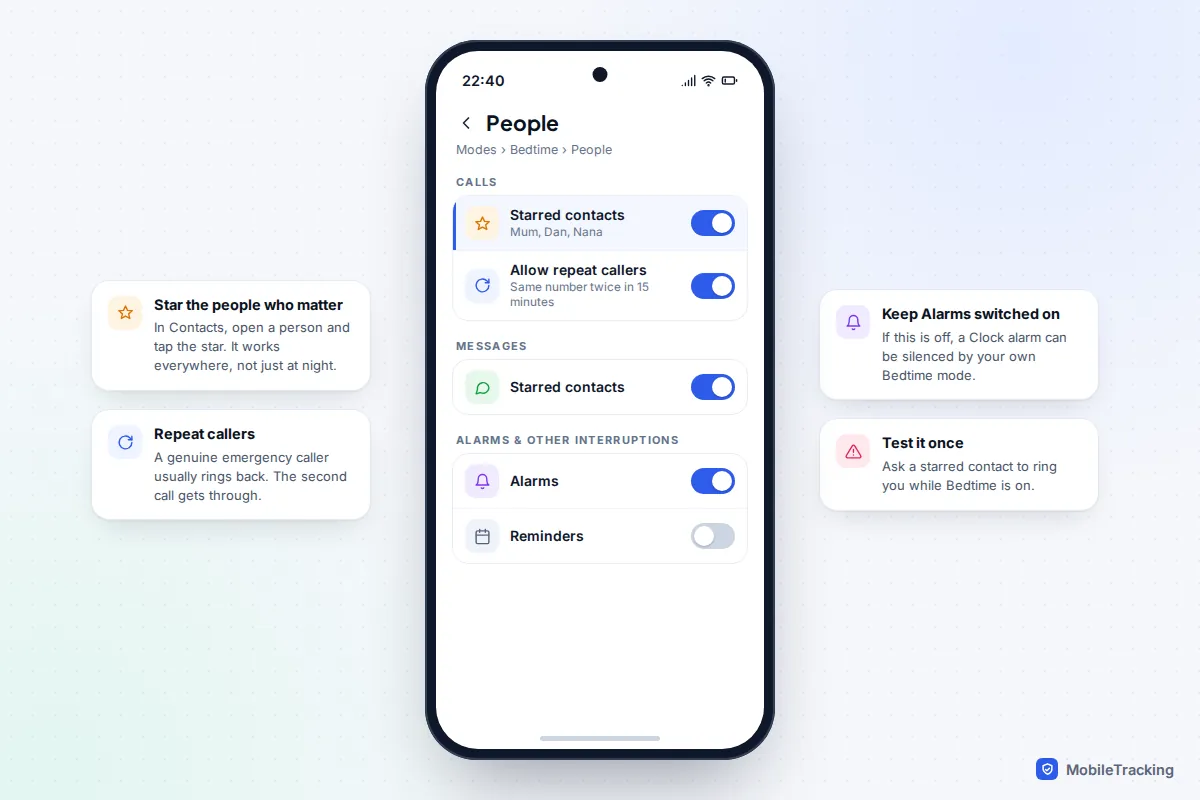
Alarms from the Clock app are allowed by default, but check that Alarms is still on under Alarms & other interruptions, especially if you’ve customised the mode. Then test it once: ask a starred contact to ring you while Bedtime is on, and set a test alarm two minutes ahead. Our guide to using Do Not Disturb the smart way goes deeper on exceptions.
Bedtime for children and teens
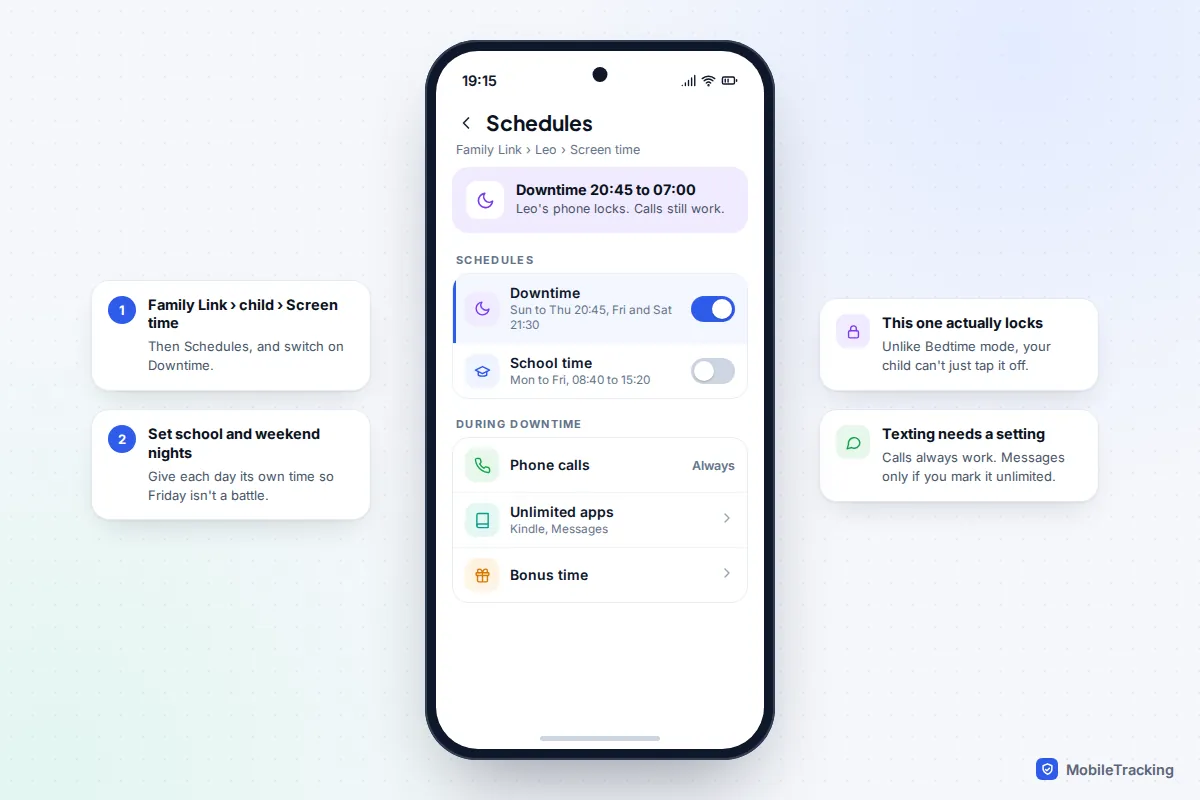
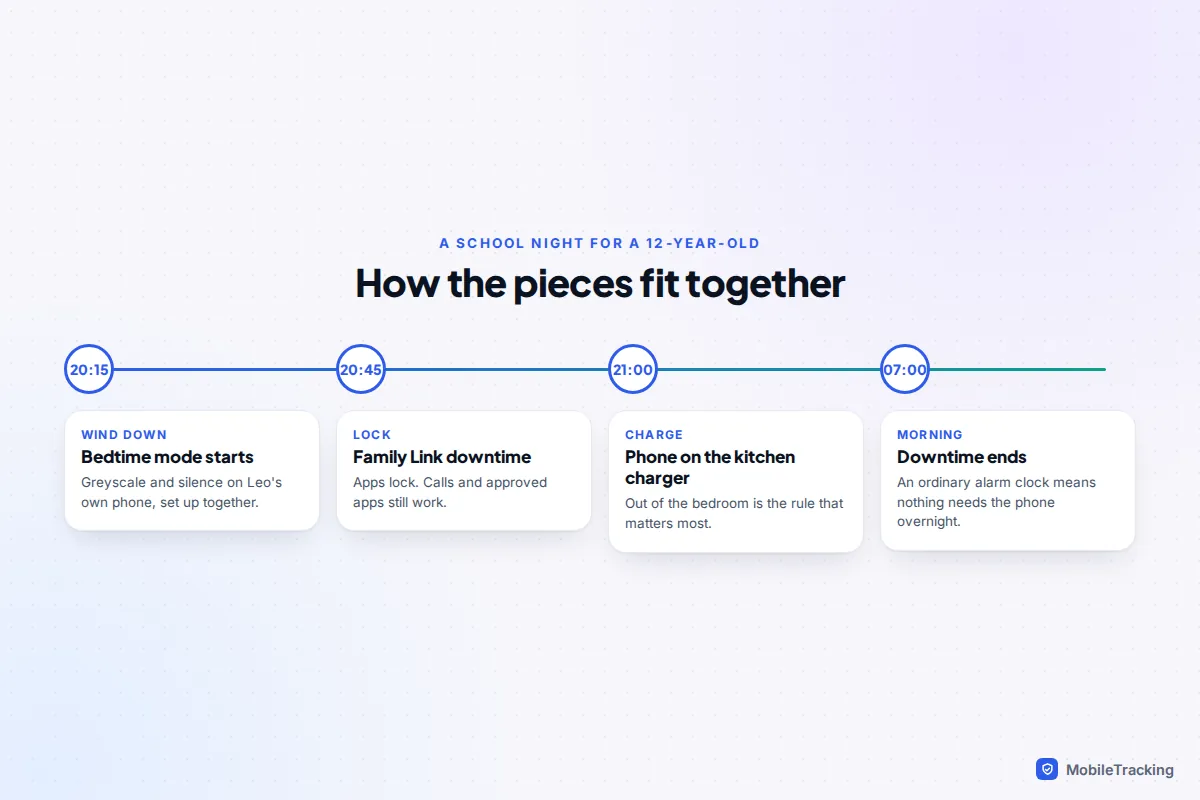
For a child’s phone, Bedtime mode on its own isn’t enough, because your child can turn it off with one tap. Use Google Family Link’s Downtime instead, which locks the phone at bedtime:
- Open the Family Link app on your phone and pick your child.
- Tap Screen time, then Schedules, and switch on Downtime.
- Set the times for each day, for example 20:45 on school nights and later at weekends.
- Decide which apps stay available. Phone calls always work during downtime; texting only works if the messaging app is set to unlimited time.
If you haven’t set Family Link up yet, start with our Google Family Link setup guide. For blocking specific apps at night rather than the whole phone, see how to block apps at bedtime.
Teenagers are different. A 15-year-old who is locked out at 21:00 will usually find a workaround, and the argument costs more sleep than it saves. What tends to work better is agreeing a time together, setting up Bedtime mode on their own phone with them, and charging phones outside bedrooms. That last rule is the one most sleep advice for teens agrees on, as we explain in phones and kids’ sleep. Google’s help pages now say a child under 18 needs a parent’s approval to stop Family Link supervision, which gives you room to loosen things gradually rather than all at once.
Troubleshooting Bedtime mode
| Symptom | Likely cause | Fix |
|---|---|---|
| Didn’t switch on while charging | You plugged in before the “after” time, or it’s set to schedule | Check the window; unplug and replug once the window has started |
| Alarm didn’t ring | Alarms blocked in the mode, or alarm volume at zero | Allow Alarms in the mode; check the alarm volume slider separately |
| Missed an important call | Caller isn’t starred, or Samsung Sleep uses different exceptions | Star the contact, allow repeat callers, check Sleep’s own settings |
| Screen still grey in the morning | End time later than your wake time | Turn on “Turn off Bedtime at next alarm” or move the end time |
| Can’t find Bedtime anywhere | Manufacturer renamed or hid it | Search Settings for “bedtime” or “sleep”; Samsung uses Sleep |
| Child keeps turning it off | Bedtime mode isn’t a lock | Use Family Link downtime instead |
If Bedtime mode switches on and off erratically, check you haven’t got two overlapping schedules: an old Do Not Disturb schedule and a new Bedtime one can fight each other. Google’s Digital Wellbeing help page lists the options for phones that use its layout.
Frequently asked questions
Does Bedtime mode stop my alarm from going off?
Not by default. Alarms are allowed through Bedtime and Do Not Disturb unless you’ve switched them off in the mode’s settings. If an alarm is silent, check both that setting and the separate alarm volume.
Is Bedtime mode the same as Do Not Disturb?
Bedtime includes Do Not Disturb but adds screen changes such as greyscale and a dimmed wallpaper, plus its own schedule. On newer Pixels both are Modes with their own settings, so exceptions in one don’t automatically apply to the other.
Can I use Bedtime mode to stop my child using their phone at night?
Not reliably, because it can be switched off with one tap. Family Link downtime locks the phone on a schedule and your child can’t turn it off, though calls still work.
Does greyscale save battery?
Not in any meaningful way on most phones. Its value is that a grey screen is less tempting to keep scrolling. Dark theme and keeping the always-on display off help the battery a little more on phones with OLED screens.
Why does my Samsung have Sleep mode instead of Bedtime mode?
Samsung builds its own version into Modes and Routines and calls it Sleep. It does the same job, with extras such as Eye comfort shield and power saving. Samsung Settings also has a Digital Wellbeing section, but on current One UI the bedtime features live in Sleep.
This guide is general information, not legal or financial advice. Read our editorial policy.