
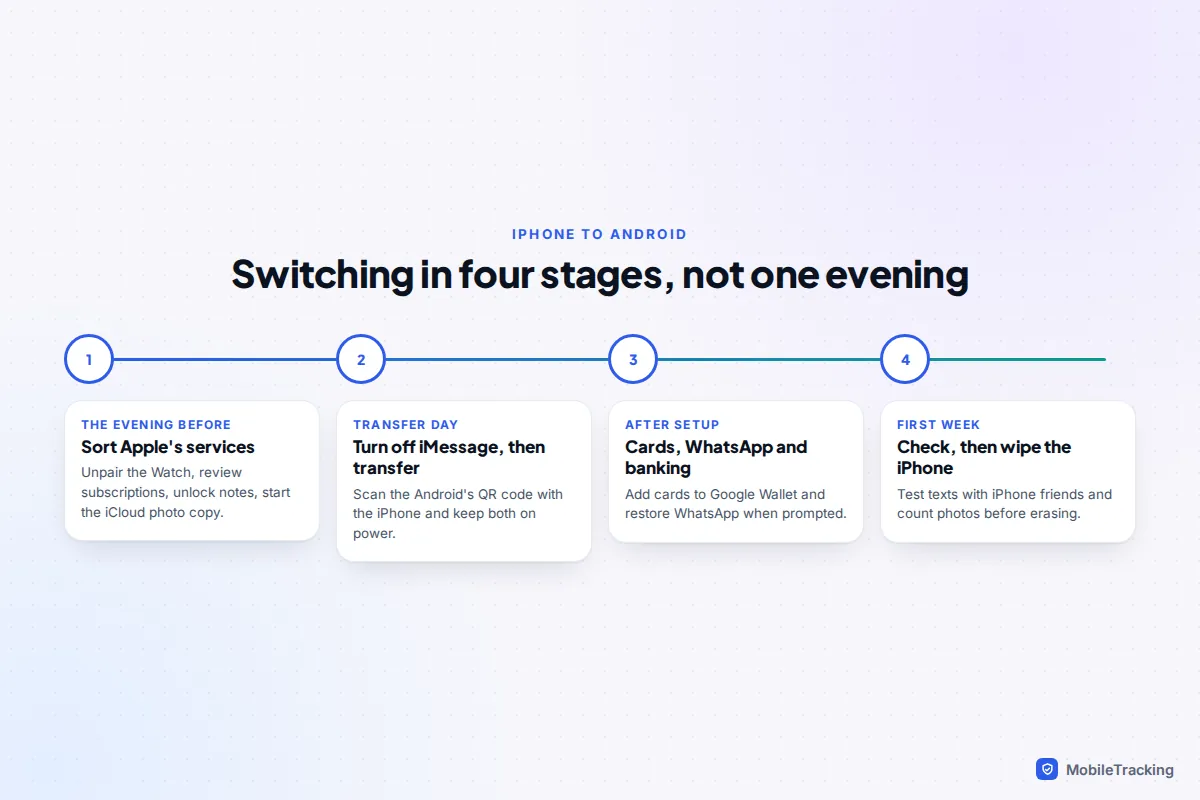
Moving from iPhone to Android takes one evening of preparation, the transfer itself, and a week of tidying up. The data is the easy part: a new Android phone copies your photos, messages, contacts and apps from the iPhone during setup. What trips people up is everything Apple ties to the iPhone: texts from iPhone friends vanishing into iMessage, an Apple Watch that can’t pair with Android, subscriptions that keep billing, and cards that stay in Apple Wallet.
The order that works: sort out Apple’s services on the iPhone first, run the transfer, turn off iMessage, then spend the first week checking. This guide covers the switching jobs beyond the data. For the transfer tools themselves on every route, see our hub on transferring data to a new phone.
What stops working when you leave the iPhone
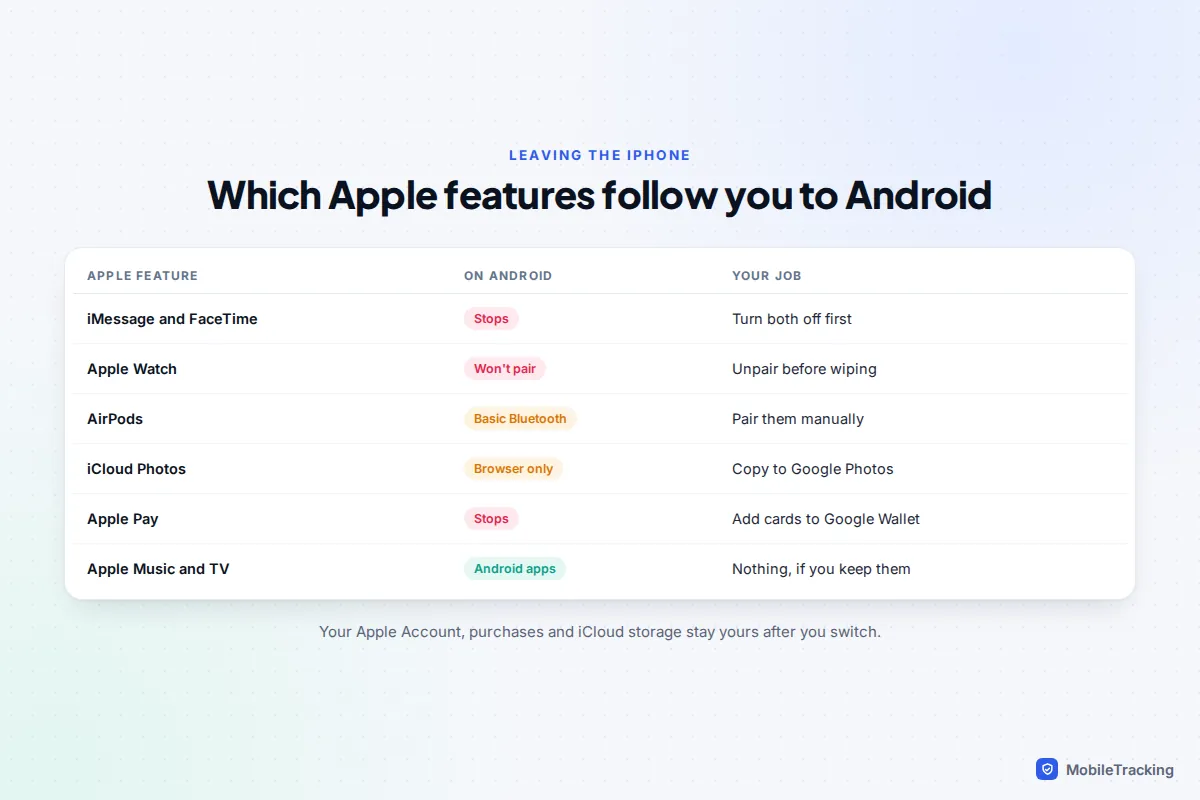
Your Apple Account, purchases and iCloud storage stay yours when you switch. What changes is which Apple features still reach you. This table shows where your jobs are.
| Apple feature | On Android | What to do |
|---|---|---|
| iMessage and FaceTime | Not available | Turn both off; texts arrive as RCS or SMS instead |
| Apple Watch | Won’t pair at all | Unpair it before you wipe the iPhone |
| AirPods | Basic Bluetooth only | Pair them manually; expect fewer features |
| AirTags and Find My | No app | Hand items over, or keep an Apple device |
| iCloud Photos | Browser only | Copy the library to Google Photos |
| Apple Pay | Not available | Add cards to Google Wallet |
| Apple Music and Apple TV | Android apps exist | Keep them if you like them |
| Health data | Doesn’t transfer | Export it from the Health app |
In an Apple household, Family Sharing and location sharing matter most, because your family will stop seeing you in Find My. Both are covered below.
Turn off iMessage and FaceTime, and deregister your number
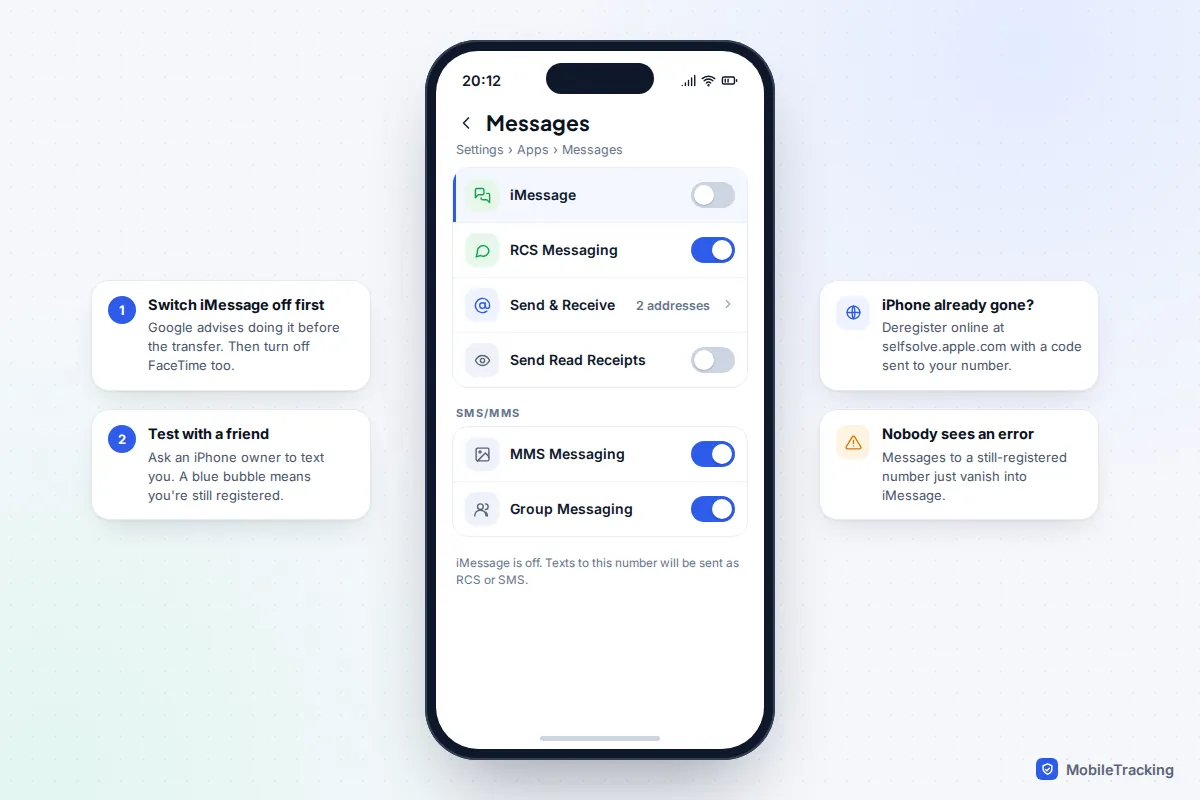
This is the step people regret skipping. While your number is still registered with iMessage, your friends’ iPhones keep sending you blue-bubble messages that never reach the Android phone. Nobody gets an error; the texts just go missing. Google’s own switching guide says to turn iMessage off before you start the transfer.
- On the iPhone, open Settings › Apps › Messages and turn off iMessage. (On iOS 17 and earlier, Messages sits directly in Settings.)
- Go to Settings › Apps › FaceTime and turn off FaceTime.
- Ask an iPhone-owning friend to text you. A green bubble or an RCS chat on their side means it worked; a blue bubble means your number is still registered.
An iPad or Mac signed in to your Apple Account can carry on using iMessage with your email address. That’s fine, but texts to your phone number will now go to the Android phone instead.
If the iPhone is already gone, broken or wiped, Apple has an online deregistration page at selfsolve.apple.com. You enter your phone number, Apple texts a six-digit code to it, and you type the code in to confirm. That means your SIM or eSIM must already be working in the Android phone. Apple explains both routes on its deregister iMessage page.
FaceTime isn’t completely lost: an iPhone owner can send you a FaceTime link to join in Chrome. You can’t start FaceTime calls, though, so agree on WhatsApp or Google Meet for family video calls.
Apple Watch, AirPods and AirTags
Apple Watch: unpair it before you wipe the iPhone
An Apple Watch needs an iPhone to set up, update and sync. There is no Android app for it, so it will not work with your new phone. What you do with it matters because of Activation Lock: a watch that is still locked to your Apple Account is useless to whoever gets it next.
Open the Watch app on the iPhone, tap All Watches, tap the info button next to your watch and choose Unpair Apple Watch. The iPhone backs the watch up, erases it and removes Activation Lock. A cellular watch asks whether to keep or remove its mobile plan; remove it unless a family member is taking the watch and your carrier will move the plan. Then either sell it or pass it to someone in the family who has an iPhone. If you want a smartwatch on Android, you need a Wear OS watch such as a Pixel Watch or Galaxy Watch.
AirPods: they work, with fewer tricks
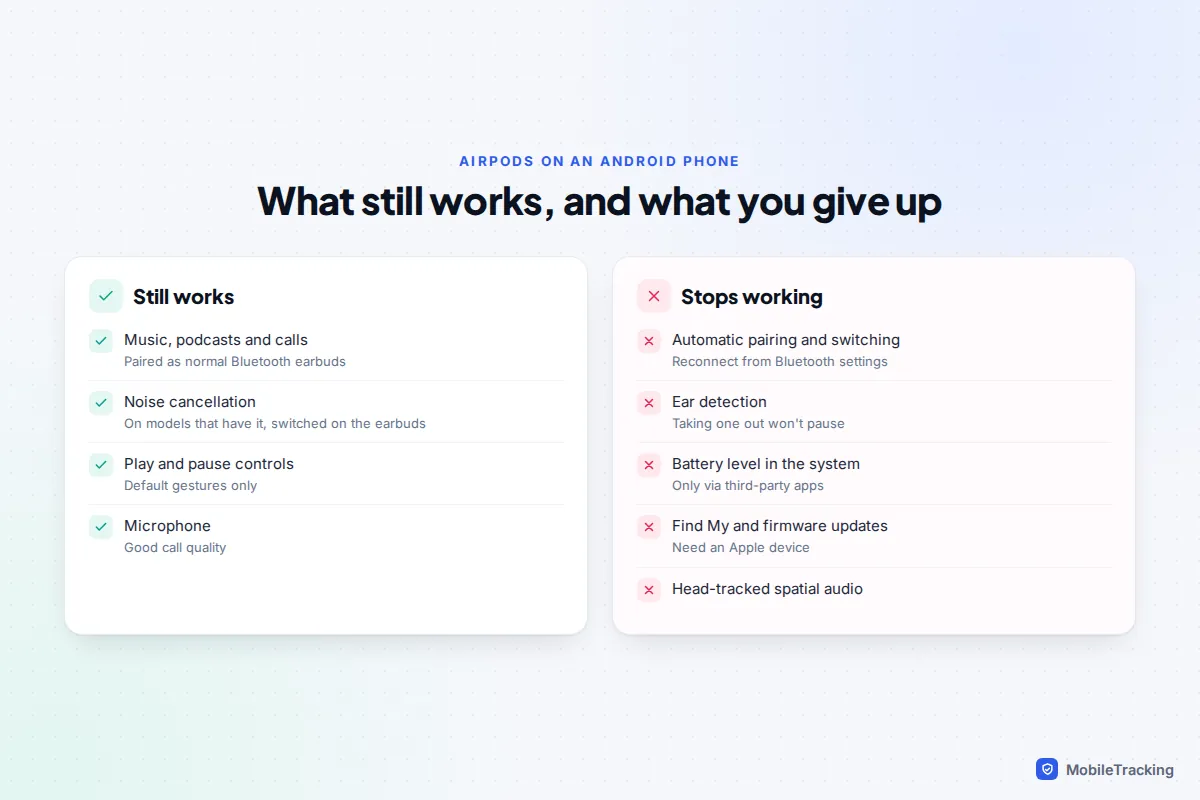
AirPods pair with Android like any Bluetooth earbuds. Open the case, press and hold the button on the back until the light flashes white, then pick them in Settings › Connected devices (Pixel) or Settings › Connections › Bluetooth (Samsung). Playback, calls and, on models that have it, noise cancellation all work. The iPhone-only extras don’t: automatic pairing and switching, ear detection, battery levels in the system, custom controls, head-tracked spatial audio, Find My and firmware updates.
AirTags and other Find My items
AirTags live in Apple’s Find My, which has no Android app. If one is on your keys or a child’s bag, keep an iPad signed in for Find My, or remove the tag from your account so a family member with an iPhone can set it up. Android warns about unknown trackers travelling with you, so a forgotten AirTag may trigger an alert.
Get your iCloud data out
The phone-to-phone transfer only copies what is on the iPhone. Anything that lives only in iCloud needs its own step, and photos are the big one.
Photos and videos
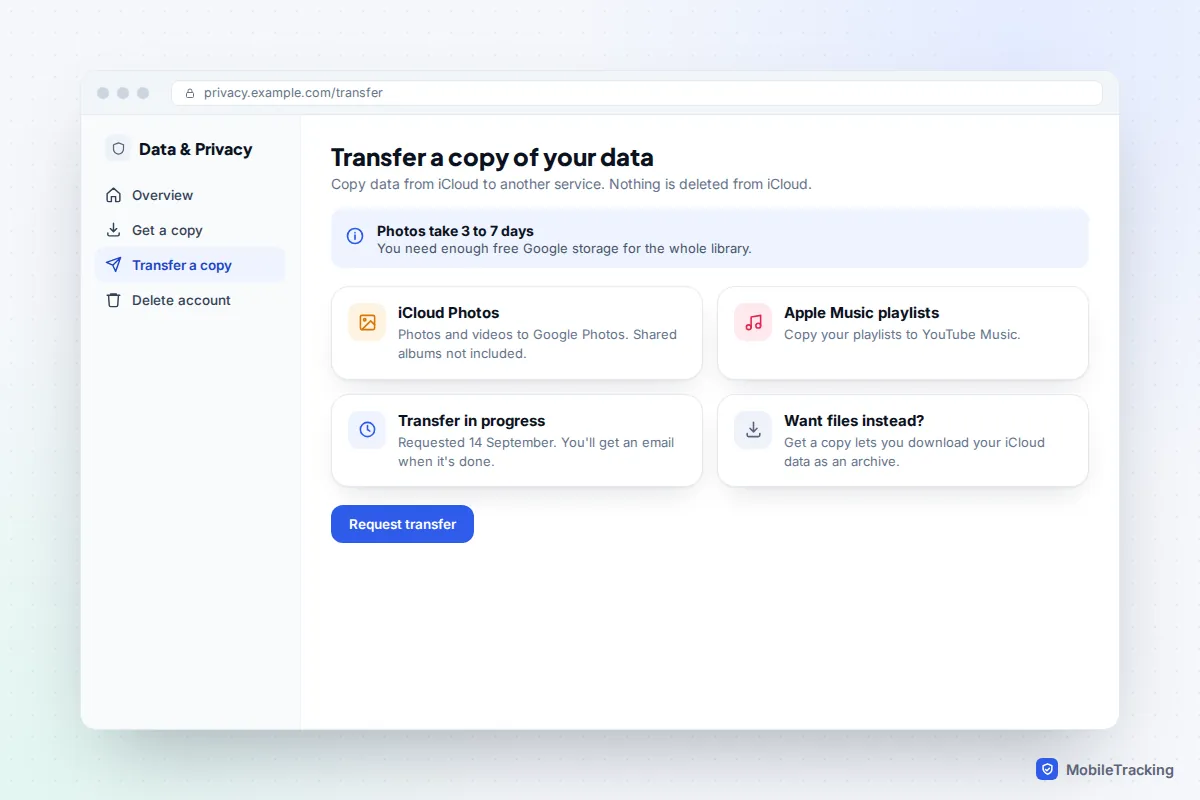
If you use iCloud Photos with Optimise iPhone Storage, the iPhone holds small versions of most pictures and the full library sits in iCloud. Google’s help pages say iCloud photos are not moved by the transfer. Instead, sign in at privacy.apple.com, choose Request to transfer a copy of your data, pick Google Photos and sign in to your Google Account. Google says it takes three to seven days, and your Google storage must have room for the whole library. Shared albums don’t transfer. Our guide to moving photos to a new phone covers the details and how to check every picture arrived.
Contacts, calendars and notes
The transfer copies contacts, calendar events and notes to your Google Account. Two catches. Locked notes are skipped, so open each one, remove its lock and let the transfer take it, or copy the text out. And shared iCloud calendars, such as a family calendar, won’t keep syncing on Android. Ask whoever runs it to share a Google Calendar instead. Notes and Reminders stay readable at icloud.com in your phone’s browser if you need to look something up.
Passwords and passkeys
The upgraded Android 17 transfer moves passwords and passkeys straight into Google Password Manager. On other phones, use the iPhone’s Passwords app: tap the more button (three dots), then Export Data to Another App, which sends passwords and passkeys to a cross-platform manager such as Bitwarden or Dashlane. On a Mac, the Passwords app can export everything to a CSV file that Google Password Manager imports. A CSV is unencrypted, so delete it as soon as the import is done.
Health data and music
Health data never transfers. In the Health app, tap your profile picture and choose Export All Health Data to keep an archive. Apple Music has an Android app, so your library follows you if you keep subscribing. If you’re moving to YouTube Music, Apple’s privacy site can also copy your playlists across.
Subscriptions, Apple Pay and Family Sharing
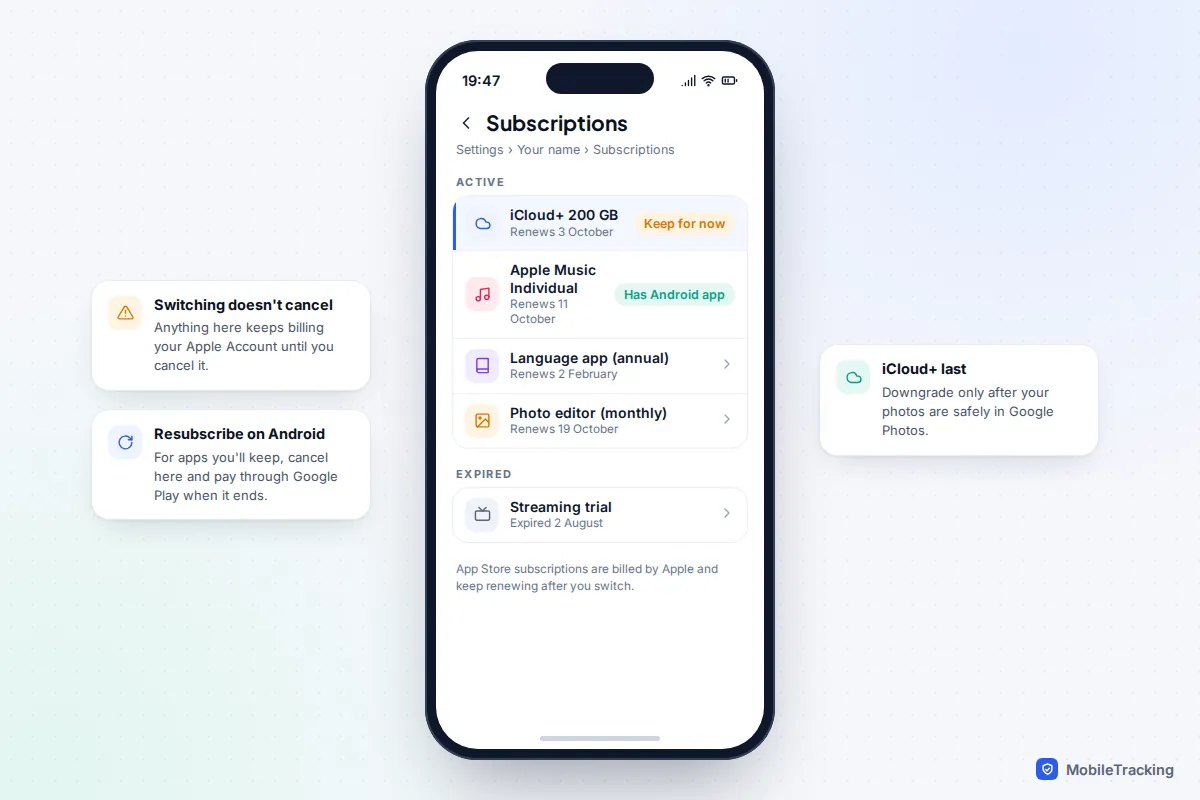
Subscriptions keep billing
App Store subscriptions are billed by Apple, and switching phones doesn’t stop them. Open Settings › [your name] › Subscriptions on the iPhone and go through the list. For apps you’ll keep using, cancel the Apple subscription and resubscribe through Google Play or the service’s website when it runs out. Apple Music and Apple TV can stay, since both have Android apps. Keep iCloud+ until your photos are safely in Google Photos, then downgrade. If you miss something, Apple explains how to cancel an Apple subscription from Android or the web.
Apple Pay cards to Google Wallet
Cards in Apple Wallet don’t move. In Google Wallet, tap Add to Wallet › Payment card and scan each card; most banks verify by text, app or call. Samsung phones also offer Samsung Wallet. Tap to pay needs NFC on and a screen lock set. Erasing the iPhone removes its cards. In the US, move any Apple Cash balance to your bank first; Apple Card holders can still pay and see statements at card.apple.com.
Family Sharing and location
You can stay in your Apple family group from Android: shared purchases, Apple Music Family and iCloud+ storage keep working. What you lose is the parent tools. Screen Time and Ask to Buy approvals need an Apple device, so if you’re the organiser or a parent in the group, make sure another adult is set as a parent or guardian, or keep an iPad for approvals. Your family will also stop seeing you in Find My. Our guide to location sharing between Android and iPhone covers the options that work across both.
The transfer itself
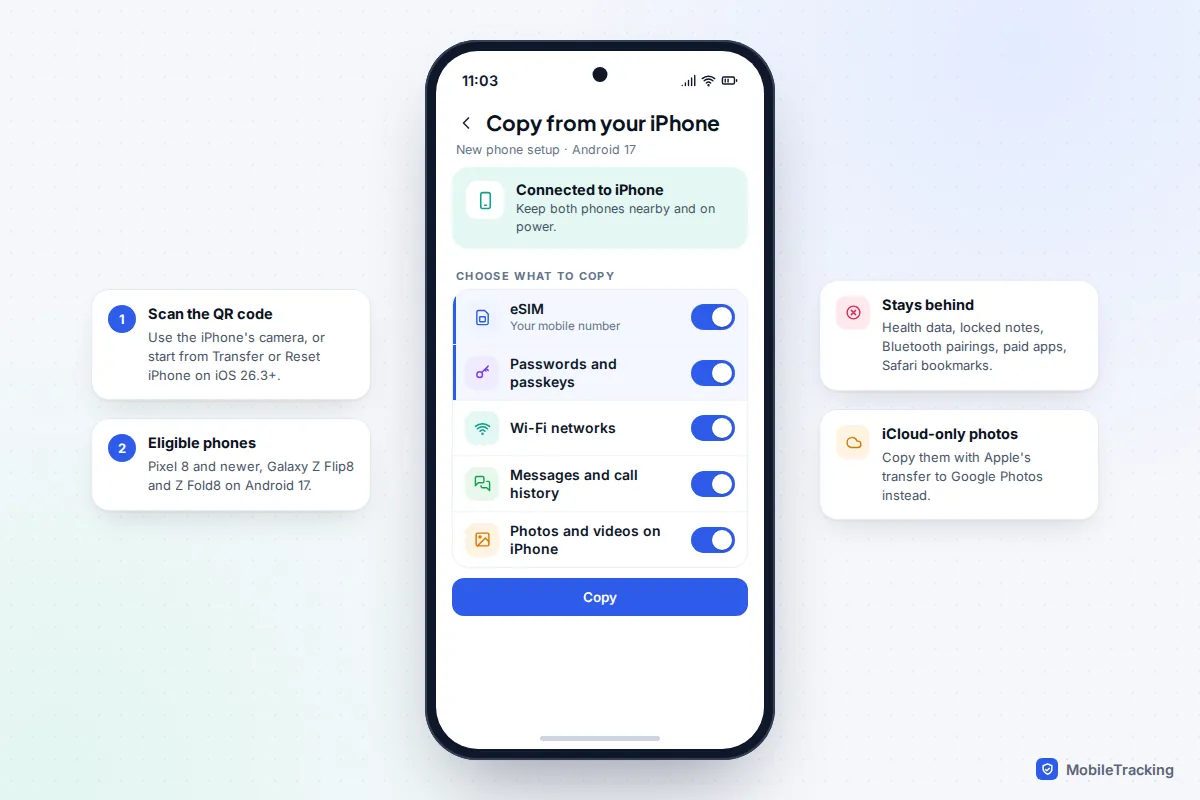
Google lists the Pixel 8 and newer and the Galaxy Z Flip8 and Z Fold8, on Android 17, as eligible for its upgraded transfer, with more phones promised. The iPhone needs iOS 26.3 or later, which added Settings › General › Transfer or Reset iPhone › Transfer to Android; you scan the Android’s setup QR code with the iPhone. Besides photos, messages, contacts, calendars, apps and call history, this route moves your eSIM, passwords, passkeys and Wi-Fi networks.
Other phones use Google’s Android Switch app on the iPhone (iOS 15 or later) or a cable; Samsung phones can use Smart Switch. Google’s iPhone to Android page says it usually takes under 30 minutes, sometimes a few hours, and won’t move iCloud-only photos, paid apps, Safari bookmarks or Health data. Apple adds Bluetooth pairings and locked notes. WhatsApp chats arrive after setup; WhatsApp’s call history doesn’t.
If your carrier can’t move the eSIM this way, ask for a new eSIM or QR code; our guide to using an eSIM explains your options.
Group chats and texting iPhone friends
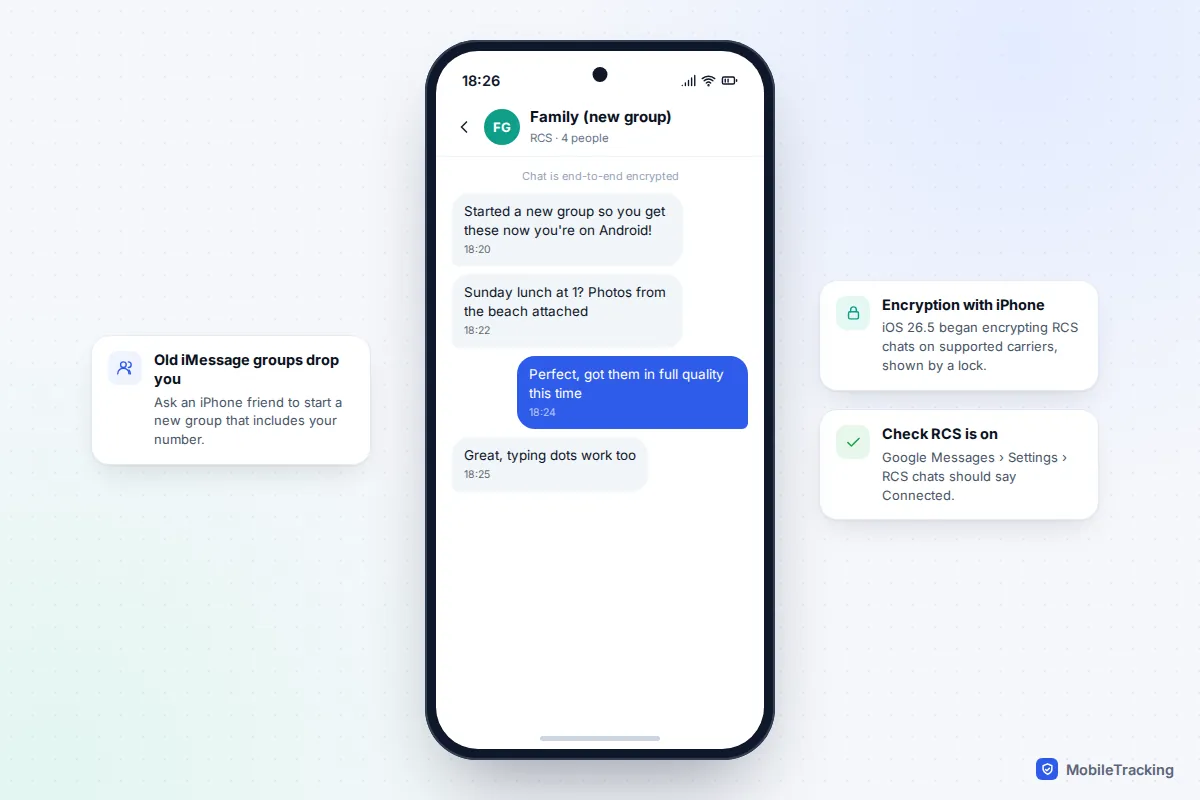
iPhones on iOS 18 and later support RCS, so as long as both carriers do too, you get typing indicators, read receipts, full-quality photos, reactions and proper group chats across both kinds of phone. In May 2026, Apple began rolling out end-to-end encryption for RCS chats with Android in iOS 26.5, launched as a beta on supported carriers. Encrypted chats show a lock icon, and Android users need the latest Google Messages.
Old iMessage groups are the snag. An iMessage group can’t include an Android number, so your iPhone friends will keep messaging a group you’ve silently dropped out of. Ask one of them to start a new group that includes your number. In Google Messages, check Settings › RCS chats says Connected; your iPhone friends can find their setting under Settings › Apps › Messages › RCS Messaging.
Your first week on Android: a checklist
Here’s how it goes in practice. Maya traded her iPhone in at the shop on a Saturday and everything looked fine, until her brother mentioned on Tuesday that she’d ignored three messages. She’d never turned iMessage off. Five minutes on Apple’s deregistration page, with the code arriving on her new phone, fixed it. Nearly every problem in the first week is like this: small, and easy once you know where to look.
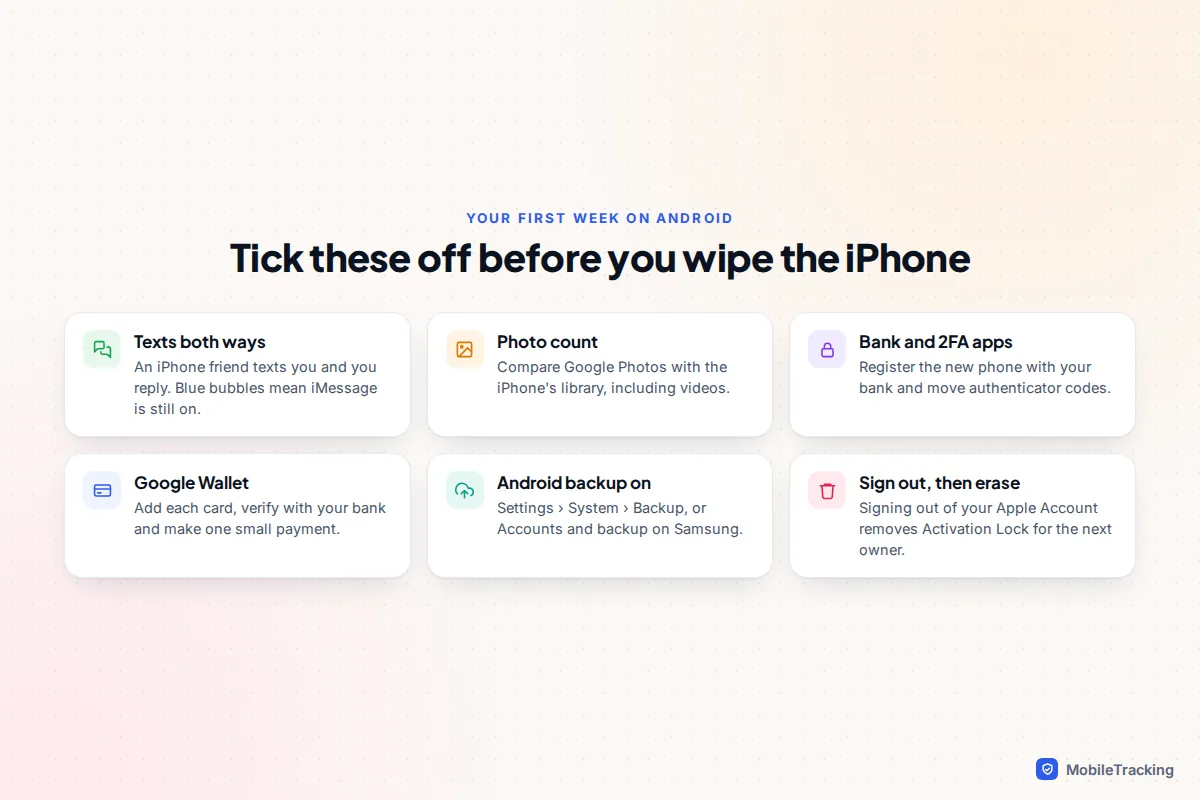
- Test texts both ways with an iPhone friend. Missing messages mean iMessage is still registered somewhere.
- Check photos: compare the count in Google Photos with the one on the iPhone.
- Sign in to your bank and authenticator apps. Most banks make you register the new phone, and some post a code.
- Add payment cards to Google Wallet and make one small tap payment.
- Turn on Android backup under Settings › System › Backup (Samsung: Accounts and backup).
- Set up location sharing with family, with their agreement.
- Review subscriptions and cancel anything still billed through Apple that you don’t need.
When everything checks out, sign out of your Apple Account on the iPhone and erase it, which removes Activation Lock. Our guide to wiping a phone before selling it walks through it.
Frequently asked questions
Do I lose my Apple Account if I switch to Android?
No. Your Apple Account, purchases and iCloud storage stay yours. You can reach iCloud Photos, Notes and Reminders at icloud.com in a phone browser, and use Apple Music and Apple TV through their Android apps. Keep your phone number listed as a trusted number, as that is where sign-in codes will go.
Will my iMessage history come across?
Yes. Google lists text messages among what the transfer copies, and the upgraded Android 17 route specifically includes iMessage history, which lands in Google Messages. Before you wipe the iPhone, open a few old conversations on the Android phone, including ones with photos, and save anything precious to your photo library on the iPhone first if it’s missing.
Do apps I paid for on the iPhone transfer?
No. Paid apps and in-app purchases belong to the App Store. Free apps that exist on Google Play are reinstalled. For paid ones, check whether the developer offers a cross-platform account; otherwise you’d buy the Android version again.
Can I switch back to iPhone later?
Yes. A new iPhone can copy from Android during setup. Keep your Apple Account and your purchases come back; anything bought on Google Play stays with Google.
Should I switch my child’s phone to Android too?
Not necessarily, but think about who manages it. Apple’s Screen Time needs an Apple device on the parent’s side, so an Android parent can’t adjust a child’s iPhone limits. Google Family Link works the other way round: the parent app runs on iPhone or Android, but the child’s phone must be Android. A mixed family is fine as long as the parent in charge has the right device.
This guide is general information, not legal or financial advice. Read our editorial policy.