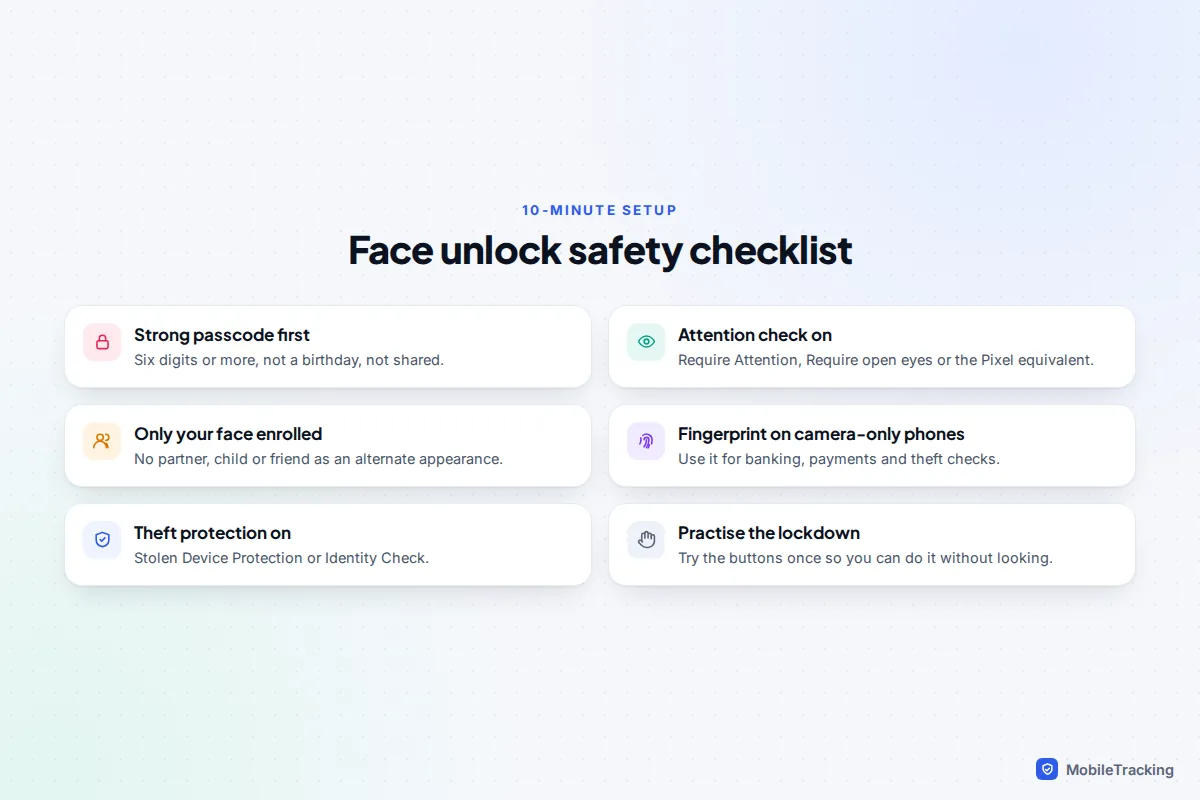
Face unlock is safe when three things are true: your phone uses a secure type of face recognition, it only unlocks when your eyes are open and looking at the screen, and a strong passcode sits behind it. On iPhone, that means setting up Face ID in Settings › Face ID & Passcode and leaving Require Attention for Face ID on. On Android, check whether your phone’s face unlock is the secure kind. Pixel 8 and later models qualify. Most other Android phones, including Samsung Galaxy models, use camera-only face recognition, so rely on your fingerprint for banking, payments and anything important.
Two more habits close the gaps. Learn the button press that switches biometrics off in a couple of seconds, and turn on Stolen Device Protection (iPhone) or Theft protection (Android). This guide walks through each step, plus the situations where face unlock is the wrong choice: twins, look-alike children and anyone who might pressure you to unlock.
Start with a strong passcode, because it controls everything
Face unlock is a shortcut to your passcode, not a replacement for it. Anyone who knows your passcode can switch off Face ID, add their own face, or change your settings. A thief who has watched you type 123456 on the bus doesn’t need your face at all.
Your phone also falls back to the passcode regularly. According to Apple’s Face ID security overview, an iPhone asks for the passcode after it restarts, after five failed face matches, if it hasn’t been unlocked for 48 hours, and after you use the emergency button shortcut described below. Android phones behave similarly after a restart and after repeated failures.
Use at least six digits, avoid birthdays and repeated patterns, and don’t share it with friends or a partner. If you want something stronger, choose Passcode Options when changing your passcode on iPhone and pick a custom alphanumeric code. Our guide to setting up a strong phone passcode covers choosing one you’ll actually remember.
Set up Face ID on iPhone the safe way
Face ID uses an infrared dot projector and camera to build a 3D map of your face, which is why a photo or video of you won’t unlock it. Apple puts the chance of a random stranger unlocking your iPhone with Face ID at less than 1 in 1,000,000.
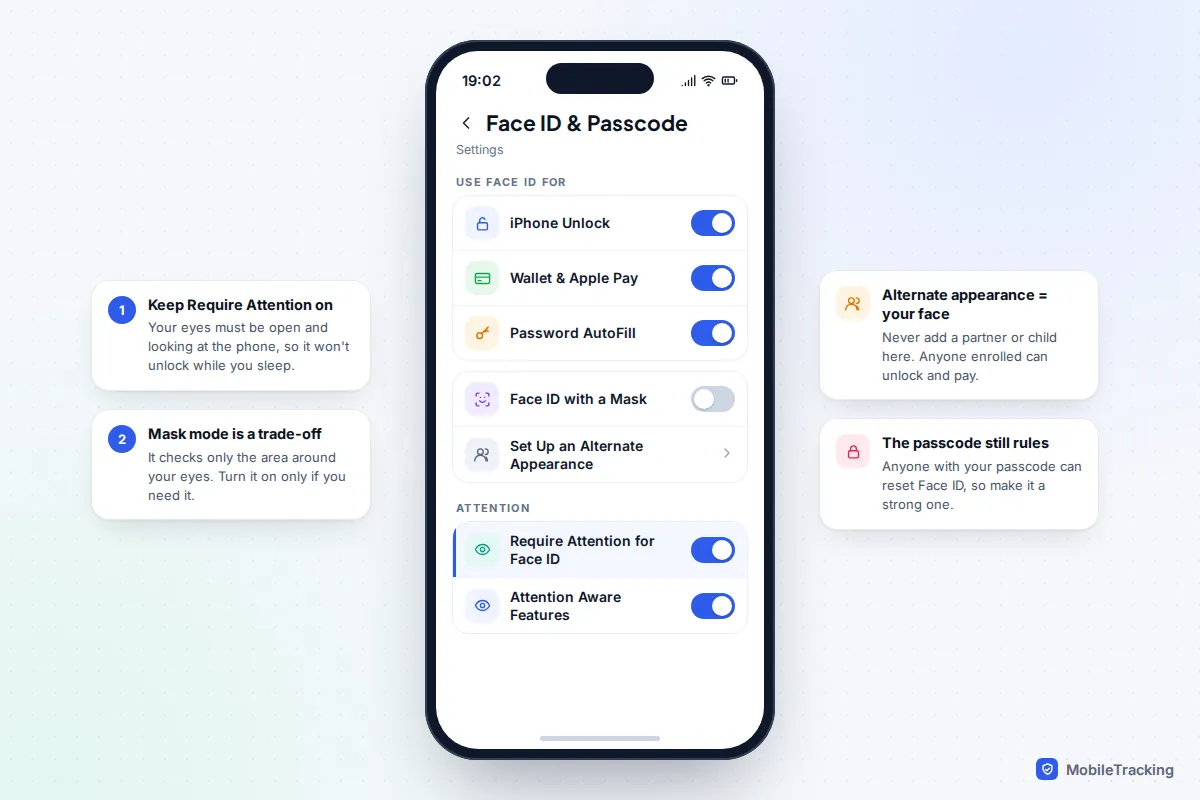
- Open Settings › Face ID & Passcode and enter your passcode.
- Tap Set Up Face ID, hold the iPhone in portrait about an arm’s length away, and move your head slowly in a circle. You’ll do two scans.
- Under Use Face ID For, choose what it can approve: iPhone Unlock, Wallet & Apple Pay, Password AutoFill, the App Store and other apps.
- Scroll down and make sure Require Attention for Face ID is on. This checks that your eyes are open and looking at the phone, so it won’t unlock while you’re asleep or looking away.
- Leave Attention Aware Features on too. It dims the screen and lowers alert volume when you look away, and it doesn’t reduce security.
Require Attention is on by default, but some people turn it off to unlock faster, and it’s switched off automatically if you set up VoiceOver. Unless you use VoiceOver or have a condition that makes looking directly at the screen difficult, keep it on. It’s the setting that stops a sleeping parent being unlocked by a curious child.
Masks, glasses and alternate appearances
Face ID with a Mask
On iPhone 12 and later, Face ID with a Mask lets Face ID work while your nose and mouth are covered. It does this by looking only at the area around your eyes, which gives it less to compare. Apple itself says Face ID is most accurate with full-face recognition only. Turn it on if you wear a mask daily, for work or health reasons, and leave it off otherwise. Face ID already works with most glasses; the Add Glasses option you’ll see belongs to mask mode.
The alternate appearance slot
Set Up an Alternate Appearance exists for people whose look changes a lot, such as someone who wears heavy work equipment. Some couples use it to add a partner’s face instead. Don’t. Anyone enrolled there is treated exactly like you: they can unlock the phone, pay with Apple Pay, fill in your saved passwords and pass Stolen Device Protection checks. There’s no list of whose faces are enrolled, so you can’t later check who has access.
If you’re not sure what’s been added, tap Reset Face ID. It deletes both appearances, and you can set up your own face again in under a minute. This is worth doing after a relationship ends, when you buy a second-hand iPhone set up by someone else, or if you ever handed your unlocked phone over for “just a second” during setup.
Android: secure face unlock versus camera face unlock
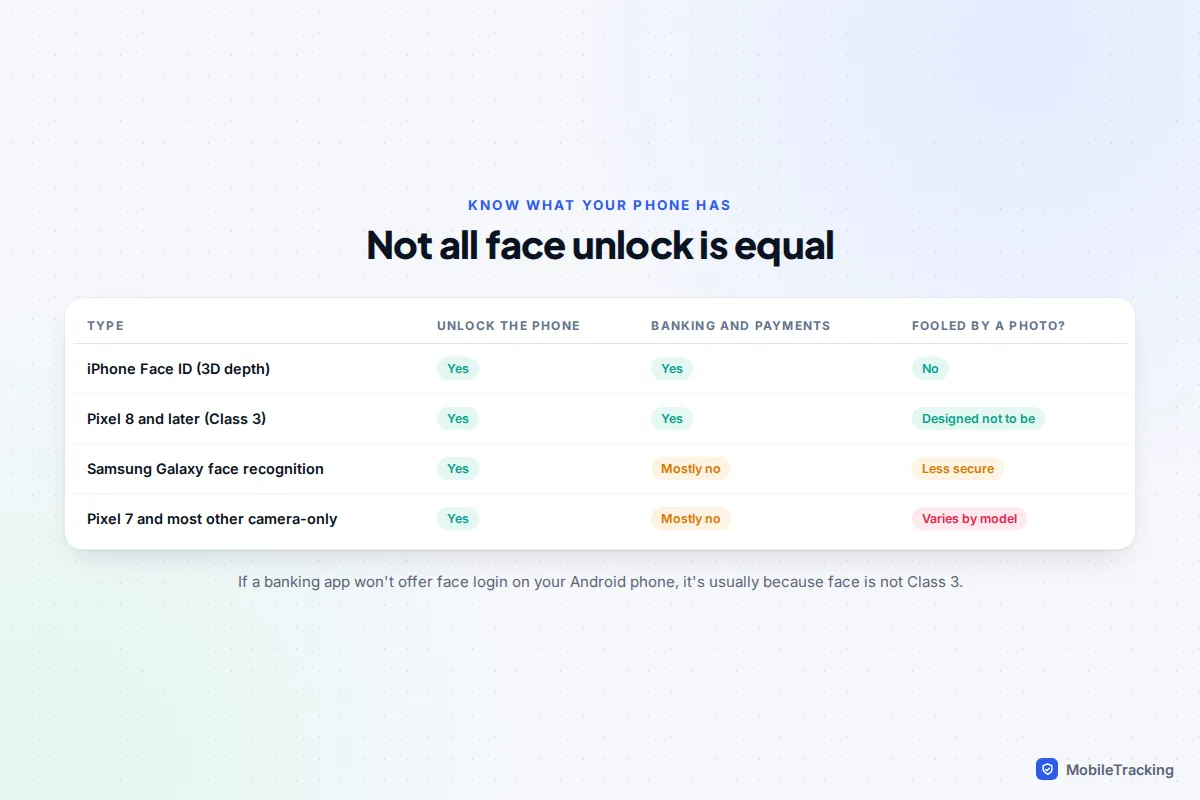
Android sorts biometrics into classes. Class 3 (strong) biometrics are trusted by the system for sensitive tasks such as banking apps, Google Wallet and app passkeys. Class 2 (weak) biometrics can unlock the phone, but most banking and payment apps won’t accept them. Fingerprint sensors on most mainstream phones are Class 3. Face unlock varies.
Pixel 8 and later
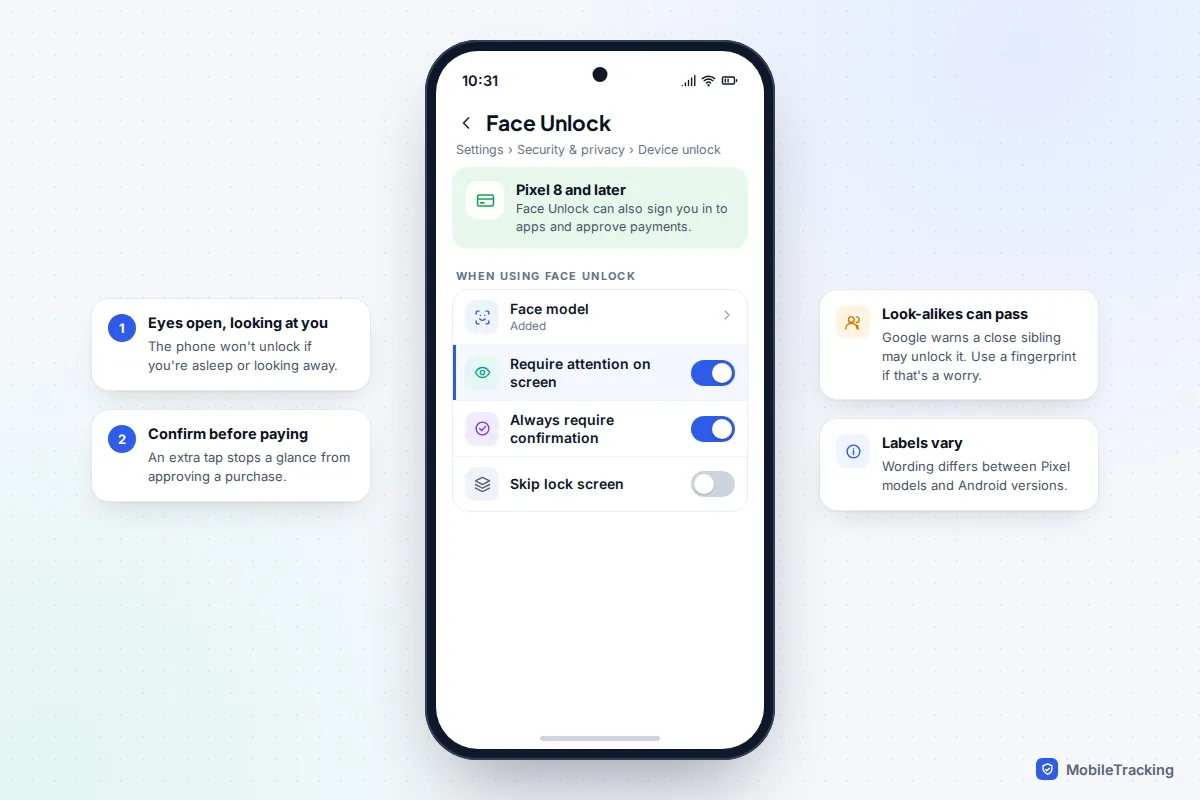
Google’s Pixel 8 series brought Class 3 face unlock using a single front camera and machine learning rather than a 3D sensor. Google says that on Pixel 8 and later, including the Fold models, you can use your face to sign in to apps and approve purchases. The Pixel 7 also has face unlock, but only for unlocking the phone.
Set it up in Settings › Security & privacy › Device unlock › Face (on some versions, Face & Fingerprint Unlock). Under When using Face Unlock, turn on the option that requires your attention on the screen and Always require confirmation, so a glance can’t approve a payment by itself. Google warns that someone who looks a lot like you, such as an identical sibling, may be able to unlock it, and that face unlock may be less secure than a strong PIN. It also works less well in poor light.
Samsung Galaxy
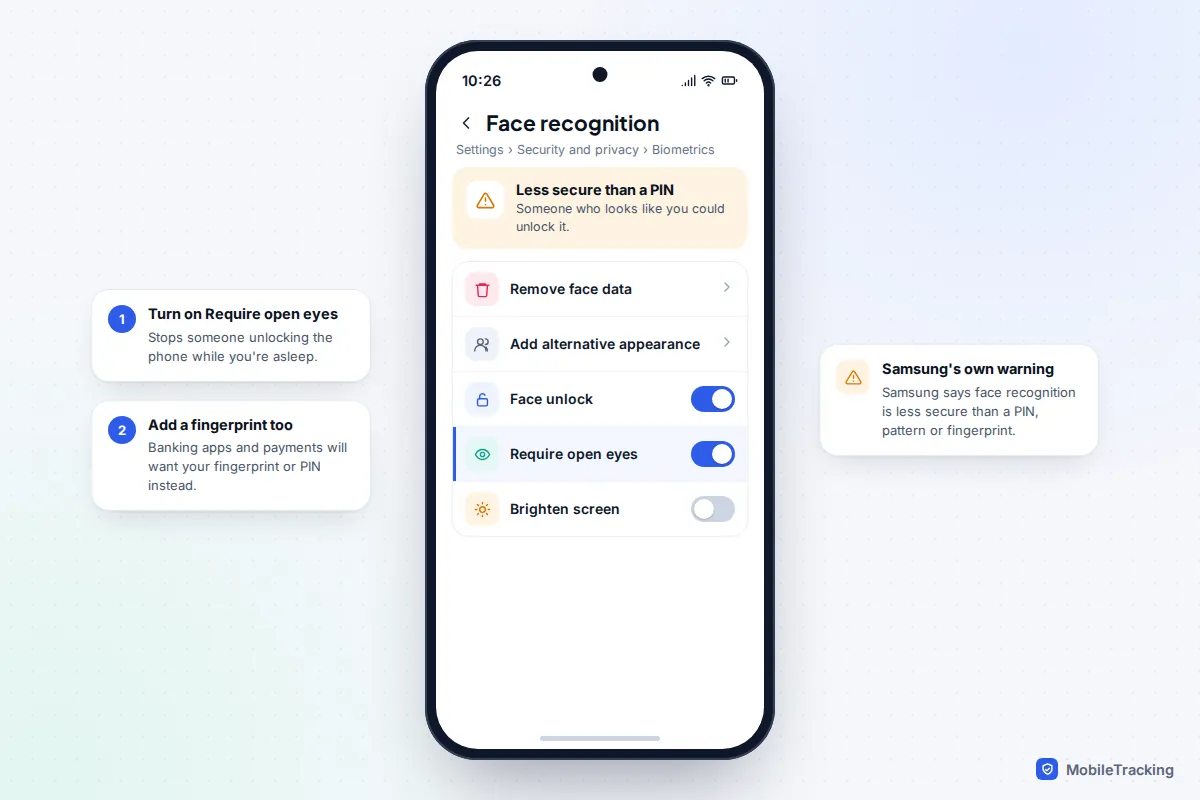
Samsung’s face recognition uses the front camera without a depth sensor and is not Class 3. Samsung’s own help page says it is less secure than a pattern, PIN or fingerprint and that someone who looks similar to you, such as a twin, could unlock it. Treat it as a convenience for unlocking only, and register a fingerprint for Samsung Wallet and banking apps.
- Go to Settings › Security and privacy › Biometrics › Face recognition.
- Register your face without glasses, a hat or a mask for the best result.
- Turn on Require open eyes.
- Skip Add alternative appearance unless it’s your own changed look.
Other Android brands vary. If the setup screen warns that face unlock is less secure than a PIN, assume it’s camera-only and follow the same rules.
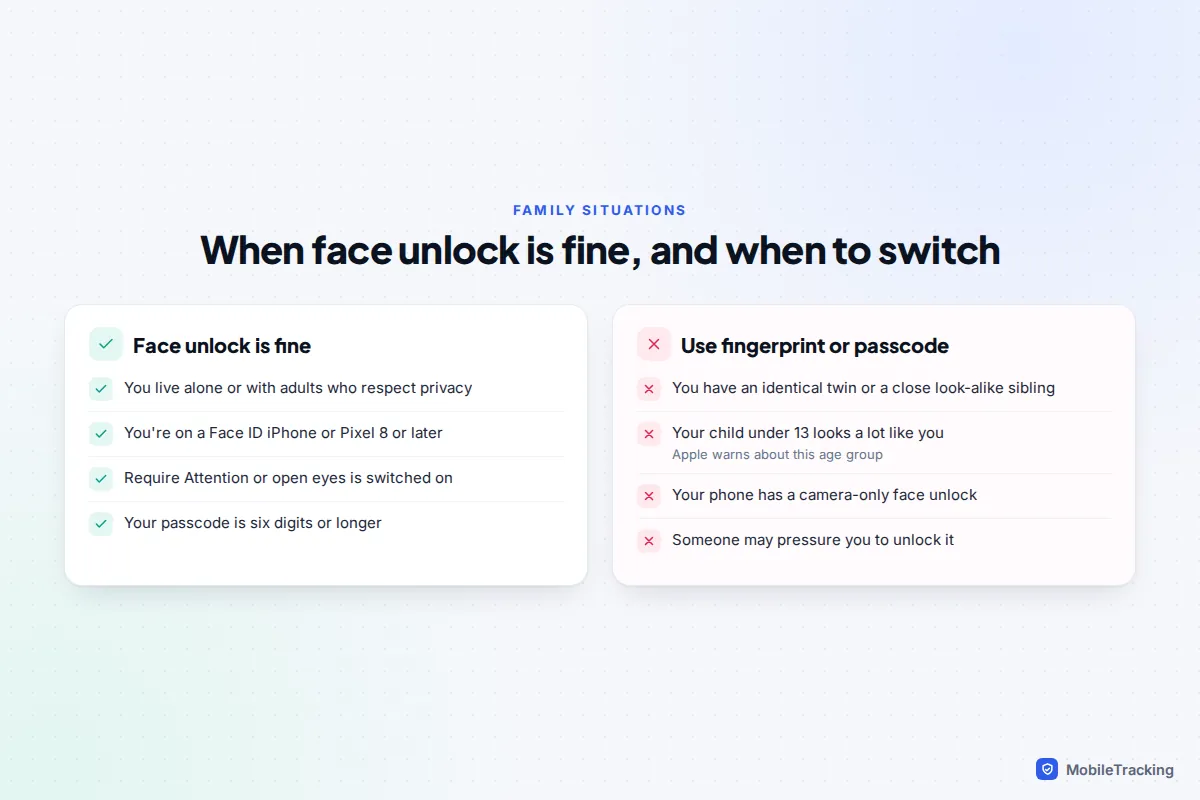
Twins, siblings and children
Apple says the chance of a false match is higher for twins and siblings who look like you, and among children under 13, whose distinctive facial features may not have fully developed. Google gives a similar warning for Pixel. None of this means face unlock is broken; it means it wasn’t designed to tell very similar faces apart.
Here’s a common scenario. Sam, aged nine, picks up his mum’s iPhone while she’s cooking, looks at it, and it opens. He isn’t using her face; his own face was close enough. If this happens in your house, you have three options: re-scan your face in better light (Reset Face ID, then set it up again), switch to a fingerprint on Android, or turn off iPhone Unlock under Use Face ID For and use your passcode for unlocking while keeping Face ID for Apple Pay.
Identical twins should use a passcode, or a fingerprint on Android, for anything they want to keep private. For children with their own phones, a strong passcode they don’t share with friends matters more than which biometric they use; our guide to password safety for kids has age-appropriate advice.
How to switch off face unlock in seconds
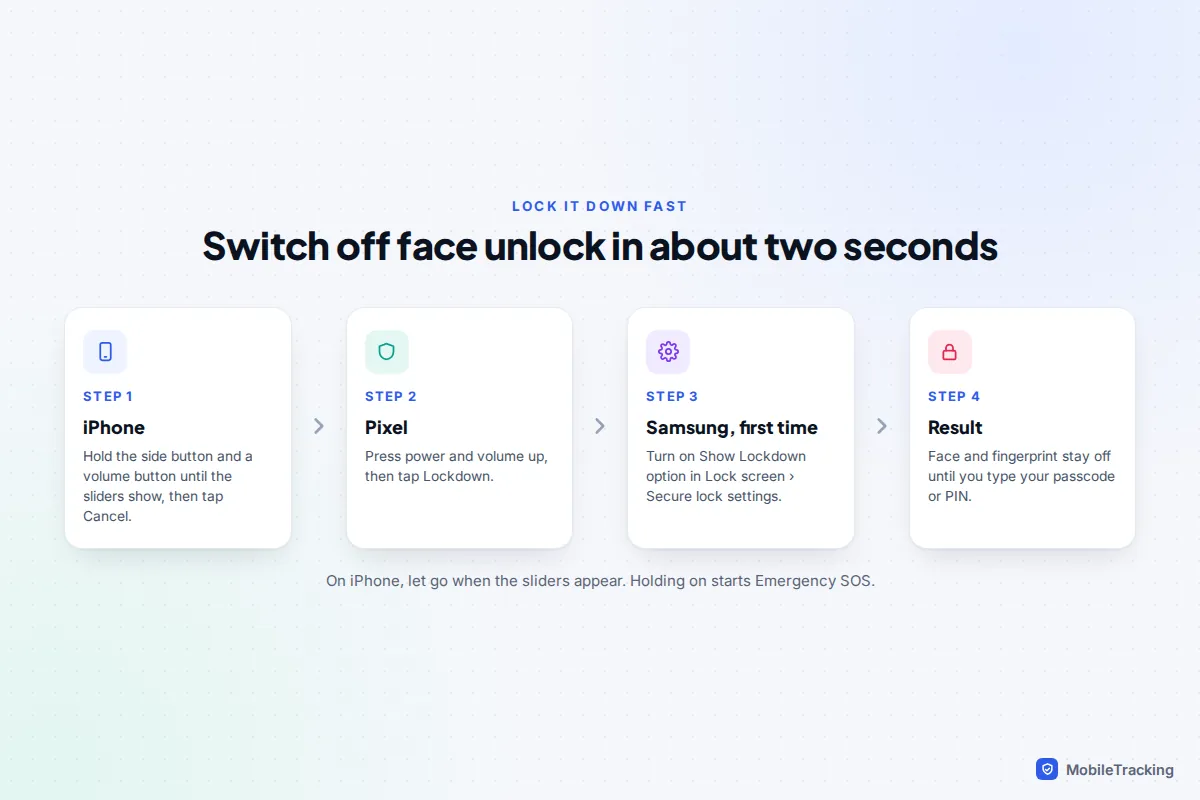
Sometimes you want your phone to demand the passcode right now: a tense situation, a crowded place where someone could hold the phone up to your face, or a border or police stop. Both platforms have a quick way to do it.
- iPhone: press and hold the side button and either volume button for about two seconds, until the power-off and Emergency SOS sliders appear, then tap Cancel. Face ID is now off until you enter your passcode. Let go as soon as the sliders appear, because keeping the buttons held starts an Emergency SOS countdown and can call emergency services.
- Pixel: press power and volume up together to open the power menu, then tap Lockdown. It’s available by default.
- Samsung: first turn on Show Lockdown option in Settings › Lock screen and AOD › Secure lock settings. After that, Lockdown appears in the power menu.
Android’s Lockdown also hides notifications on the lock screen. Both platforms return to normal once you unlock with your passcode or PIN. Try it once today so you can do it without looking.
A note on the law
This is general information, not legal advice. In some countries, the authorities can compel you to unlock a phone with your face or fingerprint more easily than they can force you to reveal a passcode, because a passcode is something you know rather than something you are. In the United States, federal appeals courts have reached different conclusions on compelled biometric unlocking, and rules elsewhere vary widely. If this matters to you, use Lockdown or the button shortcut before an encounter, and check the law where you live or travel.
Turn on Stolen Device Protection or Theft protection
Face unlock becomes a security feature, not just a convenience, once you pair it with theft protection. These features ask for your face or fingerprint, not just your passcode, for sensitive changes when you’re away from home, which stops a thief who has shoulder-surfed your passcode.
iPhone: Stolen Device Protection
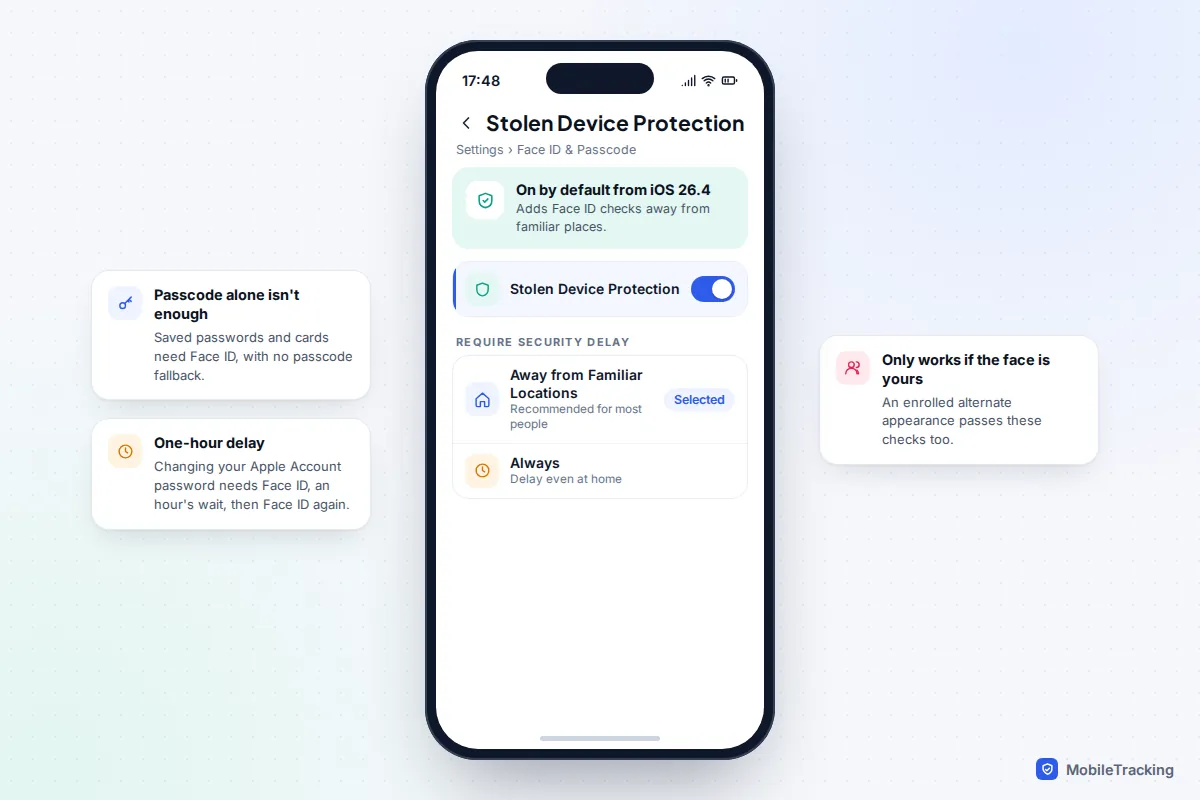
Go to Settings › Face ID & Passcode › Stolen Device Protection. iOS 26.4 switched it on by default, so check rather than assume, particularly if you turned it off earlier. With it on and your iPhone away from familiar places, using saved passwords and cards needs Face ID with no passcode fallback, and changes such as your Apple Account password need Face ID, a one-hour security delay, then Face ID again. Choose Always under Require Security Delay if you want the delay even at home. Apple explains the details in About Stolen Device Protection.
This is where the alternate appearance warning matters most. Stolen Device Protection trusts any enrolled face, so it can’t protect you from someone whose face you’ve added.
Android: Theft protection and Identity Check
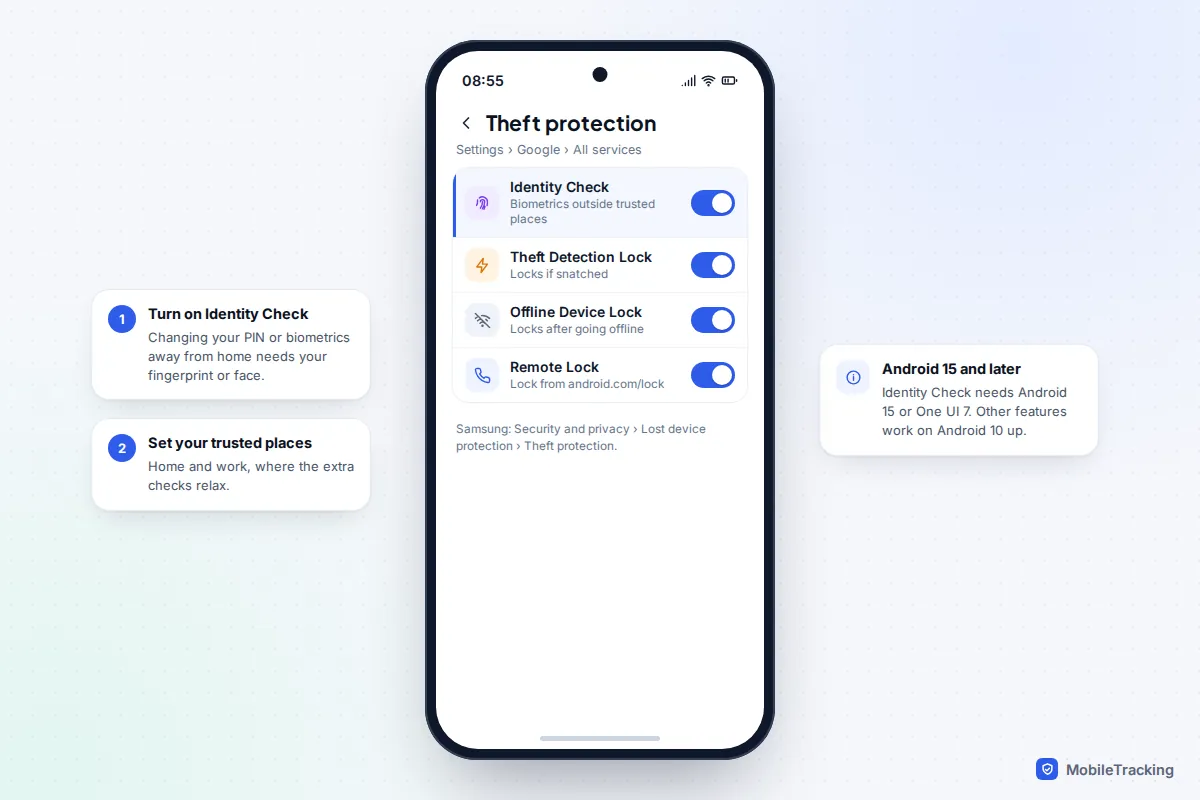
On a Pixel, open Settings › Google › All services › Theft protection. On a Samsung, it’s Settings › Security and privacy › Lost device protection › Theft protection. Turn on Identity Check (Android 15 and later, or One UI 7), which requires biometrics outside your trusted places for changes such as your PIN or biometrics and for passkeys. Also turn on Theft Detection Lock, Offline Device Lock and Remote Lock. Because Identity Check relies on biometrics, register a fingerprint on phones with camera-only face unlock. If your phone does go missing, our guide to finding a stolen phone and protecting your data covers the next steps.
Frequently asked questions
Can someone unlock my phone with a photo of me?
Not an iPhone with Face ID, which reads depth, and Pixel 8 and later are designed to resist it. Older and cheaper camera-only systems vary, which is why Samsung and others describe their face recognition as less secure than a PIN.
Can my child unlock my phone while I’m asleep?
Not if Require Attention for Face ID (iPhone), Require open eyes (Samsung) or the Pixel attention option is on, because your eyes must be open and looking at the screen.
Is face unlock safer than a fingerprint?
On iPhone, Face ID is very strong. On most Android phones, the fingerprint sensor is more secure than face unlock. Pixel 8 and later are the main exception, where both count as strong biometrics.
Why won’t my banking app let me use face unlock on Android?
Most banking apps accept only Class 3 biometrics. If your phone’s face unlock is Class 2, as on Samsung Galaxy phones, the app will ask for your fingerprint or PIN instead. That’s a security decision, not a fault.
Should I turn off face unlock completely?
For most people, no. A strong passcode plus attention-checking face unlock is safer in practice than a short passcode you type in public all day. Switch to fingerprint or passcode if you have a look-alike at home or a camera-only phone you use for banking.